You've finished the clip. It plays on your phone, the captions look fine in the editor, and the file ends in .mp4. Then the upload looks soft, the audio disappears, or the vertical crop cuts off the subject. You export again, change a preset, and hope.
Stop guessing at export settings. Learning how to edit a MP4 video starts with understanding the file you've got, then building a project around the delivery you need.
Why MP4 Editing Starts Before You Touch the Timeline
MP4 is a container, not a quality setting. The extension doesn't tell you which video codec is inside, whether your editor supports the audio, or how much compression the footage has already endured. Those distinctions explain why a file can play on a phone yet refuse to import cleanly elsewhere, as outlined in this video format and compatibility guide.
Treat the file extension as a label on a box. Before you start cutting, inspect what's inside using your editor's media-properties panel or a media-inspection tool. Don't assume the export preset that worked on your last project fits this source.
Inspect the source before choosing settings
Write down the properties that affect your decisions:
- Video codec: Identify the compression format, not just the MP4 extension.
- Audio stream: Confirm that an audio track exists and that the editor recognizes it.
- Resolution and aspect ratio: Check the actual frame shape before planning a vertical crop.
- Frame rate: Record the source rate so you can make a deliberate timeline choice.
- Bitrate: Look for heavily compressed footage before adding detailed graphics or planning another encode.
These checks aren't busywork. They separate an import problem from an editing problem, and a damaged source from a bad export.
If a clip opens without sound, investigate the audio stream before rebuilding your soundtrack. If playback stutters, compare the source properties with the project settings before removing transitions. If faces already look smeared in the original, don't expect a larger export file to reconstruct the missing detail.
Practical rule: Diagnose the source before changing the edit. A different preset isn't a diagnosis.
Also separate source specifications from delivery specifications. Your camera footage may be horizontal while the finished post needs a portrait composition. That's a framing decision you make intentionally, not a reason to stretch the footage until it fills the screen.
My recommendation is simple: don't commit to an editor or timeline until you know what the source contains and where the finished video will go.
Choosing the Right Editor for Short-Form MP4 Work
Choose an editor by the job, not by the longest feature list. A creator assembling narrated stories needs a different workflow from an agency revising client interviews.
Treat editor categories as a shortlist, not a promise of features. Subtitle controls, supported imports, voiceover recording, export options, and pricing must all be checked in the specific application you're considering.
MP4 editor types compared for short-form creators
| Editor type | Best for | Strengths | Watch out for |
|---|---|---|---|
| Free desktop editor | Creators who want hands-on timeline control | Look for detailed trimming, separate audio tracks, and reusable projects | Test your actual source codec and check which export controls are available |
| Browser-based editor | Straightforward edits and review workflows | Prioritize accessible caption editing and simple assembly | Check upload handling, media privacy, project limits, and final export restrictions |
| Mobile app | Creators shooting and finishing on a phone | Look for convenient reframing and phone-screen previews | Confirm precise audio controls, caption placement, and project backup options |
| Automated short-form generator | Repeated narrative or faceless-video formats | Evaluate script-to-scene assembly, narration, and subtitle generation | Inspect whether individual scenes, pronunciation, and captions can be revised |
Test the awkward parts before committing. Import a representative source clip, trim it, add a caption, layer narration, and export a sample. Then reopen that sample outside the editor.
That small test tells you more than a feature comparison. You're checking whether the tool handles your footage and your finishing requirements, not whether its homepage uses the right words.
Match the tool to your revision workload
For solo creators, I'd prioritize caption correction, quick reframing, and repeatable export settings. For client work, I'd prioritize organized media, separate audio tracks, version management, and the ability to reopen a project without reconstructing it.
If you're comparing options, LesFM's resource can help you find editing apps for your workflow. Use it to build a shortlist, then put each candidate through the same sample project rather than choosing on reputation alone.
For a creator-focused starting point, consult this guide to what YouTubers use to edit videos. Don't copy someone else's setup unless their editing workload resembles yours.
Skip paying for complexity you won't use. Equally, don't force a demanding revision job into a tool that won't let you adjust the parts your client keeps changing.
Setting Up Your Project So Nothing Breaks Later
Build a project you can reopen, revise, and understand after the original editing session. A tidy timeline won't help if the media is scattered across downloads, messaging attachments, and temporary folders.
Keep the original recording separate from your working project. Non-linear editing lets you rearrange and revise clips without destructively cutting the source recording, the central distinction behind the workflow described in this history of editing software.
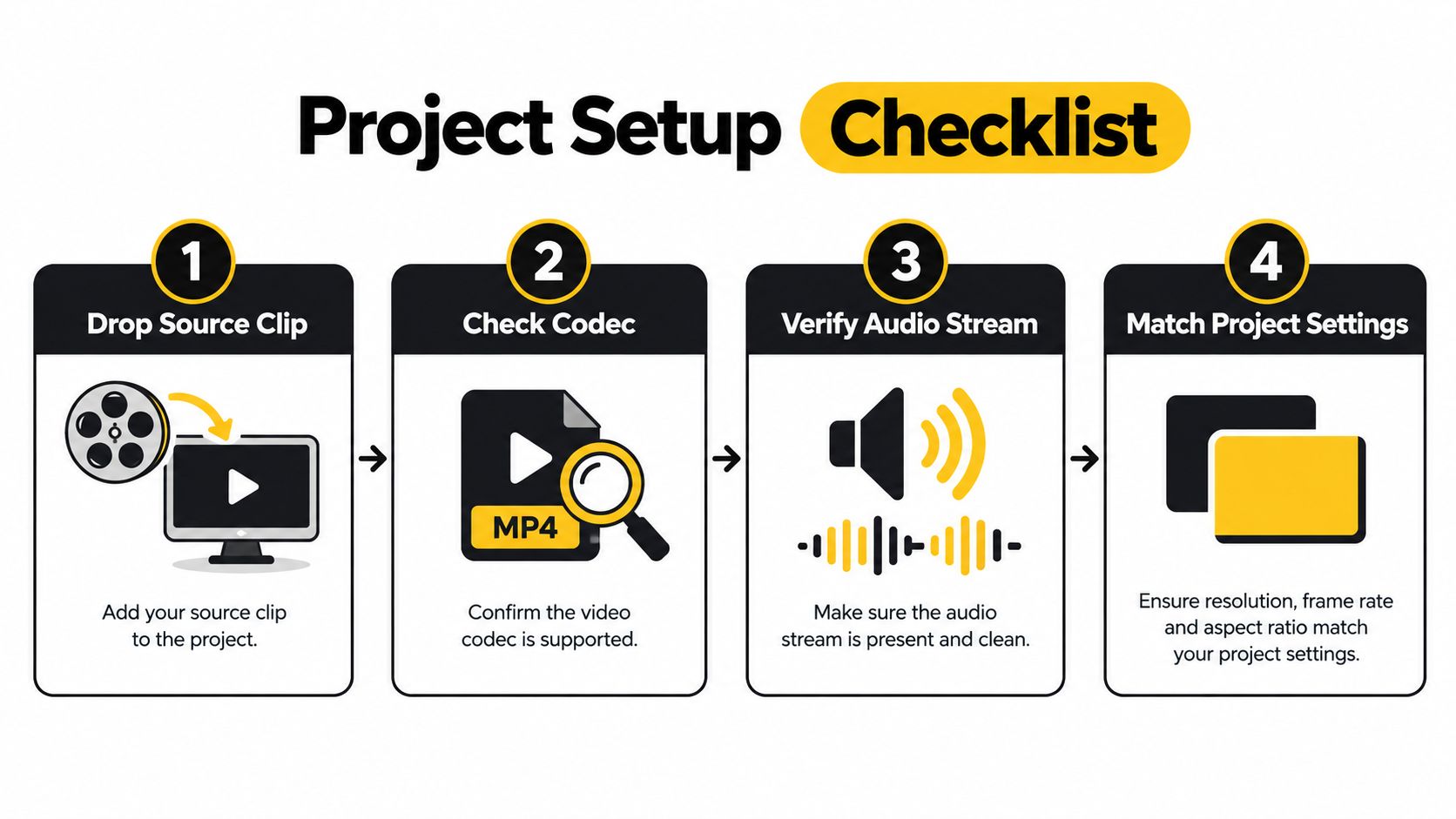
Use this setup sequence before building the edit.
Build a stable working folder
Create clearly named folders for source media, audio, graphics, project files, and exports. Copy the original camera files into the source folder, then keep a backup elsewhere.
Rename working files deliberately before importing them. Use names that identify the subject, take, or scene, rather than a string you'll struggle to recognize during revisions. Once the project references those files, avoid casually moving or renaming them.
- Open the source: Watch it in a separate player and listen through the relevant recording.
- Confirm the inspection notes: Use the codec, audio, frame-rate, and dimension details you already collected.
- Create the sequence: Match the source for a straightforward edit, or deliberately choose the required portrait composition.
- Save the project: Give the project a useful name and save a backup before substantial changes.
Separate framing from technical setup
When adapting footage shot horizontally to portrait, inspect the whole shot after repositioning it. A subject who starts in the center may move outside your crop later.
Don't stretch the image to solve that problem. Reframe the shot, choose another angle, or redesign the layout.
Save meaningful project versions before major structural changes. A version labeled by its actual revision is more useful than a collection of files all claiming to be final.
The point isn't elaborate administration. It's keeping creative decisions reversible and making the next revision predictable.
Trim, Cut, and Rebuild the Story in Your MP4
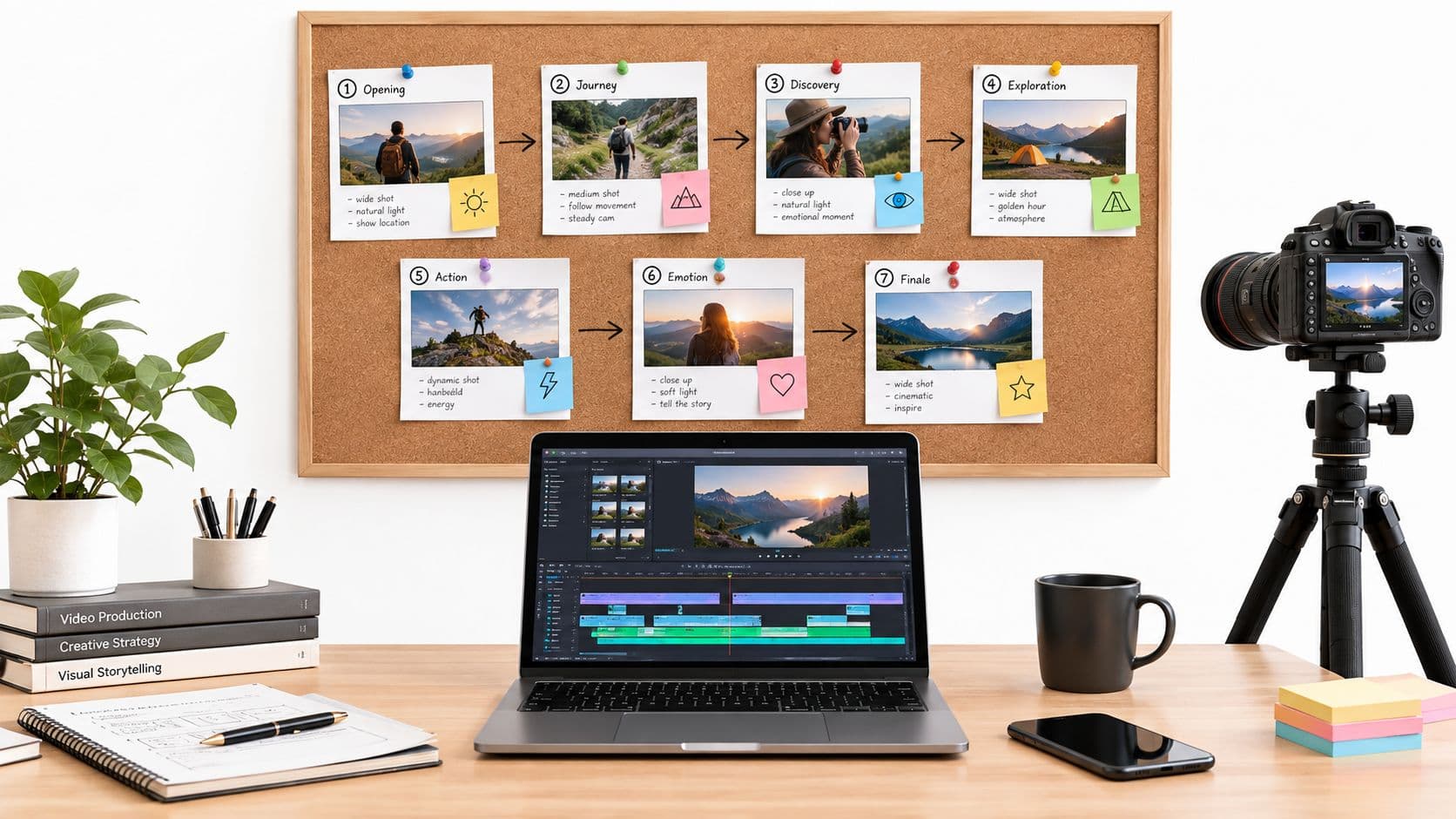
Start with the strongest useful moment, not necessarily the beginning of the recording. For a lesson, that might be the mistake you're about to fix. For a story, it might be the detail that makes the viewer need an explanation.
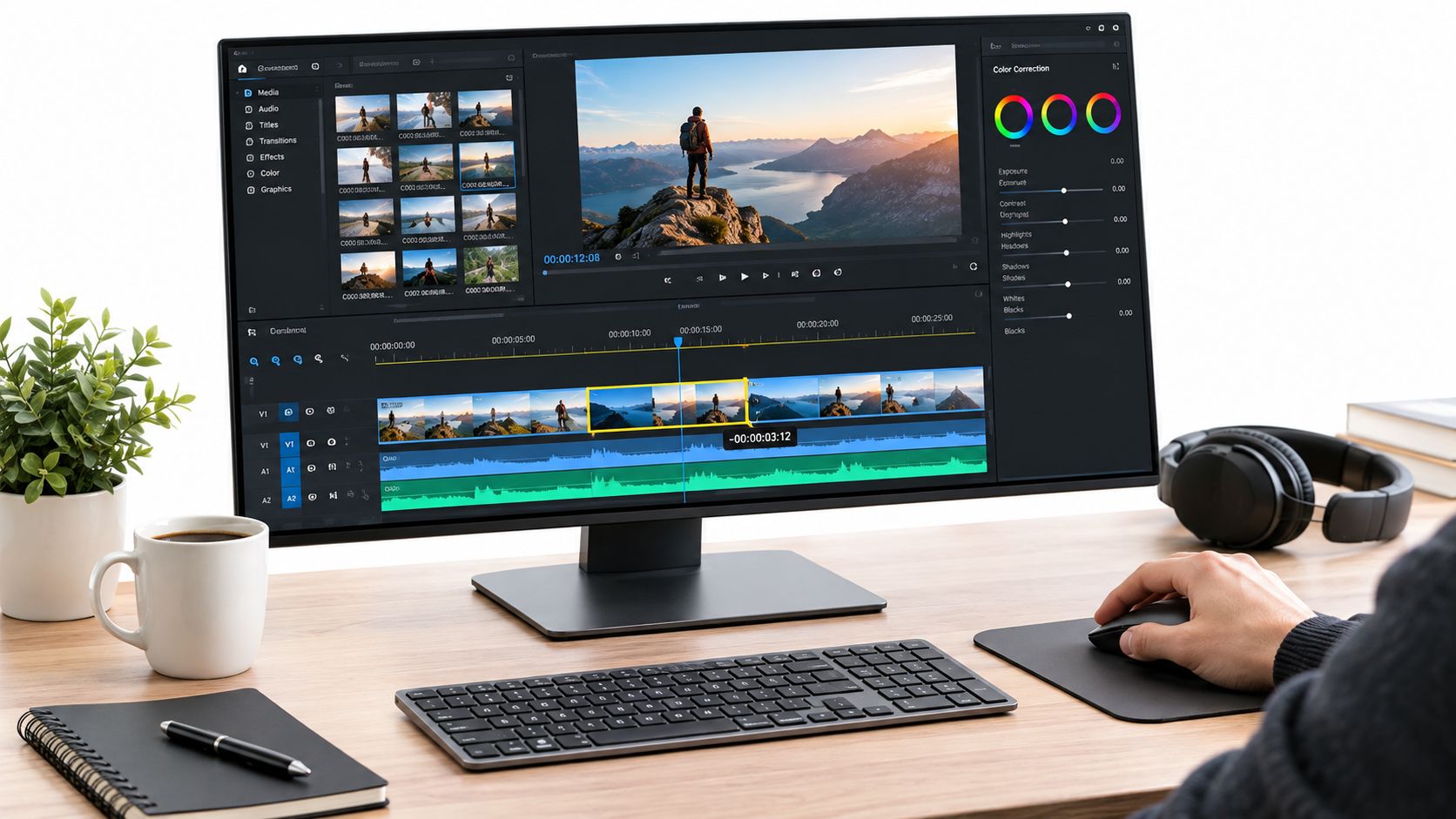
Keep the timeline readable while you build that sequence.
Make the structural cut first
Scrub through the recording and mark the lines or actions that carry the idea. Place those moments in order before adding music, transitions, or animated text.
Trim the beginning and end of each clip by dragging its edges. To remove something inside a clip, split before and after the unwanted passage, delete that passage, then close the gap.
Remove repeated explanations, abandoned sentences, and pauses that add nothing. Keep breaths and reactions when they make the delivery feel human.
Cut on meaning, not on a stopwatch. A jump cut is useful when it removes a distraction or advances the thought. It isn't automatically better because it happens sooner.
- For demonstrations: Let viewers see the action that proves your point before cutting away.
- For spoken hooks: Remove the wind-up if the claim makes sense without it.
- For story reveals: Leave enough room for the important detail to register.
- For visual changes: Prefer a clean cut unless a transition communicates something specific.
Don't decorate a sequence you haven't finished cutting. Fix the story while changes are still easy.
Add sound and text without burying the point
Keep voiceover on a separate track from the source audio. Lower or mute the source only where it competes with narration, rather than discarding useful sound throughout the clip.
Bring music in underneath the voice, then use volume adjustments or ducking to reduce it during speech. Listen to the result, especially sentence endings, instead of deciding from the waveform alone.
For interview-derived content, the Podmuse video podcast guide is a useful companion when planning the recording and editing workflow together.
Use this video as a visual companion while practicing the timeline controls.

Add on-screen text where it clarifies the action or emphasizes a takeaway. Leave detailed caption checking for a dedicated finishing pass instead of correcting subtitles while you're still moving whole scenes.
Finally, watch the sequence without touching the controls. If you feel compelled to explain why a cut works, revise the cut. The finished video has to make sense without the editor standing beside it.
Export Settings That Survive TikTok, Reels, and Shorts
Export from the project, not from yesterday's export. Keep each destination version connected to the original edit so you can change framing, text, or audio without repeatedly compressing a delivery file.
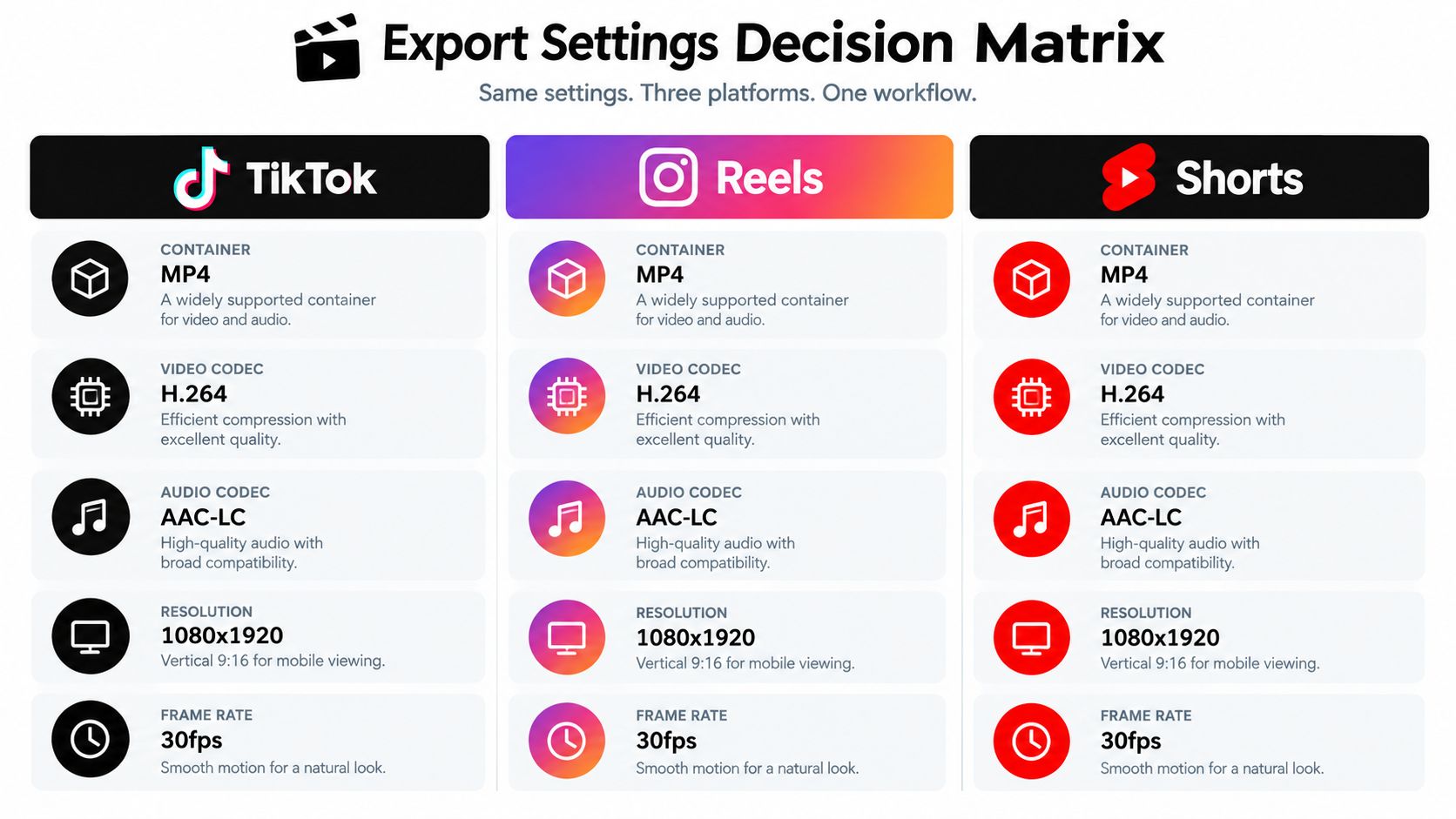
Use the matrix below as a conservative working recommendation, not a claim that every platform publishes identical requirements. Check the destination's current upload guidance before delivery.
A practical delivery matrix
| Destination | Container and streams | Frame shape | Frame rate | Bitrate decision |
|---|---|---|---|---|
| TikTok | MP4 with H.264 video and AAC-LC audio | Portrait for a full-screen vertical edit | Preserve the recorded rate | Use a resolution-appropriate target and inspect the result |
| Instagram Reels | MP4 with H.264 video and AAC-LC audio | Portrait, with destination-specific framing | Preserve the recorded rate | Treat the export as a delivery copy, not a replacement master |
| YouTube Shorts | MP4 with H.264 video and AAC-LC audio | Vertical composition where required | Preserve the recorded rate | Apply the relevant YouTube target below |
For a documented encoding baseline, YouTube's recommended upload settings specify progressive scanning, H.264 video, AAC-LC audio, and the recorded frame rate; its SDR targets for 1080p are 8 Mbps at standard frame rates and 12 Mbps at 48–60 fps.
That's a useful reference, not evidence of identical TikTok or Instagram requirements. For destination-specific context, consult this guide to choosing a format for YouTube.
The comparison graphic summarizes a common preset. Treat its fixed frame-rate value as an example, not an instruction to convert every source.
Choose compression deliberately
The container doesn't determine file size by itself. Duration, image dimensions, frame rate, audio, codec, and bitrate all contribute; the relationship between codec choice and compression efficiency is examined in this comparative video compression study.
Don't slash bitrate just because the file feels large. Inspect motion, faces, gradients, and text in the exported result. Those are useful places to look for blockiness, banding, and disappearing detail.
For a broader troubleshooting reference, keep DigiDevice's creator video quality guide alongside your export checklist. Use references to identify the problem, not as a reason to apply every enhancement available.
Delivery discipline: Make platform versions from the project or a high-quality master. Don't build a chain of compressed exports.
Keep an edit-friendly intermediate or high-quality master for future versions. Make the final delivery encode from that source, and name each output by destination and revision.
If a platform needs different framing or text placement, render that version directly. Don't download a published copy, modify it, and treat it as your new source.
Captions, Safe Areas, and Mobile Legibility
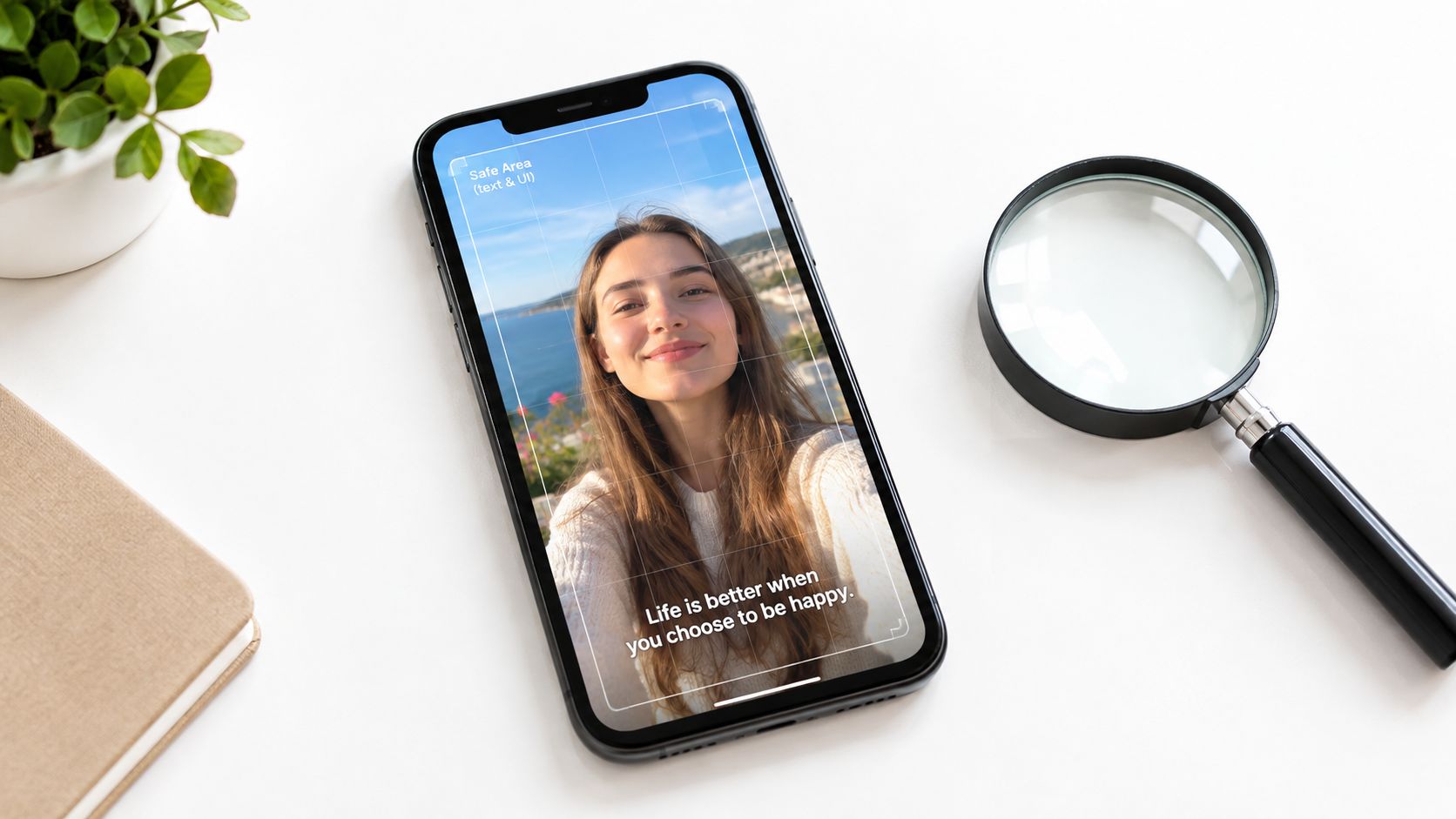
Consider a hypothetical micro-lesson about a technical process. The narration is correct, but the generated captions replace a specialist term with a familiar word. Then the platform's controls cover the instruction viewers need to follow.
The footage can look excellent and still communicate the wrong thing. Treat caption accuracy and mobile composition as editorial responsibilities, not cosmetic finishing touches.
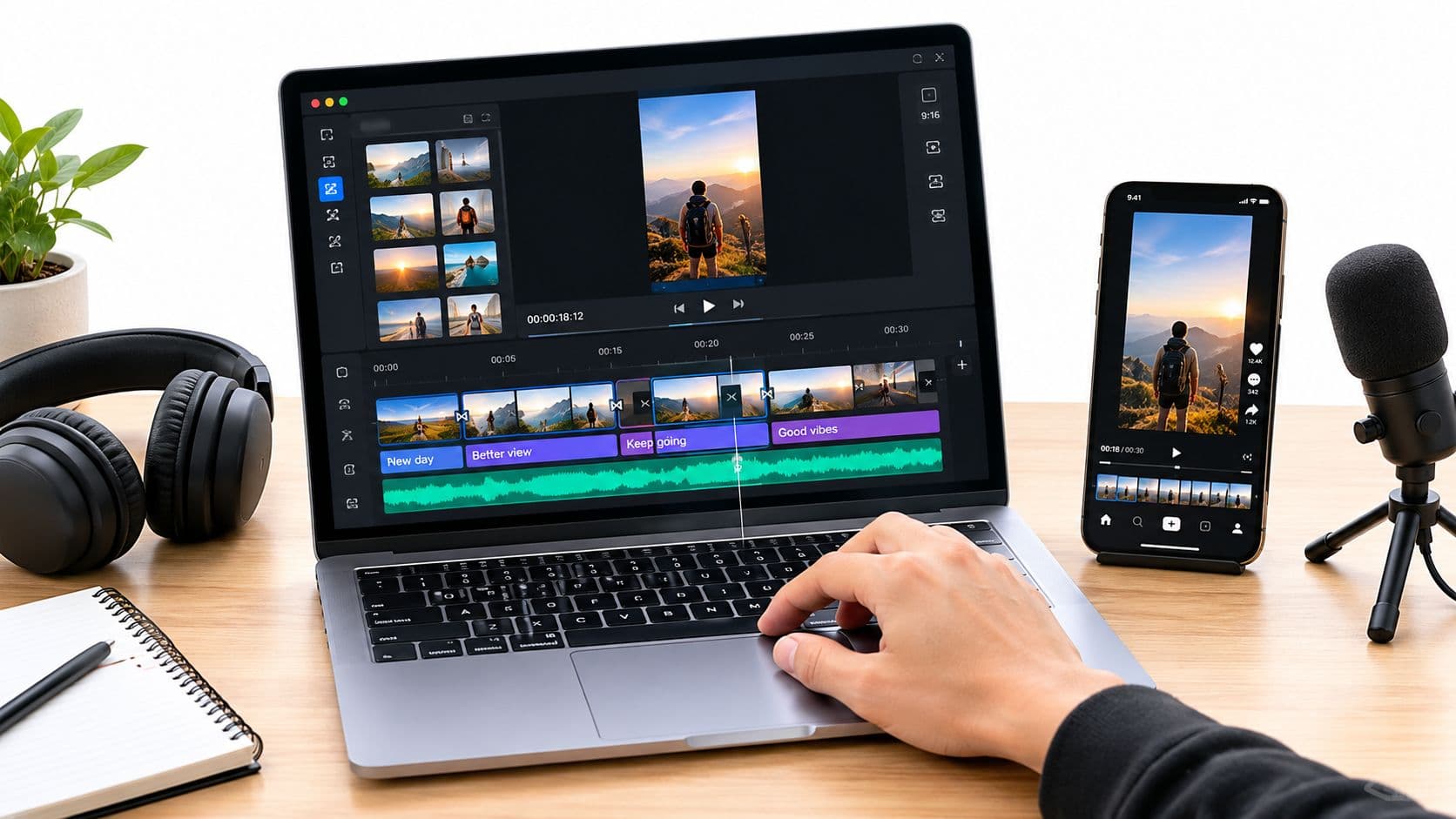
Check the composition on a phone-sized preview before committing the text.
Review what the captions actually say
Automatic transcription needs supervision. Adobe's caption guidance notes that device language settings affect automatic captions and that mixing English with local languages can produce inaccuracies.
Read every caption against the spoken audio. Pay particular attention to names, brand terms, abbreviations, and changes of language.
- Correct meaning: Fix mistranscribed words before adjusting animation or styling.
- Check punctuation: Make sentence boundaries match the intended thought.
- Inspect timing: Watch normally, then examine caption changes around edits.
- Confirm readability: Choose contrast and line breaks that remain clear on a phone.
If you need the mechanics, use this guide on how to add subtitles to a video. Generate the first pass, then take responsibility for the final wording.
Check the actual destination view
Don't assume a universal safe-area measurement. Preview the destination layout and keep important text, faces, handles, and instructional details clear of controls and crop zones.
A subtitle does not belong near the bottom just because that is where you usually put subtitles. Move it when it covers the action or competes with the interface.
For the hypothetical lesson, I'd correct the technical term, reposition the instruction, and replay the whole sequence on a phone. Only then would I burn captions into the delivery version.
Legibility beats decorative complexity. If viewers must pause to untangle the text, simplify the layout before increasing the export resolution.
Verifying and Shipping Your Edited MP4
An export progress bar reaching completion isn't your publishing check. Open the finished file and inspect what you're about to send.
Use the verification routine recommended earlier: test playback in at least two players, check transitions and synchronization, and confirm the file survives transfer or upload. Don't rely entirely on the editor's preview.
Run the delivery check
- Play the exported file: Watch from beginning to end, including the opening and closing frames.
- Inspect every transition: Look for accidental gaps, stray frames, and abrupt sound changes.
- Check speech synchronization: Confirm that narration, visible speech, and captions remain aligned.
- Open the uploaded draft: Review the destination's processed version when available.
- Watch on mobile: Check text, framing, and listening comfort in the viewing context.
- Archive the project: Keep the source media, project, master, and approved delivery copy together.
Name the approved version clearly so nobody schedules an earlier draft. If you're working with clients, record which version they approved rather than relying on a message saying the latest one looks good.
Standardize what deserves repeating
Once the workflow is reliable, save useful project templates, caption styles, and export presets. Automate repetitive assembly or scheduling only after you know what the finished output should look like.
Keep human review focused on the parts that change: story, pronunciation, factual wording, crop, and platform presentation.
The best MP4 edit isn't the one with the most effects. It's the one that communicates clearly, plays properly, and arrives ready for the feed.
ClipCreator.ai automates short, faceless video creation with scripts, story-aligned visuals, voiceovers, and subtitles, plus scheduling and publishing workflows. Visit ClipCreator.ai to build your next narrative clip, then apply these source, caption, and delivery checks before it goes live.

Create your first video in under 2 minutes
Pick a niche, and ClipCreator.ai generates and auto-posts faceless videos to your channels every day.
Join ClipCreator.ai