Over 85% of users on major social platforms view content with the sound off, and videos with subtitles can increase view time by up to 12% on YouTube (VEED). That changes the job of subtitles. They are not a finishing touch. They are part of the hook.
Creators who publish once in a while can get away with casual captioning. Creators who post daily cannot. If you run TikTok, YouTube Shorts, and Reels at the same time, subtitle workflow affects everything: editing time, brand consistency, revision speed, and whether a video feels watchable on mute.
The practical question is not whether to subtitle. It is how to add subtitles to a video without slowing your entire content system down. In practice, there are three paths: fully manual, AI-assisted, and heavily automated. Each works. Each breaks down in different places.
Why Subtitles Are Non-Negotiable for Video Growth
Muted viewing changed subtitle strategy. A few years ago, many creators treated captions as an accessibility layer added at the end. On short-form platforms, that mindset costs views because the first seconds have to communicate even when audio never starts.
Subtitles do two jobs at once. They make the video understandable without sound, and they help viewers track fast narration without replaying lines. That matters even more in formats like story clips, explainers, and micro-lessons where pacing is tight.
Subtitles are part of the edit
A good subtitle track is not just a transcript pasted on screen. It controls rhythm. It tells the viewer where to look. It can reinforce emphasis better than voice alone, especially when a keyword lands at the right moment.
That is why lazy auto-captions often underperform. They may be technically readable, but they do not support the pacing of the video. Short-form audiences notice that instantly.
Tip: If your opening line is your hook, subtitle it like a hook. Keep it clean, fast to read, and timed to hit before the viewer scrolls.
The growth case is practical, not theoretical
For brands and creators, subtitles solve a direct distribution problem. A silent viewer can still follow the story. A non-native speaker can follow along more easily. A viewer in a noisy train, office, or waiting room can stay engaged without headphones.
A common mistake is using the same subtitle approach for every video. That creates bottlenecks.
- Manual subtitling works when precision matters most.
- AI-assisted subtitling works when speed matters but review still matters.
- Automated workflows work when volume is high and the process needs to stay repeatable.
The right answer depends on what you publish. A technical tutorial, a faceless scary story, and a branded product short should not all be handled the same way.
Choosing Your Path Automatic vs Manual Subtitling
The first decision is operational. Do you want speed, control, or a balance of both?
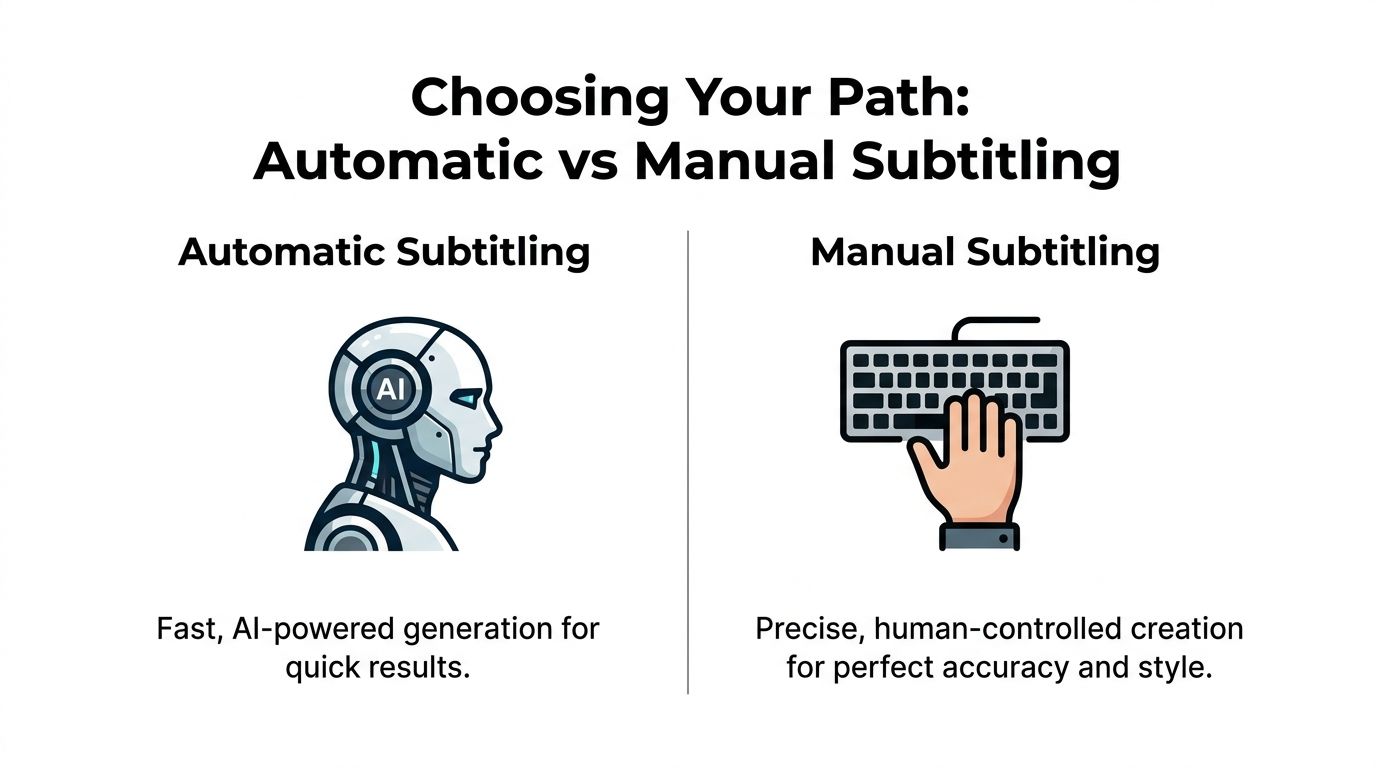
Automatic subtitle generation is now strong enough to be the default starting point for most short-form creators. Speech-to-text can reach up to 99% accuracy, but best practice still requires manual review because 15-25% of content may include technical terms, proper nouns, or contextual nuance that AI misses (PlayPlay).
That single fact explains why creators get frustrated. They expect AI to eliminate the job. In reality, AI changes the job from transcription to review.
When automatic subtitling wins
Automatic subtitling is the right move when publishing speed is the constraint.
If you post daily, the gain is obvious. Instead of typing every line and setting every timecode from scratch, you generate a draft, fix the misses, and move on. For channels producing faceless narration, list videos, stories, and recurring formats, this is usually the most efficient route.
Common tools for this workflow include VEED, Kapwing, Happy Scribe, Adobe Premiere Pro’s caption tools, and platforms built around end-to-end short-form production. For example, ClipCreator.ai’s roundup of closed captioning tools is useful if you want to compare software by workflow instead of just feature lists.
Automatic subtitles usually work best when:
- The script is clean: Clear narration gives the model fewer chances to drift.
- The format is repetitive: Recurring content types are easier to standardize.
- Turnaround matters: You need publish-ready edits fast.
When manual subtitling still wins
Manual subtitling is slower, but it gives you exact control over meaning, pacing, and style.
That matters for educational videos, industry jargon, proper names, legal terms, and story-heavy content where one wrong word changes the line. It also matters when subtitle timing is part of the creative treatment, such as dramatic pauses, delayed reveals, or selective on-screen text.
Use manual creation when:
- Precision beats speed
- You need intentional line breaks
- You want to choreograph text to visual beats
The hybrid workflow most creators should use
For many teams, the best answer is not automatic or manual. It is both.
Start with AI. Then review the draft with a short checklist:
| Workflow | Best for | Main strength | Main weakness |
|---|---|---|---|
| Automatic | Daily posting | Fast first draft | Needs review |
| Manual | Evergreen or technical content | Precise wording and timing | Slow |
| Hybrid | Most creators | Balanced speed and control | Requires process discipline |
A practical hybrid pass looks like this:
- Generate the captions automatically
- Fix names, jargon, and misheard words
- Retime lines that land early or late
- Shorten blocks that feel dense on a phone screen
- Apply your style preset
Key takeaway: Automatic subtitles save the most time when your review process is short, consistent, and ruthless.
The Creator's Guide to SRT and VTT Files
If you want a subtitle workflow that scales, learn one file format well. That format is usually SRT.

The SRT format became the de facto standard in the early 2000s and is now supported by nearly every platform, including YouTube, which processes billions of hours of subtitled content. A single SRT file can serve as a master copy for multiple platforms (YouTube Help).
That “master copy” idea is what matters. If you only think in terms of text burned into one exported MP4, you end up redoing work later.
What an SRT file contains
An SRT file is plain text. Each subtitle block has:
- a sequence number
- a start and end timecode
- one or two lines of subtitle text
A simple example looks like this:
1
00:00:00,000 --> 00:00:02,500
This is the first subtitle.

2
00:00:02,700 --> 00:00:05,000
This is the second subtitle.
That is all it takes to make a valid basic SRT file.
VTT is similar, but it is more common in web video environments and can support extra styling behavior depending on the player. For most short-form creators, SRT is the better starting point because it is simple and broadly accepted.
How to create one from scratch
If you want full control, you can build an SRT in any plain text editor.
Use this workflow:
- Transcribe the spoken lines
- Break the text into readable chunks
- Assign a sequence number to each chunk
- Add start and end timestamps
- Save the file with an .srt extension
Two formatting rules matter more than most beginners realize:
- Keep subtitles to two lines maximum
- Time each block so it appears exactly when the phrase is spoken
Those rules improve readability more than fancy design ever will.
Tip: If a subtitle feels too long, the problem is usually not font size. It is too many words in one block.
When to use a subtitle editor instead of a text editor
A plain editor works, but visual tools are much better once timing gets tricky.
Good subtitle editors and video tools show a waveform or timeline, which makes it easier to nudge in and out points. That matters when you need subtitles to hit hard cuts, quick reaction shots, or a punchline.
Useful options include:
- Aegisub for dedicated subtitle editing
- Adobe Premiere Pro for editing inside a video workflow
- Kapwing for browser-based subtitle timing
- Clideo and Canva for simpler caption adjustments
A visual editor is worth using when:
| Situation | Better choice |
|---|---|
| Simple transcript cleanup | Text editor |
| Precise sync correction | Subtitle editor |
| Styling and layout work | Video editor |
| Team review and approvals | Browser-based editor |
The key mindset is this: your SRT is the asset, not the export. Once that clicks, multi-platform publishing becomes easier.
Burned-In vs Closed Captions A Strategic Choice
Many guides become less precise here. They explain how to add subtitles, but not which subtitle type belongs on which platform.
Burned-in subtitles are permanently embedded in the video. Viewers cannot turn them off.
Closed captions are separate subtitle files, usually uploaded alongside the video. Viewers can toggle them on or off, and the platform can use them in more flexible ways.
Burned-in works where speed of comprehension matters
For TikTok and Instagram-style viewing, burned-in subtitles are usually the safer option. They appear instantly, they preserve your styling, and they remove any dependence on the platform rendering captions the way you intended.
That is important for short clips where the text is part of the visual identity. If your captions use bold emphasis, color, keyword pops, or precise line timing, burning them in protects that creative work.
Closed captions work where flexibility matters
On YouTube, closed captions are often the better strategic choice. They let viewers control playback preferences. They also support the cleaner platform-native caption experience many long-term channels want.
If you care about platform flexibility, searchable text layers, and easier language management, separate caption files are more useful than hardcoded text.
The workflow that avoids duplicate work
The cleanest approach is not choosing one forever. It is using both on purpose.
A professional dual-export workflow, where you generate one SRT file and use it to create both a closed caption version for YouTube and a burned-in version for TikTok, can reduce post-production overhead by approximately 40% when publishing across multiple platforms (TranslateMom).
That is the practical answer for creators who post across channels.
A simple decision model looks like this:
- YouTube: Upload the SRT or VTT as closed captions
- TikTok: Export a burned-in version
- Instagram Reels: Usually burned-in for consistency
- Archive master: Keep the clean subtitle file
Key takeaway: Do not build separate subtitle workflows for every platform. Build one master subtitle asset, then export differently.
Uploading Subtitles to YouTube and TikTok
Once the subtitle file is ready, the platform workflow is straightforward. The main thing is knowing where each platform expects the subtitle layer to live.
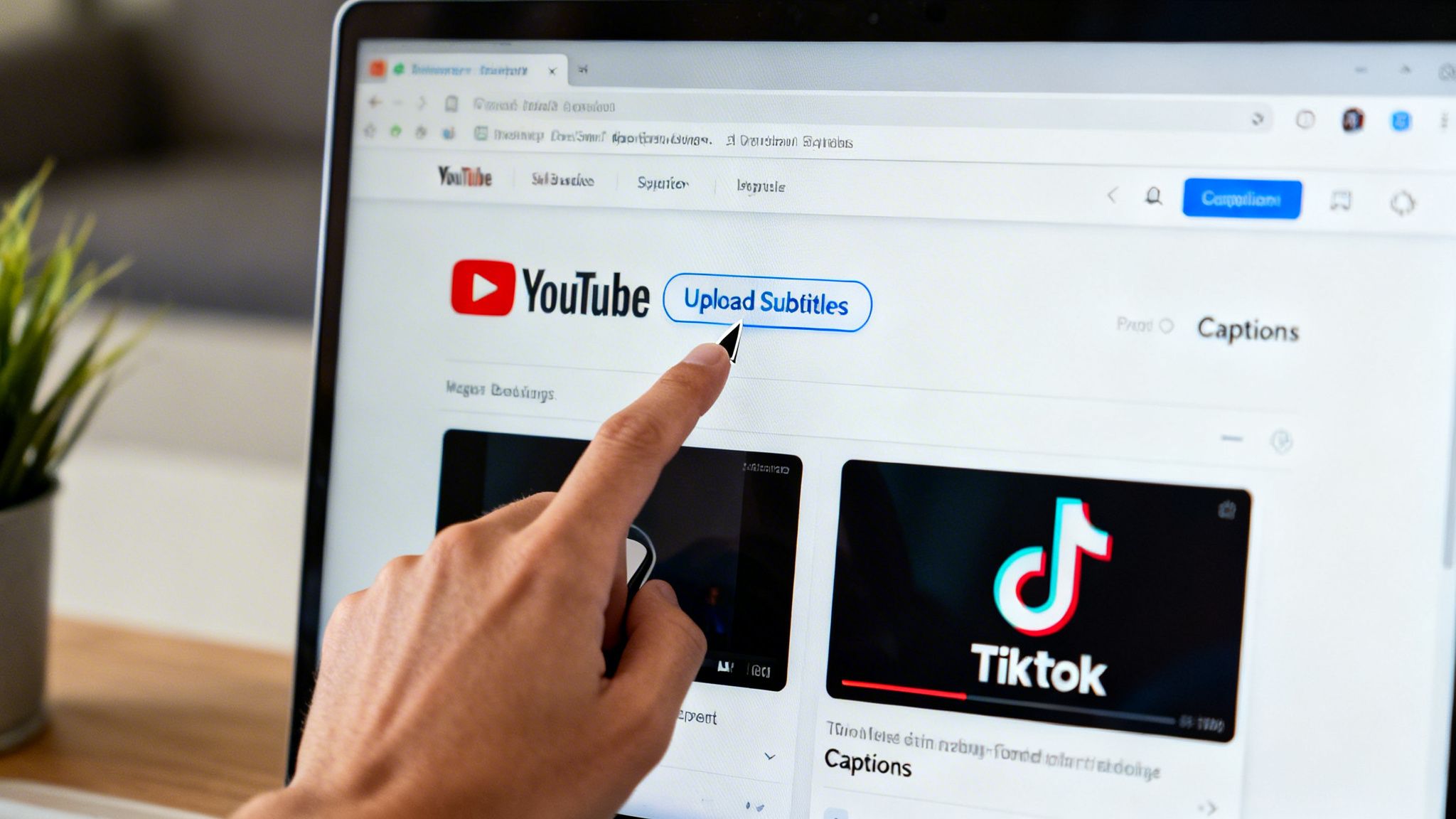
How to upload subtitles to YouTube
YouTube gives you a few caption paths, but for controlled results, uploading a prepared SRT or VTT file is usually the cleanest.
Use this sequence inside YouTube Studio:
- Upload or open the video
- Go to the Subtitles area for that video
- Choose the video language
- Add subtitles
- Upload a file
- Select the option with timing if your SRT already includes timestamps
- Review the sync and publish
If you do not have timecodes yet, YouTube can also work from plain transcript text and auto-sync it. That can be useful for slower-paced speech, but for short-form edits with fast cuts, I would rather control the timing directly in the source file.
A separate caption upload is usually better than trusting only platform auto-captions because you control wording, punctuation, and line breaks before publish.
How to add subtitles on TikTok
TikTok generally pushes creators toward one of two paths.
The first is native auto-captions inside the app. That is fast, and it works for casual posting. The downside is limited styling control and more cleanup if the generated text is rough.
The second is uploading a video that already has burned-in subtitles. That is the better choice for creators who care about branding, consistent fonts, and repeatable formatting.
If you need the platform steps, this guide on how to turn on captions on TikTok covers the app-side settings clearly.
A typical TikTok workflow looks like this:
- Fastest route: Generate native auto-captions, then edit the text in-app
- Cleaner route: Export your video with subtitles already burned in
- Best for brand channels: Keep subtitle style consistent before upload
Here is a walkthrough that helps if you want to see the YouTube side in action:
Which option should you use
For YouTube, I prefer sidecar subtitle files. For TikTok, I prefer hardcoded subtitles. That split keeps the workflow clean.
If you post across both, build the subtitle asset first, then branch your exports. That matters more than trying to perfect captions separately inside each platform.
Tip: Avoid doing your final subtitle edits inside the platform unless speed is the only priority. Platform editors are fine for quick fixes, not for building a repeatable system.
Advanced Techniques for Pro-Level Subtitles
Most creators stop at “captions added.” That is enough for accessibility, but not enough for competitive short-form editing.
Good subtitles do not just display words. They shape retention, brand perception, and trust. That means style, timing, and compliance all matter.
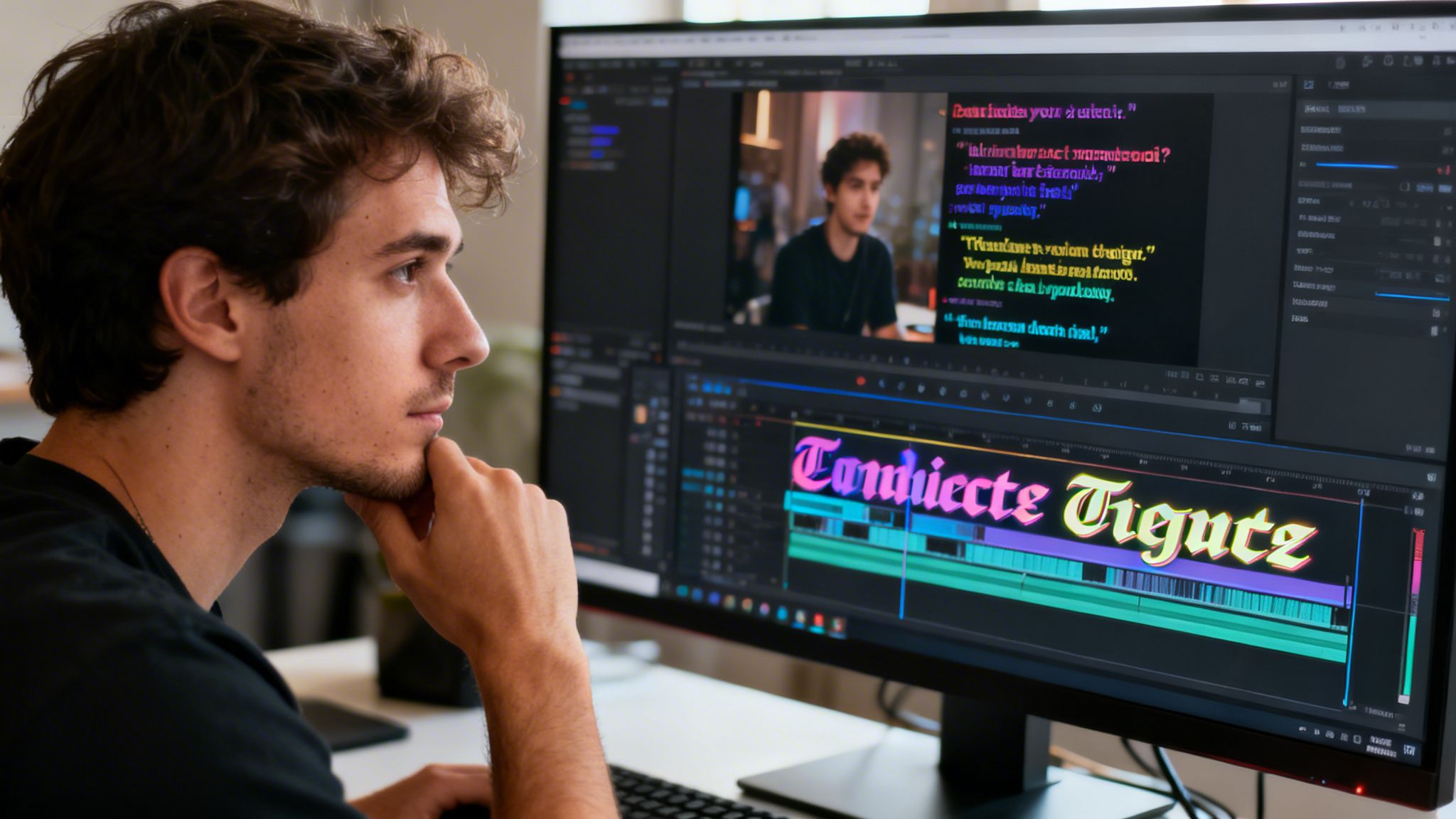
Dynamic captions need restraint
Word-by-word animated captions can work well on short-form platforms. They hold attention, highlight key phrases, and make dry narration feel more active.
But many creators overdo them. If every word pops, scales, or changes color, the subtitle layer becomes noise.
A better rule is selective emphasis:
- highlight one phrase, not every phrase
- animate moments of tension, surprise, or payoff
- keep base styling stable so the video still feels readable
Font choice matters here too. If you are refining the visual side, this guide to the best font for subtitles is a good starting point for readability decisions.
Build a correction layer for AI
Experienced creators distinguish themselves from casual users here. They do not just run AI subtitles. They anticipate failure points.
Over-reliance on 99% accurate AI can backfire for narrative content, where error rates in homophone-heavy stories can exceed 30%. Platforms like TikTok and YouTube are also beginning to enforce compliance rules around synthetic media disclosure, which can create monetization risk for non-compliant channels (YouTube video reference).
That has two direct workflow implications.
First, create a review checklist for repeat errors:
- Brand names
- Product terms
- People and place names
- Repeated phrases in your niche
- Homophones in story-based narration
Second, decide where disclosure and platform compliance live in your process. Do not leave that to memory at upload time.
Subtitle quality is part of brand quality
A subtitle system looks professional when it is consistent.
That includes:
| Element | What to standardize |
|---|---|
| Font | One readable typeface |
| Position | Same lower-third or mid-frame zone |
| Emphasis | One highlight style |
| Timing | Similar reading pace across videos |
| Speaker labels or sound tags | Clear rule for when they appear |
If you are using broader automation, some platforms can generate the script, voiceover, visuals, and synchronized subtitles in one pass. ClipCreator.ai is one example of that type of workflow for short faceless videos, especially when the goal is regular posting across TikTok, YouTube, and Instagram. The trade-off is the same as every automated system. You gain speed, but you still need a review standard.
The mature approach is simple. Let automation handle draft creation. Let human review protect clarity, pacing, and compliance.
If you want a faster way to produce short videos with synchronized subtitles already built into the workflow, ClipCreator.ai automates script generation, visuals, voiceovers, subtitle creation, and multi-platform publishing for TikTok, YouTube, and Instagram. It fits best for creators, educators, brands, and agencies that need consistent output without rebuilding the subtitle process from scratch each time.

Create your first video in under 2 minutes
Pick a niche, and ClipCreator.ai generates and auto-posts faceless videos to your channels every day.
Join ClipCreator.ai