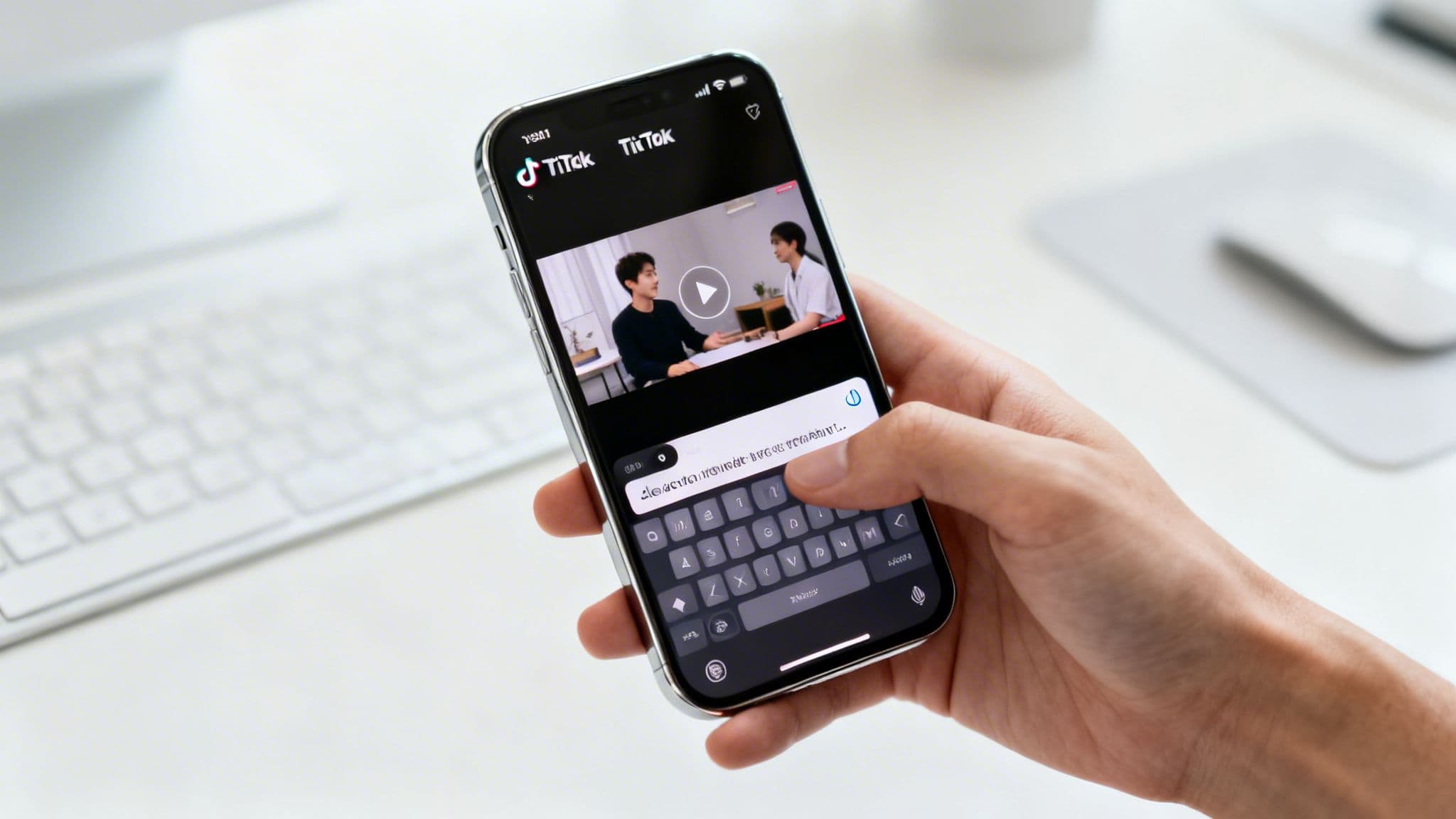
Whether you're just scrolling through your "For You" page or trying to grow your own channel, captions on TikTok are a game-changer. You can turn on auto-captions in your settings to catch every word as a viewer, or add them directly to your videos as a creator. It's a small step that makes a huge difference.
Why TikTok Captions Are Essential for Growth
Think about how you use TikTok. Are you always in a place where you can have the sound on? Probably not. A huge number of users scroll in public, at work, or late at night with their phones on silent. Without captions, your video is just silent motion, and they'll scroll right past.
For creators, this isn't just about accessibility—it's about strategy. Captions are one of the most powerful tools you have to boost engagement. When people can read along, they tend to watch longer. That increased watch time is a massive signal to the TikTok algorithm that your content is worth pushing to more people.
The Proven Impact of Captions on Engagement
The data doesn't lie. When you look at the numbers, the impact of captions becomes crystal clear. On average, videos with captions get a staggering 23% more likes.
But it goes deeper than that. Those same videos also see a 17% boost in total watch time. On an app where every fraction of a second matters, holding a viewer's attention for that much longer is a huge win.
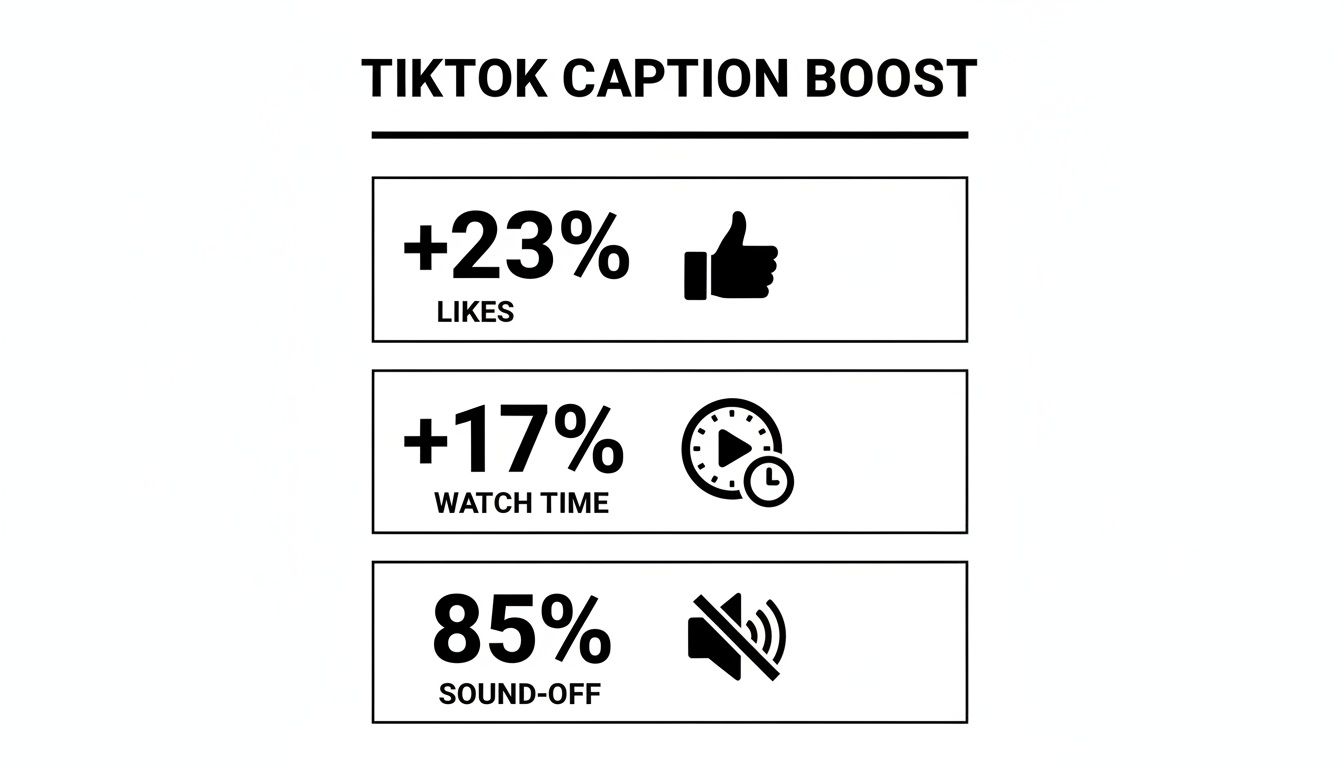
The takeaway here is simple: captions give your videos a direct line to better performance by grabbing the attention of that silent majority.
If you're not using captions, you’re choosing to ignore a massive piece of your potential audience. Turning them on is one of the easiest and most effective changes you can make to your TikTok strategy.
It doesn't matter what you post—educational explainers, scary stories, or product demos—learning how to turn on captions is non-negotiable for growth. For those looking to streamline their workflow, tools like ClipCreator.ai can automatically generate accurate subtitles, making sure every single video is optimized for reach the second it goes live.
How to Enable Captions for a Better Viewing Experience
Ever find yourself scrolling through TikTok with the sound off, trying to guess what everyone's saying? Whether you're on a noisy bus or in a quiet library, there's a simple way to make sure you never miss a word.
You can actually turn on captions for your entire feed, not just one video at a time. It’s a quick “set it and forget it” tweak in your settings that makes the whole app more accessible and easier to enjoy.
Adjusting Your Accessibility Settings
Ready to get started? First, pop open the TikTok app and tap on your Profile icon, which you'll find in the bottom-right corner of the screen.
From there, look for the hamburger menu (the three horizontal lines) in the top-right. Tapping that will take you straight into your Settings and privacy menu, which is where you can customize pretty much your entire TikTok experience.
Once you're in the settings, scroll down a bit until you see the Accessibility section. This is where TikTok houses all the features designed to make the app more user-friendly for everyone.
Key Takeaway: Turning on captions globally is a game-changer. It’s done through the main settings, not on a per-video basis, ensuring you get a consistent viewing experience every time you open the app.
Inside the Accessibility menu, you'll spot the Captions option with a toggle switch next to it. Just tap that switch to turn it on. When it turns green, you’re all set!
From now on, any video that has captions available will display them automatically. You’ll catch every punchline and story detail, no matter what your phone's volume is.
Adding Captions to Your Videos During Upload
As a creator, adding captions should be a non-negotiable step in your workflow. Once you’ve recorded or uploaded your clip and landed on the main editing screen, it’s time to make your content accessible. Look over to the menu on the right-hand side, where you see all the creative tools like Text, Stickers, and Effects.
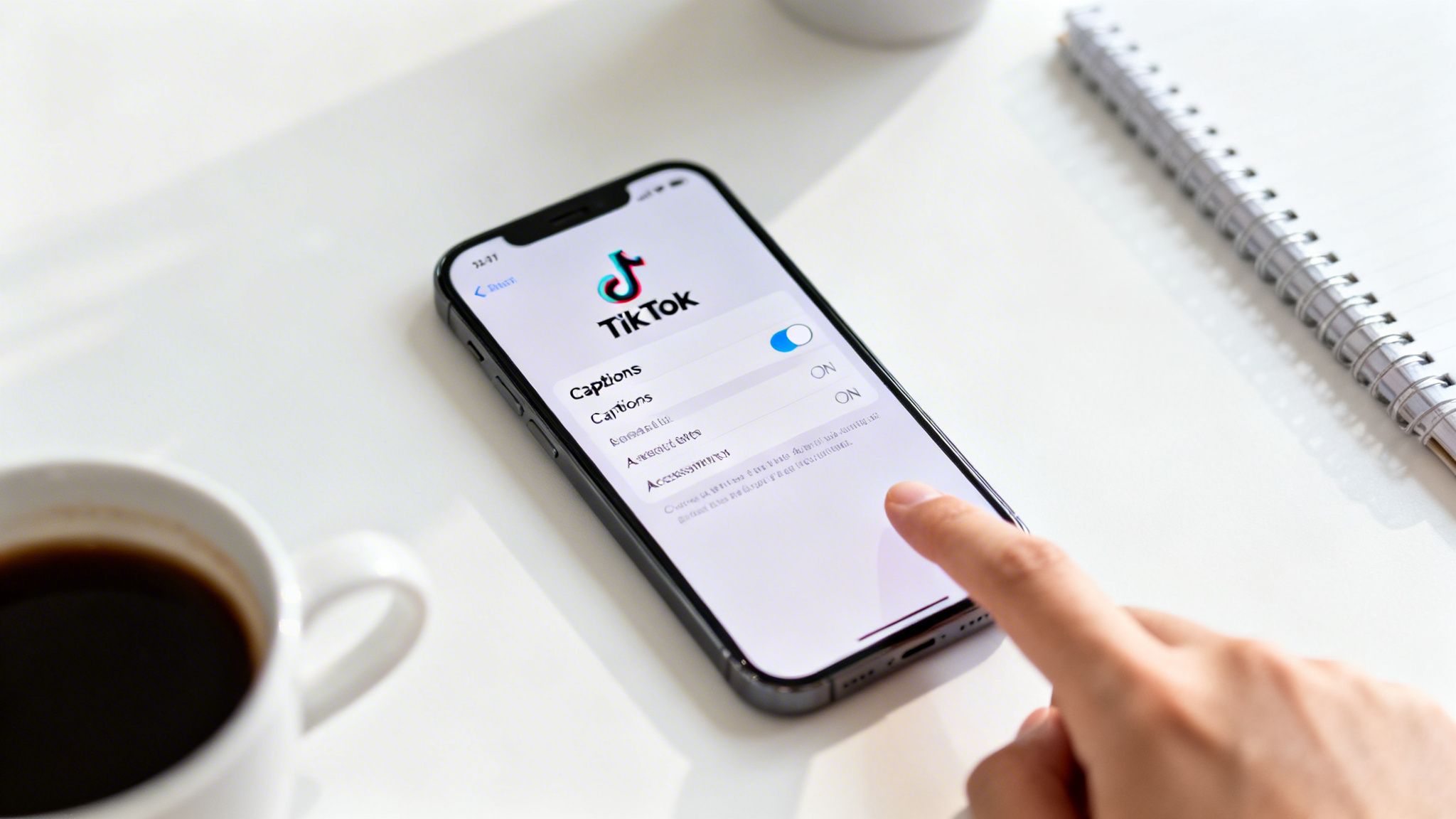
Right there in the mix, you’ll spot the Captions button. Give that a tap. TikTok’s built-in AI will immediately get to work, listening to your audio and generating text. It’s surprisingly fast, usually finishing in just a few seconds. If you're curious about the tech that powers this, the world of AI audio to text transcription is pretty fascinating.
Reviewing and Editing for Accuracy
After TikTok generates the captions, don't just hit post! This is the most important part: you need to review and edit them. AI is good, but it’s not perfect. It often stumbles over slang, unique brand names, or any kind of technical jargon.
Tap the text on your screen to pull up the editor. Here you can go through word-by-word and fix any awkward phrasing or downright wrong words. This quick double-check is what separates sloppy content from a polished, professional video.
The data doesn't lie. With TikTok on track to hit 2.3 billion users by 2029, accessibility is everything. One study showed that enabling auto-captions can boost watch time by a massive 17%. On a platform where every second matters, that’s an edge you can't afford to ignore. Check out more stats on TikTok's explosive growth on Search Logistics.
Styling Your Captions
Once your text is accurate, you can have some fun with the design. Making your captions match your personal brand or the video's mood helps them feel integrated, not just tacked on.
- Font Style: Flip through the fonts to find one that matches your aesthetic.
- Color: Pick colors that have a high contrast with your video background so they’re easy to read.
- Highlighting: Try adding a solid background or a simple outline to make the words really pop off the screen.
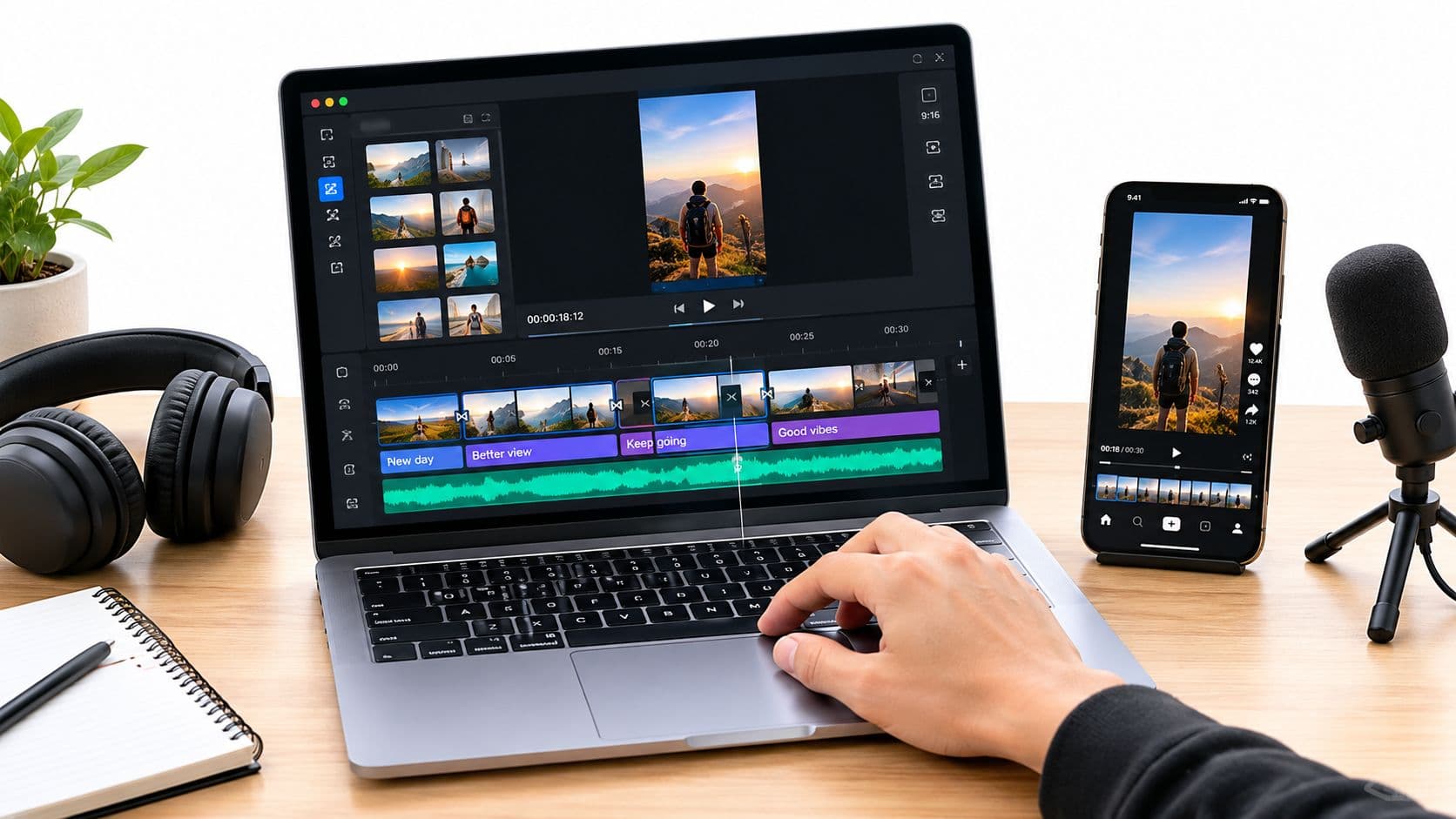
If you create a lot of content, especially faceless videos, you might want to explore more automated solutions. Certain tools can take your script and generate a full video with a voiceover and perfectly synced text. If that sounds like a good fit for your workflow, you can learn more about how to add subtitles to your videos with these powerful platforms.
Using Captions to Boost Your TikTok SEO
Flipping the switch on captions is a great start, but the real magic happens when you treat them like a core part of your SEO strategy. It’s a huge mental shift to stop seeing TikTok as just a video feed and start seeing it for what it has become: a massive search engine. Your audience is actively searching for tutorials, products, and answers, and the algorithm is reading every single word in your captions to figure out what your video is about.
Think about it this way: your captions create a searchable script for your content. Every keyword you use gives TikTok another clue about who needs to see your video. This simple change in perspective can completely reshape how you plan and create your content.
Optimizing Your On-Screen Text
The text you burn directly onto your video is prime real estate for both your viewers and the algorithm. To get the most out of it, you need to weave in your target keywords naturally. If your video is about "easy dinner recipes," you better believe those exact words should pop up on screen.
Don't forget to use your captions to spark a conversation. Asking a direct question like, "Have you ever tried this travel tip before?" is a simple way to encourage comments. That engagement is a powerful signal to the algorithm that people are connecting with your content.
The data doesn't lie. Videos that feature captions see 23% more likes and achieve 17% longer watch times. These are critical metrics on TikTok, where engagement is everything. And with 40% of young users now using TikTok for searches instead of Google, optimizing your text is no longer just a good idea—it's essential for getting discovered. You can dig into more of these numbers with these TikTok audience insights on PodcastVideos.com.
Beyond the Screen: Your Full Description Strategy
The work doesn’t stop with the text on your video. The full description—the text that appears below your username—is just as crucial. Use this space to add more context, tell a bigger story, and pack in secondary keywords that didn't make it onto the screen. It’s basically the meta description for your TikTok video.
For creators who want to make this process more efficient, especially with faceless content, automated tools like ClipCreator.ai can be a game-changer. The platform can help generate scripts already loaded with relevant keywords and then automatically create perfectly synced subtitles. This is perfect for genres like scary stories or educational explainers, ensuring they're optimized for search right out of the gate. Honing your own skills by learning how to write a transcript of a video is also a great way to get better at scripting.
How to Fix Common TikTok Caption Problems

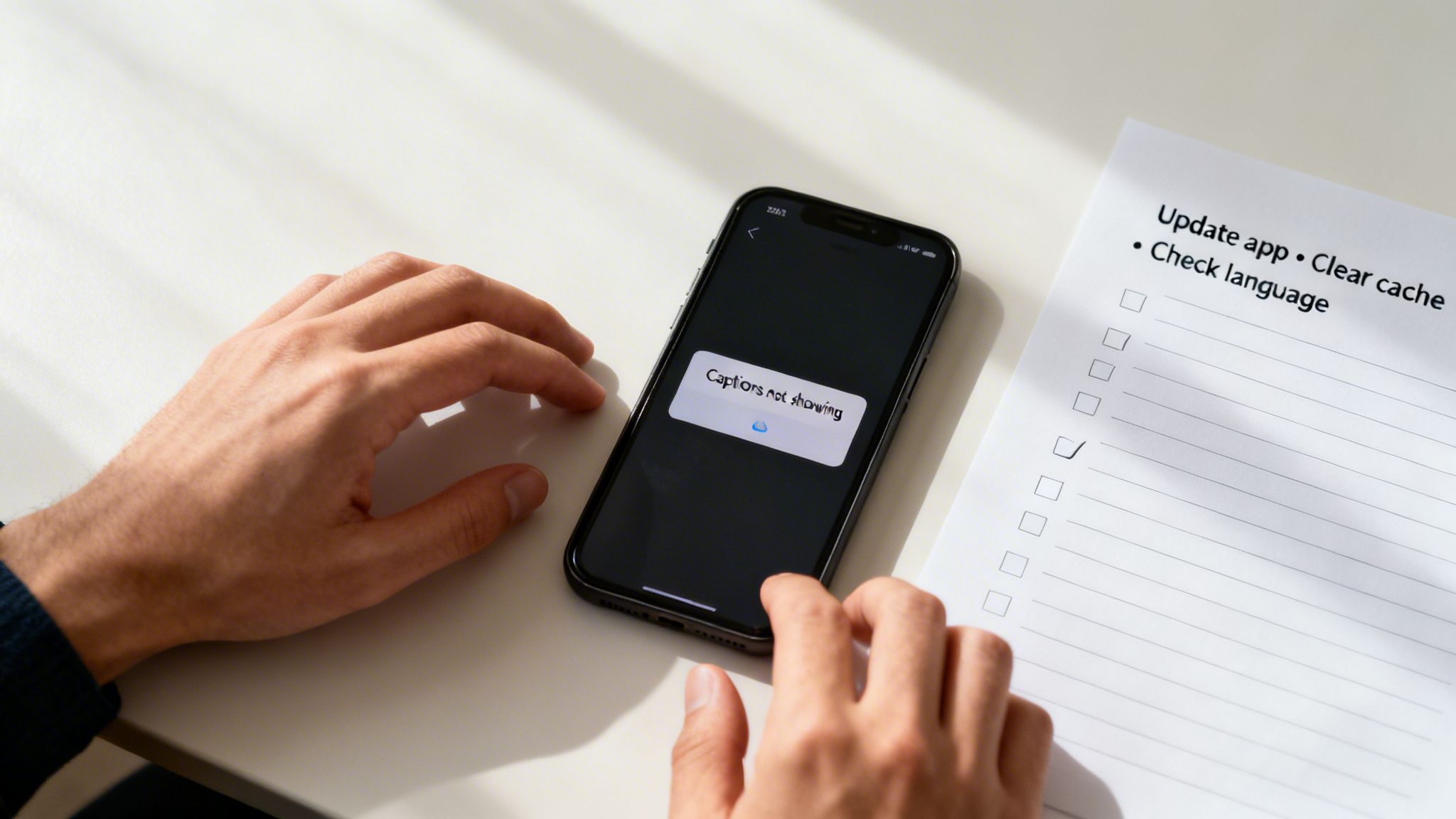
It’s a frustrating moment: you've enabled captions on TikTok, but they’re nowhere to be found. Or worse, the button has vanished entirely. Before you get too worried, take a breath. These are surprisingly common hiccups, and the fixes are usually pretty straightforward.
Sometimes, the issue isn't even on your end. It could be a temporary server-side bug with TikTok itself. If you notice captions have suddenly disappeared from all videos, not just your own, the best move is often to just wait it out. But if the problem sticks around, there are a few things you can check on your own device.
Quick Fixes to Try First
Before you dive into a deep troubleshooting hole, let's cover the simplest fixes. More often than not, a small app glitch is the culprit, usually caused by outdated software or a cluttered cache. Running through these steps takes less than a minute and can save you a huge headache.
- Update the App: First thing's first, pop over to the App Store or Google Play Store. See if a TikTok update is waiting for you. Developers are always pushing out patches for little bugs just like this one.
- Clear Your Cache: Inside your TikTok settings, find the Free up space menu and tap Clear next to Cache. This is a safe way to get rid of temporary files without touching your drafts, profile, or other important data.
- Restart Your Device: It's a classic for a reason. The old "turn it off and on again" trick really does work wonders. A quick reboot can clear up minor software conflicts that might be messing with how your apps perform.
Captions are a critical accessibility feature, but their functionality relies on both your device and TikTok’s servers working together. When one falters, the feature can seem broken. These quick fixes help reset that connection.
When Captions Are Still Inaccurate or Missing
If you've tried the basics and are still coming up short, the problem might be a bit more specific. Are the captions showing up, but just completely wrong? This is almost always an audio quality issue. The AI is trying its best, but it can't work miracles. Make sure your video's sound is crisp and clear, without a lot of background noise or music drowning out the speech.
But what if the "Captions" button is missing entirely? This often happens if the language you're using isn't supported by the auto-caption feature yet. Double-check your app's language by going to Settings and privacy > Language. Ensure you've selected a supported option like English, Spanish, or Japanese.
For creators who need reliably accurate text on every video, fighting with the in-app tool can be a time-waster. If that's you, it might be worth exploring a dedicated auto captions app to get the job done right without the extra hassle.
Frequently Asked Questions About TikTok Captions
Even when you know the steps, a few questions always seem to pop up about TikTok's captions. Let's tackle some of the most common ones I hear from creators and viewers so you can get the most out of the feature.
Here's the hard truth about one of the most-asked questions: can you edit captions after posting? The answer, unfortunately, is no. Once your video is live, the auto-captions are locked in. You can't add them later or fix any mistakes.
This is a huge reason why you absolutely must review the text on that final editing screen before you hit the 'Post' button. That final check is your only opportunity to catch awkward phrasing or typos. A quick proofread makes a world of difference for clarity and professionalism.
Supported Languages and FYP Impact
So, what languages does TikTok even support for auto-captions? The list is always growing, but for the feature to work reliably, your app language and the language you're speaking should match.
Currently supported languages include:
- English
- Spanish
- Portuguese
- French
- German
- Italian
- Japanese
- Korean
- Mandarin
Now for the million-dollar question: do captions actually help you get on the For You Page (FYP)? The short answer is yes, but it's an indirect boost. Captions—and if you want a deep dive into what a caption is from a technical standpoint, this is a great resource—are all about improving accessibility and engagement.
The TikTok algorithm loves strong engagement signals. Captions directly contribute by increasing watch time and encouraging shares, telling the algorithm your content is worth promoting. They also make your video's audio content searchable, which helps new audiences discover it long after you've posted.
Ultimately, captions make your content easier to watch and easier to find. Both of those things are exactly what the algorithm is designed to reward, making them a non-negotiable tool for any creator looking to grow.
Ready to stop manually scripting and captioning your videos? ClipCreator.ai automates the entire process. Our platform generates scripts, lifelike voiceovers, and perfectly synced subtitles, so you can create engaging, faceless videos in minutes, not hours. See how it works at https://clipcreator.ai.

Create your first video in under 2 minutes
Pick a niche, and ClipCreator.ai generates and auto-posts faceless videos to your channels every day.
Join ClipCreator.ai