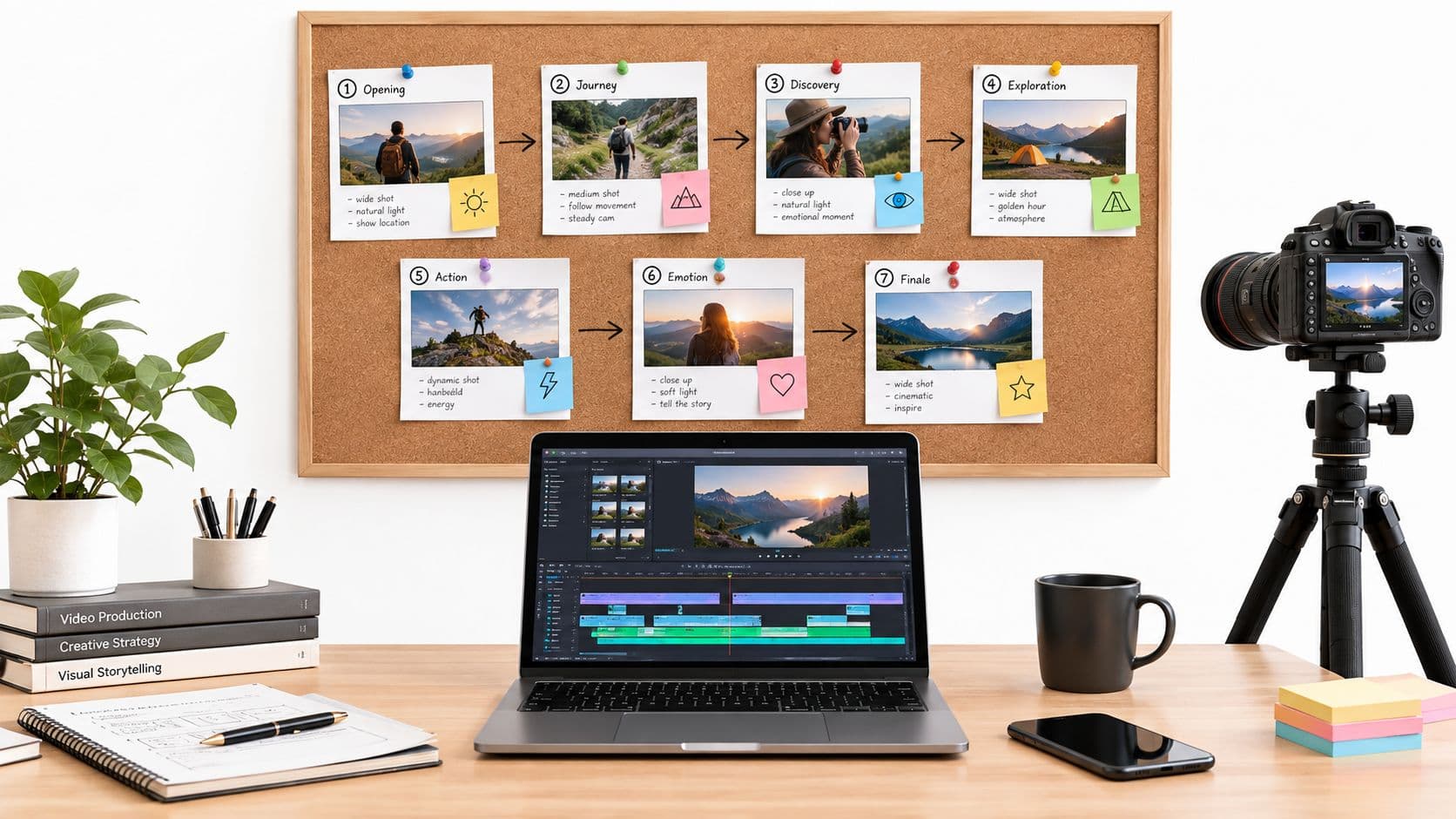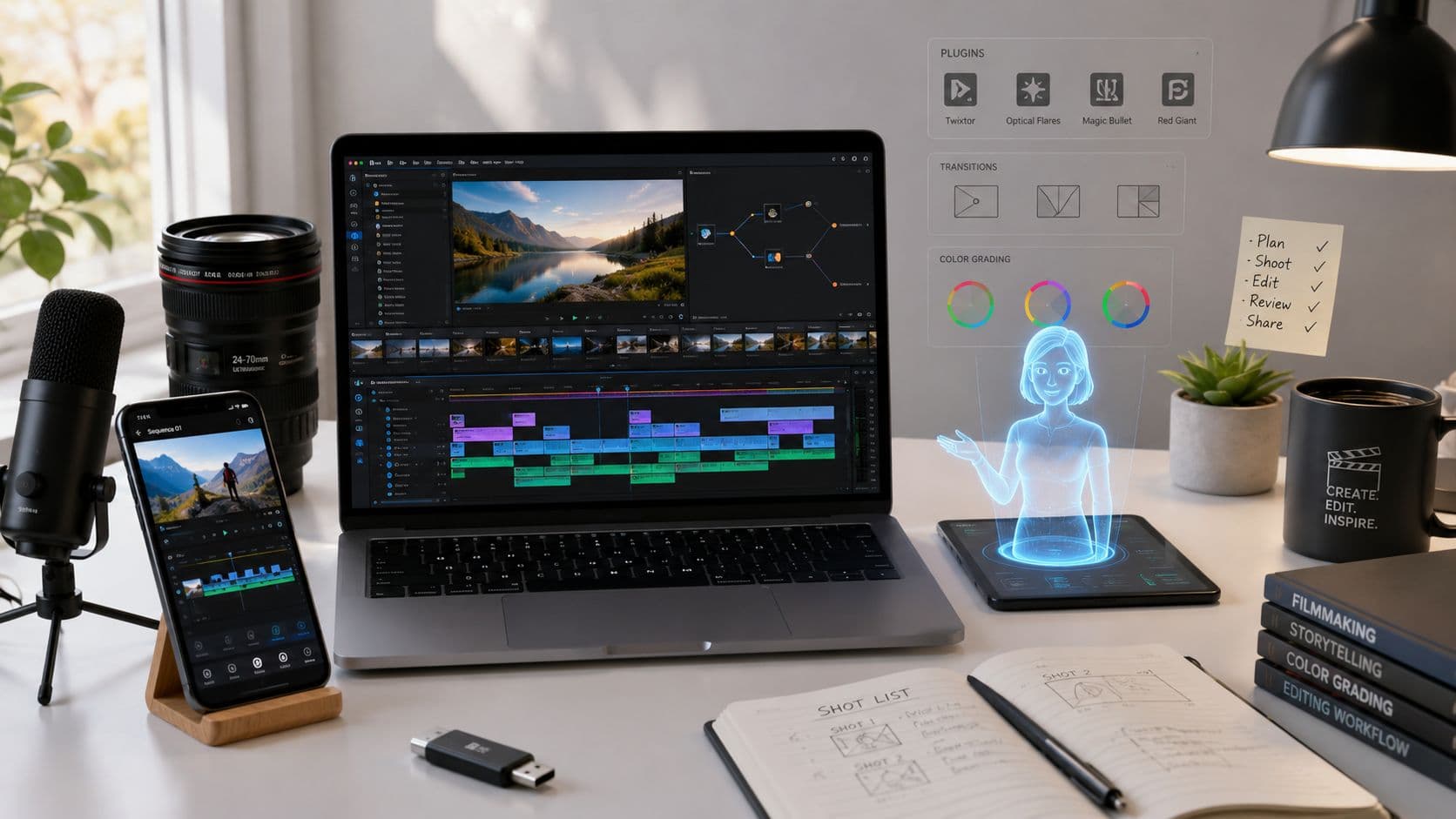
Ever watch a polished YouTube video and think the hard part was filming? Usually it wasn't. The main difference between an average upload and a video people finish, rewatch, and share usually happens after the camera stops rolling.
That's why the usual answers to what do YouTubers use to edit videos are incomplete. A simple list of apps misses the bigger question, which is what kind of workflow fits the way you publish. Some creators need frame-level control for long-form storytelling. Some need fast vertical edits on a phone. Others don't really need an editor at all. They need an automated system that turns an idea into a finished short.
This guide breaks the field into practical categories instead of just throwing software names at you. You'll see which tools work best for pro editing, agile short-form production, AI-automated faceless content, and free entry-level setups. If you're mostly making Shorts, a dedicated workflow like Nereo's YouTube Shorts editor may solve more of your bottlenecks than a heavyweight desktop suite.
The point isn't to pick the “best” editor in the abstract. The point is to choose the one you'll use consistently. That's what separates software that looks impressive on a features page from software that helps you ship.
1. Adobe Premiere Pro
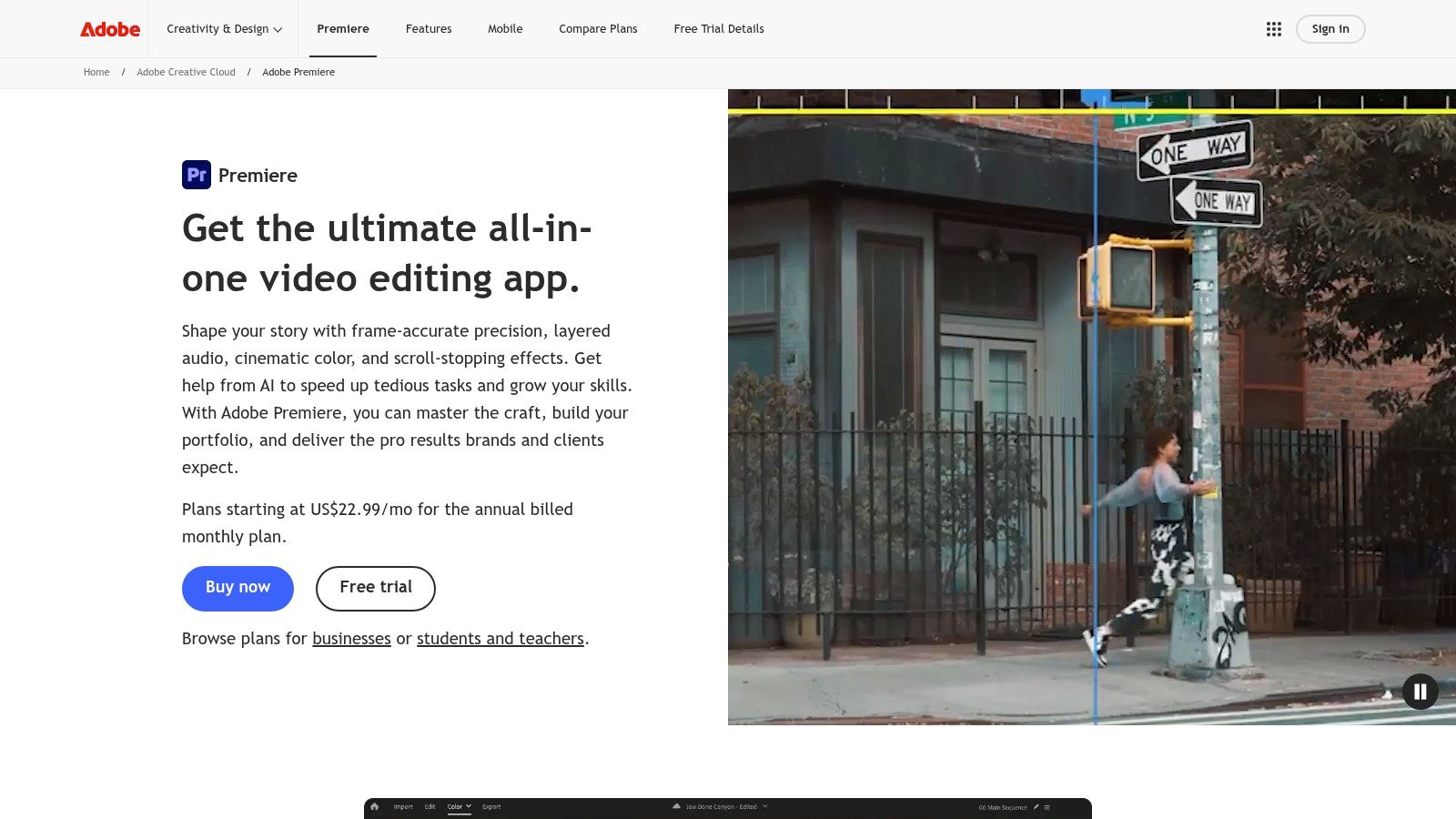
If you ask what serious YouTubers use to edit videos, Adobe Premiere Pro is still the safest first answer. Creative Bloq's 2026 roundup describes it as one of the most widely used editing programs and the top choice for YouTube editing, and the same source notes that surveys have long shown many YouTubers using Final Cut Pro and Premiere Pro in particular (Creative Bloq on YouTube editing software).
Premiere makes sense when your channel has grown past simple cuts. It handles multicam edits, layered timelines, graphics-heavy videos, interview content, and more demanding revisions without forcing you into a workaround-heavy workflow. The Adobe ecosystem also matters more than people admit. If you bounce between Photoshop, After Effects, and Audition, Premiere saves time every week.
Who It Fits Best
Premiere Pro is strongest for long-form channels, documentary-style creators, agencies, and teams with editors, reviewers, and thumbnail designers working together. It also scales well if you start with YouTube and later add sponsor deliverables, courses, or client work.
A few practical trade-offs matter:
- Best reason to choose it: It gives you granular control over the timeline, audio, captions, and motion graphics.
- Best reason to avoid it: It can feel heavy if all you make are quick Shorts and simple talking-head cuts.
- What beginners often underestimate: The learning curve is real. You can make decent edits fast, but mastering pacing, organization, proxies, and nested sequences takes time.
Practical rule: Choose Premiere when you want room to grow into a more complex workflow, not when you just want the fastest path to your next upload.
If captions are part of your workflow, this guide on adding subtitles in Premiere Pro is worth keeping handy. You can explore the software directly on the Adobe Premiere Pro product page.
2. Final Cut Pro
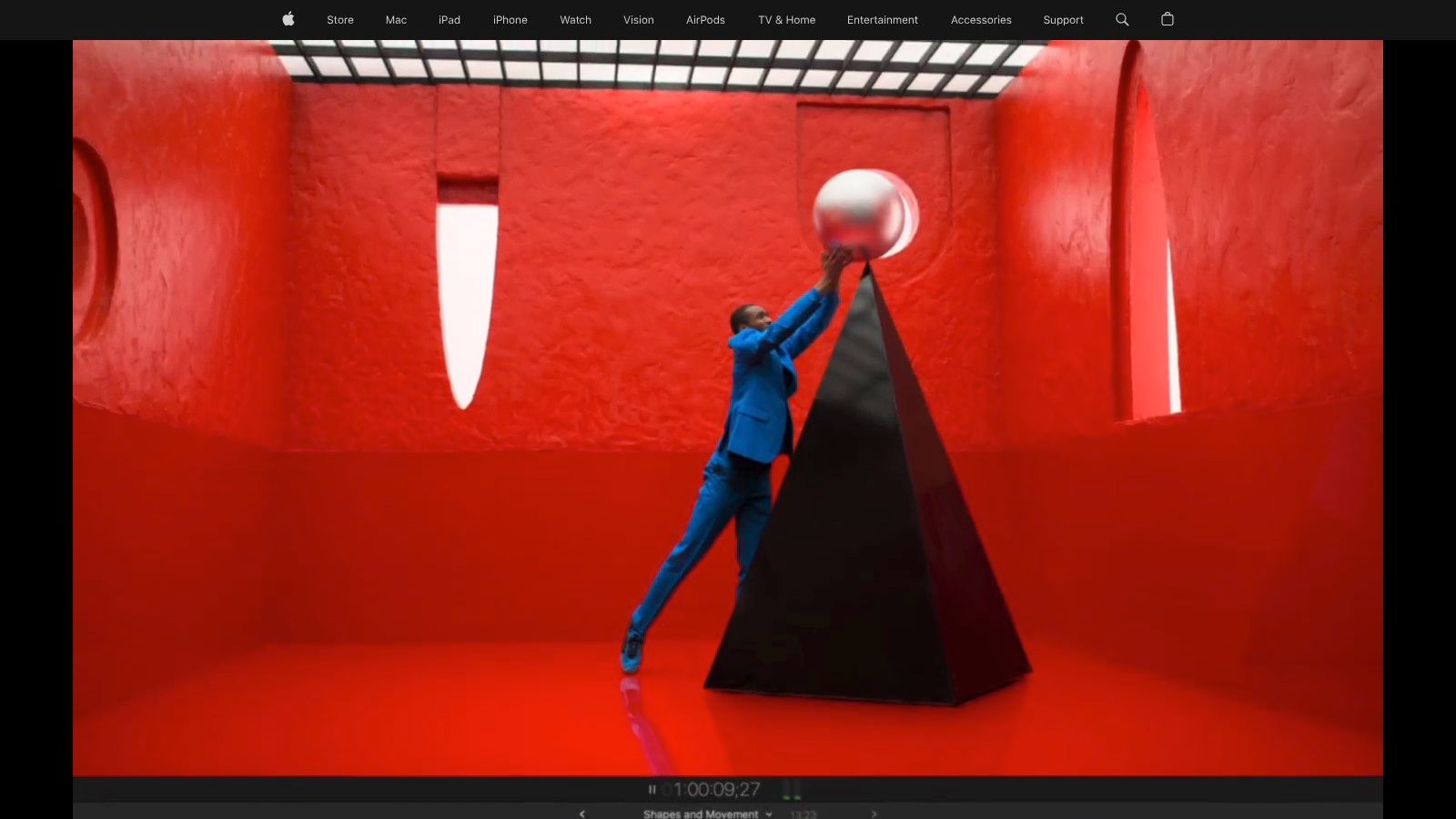
Final Cut Pro is the editor a lot of solo creators settle into and stay with for years. If you work on a Mac, especially Apple silicon, it feels fast in a way that's hard to appreciate until you've used slower software on deadline. Skimming footage, moving through the timeline, and exporting social formats tends to feel frictionless.
Its Magnetic Timeline divides opinion. Some editors love it because it speeds up rough cuts and keeps the sequence cleaner. Others hate giving up the traditional track-based feel they learned elsewhere. For YouTube, I've seen it work especially well for creators who value speed over deep ecosystem complexity.
Where It Shines
Final Cut Pro is ideal for solo long-form YouTubers, vloggers, educators, and creators who want a polished desktop editor without an ongoing subscription. Smart Conform helps with vertical and square crops, and the Motion plus Compressor combination gives you more room than many people expect.
What works well in practice:
- Fast rough cuts: It's excellent for trimming spoken content and building story structure quickly.
- Stable Mac workflow: It's built for macOS, and that shows in day-to-day responsiveness.
- Strong plugin market: Titles, callouts, transitions, and YouTube-style packs are easy to find.
What doesn't:
- Mac-only limitation: If your team uses mixed operating systems, that becomes a real issue.
- Less common in some collaborative environments: Shared handoffs with non-Mac editors can get messy.
Final Cut Pro is often the “I just want to edit and upload” choice. That's a strength, not a compromise.
If you regularly add on-screen copy, this walkthrough on how to insert text in Final Cut Pro can speed things up. Apple's own overview is on the Final Cut Pro website.
3. DaVinci Resolve
DaVinci Resolve sits in a rare middle ground. It can be a beginner's free editor and a serious post-production suite at the same time. PCMag identifies it as the top free choice for YouTubers and gamers, and describes the free version as surprisingly capable for standard editing and audio tools (PCMag's video editing software picks).
That's the big reason Resolve keeps showing up in creator conversations. You can start for free and still learn software with real editorial depth, strong color tools, built-in audio work through Fairlight, and Fusion for effects. It doesn't feel like training wheels software.
Best for Creators Who Want Headroom
Resolve is a strong fit for creators who want one app that can handle editing, color, audio cleanup, and more advanced finishing. It's especially attractive if you care about cinematic image quality or you know you'll outgrow beginner software quickly.
The trade-off is obvious once you open it. Resolve isn't trying to be cute or simplified.
- Why people love it: Best-in-class color workflow, excellent free tier, and no forced subscription if you later upgrade.
- Why some creators quit: The interface can feel dense, and Fusion adds another learning curve on top of editing.
- Who should think twice: If you only want to make quick meme edits or basic Shorts, it may be more software than you need.
Think Media recommends DaVinci Resolve for creators who want to grow as editors and learn the same professional tools, which matches what I usually tell beginners with long-term ambition. You can explore it on the DaVinci Resolve product page.
4. VEGAS Pro
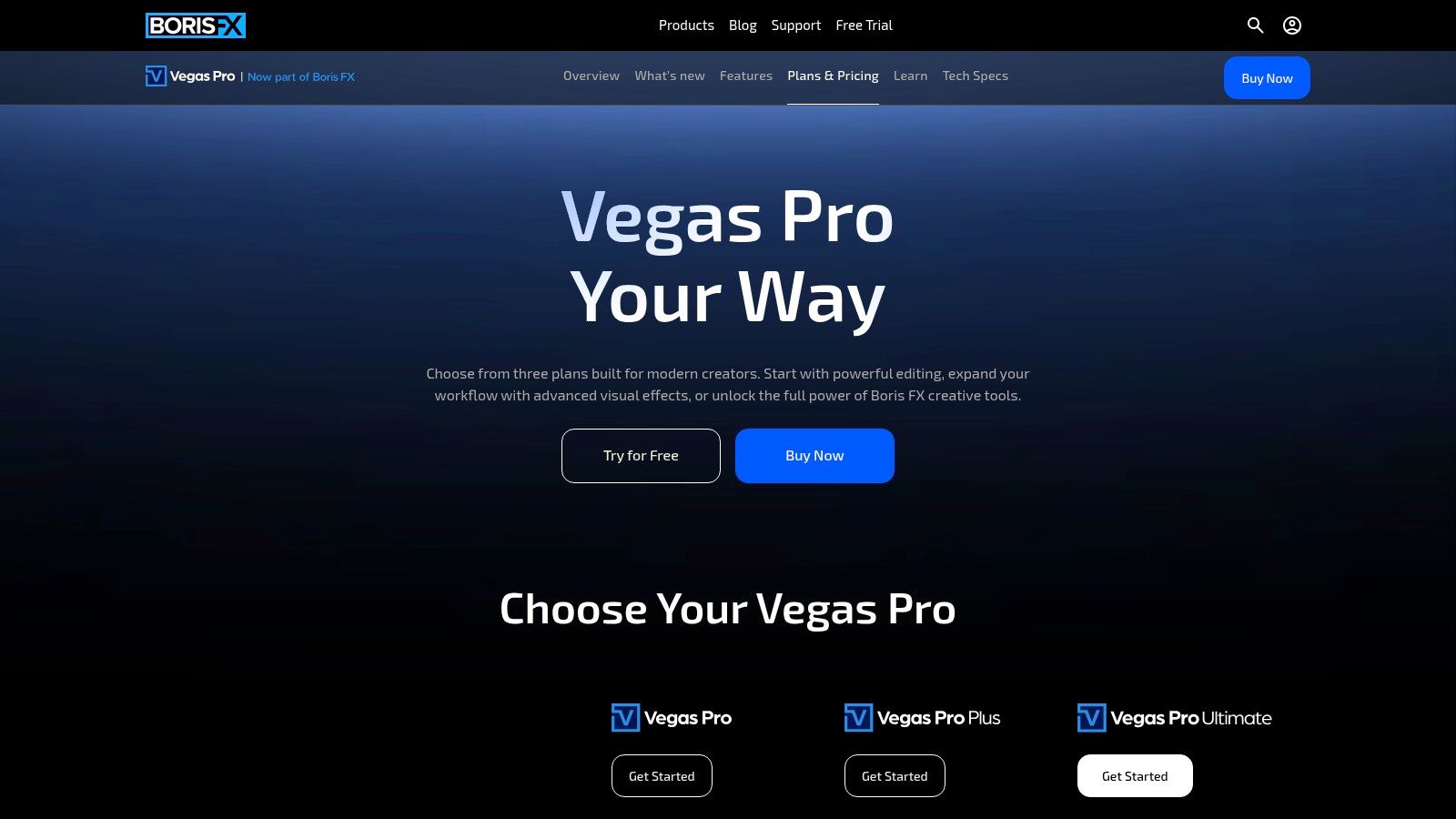
VEGAS Pro doesn't get the same creator hype as Premiere or Resolve, but it still solves real editing problems well. On Windows, especially for commentary, gameplay, and screen-recording-heavy channels, it can be a practical choice because the timeline is fast and the built-in audio tools are more useful than many people expect.
That last part matters. A lot of YouTube videos live or die on voice quality, music balance, and cleanup, not cinematic color. VEGAS has long appealed to creators who want to do more inside one app and avoid bouncing between separate audio software.
Good Fit for Commentary Channels
If you record your screen, cut gameplay, add reaction clips, and clean up narration, VEGAS Pro feels efficient. Nested timelines help on bigger projects, and the AI-assisted features can reduce busywork on repetitive tasks.
Here's where it lands in real use:
- Strongest use case: Gaming channels, commentary videos, explainers, and desktop capture workflows.
- Main advantage: Audio handling is strong enough that many creators won't feel immediate pressure to use another app.
- Main drawback: The plugin and template ecosystem is smaller than Adobe's and Apple's.
A smaller ecosystem isn't always a deal breaker. It only hurts when your workflow depends on buying presets instead of building repeatable editing habits.
If you're a Windows creator who values straightforward editing over trend-driven popularity, VEGAS Pro deserves a look on the VEGAS Pro plans page.
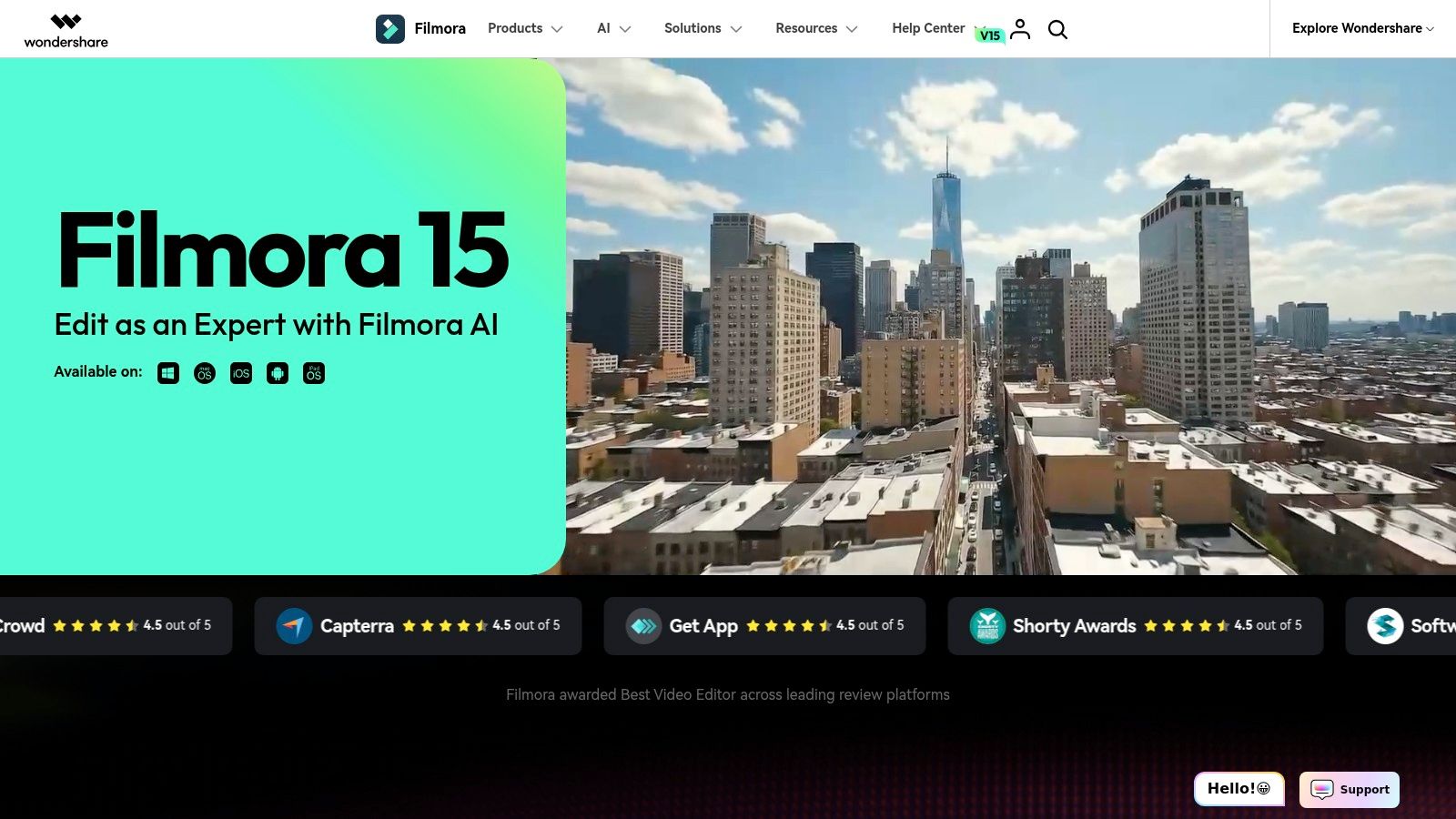
5. Wondershare Filmora
Filmora is what many new YouTubers wish professional editors felt like. You open it, the effects are visible, the templates are obvious, and you can build something stylish without spending a week learning terminology. For many beginners, that matters more than theoretical power.
The upside is speed. The downside is ceiling. Filmora helps you make polished edits quickly, but if your channel becomes more ambitious, you may start feeling boxed in by template-driven habits and a less flexible timeline.
Who Should Use It
Filmora works best for new YouTubers, lifestyle creators, tutorial channels, school projects, and anyone who wants social-friendly editing with a lighter learning curve. It's especially useful when your editing style leans on animated text, transitions, and preset-driven pacing.
A few honest trade-offs:
- Great for first channels: You can learn visual rhythm without getting buried in advanced post-production concepts.
- Useful for quick turnarounds: Captions, stock integrations, and ready-made assets save time.
- Not ideal for advanced workflows: Once you need more complex compositing, deeper color work, or very large projects, the limits show up.
One caution. Beginners often confuse “more effects” with “better editing.” Filmora can tempt you into overediting fast. Use the presets, but keep your cuts serving the story. You can check current features and licensing on the Filmora website.
6. CapCut
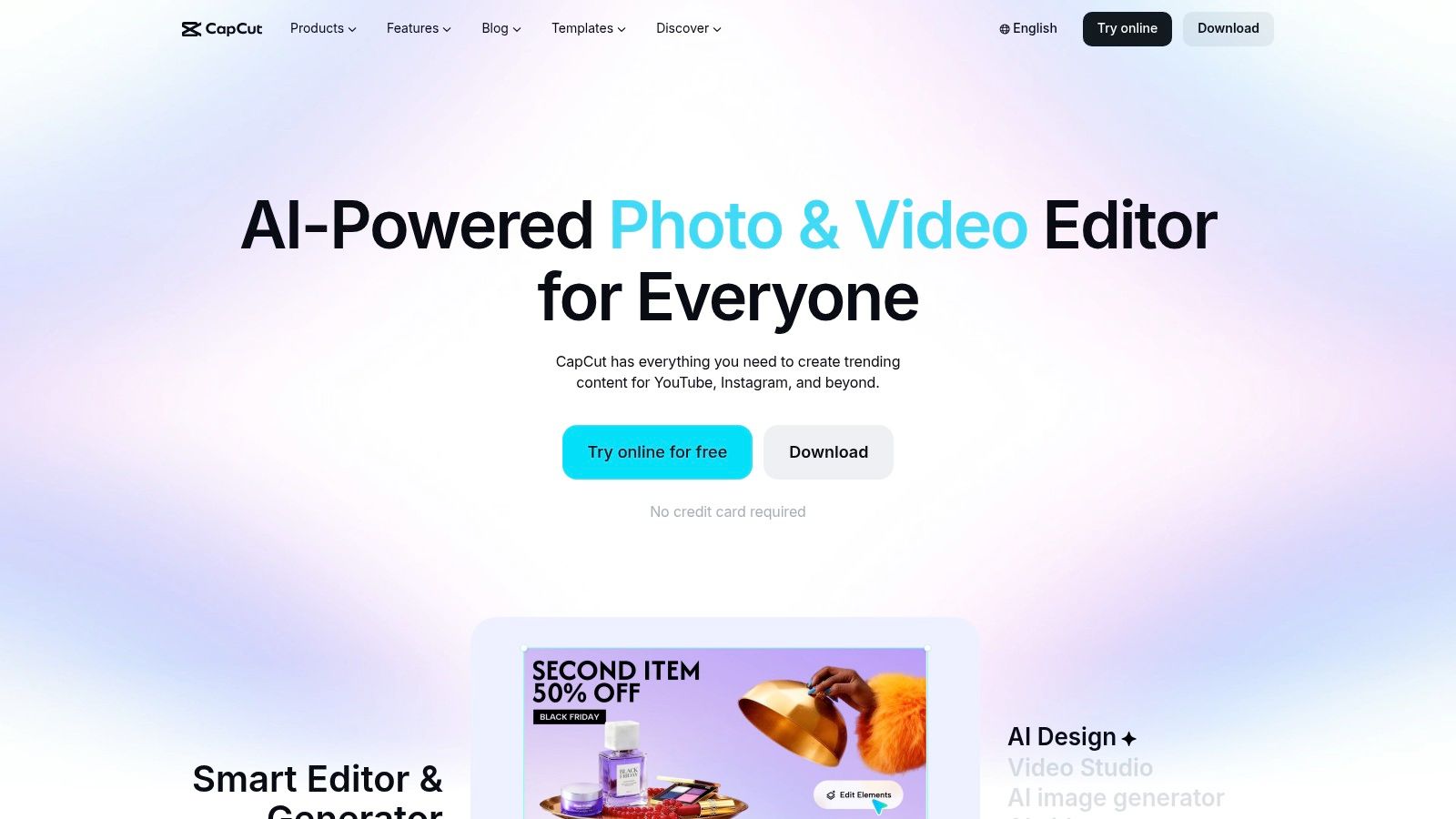
CapCut is the answer for a huge slice of short-form creators. Skillademia reports that CapCut surpassed 800 million cumulative downloads in 2024 and became the most-downloaded video editing app in history, while also noting that ByteDance led AI editing adoption with CapCut at over 500 million users using its AI features for automated short-form creation (video editing market and CapCut adoption data).
Those numbers line up with what creators already feel in practice. CapCut is everywhere because it removes friction. Templates, auto-captions, text-to-speech, and vertical-first workflows let creators publish quickly without treating every video like a film-school assignment.
Best for Shorts and Fast Publishing
CapCut is strongest when speed matters more than deep manual control. If you post YouTube Shorts, TikToks, Reels, reaction clips, trend edits, or repurposed podcast moments, it's one of the fastest tools to go from raw clip to finished asset.
Its strengths are easy to see:
- Short-form native workflow: Vertical formats don't feel bolted on.
- Low barrier to entry: Mobile, desktop, and web options make publishing flexible.
- Template advantage: You can move fast when trends matter.
Its weaknesses are just as real:
- Less ideal for serious long-form work: You can do it, but it's not where CapCut feels best.
- Brand diligence matters: Teams should pay attention to asset usage rules and platform-specific differences.
If you like CapCut's speed but want to compare options built around similar output goals, this roundup of the best CapCut alternative is useful. CapCut itself is available on the official CapCut site.
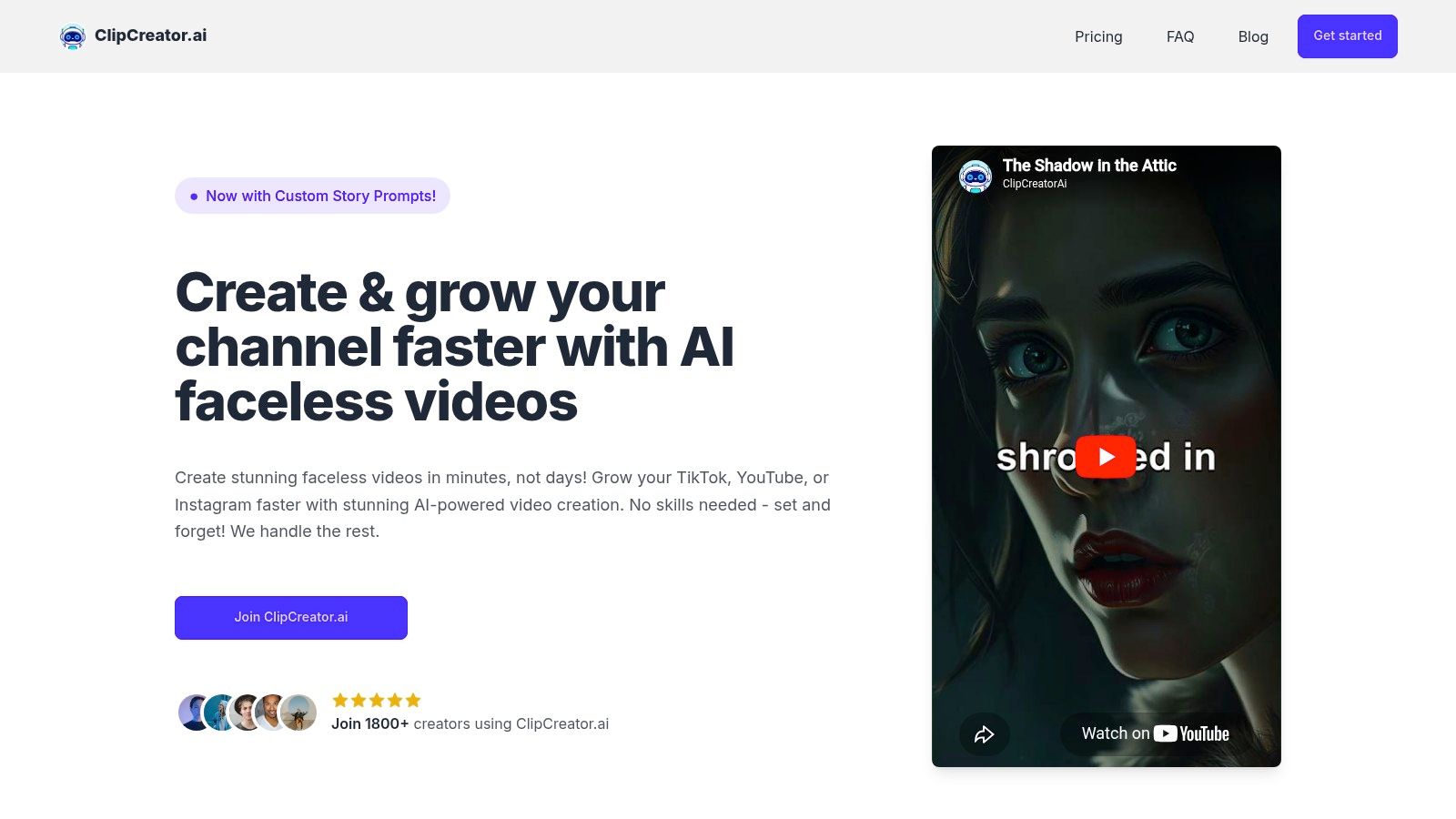
7. ClipCreator.ai
What if the right answer to "what do YouTubers use to edit videos" is "less editing, more system"? For faceless channels, that is often the primary shift. Metricool notes in its 2026 trend report that creators are using generative AI for scripting, visuals, and narration, which pushes many channels to choose an automation workflow instead of a traditional editor (Metricool on AI video editor trends).
ClipCreator.ai fits the AI-Automated category in this guide. It is built for creators who care more about output volume, consistency, and repeatable formats than manual timeline work. That makes it a very different choice from Pro tools like Premiere Pro or Resolve, and even from agile editors like CapCut.
Best for Faceless Channels and Automated Output
This tool makes the most sense for faceless YouTube Shorts, story channels, micro-learning clips, trivia formats, and agency operators producing short-form content across multiple accounts. The workflow is the point. You start with a prompt or a repeatable concept, then the platform handles scriptwriting, image generation, voiceover, subtitles, rendering, scheduling, and auto-posting.
For the right creator, that saves real production time. A solo operator can replace several manual steps. A small content team can standardize output without building a full editing bench.
Its practical advantages are clear:
- End-to-end production: Script, visuals, voice, captions, rendering, and publishing happen in one place.
- Strong fit for scale: Posting volume is easier to maintain when the system handles the repetitive work.
- Useful for faceless formats: It suits channels where the format matters more than handcrafted editing.
- Clear pricing tiers: Starter is 19/month, Daily is 39/month, and Pro is $69/month, based on the publisher information provided for this article.
The trade-offs matter just as much.
- Limited manual control: Editors who want detailed pacing choices, layered effects, or precise visual storytelling will hit the ceiling quickly.
- Built for short-form: Videos top out at 90 seconds, so this is not the tool for long-form essays, vlogs, or documentaries.
- Editing depth is light: You can move fast, but you are working inside a production system, not a full post-production environment.
I would recommend ClipCreator.ai to creators with a clear content engine already in mind. If the goal is to publish faceless shorts consistently, it can remove a lot of bottlenecks. If the goal is to craft highly original long-form YouTube videos, a traditional editor still gives you far more control.
8. iMovie
iMovie is still one of the best starting points for new creators on Apple devices because it doesn't fight you. You import clips, drag them onto a timeline, trim mistakes, add basic titles, and export. For many first channels, that's enough.
A lot of people dismiss iMovie too early because it's simple. Simplicity is exactly why it works. It teaches the fundamentals of pacing, shot order, and basic audio awareness without burying you in professional jargon.
Best First Step on Apple Devices
iMovie is a smart fit for beginners, students, hobby channels, and creators who mostly need clean cuts rather than elaborate post-production. It also works well for roughing out ideas quickly before you move into Final Cut Pro later.
What it does well:
- Low learning curve: You can be productive quickly.
- Reliable Apple integration: Photos, iCloud, and device handoff are convenient.
- Clear upgrade path: If you outgrow it, Final Cut Pro is a natural next step.
Where it falls short:
- Limited pro control: Advanced color work, layered audio shaping, and complex effects aren't its thing.
- Apple-only workflow: That's either convenient or restrictive, depending on your setup.
If your main question is how to start editing YouTube videos without getting overwhelmed, iMovie is one of the easiest honest answers. Apple keeps the details on the iMovie page.
9. Shotcut
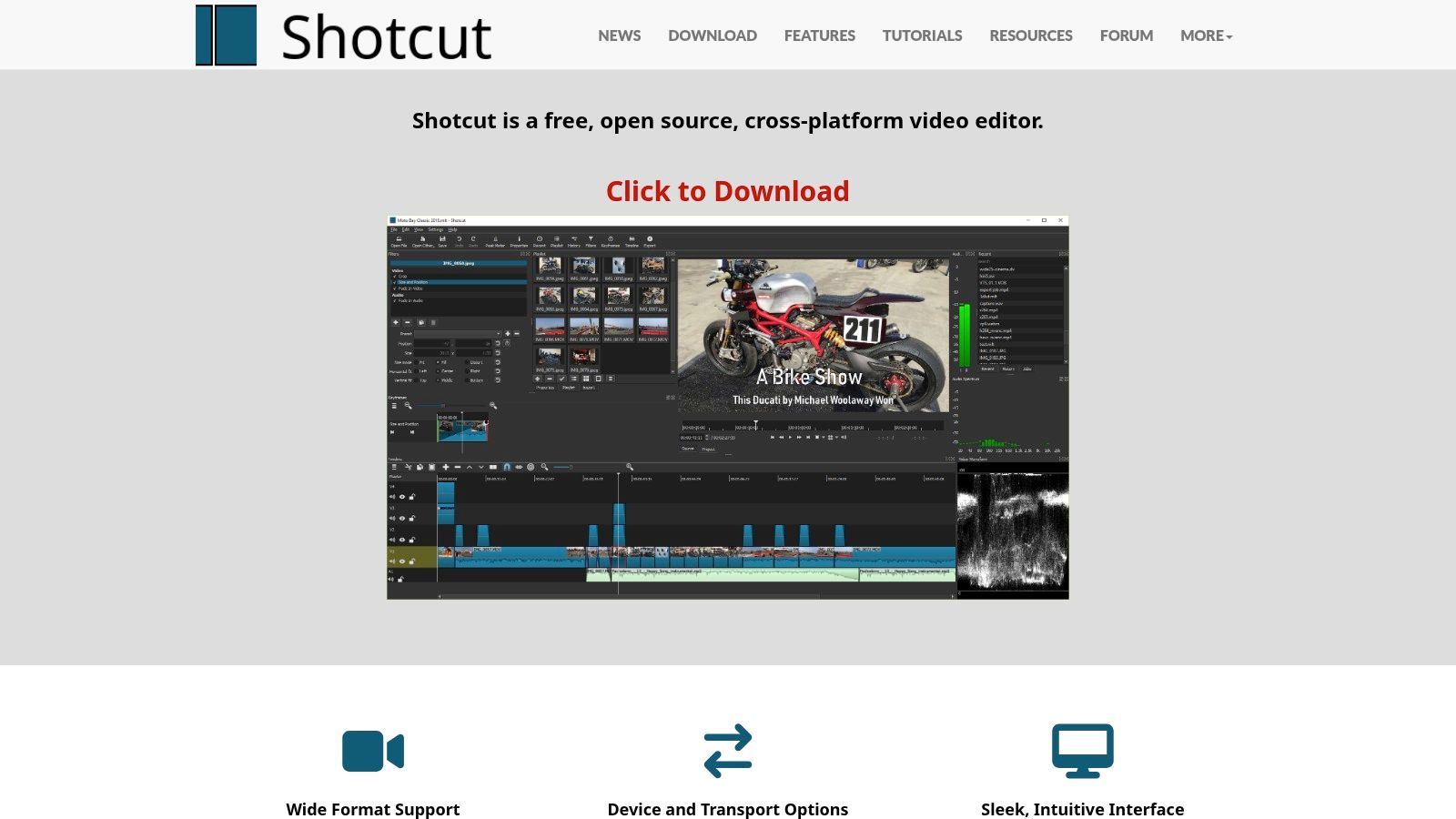
Shotcut is for creators who care more about capability than polish. It's open source, cross-platform, and far more capable than many people expect from free software. You get multitrack editing, keyframes, LUT support, stabilization, and other tools that can carry real YouTube work.
What you don't get is a slick commercial experience. The interface feels utilitarian, and there are fewer shortcuts to trendy templates or social-first assets. That's why Shotcut tends to appeal to tinkerers and budget-conscious editors rather than creators who want a polished onboarding flow.
Best Free Option for Independent Builders
Shotcut is a good match for creators on Windows, Mac, or Linux who want no-cost editing without watermarks and don't mind learning through experimentation. It rewards patience more than impulse.
A realistic read on it looks like this:
- Biggest strength: Completely free with enough depth to handle serious basics.
- Biggest drawback: The user experience is less refined than commercial tools.
- Best user type: Creators who enjoy control and can tolerate a rougher interface.
Free software is only “cheap” if it costs you uploads. Shotcut is worth using when you have the patience to build fluency with it.
If that sounds like you, start with the Shotcut official site.
10. Microsoft Clipchamp
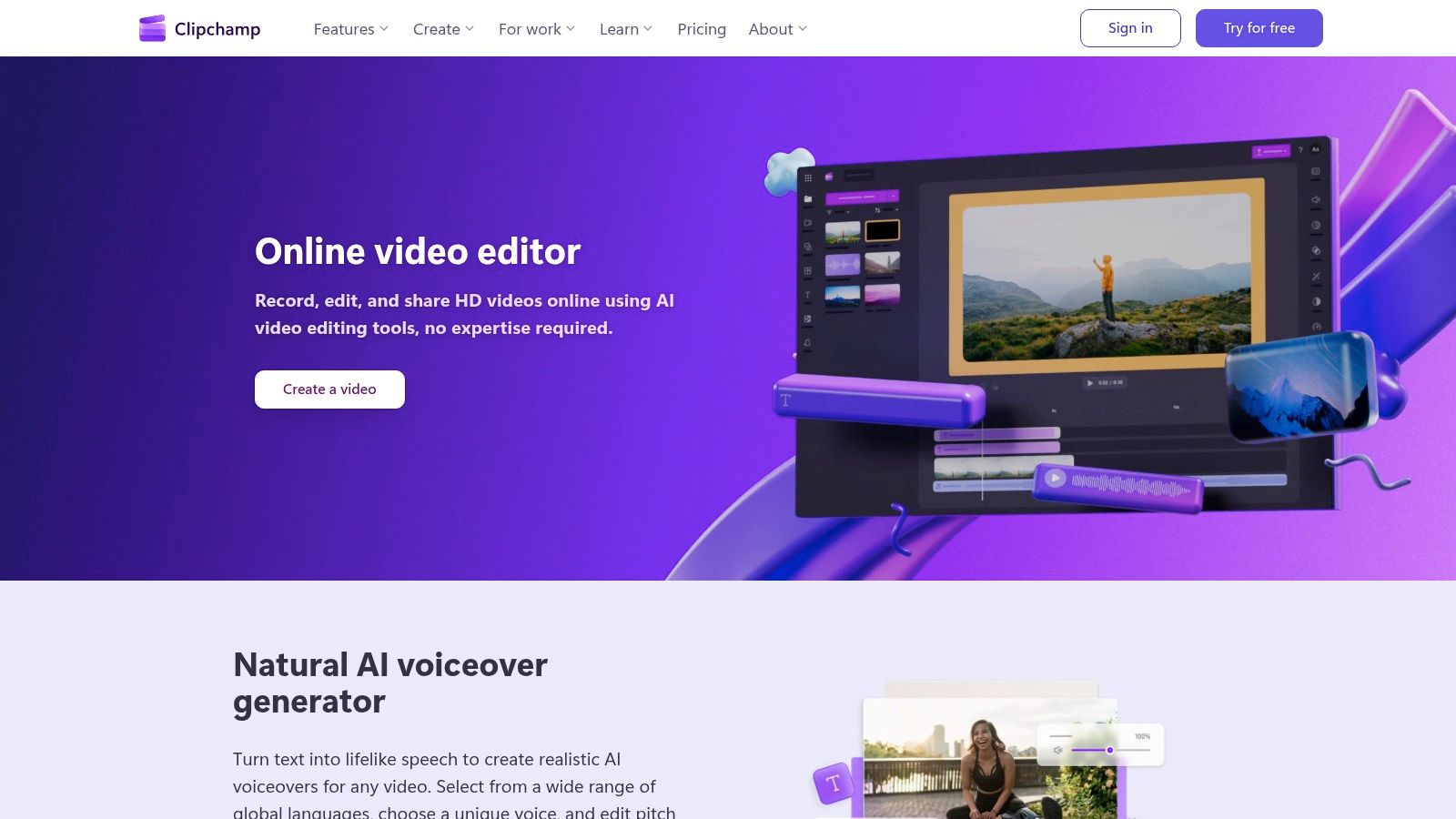
Clipchamp fills a useful gap. It's not trying to compete with Premiere Pro on depth. It's trying to make editing accessible inside a browser for people who want quick results, cloud-connected projects, and simple social exports.
That makes it more relevant than some pro editors for certain creators. If you're already in the Microsoft ecosystem, using OneDrive or Microsoft 365, Clipchamp can feel pleasantly low-friction. Open the browser, drop in footage, trim, add captions, export, done.
Best for Simple Cloud-Based Edits
Clipchamp is a strong fit for beginners, educators, business teams, internal comms, and creators producing straightforward YouTube clips or shorts without a heavy post-production process. It's also handy when you need to edit on machines where installing full desktop software isn't practical.
Its real-world trade-offs are straightforward:
- Useful for quick edits: Especially talking-head videos, internal explainers, and repurposed social clips.
- Beginner-friendly: Template-driven editing reduces intimidation.
- Limited for complex projects: It won't replace a full NLE when your workflow gets layered and demanding.
Clipchamp works best when convenience is the priority. If you're chasing speed, cloud access, and simple collaboration, it earns its place. You can explore it on the Microsoft Clipchamp website.
Top 10 YouTuber Video Editors, Feature Comparison
| Tool | Core features | Quality (★) | Pricing & Value (💰) | Target audience (👥) | Unique / Edge (✨/🏆) |
|---|---|---|---|---|---|
| Adobe Premiere Pro | Robust NLE: multi‑cam, advanced timeline, color & audio, plugins | ★★★★☆ | 💰 Subscription (Creative Cloud), premium for teams | 👥 Pros, agencies, scaling creators | ✨ Industry standard; strong ecosystem & Frame.io collaboration |
| Final Cut Pro | Magnetic Timeline, Smart Conform, ProRes, Motion/Compressor | ★★★★★ | 💰 One‑time purchase (macOS) | 👥 Mac creators, solo pros | ✨ Exceptional Apple silicon performance; fast exports |
| DaVinci Resolve | Edit + best‑in‑class color + Fusion VFX + Fairlight audio | ★★★★★ | 💰 Free tier; Studio one‑time license for pro features | 👥 Colorists, pros, cross‑platform teams | ✨ Top color tools; powerful free offering |
| VEGAS Pro | Timeline + strong integrated audio, AI tools, HDR support | ★★★★☆ | 💰 Perpetual or subscription options | 👥 Windows creators, gaming/commentary | ✨ Built‑in audio workflows & flexible licensing |
| Wondershare Filmora | Easy timeline, presets, effects, social templates | ★★★☆☆ | 💰 Affordable tiers + optional asset add‑ons | 👥 Beginners, new YouTubers | ✨ Large asset library; very user‑friendly |
| CapCut | Template‑driven short‑form editor, auto‑captions, TTS, cloud | ★★★★☆ | 💰 Free tier; Pro/Teams vary by region | 👥 Short‑form creators, mobile‑first users | ✨ Fast template workflows; strong mobile/web sync |
| ClipCreator.ai 🏆 | Script → images → AI voice → subtitles → render → auto‑post | ★★★★☆ | 💰 Starter 19/mo; Daily 39/mo; Pro $69/mo | 👥 Creators, educators, agencies, SMBs | 🏆 ✨ End‑to‑end automation + proven viral templates, auto‑posting & full ownership |
| iMovie | Simple timeline, trailer/storyboard modes, 4K export | ★★★☆☆ | 💰 Free on macOS/iOS/iPadOS | 👥 Beginners on Apple devices | ✨ Seamless Apple integration; easy gateway to Final Cut Pro |
| Shotcut | Open‑source multitrack NLE: keyframes, motion tracking, LUTs | ★★★☆☆ | 💰 Free (no watermarks) | 👥 Budget‑conscious creators, Linux users | ✨ Powerful open‑source feature set; cross‑platform |
| Microsoft Clipchamp | Browser‑based editor, templates, cloud, auto‑captions | ★★★☆☆ | 💰 Free/basic; premium features via Microsoft 365 | 👥 Beginners and Microsoft 365 users | ✨ Web + OneDrive/SharePoint integration for quick cloud workflows |
Your Edit, Your Story From Tool to Final Cut
The best answer to what do YouTubers use to edit videos isn't one app. It depends on what kind of creator you are and what kind of production problem you're solving.
If you make long-form videos and want maximum control, Adobe Premiere Pro, Final Cut Pro, and DaVinci Resolve are still the serious contenders. Premiere is the most established all-around pro choice. Final Cut Pro is excellent for Mac creators who value speed and simplicity. Resolve gives you a lot of professional depth, especially if color and finishing matter to you, and its free version makes it unusually accessible.
If your content lives in the short-form world, the decision changes. CapCut is fast, trend-aware, and built for vertical publishing. It's often the practical pick when you need to move from idea to uploaded short without overcomplicating the process. Filmora and Clipchamp fit a similar spirit for creators who want accessible editing without the overhead of a full post-production suite.
Then there's the category many creators still underestimate. Automation-first tools. For faceless channels, story formats, educational micro-content, and scale-driven publishing, manual editing isn't always the smartest bottleneck to keep. In those cases, a platform like ClipCreator.ai can make more sense than a classic timeline editor because it handles the pipeline from script through publishing. That matters when consistency is the key growth lever.
Free tools still have an important place too. iMovie is one of the easiest starting points on Apple devices. Shotcut is a capable no-cost option for creators who don't mind a rougher interface. DaVinci Resolve remains the strongest free bridge into more professional editing habits.
The safest way to choose is simple. Match the tool to the workflow, not to the hype.
- Choose a pro editor if your videos are layered, longer, or built around storytelling precision.
- Choose an agile editor if your schedule depends on speed and social formatting.
- Choose an automated platform if your content model is built on volume, faceless production, or repeatable formats.
- Choose a free tool if you're still learning the basics and need to build skill before spending money.
Good editing software won't make a weak video strong on its own. But the right workflow will help you publish more consistently, spend less time fighting the tool, and focus more on the part viewers care about. The story, the pacing, and the reason to keep watching.
Start with the tool that removes your current bottleneck. Then grow from there.
If you're building a faceless Shorts channel, producing story-based videos at scale, or just tired of spending hours scripting, editing, subtitling, and posting, ClipCreator.ai is the fastest workflow on this list to try. It turns prompts or proven templates into finished short-form videos with voiceovers, subtitles, rendering, and auto-posting built in, so you can spend less time editing and more time publishing consistently.

Create your first video in under 2 minutes
Pick a niche, and ClipCreator.ai generates and auto-posts faceless videos to your channels every day.
Join ClipCreator.ai