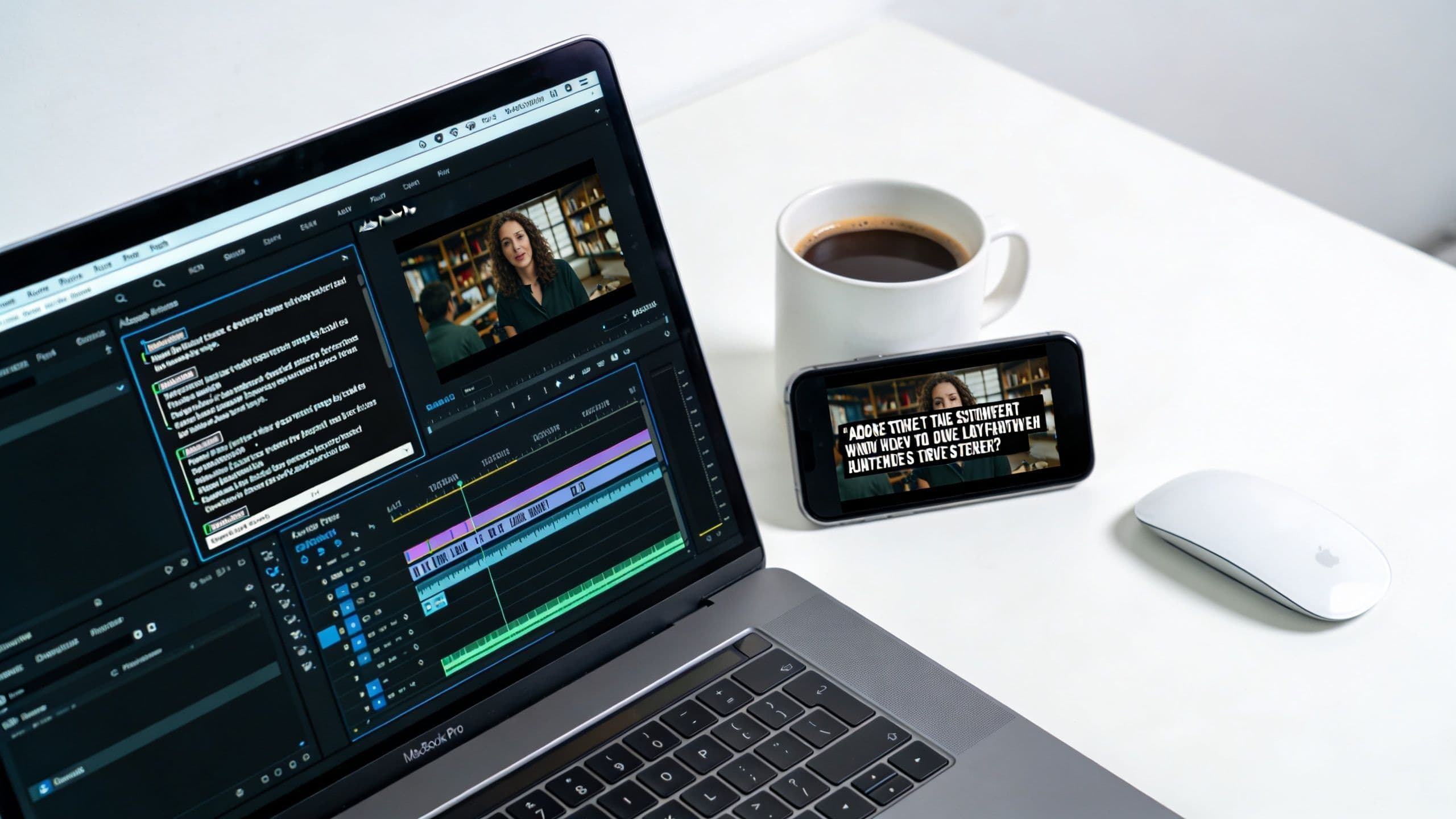
You've probably had this happen. The cut is tight, the pacing is right, the hook lands in the first second, and the video still underperforms because the first view happened on a phone with the sound off.
That's why subtitles in Premiere Pro aren't a finishing touch anymore. For TikTok, Reels, and Shorts, they're part of the edit itself. Good subtitles carry the story when audio is muted, they control reading rhythm, and they make a short-form video feel native to the platform instead of exported from a desktop timeline and dumped online.
The good news is that Premiere Pro finally makes this fast. The better news is that speed doesn't have to kill style if you build the right workflow.
Why Subtitles Are Non-Negotiable in 2026
A lot of creators still treat subtitles like cleanup work. That's backwards. On short-form video, captions often do the job your voiceover can't do on the first pass because many people never hear it.
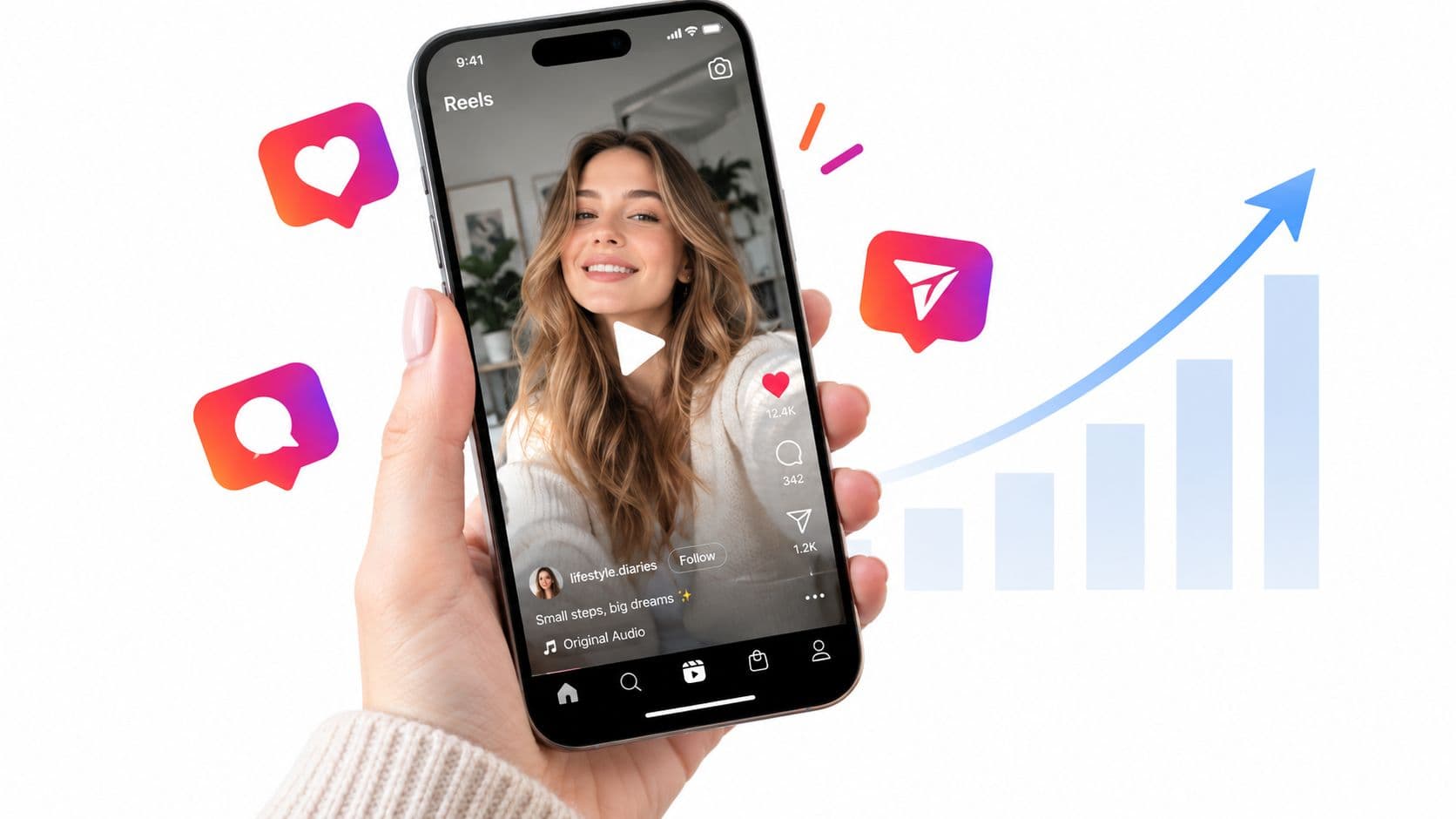
A 2023 W3C Web Accessibility Initiative report cited here says 85% of global video viewers watch with sound off on mobile devices. The same source notes that on TikTok and YouTube, captioned videos achieve 12% higher watch time and 20% more shares. That's not a minor lift. That's the difference between a clip that gets sampled and a clip that gets skipped.
Subtitles also change how your hook lands. If your first line appears as readable, well-timed on-screen text, the viewer can process the idea before they decide whether to scroll. That's one reason creators who care about improving short-form video hook execution usually end up refining their caption style too. Hook and subtitle timing are tied together.
Practical rule: If the first caption block is slow, cluttered, or too low on the screen, the hook weakens even when the script is strong.
There's also a platform reality here. TikTok, Reels, and Shorts train viewers to expect visible text. Not always full verbatim captions. But some form of readable, intentional on-screen language. If your edit has no subtitles, or the subtitles look like default software output, the video feels less native.
One more distinction matters. Open captions are usually the safer choice for feed-first content because you control exactly how they look. If you need a clearer breakdown of that decision, this guide on open vs closed captions is worth reviewing before you export.
The Fastest Path with Auto Transcription
If you're editing frequent short-form content, the fastest workflow is Premiere Pro's built-in transcription and caption tool. It's the only method I'd recommend as a default starting point for most talking-head clips, faceless voiceover videos, interviews, and repurposed podcast segments.
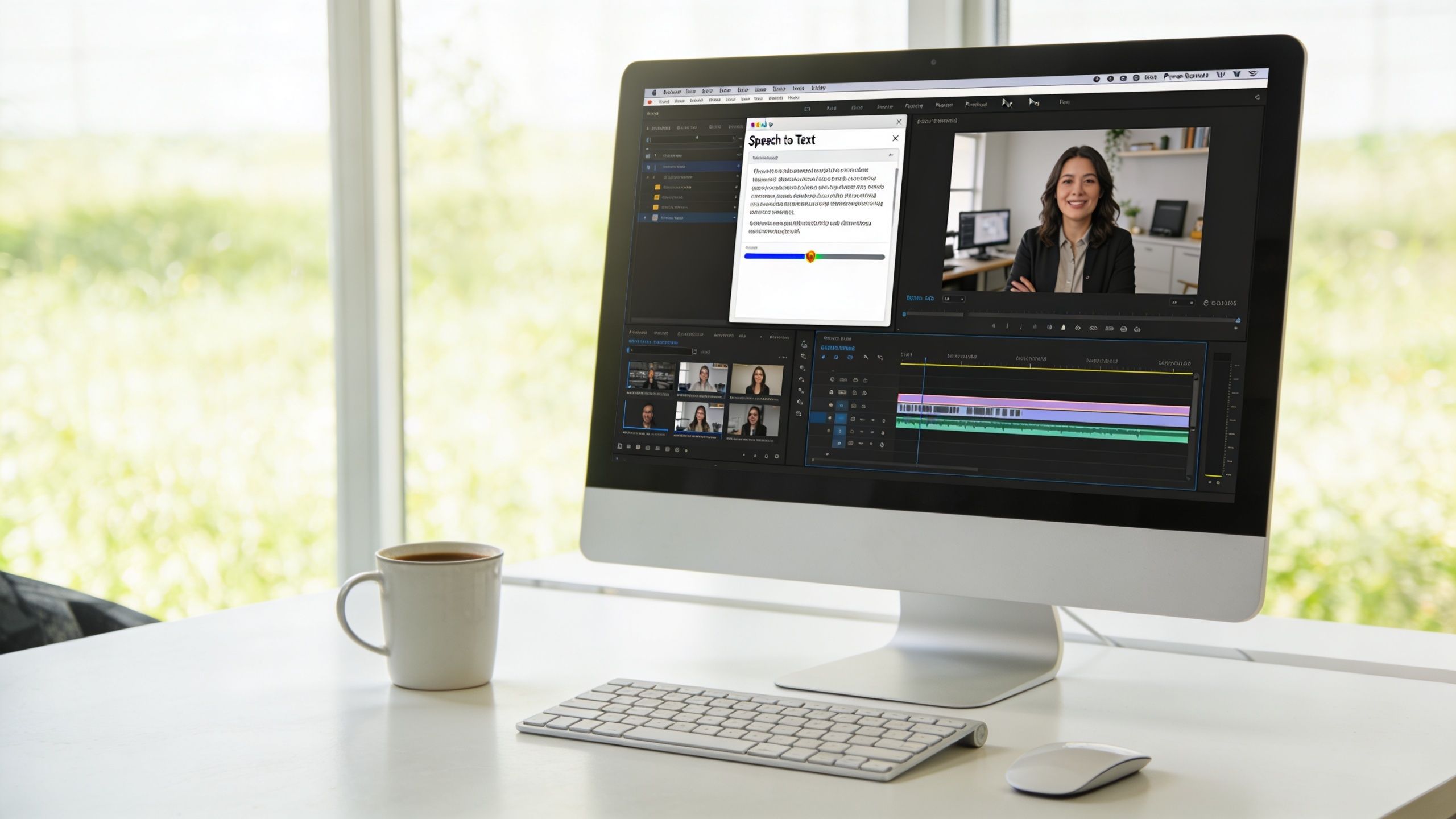
According to Mic Drop's walkthrough of the Premiere workflow, using Premiere Pro's Transcribe Sequence feature can generate 95% accurate subtitles for a 90-second TikTok clip in under 5 minutes. That same workflow relies on cleaning the audio with DeNoise, letting Adobe Sensei AI process the dialogue, and then using Create Captions to auto-segment the transcript into timed subtitle blocks.
Clean the audio before you transcribe
Most caption errors don't start in the Text panel. They start in ugly audio.
If the dialogue is muddy, run a quick cleanup pass first. In Premiere Pro, that usually means using the Audio Track Mixer or a light DeNoise effect before transcription. You're not mastering the track here. You're just making words easier for the transcription engine to hear.
A few practical checks before you click anything:
- Solo the right track: If your sequence has music, scratch audio, and voiceover stacked together, make sure the spoken track is the one you want the tool to read.
- Trim dead space first: Long intros, slates, and empty handles don't help. A cleaner sequence gives you a cleaner transcript.
- Decide on speaker labeling early: If you're cutting interviews or a podcast segment, let Premiere identify separate speakers from the start so you don't have to rebuild that structure later.
Use the Text panel as your command center
Open Window > Text. In current versions, the entire job lives in this panel.
Select the sequence, then run Transcribe Sequence. Premiere sends the audio through Adobe Sensei, builds a transcript, and drops the result into the Text panel. For multi-speaker material, enable speaker detection if the dialogue format needs it.
Once the transcript is done, click Create Captions. This step determines whether the workflow remains efficient.
Don't accept the first auto-segmentation blindly. Good subtitle timing is less about software accuracy and more about whether a human can read each block without effort.
The caption creation dialog matters. For viral-style subtitles, shorter blocks almost always read better than long sentence-style captions. In practice, short phrase groupings feel more native to TikTok and Reels than dense, broadcast-looking blocks.
A few settings usually work well as a starting point:
| Setting | Practical choice | Why it works |
|---|---|---|
| Caption length | Keep it short | Easier to scan on a phone |
| Lines | Usually 1 to 2 | Prevents giant text walls |
| Segmentation | Break on speech pauses | Makes the timing feel natural |
| Speaker labels | Use only when needed | Useful for interviews, distracting for simple voiceovers |
If you want a broader software roundup beyond Premiere's native tool, this review of an auto captions app workflow can help you compare where dedicated tools save time and where staying inside Premiere still wins.
Fix the transcript fast instead of line by line
The biggest mistake people make after auto-transcription is correcting every issue in timeline order. That's slow.
Work top-down in the transcript first. If Premiere keeps misreading a brand name, product term, or proper noun, use Find and Replace in the Text panel. Fix repeated errors globally before you touch timing. Then go through the sequence and adjust only the lines that feel clunky on screen.
This part matters more than people think. A transcript can be technically correct and still read poorly because the blocks break at the wrong places.
Use this order:
- Correct recurring word errors
- Split long subtitle blocks
- Adjust in and out timing
- Check the opening captions on a phone-sized preview
What works and what doesn't
Auto transcription works best for clear English dialogue, clean voiceovers, and short-form videos with one dominant speaker. It's also excellent for faceless content where the pacing is built around narration.
It works less well when the source has cross-talk, heavy accents, low-quality remote audio, or background music sitting too close to the voice. In those cases, the transcript still saves time, but you should expect a manual pass.
Here's the trade-off in plain terms:
- Use auto transcription when speed matters and the source audio is decent.
- Don't trust it blindly for names, slang, technical terms, or stylized cuts with rapid edits.
- Treat the first pass as a draft, not a final deliverable.
That mindset keeps subtitles in Premiere Pro fast without letting them look automated.
Manual Captions and Importing SRT Files
Auto transcription is the default now, but it's not always the right move. Some jobs are faster when you start from approved text. Others need manual control because there's no spoken dialogue to transcribe in the first place.
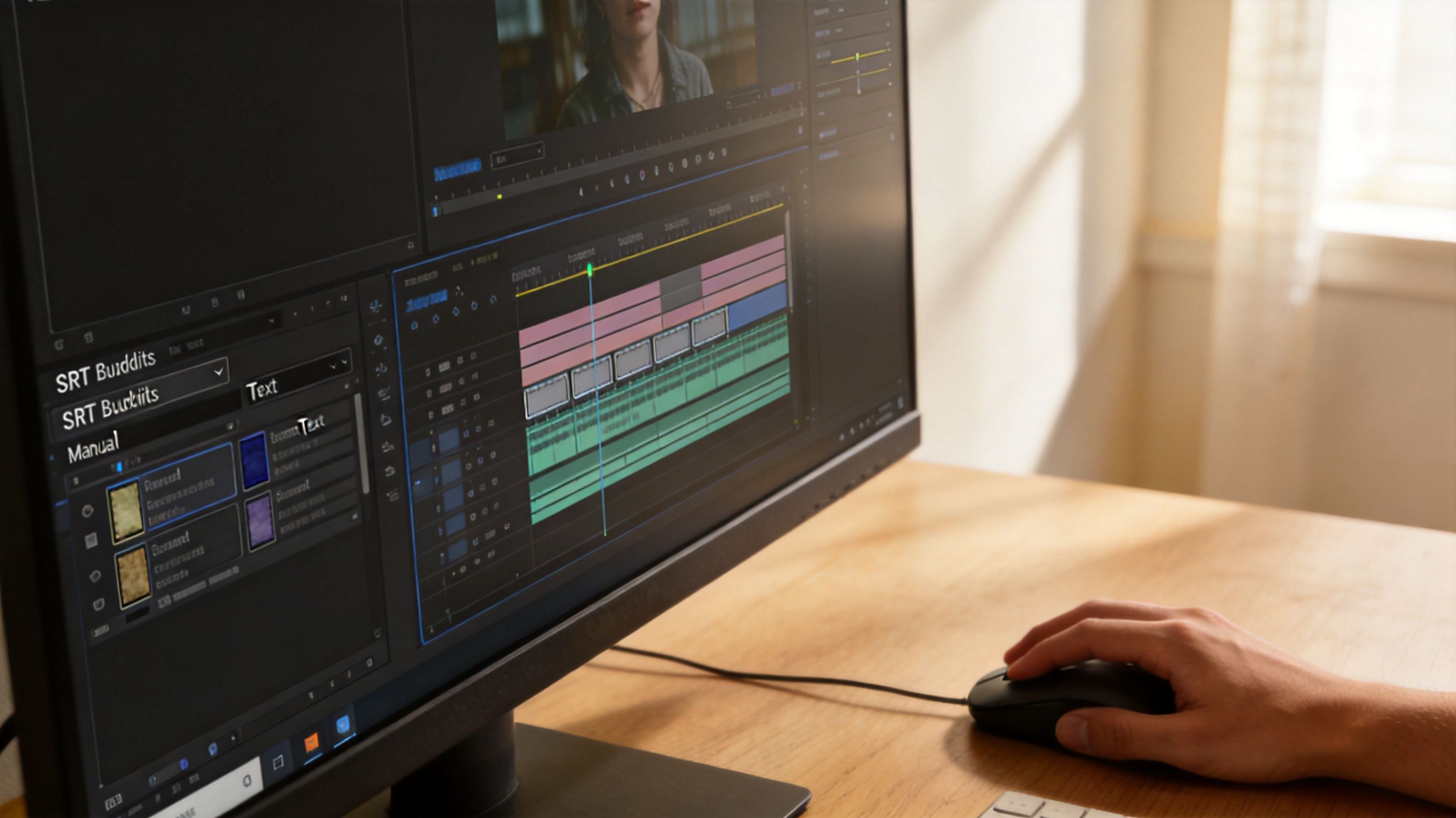
Before Adobe added AI transcription in late 2021, creators often relied on manual entry or imported subtitle files. That could take 5 to 10 hours per hour of footage, and the AI update later reduced production time by over 70% for many creators, as noted in this Adobe-focused walkthrough. Manual work is slower, but for some edits it's still the cleaner option.
When manual captions are the better call
Manual subtitles make sense when the text is part of the storytelling rather than a direct transcript.
That includes:
- Scripted faceless videos: You already know the exact wording and want on-screen text to match the approved script.
- Montages with sparse dialogue: The subtitles are acting more like story beats, labels, or reactions.
- Heavy stylization: You want selective emphasis, staggered reveals, or non-verbatim text.
In Premiere Pro, you can create a new caption track and type directly into caption blocks. This is slower than auto-generation, but it gives you total control over wording, pacing, and where each phrase hits.
A manual subtitle pass often looks better when the script is intentionally punchy. Verbatim transcription can feel too loose for that style.
Importing SRT files without making a mess
If a client, collaborator, or external tool already gave you an .SRT file, don't rebuild the captions from scratch.
Import the SRT into the Project panel like any other asset, then drag it onto the timeline. Premiere Pro creates a caption track above your video layers. From there, you can edit text, timing, and style in the Text or Captions workspace.
This workflow is usually best when:
- a client has approved subtitle wording already
- another team member handled transcription
- you're managing multiple edits that need consistent language
A simple companion guide on how to add subtitles to a video can help if you're dealing with subtitle files across different editing setups and not just inside Premiere.
The trade-offs between manual and imported text
Manual entry gives you the strongest creative control. Imported SRT gives you consistency and speed when the text is already approved. Neither is as efficient as native transcription for a quick social clip, but both beat fighting a bad transcript that was never going to be accurate enough.
Here's the practical split:
| Workflow | Best use case | Main drawback |
|---|---|---|
| Manual captions | Stylized shorts, scripted text, selective on-screen phrases | Slowest method |
| Import SRT | Approved captions, collaboration, external transcription | Timing drift if the edit changed |
| Auto transcription | Fast-turn social content with clean dialogue | Needs review and cleanup |
The main pitfall with imported SRT files is sync drift after picture changes. If the sequence changed after the SRT was created, expect offsets. Spot-check the start, middle, and end. If the drift grows across the timeline, the file probably belongs to an earlier edit version and needs retiming or replacement.
Styling Subtitles for Social Media Engagement
Default captions are readable. Viral-style captions are readable and intentional.
That difference matters. On TikTok, Reels, and Shorts, subtitle design is part of the visual language of the video. The wrong font, weak contrast, or bottom-edge placement can make a good edit feel cheap fast.
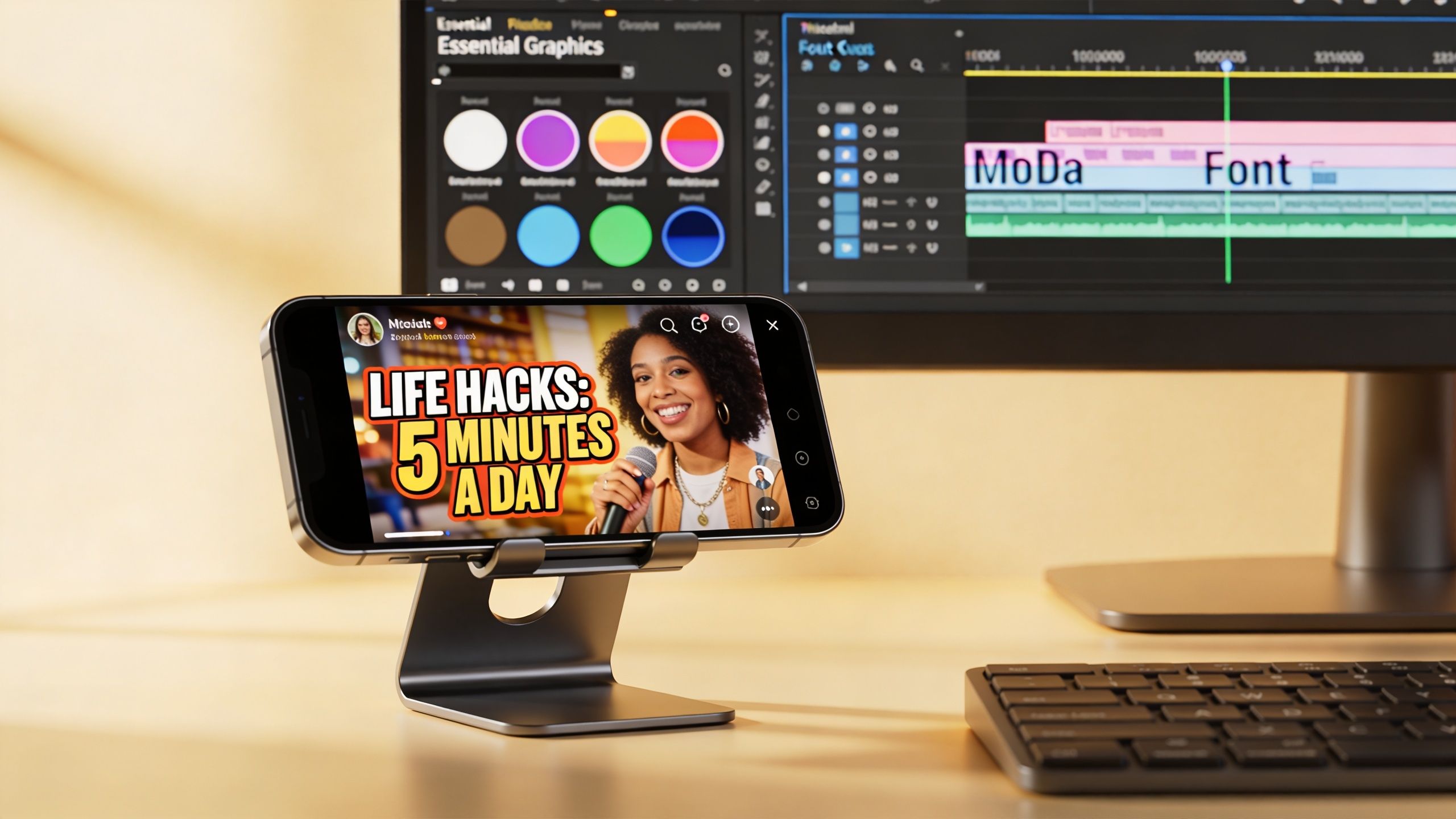
For readability, this subtitle styling guide recommends using the Properties panel with a white font (#FFFFFF), a 2px black stroke, and a subtle drop shadow. It also notes that a simple scale animation from 90% to 100% over 4 frames can create a clean pop effect, and that these details can improve viewer retention by up to 25% on mobile.
Build a style that survives a phone screen
Desktop previews lie. What looks balanced on a monitor often feels tiny or low-contrast on a phone.
The safest base style for short-form subtitles in Premiere Pro is:
- Font: bold sans-serif
- Fill: white
- Stroke: black, enough to separate from bright footage
- Shadow or background: subtle, not chunky
- Placement: lower third, but lifted above platform UI
- Line length: short enough to read in one glance
If you're repurposing long-form content into clips, subtitle styling becomes even more important because each excerpt needs to look native to the platform. This guide on turning one podcast episode into campaigns is a useful companion if you're packaging multiple social assets from one source recording.
Use movement carefully
Most creators overanimate captions. They add too much bounce, too much tracking, too many color changes, and the text starts competing with the footage.
A small scale-up is usually enough. In Premiere Pro, animate the subtitle layer so it enters at 90% and lands at 100% over 4 frames. That gives the text a little life without making it look like a novelty template.
Here's a useful visual reference for the kind of subtitle energy that works on social:

Keep the animation consistent. One restrained motion pattern across the whole video looks professional. Random changes from line to line look accidental.
What usually works in the real world
In Premiere's Essential Graphics and caption styling controls, the best results usually come from restraint.
Good choices
- Bold sans-serif fonts
- White text with black edge treatment
- Slight vertical lift above the bottom UI zone
- One or two words of emphasis, not rainbow text on every line
- Saved presets for repeated use
Bad choices
- Thin fonts over busy footage
- Captions placed too low in vertical video
- Full-sentence blocks covering faces
- Constant color swapping
- Overdesigned animations on every subtitle
If you're editing a lot of volume, save your preferred look as a style preset. That way your subtitles in Premiere Pro stop being a design decision you remake every single time.
Exporting Your Video with Perfect Subtitles
Export is where a lot of otherwise solid subtitle work gets ruined. The text may look right inside Premiere Pro, but if you choose the wrong delivery method, the platform can strip styling, ignore the file, or display the captions in a way that doesn't match the edit.
A major export pitfall is accessibility compliance. According to this discussion of Premiere subtitle standards, using Premiere's color picker to maintain a 4.5:1 contrast ratio and exporting an accurate SRT file can increase viewer retention by 20 to 30% and boost engagement by 25%, citing Google's 2025 Creator Report.
Burned-in versus sidecar files
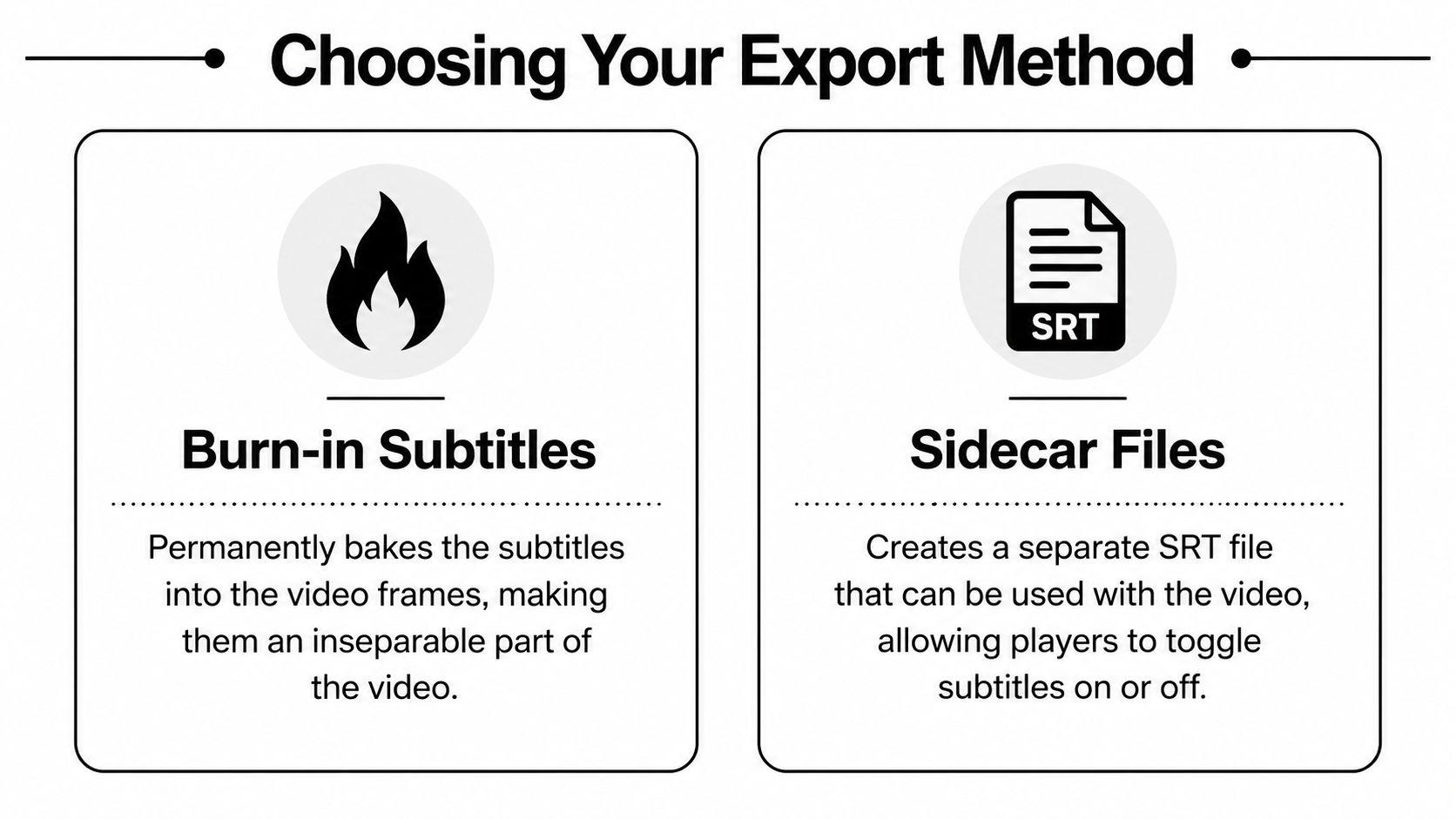
For short-form social, the choice is usually simple. If you need the captions to appear exactly as designed, export them as burned-in open captions. If you need flexibility, language options, or user-controlled playback, export a sidecar subtitle file such as SRT.
| Export type | Best for | Strength | Limitation |
|---|---|---|---|
| Burned-in subtitles | TikTok, Reels, most social edits | Guaranteed look and placement | Can't be toggled off |
| Sidecar SRT | YouTube and workflows needing flexibility | Easier to update later | Platform controls the final display |
| Embedded captions | Delivery-specific workflows | Useful in some managed environments | Less predictable across social platforms |
The practical platform split
For TikTok and Instagram Reels, burned-in captions are usually the safer choice because they preserve your styling and placement. That matters when your subtitles are part of the visual identity of the clip.
For YouTube, an SRT sidecar file is often the better option if you want the viewer to toggle captions and if you may need to revise wording later without re-exporting the entire video.
If your subtitles are doing brand work, not just accessibility work, burn them in. If the platform experience matters more than your exact styling, use SRT.
Final export checks that catch most problems
Before you export, do a quick pass with these checks:
- Contrast check: Use Premiere's color tools to make sure text remains readable against bright and dark shots.
- UI overlap check: In vertical video, verify captions don't sit under platform buttons or profile overlays.
- Timing check: Watch the first few lines, a middle section, and the end. If all three feel right, the rest usually is too.
- Format check: Make sure you're exporting the subtitle type that fits the destination, not just the one that was easiest to make.
A clean subtitle export isn't only about appearance. It also affects accessibility, readability, and how native the final video feels once it leaves your editing timeline.
Troubleshooting Common Subtitle Pitfalls
Most subtitle problems in Premiere Pro fall into three buckets. Timing drift, bad transcript terms, and captions that technically exist but don't read well.
Captions drift out of sync
This usually happens after you make timeline changes after generating or importing captions. If the edit changed, the subtitle timing probably needs attention too.
Fix it by checking whether the drift is constant or gradual. Constant drift can often be corrected with an offset. Gradual drift usually means the subtitle file belongs to a different cut, so it's faster to regenerate or reimport from the correct version.
Premiere keeps mishearing names or jargon
This is common with product names, slang, and niche terminology. Don't fix these one by one as they appear.
Use Find and Replace in the Text panel to clean repeated mistakes globally. Then scan the caption track for the few lines where context changes the wording.
The subtitles are too long and feel slow
This is a formatting issue more than a transcription issue. Long blocks make mobile viewers work too hard.
Split captions at natural speech pauses. Short phrase groupings read better, feel more native to TikTok and Reels, and let you place emphasis where it matters.
Shorter subtitle blocks usually feel faster even when the spoken audio hasn't changed.
The text covers faces or lower-thirds
Move the whole caption style upward instead of manually dragging random lines. Global style changes keep the track clean and stop one-off fixes from piling up.
When subtitles in Premiere Pro are built well, they stop feeling like an extra layer. They become part of pacing, part of design, and part of why the video holds attention.
If you want to spend less time building faceless short-form videos from scratch, ClipCreator.ai can handle the scripting, visuals, voiceover, subtitles, and publishing workflow for TikTok, YouTube, and Instagram. It's built for creators and teams who need consistent output without living inside the timeline every day.

Create your first video in under 2 minutes
Pick a niche, and ClipCreator.ai generates and auto-posts faceless videos to your channels every day.
Join ClipCreator.ai