You've got a folder full of stills, a deadline, and a video to publish today. Maybe you're turning lesson slides into a Reel, repurposing product photos for TikTok, or building a faceless story from AI-generated images. The hard part isn't finding a button labeled “animate.” It's choosing an effect, pacing the images, keeping captions readable, and exporting a file that still looks good on a phone.
A photo in video app can handle some or all of that work: sequence images, add motion, place narration and music, generate captions, and export a finished video. The right choice depends on whether you want precise control over each image or a repeatable workflow that takes care of most production steps for you.
What You Actually Want From a Photo in Video App
Start with the finished video, not the app's feature list. Decide where it'll be published, what the viewer should understand, and whether the images need to carry a story, explain information, or sell a product. Those choices determine how much motion you need and whether narration and captions are essential.
A useful photo-to-video workflow has a few distinct jobs:
- Sequence: Arrange images so each one supports the story rather than filling time.
- Animate: Add motion that guides attention without distracting from the subject.
- Narrate: Use a voice track when the images need context or a clear through-line.
- Caption: Make spoken content understandable with sound off and easier to follow for more viewers.
- Export: Deliver a sharp, correctly formatted video that's ready for the intended platform.
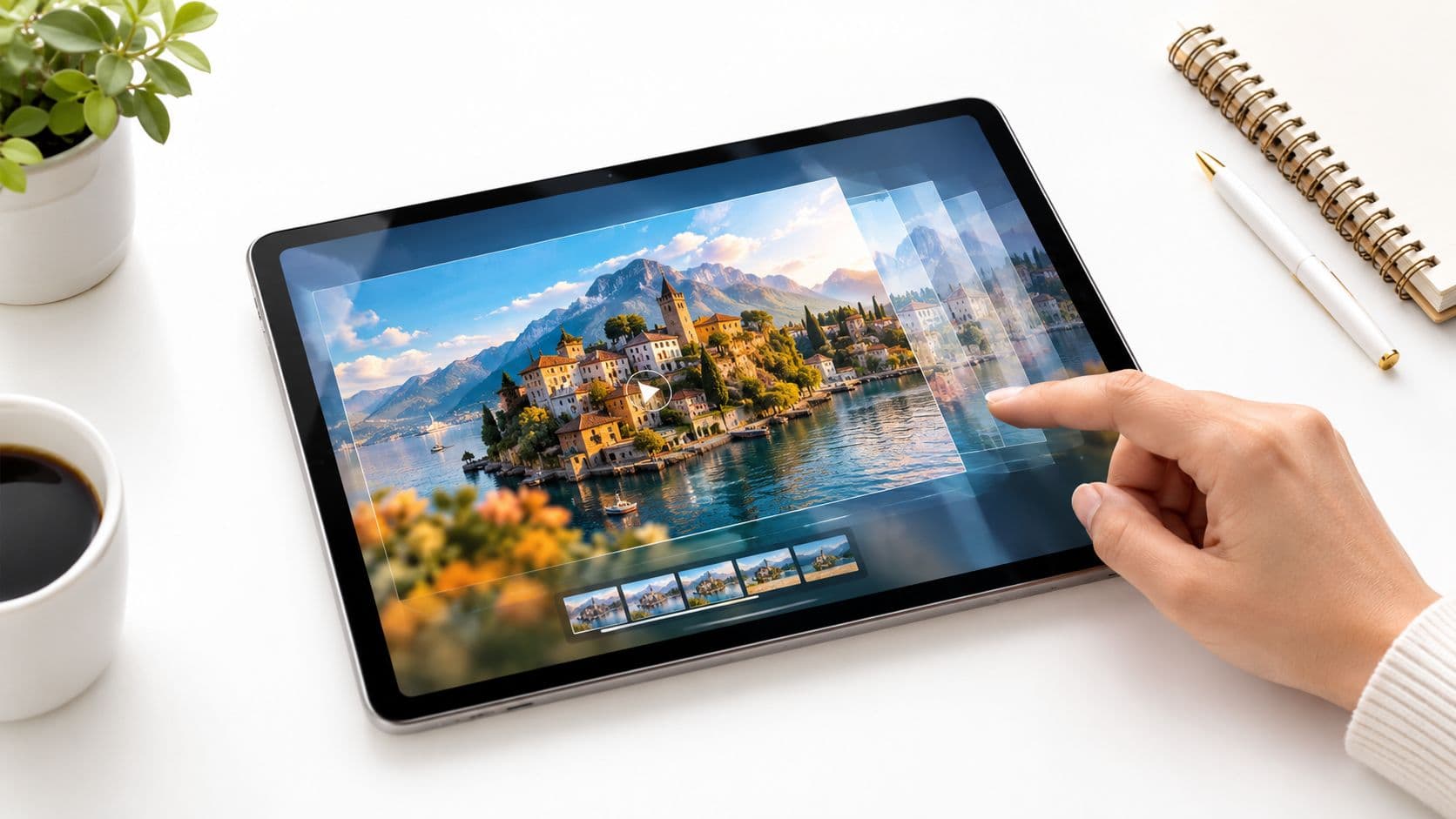
The effects you choose should match your source material. Ken Burns motion gives one photo a gentle zoom or pan, which suits a product detail or a storytelling image. Parallax separates parts of an image into layers to create an impression of depth, so it can add dimension to a scenic view or illustrated scene. Animated slides use transitions, text movement, or templates, making them a practical fit for lessons, lists, and promotions. For regular output, a more automated pipeline can combine visuals, a script, voiceover, and captions.
Think about the project you need to ship. A teacher explaining a concept might prioritize readable text and narration. A marketer repurposing product photos may care more about consistent branding and a clean export. A storyteller turning stills into a faceless video needs image sequencing and voiceover to work together.
Practical rule: Pick the simplest motion that helps the viewer understand the image. More effects don't automatically make a better video.
The Three Effect Families Worth Knowing
A still image doesn't need to move in every direction to hold attention. Match the effect to the image and the job it needs to do. That's a better starting point than browsing presets until something looks flashy.
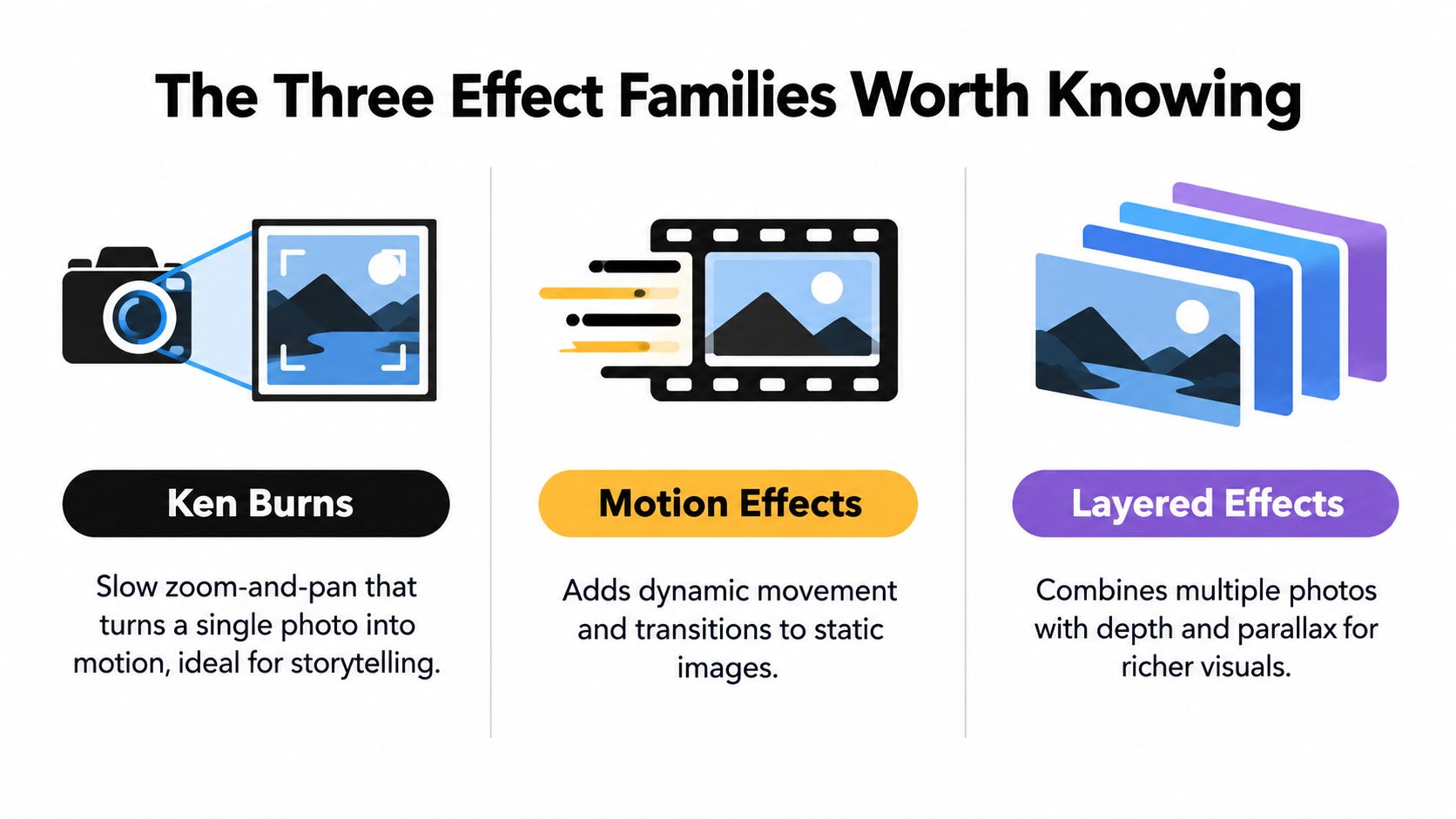
Ken Burns is the straightforward option: a slow zoom, a pan, or both across a single image. It works well when the photo has one clear subject and enough surrounding space for the crop to move without cutting off important details. Use it for a product close-up, a portrait, or a story image that needs a little life without competing with narration.
Parallax creates depth by moving separated image layers at different rates. It can suit a wide scene, travel photo, or illustration with distinct foreground and background elements. It takes more preparation than a basic pan, and it can look artificial if the subject has complicated edges or the image doesn't contain enough visual information to support the separation.
Animated slides bring images, headings, and transitions together in a more designed layout. They're a natural fit for a lesson, a short list, or a product announcement where viewers need to read key points in sequence. The tradeoff is that a template can make content feel generic if you leave its default pacing and typography untouched.
| Effect | Best For | Source Image Type | Skill Level |
|---|---|---|---|
| Ken Burns | Storytelling, portraits, product details | One image with a clear subject and room to crop | Beginner |
| Parallax | Travel scenes and illustrations with depth | Images with distinct foreground and background | Intermediate |
| Animated slides | Lessons, lists, and promotions | Photos that need labels, headings, or structured transitions | Beginner to intermediate |
For a closer look at how visual treatment changes a clip, browse these video editing effects. The useful question isn't “Which effect looks coolest?” It's “Does this effect direct attention where the story needs it?”
Export Settings That Decide Whether Your Video Looks Crisp
A polished edit can still look soft or cramped after export. Set the canvas and file format before you start placing images, then check the rendered file rather than assuming the preview tells the whole story.
For TikTok, Reels, and Shorts, use vertical 9:16 at 1080×1920 pixels, 30 fps, and H.264 video in an MP4 container. Set audio to AAC at approximately 128–192 kbps. These settings provide a sensible common master for short-form platforms without making the workflow more complicated than it needs to be. If you're weighing resolution options, this guide to 1080p vs. 720p can help you think through what image detail you want to preserve.
Motion should stay restrained. A slow 3–8% scale increase or a 1–2% lateral pan can keep a still from feeling frozen while leaving the viewer's attention on the subject. Cut on a narration beat when the image changes need to feel connected to the voice. Avoid piling on motion just because the app offers it.
Keep the master clean
Export one high-quality master, then upload that file to your platforms rather than repeatedly rendering new copies from already-compressed versions. For a social-delivery baseline, use 8–12 Mbps video bitrate. A lower bitrate can reduce file size, but it may introduce banding or block-like artifacts in dark scenes, gradients, and animated transitions. See the mobile video editing export guidance for the technical baseline.
Keep important text and focal subjects away from the edges. Platform controls can cover parts of a vertical video, so preview the composition on a phone and make sure the key message remains visible. After rendering, check whether the source images look soft after scaling and whether the final audio stays synchronized. The export isn't finished until the file looks and sounds right outside the editor.
Building the Photo to Video Pipeline That Actually Works
A dependable workflow starts before you add transitions. Prepare the images so the editor isn't fighting mismatched crops, low resolution, or awkward framing while you're trying to finish the story.
Prepare and pace the images
Use source images at or above the intended display resolution, and normalize their aspect ratios before editing. Frame each image for the final vertical canvas, checking that a face, product, or essential detail won't disappear when the editor crops to fit. If you're creating stylized results from source photos, this guide to turning photos into AI videos offers a related starting point.
Set each image's screen time to match the narration, not a default duration applied across the whole sequence. A useful timing heuristic is roughly one second per two spoken words, then adjust for reading difficulty and how much detail is on screen. A simple image can pass quickly; a detailed scene or complex idea may need more time. Let the voice track determine the sequence's rhythm.
Apply motion after the framing works. Use a gradual zoom or pan when it helps direct attention, and keep a static hold when movement would make the image harder to study. The viewer should notice the story, not the editor's effort.
Build captions from the final voice track
Add captions after the voiceover is set. Generate them from the final recording, then review the transcript manually. Automatic transcription can mishear names, technical terms, or quiet words, and those errors become much harder to overlook once the video is published.
Make subtitles high-contrast and readable against every image. An opaque or semi-opaque background can prevent text from disappearing against a bright or busy photo. Keep captions in a consistent lower-screen position, but clear of platform controls and important visual details. Let each caption stay on screen long enough to read, and adjust the timing where the wording or image makes comprehension harder.
Before rendering, play the full sequence with sound and once with sound off. The first pass catches problems with narration, pacing, and transitions. The silent pass shows whether the captions alone carry the spoken message. Review export settings after the render, including resolution, frame rate, bitrate, HDR state, and whether you need an SRT caption file. For practical guidance on captions and export checks, see the caption export settings documentation.
Choosing the Right App for Your Workflow
Choose an editor based on how much control you need, how often you publish, and which tasks you're willing to do yourself. A timeline editor and a template-based app solve different problems. Treating them as interchangeable is a reliable way to waste an evening.
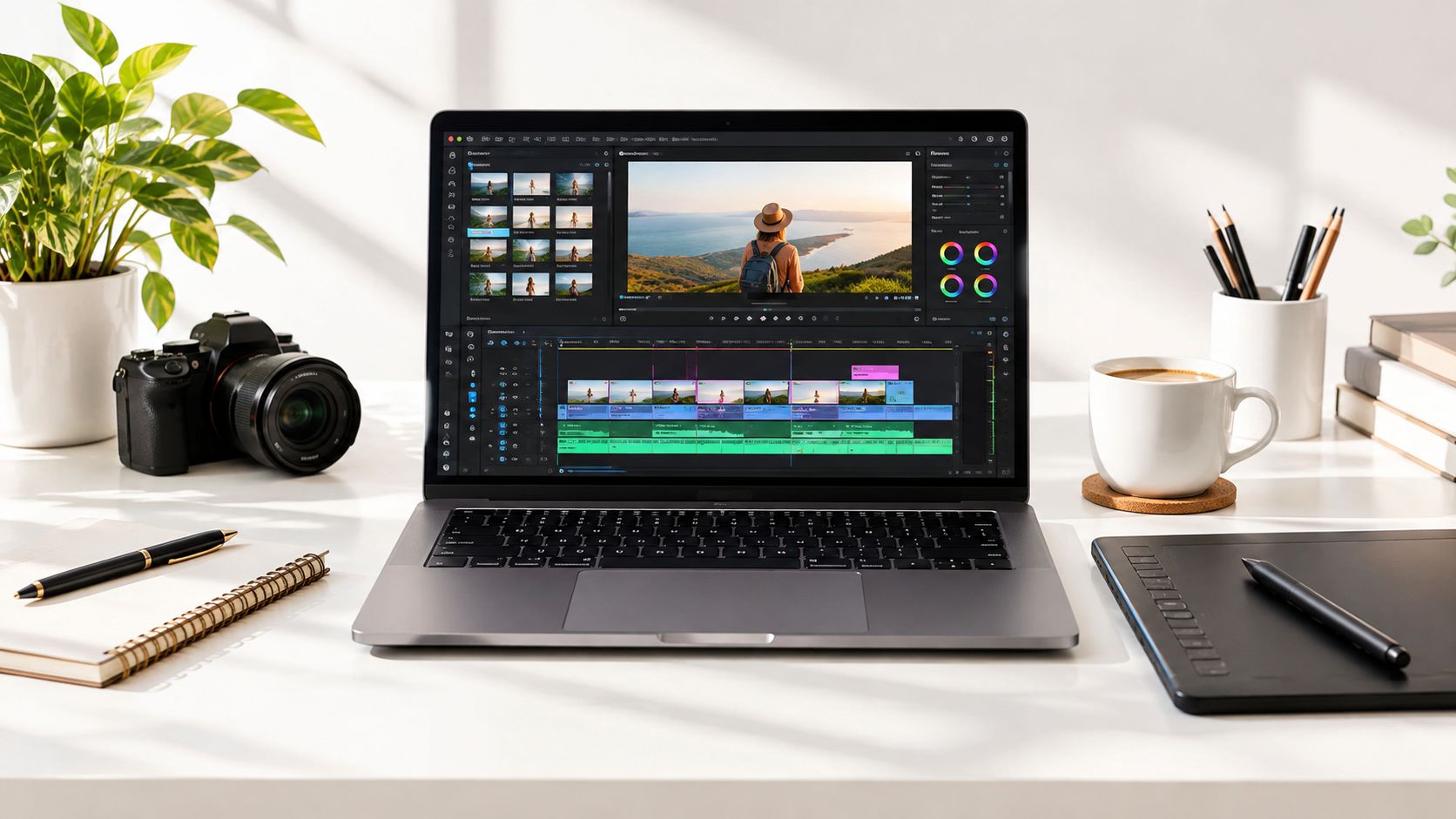
If you're polishing a carefully composed project, use an editor that gives you precise control over image duration, keyframes, layers, and audio. That's useful for branded campaigns, detailed tutorials, and any project where the timing or movement needs to be exact. If you're comparing hands-on editing options, this CapCut vs. Premiere Pro comparison can help you think about the balance between speed and control.
Template-driven apps suit creators who need a quick, repeatable format. They can speed up a listicle, lesson, or promo, but don't assume the default pacing or font choices are ready to publish. Review the whole sequence and change the parts that make the video feel like a template instead of your content.
Automation makes sense when the recurring work is the bottleneck. ClipCreator.ai can pair AI-written narratives with story-aligned images, voiceovers, and subtitles for short-form video creation. That kind of workflow can suit creators who want a faceless format and would rather spend their time reviewing the finished sequence than assembling every component manually. For help evaluating visual tools for professional image work, consult this overview of top AI photo tools for professionals.
When you compare apps, check whether they offer vertical templates, motion presets or keyframes, editable captions, voiceover support, reliable export controls, and batch or automation features. Read the pricing details before you build a routine around a tool. An app that saves setup time but makes basic revisions difficult may not be a good fit for projects that need hands-on polish.
This video offers another perspective on the editing workflow:
Choose manual editing for work where each movement needs a deliberate touch. Choose a more automated pipeline when consistent output matters more than adjusting every keyframe yourself.
Privacy and Accessibility Most Reviews Skip
An app that handles photos should earn permission to access them. Before importing client work, children's pictures, or confidential material, find out whether the editor needs your whole library or can work with files you select. Google Play directs apps with one-time or infrequent media needs to use the Android Photo Picker, which lets people choose individual files without granting broad library access. Review Google's Photo Picker and media access guidance when evaluating how an Android app handles media permissions.
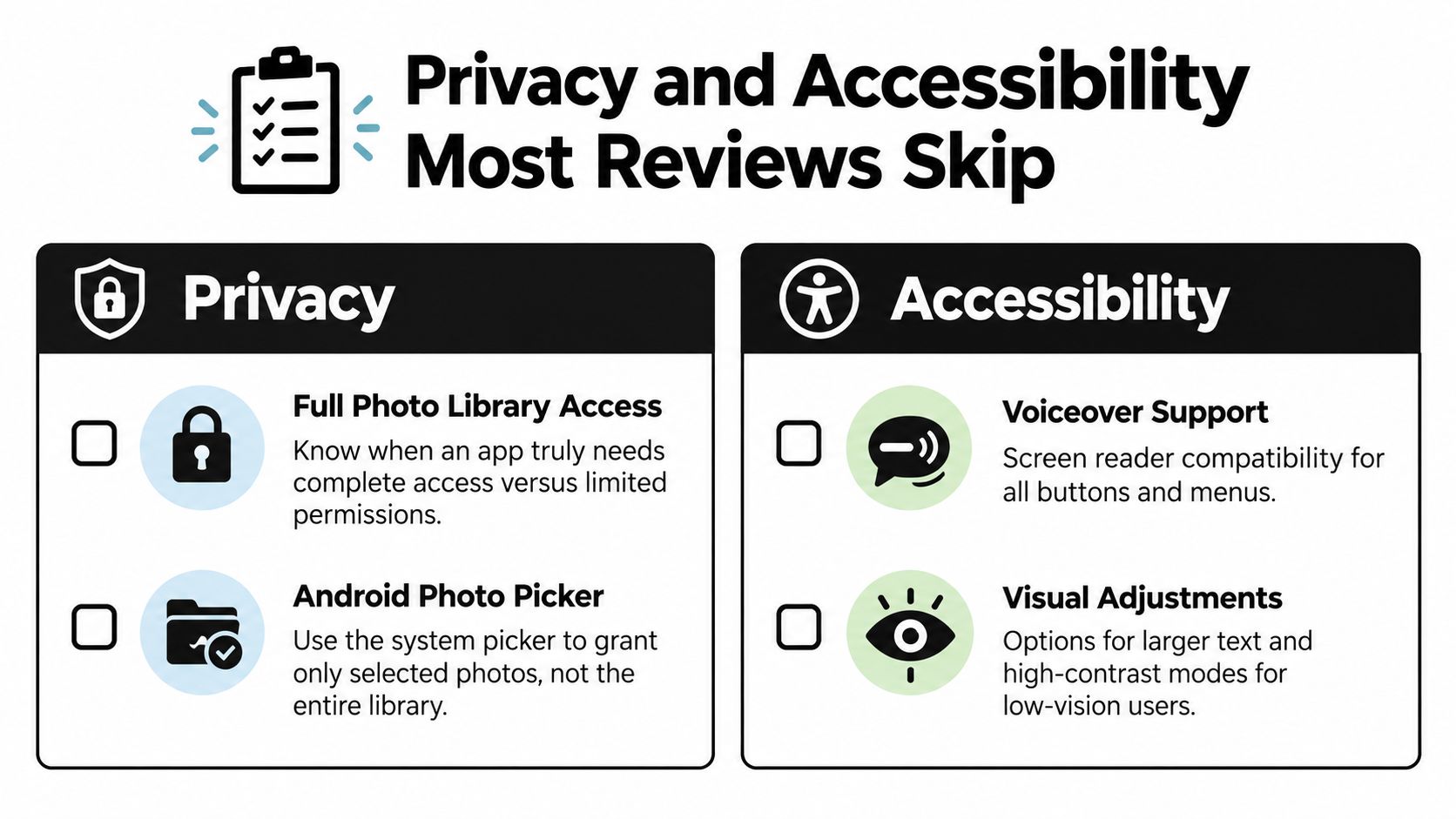
Ask what leaves your device, how long uploads are retained, and whether you can delete them yourself. A clear explanation of cloud processing versus offline editing is more useful than a broad privacy promise. Limit access to what the project requires.
Accessibility needs the same practical scrutiny. Captions aren't automatically accessible just because an app generates them. They can be inaccurate, difficult to read over changing images, or poorly timed. Check whether you can edit caption text and timing, increase text size, choose strong contrast, and keep subtitles clear of important visuals.
Also test the editor itself. Can someone move through menus with a screen reader, use TalkBack or VoiceOver, and make a video without precise drag-and-drop movements? Does the workflow let you describe essential visual information through narration or descriptive text? App coverage has identified screen-reader compatibility, high-contrast themes, Dynamic Type, VoiceOver, and TalkBack as relevant features, while noting that implementation quality varies. The photo editor accessibility review provides further context for those evaluation criteria.
Ask before committing: Can I select only the files I need, delete uploaded media, edit captions, and use the editor with accessibility features enabled?
Shipping the Video Without the Usable Mistakes
The render button doesn't tell you whether the video works on a phone. Watch the finished file at normal speed on the device your audience will use, and check the parts that editors often miss after staring at a timeline.
Confirm that the main text and focal subject remain clear near the center, away from interface overlays. Look closely at enlarged or cropped images to catch softness, then listen for narration and picture that have slipped out of sync. Check captions against the actual voice track and watch the transitions for distracting jumps.
Save the clean master, then make a platform-specific copy if a destination needs different formatting or text placement. Keep an SRT caption file when the workflow supports one. For a broader look at short-form production services, you can browse SimpleLab Digital video editing.
A photo-in-video app is a production tool, not a magic button. The effect matters, but your choices about pacing, permissions, captions, and final review matter more than the logo on the splash screen. Before you publish, play the export from beginning to end on your phone and fix anything that pulls attention away from the message.
If you want to turn still images into short, faceless videos without assembling every voiceover and caption by hand, try ClipCreator.ai. Start with a story or prompt, review the generated images and narration, and publish only after the finished video passes your own quality checks.

Create your first video in under 2 minutes
Pick a niche, and ClipCreator.ai generates and auto-posts faceless videos to your channels every day.
Join ClipCreator.ai