You export a clean short video. It looks sharp on your phone. The voiceover is clear, the captions line up, and the pacing feels right.
Then you upload it to YouTube, and something goes sideways. The image softens. Fine details smear. Motion looks jittery. In some cases, the upload takes forever or processes badly.
That gap usually isn't about your idea. It's about the format for youtube you chose before you hit export.
For faceless Shorts, that technical layer matters more than many creators realize. You're often working with AI visuals, generated narration, subtitles, stock motion, and automated workflows. Small format mistakes stack up fast. A wrong aspect ratio, the wrong codec, or an oversized bitrate can turn a polished short into a blurry one.
Why Your Video Looks Bad on YouTube
A common pattern goes like this. A creator makes a vertical story video, exports it from an editor with whatever default preset is available, uploads it, and waits. Once YouTube finishes processing, the result looks flatter and softer than the original file.

That usually happens because YouTube does not merely display your original file as-is. It reprocesses it. If your source file is awkwardly packaged, overcompressed, undercompressed, or shaped for the wrong screen, YouTube has to do more corrective work. You see that correction as blur, banding, pixelation, black bars, or strange motion.
The upload looked fine before YouTube touched it
Think of your export as raw ingredients delivered to a kitchen. If the ingredients arrive in good condition, the final dish has a much better chance. If they arrive crushed, stale, or badly labeled, the kitchen can only do so much.
That's why formatting isn't busywork. It's quality control.
For Shorts creators, the stakes are high. YouTube Shorts generate approximately 70 billion daily views, and 70% of YouTube channels that upload each month now post Shorts according to HubSpot's video marketing statistics roundup. If your short lands on that shelf looking weak, viewers don't wait around to be patient.
Viewer trust starts with technical clarity
People rarely say, "I left because the codec was wrong." They say the video felt cheap, hard to watch, or less trustworthy.
Practical rule: If a viewer notices the technical quality before they notice the idea, your file settings need attention.
For faceless videos, this matters even more. You don't have a talking head, studio camera, or personality-driven framing doing extra work for retention. Your visuals, subtitles, pacing, and audio need to carry the full experience. Clean formatting gives that content a fair shot.
The Three Pillars of a Perfect Video File
A video file sounds like one thing, but it's really three parts working together. If you understand those three parts, most YouTube export settings stop looking mysterious.
Container means the box
The container is the file wrapper. It's the box that holds your video, audio, and metadata together.
For YouTube, the safe choice is usually MP4. That's the file extension most creators already see when they export.
If you're still fuzzy on file types, this short guide on what file type YouTube videos use helps connect the label you see on your desktop to the settings inside the file.
A simple analogy helps:
- Container: the shipping box
- Video codec: how the visual content is packed inside
- Audio codec: how the sound is packed inside
Two files can both be called MP4 and still behave differently on upload because the packing method inside the box isn't the same.
Video codec means how the picture is packed
The video codec controls how the image data gets compressed and stored.
YouTube recommends MP4 with H.264 video and AAC-LC audio because that combination supports efficient processing and solid playback quality. The same reference notes that H.264 can reduce file sizes by up to 50% compared to older codecs while minimizing visible artifacts according to Uppbeat's breakdown of video formats.
That matters because you want two things at the same time:
- Good visual quality
- A file size that doesn't become a burden
If your codec choice creates a giant file, uploads drag. If it compresses poorly, details break apart when YouTube re-encodes the video.
Audio codec means how the sound is packed
The audio codec is the sound version of the same idea. For YouTube, AAC-LC is the standard recommendation.
Most creators don't notice bad audio formatting until something sounds off after upload. Voiceovers can lose presence. Background music can become muddy. Subtitle timing may feel less polished when sound isn't clean and stable.
For faceless educational shorts, story videos, or explainer clips, that hurts more than you might think. The voice is often the main thread pulling the viewer through the entire piece.
A polished short is rarely one magic setting. It's a file container, video codec, and audio codec that work together without friction.
The combination that removes friction
If you want one simple baseline, use this:
- Container: MP4
- Video codec: H.264
- Audio codec: AAC-LC
That combination gives YouTube a familiar, efficient file to process. It also gives you a repeatable export standard, which matters when you're publishing consistently rather than treating each upload like a one-off experiment.
Decoding Resolutions and Aspect Ratios
Many creators mix up resolution and aspect ratio. They sound related because both affect how the video looks, but they solve different problems.
Aspect ratio is the shape.Resolution is the detail.
A useful shortcut is this: aspect ratio decides whether your video fits the screen well. Resolution decides how sharp it looks on that screen.
Shape first, then sharpness
For regular YouTube videos, the common shape is 16:9. That's the familiar widescreen format.
For Shorts, the common shape is 9:16. That's vertical, built for phones held upright.
If you upload a horizontal video into a vertical environment, you usually get a smaller viewing area or empty space. If you upload a vertical short in the wrong canvas size, your subject can look cropped, cramped, or oddly framed.
Here's the practical comparison:
| Setting | Standard Video (16:9) | YouTube Shorts (9:16) |
|---|---|---|
| Best use | Long-form YouTube videos | Vertical short-form videos |
| Screen fit | TV, desktop, landscape viewing | Mobile-first full-screen viewing |
| Typical framing | Wider scenes, side-by-side layouts | Single-subject, centered composition |
| Recommended direction | Horizontal | Vertical |
| Common goal | Comfortable widescreen playback | Fill the phone screen cleanly |
Resolution is your detail level
Once the shape is right, focus on resolution. For most creators, 1080p is the practical target because it balances clarity and manageable file size.
Consider printing a flyer. If the page size is wrong, the design doesn't fit. If the page size is right but the image quality is weak, the flyer looks cheap. You need both pieces aligned.
For Shorts, 1080x1920 is the clearest everyday target because it matches the vertical layout most viewers expect. For standard videos, 1920x1080 remains the familiar Full HD shape.
Why 4K often isn't the point for Shorts
A lot of creators chase higher resolution because it sounds more professional. But for short, faceless videos, that can lead to larger files, slower uploads, and more friction in the workflow without a meaningful viewing benefit.
If your short relies on story pacing, clean subtitles, readable text, and stable motion, proper 1080p formatting often matters more than brute-force resolution.
Use the resolution that supports clean upload, clean playback, and readable details on mobile. For many Shorts, that's 1080p in a vertical frame.
This matters a lot if you use automated tools or template-based production. Consistent vertical framing keeps every scene, subtitle block, and visual cue where viewers expect it.
Mastering Bitrate and Frame Rate for Smooth Playback
Two settings cause more confusion than almost anything else in video export: bitrate and frame rate.
They sound technical, but the core ideas are simple.
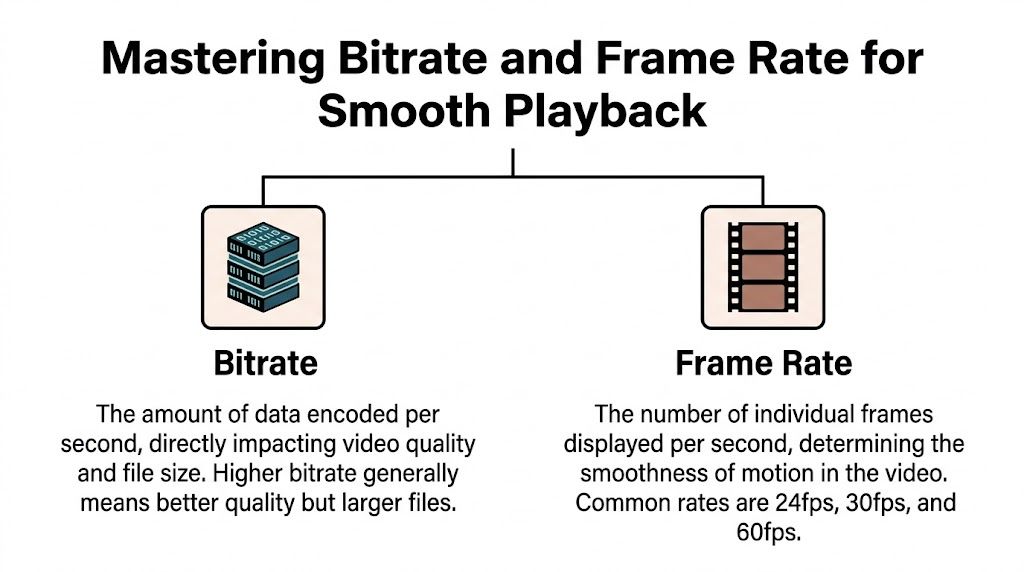
Bitrate is how much data your video gets per second.Frame rate is how many still images appear each second.
If bitrate is too low, the picture falls apart. If it's too high, the file gets bloated without giving you a real benefit. If frame rate doesn't match the source material well, motion can feel odd or processing can become less reliable.
Bitrate is your data budget
A useful analogy is water flow through a pipe. Too little flow and details don't make it through. Too much flow and you're wasting capacity.
For standard frame rates such as 24, 25, or 30 fps, the verified recommendations include:
- 1080p: 8 Mbps
- 1440p: 16 Mbps
- 4K: 35 to 45 Mbps
- 8K: 80 to 160 Mbps
For higher frame rates such as 48 to 60 fps, the recommendation rises by about half. That means 1080p at 12 Mbps and 4K at 53 to 68 Mbps are typical examples from the same verified dataset.
These settings matter because excess bitrate makes files heavy, while too little bitrate can introduce artifacts. The verified data also notes that under-bitrated video can reduce retention on quality-impacted uploads. That's one reason many creators keep a close eye on export discipline.
Frame rate controls motion feel
Frame rate changes the character of motion.
- 24 fps feels more cinematic
- 30 fps feels natural for most narrative and educational content
- 60 fps feels smoother and is useful for motion-heavy footage
For faceless YouTube Shorts, 30 fps is often the easiest baseline. It looks smooth enough for movement, text animation, and AI-generated scene changes without pushing file demands too far.
If your source material was built at one frame rate and exported at another without care, you may see judder or timing weirdness. That's especially noticeable in pan effects, stock clips, and animated captions.
For a deeper checklist on export settings, this guide to YouTube video specs is a useful reference.
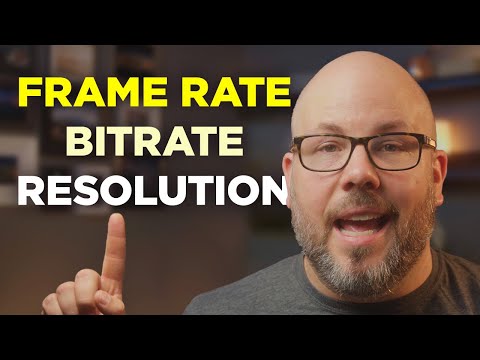
Later in your workflow, seeing the settings in action can help more than reading them. This short video gives a visual explanation:
Processing failures usually start here
Many faceless Shorts frequently encounter errors. According to the verified data, 40% of Shorts uploads fail initial processing due to mismatched specs, and faceless channels can lose 15% to 20% engagement from pixelation based on the cited YouTube Creator Insider reference.
That doesn't mean every problem comes from one setting. It does mean formatting errors have visible consequences.
Quick check: If your short looks soft after upload, review bitrate, frame rate, and source matching before you blame the algorithm.
Optimizing Your Video's On-Page Appearance
A good upload isn't just a good file. It's also a good presentation.
Even when a Short gets discovered in-feed, people still react to the visible packaging around your content. Title wording, subtitle clarity, and thumbnail decisions all shape expectations before viewers commit attention.
Titles and descriptions should match the promise
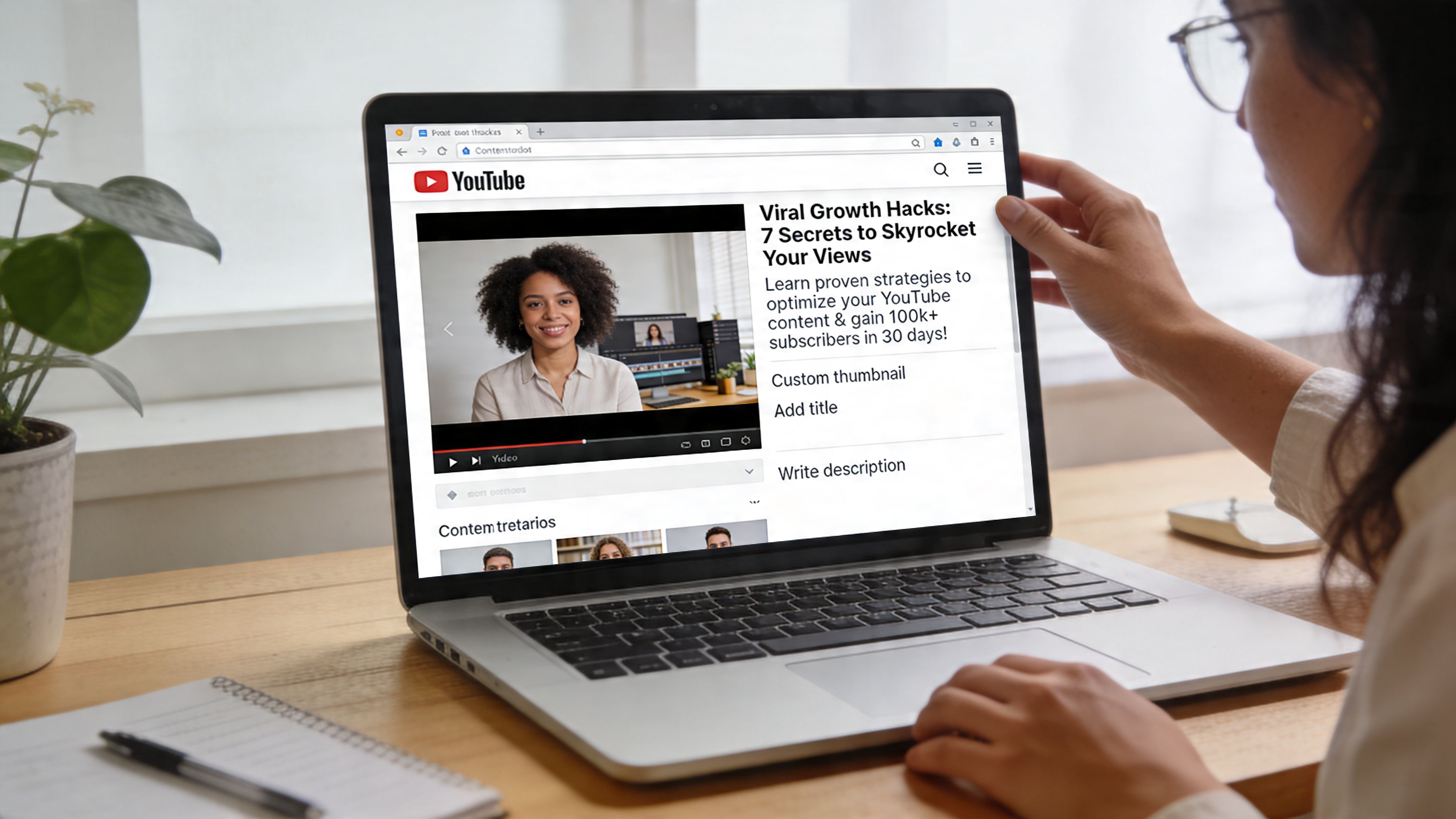
For faceless videos, vague titles often hurt more because you don't have a recognizable face carrying curiosity by itself.
A strong title does three jobs:
- States the topic clearly
- Hints at the payoff
- Matches the actual first seconds of the video
Descriptions matter too, especially for context, keywords, and accessibility. Keep them readable. Don't stuff them.
Captions do more than improve accessibility
Captions help viewers who watch without sound, but they also make quick-paced shorts easier to follow. That's important for story channels, educational clips, product explainers, and narrated list videos.
If you're publishing for multilingual audiences, it's worth reviewing practical options for video translation services. Translation and subtitle workflows can make short-form content easier to reuse across regions without rebuilding every video from scratch.
Clear captions turn a passive scroll into an active follow-along experience.
Thumbnails still matter, even for short content
For Shorts, the in-feed experience often reduces the role of thumbnails, but they still matter on your channel page, in search, and in suggested surfaces.
A useful thumbnail habit is to check for three things before publishing:
- Readability: can someone understand it at a small size?
- Contrast: does the main subject separate from the background?
- Consistency: does it look like it belongs to your channel?
If you're using a faceless workflow, keep your visual branding simple. Repeating the same font style, subtitle tone, and color logic helps viewers recognize your uploads faster.
One practical option in this category is ClipCreator.ai, which automates short faceless video creation with scripts, images, voiceovers, subtitles, and publishing workflows. For creators producing many shorts, that kind of consistency can make metadata and visual packaging easier to manage.
The Ultimate Checklist for Faceless Shorts
If you publish a lot of short videos, you don't want to rethink every export from scratch. A checklist keeps the process steady.
Short-form matters because videos under one minute have an average engagement rate of 50%, and 29.18% of marketers use short-form video in their strategies according to SundaySky's 2025 video marketing statistics. That makes clean execution worth protecting.
Use this before every upload
- Canvas check: Is the video vertical at 9:16 for a Short?
- Resolution check: Is it exported at 1080x1920 if this is a mobile-first vertical video?
- Container check: Is the file an MP4?
- Codec check: Is the video encoded with H.264 and the audio with AAC-LC?
- Motion check: Does the frame rate match the feel of the source, with 30 fps as a practical default for many faceless narrative videos?
- Bitrate check: Is the bitrate appropriate for the resolution instead of extremely low or wildly inflated?
- Caption check: Are subtitles readable, timed well, and placed where they don't collide with key on-screen visuals?
- Title check: Does the title match the first seconds of the video?
- Thumbnail check: If the video appears outside the Shorts feed, will the thumbnail still make sense at a glance?
For creators who want a more format-specific reference, this guide to YouTube Shorts video size is a helpful companion.
The goal is repeatability
A strong format for youtube isn't about memorizing every spec forever. It's about building a repeatable publishing habit that protects quality, especially when you're producing at scale.
Frequently Asked Questions About YouTube Formatting
Some formatting advice sticks around long after it stops being useful. These are the questions that confuse creators most often.
Is 4K always better for YouTube
No. Higher resolution isn't automatically better for the kind of experience most Shorts deliver.
If your short is designed for fast mobile viewing, clean vertical framing, readable captions, and reliable processing often matter more than pushing huge files through your export queue. 1080p is often the practical choice.
Should I export at 60 fps for everything
No. Use 60 fps when the footage benefits from very smooth motion. For many faceless educational, story, or voiceover-led videos, 30 fps is a simpler fit.
If the source assets were created at a lower frame rate, forcing them into a higher one won't magically improve them.
Why does my uploaded Short look worse than my original file
Usually because YouTube had to re-encode a file that wasn't prepared cleanly. Common causes include the wrong codec, weak bitrate choices, mismatched frame rates, or poor scaling.
The fix is usually technical, not creative.
Do titles and captions matter if YouTube mainly pushes Shorts in-feed
Yes. Shorts still live inside your broader channel ecosystem. They can appear on channel pages, in search, and in recommendations.
If you need a broader overview of discoverability and policy considerations, these YouTube platform guidelines are a useful reference point.
What's the safest default export for most faceless Shorts
A practical baseline is:
- MP4
- H.264 video
- AAC-LC audio
- 9:16 vertical canvas
- 1080x1920 resolution
- 30 fps in many cases
- A bitrate matched to that resolution
That setup won't solve weak storytelling. But it removes many of the technical mistakes that make good storytelling look worse than it is.
If you want a faster way to produce and publish faceless Shorts without rebuilding the workflow each time, ClipCreator.ai helps automate scripts, visuals, voiceovers, subtitles, and posting in a format that fits short-form platforms.

Create your first video in under 2 minutes
Pick a niche, and ClipCreator.ai generates and auto-posts faceless videos to your channels every day.
Join ClipCreator.ai