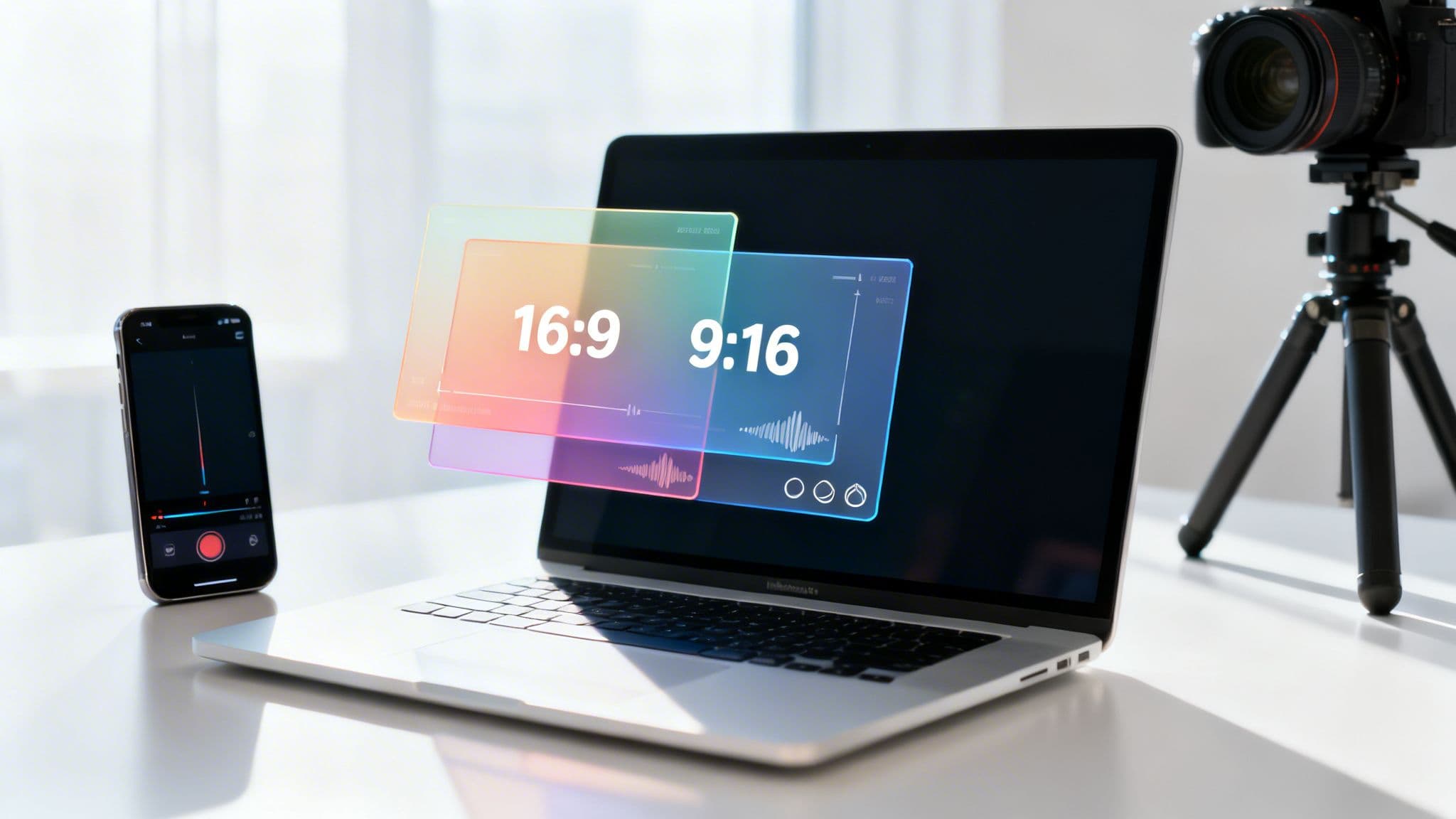
If you want your videos to look sharp on YouTube, you have to start with the right settings. It's not just about what you film, but how you save and upload it. Think of 1920x1080 resolution and the MP4 file format as your go-to for standard 16:9 videos.
For YouTube Shorts, the game changes. You need to think vertically. A 9:16 aspect ratio is non-negotiable, so your resolution should be flipped to 1080x1920. Getting these basics right from the beginning is the difference between a professional-looking video and one that gets butchered by black bars or ugly compression.
YouTube Video Upload Specifications: The Essentials
Understanding YouTube's technical side can feel a little overwhelming, but it's the single best thing you can do to ensure your videos look their best. When you upload a file that matches what YouTube prefers, you’re essentially helping the platform process it efficiently, which dramatically lowers the chances of it being turned into a pixelated mess.
This is especially true when you're creating different types of content. A standard widescreen video and a vertical YouTube Short have completely different DNA. Confusing their formats can lead to a terrible viewing experience, forcing you into the frustrating cycle of deleting and re-uploading. Let's make sure that doesn't happen.
YouTube Upload Specifications Quick Reference (2026)
To make things simple, here’s a quick-lookup table comparing the most important settings for standard videos and YouTube Shorts. Keep this handy when you're exporting your next project.
| Specification | Standard Video (16:9) | YouTube Shorts (9:16) |
|---|---|---|
| Recommended Resolution | 1920 x 1080 (1080p) or higher | 1080 x 1920 |
| Aspect Ratio | 16:9 (Widescreen) | 9:16 (Vertical) |
| Max File Size | 256 GB | 256 GB |
| Max Duration | 12 hours | 60 seconds |
| Recommended File Type | MP4 | MP4 |
This table cuts right to the chase, showing you the core differences at a glance. Nail these settings, and you're already ahead of the curve.
The infographic below offers another great visual breakdown of these key differences, reinforcing how distinct standard uploads and Shorts really are.
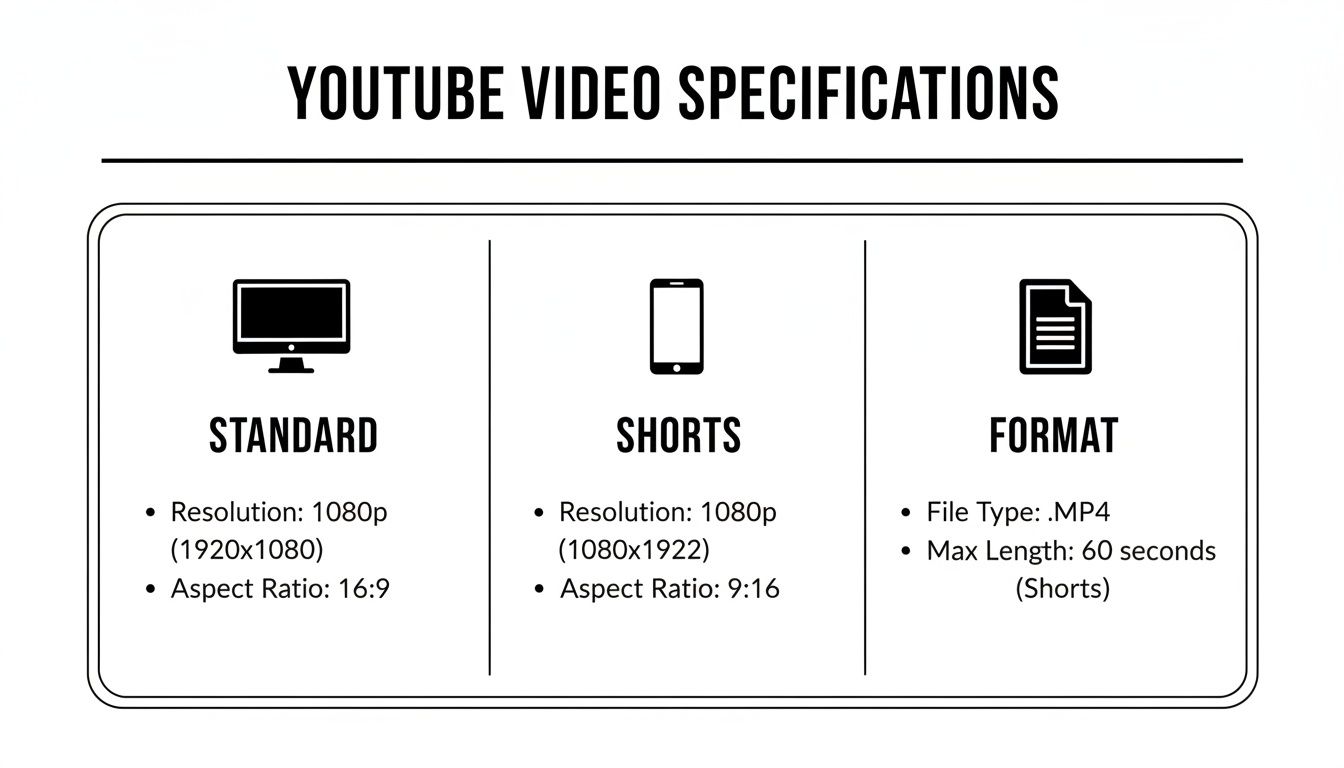
As you can see, while both formats favor the MP4 container, their orientation and length restrictions are fundamentally different. This directly impacts everything from how you shoot your footage to how you frame your final edit.
Why These Specs Matter So Much
Following these guidelines isn't just about ticking a box; it's a strategic move. When you upload a video that meets these youtube video specs, you’re speaking YouTube’s language, which helps its processing system handle your file much more effectively.
For creators, this means your video often processes faster and stands a much better chance of getting the high-quality VP9 codec. That's the secret sauce for delivering superior visual clarity to your audience.
Ultimately, these specifications are the foundation of a professional-looking video. They help you sidestep the common pitfalls that can make great content look amateurish. To dive even deeper, you can explore our complete guide on what file type are youtube videos to better understand the tech behind your uploads.
Your Core YouTube Video Specifications Explained
Nailing your export settings is the final, critical step before you can upload to YouTube. But what do all those technical terms actually mean? Getting a handle on these core YouTube video specs will help you move beyond just copying presets and start making smart choices that directly impact your video's final quality.
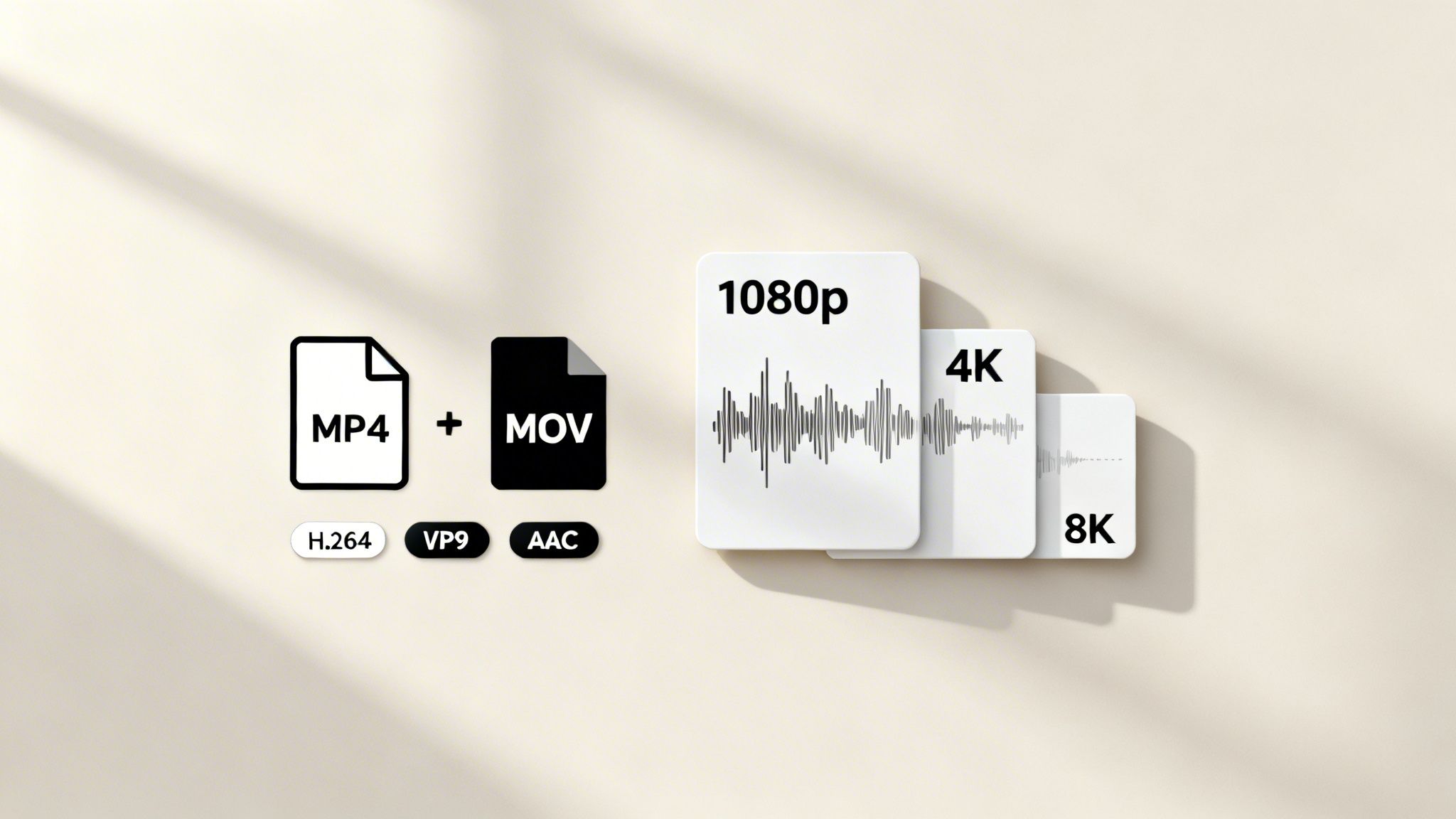
It helps to think of your video file as a package. The file container is the box itself, while codecs are the methods used to pack the video and audio inside. Each piece plays a role in getting your content to the viewer's screen looking and sounding exactly as you intended.
File Container: MP4 vs. MOV
The container, or file format, is what bundles your video, audio, and metadata into a single file.
- MP4 (MPEG-4 Part 14): This is the undisputed champion for web video. It delivers an incredible balance of high quality and small file size, ensuring it plays nicely with virtually all editing software, browsers, and devices. Unsurprisingly, this is YouTube's most recommended format.
- MOV (QuickTime File Format): Originally developed by Apple, MOV files are also great for quality but often result in much larger files than their MP4 counterparts. YouTube accepts them without issue, but they don't offer any real advantage for a standard upload and can mean longer waits for your video to process.
Best Practice: Just use MP4. It guarantees the best compatibility and a faster, more reliable upload to YouTube. It’s the professional standard for a reason.
Video and Audio Codecs
Codecs are the behind-the-scenes heroes that compress (encode) and decompress (decode) your massive video and audio data into manageable sizes. The right ones are absolutely essential for quality.
- Video Codec (H.264): Also known as AVC, this is the workhorse codec for most video on the internet. It’s the engine that powers most MP4 files, and it's brilliant at creating high-quality video without the gigantic file sizes. YouTube's system is built to handle H.264 perfectly.
- Audio Codec (AAC): For sound, AAC (Advanced Audio Coding) is the industry standard. It provides excellent audio quality at low bitrates, making it the ideal partner for H.264 video inside an MP4 container.
These specs are a world away from YouTube's early days. When the platform launched in 2005, it relied on the Sorenson Spark codec for tiny 320x240 videos with mono sound. The jump to H.264 in 2008 to support 720p HD was a massive leap forward, paving the way for the quality we take for granted today. You can learn more about this journey and see how YouTube's features have changed over the years.
Resolution and Frame Rate
Resolution is all about pixel dimensions and clarity, while frame rate dictates the smoothness of motion in your video.
For any standard video, 1920x1080 (1080p) should be your absolute minimum. However, uploading in 3840x2160 (4K) gives you a noticeable quality boost, even for viewers on 1080p screens. This is a pro-tip: YouTube processes 4K uploads with its more efficient VP9 codec, resulting in a crisper image with fewer compression artifacts.
Your frame rate should match the style of your content. A cinematic feel is often achieved with 24 frames per second (fps), while most vlogs and tutorials look clean and natural at 30 fps. If you're creating content with a lot of fast motion, like gaming or sports, 60 fps will give your audience the smoothest possible playback.
How to Optimize Bitrate for Maximum Video Quality
Of all the technical youtube video specs, bitrate is arguably one of the most critical for ensuring your video looks crisp and professional. Simply put, bitrate is the amount of data used to encode each second of your video. The higher the bitrate, the more detail and visual information are packed into your file.
Here's why that matters: YouTube will always re-compress your video after you upload it to manage its own storage and streaming needs. If you give its compression algorithm a high-quality, high-bitrate source file, you’re providing more data to work with. This is the single best way to prevent nasty compression artifacts, like blockiness in dark areas or blurriness during fast motion.
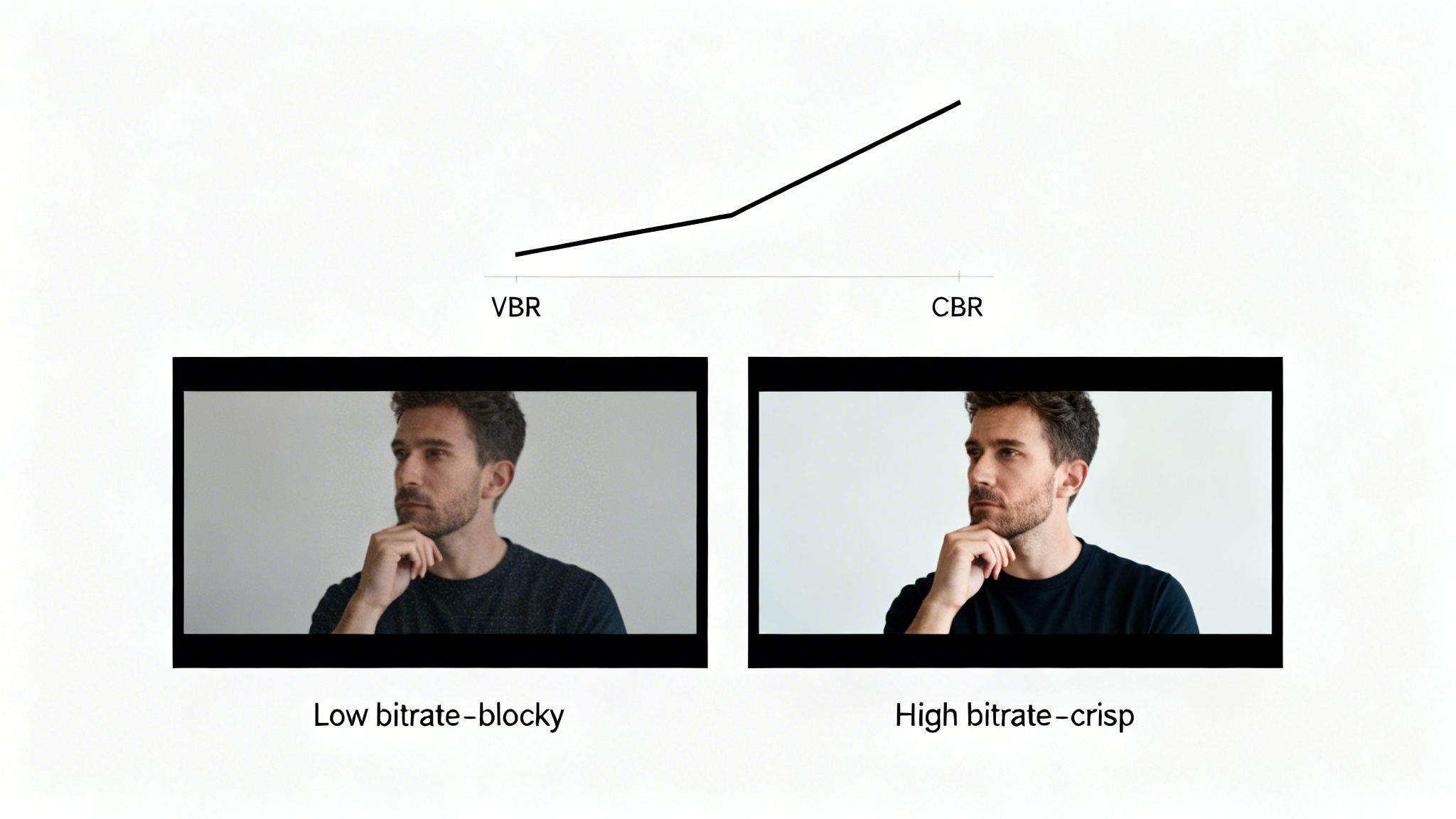
Starting with a low-bitrate upload is a recipe for disappointment. YouTube's re-compression will only make it look worse. A high-bitrate file, on the other hand, stands the best chance of looking sharp after it’s been processed.
Understanding VBR and CBR
When you go to export your video, you'll see two main encoding options: Constant Bitrate (CBR) and Variable Bitrate (VBR). The choice you make here has a big impact.
- Constant Bitrate (CBR): This method locks in a single bitrate for the entire video. It’s a bit of a blunt instrument, applying the same amount of data to a static talking head shot as it does to a chaotic action sequence. This is inefficient and can lead to poor quality where it matters most.
- Variable Bitrate (VBR): This is the smarter, more flexible approach. VBR analyzes your video and allocates more data to complex, high-motion scenes while using less for simple, static moments. This optimizes your file size without sacrificing quality during the most visually demanding parts.
The bottom line for any YouTube upload is to always use VBR. Most modern video editing software, like Adobe Premiere Pro or DaVinci Resolve, offers a “2-pass VBR” setting. This is the gold standard, as the software analyzes your video twice to make even more intelligent bitrate decisions, giving you the best quality possible.
YouTube's Recommended Video Bitrates
So, what bitrate should you aim for? Thankfully, YouTube doesn't make you guess. They provide official recommendations to ensure your video has plenty of data for their processing pipeline without being so large that it takes forever to upload.
The table below outlines the officially recommended bitrates for standard dynamic range (SDR) uploads. These values are measured in Megabits per second (Mbps).
Recommended Video Bitrates for SDR Uploads
| Resolution | Standard Frame Rate (24-30 fps) | High Frame Rate (48-60 fps) |
|---|---|---|
| 4K (2160p) | 35–45 Mbps | 53–68 Mbps |
| 1440p (2K) | 16 Mbps | 24 Mbps |
| 1080p | 8 Mbps | 12 Mbps |
| 720p | 5 Mbps | 7.5 Mbps |
Matching your export settings to these targets is a crucial step. It's always better to aim for the higher end of these ranges if your internet connection can handle the upload.
For creators working with High Dynamic Range (HDR) video, which offers a much wider spectrum of color and light, the bitrate requirements are even higher:
- 4K (2160p) HDR: 44–56 Mbps (standard fps) / 66–85 Mbps (high fps)
- 1080p HDR: 10 Mbps (standard fps) / 15 Mbps (high fps)
By following these official youtube video specs, you’re setting your content up for success. You give the platform’s algorithm a rich, data-heavy source file, which is your best guarantee that the final product will look just as good to your audience as it did in your editor.
Mastering Specs for YouTube Shorts and Vertical Videos
Vertical video is its own beast. If you're looking to make a splash on the YouTube Shorts shelf, you have to play by a different set of rules than standard widescreen video. From the moment you start creating, everything needs to be built for the mobile viewing experience.
The biggest shift is the aspect ratio. For a video to even be considered a Short, it must be either vertical (9:16) or square (1:1). The vertical format is what you should aim for, as it fills the entire phone screen and pulls the viewer in without any of those ugly black bars on the sides.
The Core Specs for Shorts
YouTube has three hard-and-fast rules to classify your video as a Short. Get these wrong, and your content won't land on the Shorts shelf or get picked up by the discovery algorithm. It's that simple.
- Aspect Ratio: As mentioned, your video needs to be vertical (9:16) or square (1:1). The go-to resolution for a sharp-looking vertical Short is 1080x1920 pixels.
- Duration: Keep it brief. The video has to be 60 seconds or less. Even going over by a single frame will disqualify it.
- Sound: You have options here. You can pull audio directly from the YouTube Shorts library or use your own original sound.
This is exactly how you want to be thinking about your shots—vertically, right from the source.

It’s always better to shoot your content vertically from the get-go. Trying to crop a widescreen video after the fact just never looks as good.
Advanced Framing and Safe Zones
Getting the basic specs right is just step one. Experienced Shorts creators know you also have to account for the YouTube app's interface. The app overlays the channel name, like button, and captions over the bottom and right edges of the screen.
A rookie mistake is to put important text or visuals in these areas, only to have them completely covered up. You have to keep your key subjects and any on-screen text inside a central "safe zone" so that nothing critical gets blocked from view.
If you're creating faceless videos with a tool like ClipCreator.ai, getting these details right is crucial. It ensures your videos look professional and autoplay perfectly on mobile, which can seriously help with engagement. For a deeper dive into perfecting your vertical videos, check out our complete guide on the ideal YouTube Shorts video size.
Thumbnails, Captions, and Other Keys to Discovery
Nailing your video's technical specs is a huge step, but it won't get you views on its own. The real magic happens when you optimize everything around the video file. Think of your thumbnail, title, and captions as a direct line to YouTube's algorithm, telling it exactly what your video is about and who needs to see it.
Your thumbnail is your video's first impression—its digital storefront. A fantastic one can be the single biggest factor in convincing someone to click. Get it wrong, and even the most brilliant video will get lost in the noise. The goal is to create something that’s not just eye-catching, but also an honest preview of your content, all while fitting YouTube’s strict technical frame.
Thumbnail Specs You Can't Ignore
YouTube is particular about its thumbnail requirements for a good reason. Following these specs ensures your image looks crisp and professional everywhere, from a tiny phone screen to a giant smart TV.
- Resolution: The standard is 1280x720 pixels. Don't go smaller.
- Aspect Ratio: This resolution locks you into the familiar 16:9 aspect ratio, which perfectly mirrors the video player.
- File Formats: You can use JPG, GIF, or PNG. Most people stick with JPG or PNG for quality.
- File Size: Keep it under the 2MB limit.
For a consistently sharp and professional look across your entire channel, it's worth learning how to upscale YouTube thumbnails. This ensures they look great no matter where they're displayed.
Titles, Descriptions, and the Power of Words
While your thumbnail earns the click, your metadata helps people find your video in the first place and gives them a reason to stick around.
Titles and Descriptions
Your title needs to be snappy and straight to the point, ideally with your main keyword right up front. The description is where you can elaborate. Use it to add secondary keywords, provide helpful links, and even create timestamps for longer videos. A well-crafted description doesn't just help viewers; it feeds the YouTube algorithm valuable context that can seriously boost your search ranking.
Captions and Subtitles (SRT Files)
Never underestimate the power of captions. They're critical for accessibility, but they also have a massive impact on viewer retention. With over 70% of views happening on mobile devices—where videos often start muted—subtitles can increase watch time by as much as 12%. They simply make your content easier to consume.
Pro Tip: Always upload your own custom SRT (SubRip Subtitle) file. YouTube's auto-captions have gotten better, but they are still notorious for errors. Uploading a clean, 100% accurate SRT file not only improves the viewer experience but gives the algorithm a perfect transcript to analyze, further clarifying your video's topic.
This is especially true if you're using a tool like ClipCreator.ai, which builds videos around narration. Accurate captions are a must. We've put together a full walkthrough on just how to do this in our guide on how to add captions to videos.
Getting Perfect Export Settings in Your Video Editor

Knowing YouTube's ideal specs is only half the battle. Getting those settings right in your video editor is where the magic really happens—it’s the final handshake between your creation and YouTube's algorithm. One wrong click in the export menu can tank your video quality, turning a crisp recording into a blurry mess.
Most editing software, whether you're using Adobe Premiere Pro or DaVinci Resolve, comes with built-in YouTube presets. These are a decent starting point, but if you're serious about quality, you'll want to create your own custom preset. This gives you full control and ensures you're feeding YouTube the best possible file to work with.
Universal Export Preset for YouTube
No matter what editor you're using, the export window will look fundamentally the same. The main goal is always to create a high-quality MP4 file that lines up perfectly with what YouTube wants to see.
Here’s a universal preset that I’ve found works flawlessly across the board:
- Format/Container: Always choose MP4. It's the undisputed standard.
- Codec: Go with H.264 (AVC). This is the most widely compatible and efficient codec for web video.
- Resolution & Frame Rate: Match your source. If you shot and edited in 1080p at 30fps, export at 1080p and 30fps. Don't try to upscale; let YouTube handle that.
- Bitrate Encoding: This is a big one. Select VBR, 2-pass. It takes longer to export, but it’s worth it. The first pass analyzes your video to see where the complex, high-motion scenes are, and the second pass intelligently allocates more data to those spots, preserving detail where it matters most.
It’s wild to think how far we've come. When YouTube launched back in 2005, videos were a grainy 320x240 using ancient codecs. The technical limitations of the time dictated the quality. Today, those limitations are gone, giving creators incredible power.
Fine-Tuning Your Audio Settings
Let's be honest: people will forgive a slightly soft image, but they will click away instantly if the audio is bad. Don't let your sound be an afterthought in the export process.
The audio settings are thankfully much simpler. Just lock these in: use the AAC codec, set the Sample Rate to 48000 Hz, and push the Bitrate to 320 kbps. This trio is the gold standard for clean, crisp audio on YouTube.
High-quality audio isn't just for watching, either. It's the key that unlocks content repurposing. Great sound allows you to efficiently turn your YouTube videos into podcasts, doubling the reach of your work from a single export.
The Automated Solution with ClipCreator.ai
Fiddling with these settings for every single video gets old fast, and it's easy to forget a step. If you're churning out lots of content—especially faceless videos and Shorts—this manual process becomes a real time-sink.
This is exactly where an automated tool like ClipCreator.ai shines. It completely removes the guesswork. When you generate a video, the platform automatically applies the perfect youtube video specs for its intended format, whether it's a standard video or a Short.
There are no confusing export menus or bitrates to second-guess. You just get a perfectly optimized file, ready to upload, every single time.
Common Questions About YouTube's Video Specs
Even with a full spec sheet in hand, some questions always seem to pop up. Let's tackle the most common ones I hear from creators so you can get past the technical hurdles and back to creating.
What Happens If I Upload a Video with the Wrong Specs?
YouTube is pretty smart and will try its best to process whatever you throw at it. But if your video doesn't line up with its preferred settings, you’re gambling with the final result.
You might end up with distracting black bars (letterboxing), a noticeable drop in quality, audio that drifts out of sync, or the upload might fail to process entirely. Following the specs is simply the best way to make sure your video looks exactly how you designed it.
Should I Upload in 4K Even If I Filmed in 1080p?
Yes, absolutely! This is one of the best "hacks" for getting better quality on YouTube. When you upscale a 1080p video to 4K (3840x2160) and upload it, you're signaling to YouTube that it's a high-quality file.
In response, the platform will almost always process your video using the superior VP9 codec, which it reserves for 4K and other high-resolution content. The standard AVC1 codec used for 1080p is good, but VP9 is better. The result? Your video will look much sharper and more detailed, even when viewers watch it at a 1080p resolution.
What Is the Maximum File Size and Length for a YouTube Video?
Once your account is verified, the limits are massive. You can upload a file up to 256 GB in size or a video that runs for 12 hours—whichever you hit first. This gives you plenty of room for everything from quick Shorts to feature-length documentaries.
Just remember, if your account isn't verified, you're stuck with a 15-minute time limit. Verification is a quick, one-time process, so it's well worth doing right away.
Does YouTube Prefer MP4 or MOV Files?
While YouTube accepts a bunch of different file formats, MP4 is the gold standard for a reason. An MP4 container using the H.264 video codec and AAC audio codec gives you the best combination of quality, compression, and compatibility.
MOV files, which are common if you edit on a Mac, work just fine. However, they often result in larger file sizes without providing any real quality advantage on YouTube's end. To keep things simple and efficient, sticking with MP4 is always your best bet.
Want to create engaging faceless videos with all the perfect export settings handled for you? ClipCreator.ai automates the whole thing, delivering content that's ready to publish and perform. Try it for free at clipcreator.ai and see the difference.

Create your first video in under 2 minutes
Pick a niche, and ClipCreator.ai generates and auto-posts faceless videos to your channels every day.
Join ClipCreator.ai