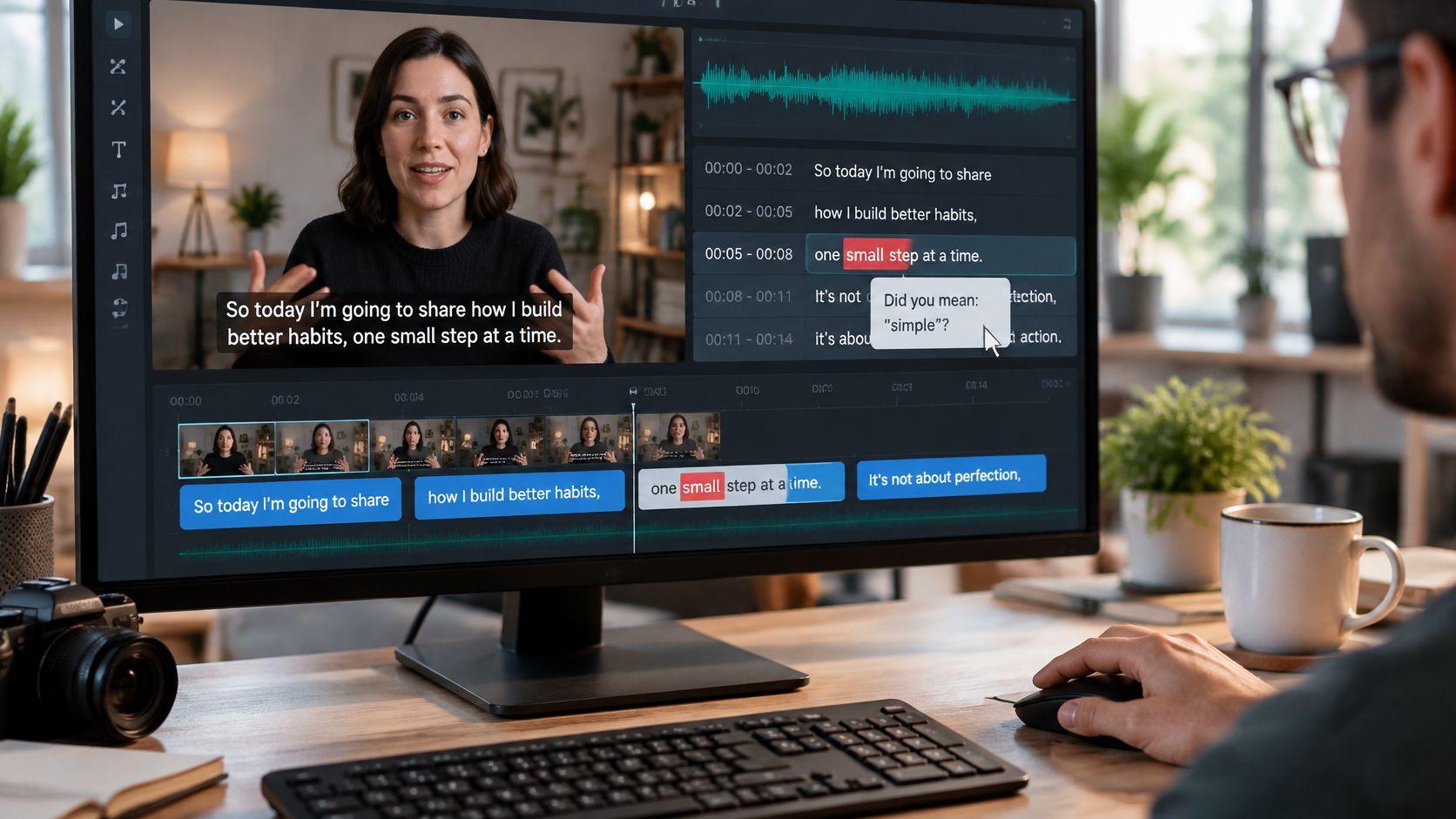
Automatic subtitles are text produced by speech recognition from the audio, timed to the video and shown on screen, and they usually need a quick review of names, numbers and technical terms before publishing.
You've finished a short video, the voiceover sounds clear, and the automatic captions look convincing at first glance. Then you spot a misspelled product name, a sentence that disappears too quickly, and a line that arrives after the joke. Those are different problems, and fixing them starts with understanding where each one entered the production process.
What Automatic Subtitles Are in Plain Terms
Say you upload a short tutorial to an editor. After processing, a caption track appears beneath the video, with text blocks roughly matched to the speaker's words. You haven't typed the dialogue yourself, but you can now inspect and edit it.
Think of the system as a court stenographer with a clock. It records what someone says, then attaches timing information so the viewer sees the relevant words during playback. Unlike a human stenographer, though, it can produce plausible-looking text without understanding that it has misheard something.
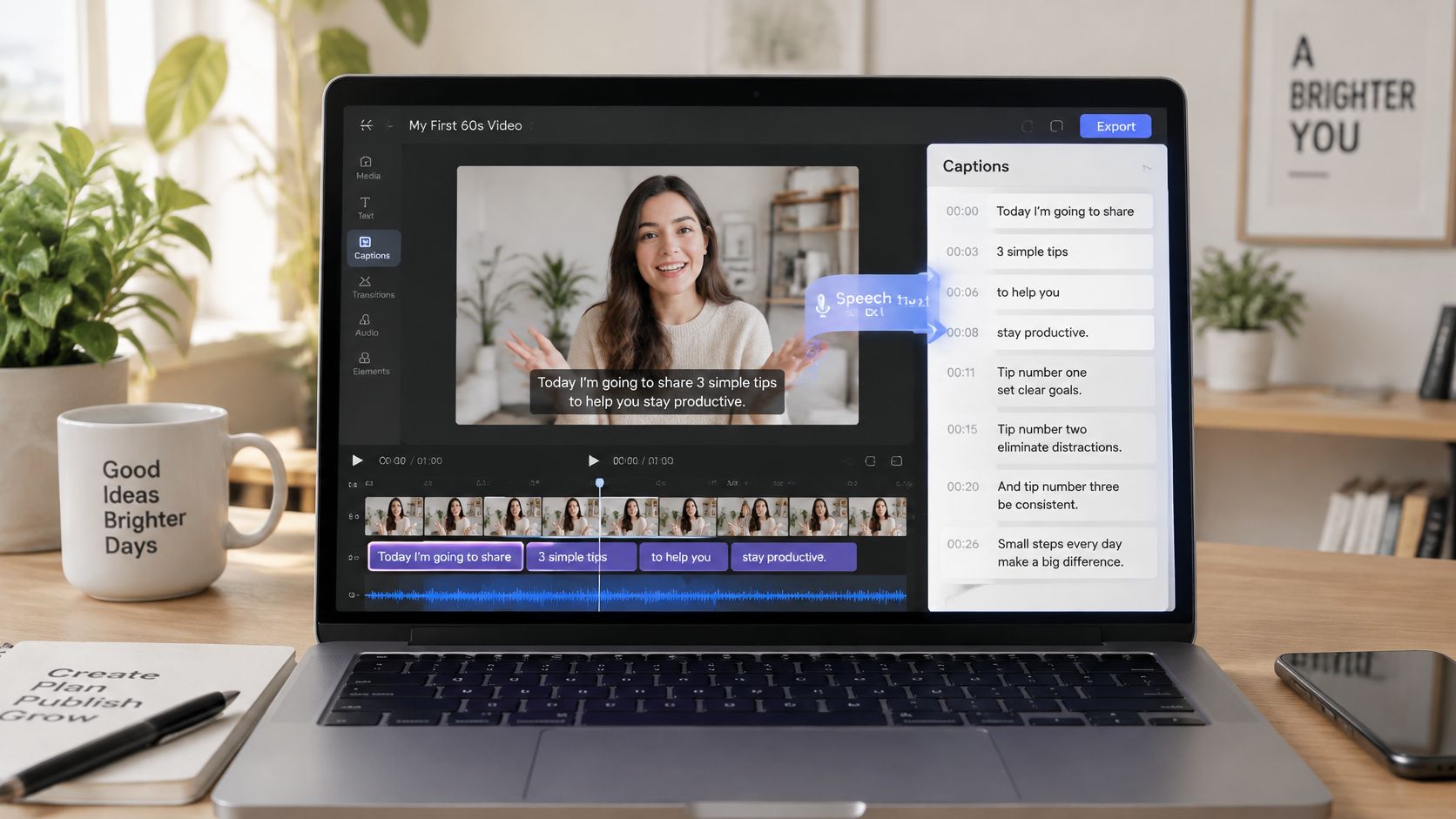
The editor makes the distinction between text and timing visible.
The parts you can change independently
- Transcript: The actual words, punctuation and speaker labels.
- Timing: When each caption appears and disappears.
- Styling: The font, size, position and colour viewers see.
A correctly spelled caption can still appear too late. A perfectly timed line can still be unreadable against a bright background. Changing the font won't repair a transcription error.
Subtitles generally carry dialogue, sometimes translated into another language. Accessibility captions also include meaningful non-speech information, such as a door slamming or music changing; software often uses these labels loosely.
Start with the recording, not the text effects. Clear speech in a quiet room gives the recognizer a better foundation than an interview recorded beside traffic. Once you can separate wording, timing and appearance, you can choose a generation method and judge its output without treating every defect as the same problem.
Ways to Generate Automatic Subtitles Compared
| Method | Best for | Editing control | Output |
|---|---|---|---|
| Built-in auto captions in a phone or social app | One fast clip for one platform | Light text edits | Captions on the platform, often no separate file |
| Editor with auto captions, such as Clipchamp | Cutting and captioning in one timeline | Line-by-line text and timing edits | Captioned video export |
| YouTube automatic captions | Uploaded long-form videos | Text edits in YouTube Studio | Downloadable caption track |
| Dedicated transcription service | Accuracy-critical or multilingual work | Full transcript and caption editing | Subtitle files such as SRT or VTT |
| Manual SRT or VTT upload | Full control of wording and timing | Any compatible subtitle editor | Standard subtitle file |
Choose by the work you need to finish
Built-in app captions suit a clip you intend to publish immediately on that platform. Correct the wording before posting, and preview the actual post layout rather than trusting the editing canvas. For a Shorts-specific workflow, HypedX's resource to generate captions for YouTube Shorts is a focused starting point.
An editor such as Clipchamp is useful when the footage still needs cuts, reframing or audio adjustments. Finish structural edits before generating the final caption track, so removing a pause doesn't leave you repairing displaced captions. Compare correction and export options using this guide to software for closed captioning.
YouTube automatic captions work well when the uploaded video is the main deliverable. Select the correct spoken language, inspect the track in YouTube Studio, and download the corrected version if you need to reuse it elsewhere. Don't assume that successful upload means the captions are publication-ready.
Dedicated transcription services fit projects where terminology, language coverage or review requirements matter more than a quick social edit. Ask whether the service includes human correction and timed caption files, rather than assuming a polished transcript includes either.
Manual SRT or VTT upload isn't automatic generation by itself. It's a delivery method for text and timestamps you've prepared elsewhere, including an automatically generated track you've already corrected. Keep the caption file paired with the exact video edit it belongs to.
Selection rule: Choose the method that makes corrections easiest, not simply the one that generates text fastest.
Editing after generation is an established workflow: 27.3% of respondents in 2024 said they start with automatic captions and edit them in-house, a figure published by 3Play Media and listed in VideoText's transcription statistics.
Before choosing, answer three practical questions: Where will you publish? Do names or specialist terms affect meaning? Does the destination need a separate subtitle file?
How Speech Becomes Timed On-Screen Text
Automatic subtitles on video come from a sequence of operations, not a single act of transcription. YouTube brought this approach to platform scale in November 2009, combining speech recognition with its caption system and supporting machine-translated access across 51 languages, according to the DCMP captioning timeline.
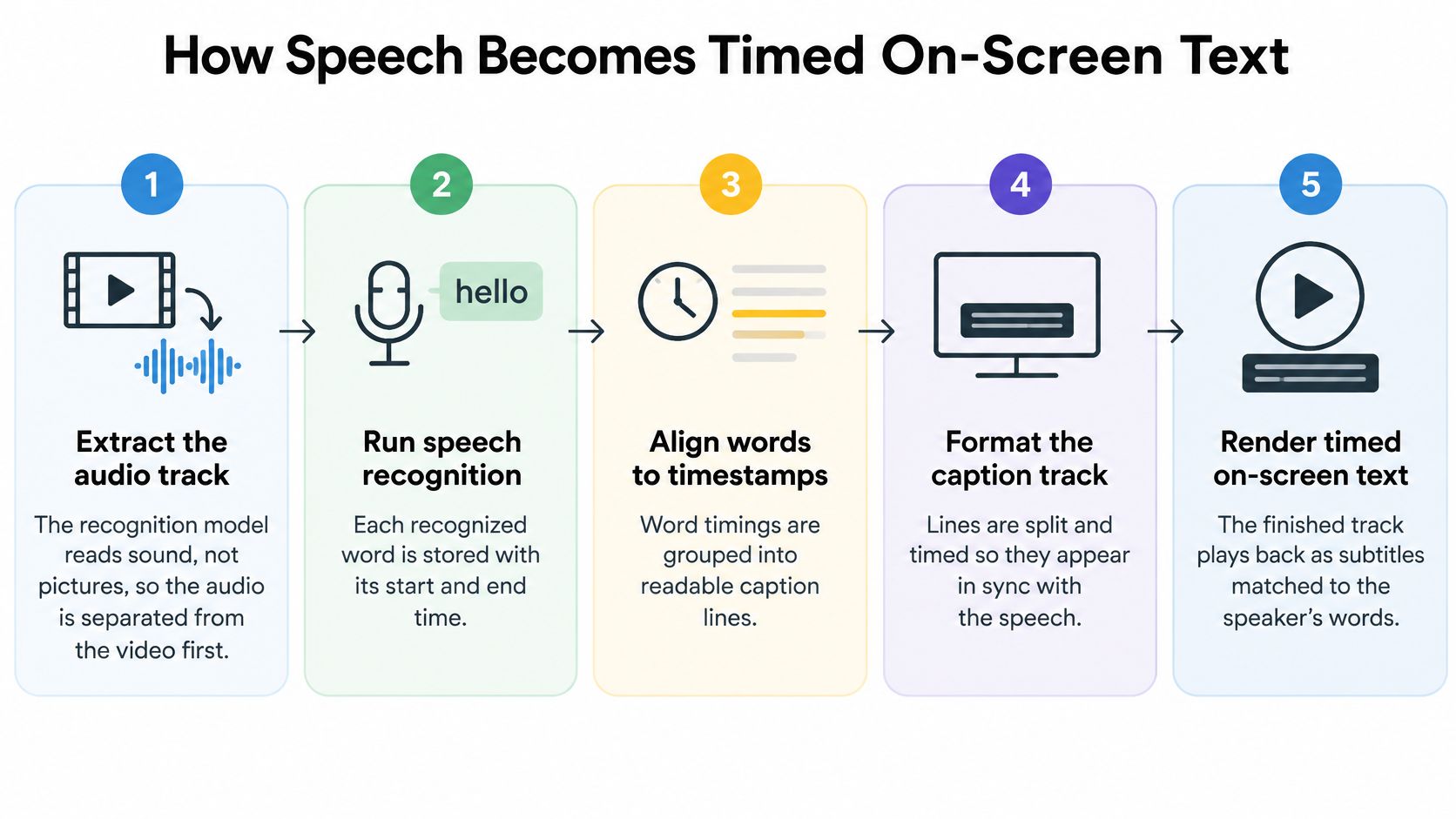
The process below separates the points where words, timing and presentation take shape.
Follow the audio through the pipeline
- Extract the audio track. The speech recognizer processes sound, so the editor supplies the video's audio for analysis. If music masks a consonant here, later styling can't recover it.
- Recognize speech and estimate word times. The model turns audio into candidate words and, in a word-aligned workflow, stores their start and end times. A misheard surname enters at this stage, even if the resulting sentence looks grammatically correct.
- Group words into readable captions. The software divides the transcript at pauses, sentence boundaries or length limits. Poor grouping can separate a modifier from its noun or reveal the end of a joke prematurely.
- Align caption segments with playback. The editor places each segment on the video timeline. Correct words displayed early or late indicate an alignment problem rather than a vocabulary problem.
- Format and display the track. The renderer applies the chosen typography and position, either drawing text into the picture or displaying a selectable caption track.
A useful editor preserves timing anchors when you correct a word, so a spelling repair needn't move everything that follows. Substantial additions, deletions or sentence restructuring may still require realignment.
A transcript answers what was said. A caption track must also answer when the viewer needs to see it.
If you're preparing the text separately, this guide to writing a transcript of a video helps organize that starting material. Treat recognition as a draft: the system can produce fluent text while missing the speaker's intended meaning.
Why Viewers Expect Subtitles on Short Videos
A 2019 Verizon Media and Publicis Media study reported that 80% of viewers were more likely to watch a video through to the end when subtitles were available, as described in this academic paper on automatic captioning. That's a reported viewing preference, not a promise that adding text will produce the same improvement on your channel.
The practical reason is easy to recognize. Someone may want your explanation without being able to play your audio.
- Public transport: A viewer has forgotten their headphones or can't hear clearly over the journey.
- Workplaces: Someone checks a useful clip without disturbing colleagues.
- Classrooms: A learner reviews material while others are working nearby.
- Shared homes: A viewer keeps the volume down while someone else sleeps or studies.
Make the story available without the soundtrack
For a faceless micro-lesson, the narration often supplies the explanation that a presenter's gestures might otherwise reinforce. If the screen shows a diagram while the voice explains the important exception, a silent viewer needs that exception in text.
Subtitles can also help second-language viewers connect an unfamiliar pronunciation with its written form. A reusable transcript gives you text that can be searched, skimmed or indexed where the publishing system supports it. Neither benefit requires turning every caption into an animated graphic.
For deaf and hard-of-hearing viewers, access to spoken information isn't merely a convenience. Plan for someone who cannot use the soundtrack at all, rather than assuming the text only needs to supplement audible speech.
Availability and usefulness aren't interchangeable. A caption that reverses an instruction or drops a qualifying word can mislead someone who has no audio reference. Use subtitles to make the complete explanation available, not just to decorate the hook or pursue a retention metric.
How to Review and Refine Subtitles Before Publishing
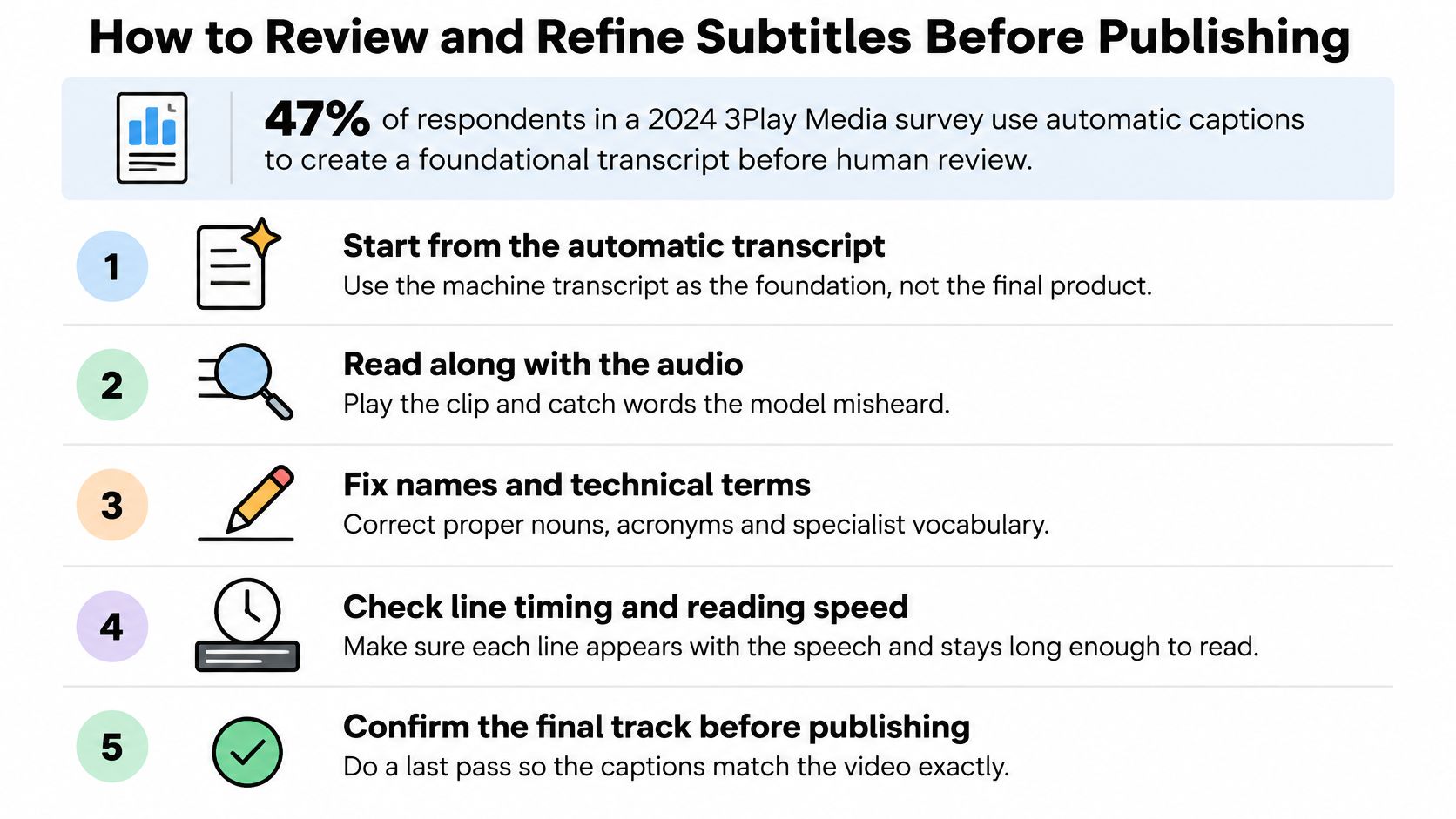
In the 2024 State of Captioning survey, 47% of respondents said they use automatic captions to create a foundational transcript before human review, according to 3Play Media. That's a practical division of labour: let software produce the draft, then direct human attention toward meaning and usability.
The review should cover the final edit, not an earlier cut with different pauses or narration.
Use a repeatable publishing pass
- Watch with sound off. Confirm that the explanation makes sense, every line is readable and each caption appears at the relevant moment.
- Check names, brands, numbers and technical terms. Compare them with the script, product documentation or another authoritative reference, because a plausible substitute can be harder to notice than obvious nonsense.
- Repair crowded segments. Split or merge captions that spill into too many lines or disappear before you can comfortably read them, keeping related phrases together.
- Listen closely to uncertain passages. Replay overlapping speech, abrupt edits and low-confidence segments, and don't invent wording when the recording is unclear.
- Inspect the opening seconds. Make sure the initial caption starts with the actual message rather than an abandoned take, filler or a missing setup.
- Export, verify and publish. Use the destination's accepted format, check the exported result, and save the corrected track alongside its matching video.
For platform-specific delivery, VideoTour.ai's guide to adding subtitles to Instagram Reels can help you apply the final step to that publishing workflow.
Reuse corrections without reusing mistakes
Keep a small terminology sheet containing approved spellings, acronyms and recurring speaker names. If your tool accepts custom vocabulary, supply those terms before processing the next recording; otherwise, use the sheet during review.
Save your caption styling as a template where the editor allows it. Preserve the corrected transcript as a reference for related episodes, but don't paste an old timed track onto new narration.
A corrected file doesn't automatically retrain the recognizer. The reusable assets are your terminology, formatting decisions and review procedure. New speech still needs fresh timing and its own final check.
Where Automatic Subtitles Go Wrong
Word Error Rate, or WER, counts the minimum insertions, deletions and substitutions needed to turn generated text into a reference transcript. A W3C-reviewed comparison reported approximately 6% WER and 0.761 seconds of stable-hypothesis latency for an enhanced Google speech-recognition API, compared with 4–9% WER and about 4.2 seconds of latency for human captioning in the same comparison.
Stable-hypothesis latency means the delay before the system considers its text stable, not the total time needed to publish an edited video. Those results describe a particular comparison, not a universal accuracy guarantee.
Diagnose the visible symptom
| Symptom | Likely cause | Fix |
|---|---|---|
| Names and brands misspelled | Proper nouns absent from the recognition model's effective vocabulary | Search, correct and check each name against the source |
| Numbers or dates garbled | Spoken figures written inconsistently | Match the intended figures to the source and check any on-screen reference |
| Captions lag or lead the audio | Timing drift on long or fast clips | Re-align the track or split long segments |
| Accents or dialect words missed | Insufficient model coverage of the speaker's speech variety | Re-listen to uncertain lines and correct by hand |
| Words appear during music or noise | Background sound interpreted as speech | Remove invented text, clean or re-record audio where possible, and mark meaningful sounds |
| Lines impossible to read in time | Verbatim text packed into too little display time | Split segments, extend timing where speech allows, or carefully condense wording |
An average error rate doesn't tell you whether the wrong words are harmless or consequential. Confusing an article may barely affect comprehension; losing a negation can reverse the instruction. Names, measurements and specialist vocabulary deserve attention even when the rest of the transcript reads smoothly.
The limits matter in professional production: an evaluation of four speech-recognition systems on 50 hours of Italian television found that they didn't meet professional media accuracy requirements for fully autonomous subtitling and recommended human involvement, according to the Springer evaluation.
Triage priority: Repair changes to meaning and identity before polishing punctuation or animation.
Use a human listening pass whenever a video depends on precise terminology, unfamiliar names, overlapping speakers or a language the tool handles poorly. An accent isn't an error in the speaker's delivery; a mistranscription is a limitation of the recognition system.
If you can't verify a consequential passage, return to the recording or script. Don't publish a confident guess just because the software supplied one.
Match Subtitle Design to How People Watch
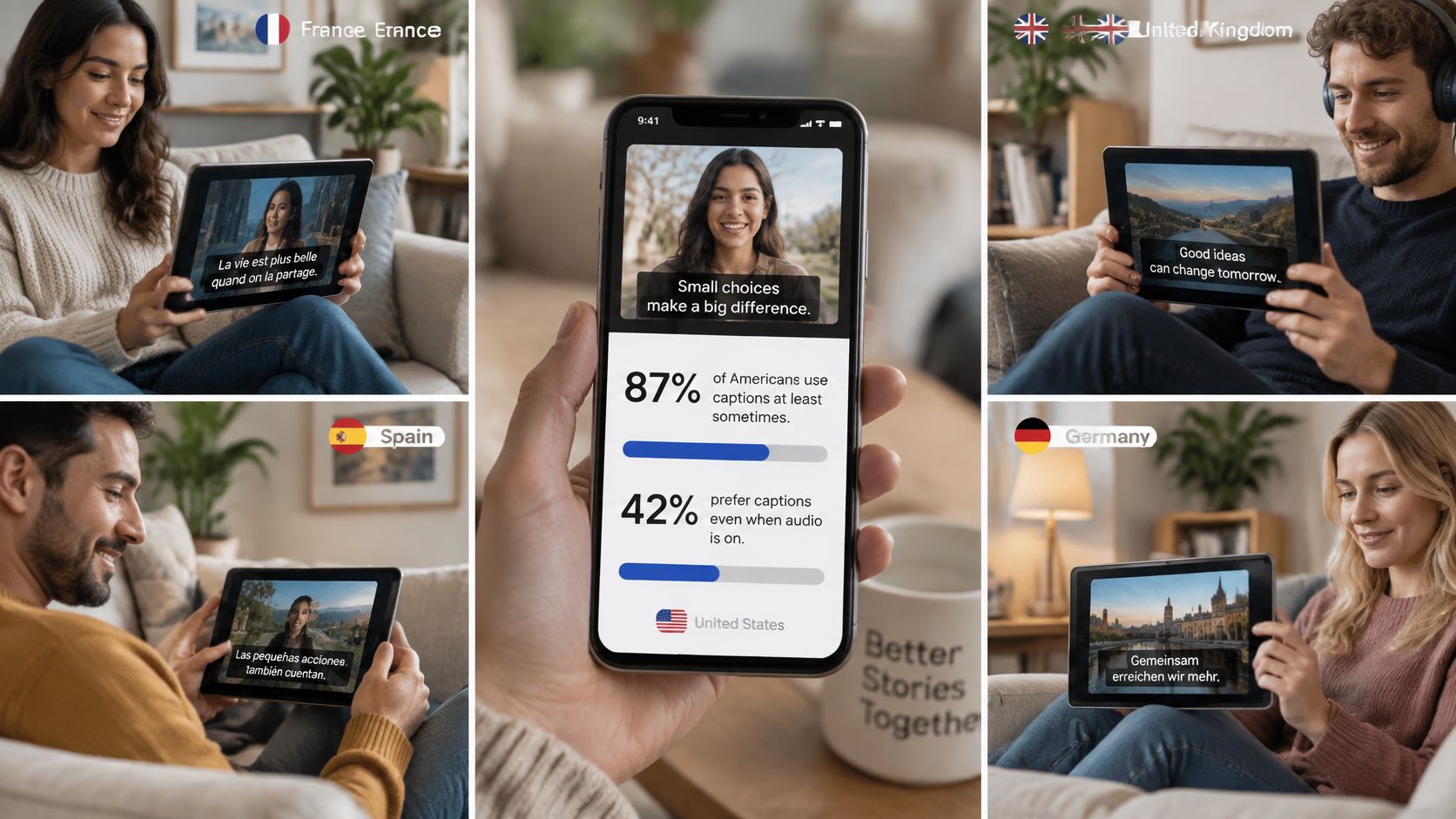
A 2026 survey of more than 3,000 viewers across the United States, United Kingdom, France, Spain and Germany found that 87% of Americans use captions at least sometimes, while 42% prefer them even when audio is perfect, according to XR's audience survey announcement.
Viewing conditions differ, so one decorative preset won't suit every audience.
Preserve the information viewers need
Use faithful wording for accessibility and instruction. If speech outruns comfortable reading, first adjust segmentation or edit the narration; condense only when you can preserve the meaning. Identify speakers when the picture doesn't make the speaker obvious, and include laughter, music or other sound cues when they explain what's happening.
Placement matters as much as typography. Keep text away from faces, demonstrations and platform controls, then preview on a phone at normal brightness. In detailed teaching videos, such as the lessons readers can explore through TrueFire's option to browse courses with full HD video, captions shouldn't obscure the hand movements or visual details being taught.
This video provides another viewing context for assessing text placement and readability.

Burned-in captions remain visible in the picture. A separate SRT or VTT track gives compatible players selectable captions; our guide to open versus closed captions explains that delivery choice.
Our workflow adds subtitles automatically, and users can download any generated video to publish manually on any social network. Choose the destination with the viewing experience in mind: the track is ready when viewers can follow the message without losing essential visuals, not merely when text appears on screen.
ClipCreator.ai creates short, faceless videos with automatically added subtitles, story-aligned images and a choice of narration voices. Visit the platform to create your next video, then apply a focused caption review before sharing it with your audience.

Create your first video in under 2 minutes
Pick a niche, and ClipCreator.ai generates and auto-posts faceless videos to your channels every day.
Join ClipCreator.ai