Yes, YouTube can add automatic captions with speech recognition in a video's default language, but only when you've set that language correctly and the speech is clear enough for the model to recognize. If a caption track appears, does that mean your video is now accessible, accurate, and ready for viewers in other languages?
Most creators treat those three jobs as one. They're not. Generation is YouTube guessing what was said. Editing is you checking whether the guess matches your audio. Translation is a separate job again, where meaning has to survive in another language. If you mix those steps together, you'll publish text that looks finished while it misstates a name, a number, or an instruction.
Does YouTube Add Subtitles Automatically
Yes, and the official name matters because it tells you what you're getting. YouTube calls them automatic captions, not subtitles you've written. A machine listens to your audio and produces timed text. Nobody on your channel typed it, checked it, or approved the wording.
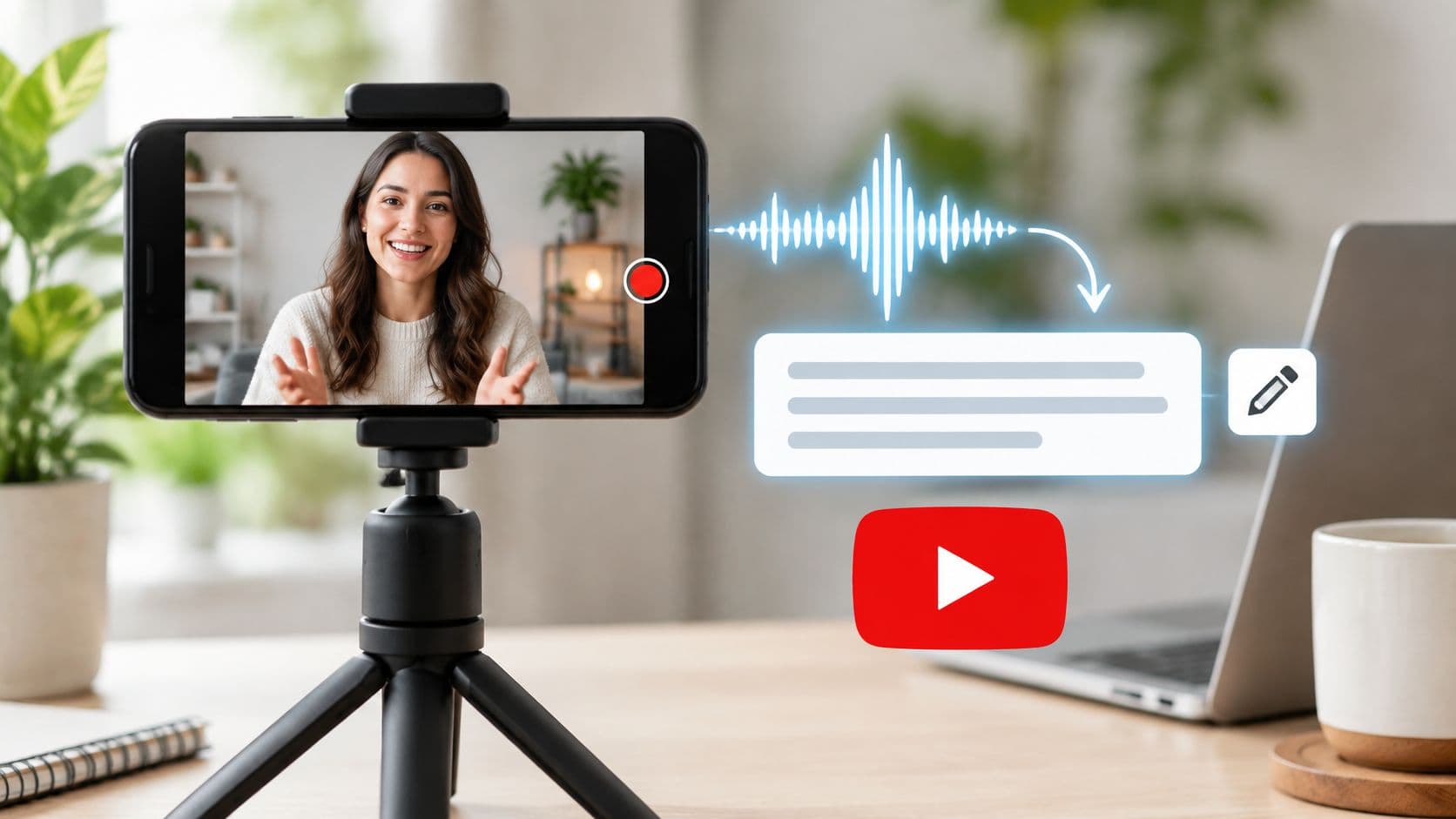
The system behind it is automatic speech recognition, often shortened to ASR. According to YouTube's automatic captions help page, YouTube does add subtitles automatically through an ASR system, but availability is conditional rather than guaranteed for every upload. When generated captions are available, YouTube can automatically publish them in the video's default language.
That conditional part is where most confusion starts. A creator uploads a video, waits, sees no CC button, and assumes something's broken. Often nothing's broken. The language setting was wrong, the speech was buried under music, or the audio didn't give the model enough clean signal to work with.
When YouTube adds automatic captions
Match your clip to the closest row before you assume a track will appear.
| Situation | Automatic captions | What you actually get |
|---|---|---|
| Clear speech and correct video language | Usually yes | Captions in the default spoken language |
| YouTube Shorts with intelligible speech | Often yes | Same speech-recognition track, not a hand-typed file |
| Language metadata missing or wrong | No or wrong result | Missing track or words recognized in the wrong language |
| Music, noise, or unclear speech | Unreliable or none | Errors or no usable track |
| Viewer turns on auto-translate | Separate feature | On-the-fly translation, not a creator-reviewed subtitle file |
Support is broad. Automatic captions are supported for long-form videos and Shorts across languages including English, Spanish, French, German, Arabic, Hindi, Japanese, Korean, Portuguese, and Vietnamese. Broad support isn't a promise for your specific upload, though. A Spanish video labeled as English gives the model the wrong language to listen for, so it'll either produce nonsense or produce nothing useful at all.
Think about what the model needs. It needs clear, continuous speech in the language you told YouTube to expect. A single voiceover recorded close to a mic, with no music competing, gives it that. A clip that opens with ten seconds of music, then drops in a muffled line, then cuts to two people talking, gives it very little to hold onto.
What the automatic track is not
It's not a subtitle file you authored. You didn't choose the line breaks, you didn't verify the spelling of names, and you didn't decide how a number or date should appear. YouTube's own position is that you should review and edit machine-generated captions before relying on them for accessibility or precise delivery.
Practical rule: Treat the automatic track as a draft somebody else wrote from listening once, quickly, without knowing your names or your topic.
That draft is still useful. It's fast, it's timed to your audio, and it gives you something to correct instead of a blank page. For study and reuse away from the player, some creators also pull video transcripts for research and notes so they can search and quote the text outside YouTube. Either way, the text only becomes trustworthy after a person reads it against the audio.
So when people ask does YouTube add subtitles automatically, the honest answer is yes for the first draft and no for everything after that. YouTube handles generation when the conditions are right. You still own accuracy, and you still own what happens when viewers need another language.
Why Automatic Captions Still Miss Words
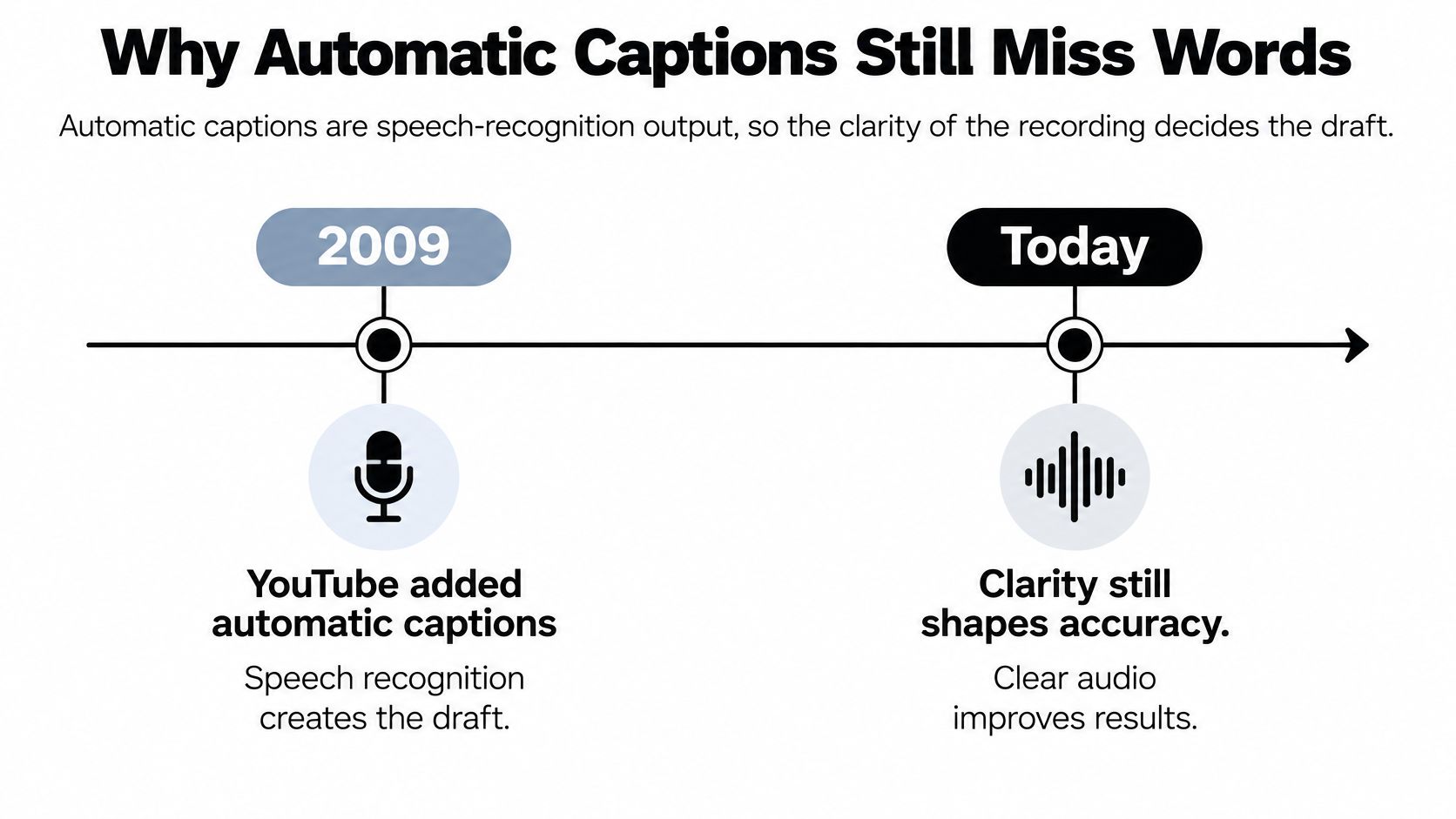
Automatic captions are speech-recognition output, so your recording decides the quality of the draft. The model isn't reading your script. It's making probability guesses from sound, and it guesses worse as the sound gets messier.
The scale of the system can make that easy to forget. As The Drum's report on YouTube's caption milestone notes, YouTube added automated captions in 2009 and announced in February 2017 that more than 1 billion videos had been automatically captioned, with English caption accuracy improved by 50% compared with its earlier performance while mistakes were still expected. Better than before isn't the same as correct.
The older improvement figures show the size of the remaining gap. In YouTube's automatic captions documentation, YouTube reported that a new speech-recognition model reduced the overall word-error rate by about 20%, so a video recognizing 50% of words correctly could improve to approximately 60%, while one recognizing 75% could reach approximately 80%. Read that second way. On hard audio, an improved model can still miss roughly four words in ten.
What makes automatic captions go wrong
| Audio problem | Typical error | Safe to publish raw |
|---|---|---|
| Clean single speaker, quiet room | Occasional word slips | Review first on branded or teaching videos |
| Background noise or music | Dropped or swapped words | No |
| Strong accent, dialect, or very fast speech | Common-word substitutions | No |
| Two people talking at once | Merged or garbled lines | No |
| Names, brands, slang, or numbers | Confident wrong guesses | No |
Matching the problem to the error
Background noise and music mask consonants first. Consonants carry most of the difference between similar words, so a line like "add the paste" under a loud track can come back as "add the pace." The sentence still reads smoothly, which is exactly why it's dangerous. Nobody spots it without listening.
Accents, dialects, and fast speech push the model toward a more common phrase. If a speaker says a regional word quickly, the model often swaps in a familiar word with a similar sound. The caption looks confident and reads cleanly, but it isn't what was said.
Overlapping speakers merge two lines into one. Say a host says "we tested it twice" while a guest says "three times" over the top. The model may write a single blended line that belongs to neither person. A viewer reading with sound off has no way to know two voices collided.
Names, brands, and numbers get guessed because they're rare. A product called "Kestrel" can become "kettle," and "fifteen milligrams" can become "fifty milligrams." These are the errors that change meaning rather than just looking sloppy.
Whispers, laughter, and long pauses break timing. The model may attach the next spoken line to the wrong moment, or drop a soft opening word entirely. On a short clip, one late line can cover the wrong visual.
The cost lands on specific viewers. A deaf or hard-of-hearing viewer loses access to the actual content, not just to polish. A learner copies down the wrong term and studies it. A brand gets quoted saying something it never said.
If exact wording, safety, or a brand line matters in your video, the raw track isn't publishable. It needs a human pass first.
Captions in One Language Versus Translation
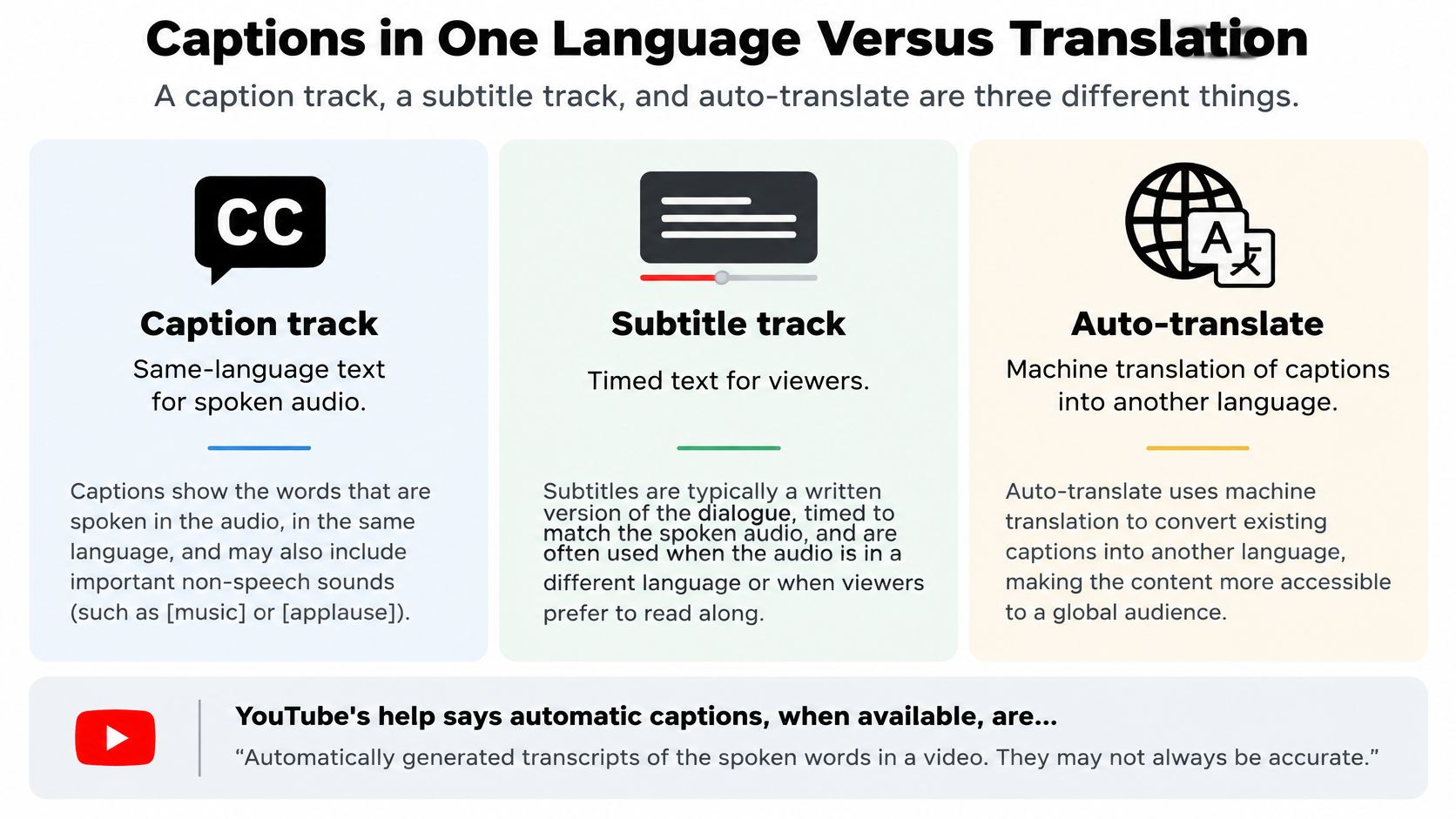
Three different things get called subtitles, and separating them clears up most of the confusion. A caption track writes down speech in the language spoken. A subtitle track for another market carries that meaning into a different language. Auto-translate is a viewer-side machine conversion that you never reviewed.
Here's a simple way to picture it. The caption is a transcript of what was said. A subtitle for another market is a new script that has to carry the jokes, names, and instructions with it. Auto-translate is a rough bridge a viewer can cross on their own, without you checking whether it holds.
YouTube's help documentation on subtitles and captions states that automatic captions, when available, are produced in the video's default language, and research on YouTube captioning and translation reported only 68.5% acceptance accuracy for culture-bound expressions because literal translation and omission can damage pragmatic meaning. That gap is the whole issue. A video can have captions and still fail a viewer in another language.
Caption tracks versus translation options
| Track | Who creates it | Language | Trust for exact meaning |
|---|---|---|---|
| Automatic captions | YouTube speech recognition | Video default language | First draft only |
| Edited captions | Creator revises the draft | Same spoken language | High if fully checked |
| Uploaded translation | Creator or translator | A chosen market language | High when human-reviewed |
| Viewer auto-translate | YouTube on demand | Viewer's chosen language | Low for idioms, names, and instructions |
Look at who does the work in each row. With automatic captions, a model writes and nobody checks. With edited captions, you check the words in the language you speak. With an uploaded translation, a person who knows both languages decides how a phrase should land. With auto-translate, a model converts your unchecked draft, so any error in the original travels into the new language and picks up fresh ones on the way.
Humor shows the difference fastest. An idiom translated word by word often stops being funny and starts being confusing. A how-to step is riskier still, because a softened or swapped verb can turn "loosen" into something closer to "remove." The viewer follows the text, not your intention.
Creators working across languages hit this in concrete ways, which is why workflows like turning Japanese speech into English subtitles treat the translated track as its own writing job rather than a by-product of captioning. The spoken-language track has to be right before anyone translates it. Translating a flawed draft just spreads the flaw.
A workable order looks like this in practice. Set your spoken-language metadata correctly so the first track is generated in the right language. Verify that original track against your audio. Then add human-reviewed translations only for the markets you care about, instead of trying to cover everything thinly. Auto-translate can stay available for everyone else as a convenience.
The question for international creators isn't whether a caption exists. It's whether the text stays trustworthy after localization. A checked original plus one reviewed translation beats an unchecked track machine-translated for the whole world.
How to Edit or Replace YouTube Captions
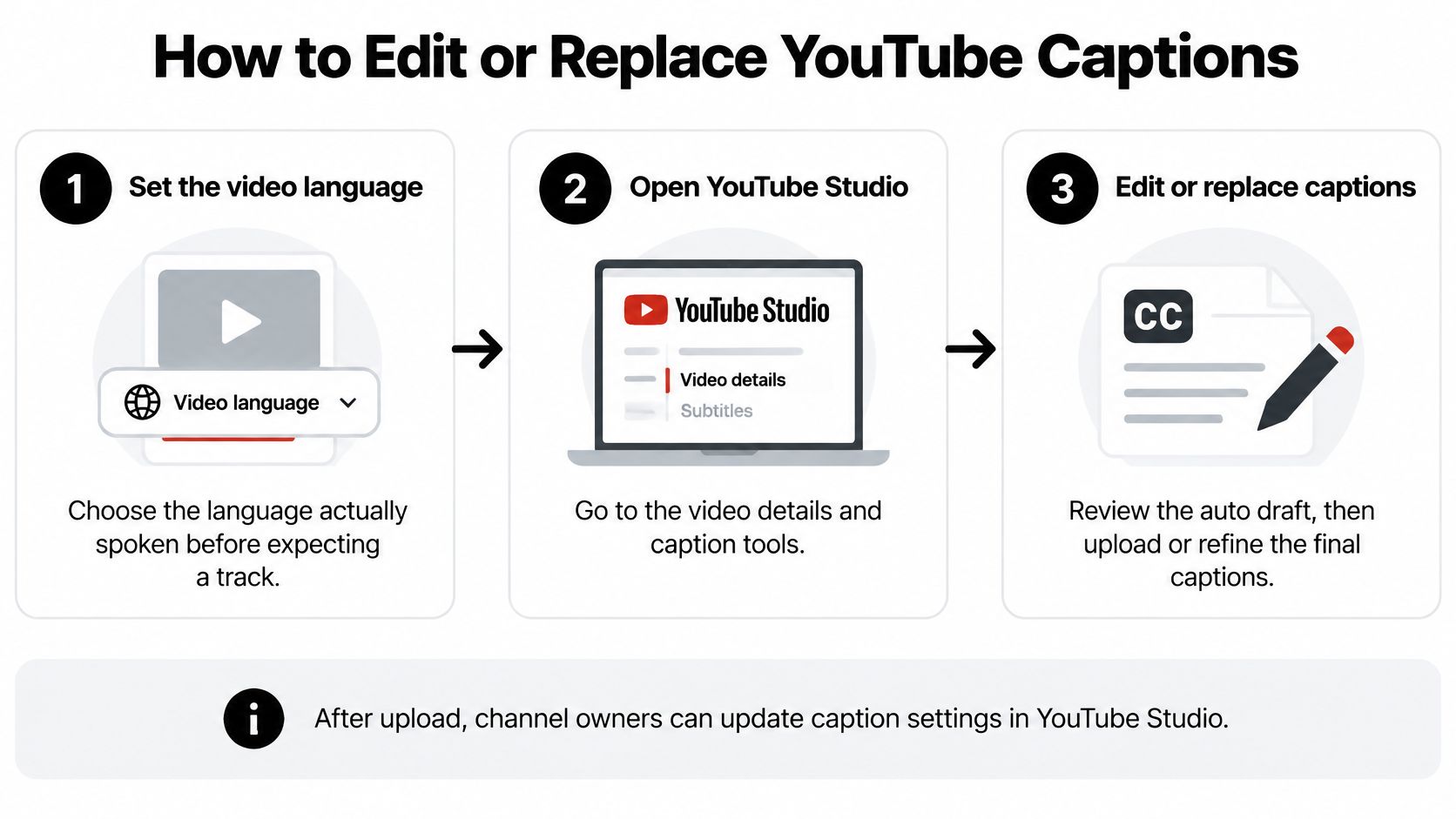
You don't need screenshots to do this well. You need one repeatable pass after upload, done in the same order every time so you don't skip the step that would have caught the error.
The editing pass step by step
- Set the video language first to the language spoken, because the model can't generate the right track if it's listening for the wrong language.
- Open the video in YouTube Studio and go to Subtitles, because that's where every caption and subtitle track for that video lives.
- Wait for the automatic track to appear, and if none shows up, check your language setting, your speech clarity, and whether recognition supports that language instead of refreshing the page repeatedly.
- Play the draft against the audio and fix wrong words, names, and numbers, because those are the errors a quick read-through without sound will never reveal.
- Adjust timing where a line lands late or runs into the next sentence, because on Shorts a few words fill the frame and a late caption points at the wrong moment.
- Publish the edited track when you're done, because an unpublished fix leaves viewers reading the raw machine text.
- Upload your own subtitle file for any language you must get right, because a file you wrote and checked beats trusting auto-translate with your wording.
- Confirm the track came along on a reused or unlisted copy, because edits on the original don't copy themselves just because the video looks identical.
Step 7 deserves a little more detail. Use a timed subtitle file such as SRT, check that each line starts and ends with the speech it belongs to, and confirm the track name shows the correct language before you publish. If you're building that file yourself, a dedicated SRT file creator workflow keeps the timing work separate from the writing, so you can fix words without re-timing the whole clip.
For longer teaching videos, caption work pairs naturally with structure work. While you're in Studio checking tracks, the video chapter tips from ContentBuck are worth a look, since chapters and accurate captions both help viewers find and follow the exact moment they need. Neither one helps if the words on screen are wrong.
Sometimes the right call is to hand the job over. If a video carries legal weight, or it will be used in a classroom where students depend on the text, professional captioning is a reasonable cost. You're paying for verified accuracy, not for typing speed.
Three checks before you publish
- Read with the sound off all the way through, because that's the version a sound-off viewer receives.
- Scan every proper noun on its own pass, because names, brands, and places are where the model guesses most confidently.
- Spot-check the first and last five seconds, because intros and calls to action are where lines get cut off or mistimed.
Do those three and you've caught most of what makes an automatic track embarrassing or misleading. The pass takes minutes on a short clip. Publishing a wrong line costs you far longer in corrections and confused comments.
Short Form Caption Examples That Hold Up
Rules get easier to apply when you can see the clip. These three short-form scenes cover most of what faceless creators publish.
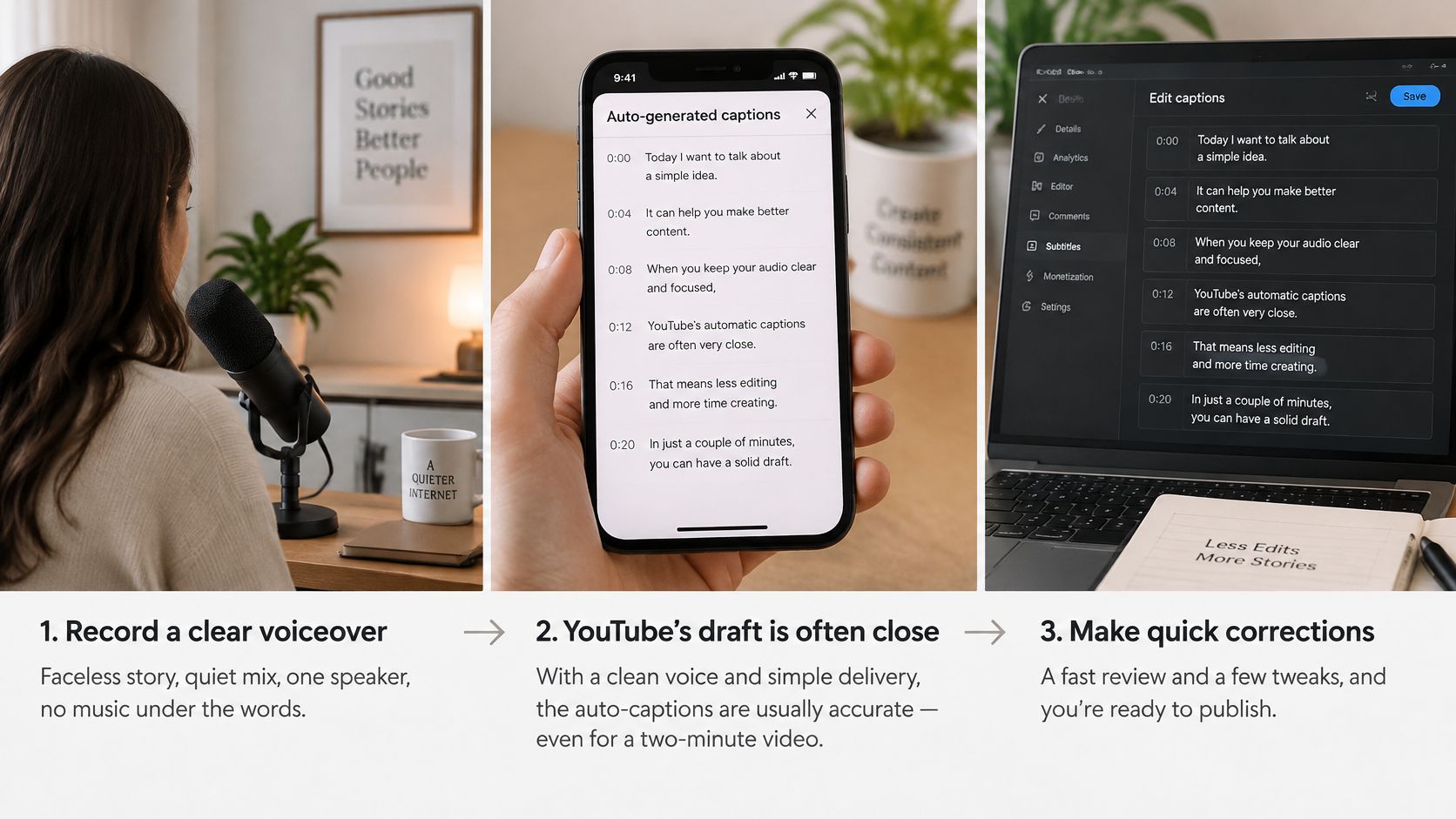
The first is a story voiceover in a quiet mix, one speaker, no music under the words. This short example shows how a clean single voice carries on screen.

With sound off, that viewer reads a draft that's usually close to the narration. Your job shrinks to a short pass over names and numbers before you publish. It's the one situation where the automatic track nearly earns your trust, and it still needs that pass.
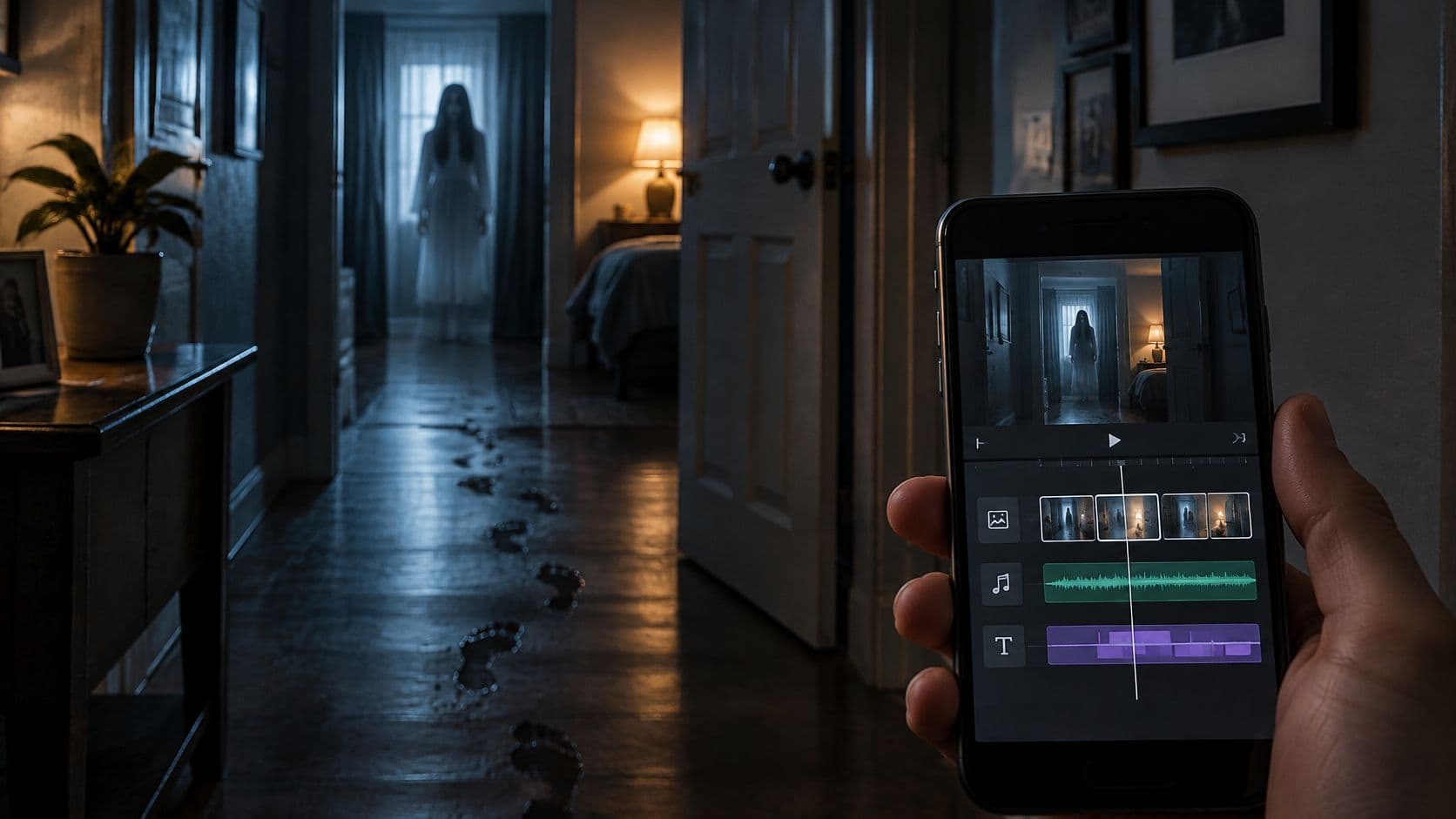
The second scene is a bedtime or scary-story clip with music sitting under the voice for mood. The draft starts dropping line endings where the music swells, so a sound-off viewer reads sentences that trail into nothing. For that kind of clip, burn accurate subtitles into the picture or upload a checked file before posting, because the generated track won't survive the mix.
The third scene is a micro-lesson that says a dosage, a date, or a brand name. One swapped word changes the lesson itself. The sound-off viewer doesn't get a slightly messy version, they get wrong information delivered with total confidence. That raw track should never go live.
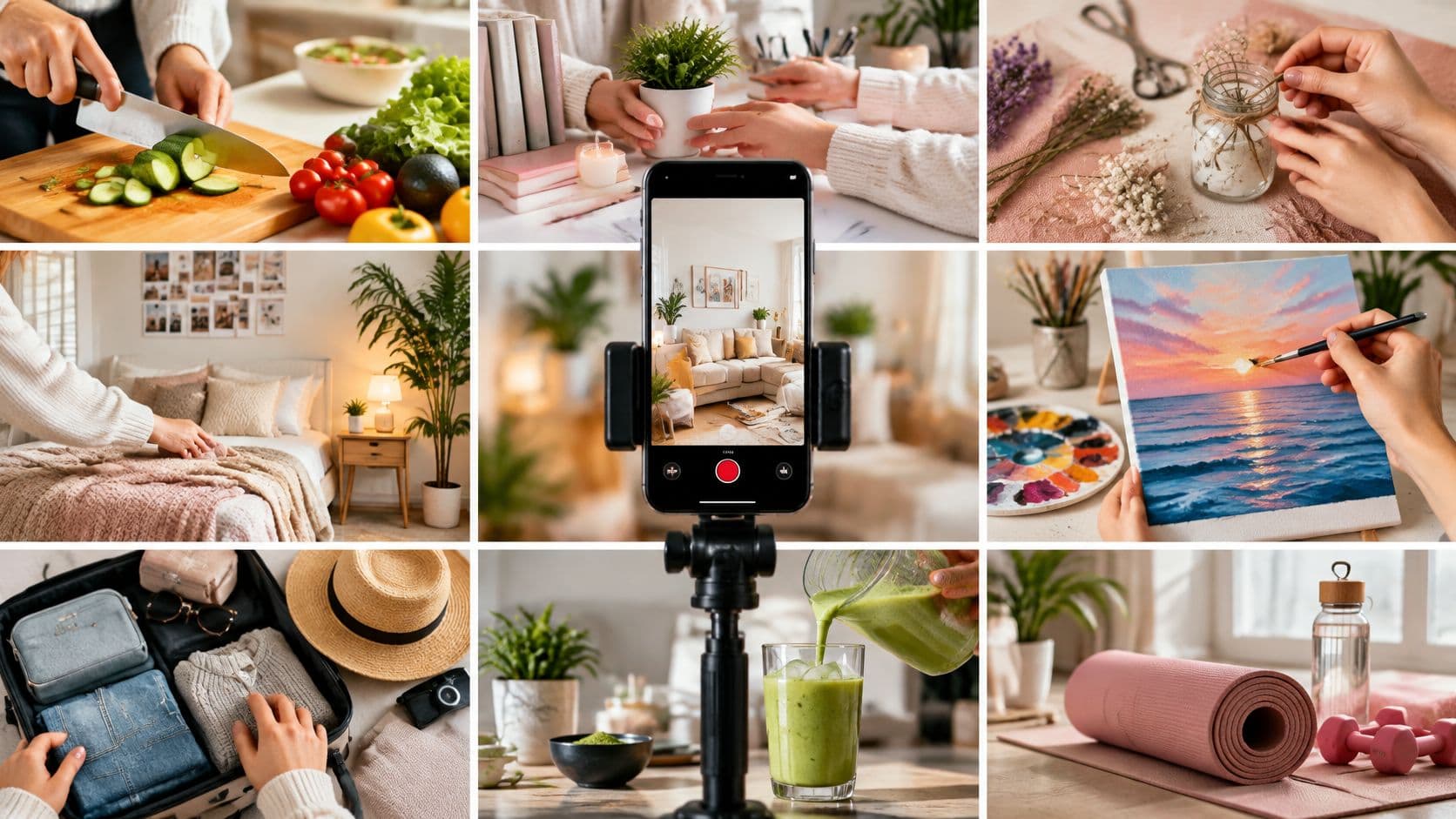
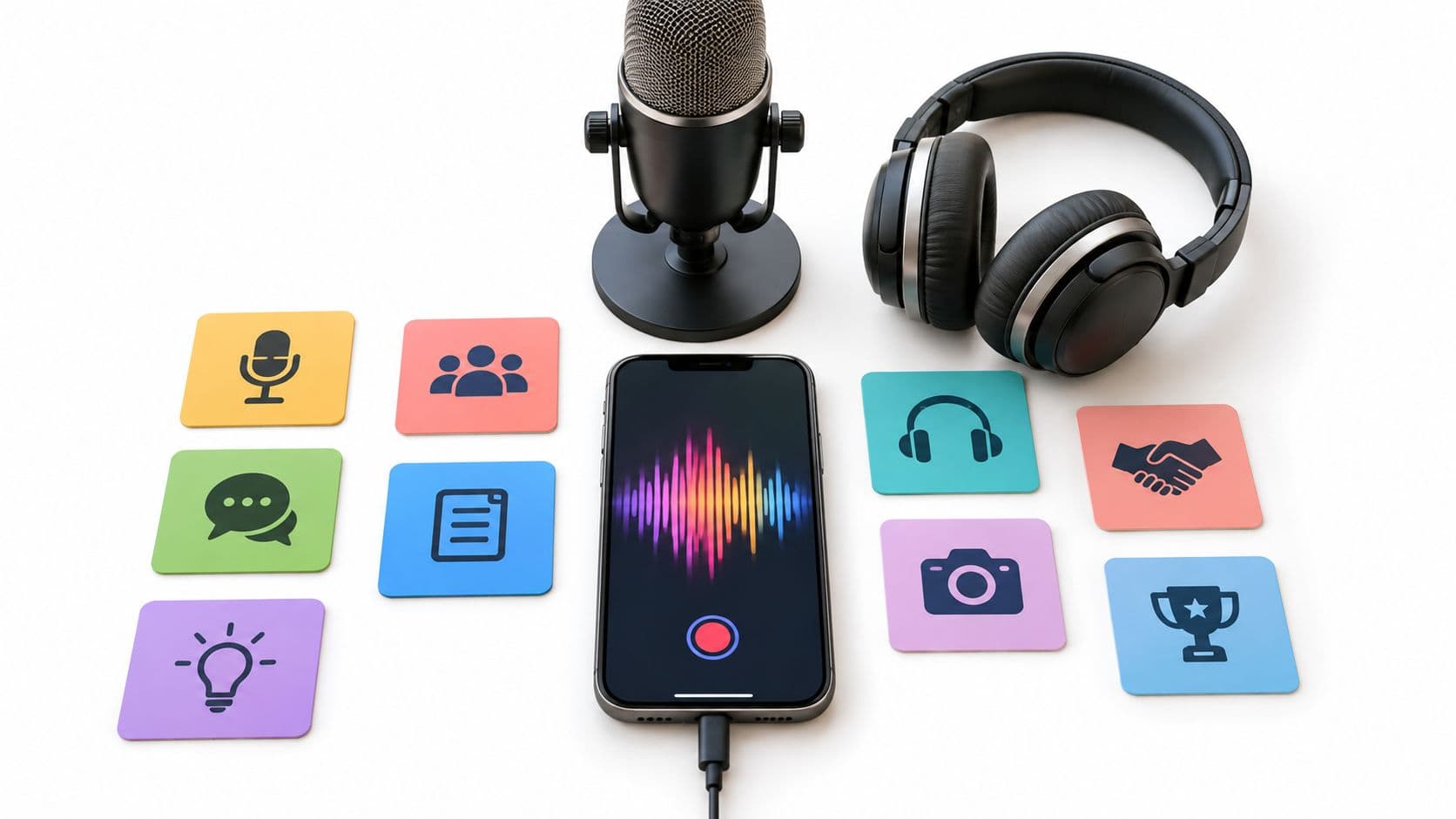
The panels below show the three moments that decide how these clips turn out, from recording through to the final edit.
Habits that make any caption pass easier
- Record or generate a clean voice with the mic close and the room quiet, so the model starts from clear sound.
- Keep one speaker at a time, since overlapping voices produce merged lines nobody said.
- Pause between sentences, which gives the model clean breaks and gives you cleaner caption timing.
- Spell unusual names in an on-screen title, so viewers can see the correct spelling even if a caption slips.
- Set the video language before you publish, not after you notice the track is missing.
There's also a route that skips the guessing entirely. ClipCreator.ai pairs a script with a voiceover and accurate subtitles on HD clips up to 90 seconds for TikTok, YouTube, and Instagram, so story, lesson, and brand clips start from written lines instead of hoping YouTube reconstructs them from audio. You still own the video, and you should still watch the burned-in lines once before the clip goes out.
That final watch pairs well with a consistent posting rhythm. If you're batching clips ahead of time, it helps to schedule YouTube Shorts uploads so your caption check happens at production time, not in a rush at publish time. Checked text plus a planned slot beats a last-minute upload with a draft you never read.
Choose a Caption Plan Before You Publish
You have three sensible choices, and they rank cleanly by risk. Pick based on what a wrong word would cost your viewer, not based on how much time you have.
The lowest-risk case is a casual clip with one clear speaker where a small slip wouldn't mislead anyone. Leave YouTube's automatic captions on and skim the names. If a minor word is off, the viewer still gets the point.
The medium-risk case is a clip that teaches, sells, or quotes someone. Treat the automatic track as a draft and edit it, or replace it with a file you wrote. Knowing the difference between open and closed caption formats helps here, because burned-in text can't be switched off or corrected after export, while a caption track can.
The highest-risk case is a release aimed at a second market. Add a reviewed translation for that market and treat auto-translate as a convenience for everyone else, not as your plan. Scheduled faceless Shorts can start from a script with subtitles built in, which removes the guessing step for that kind of clip entirely.
The plan isn't about captions existing. It's about whether the words on screen are the words you meant.
Do one thing now. Open your newest video, turn the sound off, and read the first caption line. If that line isn't what was said, edit or replace the track before your next publish.
If you'd rather start from a written script than correct a machine guess, ClipCreator.ai generates short faceless videos with lifelike voiceovers and accurate subtitles built in for YouTube, TikTok, and Instagram. Pick a story or lesson template, review the subtitle lines once, and schedule the clip knowing the words on screen are the words you approved.

Create your first video in under 2 minutes
Pick a niche, and ClipCreator.ai generates and auto-posts faceless videos to your channels every day.
Join ClipCreator.ai