You upload a 60-second clip on Tuesday night. On Wednesday morning you open it on your phone, tap CC, and read a sentence you never said. The product you named has become something else, the number you quoted is off by a digit, and the last ten seconds are one unpunctuated block with a question mark in the middle of a statement.
That's the normal state of automatic subtitles on YouTube. The platform generates a machine transcript after upload, publishes it under the "English (auto-generated)" label, and nobody reads it before viewers do. It's a strong first draft and a poor final answer.
The skill worth building isn't switching captions on. It's ranking the errors by how much damage they do to meaning, then reviewing only the ones that matter. Treat the track as a draft with a deadline, not as an accessibility box you've ticked.
Turn On Automatic Subtitles in YouTube Step by Step
The mechanics take about a minute once you know where the track lives. The rest of the job is verification. This is the path I use on every upload.
- Open the video in YouTube Studio. Click Content in the left menu, find the clip, and click its title. Studio is the only place the caption track can be edited; the watch page just plays whatever has already been published. The common slip here is editing a downloaded copy of the file and assuming the live video changed. Nothing reaches viewers until it's saved in that tab or uploaded back.
- Open the Subtitles tab. It lists every language track attached to the video with a status for each, so you can see immediately whether an automatic track exists or the slot is empty. If you're several videos deep, this tab is also the fastest way to spot uploads that never got a track at all.
- Open the automatic track, or add the right language. YouTube doesn't let you edit an auto-generated track in place, so duplicate it first and edit the duplicate, which becomes your published version. If no track exists, choose Add language and pick the language the speaker uses. The most damaging mistake in this whole process is leaving the spoken language set to English on a clip that opens in another language or switches between two. The recognizer decodes the entire file as if it were English, and you end up with nonsense no amount of word-by-word editing can rescue.
- Read the first 30 seconds and every name in your script before you trust it. Recognizers struggle most where music, breath and a fast opening sentence overlap, and proper nouns are where errors cluster hardest. Reading the transcript against the audio in the first half-minute tells you whether the rest is worth a full pass or a spot-check.
- Confirm it on the watch page. Play the video with CC turned on, on the device your audience uses. Creators who only ever look at the transcript inside Studio miss tracks that never got published, and those captions don't appear for anyone.
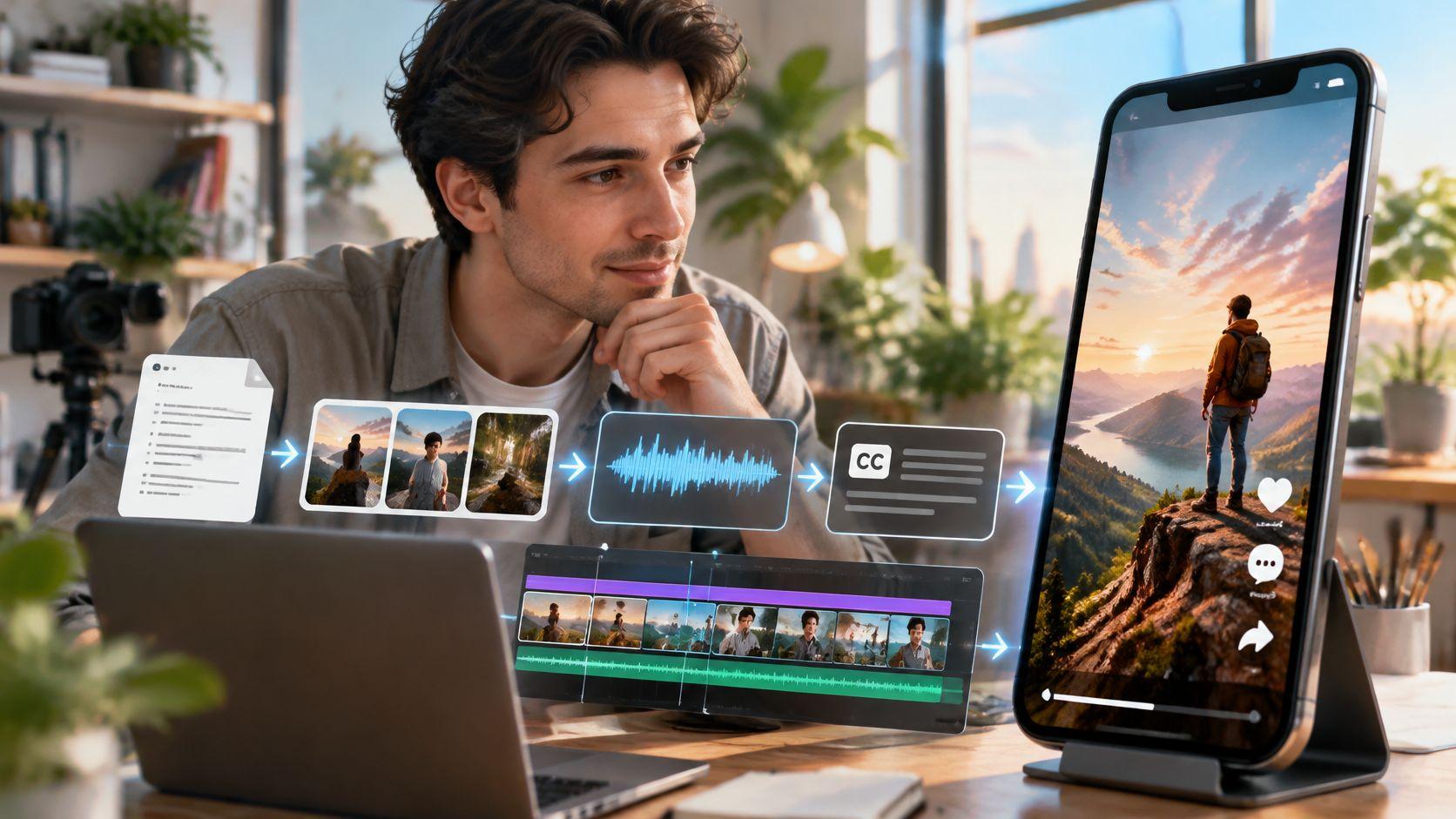
The four-stage flow, from upload to a track viewers can see, looks like this:
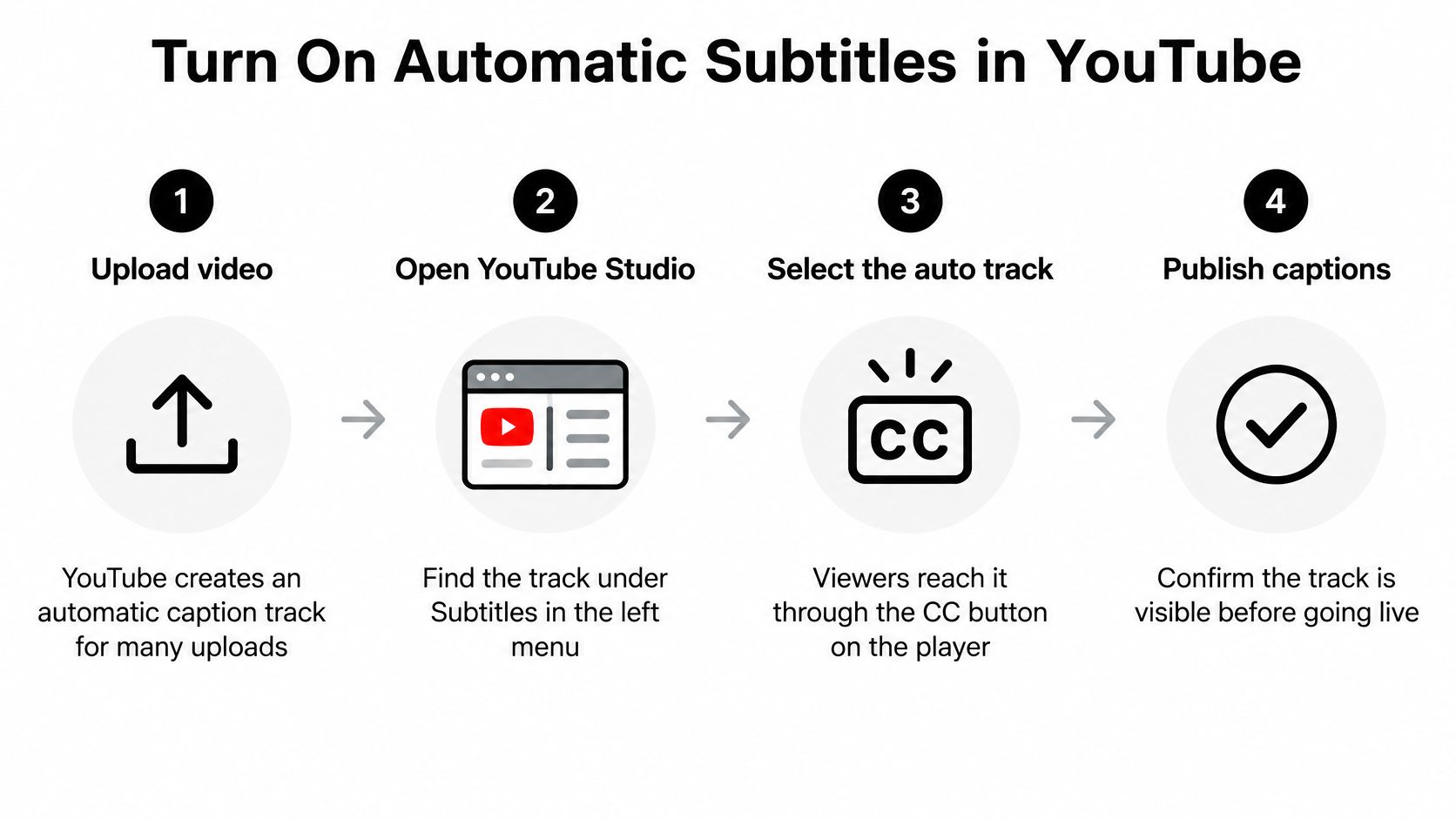
One-minute checkpoint: the track appears in the CC menu on the watch page, and the first line on screen matches the words coming out of your mouth.
If the CC menu shows nothing at all, the cause is usually processing time or a language setting. Captions are generated after upload finishes, so reload Studio before you assume they failed. If the track is still missing, check the language first, then add a manual track from the Subtitles tab.
You'll rarely be starting from zero. A 2022 analysis of YouTube videos found automatically generated captions on 60% of videos in its popular sample and 84% in its studio sample, according to researchers publishing through ACM. Most creators will find a track already waiting, which is exactly why review discipline matters more than setup knowledge.
Check Auto Captions for the Errors That Matter
Not every caption error costs the same. A dropped "um" is invisible. A dropped "not" reverses your instruction. Rank by consequence and most videos need ten minutes of work, not an hour.
| Video type | Typical risk | Check first | Review before publishing |
|---|---|---|---|
| Tutorial with product names or model numbers | High | Model numbers, product names, step order | Yes |
| Faceless story narration | Medium | Character and place names, punctuation that changes meaning | Yes |
| Speaker with accent or noisy background | High | Names, key terms and the opening lines | Yes |
| Music-led or sound-heavy short | High | Lyrics, sound cues, on-screen words | Yes |
| Clear talking head, one speaker | Low | Opening lines and any numbers | Spot-check |
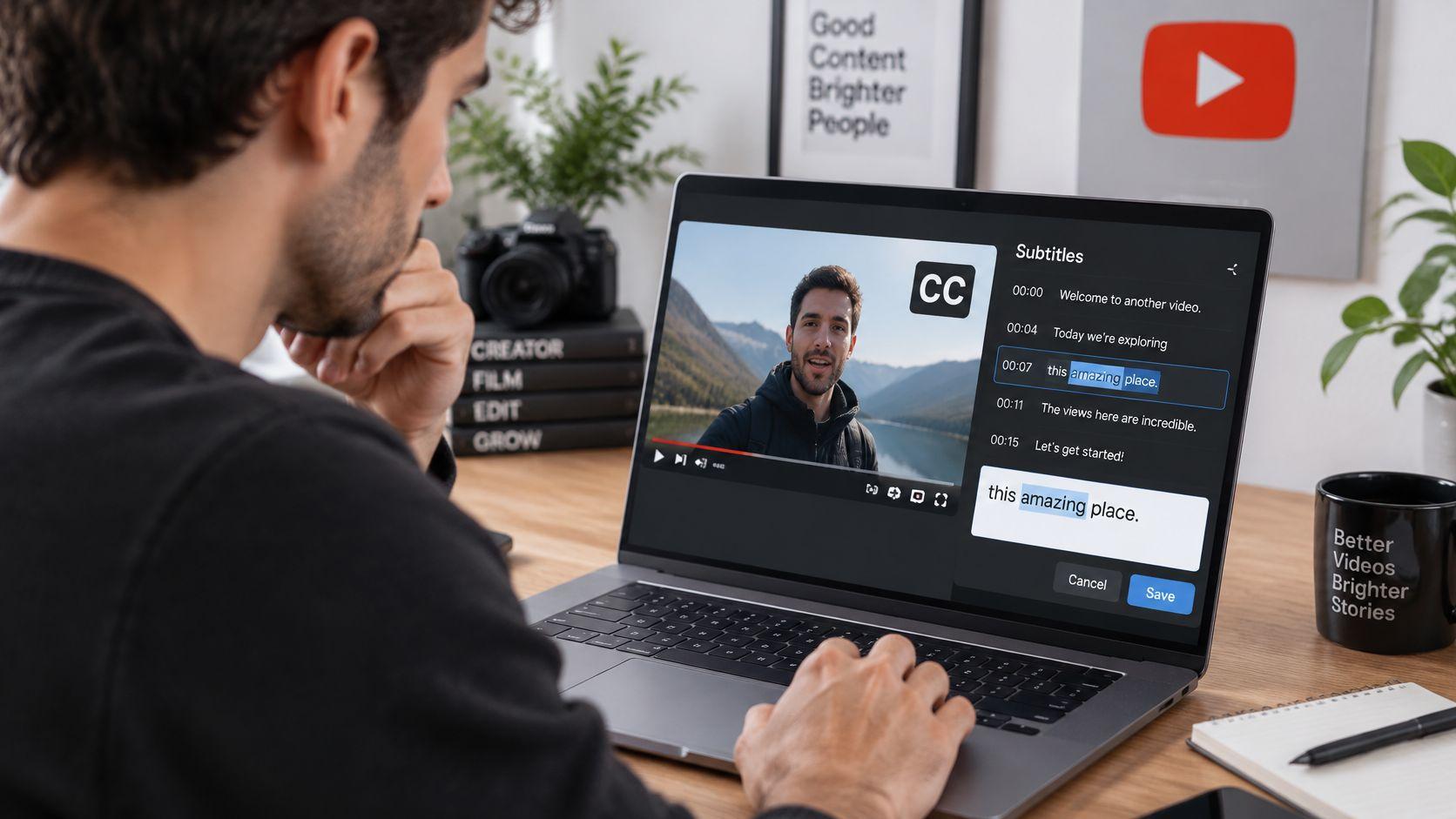
Reading a transcript line by line against the audio goes faster with the text open beside the player than with the video paused at each caption:
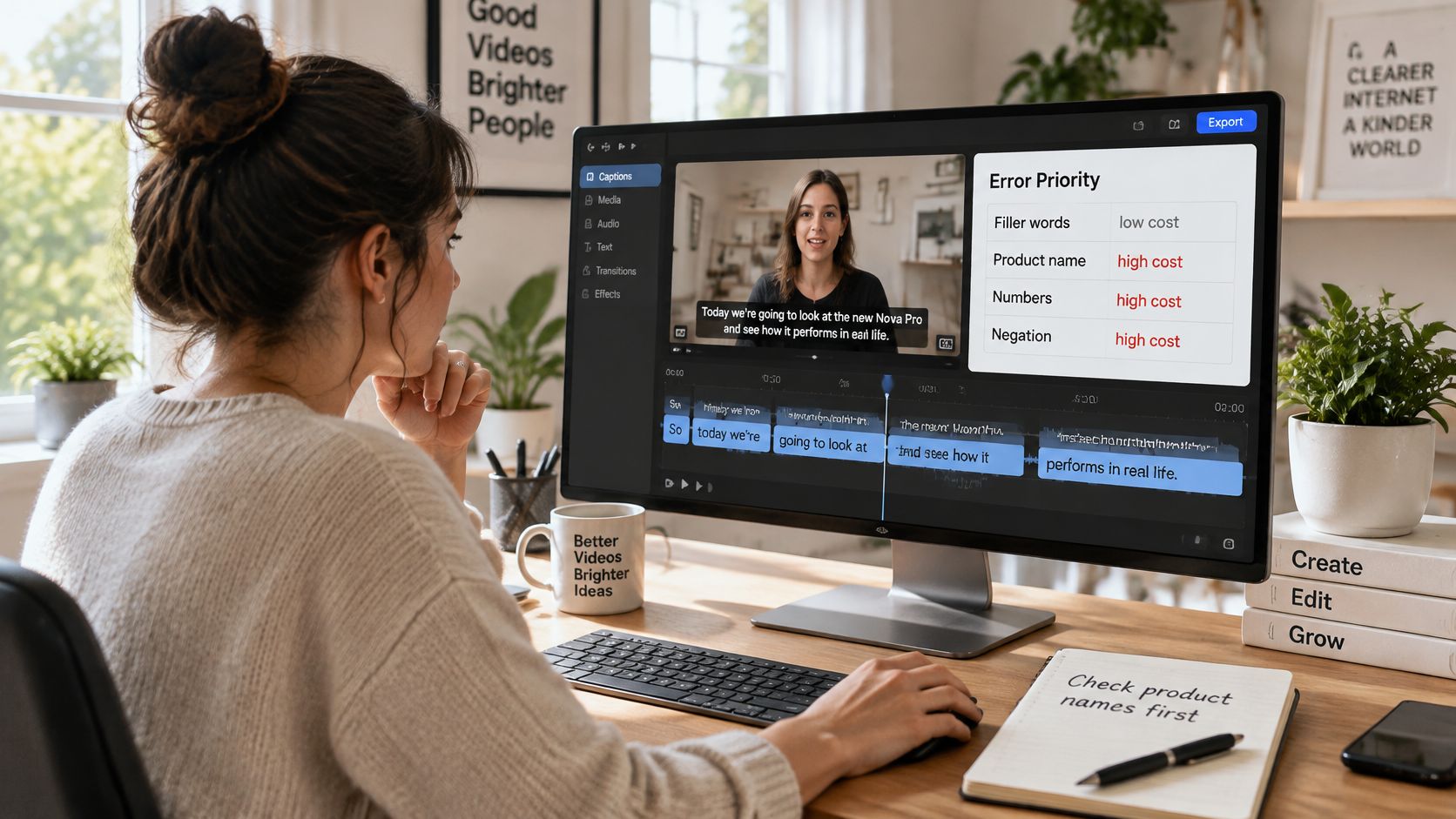
YouTube itself warns that automatic captions can misrepresent speech because of accents, dialects, mispronunciations and background noise, and asks creators to review and edit them. Accessibility guidance from James Madison University goes further, holding that auto-generated captions alone don't deliver equal access, and that a proper check covers specialised terminology, punctuation, meaningful sounds, music, synchronisation and readable line length. The point isn't that the feature is bad. It's that "captions exist" and "captions work" are different claims.
Correction helps, though it doesn't finish the job. A recent ACM study cited in this short-form caption analysis found word error rate fell from 23.07% to 9.75% when a large language model corrected original YouTube ASR captions. That's roughly a 57.72% improvement, and still means about one word in ten needs a human opinion.
A three-pass review that fits a short video
Pass one, the opening 30 seconds. This tests the two hardest conditions at once: your voice and the background. If the first lines are clean, the rest usually is too.
Pass two, names, places and technical terms. Compare against your script rather than your memory. Product models, brand names, people and place names are where meaning breaks first.
Pass three, numbers, negatives and sound cues. "Two" against "twelve", "can" against "can't", and any moment where music or laughter carries the meaning. A missing sound cue is an accessibility failure even when every word is right.
If you'd rather see the correction workflow demonstrated before you try it, this walkthrough is a reasonable starting point:

Publishing rule: publish when the high-risk rows in the table are fixed and the rest has been spot-checked. Chasing a perfect average word error rate on a 60-second clip is a worse use of an hour than fixing two product names.
Pick Between Native Captions and Third-Party Tools
The right source depends on where errors land in your audio, not on which tool advertises the best accuracy figure. Averages hide the fact that every option is accurate on the easy 90% and wrong in different places on the hard 10%.
| Caption source | Best for | Main limitation |
|---|---|---|
| YouTube auto-captions, edited in Studio | Clear single-speaker English | Errors on names, accents and jargon |
| Manual transcript upload | Scripts you already wrote | Needs timing or auto-sync |
| Third-party transcription tool | Noisy audio, several speakers, technical terms | Extra export and re-upload step |
| Captions written from the script | Brand-critical wording | Slow across many videos |
Five criteria that actually separate them
Accuracy on your own audio. Not on a demo file. Accent, room echo and mic distance change the answer more than the model does.
Timing control. Native captions arrive pre-timed. Third-party tools usually give you a timeline you can nudge, which matters if you speak fast.
File export. If you need an SRT or VTT for another platform, embedded YouTube captions won't travel.
Editing speed. A clean transcript you fix in five minutes beats a marginally more accurate one that arrives as a wall of unbroken text.
Cost against volume. Free native captions suit a channel publishing weekly. Paid transcription earns its place when a mistake in a product name costs you a sale.
Then run the test that settles it. Send the same 90-second clip through each source, count wrong names, numbers and negatives in each output, and note the minutes you spent fixing each one. Compare the counts, not the averages.
Choose the source with the fewest high-risk errors, even if its average accuracy is worse. An average tells you nothing about whether the mistakes landed on the words that carry your meaning.
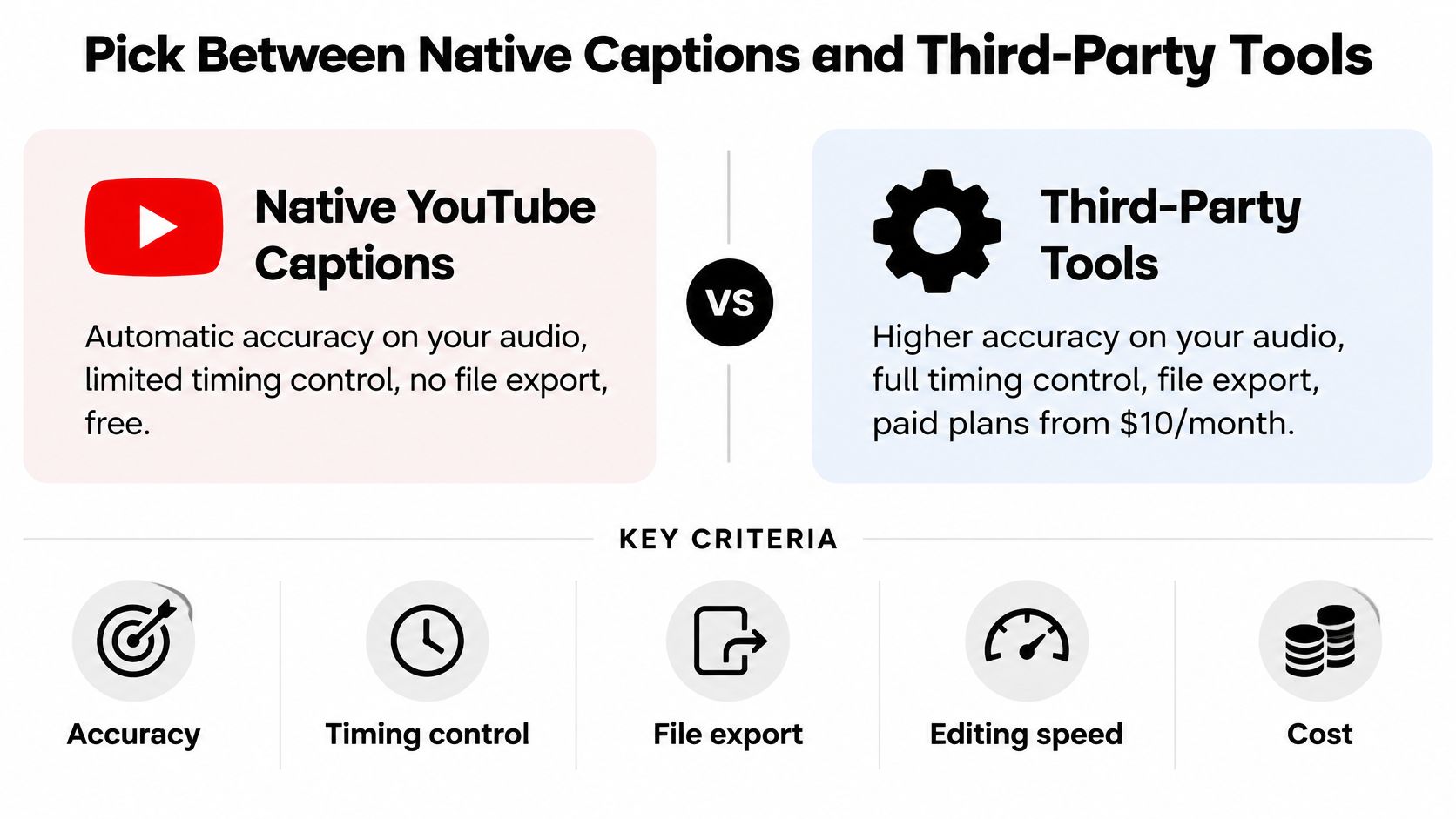
My default: native captions, edited, for clear talking-head content. Switch when your niche depends on names, jargon or accents, and compare captioning software options before you pay for one.
Edit and Export Captions Without Breaking Timing
Editing words inside an existing line is safe. Retyping whole lines is where a track drifts out of sync, because the timing belongs to the line, not to the sentence you replaced it with.
Five edits that keep timing alive
- Edit inside the line. Change the wrong word and leave the rest of the block alone, so the start and end times survive.
- Fix names and repeated terms first. Run search and replace only after checking each match, since one brand name can legitimately appear in two forms.
- Break long lines. Keep each caption near 40 characters so it can be read at speaking pace, and split at natural pauses rather than mid-phrase.
- Retime anything early or late. A caption that appears before the word is spoken reads as a spoiler; one that lingers too long lags behind the audio.
- Download the track and keep the SRT as your master. It's your backup if a later edit goes wrong, and it's the file you hand to an editor or another platform.
The usual slip is rewriting a line's content without adjusting its timing, which pushes everything after it out of sync. If you'd rather build the file outside Studio, an SRT file creator generates timings you can upload directly.
| Format | Best use | Keeps timing |
|---|---|---|
| SRT | Uploads to YouTube and most editors | Yes |
| VTT | Web players and accessibility tools | Yes |
| TTML or DFXP | Professional and broadcast workflows | Yes |
| Plain transcript (TXT) | Blog posts, search and reading | No |
SRT is the safe default for uploads and most editing software. VTT is what web players and accessibility tooling expect. TTML or DFXP belongs in broadcast and professional pipelines. A plain transcript keeps no timing at all, but it's the version worth pasting into a blog post or show notes, where search engines can read it.
Play the first ten seconds, a point in the middle and the last ten seconds. Drift usually appears late in a clip, so checking only the opening tells you almost nothing.
Handle Subtitles and Translations for Several Languages
Multilingual publishing looks like one decision and is really four. Work through them in order or you'll translate a bad source track into six languages.
- Confirm a clean source-language track. Fix names and numbers before anything is translated, because every translated version inherits those errors.
- Review each translation for names and culturally specific terms. Machine translation will happily translate a brand name into a common noun.
- Decide what each language is for. Readable on-screen subtitles, searchable translated metadata and dubbed audio solve different problems and don't share a workflow.
- Upload each track and check the language menu on the watch page. The track existing in Studio and the track being selectable by a viewer aren't the same thing.
The platform itself is asymmetric. YouTube's automatic dubbing help page sets out very different language directions: English can be dubbed into many languages, while languages such as Arabic, Bengali, Swahili, Thai, Urdu and Vietnamese appear primarily with English as the available target. For a creator in a major non-English market, adding English access is often easier than publishing across several regional languages. Translations are still creator work too, as the 2012 YouTube announcement of six additional caption languages illustrated when the platform reported roughly 200 million videos with captions.
Say a 60-second cooking short uses an English brand name. Keep that name untranslated in every track, and let the dish and technique names translate. When the target language uses a different script, the review shifts to line order and reading speed, which this guide to Japanese to English subtitles walks through. Then check the source itself before you scale: a 2025 study of an AI speech recognition system for Jordanian Arabic reported a word error rate of 38.857%, published through SciELO, so a regional dialect needs the same review before translation starts.
Start with English plus one market where you already have viewers. Add the third language when the second one has proven it earns views.
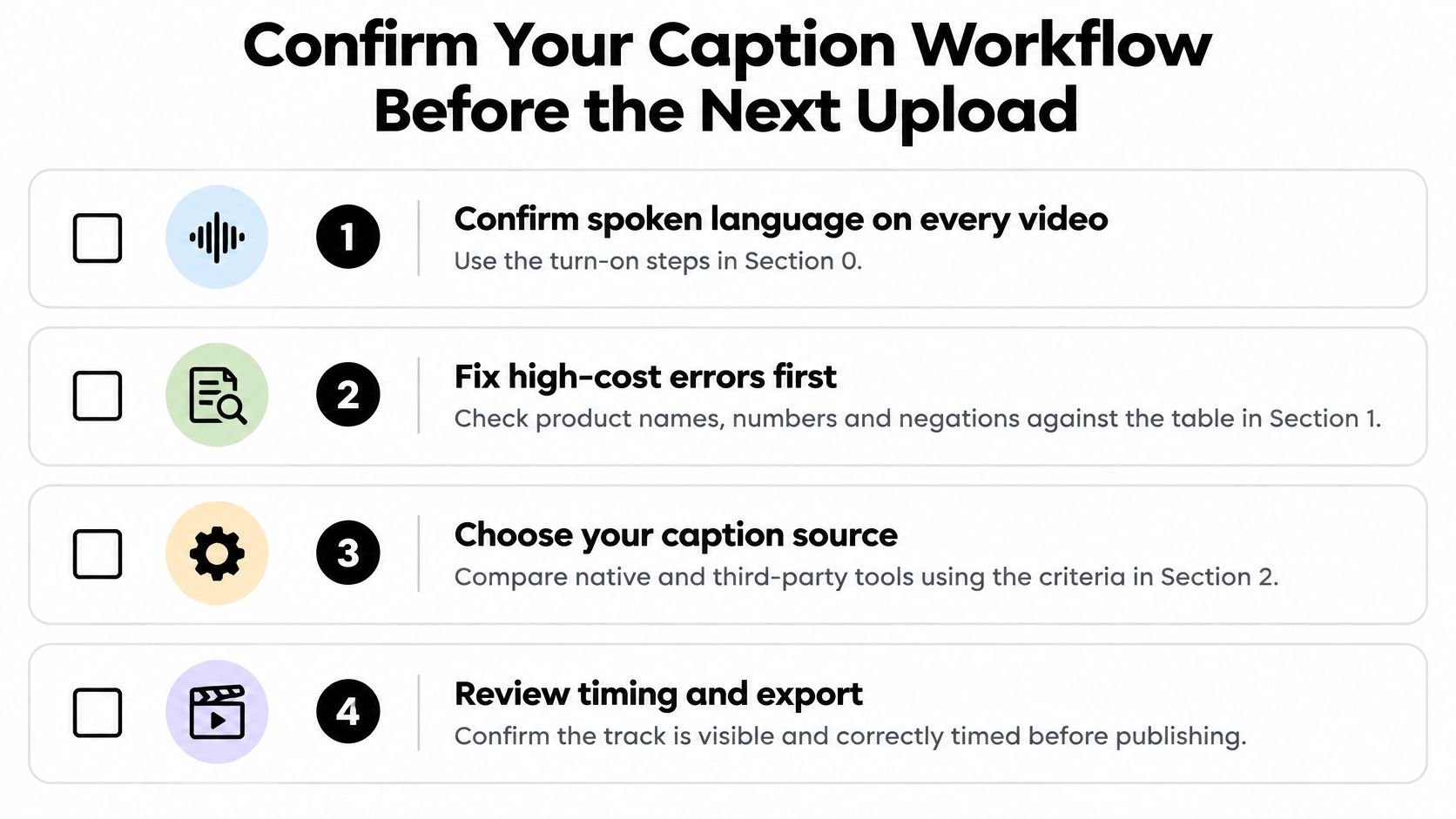
Confirm Your Caption Workflow Before the Next Upload
Five checks, run once per upload, and the whole thing gets faster by the third video.
- Confirm the spoken language on every video before you touch the transcript, using the Studio path above.
- Fix the high-risk rows from the priority table: names, numbers, negatives and sound cues, before publishing.
- Export an SRT master file and keep it, so a later edit can't destroy a track you already approved.
- Test the track on the watch page at the start, middle and end, on the device your audience uses.
- Record which caption source worked for each video type, so next month's choice takes seconds instead of another comparison test.
If you publish short faceless videos at volume, ClipCreator.ai adds subtitles to videos automatically and can publish to TikTok and YouTube once you connect the account; you can also download any generated video and publish it manually to any other network. The review above still applies before anything goes live. And if you'd rather generate the footage itself in the same pass, this tool to make YouTube videos with AI is worth a look.
Run this checklist on your next upload and note how many minutes it takes. That number is your real caption cost per video, and it's the one worth reducing, either by fixing your recording setup so the draft arrives cleaner or by letting ClipCreator.ai handle subtitle generation on the videos it produces for you. Visit ClipCreator.ai to create your first video in under two minutes and see what the caption draft looks like before you connect a channel.

Create your first video in under 2 minutes
Pick a niche, and ClipCreator.ai generates and auto-posts faceless videos to your channels every day.
Join ClipCreator.ai