Pinterest records almost 1 billion video views every day, including more than 900 million mobile views, according to a 2026 industry roundup of Pinterest video activity. That scale changes the question from “Can I upload a video?” to “How do I publish one that still works when it autoplays without sound, appears in search, and gets reused across relevant boards?”
Learning how to upload a video on Pinterest is straightforward. The more valuable skill is controlling what happens before and after the upload: exporting the right file, selecting a deliberate cover frame, writing searchable copy, scheduling intelligently, and reading video-specific analytics instead of treating the Pin like a static image.
Why Pinterest Video Deserves Your Attention
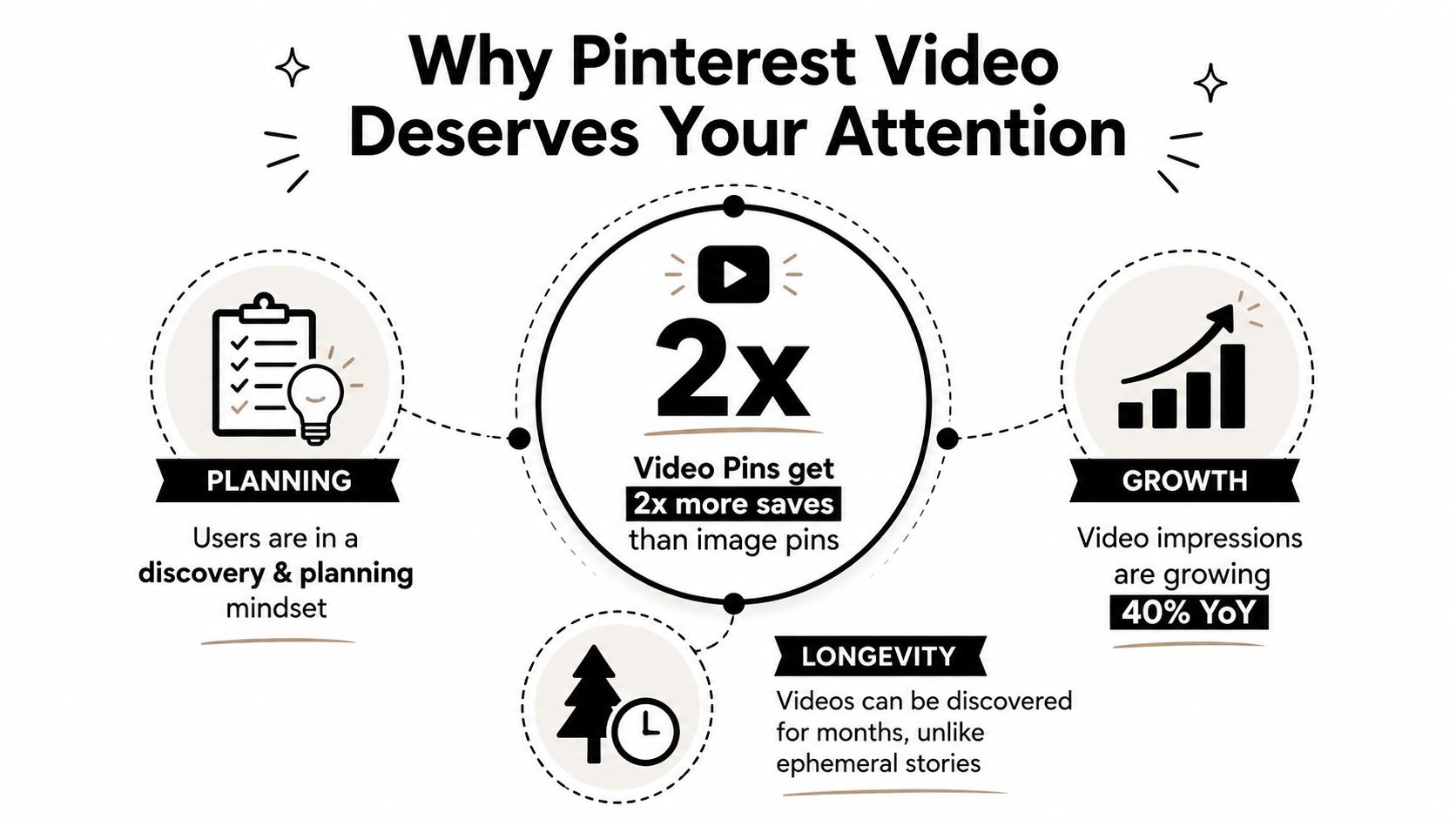
Pinterest isn't just another short-form entertainment feed. People arrive with an idea, project, purchase, recipe, outfit, destination, or solution in mind. That planning mindset favors videos that demonstrate, explain, compare, or inspire action rather than clips that depend only on rapid entertainment value.
Video has also moved beyond an experimental format. Pinterest's native Pin workflow includes video creation, and its business reporting tools expose video-specific engagement measures. Pinterest defines a video view as 2 seconds of continuous playback while at least 50% of the video is in view, a 10-second play as at least 10 seconds watched, and played at 95% as reaching 95% completion in its official Pin statistics documentation. Those definitions give marketers a more useful way to evaluate whether viewers merely encountered a clip or stayed with it.
Who should prioritize video Pins
E-commerce brands can use product demonstrations, styling ideas, unboxing sequences, and problem-solving clips. Creators can turn tutorials, explainers, recipes, and visual stories into searchable discovery assets. Publishers and educators can preview a longer lesson or direct viewers to a related article, course, or video.
Pinterest behaves differently from TikTok and YouTube because the viewer's next action may be saving an idea for later rather than watching another clip immediately. Build around usefulness and context. A strong Pin can introduce a result, show the process, and lead to a relevant destination page.
For broader creative planning, NiKa Consulting Group video ad tips are useful when you need to connect video concepts with a clearer marketing objective. The same discipline applies to organic Pinterest video: decide what the viewer should understand, save, or click before editing.
Video Specifications and File Requirements
A failed upload often starts with the export settings, not Pinterest itself. Create a vertical or square master file first, then export a Pinterest-ready version rather than forcing a horizontal video into a narrow feed placement.
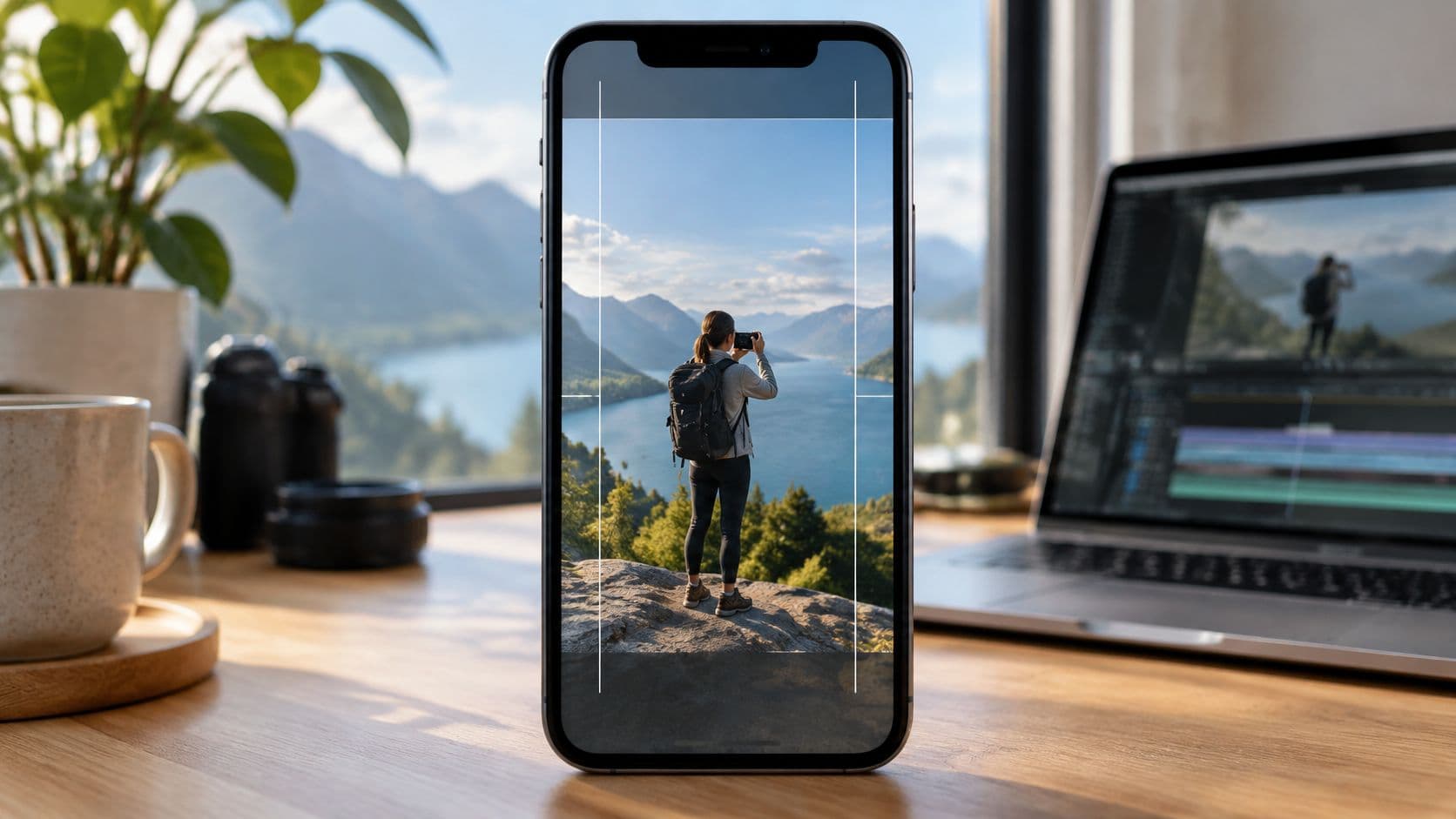
Pinterest recommends 9:16 full-bleed video at 1080×1920. It also accepts 1:2, 2:3, 3:4, 4:5, and 1:1 layouts. The platform's specification guidance supports MP4, MOV, and M4V containers, H.264 or H.265 encoding, files up to 2 GB, and videos from 4 seconds to 5 minutes, as summarized in this Pinterest video upload guide.
| Specification | Requirement | Recommendation |
|---|---|---|
| Aspect ratio | 9:16, 1:2, 2:3, 3:4, 4:5, or 1:1 | Use 9:16 for vertical-first creative, or 1:1 when repurposing square assets |
| Recommended vertical size | 1080×1920 for 9:16 | Keep important text and products away from the edges |
| File type | MP4, MOV, or M4V | Export MP4 for a simple, broadly compatible workflow |
| Video codec | H.264 or H.265 | Use H.264 when compatibility is the priority |
| Maximum file size | 2 GB | Compress large files without making text or product details blurry |
| Video length | 4 seconds to 5 minutes | Keep the edit focused rather than using the maximum length |
The best ratio depends on the source material. A 9:16 master gives you a tall canvas for mobile discovery, while 1:1 is practical for square product or social assets. Avoid building a horizontal composition with essential information at the sides. Even when the file uploads, cropping can remove the product, face, headline, or demonstration that makes the Pin understandable.
For a deeper explanation of how different formats affect composition, review this guide to video aspect ratio choices. Before uploading, check the container, codec, dimensions, file size, duration, and the position of every important visual element.
Uploading Your Video on Desktop and Mobile
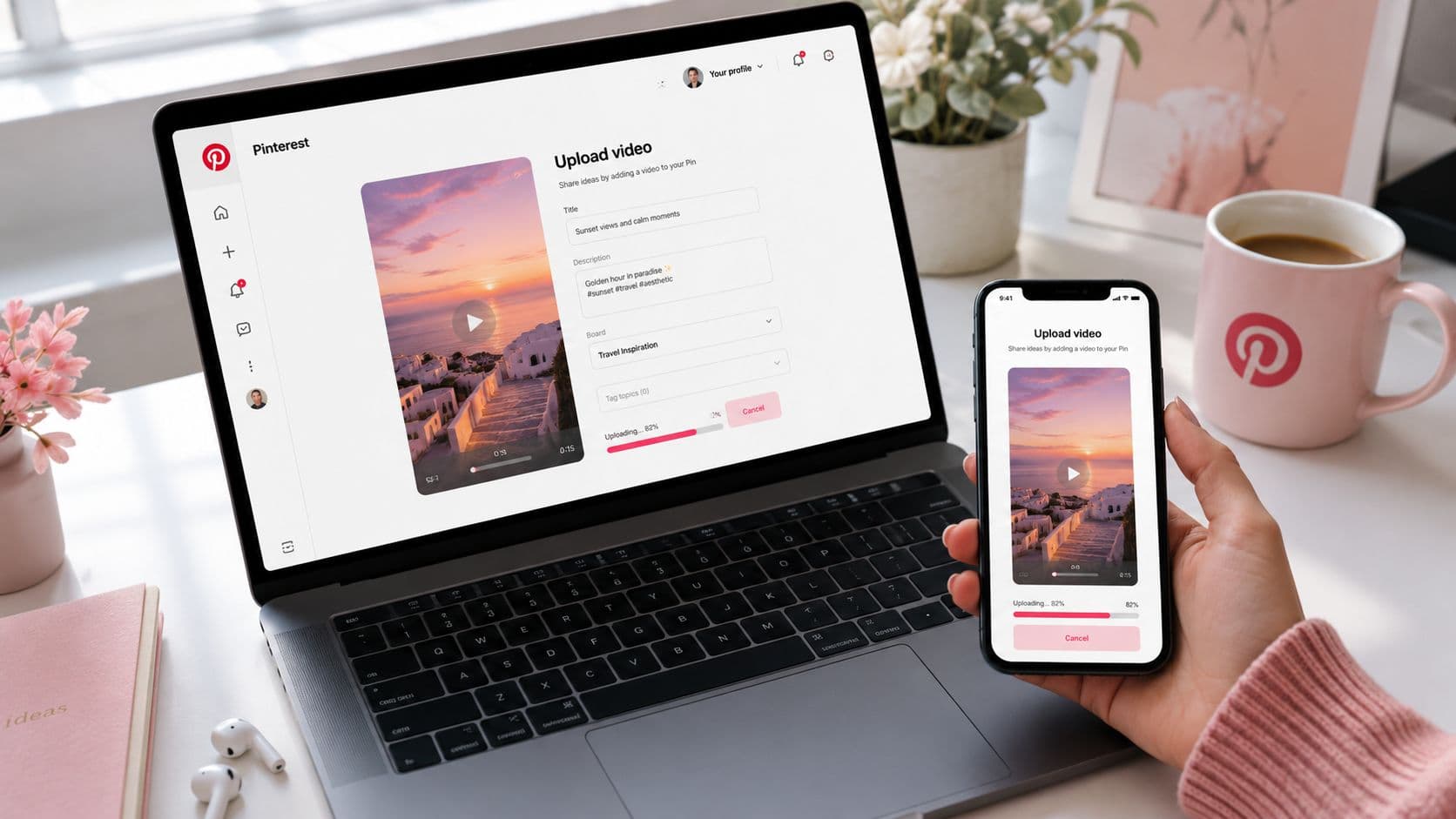
On desktop, sign in to Pinterest and select Create, then Create Pin. Upload the video file, wait for the preview to render, and inspect the crop before filling in the publishing details.
The cover frame deserves deliberate attention. Pinterest may use an early frame automatically, but the first frame of a video often isn't the strongest thumbnail. It may show a transition, an empty background, a speaker mid-motion, or a title before the main promise appears. Select a frame that communicates the result clearly, includes the subject at a useful scale, and remains legible when viewed as a small feed preview.
Desktop publishing path
- Upload the file: Choose the video from your computer and wait for processing.
- Set the cover: Move through the timeline and choose a frame that makes sense without sound.
- Add the title: Put the main searchable topic near the beginning, while keeping the wording natural.
- Write the description: Explain what the viewer will learn, see, or make. Include related phrases people might use to find the content.
- Add a destination link: Send the viewer to the page that directly matches the Pin's promise.
- Choose the board: Select the board with the closest subject match, not the board with the largest audience.
- Publish or schedule: Review the preview, check the link, then choose immediate publishing or scheduling if available.
On mobile, tap the plus button, choose the Pin creation option, and select the video from your camera roll. Pinterest's mobile editor may offer trimming and creative adjustments. Use those tools only when they improve clarity. A crop that removes a demonstration step or makes captions too small creates more work later.
Mobile publishing path
After selecting the file, set the cover frame, add the title and description, insert the destination URL, choose the relevant board, and save or publish. A fresh video Pin is the cleanest option when you want a new cover, new description, or new destination. Don't assume an existing static Pin can be converted into a video without reviewing its metadata and presentation.
Practical rule: Choose the board that gives the video the clearest context on its first publication. Relevance is more useful than scattering the same asset everywhere immediately.
Editing for Silent Autoplay and the First Three Seconds
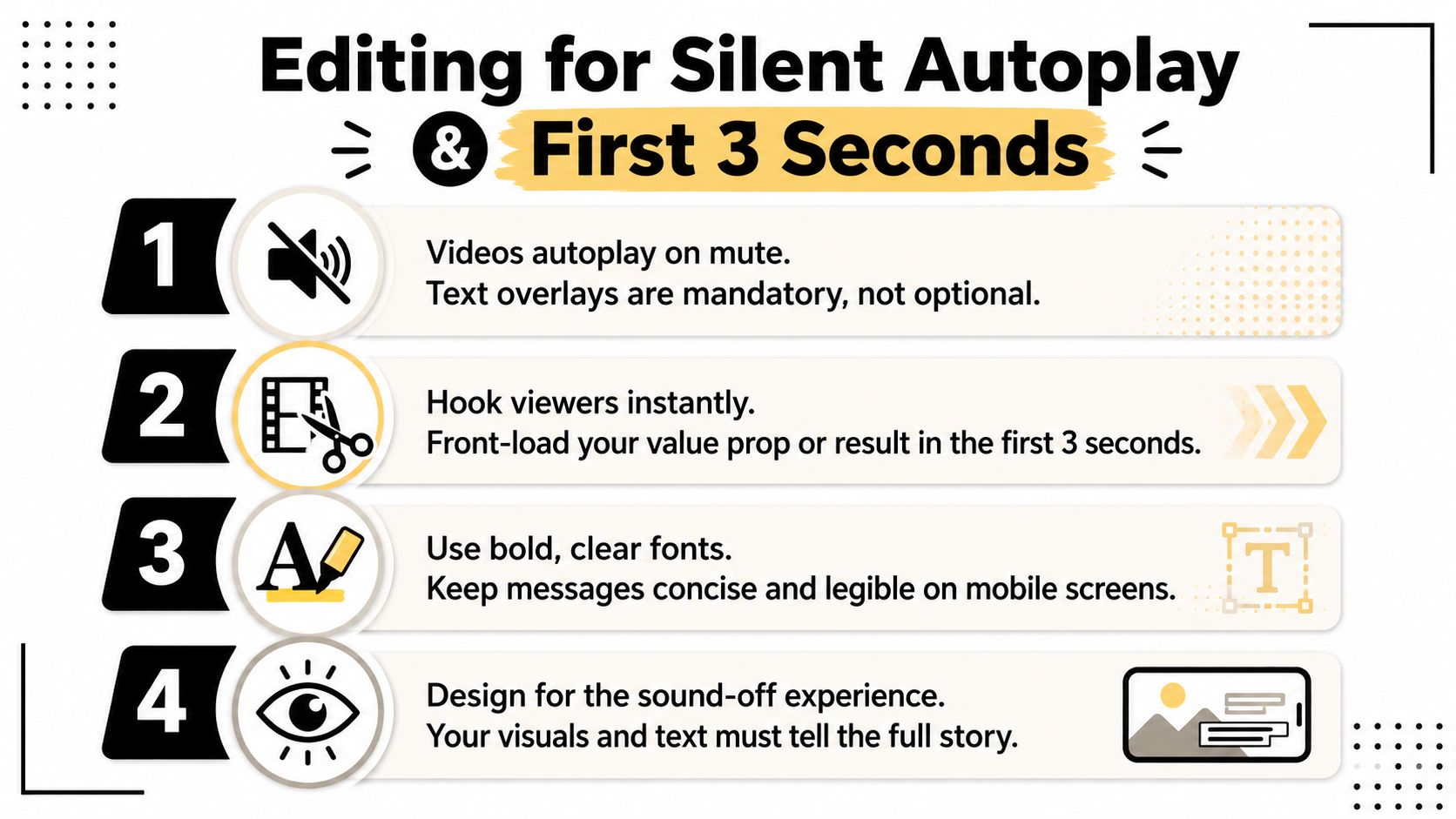
Pinterest videos autoplay without sound, and users often scroll while evaluating ideas rather than listening closely. That makes silent comprehension a production requirement. If the viewer needs narration to understand the problem, the result, or the next step, the edit is incomplete.
Start with the outcome. A cooking video can open on the finished dish, a product demonstration can show the product solving the problem, and a tutorial can display the completed transformation before explaining the process. The opening frame must work as both a thumbnail and the first visual argument for continuing.
Design for the sound-off viewer
Use large, high-contrast text overlays to communicate the central idea. Keep each message short enough to scan while the video moves. Captions are also useful when spoken words add context, but don't cover the hands, product, face, or demonstration area with oversized text.
Pinterest creator guidance identifies 6 to 20 seconds as a practical sweet spot, as reported in this Pinterest video specifications guide from CapCut. That range isn't a command to cut every video to the same length. It is a useful editing constraint: remove pauses, repeated setup, decorative intros, and explanations that don't help the viewer decide whether the Pin is relevant.
A strong silent-first edit usually follows this pattern:
- Opening visual: Show the result, problem, or distinctive subject immediately.
- Overlay promise: State what the viewer will discover or learn.
- Demonstration: Use quick, readable sequences that support the promise.
- Close: Reinforce the result and make the destination link feel like the natural next step.
If your video relies on a voiceover, add subtitles with a tool or workflow that preserves accurate timing. This guide to adding subtitles to a video can help when the source clip was created for an audio-first platform.
Scheduling and Multi-Board Publishing Strategy
Publishing the file is only the first distribution decision. Treat each video Pin as an asset with a primary audience, a clear board context, and a measurement plan.
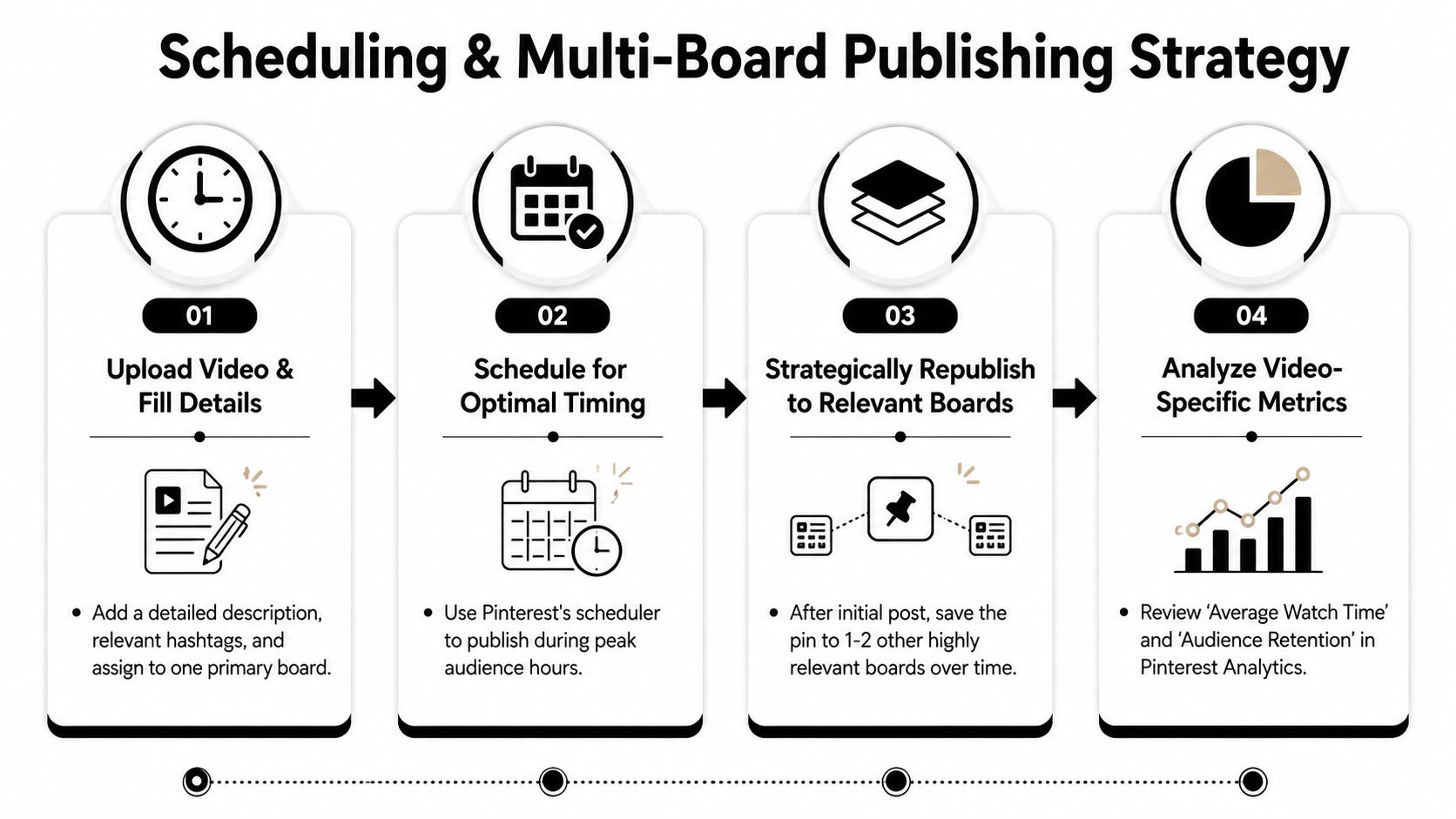
Start by assigning the video to one highly relevant board. Add the description, destination link, and any applicable topic details before scheduling. Pinterest's native workflow can expose video performance inside its business reporting tools, so your first review should focus on how viewers move through the clip rather than only counting impressions.
The metric definitions matter:
- A video view records the platform's defined short playback threshold.
- A 10-second play identifies viewers who stayed for a longer watch.
- Played at 95% shows that the video reached near-completion.
These measures answer different questions. A high view count with weak deeper-play activity may indicate that the cover and opening attract attention but the middle loses relevance. Strong completion with few outbound actions may mean the video satisfies curiosity while the description, link, or offer needs refinement.
Build a repeatable publishing rhythm
Use Pinterest's scheduler when you know when your audience is most responsive. Don't guess forever. Publish consistently, compare the resulting watch behavior, and adjust the timing around your own account's patterns.
Multi-board publishing has a practical limitation that beginner workflows often miss. If you want the same video Pin associated with multiple boards through scheduling, an independent guide notes that you may need to upload it again in a separate tab. Plan for separate actions rather than assuming one scheduled upload will automatically distribute across every relevant board.
Video scheduling software can help organize a broader publishing calendar, but automation doesn't replace board judgment. Republish only where the topic fits, and vary the supporting description when the audience context changes. Your analytics should tell you whether a board creates useful saves, meaningful watch depth, or clicks, not merely whether the Pin was technically published.

Common Upload Problems and Performance Fixes
A video that uploads successfully can still underperform. Technical compliance gets the file into Pinterest, but it doesn't guarantee a useful cover, silent comprehension, or a relevant distribution path.
Fix the failure at its source
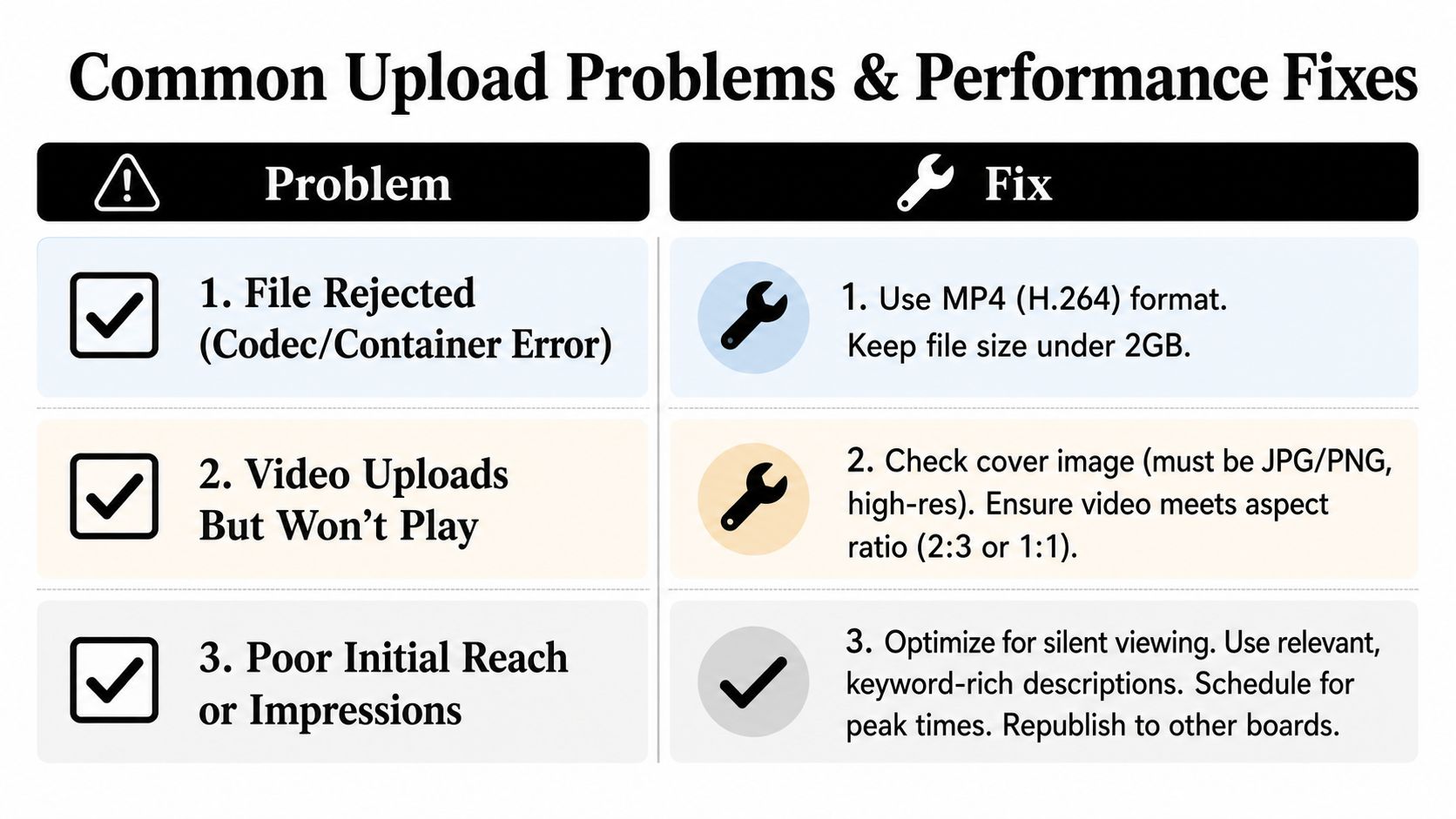
- Rejected file: Re-export using an accepted MP4, MOV, or M4V container with H.264 or H.265 encoding. Keep the file within the platform's stated size limit.
- Video uploads but won't play: Check that the export completed correctly, then test the file locally before uploading again. A compatible container doesn't help if the render itself is damaged.
- Blurry or awkward cover: Choose a clear frame with the subject large enough to read. Review the preview for cropping before publishing.
- Weak reach: Rework the opening for silent viewing, use a description that matches the viewer's search intent, and place the Pin on a relevant board.
- Multi-board scheduling confusion: Prepare separate upload actions when the workflow requires the same video to be scheduled to more than one board.
Before publishing, run this short check:
- File: The format, codec, dimensions, duration, and size meet Pinterest's requirements.
- Cover: The selected frame explains the topic without audio.
- Copy: The title and description use natural terms connected to the actual video.
- Link: The destination delivers what the Pin promises.
- Board: The first board is the closest subject match.
- Review: The preview looks clear on mobile, with no essential text hidden by cropping.
ClipCreator.ai can generate short, faceless videos with scripts, visuals, voiceovers, and subtitles, then let you download them for manual Pinterest publishing. If you want to build a steady library of silent-friendly clips for Pinterest, visit ClipCreator.ai and explore a workflow that fits your content schedule.

Create your first video in under 2 minutes
Pick a niche, and ClipCreator.ai generates and auto-posts faceless videos to your channels every day.
Join ClipCreator.ai