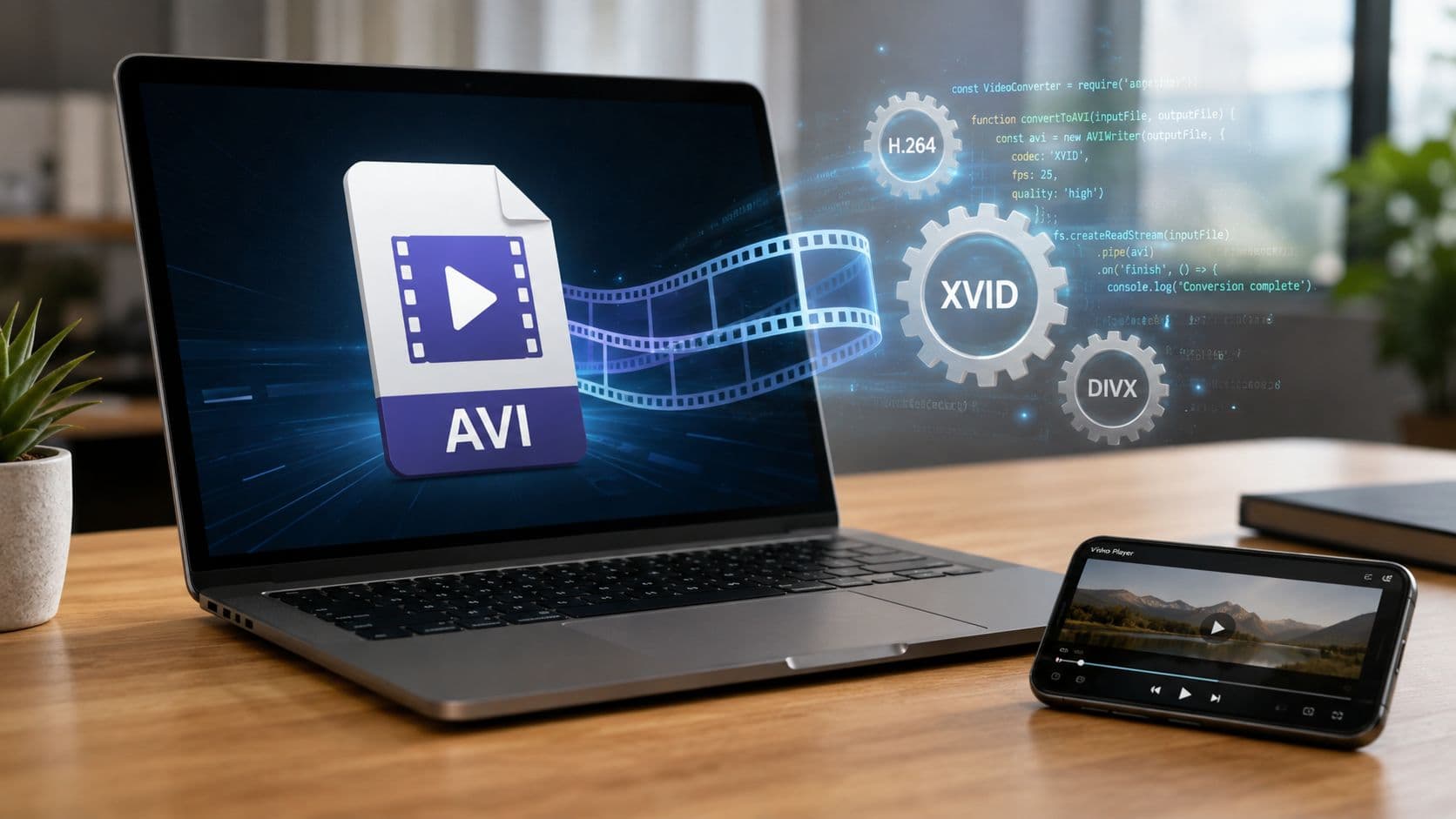
You've probably got the file already open in your downloads folder, and it's doing the one thing AVI files do best, frustrating people. Maybe the screen goes black, maybe you get audio with no picture, or maybe nothing happens at all when you double-click it. That usually isn't a sign that the file is useless, it's a sign that the player and the file's internal codec don't agree.
AVI has survived for a long time because it's a Microsoft format from November 1992 and still works on many modern players today, but it's also a container format, not a single video recipe (Adobe's AVI overview, Library of Congress format record). That difference is the reason one AVI opens instantly while another refuses to play on the same machine. If you've ever compared a file that works on Windows but not on Mac, you've already run into the codec problem that sits behind most AVI playback headaches.
The good news is that the fix usually falls into one of three paths. Use a player that already understands the file, install the missing codec, or convert the AVI into a more universal format. If you've ever wondered about choosing the right video format, that bigger decision matters here too, because AVI is often less about the extension and more about what's packed inside it. For a broader file-type comparison, the YouTube video file type guide is a useful companion once you've finished this repair job.
Why Your AVI File Won't Play
The most annoying AVI failure is the one that looks ordinary. You double-click the file, a player opens, and then you get a blank screen, broken audio, or a vague error that doesn't tell you anything useful. In practice, that usually means the file extension is fine, but the player cannot decode the video or audio streams packed inside the AVI.
What the container really means
AVI became popular because it could wrap video and sound together in one file and keep them synchronized. The Library of Congress describes AVI as a format that wraps a video bitstream with other data chunks for synchronous picture-sound playback, which is why the structure itself is still useful even though the ecosystem around it is messy (Library of Congress format record). Adobe also describes AVI as a “30-year veteran”, which fits the way it still shows up in archives, downloads, and camera backups (Adobe AVI guide).
That age is exactly why AVI causes so many support tickets. A file can be a valid AVI and still rely on a codec your device does not have. On Windows, that may play without complaint. On macOS, QuickTime often needs a different player or a conversion to MP4 or MOV because it does not natively support AVI (Adobe AVI guide).
Practical rule: if the extension says AVI but playback fails, treat it as a codec issue first and assume the file structure itself may still be intact.
The right mental model helps a lot. You are not trying to “fix AVI” as a whole. You are trying to match the player, codec, or container to the file you have. Once that clicks, the next move is usually straightforward: try a different player, install the missing codec, or convert the file into MP4. That broader file-type decision is the same one you run into when choosing the right video format, and a quick comparison with the YouTube video file type guide can help when you are deciding whether to keep troubleshooting or convert the file instead.
Opening AVI Files on Windows macOS and Linux
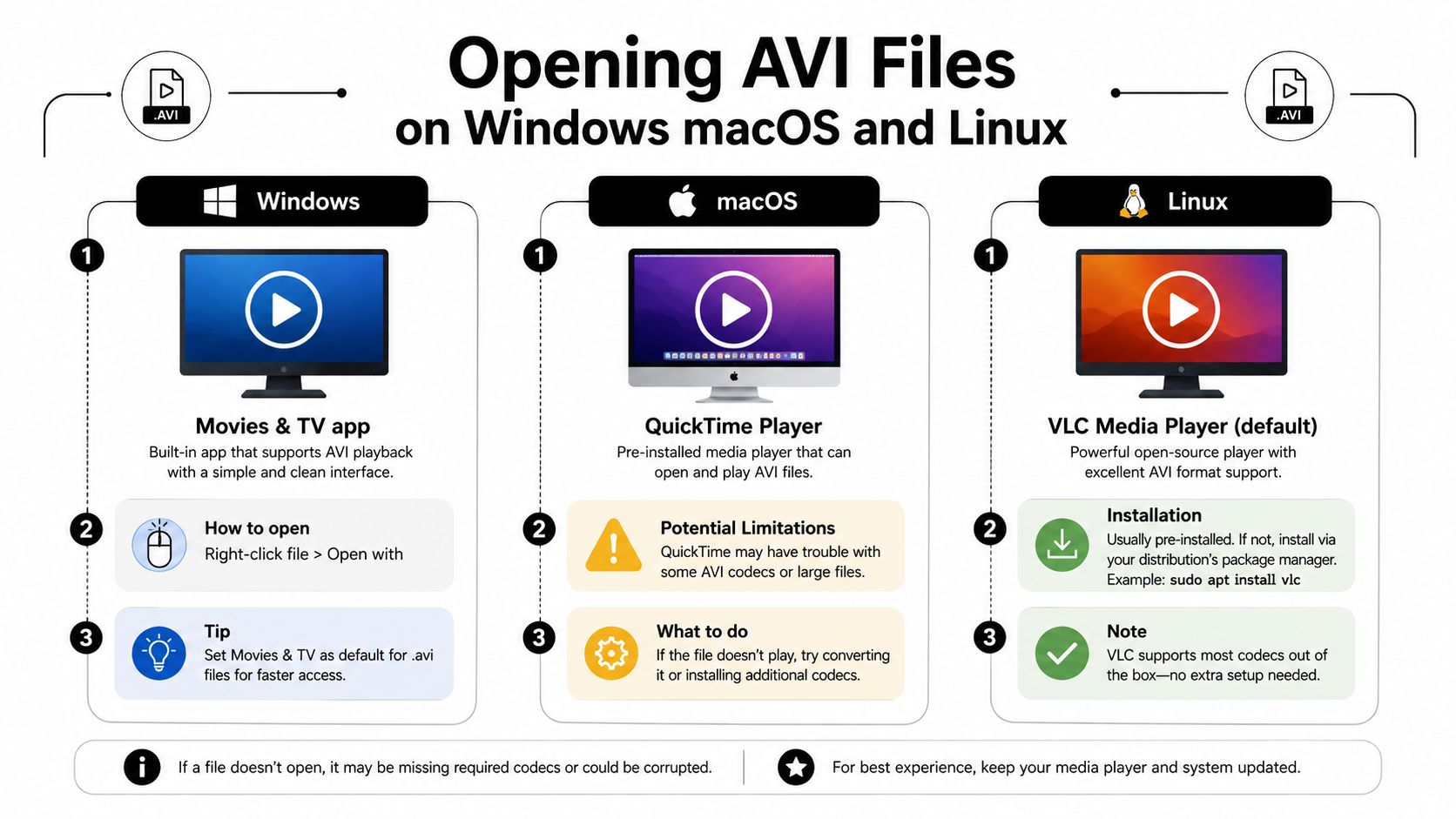
An AVI file that refuses to open usually points to a codec problem, or the player you are using cannot handle the audio or video stream inside the container. On Windows, start with the file itself. Right-click the AVI, choose Open with, and try Movies & TV or Windows Media Player first, because many AVI files open normally there. If the file opens but the picture is missing or the audio stutters, the file is probably intact and the playback app is missing support for one part of the stream.
Windows first, then escalate
If the built-in player throws an error, stop retrying the same app. Switch to a player with its own codec library, especially VLC Media Player, because that usually gets you past the “works on one machine, fails on another” problem. AVI support depends on codec support, and the player matters as much as the file itself.
On macOS, the experience is less forgiving. Adobe notes that AVI on Mac often needs conversion to MP4 or MOV for easier playback, because QuickTime does not natively support AVI (Adobe AVI guide). If you double-click an AVI and QuickTime ignores it, open it in a third-party player first. If it still fails, conversion is the better next step than repeated playback tests. The same holds when you are recording or replaying clips in VLC, as shown in the LesFM guide on VLC recording.
Linux is usually friendlier than people expect. In Ubuntu and Fedora, a player like VLC is the quickest path when the default app stalls, because it brings its own codec support with it. If your distro's built-in player opens the file but shows only audio or only video, move to a player with broader built-in decoding. That behavior is a strong sign that the container is fine and the installed codec set is too narrow.
The fastest way to think about it is simple. Windows often plays many AVIs directly, Mac often needs a different app or a conversion, and Linux usually works best when you choose a player that does not depend on the system's default codec set.
Best Free Players for AVI Playback
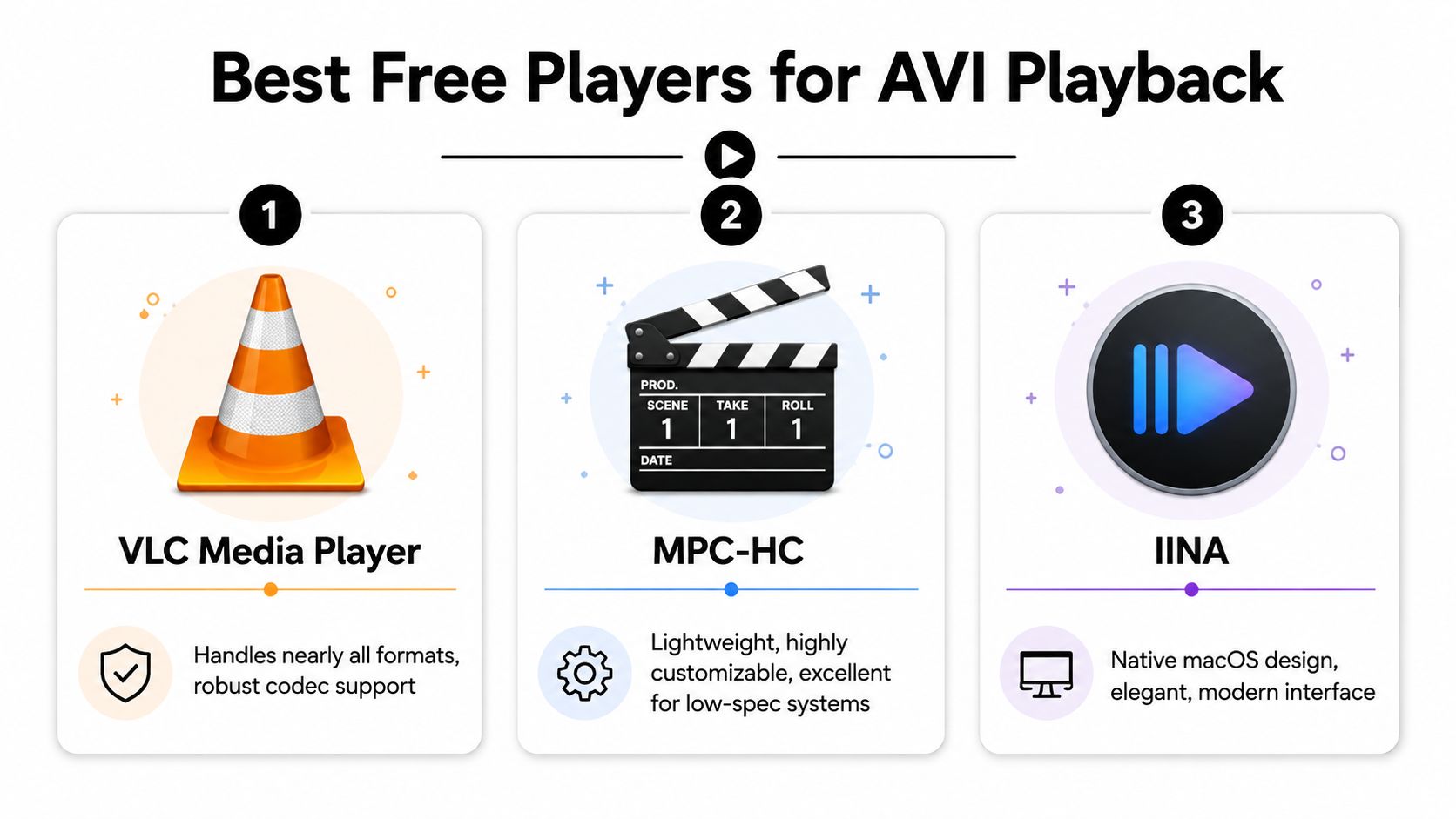
If the built-in player fails, the next move is usually a free player with its own codec library. That's the difference between a file that “won't open” and a file that opens everywhere. The player is doing the decoding work, not just passing the job to the operating system.
Which player fits which problem
VLC Media Player is the universal fallback. It's the one I'd try first when someone says an AVI plays on one machine but not another, because VLC is designed to handle a very wide range of video and audio codecs without extra setup. It's available on Windows, macOS, Linux, and mobile platforms, so it's usually the safest recommendation when you need one answer that works across systems.
MPC-HC is a solid Windows choice when you want something lightweight. It's especially useful on older hardware or systems where a big media suite feels heavy. If the AVI is fine but your built-in player feels sluggish or inconsistent, MPC-HC is often a cleaner test.
IINA makes the most sense on macOS. It fits the Mac interface better than many cross-platform players, and it's a sensible choice when QuickTime refuses to cooperate. For Mac users, that matters, because the goal isn't just playback, it's playback without fighting the desktop.
VLC is the least fussy option. If you only install one player for stubborn AVIs, install that one.
If you want a second resource on VLC's practical use outside playback, the LesFM guide on recording screen video with VLC is a good companion read. It shows why VLC tends to stay useful long after you've solved the AVI issue.
To set any of these as the default, open the AVI file once, choose Open with, select the player, and enable the option to remember that choice. On macOS, you can do the same through Get Info and Open with. That way, the next AVI that shows up doesn't send you back through the same troubleshooting loop.

Installing Codecs to Fix Playback Errors
Sometimes the player is fine, but the file still won't decode correctly. That's where codecs come in, because a codec is the component that compresses and decompresses the audio or video stream inside the AVI. If the file uses a codec your player can't decode, the extension doesn't matter much.
Identify the codec before you install anything
The cleanest move is to inspect the file first. Tools like MediaInfo or GSpot can show you the codec identifier, which tells you whether you're dealing with something like XVID, H.264, or a different stream type. Once you know that, you can decide whether the file needs a codec pack, a different player, or conversion.
That matters because random codec installs create their own problems. People download a bunch of unnamed files from the web, then wonder why the system still fails or starts conflicting with another player. Targeted installation is safer and faster than shotgun troubleshooting.
Practical rule: identify the codec, then fix that codec. Don't install three mystery downloads and hope for the best.
On Windows, a trusted bundle like K-Lite Codec Pack is the usual route when you need system-level codec support. Install only from the official source, choose the version that matches what you need, and skip anything that looks like bundled extras or adware. The goal is compatibility, not adding five unrelated media tools to your machine.
The YouTube video specs guide is useful here because it reinforces a key habit, checking technical requirements before you start changing files. That same habit saves time when an AVI refuses to open. If the codec is the problem, you want a precise fix, not a pile of unrelated installs that make future playback harder.
If the file opens in VLC but not in your system player, that's usually your clue. VLC can often handle the stream on its own, which means the file is fine and the missing piece lives in the player or OS codec stack.
Converting AVI Files to Modern Formats
When playback keeps failing, conversion is the cleanest exit. It's also the better choice when you need to share the file, upload it somewhere, or move it across devices that are picky about AVI. In practice, MP4 is the format to target because it's widely accepted across phones, browsers, editors, and media players.
Use HandBrake first, VLC if you need a quick fallback
HandBrake is the most reliable local route because it gives you control without forcing you into an online upload box. Open the AVI, choose an MP4 preset, keep the video around H.264 if broad compatibility matters, and make sure the audio stays in a common format such as AAC. The point is to preserve quality while improving compatibility, not to re-encode the file into something smaller and worse.
If you've got a folder full of old AVIs, batch conversion is worth the setup time. Once you've got the preset right, you can apply it across multiple files and stop reopening the same broken clips one by one. That's a better use of time than repeatedly trying the same AVI in three players and hoping the result changes.
VLC can also convert, and that's handy when it's already installed. The workflow is less polished than HandBrake, but it still helps when you want a fast local conversion attempt without adding another tool. If the result opens cleanly in the player and plays through with audio intact, you've probably solved the compatibility problem for good.
Use conversion when the real goal is reliable playback, not preserving AVI as a file format.
For Mac and Windows users who just need a desktop MP4 output, a local conversion workflow is the least risky option. If your goal is mainly creating short-form content for social platforms, ClipCreator.ai is a separate tool category entirely, it automates short video creation and publishing rather than fixing file playback. For AVI conversion specifically, the focus still belongs on HandBrake or VLC.
The how to make MP4 video guide is a useful companion if you want a deeper look at the output format itself. Once you've got a stable MP4, keep the original AVI until you've verified the new file opens everywhere you need it to.
Troubleshooting Common AVI Problems and Security Tips
An AVI that half-works usually tells you more than one that fails outright. If the audio plays but the video stays black, the video codec is usually the problem. If the picture appears but the sound is missing, check the player's audio track menu before you decide the file is damaged.
Match the symptom to the fix
If playback is choppy, lower hardware acceleration in the player and close background apps that are using system resources. That will not repair the file, but it often shows whether the problem is decoding load or something deeper in the stream. If the file refuses to open at all, test it in VLC first, then inspect it with a tool like MediaInfo to see whether the header or stream info looks unusual.
Corrupted files are the hardest case. Sometimes the AVI index is damaged, sometimes the file transfer was interrupted, and sometimes the download was incomplete. In those situations, the safest next step is to verify the file from its original source before you install anything else.
If a codec download site looks sketchy, leave immediately. Video fixes are one of the easiest places to run into fake installers.
Security matters here because codec searches attract bad actors. Fake codec pages often promise a quick fix, then bundle malware or junk installers with the download. A legitimate source is clear about what the file is, what it does, and where it came from. A shady one pushes urgency, vague buttons, and pop-ups.
A good habit is to trust the player first, the codec pack second, and random download links last. That order prevents most of the mess people create when they try to repair AVI files by installing whatever the search results put in front of them.
Use conversion when the primary goal is reliable playback. If a file keeps breaking in multiple players, converting it to a modern format usually saves more time than chasing another codec pack.
If AVI playback keeps wasting your time, ClipCreator.ai can help you move in a different direction by automating short-form video creation and publishing instead of dealing with file-format headaches. For creators and teams who'd rather produce finished clips than troubleshoot containers and codecs, it's a practical way to keep video work moving.

Create your first video in under 2 minutes
Pick a niche, and ClipCreator.ai generates and auto-posts faceless videos to your channels every day.
Join ClipCreator.ai