You've finished editing a TikTok, added what feels like a clear hook, and opened the preview. Then you notice the username covers the first line, the action buttons crowd the right edge, and your call to action disappears beneath the caption area. The video itself works. The text layer doesn't.
That's the difference between adding text and editing for retention. TikTok text can introduce the story before a viewer processes the audio, guide attention through a faceless clip, and make an idea understandable when sound is off. But every word has to survive the interface, appear at the right moment, and remain readable on a small screen.
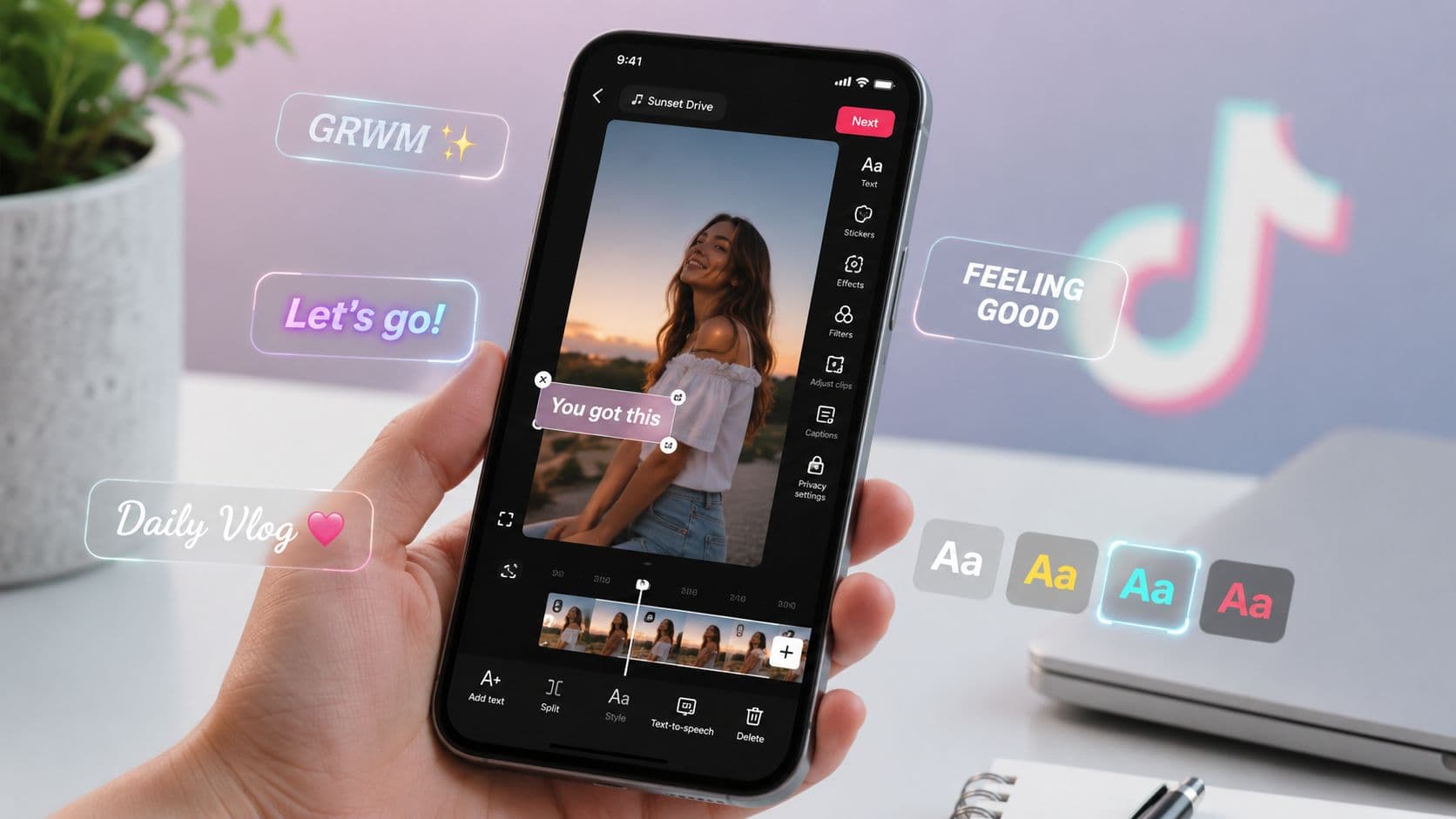
TikTok treats text as more than decoration. Its native text editor launched on June 15, 2019, and the platform later expanded text into its own publishing format with text-only posts in 2023, as documented in TikTok's newsroom announcement. Research also found open captions in 65.3% of 1,654 unique TikTok videos, which shows how normal text has become in short-form packaging. The practical layers are overlay text, captions, text-to-speech, and alt text. Placement, timing, and accessibility determine whether those layers help or get ignored.
Why TikTok Text Matters More Than Most Creators Realize
A creator can spend an hour refining a faceless video, choose the right background footage, and write a strong opening sentence. If that sentence sits beneath TikTok's interface, the viewer never gets the intended first impression. The problem isn't the idea. It's the editorial placement.
On-screen text acts as a silent hook for people watching without sound. It can state the problem, reveal the stakes, or create a question before the voiceover finishes its first phrase. Captions then support comprehension, while timed overlays control the pace of information. A viewer should know what to look at and why it matters without having to decode a dense paragraph.
TikTok's text system also supports faster publishing. Creators can record or upload a clip, add a line directly in the editor, choose its visual treatment, and schedule its appearance on the timeline. That makes text useful for quick explainers, list videos, tutorials, story clips, and videos repurposed for other vertical platforms.
Practical rule: Treat every text card as an edit decision. Ask what the viewer needs to understand at that exact moment.
The four text layers
These layers solve different problems:
- Overlay text: A deliberate hook, label, chapter marker, or call to action placed on the video.
- Captions: A transcription of spoken words, either generated by TikTok or added as burned-in text through an editing tool.
- Text-to-speech: A synthetic voice that reads selected written text aloud.
- Alt text: A descriptive accessibility layer that helps explain a photo post to screen readers and supports contextual understanding.
Text can also help package a topic clearly for discovery, but it shouldn't be treated as a substitute for a focused script or relevant visuals. Strong words in the wrong location still fail. The reliable workflow keeps important copy in the central viewing area, stages each line against the spoken idea, and previews the finished clip on a phone with sound both on and off.
The Native Workflow for Adding Text to TikTok
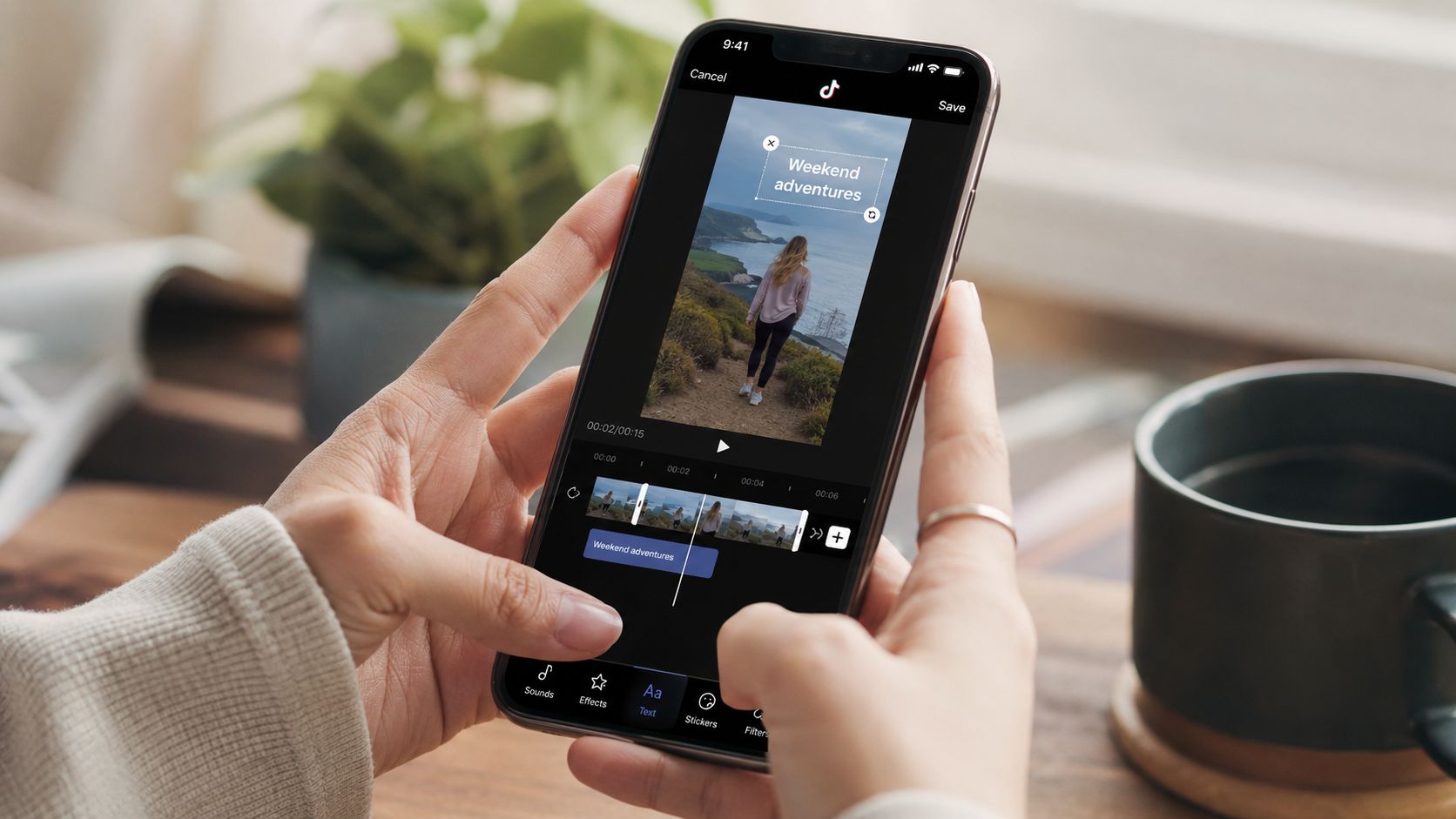
TikTok's native editor is enough for many short clips, especially when you need a quick hook or a few timed labels. The current help flow starts with Add post, followed by Text, where you enter copy and confirm it with Continue or Done. The controls also support repositioning, resizing, font selection, color, alignment, and background highlighting through the official TikTok posting workflow.
Add and style the first line
- Open TikTok and tap Add post. Record a video or upload one from your device, then enter the editing screen.
- Tap Text. Type the first line instead of opening the effects panel. Start with the sentence that gives the viewer a reason to continue.
- Choose a readable style. A bold sans-serif generally holds up better at thumb speed than a thin decorative face. If you're comparing type treatments, the Font Checker Pro TikTok Sans analysis can help you assess the platform's visual language.
- Move the text box. Drag it away from the top username area, the lower caption region, and the right-side action buttons. Pinch to resize, but don't enlarge it until it dominates the subject.
- Set the duration. Tap the text card and choose Set duration. Drag the timeline handles so the line appears with the spoken phrase or visual beat.
The default full-clip duration often makes a video feel visually static. A hook that remains on screen after its idea has passed competes with the next sentence, so use separate cards for the opening, supporting point, and final prompt.
Build the sequence before posting
Add another text card for the next thought, then schedule it independently. This creates a simple editorial rhythm: the hook earns attention, the body clarifies the idea, and the final card gives the viewer a next action. Use the timeline to trim each card rather than stacking every sentence at once.
If you need narration without recording your own voice, select the text card and use TikTok's text-to-speech option. Listen to the result before posting, because the available voices and pacing can change the tone of a script.
Tap Next when the edit is ready. TikTok moves you into the posting screen, where you can review the final result and prepare the caption. Preview once with sound on and again with sound off. If the text is clipped or covered in either view, fix the position before publishing.
Overlay Text, Captions, Text to Speech, and Alt Text
Creators often call every visible word a caption, but the production choice matters. A hook overlay, a transcript, a synthetic voice, and accessibility text serve different audiences and appear in different places.
TikTok's accessibility guidance distinguishes standard in-video text from alt text for photo posts. Alt text can be added before posting and after publication, while ordinary video text belongs in the video or post editor. That distinction is easy to miss, especially when a creator is focused only on visible overlays.
| Type | Purpose | Where it appears | Best for |
|---|---|---|---|
| Overlay text | Emphasizes an editorial point | Directly on the video | Hooks, labels, CTAs |
| Captions | Transcribes spoken audio | On the video or through TikTok's captions layer | Sound-off viewing and comprehension |
| Text-to-speech | Reads written copy aloud | As synthesized audio over the video | Faceless clips without a human voice |
| Alt text | Describes visual content | Accessibility layer for supported posts | Screen readers and image context |
A 2024 ACM study of 300 TikTok videos found that 99% included human utterances, and 96.7% of those utterances were captioned, although 19.7% of videos contained at least one captioning error. Among videos with errors, the average word error rate was 7.9%, so automatic captions still need review. For a practical workflow, use this guide to add auto captions to video, then correct names, jargon, and unusual pronunciations before export.
The rule is simple: ship overlay text for the hook, captions for comprehension, text-to-speech only when its voice fits the format, and alt text whenever the post supports it. For a deeper look at caption workflows, see automatic subtitles for TikTok.
Placement, Duration, and Timing That Keep Viewers Watching
Text placement is a survival problem before it's a design problem. TikTok's engagement controls cover parts of the frame, and independent guidance for 1080×1920 vertical video recommends keeping critical copy in the center-left band, away from the lower 25% and the rightmost 180 px. You should still preview on the actual device, because interface layouts and account features can vary.
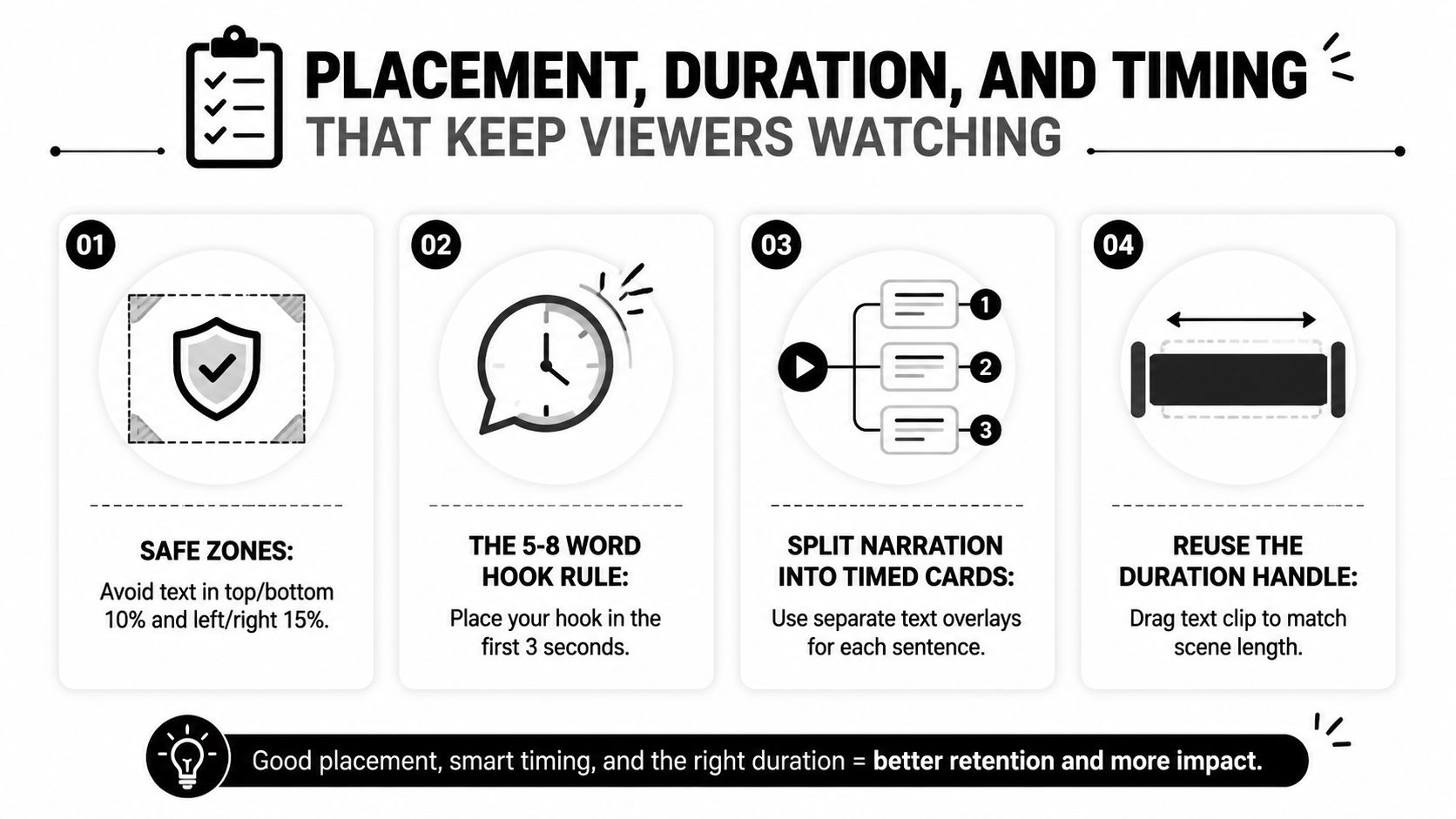
A useful starting point is the central two-thirds of the vertical frame. Keep the most important words away from the top username area, the bottom caption and navigation region, and the right-side action stack. Centering isn't automatically safe, especially if the speaker's face or the main visual action occupies that space.
Write shorter cards
Independent short-form guidance recommends keeping the first on-screen hook to 5 to 8 words and making it readable within about 2 seconds. That isn't a command to make every card tiny. It's a useful constraint for the first idea, because a long opening sentence forces viewers to read instead of watch.
Break narration into timed cards:
- Hook: State the tension or promise.
- Context: Add one supporting fact or detail.
- Payoff: Show the result or answer.
- CTA: Tell the viewer what to do next.
Use Set duration for each card, then drag the handles until the text enters just before the relevant word and leaves after the visual beat. Staggering cards keeps the eye moving with the story instead of asking viewers to read a wall of copy.
Before posting, watch the clip at 0.5x speed. Check for early flashes, late exits, overlapping cards, and words that disappear before they can be read. Once a timing pattern works for a batch of faceless videos, reuse the same rhythm while adjusting each card to the narration.

When Automation Beats Manual Text Editing
Manual editing wins when the video depends on precise creative judgment. A one-off hero clip, a stylized typography treatment, or a trending sound remix may need frame-level decisions that an automated caption pass can't make for you.
Automation becomes more useful when the bottleneck is repetition. A daily faceless series often uses the same structure, caption position, font treatment, and voiceover pattern. Rebuilding every text card by hand turns a repeatable format into a sequence of small chores, especially after a script revision forces you to retime the overlays.
| Factor | Manual Native Editing | Automated Pipeline, such as ClipCreator.ai |
|---|---|---|
| Initial control | Direct control over each card | Preset or generated treatment |
| Timing changes | Requires retiming cards after edits | Can align generated captions with the revised narration |
| Style consistency | Depends on creator discipline | Reuses a defined caption treatment |
| Best use | One-off and highly stylized videos | Repeated faceless formats and repurposing |
| Review requirement | Creator checks every edit | Creator still reviews accuracy and safe zones |
Choose the workflow by volume
Automation makes sense for a faceless series, a library of long-form clips being converted into vertical cuts, or caption variants prepared for different languages. It also helps when you need scripts, visuals, voiceovers, and synchronized subtitles handled in one production flow rather than assembled separately.
ClipCreator.ai generates short faceless videos with scripts, story-aligned visuals, voiceovers, subtitles, and publishing tools. Its workflow is relevant when the text layer needs to stay synchronized across repeated videos, but the finished export still deserves a phone preview for clipping, contrast, and pacing. For a broader comparison of tools, see this guide to text on video software.
Manual editing remains the better choice when the text itself is the creative centerpiece. Automation can accelerate production, but it shouldn't remove the final editorial pass.
Readability Tradeoffs Most Creators Get Wrong
Bigger text isn't automatically clearer. An academic experiment on social media text overlays found that overly large, centrally placed text combined with dynamic imagery reduced consumer engagement. The reason is practical: the overlay can cover a face, hide the visual proof, or force the viewer to choose between reading and watching.
The right question isn't “Can I make this bigger?” It's “What must remain visible while the viewer reads?” On a talking-head video, place a large hook above or below the face rather than directly across it. On a product demonstration, protect the hands and object that prove the claim.
Make contrast do the work
Thin fonts disappear against movement, outdoor glare, and dim footage. A heavier sans-serif with a clear outline often holds up better than a soft drop shadow, particularly when the background changes from frame to frame. Use a background highlight when the footage is busy, but keep the treatment restrained so the card doesn't become the main subject.
Readable text is not the same as shouty text. Too many colors, all-caps lines, and oversized cards make every point feel equally urgent, which removes hierarchy. Give the hook the strongest treatment, then reduce visual weight for supporting information.
Three guardrails cover most failures:
- Keep faces visible when the text is large.
- Prefer an outlined sans-serif over a weak shadow on moving footage.
- Test every overlay at 0.5x speed on a phone, not only on a desktop monitor.
If you're preparing text outside TikTok, a dedicated workflow such as adding text to video can provide more control over repeated styling. The same safe-zone and readability checks still apply after export.
Troubleshooting the Most Common TikTok Text Problems
Most text failures come from selection, timing, or placement rather than from the copy itself. Fix the symptom in the editor before rebuilding the whole post.
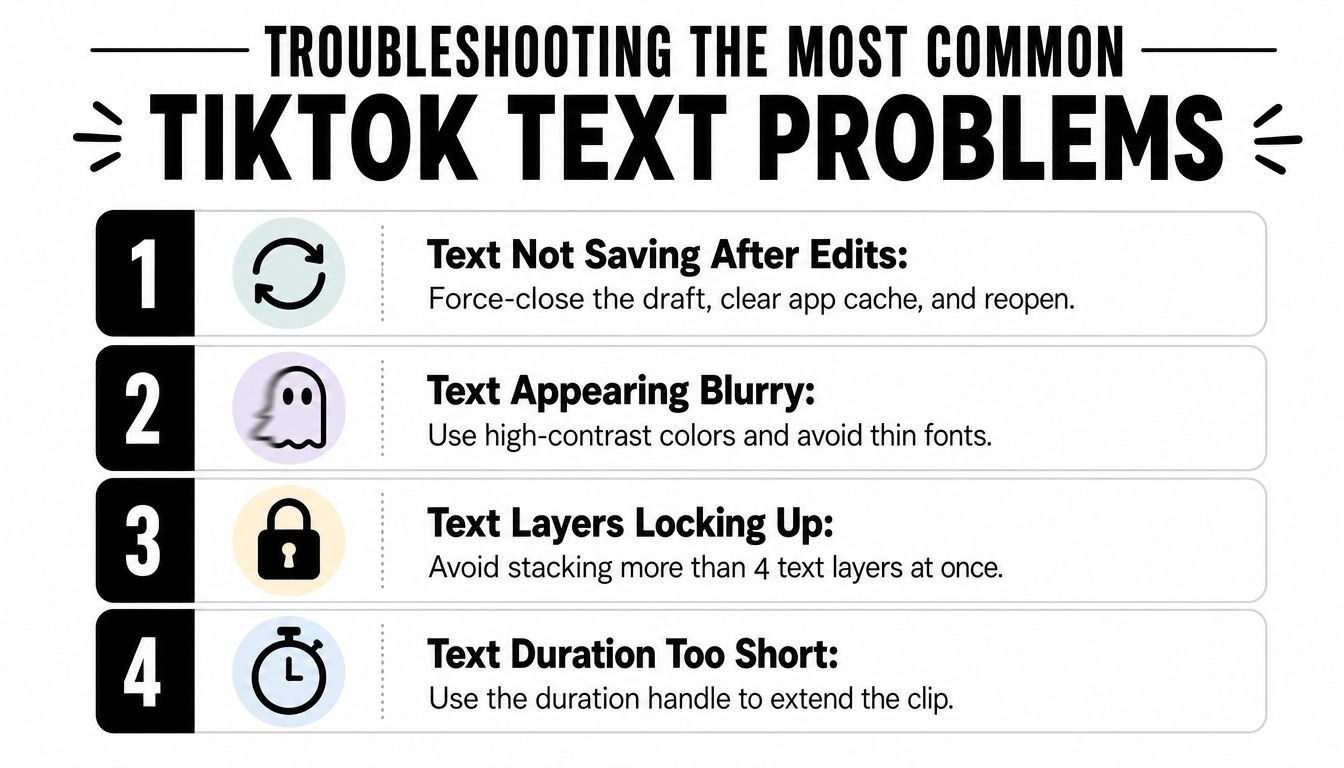
Text doesn't save after edits
Force-close the draft, clear TikTok's app cache, and reopen the project from your device gallery rather than restarting the post from scratch. If the draft still behaves unpredictably, duplicate the source video and rebuild only the affected text card. Keeping a clean copy of the original prevents one broken draft from becoming the only version.
The duration slider is missing
Tap the text box again and confirm it's selected. If the timeline handles have collapsed, reselect the card from the editing timeline, then choose Set duration. TikTok's editing guidance confirms that text can be dragged along the timeline and resized by moving its edges, so the control should appear when the correct layer is active.
Text-to-speech is silent
Toggle text-to-speech off and on, then try another available voice. Check that the device isn't in silent mode and that the preview volume is turned up. If the voice still fails, remove the card, create a fresh text layer, and apply text-to-speech before adding other effects.
Text is cropped or hidden
Move the card away from the top username area, the lower interface region, and the right-side action buttons. Record or export in a vertical 9:16 format, then inspect the final post preview rather than trusting the editing canvas. A line that looks safe before posting can shift under TikTok's interface.
Font settings may revert when a draft reloads, so save a visual reference for recurring series and check the style before publishing. Stickers can also cover text, especially when added late in the edit. Finally, some Android builds may not expose the newest text templates at the same time as other devices, so update TikTok and compare the available tools before assuming the project is damaged.
ClipCreator.ai can generate faceless short-form videos with scripts, visuals, voiceovers, synchronized subtitles, and scheduled publishing for TikTok and other platforms. If you're producing repeatable videos and want the text layer handled as part of the workflow, visit ClipCreator.ai and review whether its automated pipeline fits your publishing routine.

Create your first video in under 2 minutes
Pick a niche, and ClipCreator.ai generates and auto-posts faceless videos to your channels every day.
Join ClipCreator.ai