You film a faceless TikTok, drop in a voiceover, hit publish, and only then notice the captions turned your product name into something else, clipped your CTA in half, and disappeared right when the sentence got useful. That's the moment most creators realize automatic subtitles TikTok is less of a one-tap feature and more of a workflow decision. The captions are there to save silent viewers, but they still need a human pass if you care about clarity, pacing, and brand safety.
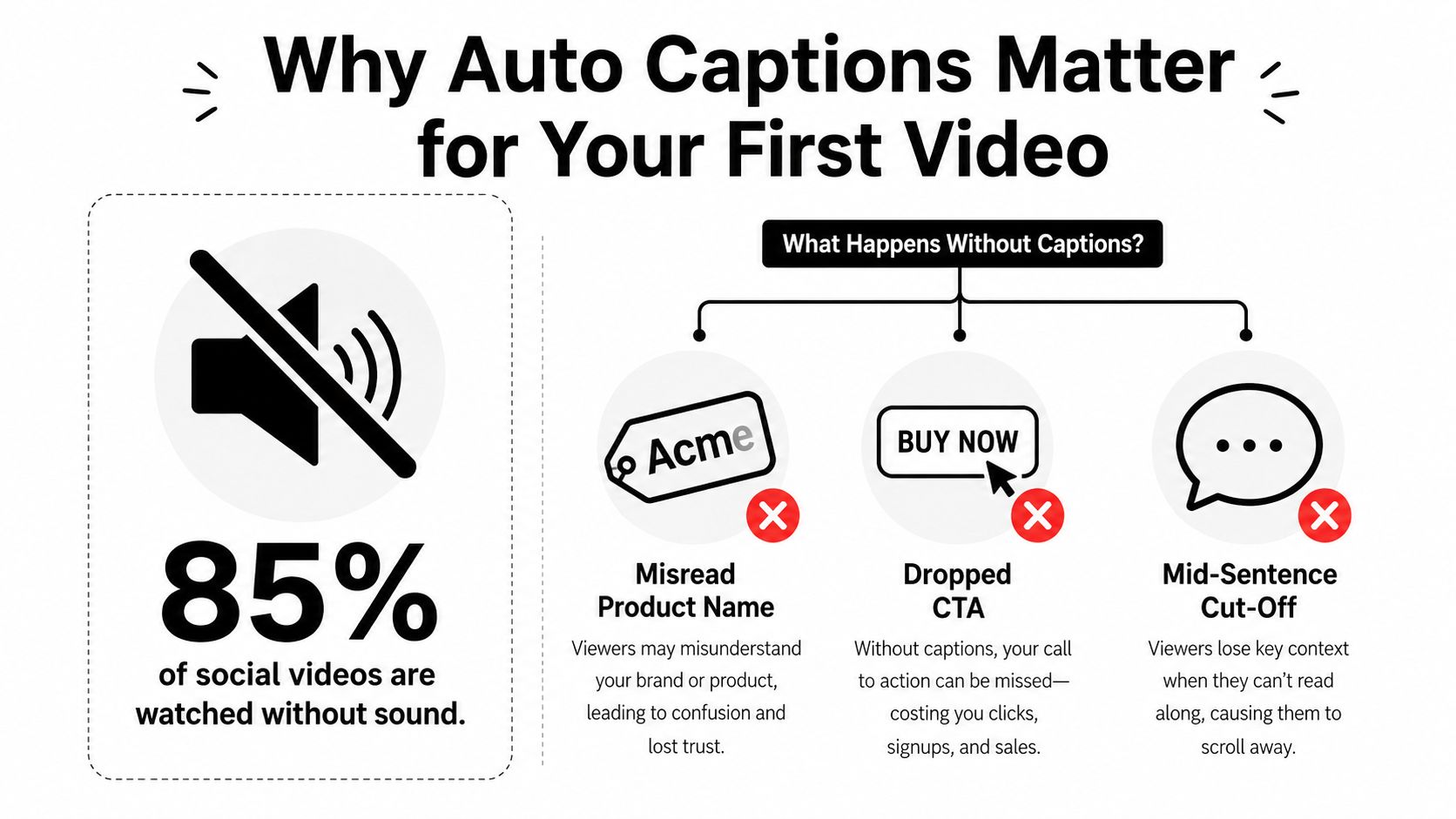
For creators who want the broader distribution context, paid video amplification insights are useful because they frame captions as part of a bigger viewing system, not just an accessibility add-on. On TikTok, subtitles help the video survive muted autoplay, but they also help a viewer stay long enough to hit replay, comment, or share.
Why Auto Captions Matter for Your First Video
The first time a faceless upload goes wrong, it usually fails in three places at once. A voiceover gets transcribed with a wrong product name, the CTA vanishes before the last beat, and the line breaks make a clean script look rushed. None of that is subtle. The viewer sees a video that feels unfinished, even if the visuals are strong.
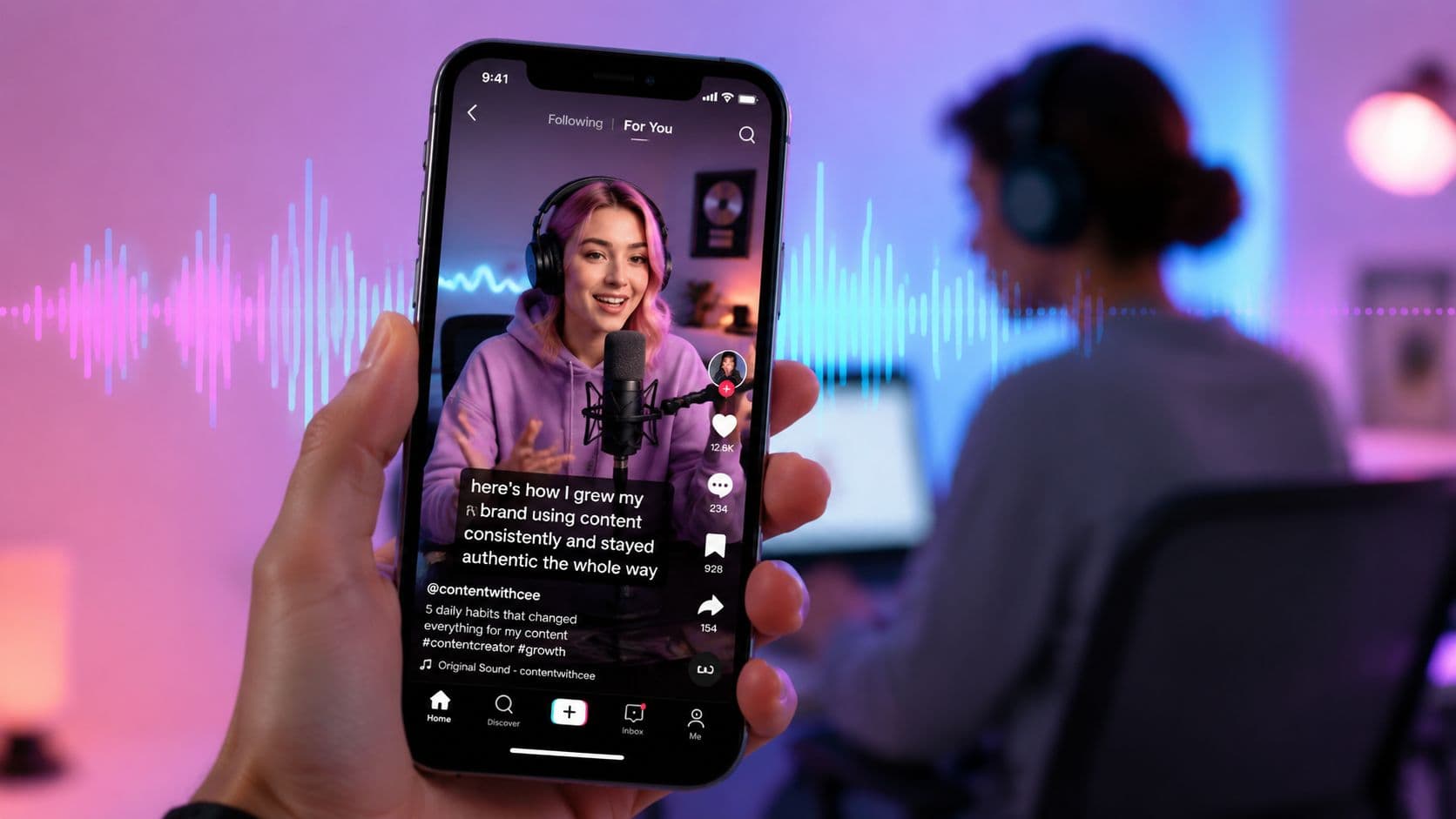
That matters because TikTok viewing often starts with no sound, and captions are what make the hook readable before someone decides to keep watching. TikTok's own rollout of auto captions in 2021 marked the move from external subtitle overlays to built-in speech recognition at platform level, which turned subtitles into part of the creation flow rather than a last-minute edit TikTok newsroom. Once that happened, captions stopped being an optional polish step and became part of basic posting hygiene.
Practical rule: if your hook depends on a spoken word, that word needs to survive the caption pass.
The share-and-reply loop also depends on comprehension. A viewer can't react to a line they didn't read, and a comment thread starts more easily when the text on screen matches the audio cleanly. That's why this isn't just a tutorial on switching captions on. It's a practical playbook for keeping the spoken message intact when the app tries to help and gets some of it wrong.
If your content plan includes paid distribution or repurposed shorts, captions deserve the same attention you'd give to thumbnails or hooks. The silent audience is not a corner case. It's part of the default viewing experience on mobile.
Turning On TikTok Automatic Subtitles Step by Step
The setup is simple, but the exact path matters because TikTok hides caption controls in more than one place. On some accounts, you'll see Captions in the editor after recording. On others, language settings live deeper in Settings and privacy, and that's where mismatch problems start.
Start by opening TikTok's settings and checking the caption language before you record. If the app is set to the wrong speech language, auto transcription can miss the first pass entirely. TikTok's support documentation says auto-generated captions are speech recognition that converts audio to text, and it also notes that captions can be based on the selected video language TikTok accessibility support.
Three ways the toggle shows up
Before recording. If your app build exposes it, switch on captions in advance so the feature is ready the moment you publish. That's the cleanest path for faceless creators who post often, because it keeps the workflow consistent.
After recording. Open the editor, tap Captions, let TikTok generate the transcript, then confirm the track before posting. This is the most common path when you're testing a single video.
Per video. Some uploads don't inherit your preferred defaults, so verify the caption toggle every time. That small check saves you from posting a clean edit with no subtitles at all.
Device behavior can differ a bit between iOS and Android, but the practical rule is the same. Find the language that matches the voiceover, confirm the app is current, and check that the captions tool appears in the editor before you assume the feature is off.
For a broader workflow reference outside TikTok's own editor, transcribe with AI Video Detector is a useful example of how creators think about speech-to-text as part of the editing stack rather than a platform-only function. The main point stays the same, get the text layer ready before the publish step, not after.

If you post daily, Always auto-caption is usually the better default than On demand because it removes friction from the publishing routine. But defaulting on doesn't mean skipping verification. The quickest confirmation is tapping the Captions sticker in the edit screen and watching whether the text starts generating before you commit to the post.
Editing Auto Captions for Cleaner, On-Brand Text
TikTok's first transcript is a draft, not a final subtitle file. That's the right way to treat it because the app will often get branded terms, creator handles, and niche vocabulary wrong. On faceless channels, that's the part that breaks trust fastest. A polished visual can still feel sloppy if the words on screen don't match the voiceover.
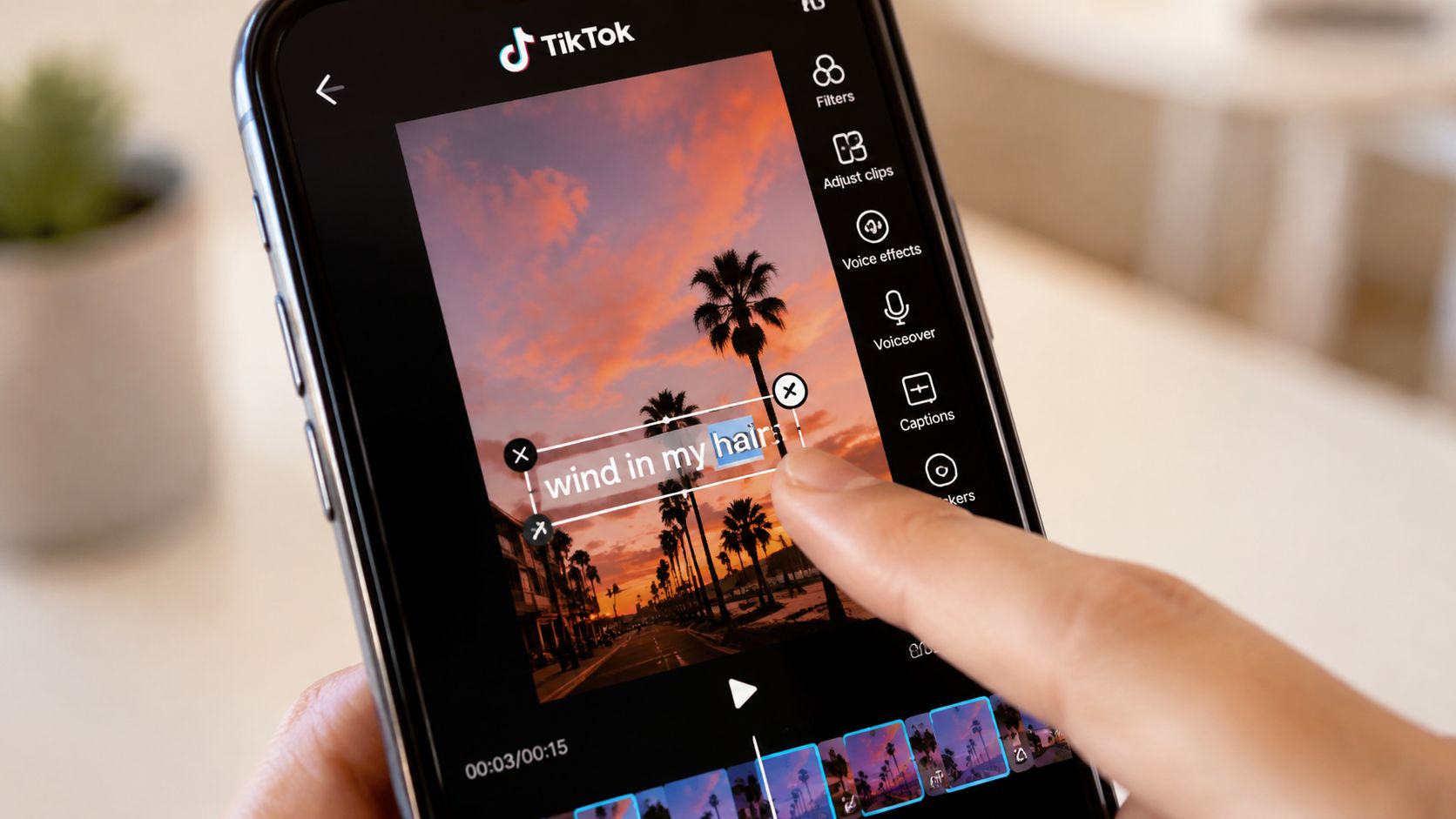
The edit pass starts in the caption block itself. Tap the generated text, open the editor, then correct the obvious misreads first. Swap in your brand spellings, fix product names, and tighten punctuation so the transcript reads like a deliberate subtitle track instead of a raw speech dump.
A good caption edit does two jobs at once. It makes the words accurate, and it makes them easier to scan.
Timing and styling need separate attention
Use the timeline handles to adjust when each block appears and disappears. That matters when TikTok cuts off a sentence too early or lingers on a line after the speaker has already moved on. Once the timing is right, use styling options to reduce visual clutter, fonts, color, background, and placement all matter when the screen is already busy.
The most practical habit is to keep a small running dictionary of tricky words in your voiceover script. If you always say the same tool name, niche phrase, or channel handle, paste it into future scripts so the app has a better chance of hearing it correctly. That's not glamorous, but it cuts down on the same transcription mistake repeating across uploads.
For a deeper look at subtitle styling choices, this guide on the best font for subtitles is a useful reference when you're deciding how readable your captions should be on a small screen. The principle is simple, the cleaner the type treatment, the less work the viewer has to do.
A solid review loop is two passes. First, read for word accuracy. Then replay the clip for timing. If the line is correct but lands late, the viewer still feels the mismatch.
How Accurate Are TikTok Auto Captions?
TikTok's automatic subtitles are usable for many videos, but they still need a human check. A 2024 ACM study of 1,654 unique TikTok videos found that 65.3% featured open captions, while 28.1% had no open captions and 8.5% had been taken down by the time of analysis businessinsider reference. Captions are common across the videos studied, yet their presence says nothing about transcript quality.
In the same research set, 19.7% of 300 sampled videos contained at least one captioning error. Among videos with errors, the mean word error rate was 7.9%, with results ranging from 0.5% to 35.7% ACM full text. The main problems were substitutions, deletions, and insertions. On faceless videos, those mistakes often affect product names, brand terms, slang, and numbers, the exact words viewers need to understand the message.
| TikTok Auto Caption Accuracy by Content Type | Approx. Word Accuracy | Common Errors | Editor Effort Needed |
|---|---|---|---|
| Clean studio voiceovers | Usually close to the transcript, but still needs a scan | Proper nouns, punctuation, short function words | Light review, then timing check |
| Casual narration with filler words | Less stable than clean speech | Filler-heavy phrasing, clipped phrases, repeated words | Moderate edit pass |
| Voiceovers layered over trending audio | Most likely to need cleanup | Overlapping audio, missing words, wrong breaks | Heavy review, sometimes skip native captions |
Practical takeaway: clean audio makes auto captions useful. Music, slang, and overlapping sound reduce the time they save.
TikTok usually captures the broad sentence correctly, while smaller errors can change the meaning. Review every caption that contains a brand name, instruction, statistic, or technical term. For a faceless voiceover, also check whether the text follows the speaker naturally. If several lines need rewriting or the audio is crowded, create captions in a separate editor instead of forcing TikTok's transcript to carry the whole video.
Fixing Common Auto Caption Problems
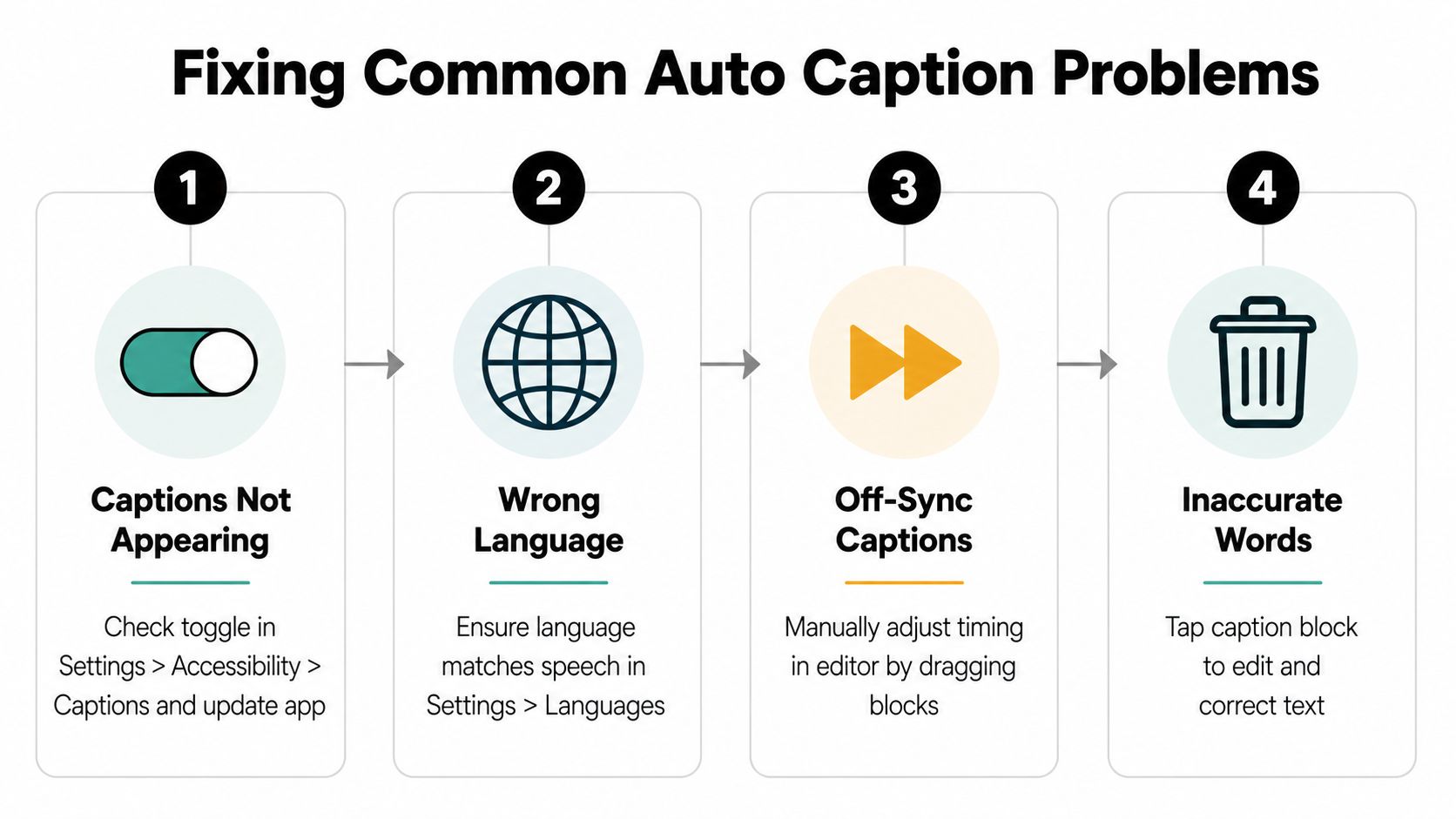
Captions usually fail in the same few places, which makes the fix more straightforward than it looks. If nothing appears, TikTok guesses the wrong language, or the timing slips, the problem is usually in the editor settings or the transcript pass, not the recording.
When captions do not appear
Start with the obvious checks in the editor. Make sure auto captions are turned on, the app is updated, and the account language matches the speech language. TikTok's accessibility support says captions depend on the selected video language, so a mismatch can stop the feature from behaving as expected TikTok accessibility support.
When TikTok hears the wrong language
Set the speech language to the voiceover language, then regenerate the captions. If the app guessed another language, keep the old transcript out of the way and run the caption pass again after the correction. That gives TikTok a cleaner transcription path.
When words are missing or cut off
This is usually an audio issue. Lower the music, bring the mic closer, or re-record the line with cleaner levels. In the caption editor, extend each subtitle block so viewers have enough time to read the full line before it disappears.
When timing drifts over longer clips
Use the waveform as your anchor and resync from the middle instead of nudging each line one by one. If the drift is heavy, split the clip before captioning so the transcript has less room to slide out of place.
A workflow guide like auto captions app workflows helps here because it shows how different editors handle the same transcription problems. On faceless videos with voiceovers, slang, or music, the practical reality is that TikTok gets a lot of the sentence right, but the cleanup still matters. Verify the fix before you post, and move to a separate editor if the corrections keep stacking up.
When to Skip TikTok's Built-In Captions
TikTok's native captions are fine for a lot of posts, but they're not always the fastest route. The right choice depends on the content, the language, and how much control you need before publishing. A native transcript is convenient, but convenience isn't the same thing as efficiency when the wording is technical or the video has to ship in multiple places.
For casual faceless posts, trending audio reactions, and quick commentary, TikTok's built-in system is usually enough. The workflow is short, the editing pass is manageable, and the platform keeps everything in one place. If you're posting often and the script is simple, that's hard to beat.
For tutorials, branded videos, and scripts with specialized vocabulary, an SRT file can save time because the text is already cleaned up before it reaches TikTok. That matters when a single mistake would require re-editing the whole transcript block by block. A dedicated caption file also helps when you want to reuse the same video on other platforms.
If you're batching content for multiple channels, an external captioning workflow can make even more sense. How to add subtitles to a video is a useful reference point here because it treats subtitles as a reusable asset, not a platform-specific afterthought.
One practical option in that category is ClipCreator.ai, which generates short faceless videos with synchronized subtitles as part of its video workflow. That kind of setup fits creators who want the subtitle layer created before upload rather than patched in afterward.
A Weekly Caption Workflow for Faceless Creators
The easiest way to keep captions reliable is to stop treating them like a one-off setting and start treating them like a weekly system. Faceless creators usually need the same checks over and over, so a repeatable routine removes most of the friction. The goal is not perfect first drafts. The goal is fewer bad posts and less time spent fixing the same errors twice.
Monday is script day. Flag pronunciation risks, brand names, abbreviations, and any line that might get flattened by speech recognition. Put those words in a shared doc so they're ready for the next recording session.
Tuesday is recording day. Before every take, verify the captions toggle and confirm the language setting matches the voiceover. If the script contains technical terms or recurring product names, speak them slowly once before the main read so the audio stays clean.
Wednesday is the editing pass. Review timing drift first, then fix slang, proper nouns, and any line that loses meaning when auto-transcribed. If the caption transcript is visibly broken, or if the word error rate looks uncomfortably high, re-record the clip instead of salvaging a bad track.
Thursday is styling day. Make the subtitles readable, tighten line breaks, and place emphasis where the hook needs it. This is also the time to decide whether the post should keep TikTok captions, use an uploaded SRT, or move to a different captioning workflow entirely.
Friday is publishing day. Do one final read-through before posting, especially on anything that carries a CTA or a product mention. The words on screen should match the spoken line exactly where it matters.
Weekend review should focus on retention signals, not aesthetics alone. Watch which videos kept viewers through the caption-heavy opening, then save those patterns in your workflow doc. The creators who win with subtitles are usually the ones who keep the caption pass consistent, not the ones who expect the first draft to be perfect.
If you want a faster way to build faceless videos with synchronized subtitles, ClipCreator.ai handles script generation, voiceovers, visuals, and captions in one workflow. It's useful when you'd rather publish consistently than rebuild every subtitle track by hand, especially for TikTok content that needs to move from draft to post without extra editing steps.

Create your first video in under 2 minutes
Pick a niche, and ClipCreator.ai generates and auto-posts faceless videos to your channels every day.
Join ClipCreator.ai