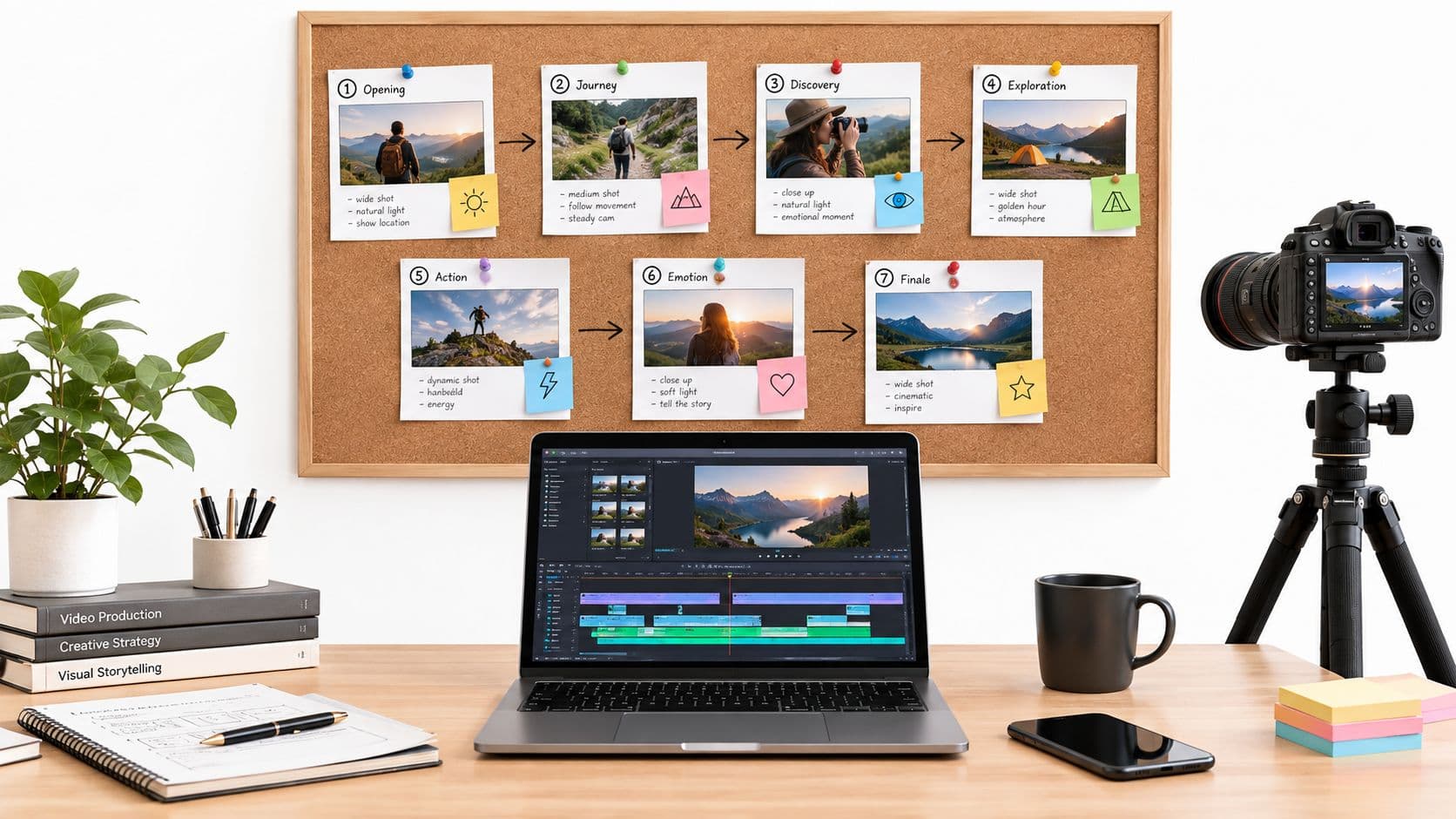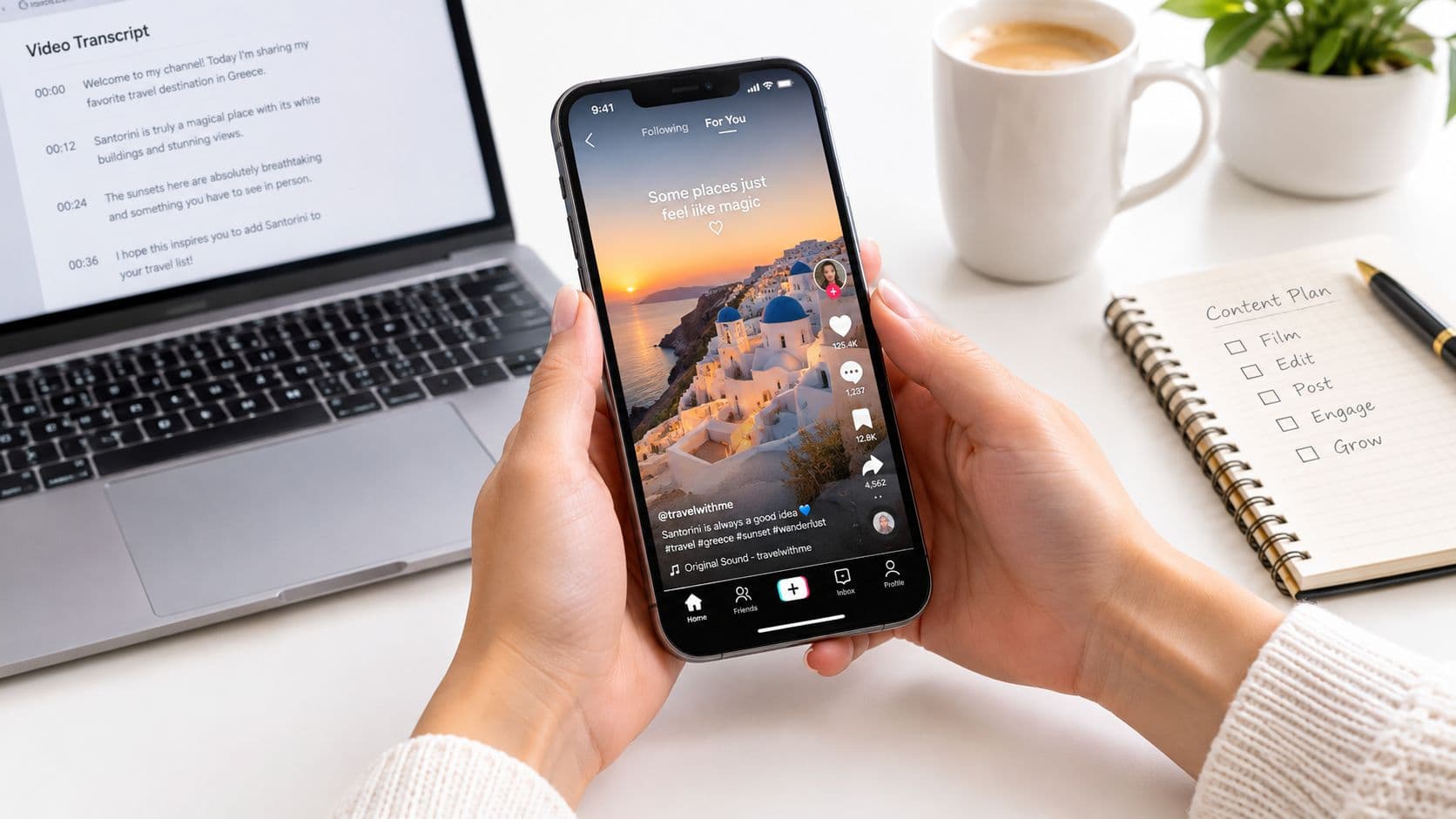
You've finished the edit, the hook lands, and the thumbnail frame looks right. Then, seconds before publishing, you realize the spoken line includes a product name, the music is loud, and the captions are sitting directly under TikTok's buttons. That last-minute toggle can produce a technically captioned video that still fails on a phone screen.
The practical answer to how to add subtitles on TikTok is to treat captions as a production workflow. Generate a first draft, correct the words that matter, check placement and timing, then decide whether the final asset needs native captions, burned-in text, or a reusable subtitle file. Captions can also support viewers watching without sound. Accessibility research reports that 92% of consumers watch videos with the sound off, 50% rely on captions, and captioned videos are watched to completion 40% more often than uncaptioned videos (Video Accessibility research summary).
Why Your TikTok Subtitles Need More Than a Quick Toggle
TikTok's caption button solves the first mechanical problem, not the publishing problem. A caption track can exist and still contain the wrong name, obscure the interface, or become useless when you repost the video elsewhere. That's why I treat subtitles as part of the edit, alongside the hook, pacing, sound mix, and final mobile review.
TikTok introduced auto captions in its newsroom announcement on April 6, 2021, describing a feature that automatically transcribes spoken audio and displays it on videos. At launch, support covered American English and Japanese, with more languages promised later (TikTok's auto-captions announcement). That milestone made subtitles a built-in creator tool, but it didn't make the output automatically accurate or well designed.
Three problems show up repeatedly when creators rely on the toggle alone:
- Recognition errors: Speech models can misread proper nouns, handles, product terms, slang, and overlapping dialogue.
- Interface collisions: Default caption placement may sit too close to usernames, music information, engagement buttons, or other overlays.
- No reusable asset: Native captions may work inside TikTok but leave you without a clean subtitle file or a consistent version for Reels, Shorts, and paid placements.
Practical rule: Auto captions are a draft. Your job is to turn that draft into readable language and a portable publishing asset.
The right workflow depends on the video. Native TikTok captions are quick and editable. Burned-in subtitles become part of the image and travel with the exported video. SRT files give you a time-coded master that can feed multiple editors, languages, and platforms. The comparison matters because these aren't better and worse versions of the same feature. They solve different production needs.
For a talking-head clip that will live only on TikTok, native captions may be enough after review. For a faceless narrative or educational short that you'll repost, designed burned-in text or an SRT-based workflow usually holds up better. A consistent subtitle process also saves repeated cleanup every time the same video moves to another feed. For the distinction between viewer-controlled captions and text permanently rendered into a video, see this guide to open vs. closed captions.
Turning On TikTok's Built-In Auto Captions
Start with the video already recorded or imported into TikTok. From the editing screen, look for Captions, or open Text and choose Captions, depending on the version of the app and device interface you're using. Some supported devices show a dedicated captions control, while others place the option inside the sticker or text tools.
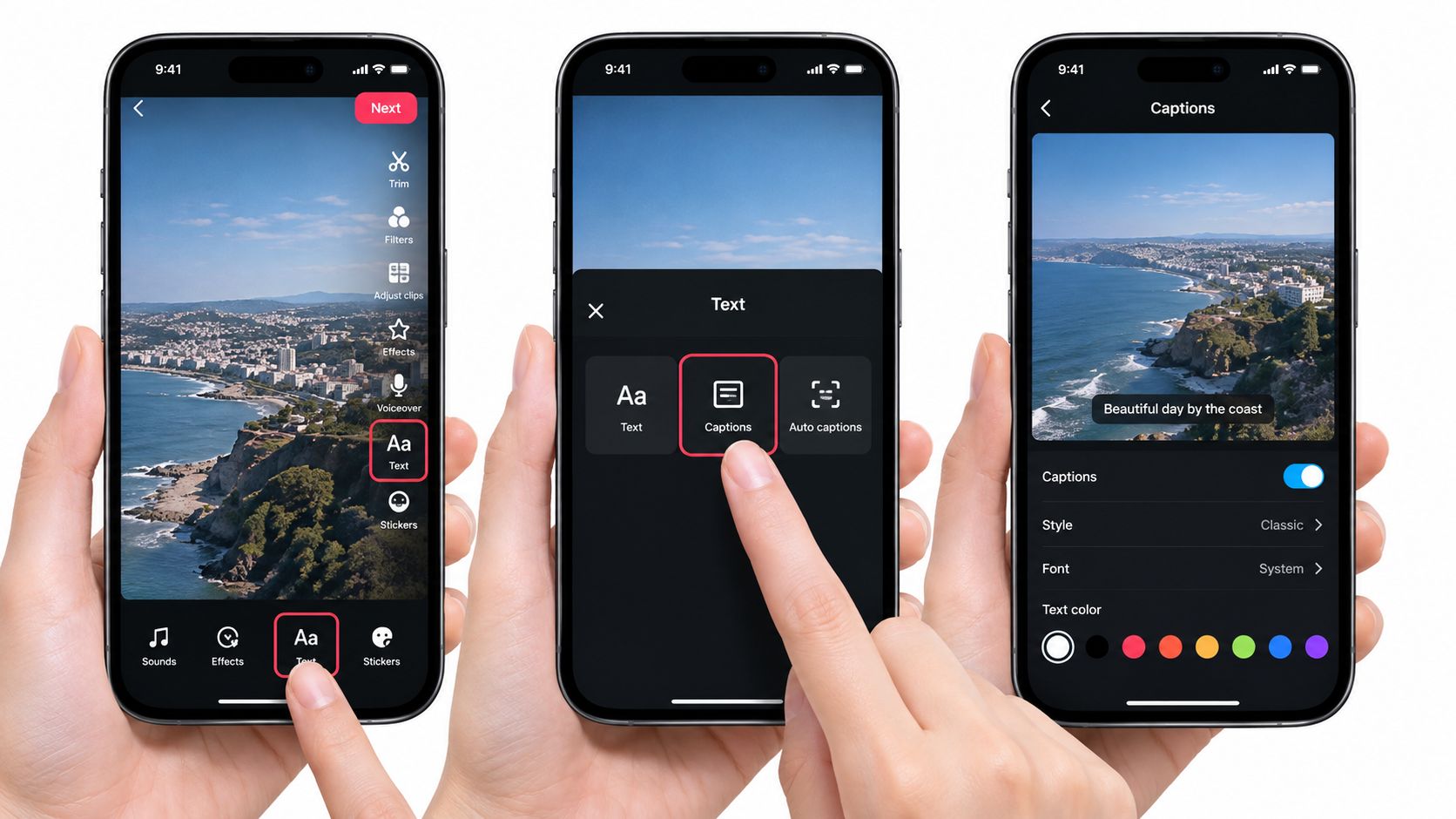
Use this sequence:
- Open the editor: Record a clip or upload one, then continue to the editing screen.
- Find the caption tool: Tap Captions, or choose Text, then Captions if the dedicated button isn't visible.
- Select the spoken language: Choose the language that matches the audio before generating the transcript.
- Generate the draft: Let TikTok process the spoken track, then wait for the caption editor to appear.
- Review before saving: Play the video with the captions visible and inspect every line.
TikTok's accessibility documentation confirms that captions can be added during video creation and edited afterward (TikTok accessibility guidance). That edit step is essential when the clip includes an accent, regional dialect, background noise, music, rapid delivery, or more than one speaker. A model may capture the general sentence while still damaging the word viewers need to remember.
Check the first transcript immediately
Before styling anything, confirm that TikTok captured the complete spoken section. Watch from the first word to the last, and check whether music or sound effects have been interpreted as speech. If the transcript begins late, ends early, or ignores part of a sentence, regenerate it only after confirming the source audio is clear.
Don't assume the visible language setting guarantees perfect recognition. Names, branded terminology, fast cross-talk, and multilingual phrases deserve a manual pass even when the rest of the transcript looks clean. TikTok's own ad editor also supports caption generation from a narration track, language selection, automatic sentence and line breaks, and style controls, which shows how caption production has expanded beyond a single in-app switch (TikTok video editor caption controls).
Save the native version only after the text, timing, and placement survive a full phone-screen preview. The button is the beginning of the process, not the finish line.
Editing Auto Captions So They Stop Embarrassing You
The caption editor is where a usable video becomes a trustworthy one. Start with the words that carry identity or conversion value, rather than polishing every line in order. A misspelled filler word is minor. A wrong brand name, creator handle, hashtag, number, or call to action can make the video look careless and weaken its usefulness.
Tap a caption block to edit its text. Replace misheard terms with the exact spelling you use in your profile, product pages, packaging, or other videos. Then play the clip again from slightly before that block, because a correct sentence can still appear too early or too late.
Fix the high-risk words first
Independent TikTok captioning research sampled 300 videos and found at least one captioning error in 19.7% of them. Errors appeared in 24.0% of disability-related videos and 15.3% of general-audience videos. Among videos containing errors, the mean word error rate was 7.9%, with results ranging from 0.5% to 35.7% (TikTok captioning error research).
The common failures were substitutions, deletions, and insertions. That pattern explains why a quick visual scan isn't enough. Read the words while listening to the audio.
Prioritize these edits:
- Proper nouns: People, places, companies, products, and technical terms.
- Handles and hashtags: Confirm spelling, capitalization, and whether a phrase should remain one searchable term.
- Numbers: Prices, dates, steps, measurements, and comparisons.
- Calls to action: Words such as “follow,” “download,” “comment,” or “visit” need to match the spoken instruction.
- Fast or overlapping speech: Replay these blocks at normal speed and make sure the line reflects the intended meaning.
Repair structure, not just spelling
If a caption block contains too much text, split it at a natural phrase boundary. If two tiny blocks flash one after another, merge them when the sentence reads more smoothly as a unit. Retiming is necessary when the text drifts noticeably from the audio. A viewer should see the phrase as it's spoken, not several beats afterward.
The editor's generated caption track remains an editable subtitle layer. A separate manual Text sticker is different. Text stickers are useful for titles, emphasis, labels, and designed callouts, but they're static visual elements and require separate timing and positioning decisions. Use the caption editor for the spoken transcript, then add Text stickers only when the design needs information that isn't being spoken.
Change the font or treatment when the footage creates low contrast. A clean style with a strong outline or background often beats decorative typography, especially over moving faces, patterned clothing, or fast B-roll. Aim for a focused cleanup pass rather than a full rewrite. Correct the words that affect meaning, search intent, accessibility, and trust, then watch the complete clip once more before posting.
Native Captions, Burned-In Text, or Uploaded SRT Files
Choose the subtitle format based on where the video will go and who needs control over the text. Native captions, burned-in subtitles, and uploaded SRT files are separate paths, not sequential upgrades.
Native captions are the fastest option. They stay associated with the TikTok post, remain editable during the platform workflow, and can give viewers control over whether they display. This approach works well for a talking-head video that's being published primarily on TikTok and needs a quick accessibility layer.
Burned-in subtitles are rendered into the video itself through TikTok's Text tool, CapCut, Premiere Pro, DaVinci Resolve, or another editor. They remain visible when the file is uploaded to Reels or Shorts, so you don't have to recreate the subtitle layer for every destination. The trade-off is permanence. A spelling error, poor line break, or caption placed under an interface element becomes part of the exported visual until you revise and render the video again.
SRT files provide the most reusable control. An SRT stores numbered caption blocks and time ranges separately from the video, which makes it easier to correct wording, create language versions, and apply a consistent style in multiple editors. If you need a clean subtitle file, a resource that helps you create SRT and VTT files can fit into this stage of the workflow.
| Method | Editing Control | Cross-Platform Portability | Accessibility | Best Use Case |
|---|---|---|---|---|
| Native TikTok captions | Editable inside TikTok | Limited to the platform workflow | Viewer-controlled caption layer | Fast TikTok publishing |
| Burned-in text | Strong visual control, but changes require re-editing | High, because text is part of the video | Always visible, though not independently selectable | Reels, Shorts, silent autoplay, designed storytelling |
| Uploaded SRT files | Precise text and timing control | High when editors and platforms support the file | Separate subtitle track | Series, multilingual content, teams, and repurposing |
TikTok's ad and video tools support caption generation, language selection, automatic line breaks, and styling, while independent guidance commonly recommends external transcription and SRT export when accuracy and reuse matter. That distinction is especially useful for faceless narrative videos, where subtitles often carry the storytelling rather than merely supporting spoken content.
Use native captions for speed, burned-in subtitles for portability, and SRT files for control. If you choose burned-in text, keep a clean SRT or transcript beside the exported video anyway. The video may be finished, but the text remains valuable for revisions, translations, descriptions, and the next platform upload.
Subtitle Placement, Contrast, and Timing Rules
Readable subtitles depend on more than correct transcription. A separate multilingual TikTok captioning study found that user preference drops when subtitle positioning makes text harder to read, and participants struggled with written text placed in less readable positions (multilingual TikTok captioning research). On a phone, placement, contrast, and synchronization determine whether viewers can follow the line before it changes.
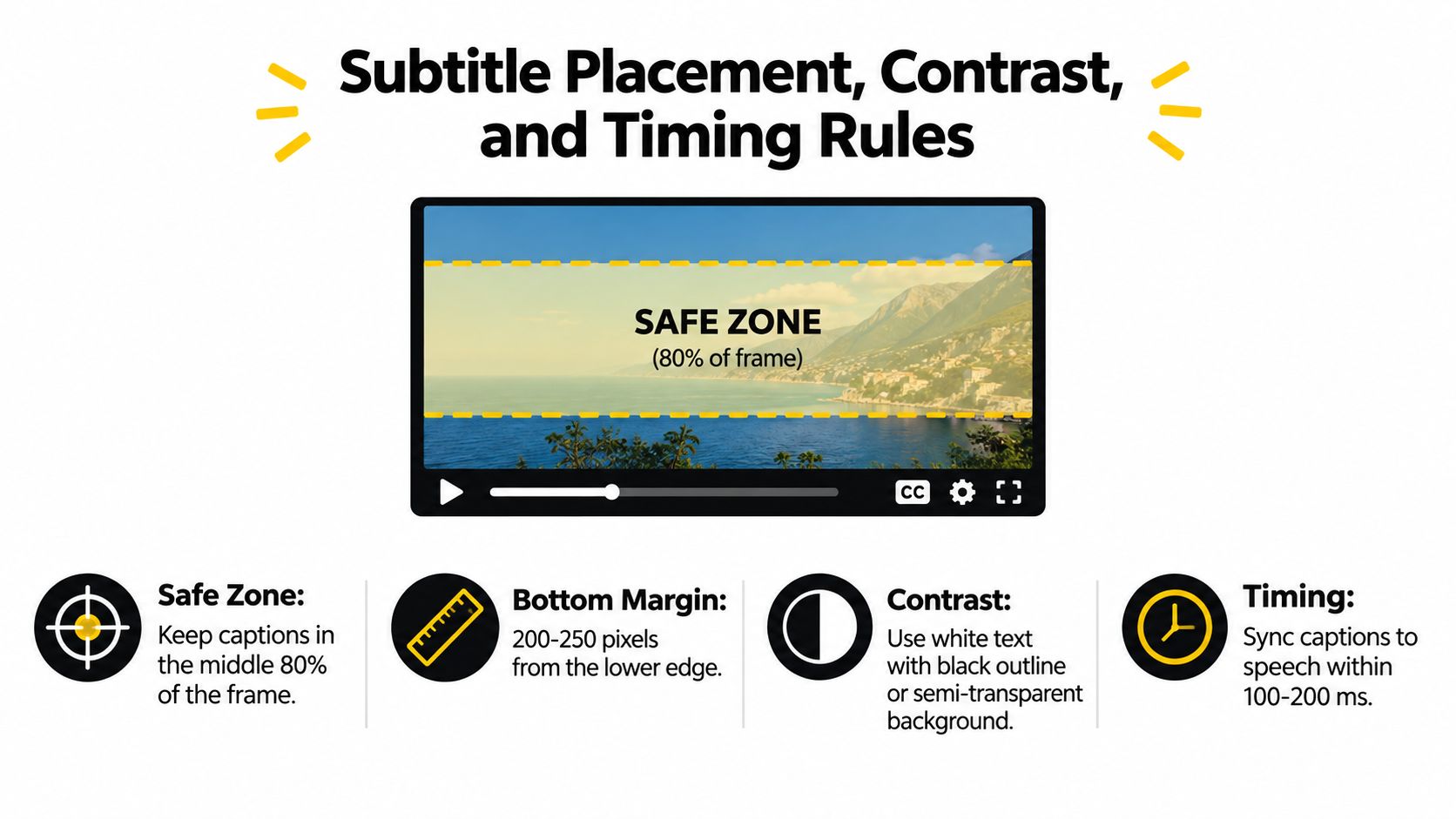
Keep captions in a safe central-lower area, away from TikTok's persistent interface. A practical starting point is the middle portion of the frame, with a generous bottom margin. Then test the actual export in the TikTok preview, because the visible UI can vary by device, account state, and placement.
Use visual rules that survive mobile viewing
Keep blocks short enough to read without racing. Two lines are usually easier to scan than a dense paragraph, and line breaks should follow natural phrases rather than splitting a noun from its verb or a question from its answer. If the sentence needs more room, divide it across timed blocks instead of shrinking the type until it becomes decoration.
Use high contrast. White text with a dark outline or a restrained dark background works across changing footage. A bold sans serif is generally more dependable than a thin or highly stylized face. For typography choices that account for mobile readability, compare options in this guide to the best font for subtitles.
Synchronize with speech
The caption should appear with the spoken phrase and disappear when the thought ends. Late captions feel disconnected, while early captions can reveal the next point before the speaker reaches it. Don't time subtitles only to cuts or music beats. The audio is the reference.
Before posting, watch once with sound and once with sound muted. With sound on, listen for drift. With sound off, judge whether the text alone carries the intended meaning and whether the eye can keep up. This two-pass test catches failures that a timeline view misses, especially in multilingual clips and accessibility-focused content.
Building a Reusable Subtitle Workflow With SRT Files
For repeat publishing, make the SRT the master text asset. The video editor can use it to create burned-in captions, TikTok can use it as a separate caption track when supported, and the same file can help an editor or translator continue the work without starting from a blank transcript.
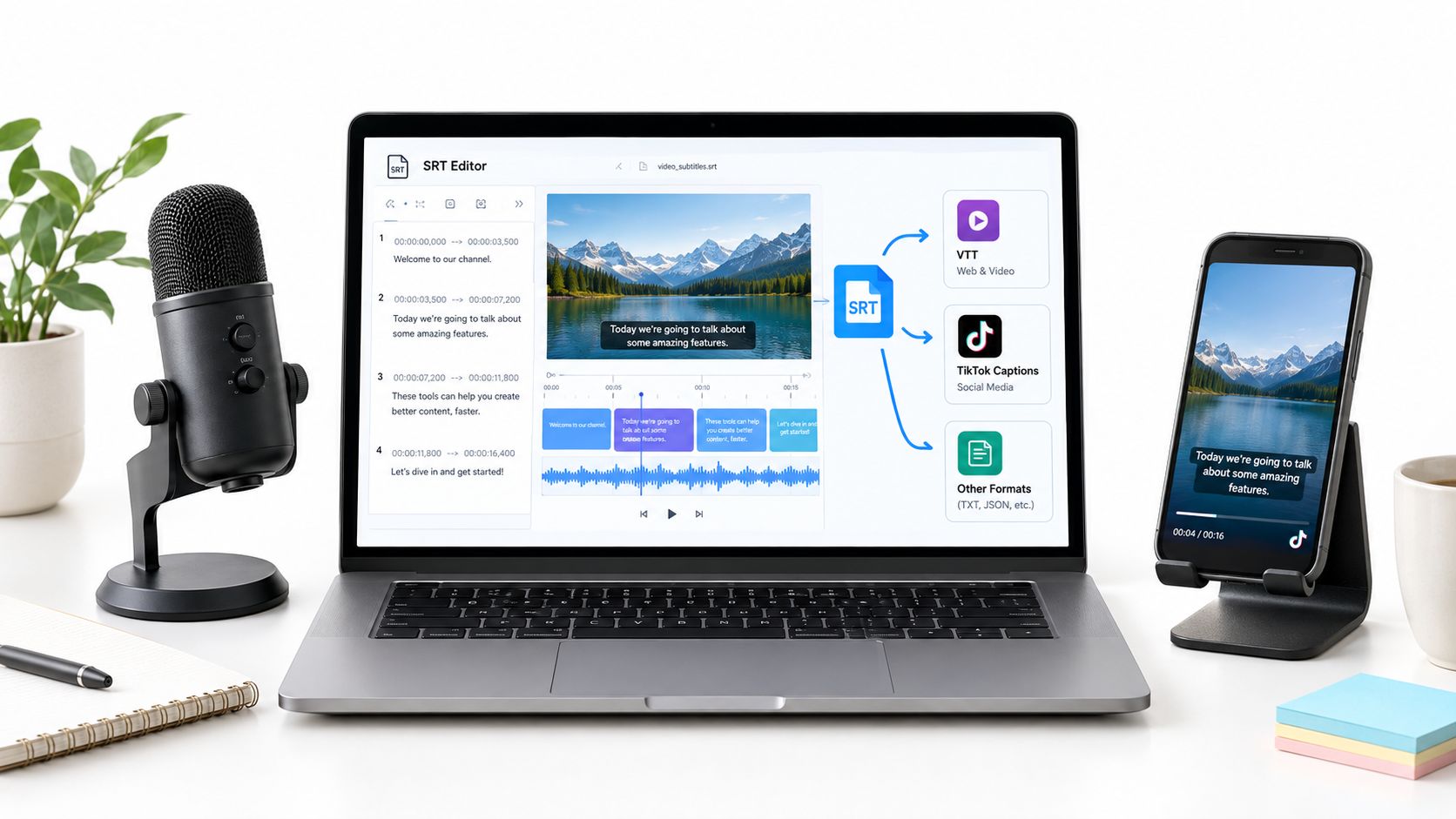
Start with a clear audio source and an automated transcription tool such as Whisper, Captions, Submagic, or VEED. Review the transcript manually, remove unnecessary filler where it improves readability, and standardize names, product spelling, handles, and terminology before exporting.
Format and version the master file
A valid SRT uses sequential numbering, a start and end timestamp in HH:MM:SS,mmm format, the caption text, and a blank line before the next block. Keep each block tied to a complete thought, not an arbitrary cut in the waveform.
A practical production sequence looks like this:
- Transcribe the audio: Generate the first-pass text and timestamps.
- Clean the language: Correct names, slang, numbers, hashtags, and brand terms.
- Check the timing: Play the video while reading each block, then adjust drift.
- Export the SRT: Use a clear filename such as
videoID_lang_v03.srt. - Create platform versions: Import the SRT into CapCut, Premiere Pro, or DaVinci Resolve for burned-in captions, then retain the original file for other uploads.
- Store the source: Keep SRT files in a shared drive or organized workspace so editors and translators can find the current version.
If your workflow runs on Windows, comparing tools that help you find the right Windows transcription tool can reduce the friction between recording and export. The important requirement is editable text with usable timestamps, not a transcript that looks polished but can't be corrected.
A separate SRT file creator can also help when you need to turn a reviewed transcript into a subtitle file without rebuilding the timing format manually.
Use the same master SRT to produce a styled, burned-in version for Reels and Shorts, while keeping the separate caption track available where the platform supports it. That gives you portability without sacrificing editability. For teams, version control matters as much as transcription accuracy. When someone fixes a product term, the corrected file should become the source for every later export.
The workflow is easiest to maintain when the file, video, and language are obvious from the name, and when nobody has to guess which revision is current.

Your Daily Subtitle Checklist Before You Hit Post
A caption can be accurate and still fail on a phone screen. Before each upload, run the same quick review, focusing on errors that change meaning, hide behind interface elements, or make viewers work to follow the video.
Use this sequence:
- Confirm the caption source: Check that TikTok's native auto captions are enabled, or verify that the intended SRT track is uploaded.
- Inspect high-risk words: Review names, slang, brand terms, numbers, hashtags, and the call to action.
- Check the safe area: Keep captions clear of TikTok's buttons, labels, username, and music information.
- Test contrast: Pause on the busiest frame and confirm the text stays readable without zooming.
- Play it twice: Watch once with sound, then mute the video and confirm the captions carry the story at the right pace.
Read captions as viewers see them, not only as a transcript in the editor. A line can be accurate but too brief to read, or remain on screen after the speaker has moved to another idea. Add this review to your broader checklist for social media creators.
Save the final SRT beside the exported video. The file gives the next editor a clean starting point for Reels, Shorts, translations, corrections, and future versions. Subtitles also support viewers who watch without sound and viewers who rely on text for access, so accuracy and readable timing serve both everyday viewing and accessibility needs.
ClipCreator.ai generates faceless short-form videos with synchronized subtitles and publishing support. Visit ClipCreator.ai to create captioned videos for TikTok and other platforms without assembling every production step manually.

Create your first video in under 2 minutes
Pick a niche, and ClipCreator.ai generates and auto-posts faceless videos to your channels every day.
Join ClipCreator.ai