You've uploaded a Short, watched it appear in the feed, and then noticed the description field barely seems to matter. Most viewers won't open it, so why spend time writing one?
Because the visible opening and the expanded text serve different jobs. The first line helps people understand the topic quickly, while the rest can add context, relevant links, hashtags, and a clear next step. If you know how to add description to YouTube Shorts, you can turn a neglected upload field into useful metadata without writing a mini blog post under every video.
Why YouTube Shorts Descriptions Still Matter
Shorts descriptions are easy to overlook because the viewing experience is fast and mobile-first. Viewers usually swipe before reading much text, and YouTube often hides most of the description behind an expansion action. That doesn't make the field irrelevant. It means you need to write for the part viewers see first, then use the remaining space selectively.
YouTube described Shorts as short, catchy videos built for mobile viewing when it announced the format's global launch in July 2021, following an earlier beta rollout in 26 countries. The creation tools had first launched in September 2020, and by October 2021, the average number of daily first-time creators had more than doubled compared with September 2020, as reported in YouTube's global Shorts announcement. That progression changed the metadata problem. Shorts moved from an experiment into a publishing channel used by creators in major markets.
Metadata gives the video context
A description helps YouTube connect your Short with its subject, language, audience, and related searches. It won't rescue a weak opening or unclear video, but it can reinforce what the content is about.
Use the description to answer three questions quickly:
- What is this Short about? State the topic in natural language.
- Who is it for? Add a useful qualifier, such as beginner, student, home cook, or small-business owner.
- What should happen next? Invite viewers to watch a related video, subscribe, or visit a relevant page.
Practical rule: Write the first sentence for a distracted mobile viewer, not for an algorithm reading a keyword list.
Descriptions also support discovery outside the Shorts feed. A Short can appear on your channel page, in search, through suggested content, or when someone shares the video elsewhere. For creators building a broader channel business, descriptions can complement decisions about monetization and publishing, including the strategies discussed in this guide to YouTube Shorts revenue.
Your visual presentation still matters. Strong titles, frames, and channel branding work alongside text metadata, so creators developing a complete channel identity may also find this 2026 guide to YouTube visuals useful. The description shouldn't repeat everything on screen. It should clarify the topic and support the next action.
Adding and Editing Descriptions on Mobile and Desktop
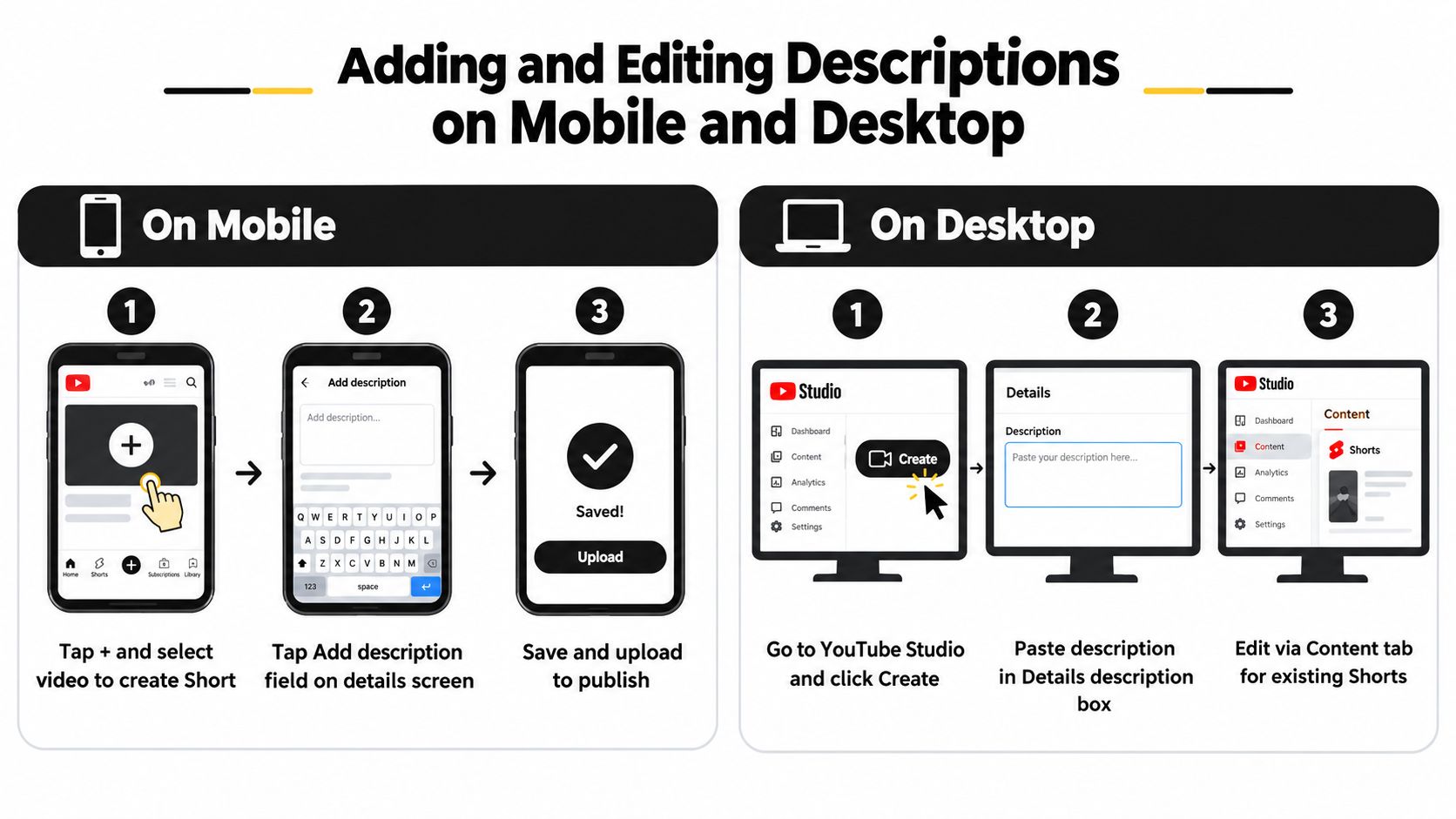
The exact buttons can change slightly as YouTube updates its interface, but the underlying action stays consistent: open the Short, find the edit screen, enter text in the Description field, and save.
On mobile
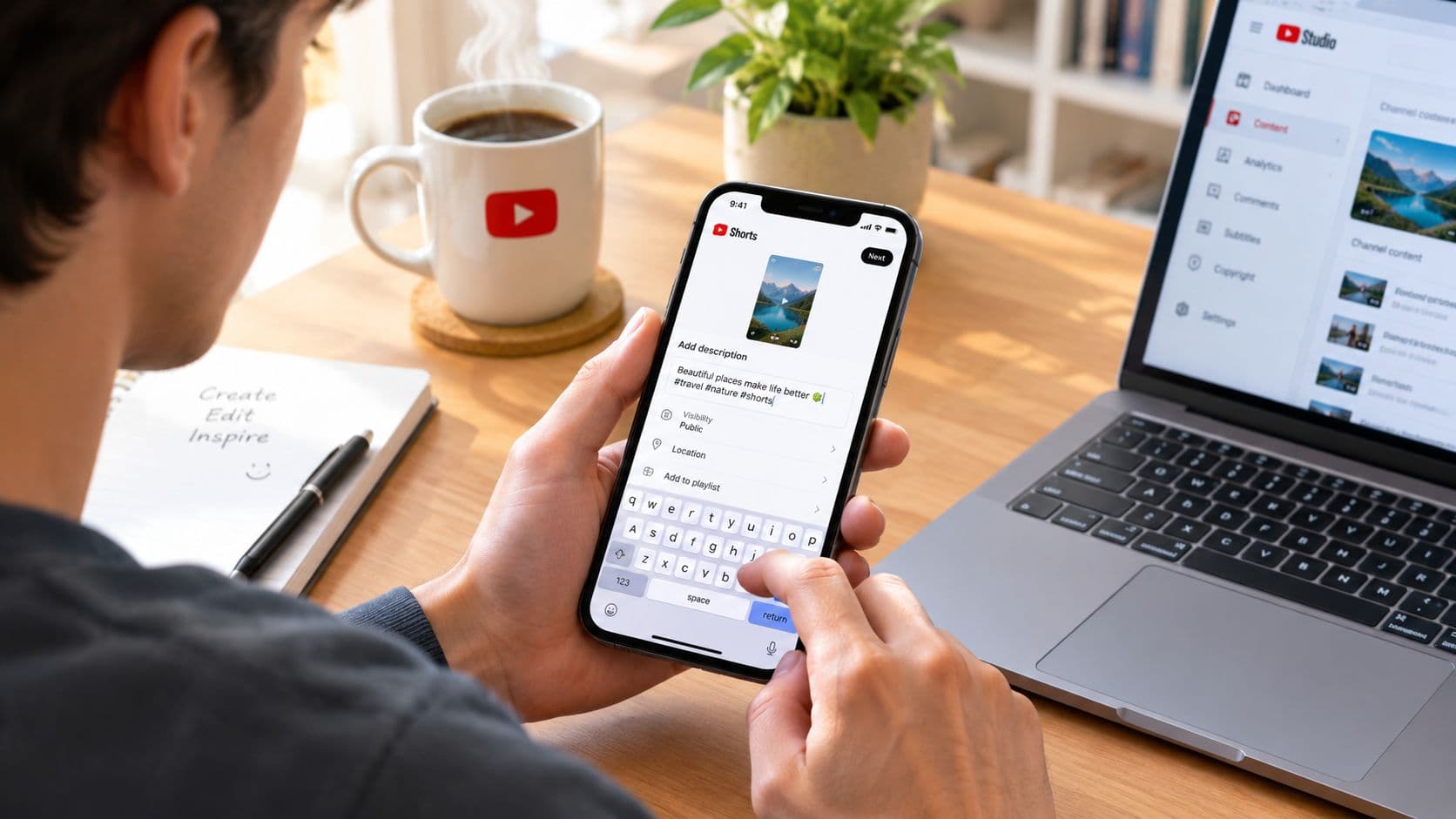
For a new Short, open the YouTube app and tap the Create button, usually shown as a plus sign. Select or record your vertical video, continue to the details screen, and enter your text in the Add description field before publishing.
For an existing Short, open your profile or content area, locate the video, tap the menu or edit control, and open its details. Update the description, then save the change. The practical workflow is documented in this guide to adding or editing YouTube Shorts descriptions.
On desktop
YouTube Studio gives you a more comfortable editing environment. Open Studio, select Content, locate the Short, and open its details page. Enter or revise the description, then click Save.
The desktop path is particularly useful when you're cleaning up an older Shorts library. Keep a simple spreadsheet with the video title, target phrase, description status, and destination link. That makes it easier to spot missing metadata without rewriting descriptions randomly.
Save before leaving the screen. A description can look complete in the editor and still be lost if you navigate away without confirming the change.
If you're uploading from a computer, the broader publishing workflow also includes selecting the video, adding title and visibility settings, checking audience details, and publishing through Studio. The related guide to posting a video on YouTube can help if you're managing the full upload rather than editing text on an existing Short.
Before publishing, open the Short as a viewer would. Check that the first sentence makes sense without extra context, the link is correct if you've added one, and hashtags haven't pushed the useful information too far down.
Character Limits and the Critical First 125 Characters
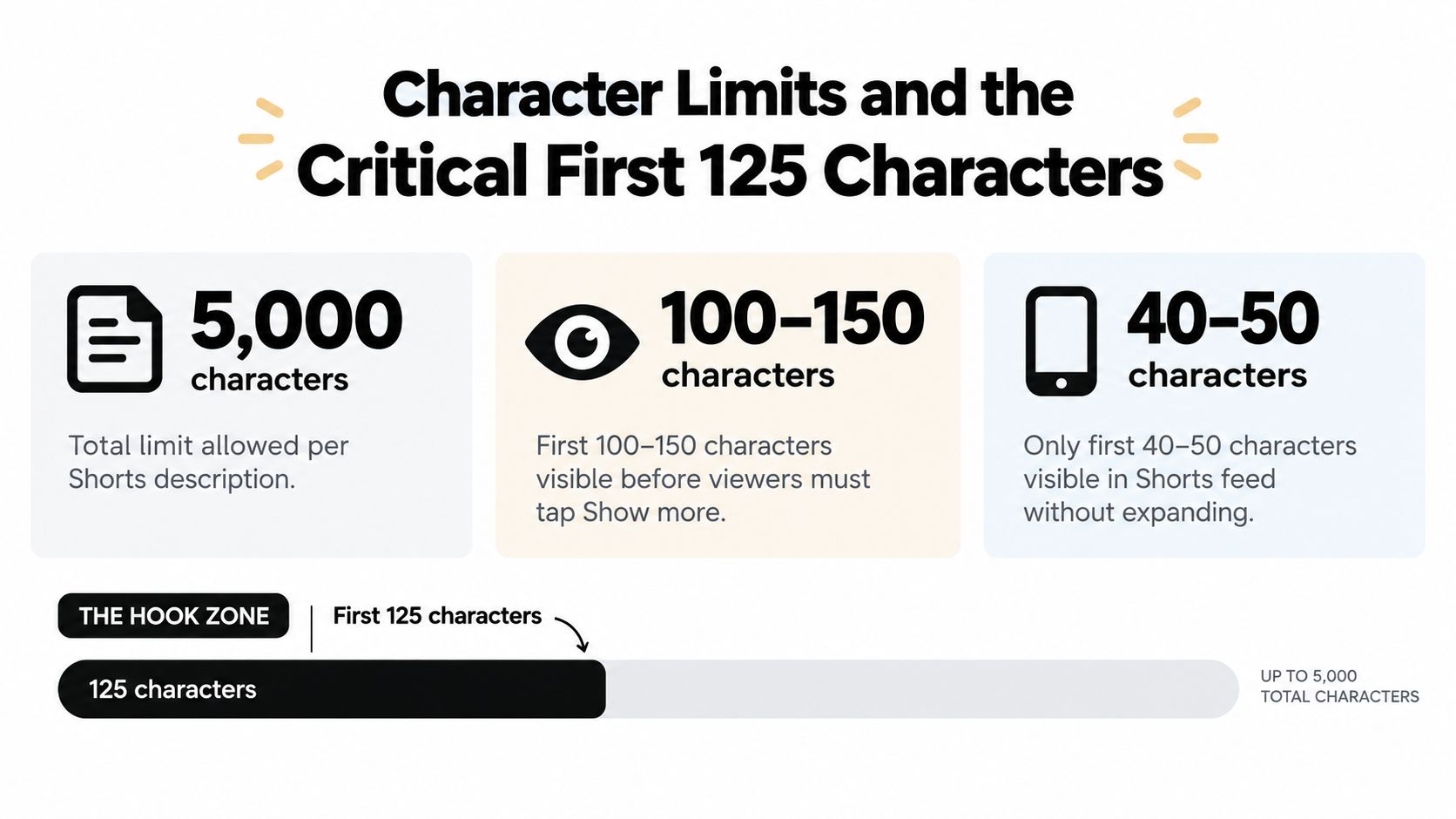
YouTube allows up to 5,000 characters in a Shorts description, according to practitioner guidance on YouTube Shorts metadata and discoverability. That limit is a ceiling, not a target.
In practice, viewers encounter the description in layers. Feed-like views expose only a short opening, while a viewer who taps to expand can read more. Search and channel-page layouts may also display text differently, so a description that works in the expanded panel may still fail if its first sentence is vague.
Treat the opening as the hook zone
Practitioner recommendations place the primary keyword within the first 125 characters, because that opening can appear in preview snippets. A useful first line contains the topic and the viewer's likely intent:
- “Easy sourdough discard pancakes for a quick weekend breakfast.”
- “A beginner-friendly explanation of compound interest.”
- “Three desk stretches for people who work at a computer.”
These examples identify the subject immediately. They don't begin with “Welcome back,” a long brand slogan, or a string of hashtags.
The first 100 to 150 characters deserve the most attention because viewers may need to tap before seeing the rest. Write the opening first, then decide whether the Short needs supporting details below it. For more general guidance on concise, click-focused openings, review how to craft winning meta descriptions with Keyword Kick, then adapt the principle to a video audience.
Use the expanded space with purpose
The rest of the description can hold a short explanation, a related resource, disclosure language, or a destination link. It should add information rather than repeat the spoken script word for word.
A practical structure looks like this:
- Opening line: Topic plus primary keyword.
- Supporting sentence: Clarify the benefit, method, or audience.
- Action: Invite a relevant next step.
- Optional extras: Link, disclosure, or limited hashtags.
The right length depends on the goal. If the Short exists mainly to attract viewers through the feed, the opening may do most of the work. If it introduces a tutorial, product, newsletter, or longer video, the expanded description earns its place by answering questions the Short couldn't cover.
Best Practices for Keywords, Hashtags, and Calls to Action
A good Shorts description sounds like a useful caption, not a database of search terms. Start with the phrase that accurately describes the video, then add closely related language only when it improves clarity.
Choose one primary keyword
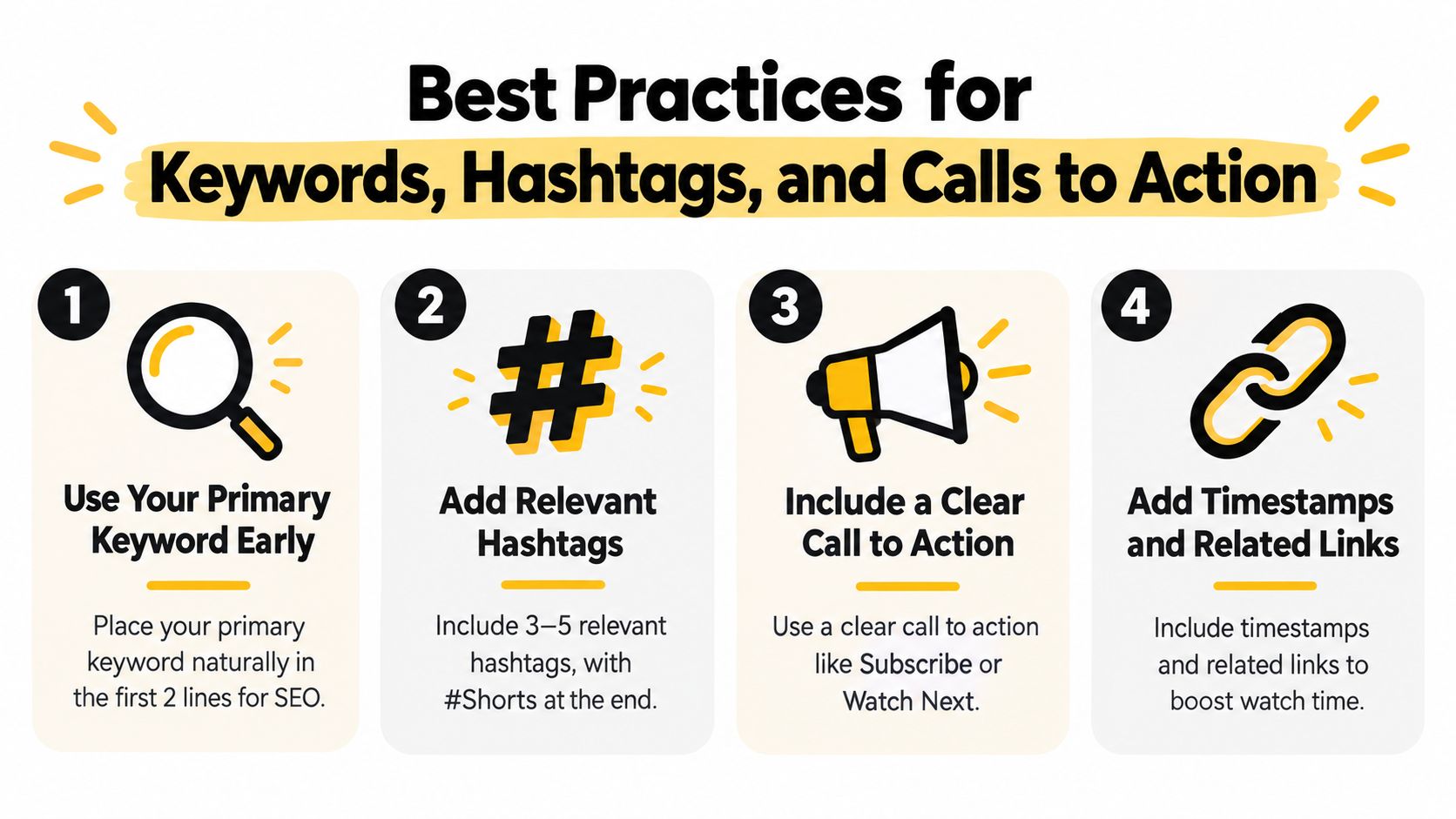
Your primary keyword should match both the video and the way a viewer might search. If the Short demonstrates a beginner recipe, “easy weeknight pasta” is more useful than a broad phrase such as “food video.” Put the phrase naturally in the first sentence, then use a secondary variation only if it fits.
Keyword stuffing works against readability. A line such as “YouTube Shorts description, YouTube Shorts SEO, Shorts description tips, YouTube Shorts keywords” tells the viewer very little and makes the content look manufactured.
Write for search intent, then read it aloud. If the sentence sounds unnatural when spoken, revise it before publishing.
Keep hashtags subordinate
Hashtags can help classify a Short, but they shouldn't replace a clear description. Put relevant tags after the useful copy, and avoid adding unrelated trending labels because they're popular. A cooking Short should use cooking-related tags, while a study tip should use education or study-related tags.
The question of whether hashtags produce meaningful distribution is more nuanced than many captions suggest. For a focused explanation of their role, see this guide to whether hashtags work on YouTube. The practical takeaway is simple: use a small, relevant set and protect the opening sentence.
Match the CTA to the video
A call to action works best when it follows naturally from the viewer's interest:
- For a series: “Subscribe for the next budgeting lesson.”
- For a longer tutorial: “Watch the full setup guide on the channel.”
- For a product: “See the full feature list through the link below.”
- For discussion: “Comment with the technique you want tested next.”
Don't ask viewers to subscribe, comment, share, click, and watch another video in the same breath. Choose the action that supports the Short's immediate purpose. If you add a URL, place it after the topic explanation so the description remains understandable even when the link is ignored.
Lean Descriptions Versus Long Descriptions
A lean description and a long description aren't competing rules. They're tools for different publishing goals.
A lean version works when the Short's main job is fast discovery. It identifies the topic, adds a little context, and gets out of the way. This is a sensible choice for a reaction, trend, visual joke, quick fact, or short demonstration where the video carries nearly all the meaning.
Use the shortest description that gives the viewer enough context to classify the video correctly.
A lean description might read:
Easy desk stretches for stiff shoulders. Try these movements during your next work break. #DeskStretch #Mobility
The wording is clear, the topic appears immediately, and the hashtags don't dominate the preview. There's no reason to fill unused space just because YouTube permits it.
When longer copy earns its place
A longer description makes more sense when the Short supports a broader conversion or education path. Evergreen tutorials, product explainers, affiliate content, lessons, and channel series often need room for a second layer of information.
That might include:
- A concise explanation of what the viewer is learning.
- A link to a full tutorial, product page, or signup page.
- Disclosure language for affiliate or sponsored content.
- A related video recommendation.
- Important usage or safety context when the subject requires it.
The tradeoff is visibility. Most viewers won't see the lower portion unless they expand the description, and a long introduction can bury the key phrase. Put the topic and value proposition first, then add conversion details below.
Make the goal decide the format
| Primary goal | Description approach | What to prioritize |
|---|---|---|
| Feed discovery | Lean | Topic, intent, natural keyword |
| Channel organization | Moderate | Topic plus series or audience context |
| External traffic | Expanded | Opening clarity, destination link, next step |
| Evergreen education | Expanded | Explanation, related resources, useful context |
Descriptions can support links, but don't assume every viewer will click. Independent coverage discusses possible click-through from full URLs in descriptions and recommends testing links alongside pinned comments and tagged URLs, as outlined in this YouTube Shorts link strategy. Treat that as a measurement question. Compare destination visits and downstream actions against the Short's actual purpose instead of adding links automatically.
Your Shorts Description Checklist
Use this checklist before publishing a new Short or revising an older one:
- Identify the subject: Can a viewer understand the topic from the first sentence?
- Lead with intent: Put the primary keyword near the beginning, without forcing it.
- Write for mobile: Remove greetings, filler, and brand copy from the preview opening.
- Add useful context: Explain the audience, result, or next step in a supporting sentence.
- Choose the format: Keep discovery-focused Shorts lean; expand descriptions when education or conversion needs more detail.
- Review hashtags: Use only tags that accurately describe the video, and place them after the main copy.
- Use one CTA: Ask for the action that best matches the Short's goal.
- Check links: Open every destination link and confirm that tracking or disclosure text is accurate.
- Edit existing uploads: Improve unclear openings instead of rewriting every description from scratch.
- Read it as a stranger: If the wording only makes sense because you already know the video, rewrite it.
The most common mistake is treating the description as either useless or a place to paste everything. The stronger approach is layered: make the first line useful on its own, then earn the expanded space with information that supports the viewer's next decision.
Start by updating a small group of existing Shorts. Rewrite only the opening sentence, remove irrelevant hashtags, and add a focused CTA where one is missing. After that, compare how viewers respond to the content and destination actions, then apply the pattern to future uploads.
ClipCreator.ai helps you produce short, faceless videos with AI-written scripts, story-aligned visuals, voiceovers, and subtitles, then publish them to platforms such as YouTube. If you want a more consistent Shorts workflow before optimizing each description, visit ClipCreator.ai and explore its creation and publishing tools.

Create your first video in under 2 minutes
Pick a niche, and ClipCreator.ai generates and auto-posts faceless videos to your channels every day.
Join ClipCreator.ai