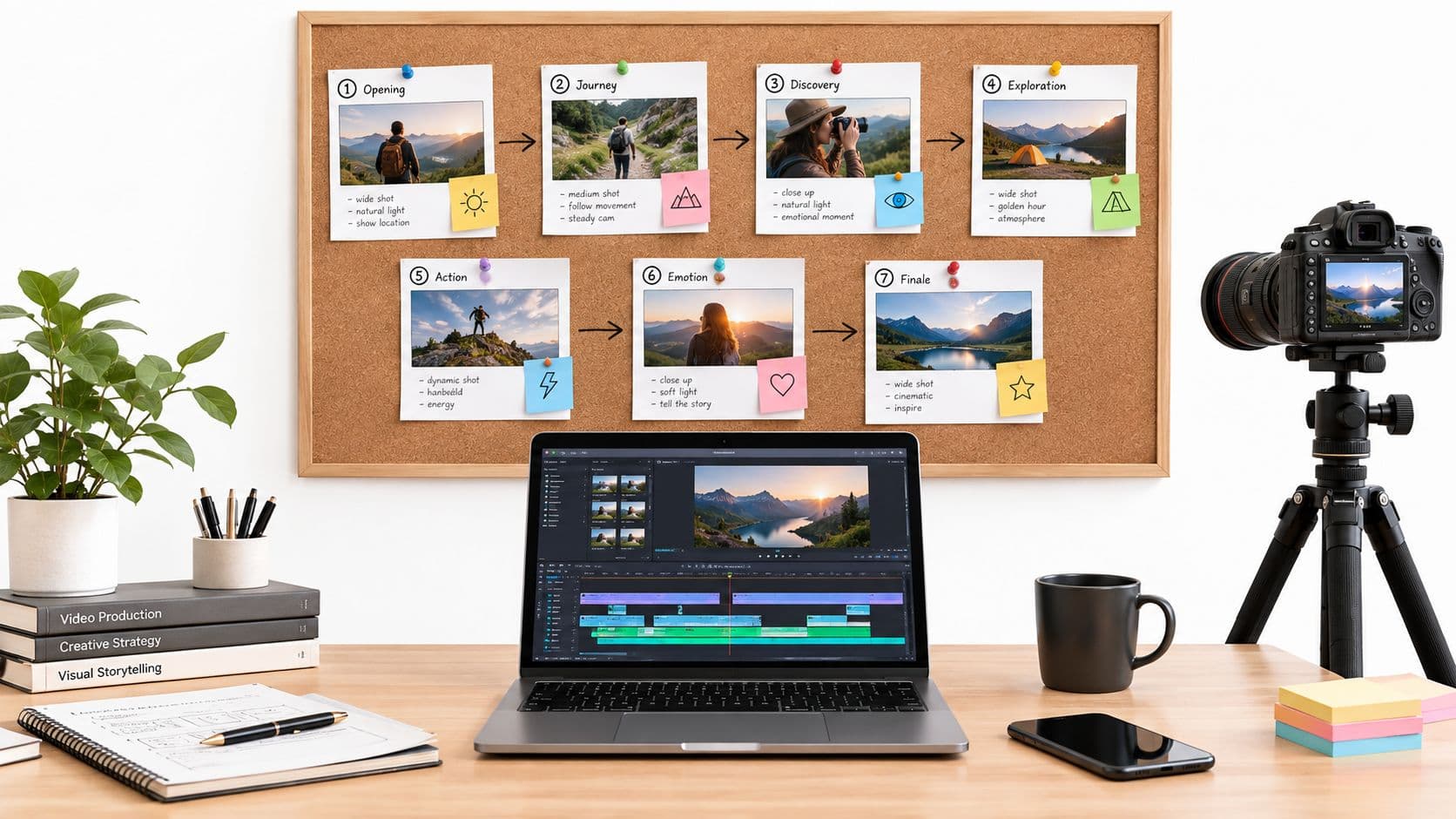
Most creators don't have a tool problem. They have a handoff problem. Scripts live in one app, voiceovers in another, captions break on export, the scheduler strips formatting, and by the time the post goes live you've spent more time moving assets than making content.
That's why this roundup looks at creator economy tools as a working stack, not a pile of unrelated apps. The useful question isn't whether a tool has AI. It's where it fits, what manual work it replaces, what still needs review, and whether it reduces or adds operational drag. That's especially relevant now that creator tooling has become a real market category, with one 2026 estimate putting the creator tools market at 698.92 million in 2026, projected to reach 1.72 billion by 2035.
If you're trying to publish consistently, the practical setup usually spans six jobs: automated faceless production, editing, repurposing, voice, design and scheduling, analytics, and monetization. The trick is keeping that stack lean enough that it still ships. If you also manage outreach, content ops, or client deliverables, creator marketing automation starts to matter as much as the content itself.
1. ClipCreator.ai
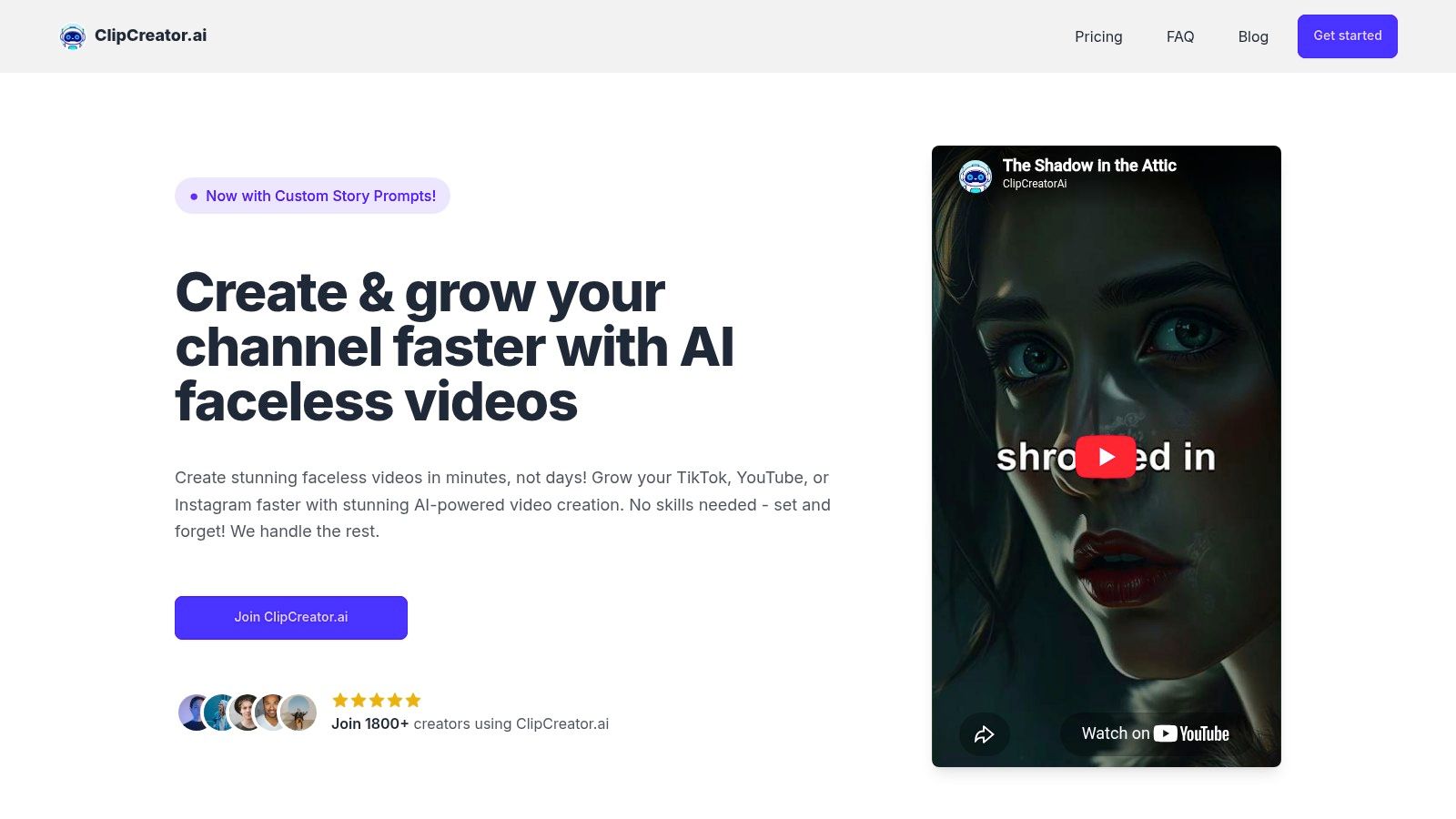
ClipCreator.ai works best when your bottleneck is volume. Not polishing one hero video. Shipping faceless short-form content repeatedly without rebuilding the workflow every day.
It handles the full chain for videos up to 90 seconds: script generation, story-matched visuals, voiceover, subtitles, HD output, scheduling, and auto-posting for TikTok and YouTube. If your current process involves writing in one app, generating visuals in another, adding captions in a third, and then uploading manually, this replaces most of that stack with one production route.
Where it fits in the workflow
This is the cleanest option for creators making faceless stories, explainers, themed micro-content, educational shorts, and agency-style output where consistency matters more than custom timeline editing. It also suits operators who don't want to become editors just to maintain a posting cadence.
The pricing is straightforward by output level:
- Starter plan: $19/month for 3 posts per week.
- Daily plan: $39/month for daily posting.
- Pro plan: $69/month for up to twice-daily posting.
- Ownership and cancellation: Users keep full ownership of created videos and can cancel anytime.
The strongest part of the product is the handoff reduction. You can start from proven templates or custom prompts, generate the full video, review the output, and publish without exporting assets across multiple tools.
Practical rule: Use ClipCreator.ai as your primary production engine only if you're comfortable with template-led creation and light final edits. If you want frame-level control, keep a secondary editor in the stack.
What it replaces and what it doesn't
ClipCreator.ai replaces several separate jobs at once:
- Script drafting: It removes the blank-page step for recurring short videos.
- Asset assembly: It builds visuals, narration, and subtitles into one output.
- Basic distribution: It schedules and auto-posts natively to supported channels.
- Repeatable production: It gives solo creators and teams a set-and-repeat workflow.
Its limits are just as important. Editing is light. You can adjust titles and captions, but this isn't a deep timeline editor for custom motion design, layered audio, or scene-by-scene surgical cuts. Auto-posting is also native to TikTok and YouTube, while other platforms may still require manual posting from the downloaded file.
Refund terms are also narrow by design. The promise applies if your first two videos don't meet expectations and you request it within 7 days.
ClipCreator.ai makes the most sense when you want one tool to own the faceless production lane. That's increasingly aligned with broader creator behavior. In Adobe's global survey of more than 16,000 creators, 86% said they actively use creative generative AI tools and 89% said they used more than one tool in the last three months. The practical takeaway isn't just that AI use is high. It's that most creators are already stitching tools together. ClipCreator.ai is valuable because it collapses several of those steps into one.
2. Descript
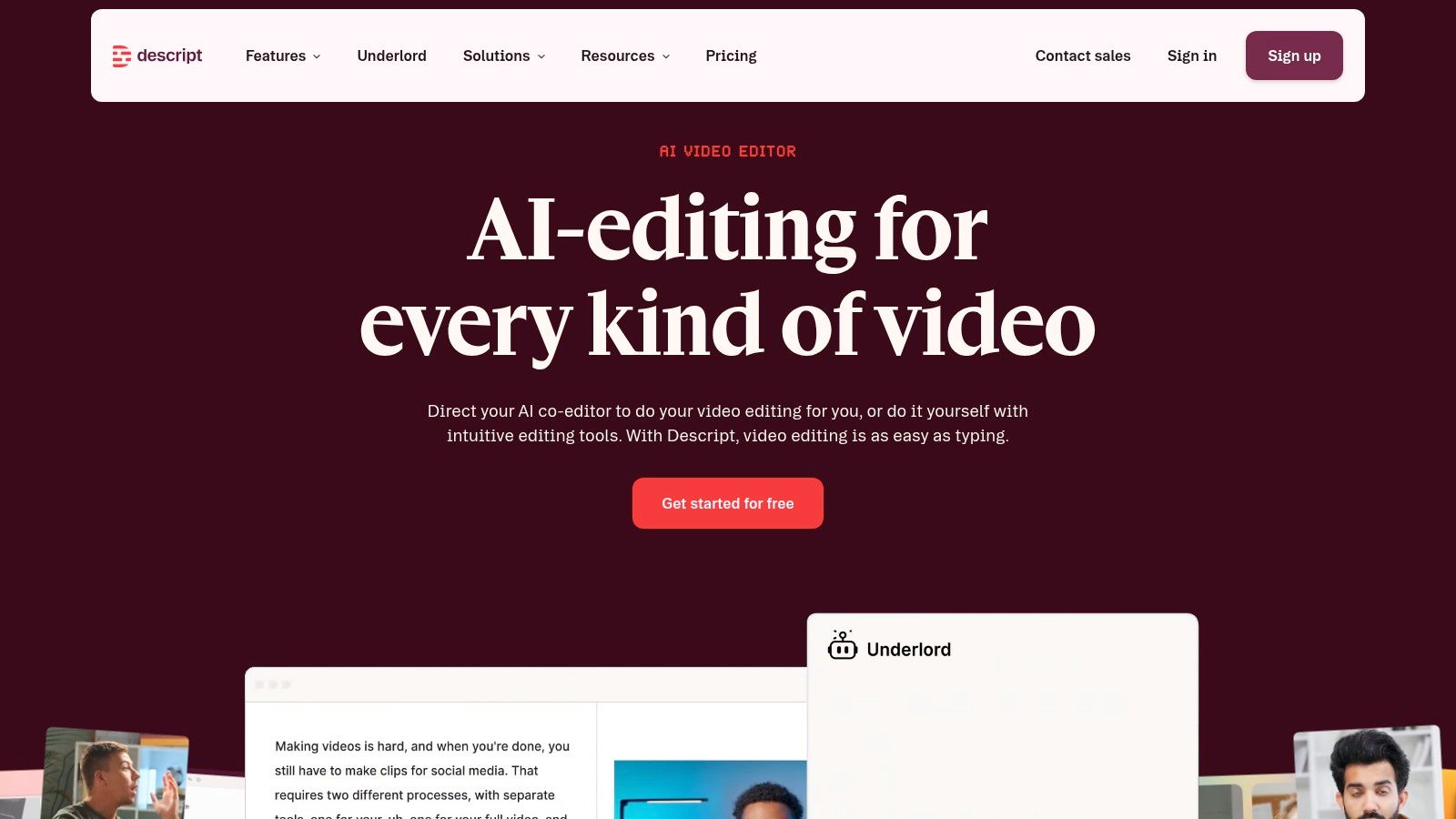
Descript is the tool I reach for when the draft is structurally right but messy. The core advantage is edit-by-text. If your videos depend on spoken narration, interviews, tutorials, or voiceover-led explainers, transcript editing is faster than hunting waveforms on a timeline.
That makes it a strong second-stage tool after generation. A ClipCreator.ai draft can become your first pass. Descript becomes the cleanup room where you tighten pacing, remove filler, fix pauses, and package the final version for distribution or handoff to a heavier editor.
Best use case
Descript shines in workflows where speed matters more than cinematic complexity. It handles script writing, recording, caption generation, basic visual editing, and audio cleanup in one place. Studio Sound is useful when the recording quality is close but not quite there, especially for podcast clips, webcam segments, and quick VO updates.
A few trade-offs matter:
- Credit awareness: Some AI features and media limits are usage-based, so heavy output can push you into higher tiers.
- Manual review: Filler-word removal isn't something I'd trust blindly on every project. Edge cases still need a human pass.
- Export flexibility: Timeline exports to Premiere, Final Cut, or DAWs make it a good bridge tool, not just a destination tool.
Good Descript workflows start with rough clarity, not perfect footage. If the message is there, Descript helps clean the rest.
Where it doesn't fit is highly visual editing. If your content depends on layered B-roll timing, custom animation, or detailed beat cuts, you'll hit the ceiling quickly. For spoken short-form, though, it's one of the fastest ways to turn an almost-finished piece into a publishable asset.
Use it with ClipCreator.ai when you want automated faceless production first, then transcript-led polish before posting.
For the official product and current plan details, visit Descript.
3. CapCut

A common workflow looks like this: ClipCreator.ai generates the faceless draft, Descript cleans the voice track or trims the script, and CapCut handles the version you post.
That handoff matters because CapCut works best near the end of the chain. It is strong at packaging. Hook text, kinetic captions, meme-style overlays, beat-synced cuts, vertical reframing, and trend-native visual treatment are all faster here than in heavier editors. For creators publishing to TikTok, Shorts, and Reels on a tight schedule, that speed is the reason it stays in the stack.
CapCut also replaces a surprising amount of manual polish work that used to happen in Premiere or mobile editing apps. A rough asset can become platform-ready quickly, especially if the core message and timing are already set. If you want the trade-off between speed editing and a traditional timeline editor spelled out, ClipCreator covers it well in this CapCut vs Premiere Pro comparison.
Where teams get tripped up is consistency. CapCut's feature set can vary by device, region, and subscription tier, and some templates, effects, stock assets, or AI tools sit behind separate limits or commercial-use terms. That means the same workflow may behave differently across a phone, desktop app, and browser session. For client work, paid content, or anything tied to licensing risk, review the asset terms inside the project before exporting.
Manual review still matters here.
Auto-captions miss names, niche terminology, and pacing cues. Auto-beat edits can feel generic. Template-heavy shorts often blend into the feed unless someone adjusts the first second, on-screen hierarchy, and CTA placement for the actual platform. CapCut gets you to a strong draft fast, but it should not be the only quality check in the workflow.
Use CapCut with ClipCreator.ai when the base video is already usable and job is making it feel native to the platform where it will be posted. For direct access to the product, go to CapCut.
4. OpusClip
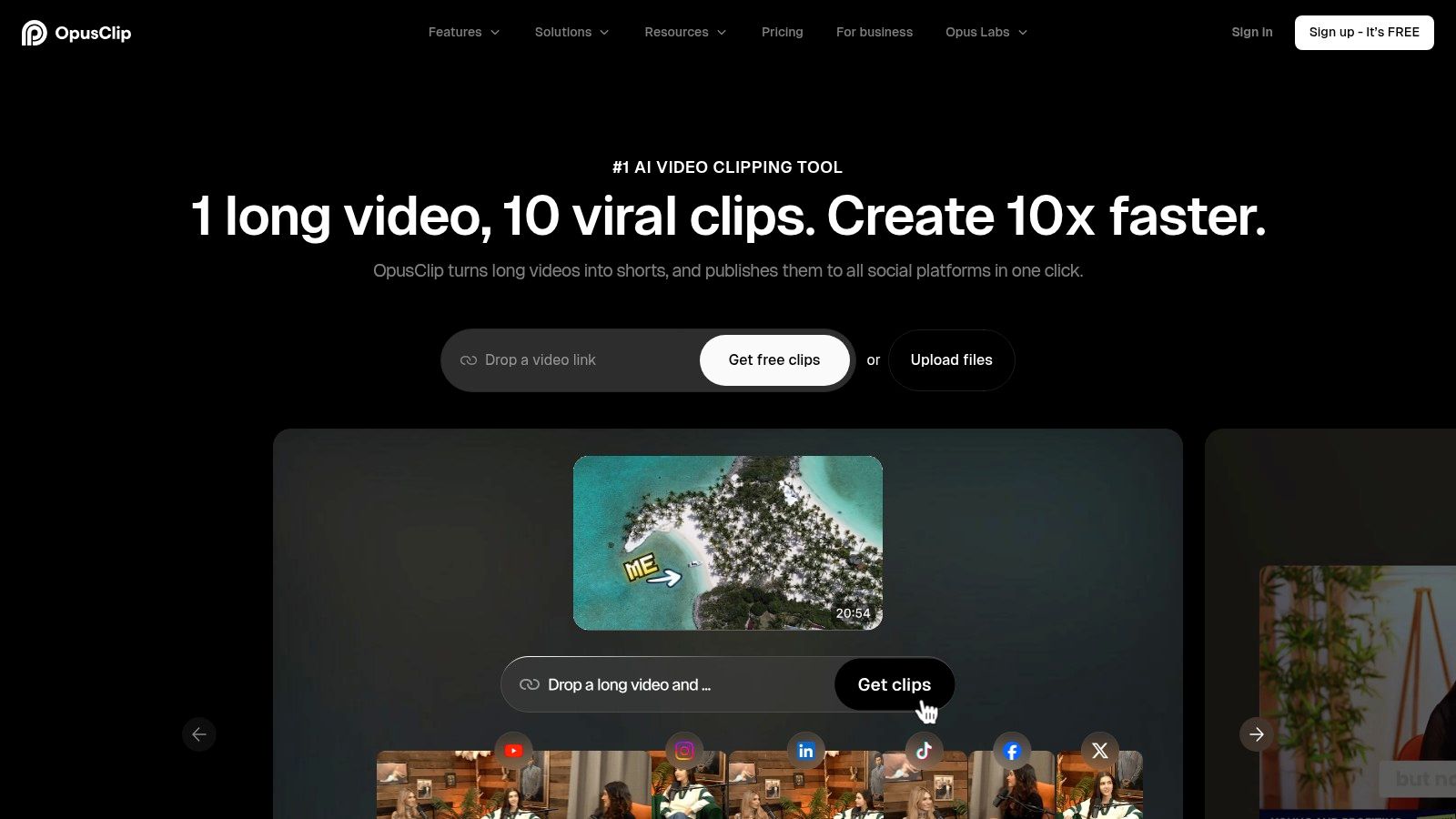
A creator records a 45-minute podcast on Tuesday, needs five usable shorts by Wednesday, and does not want to scrub the entire timeline by hand. OpusClip is built for that job.
Its place in the workflow is clear. ClipCreator.ai handles net-new faceless videos from an idea or prompt. OpusClip starts later, after the long-form asset already exists, and turns that source into short vertical clips for Reels, Shorts, and TikTok. If your publishing system has two lanes, original short-form and repurposed long-form, OpusClip usually sits at the handoff between recording and distribution.
The upside is speed on selection, not just editing. It scans for moments with strong delivery, reframes the speaker, applies captions, and gives you several candidate clips without the usual hour of manual hunting. That can replace a lot of first-pass clipping work for podcast teams, educators, coaches, interview shows, and livestream creators.
It works best when the footage is speech-led and the payoff is verbal.
A clean talking-head episode with distinct beats often clips well. A tutorial that depends on fine screen detail, a product demo with frequent cutaways, or a story that needs slower pacing usually needs another editor after export. OpusClip can identify the moment, but it cannot always preserve the context that made the moment land in the full video.
That trade-off matters if you publish at volume. The tool can increase output fast, but credit limits and processing costs become part of the operating model once you run long recordings through it every week. Teams should also check how aggressive the auto-cropping and caption styling feels on each platform. A clip that looks acceptable as a draft can still need manual fixes to hook text, speaker framing, terminology, and CTA timing before it is ready to post.
One practical way to use it is this sequence: record the long-form episode, send the source to OpusClip for candidate shorts, pick the clips that match current content goals, then pass the approved exports into your publishing stack. In that setup, ClipCreator.ai fills the gaps between repurposed posts by generating original faceless videos, instead of forcing the long-form team to supply every asset.
For creators who already have a backlog of webinars, interviews, or podcasts, that division of labor makes sense. OpusClip handles extraction. ClipCreator.ai handles creation. Explore the product at OpusClip.
5. ElevenLabs
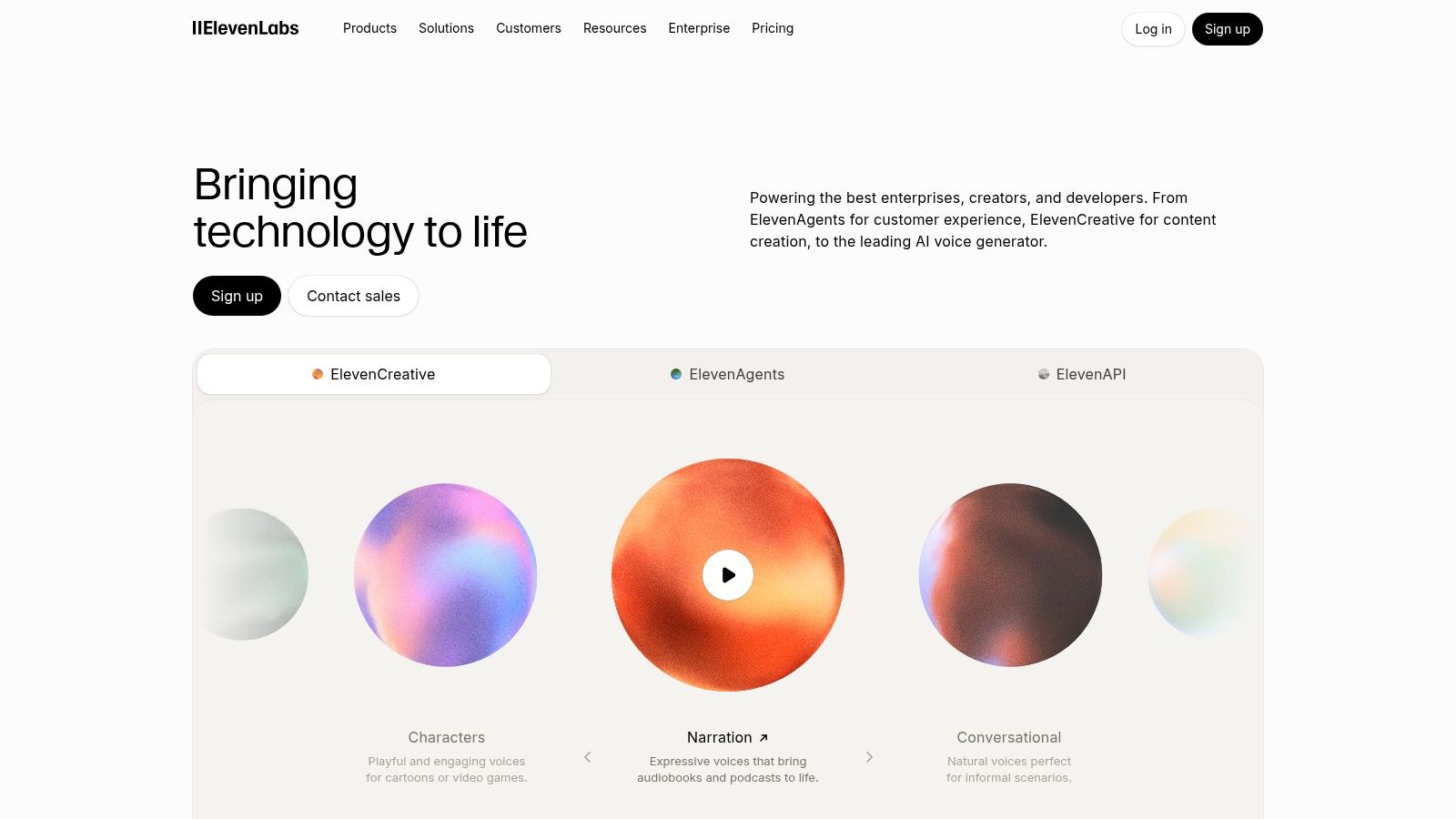
A common faceless workflow breaks at the narration step. The script is ready, the visuals are assembled, and the default voice still makes the video sound generic. ElevenLabs fits at that handoff point.
It is a voice layer for creators who already know what the video needs to say and now need delivery that sounds closer to a real narrator. That matters most in formats where pacing carries the whole piece. Story recaps, explainers, commentary, and multilingual versions usually benefit more than fast meme edits or heavily caption-driven clips.
I would not add another voice tool just because it sounds impressive. Add it if the built-in narration in your current stack is limiting output quality, or if recording every script manually is slowing production. In a connected workflow, the sequence is simple: generate or write the script, produce the faceless draft in ClipCreator.ai, replace the default narration when the channel needs a more specific tone, then do a final human pass before publishing.
Manual review stays necessary. Synthetic voices still misread names, flatten emphasis, and miss context in ways that are easy to overlook until the export is live. The more natural the voice gets, the easier it is to miss subtle tone problems.
A few trade-offs matter in practice:
- Longer scripts and multi-language versions can burn through credits fast.
- Voice cloning raises consent, licensing, and policy questions that need a clear internal rule before anyone uses it commercially.
- API access is useful for scaled workflows, but it adds setup work and quality control overhead.
- Some creators will still prefer a real recorded voice for trust-heavy content, especially if the brand depends on personality.
If you're weighing alternatives, this guide to best text-to-speech software is a useful comparison. For the product itself, visit ElevenLabs.
6. Canva
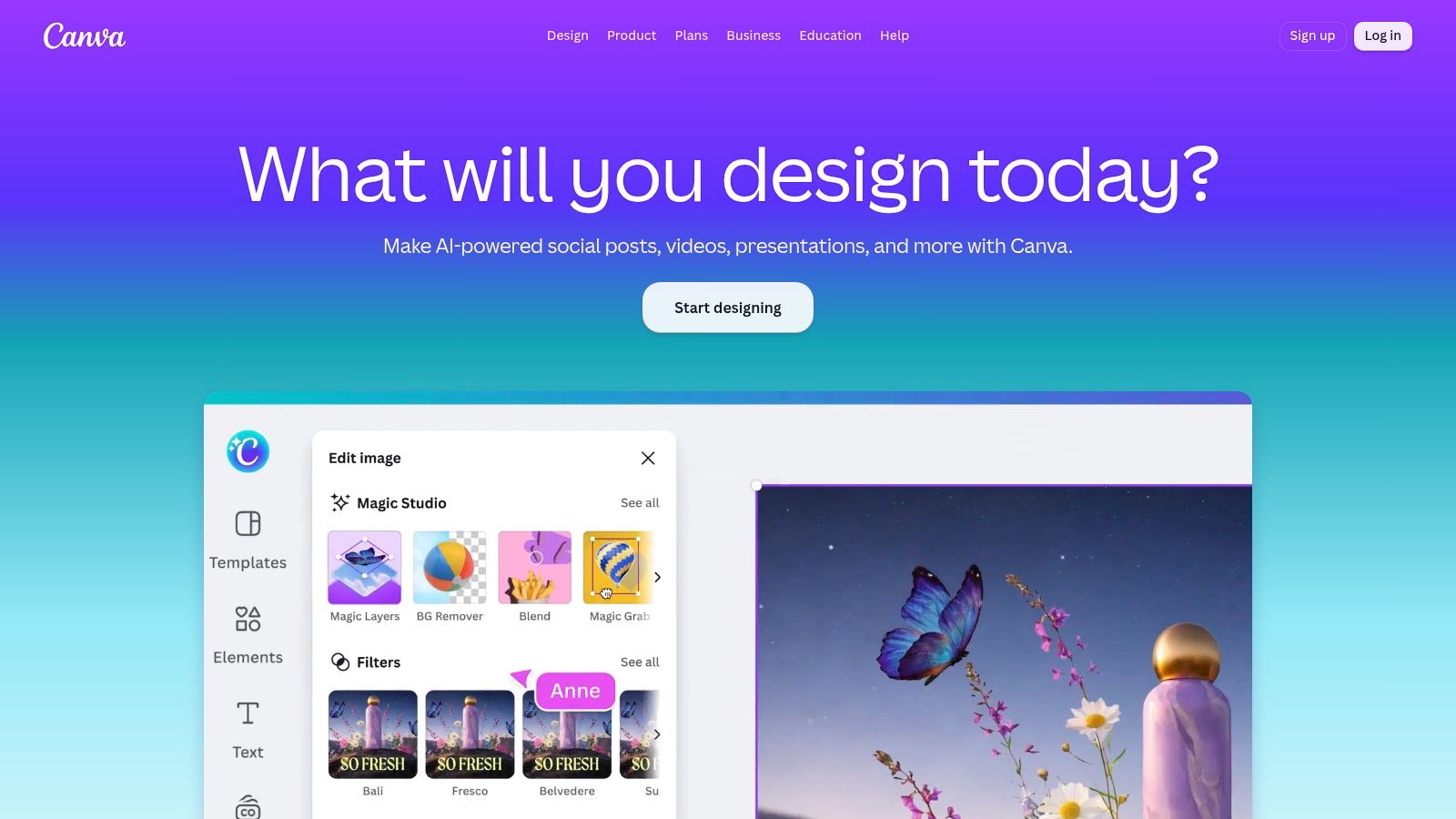
A common handoff looks like this. ClipCreator.ai produces the first faceless video draft. The next job is not more editing. It is packaging. Build the YouTube thumbnail and a 1080x1920 promo card in Canva with the same Brand Kit, export both, then queue them in Canva's Content Planner or send them to whoever handles scheduling.
That is where Canva earns its place in a creator workflow. It keeps the visual layer consistent after the video is already made. For solo creators, that usually means faster thumbnail production and fewer last-minute design decisions. For small teams, it means reusable templates, shared folders, and fewer Slack messages about fonts, colors, and logo versions.
I use Canva for the assets around the content more than the content itself: thumbnails, title cards, channel banners, quote graphics, carousel cutdowns, PDF lead magnets, and simple storyboards. It can handle lightweight video resizing and text overlays, but timing-heavy edits, layered sound work, and detailed caption cleanup still belong in CapCut, Descript, or a full editor.
Two trade-offs matter in practice.
First, Canva is fast because it limits complexity. That is helpful until a creator tries to force advanced editing into it and spends longer fighting the timeline than finishing the asset.
Second, pricing and included features shift. Brand Kits, team permissions, background removal, AI features, stock access, and planner limits can vary by plan and account type, so check the current terms before building a repeatable workflow around one feature.
Canva replaces a lot of one-off design work that would otherwise bounce between Photoshop, PowerPoint, Google Slides, or a freelance designer for every minor asset. It does not replace editorial judgment. Thumbnails still need a human check for clarity, mobile readability, and whether the promise matches the actual video.
For current features and plan details, go directly to Canva.
7. Buffer
A common breakdown happens after the video is finished. The short is exported, the thumbnail is ready, the caption lives in a doc, and then publishing turns into a string of one-off uploads across Instagram, LinkedIn, X, Facebook, and anything else in the mix. That is the point where Buffer earns its place.
I use Buffer as the traffic controller for content that already exists, not as the place where content gets made. In this workflow, ClipCreator.ai can handle draft generation and some direct publishing paths, Canva covers supporting assets, and Buffer takes over when the same campaign needs coordinated scheduling across multiple social accounts with one calendar and one approval flow.
That handoff matters. If a creator posts some content from the production tool, some natively, and some from a scheduler, missed posts and duplicate posts become a real risk.
Buffer fits best for small teams, agencies, and solo creators who have moved past native scheduling but are not ready for a heavier social suite. It replaces scattered posting through platform-native tools, spreadsheets, and reminder-based workflows. It does not replace final judgment on captions, platform formatting, or whether a post should go out at all after a news cycle changes.
A practical setup usually looks like this: generate or edit the video in ClipCreator.ai, Descript, or CapCut, prepare the thumbnail or supporting graphic in Canva, then queue the post in Buffer for the channels that need human-controlled scheduling. That split keeps production fast without forcing every network into the same publishing path.
The trade-offs are straightforward. Pricing often scales by channel, so adding client accounts or brand pages can change the math quickly. Analytics depth and collaboration features also vary by plan, which matters if a team needs approvals, reporting, or role controls. For creators comparing options, ClipCreator's guide to social media scheduling tools for creators and small teams is a useful reference.
Buffer is strongest when the workflow is already defined. Decide which posts go out directly from ClipCreator.ai, which ones need Buffer, and where manual review happens before scheduling. That review step still matters for cropped previews, hashtag choices, link placement, and channel-specific quirks that no scheduler handles perfectly.
For current capabilities and pricing, visit Buffer.
8. vidIQ
A common YouTube bottleneck shows up before editing starts. The script is half-right, the hook is vague, and the title idea sounds like five other videos in the niche. vidIQ earns its place at that point.
In this workflow, vidIQ sits between planning and production. Use it to pressure-test topics, spot search demand, compare angles, and tighten title or thumbnail direction before sending anything into ClipCreator.ai, Descript, or CapCut. That matters because a weak topic usually stays weak, even after good editing.
The practical handoff is simple. Start in vidIQ when the content calendar is still flexible. Pick the topic, phrase the promise, and sanity-check whether the idea fits your channel history and audience behavior. Then move into production with a clearer brief. For faceless YouTube or Shorts teams, that often means using vidIQ to define the angle, ClipCreator.ai to generate the first draft, and an editor to adjust pacing, visuals, and claims before publishing.
It replaces a lot of guesswork. It does not replace judgment.
Some creators use vidIQ as an idea generator and stop there. The better use is editorial filtering. Daily Ideas, keyword tools, competitor tracking, and coaching features can help decide which concepts deserve production time and which ones should stay in the notes app. That is a better fit for creators publishing consistently than for someone posting occasionally.
The trade-offs are pretty clear. vidIQ is strongest on YouTube, so it will not solve discovery strategy across every platform in the stack. Some AI guidance and higher-usage features depend on plan level, which makes pricing less straightforward than a flat utility tool. If the workflow depends heavily on idea volume, competitive research, or coaching prompts, check usage limits closely before committing.
Manual review still matters in three places: title quality, thumbnail truthfulness, and metadata claims. A tool can suggest high-interest framing. It cannot tell you whether the promise is too broad, whether the thumbnail sets the wrong expectation, or whether the final packaging matches the actual video.
Explore the platform at vidIQ.
9. Patreon
A common pattern shows up after the first few months of consistent publishing. Shorts and faceless videos start bringing reach, ClipCreator.ai helps keep draft production moving, editing and repurposing tighten the output, and then the revenue question shifts. Views are inconsistent. Sponsorships are lumpy. A membership layer starts to make more sense.
Patreon fits that stage if the audience wants continuity, not just another download. It works well for creators who can turn public content into a private cadence: weekly breakdowns, research notes, bonus episodes, prompt libraries, member Q&As, early access, or a small community tied to the main channel. That is a different offer from Gumroad, which is usually better for one-time purchases.
The practical test is simple. If every month you can answer "what does a member get next?" without rewriting the pitch, Patreon is a viable add-on to the workflow.
That matters because Patreon adds operational work. Tier design, billing setup, access rules, posting cadence, and moderation all need attention. The platform handles recurring payments and member access well, but it does not define the offer for you. Weak tier structure creates churn fast, especially if the paid layer feels like leftovers from the free feed.
Two decisions usually determine whether Patreon works:
First, choose a benefit you can deliver on your existing production schedule. If the public workflow already includes research, scripting, or unused material, package that. If the membership promise requires a whole second content system, the overhead climbs quickly.
Second, keep the tiers easy to understand. More tiers can raise average order value, but they also create support questions and fulfillment creep. In practice, a small number of clear offers is easier to sustain than a complicated ladder of perks.
Pricing deserves a careful read. Patreon states that creators published after Aug 4, 2025 pay a 10% platform fee on earnings, plus processing and payout fees. That can be reasonable for recurring revenue infrastructure, but the cost depends on price point, member count, geography, and refund volume. Check current terms before launch.
Manual review still matters in three places. Make sure the tier promise matches what you can deliver every month. Audit how much member content feels exclusive. Review licensing before posting bonus assets, templates, clips, or downloads behind the paywall, especially if any part of the content came from third-party media or commercial-use tools.
If you're comparing recurring memberships with other funding routes, this guide to Kickstarter vs Fundl vs Patreon gives a helpful framing.
For current product details, visit Patreon.
10. Gumroad

A common creator workflow ends like this: ClipCreator.ai produces the short-form videos, Descript or CapCut cleans the rough edges, Buffer handles publishing, vidIQ helps identify what topic is gaining traction, and then a viewer asks for the asset behind the post. The fastest way to capture that demand is often a simple product page, not a full storefront rebuild.
That is Gumroad's job.
Gumroad fits creators selling one-off digital products tied to the content they already publish. Good matches include prompt packs, Notion templates, LUTs, swipe files, mini-courses, downloadable checklists, and resource bundles. It replaces the early need for a custom site, heavier ecommerce setup, or a course platform that adds more structure than the offer requires.
The main advantage is speed. A creator can notice that a specific clip format is converting attention into questions, package the underlying resource, and put it on sale quickly. That matters more than advanced design control in the validation stage.
The trade-off shows up later. Gumroad is convenient at low complexity, but fees and platform limits deserve a close read before volume grows. Pricing and fee treatment can vary by sale source, payout setup, geography, and product type. Gumroad also notes that marketplace-driven sales can carry materially higher fees than direct sales on its pricing and product pages. If most buyers come from your own audience, the math usually looks better than if you rely on discovery inside the platform.
A practical way to use it:
Publish a clip that solves a narrow problem. Link one product that extends the same promise. Watch whether viewers buy the asset, ask for a lower-priced version, or reveal that they wanted a service instead of a download.
That handoff is where Gumroad works well in this tool stack. ClipCreator.ai creates top-of-funnel output at volume. Gumroad turns the winning ideas into paid digital products without adding much operational overhead.
Manual review still matters in a few places. Check whether your download includes third-party assets, fonts, stock elements, AI-generated media, or templates with resale restrictions. Review refund expectations before launch, especially for low-ticket impulse buys from short-form traffic. Test the actual checkout flow on mobile, because many sales from TikTok, Reels, and Shorts live or die on how little friction the buyer hits after the click.
Top 10 Creator Economy Tools, Feature Comparison
| Product | Core features | Quality ★ | Price/value 💰 | Target audience 👥 | Unique selling points ✨ |
|---|---|---|---|---|---|
| ClipCreator.ai 🏆 | End-to-end automation: viral templates, AI scripts, story-aligned images, lifelike voice, subtitles, scheduling & auto-posting (TikTok/YouTube) | ★★★★★ | 💰 Starter 19/mo (3x/wk) · Daily 39/mo · Pro $69/mo (2x/day) | 👥 Short-form creators, SMBs, educators, agencies | ✨ Set-and-forget pipeline + proven viral templates; full HD faceless videos |
| Descript | Edit-by-text, filler removal, Studio Sound, auto-captions, NLE export | ★★★★☆ | 💰 Free → Pro; some AI features consume credits | 👥 Podcasters, editors, creators polishing clips | ✨ Transcript-based editing for fast cleanup & captions |
| CapCut | Auto-captions, TTS, reframing, huge template/effects library, cloud projects | ★★★★☆ | 💰 Mostly free; paid business features/region variations | 👥 Mobile-first creators, TikTok/Reels editors | ✨ Massive template library + native ByteDance/TikTok fit |
| OpusClip (Opus.pro) | Long-to-short repurposing, AI hook detection, auto-captions, batch exports | ★★★★☆ | 💰 Freemium → credit-based tiers | 👥 Creators repurposing long-form video/podcasts | ✨ Automated hook finding + batch short creation pipeline |
| ElevenLabs | Lifelike TTS, voice cloning, multilingual voices, API/automation | ★★★★★ | 💰 Usage/credit-based paid plans | 👥 Faceless creators, narrators, studios | ✨ Industry-leading natural prosody & custom voice cloning |
| Canva | Video templates, brand kits, Content Planner, simple timeline editor | ★★★★☆ | 💰 Free → Pro/Business plans | 👥 Marketers, small teams, non-designers | ✨ Design + scheduling in one with brand kits & shared libraries |
| Buffer | Auto-publishing (TikTok/YouTube/IG), visual calendar, analytics, team tools | ★★★★☆ | 💰 Paid plans; per-channel pricing & volume discounts | 👥 Social managers, teams, agencies | ✨ Clean scheduling UX + integrated analytics/comment tools |
| vidIQ | AI Coach, Daily Ideas, keyword research, thumbnail & metadata tools | ★★★★☆ | 💰 Free → Pro; AI features gated by plan | 👥 YouTube creators, growth strategists | ✨ Data-driven ideation & channel-specific optimization |
| Patreon | Memberships, digital sales, payouts, discovery feed | ★★★★☆ | 💰 Fees on revenue (varies); new creators may pay 10% platform fee | 👥 Creators monetizing audiences, community builders | ✨ Built-in membership tools + discovery to grow paid fans |
| Gumroad | Instant product pages, bundles, pay-what-you-want, discounts & affiliates | ★★★★☆ | 💰 No monthly fee; transaction fees & higher marketplace rates | 👥 Creators selling digital products/courses | ✨ Fast-to-launch storefronts for direct sales and experiments |
Turn the List Into a Repeatable Publishing System
The best creator economy tools don't win because they have the longest feature list. They win because they remove a specific bottleneck without creating two new ones behind it. That's the frame I use when building a creator stack.
Start by choosing one primary production route. If your model is faceless, repeatable, and built for frequent posting, ClipCreator.ai is the cleaner center of gravity. It covers scripting, visuals, voiceover, subtitles, scheduling, and supported auto-posting in one line of production. If your content starts with live recording, interviews, tutorials, or spoken explainers, Descript is often the better core because transcript-based editing makes cleanup much faster.
After that, add tools only when the bottleneck becomes obvious in real use. CapCut belongs in the stack when your output is solid but still needs platform-native finishing. Canva belongs there when you need branded assets, thumbnails, and simple supporting creatives. OpusClip makes sense when long-form content is already part of the business and you want to turn it into a short-form engine without manually clipping everything. ElevenLabs is worth adding when voice quality, multilingual output, or brand-consistent narration becomes a real constraint rather than a nice-to-have.
Distribution should also stay lean. If ClipCreator.ai already handles the channels you care about, don't add another scheduler just because it exists. Use Buffer when you need broader channel coverage, team workflows, or a central calendar across brands. For growth decisions, vidIQ earns its place before production starts. Better topic selection often matters more than another editing shortcut.
Monetization comes last, but it shouldn't come as an afterthought. If your audience responds to ongoing access, Patreon is a better fit. If they want one-off products, Gumroad is simpler. In both cases, the content stack should point viewers toward a concrete next step instead of treating monetization like a separate business.
A practical workflow looks like this. Use vidIQ to pressure-test topics and hooks. Build a faceless draft in ClipCreator.ai. Review the captions, metadata, and voice delivery manually before publishing. If the piece needs stronger packaging, adjust supporting assets in Canva or finish the edit in CapCut. Schedule through ClipCreator.ai or Buffer, depending on which channels and approval steps you need. Then direct the most engaged viewers to a Patreon membership or a Gumroad product that matches the exact topic they just watched.
Tool sprawl is the usual failure mode. The creator economy is growing quickly, and creator workflows are getting more specialized, but that doesn't mean your setup should get bloated. Compare current plan limits, AI credits, payout fees, posting permissions, and commercial-use terms before you commit. The stack that works is the one you can run every week without friction.
If you want one tool to handle the heaviest part of this workflow, ClipCreator.ai gives you a direct path from idea to published faceless short video. It combines script generation, visuals, voiceover, subtitles, scheduling, and auto-posting so you can spend less time stitching tools together and more time shipping consistently.

Create your first video in under 2 minutes
Pick a niche, and ClipCreator.ai generates and auto-posts faceless videos to your channels every day.
Join ClipCreator.ai