You're usually not stuck on the creative part. The mess starts after the edit is done, when you still have to upload, choose a publish time, remember the time zone, and hope the video goes live when your audience is around. A YouTube video scheduler fixes that operational problem by turning publishing into a repeatable system instead of a last-minute scramble.
YouTube's reach makes that system matter. Hootsuite's YouTube statistics page shows the platform's scale, and analysts there point to 2.6 billion monthly active users, more than 200 billion daily Shorts views, and over $40 billion in ad revenue as the kind of audience and monetization volume creators are working inside of today. On a platform that large, clean execution beats casual posting habits every time. The creators who keep growing are the ones who batch, schedule, and keep the pipeline moving.

The right workflow is straightforward. Batch your production into a weekly session, use audience data to pick the publish window, then let automation handle the repetitive upload work so you can stay focused on scripting, editing, and packaging.
ClipCreator.ai fits into that workflow cleanly. If you want a practical walkthrough, see how to post YouTube videos without turning every upload into a separate task. That keeps scheduling tied to operations, not guesswork.
If your videos rely on music or narration, handle audio before you queue anything up. A useful starting point is generate unique royalty-free tracks, because fixing audio after a video is already scheduled is a waste of time.
Why Scheduling YouTube Videos Changes Everything for Creators
Most creators treat publishing like an errand. They finish the edit, open YouTube, drag in the file, and hope there's still time to post before the audience disappears for the day. That workflow burns attention and makes consistency fragile.
A youtube video scheduler solves the operational problem first. It lets you upload once, decide the publish time once, and stop living inside the upload window. That matters even more if you're serving viewers across time zones, because your local afternoon might be someone else's middle of the night.
Consistency beats daily improvisation
The value isn't mystical timing magic. It's that scheduling protects cadence when your week gets messy. If you batch three Shorts and a long-form upload in one sitting, you've already removed the most failure-prone part of the process.
Practical rule: batch the work when your energy is high, then schedule the releases when your audience is active.
That approach also reduces dumb errors. Late-night uploads are where people forget titles, publish without thumbnails, or miss the monetization check until after the video is already live. Scheduled publishing gives you a buffer, and that buffer keeps small mistakes from becoming public problems.
For creators who use music or need audio prep before publishing, a clean workflow starts upstream. The point is not to make scheduling glamorous. The point is to make publishing boring, because boring publishing is repeatable publishing.
Scheduling is a workflow decision, not a clock trick
The best creators don't ask, “What's the perfect time?” They ask, “How do I make sure I always publish on time without wrecking the rest of my day?” That question is what turns scheduling into infrastructure.
For a broader look at how scheduling software fits into that system, compare top scheduling tools before you commit to a tool stack. The right choice depends on whether you need a simple queue, multi-channel publishing, or a full production pipeline.
The one mistake to avoid is assuming scheduling alone creates growth. It doesn't. It gives you the discipline to publish consistently, and consistency is what makes the rest of your strategy possible.
Scheduling a Video in YouTube Studio Step by Step
YouTube Studio keeps the native flow straightforward, but only if you follow it in the right order. Upload the file first, then make scheduling decisions before you close the page. If you rush the sequence, you'll end up reopening drafts and wasting time on preventable edits.

The exact native flow
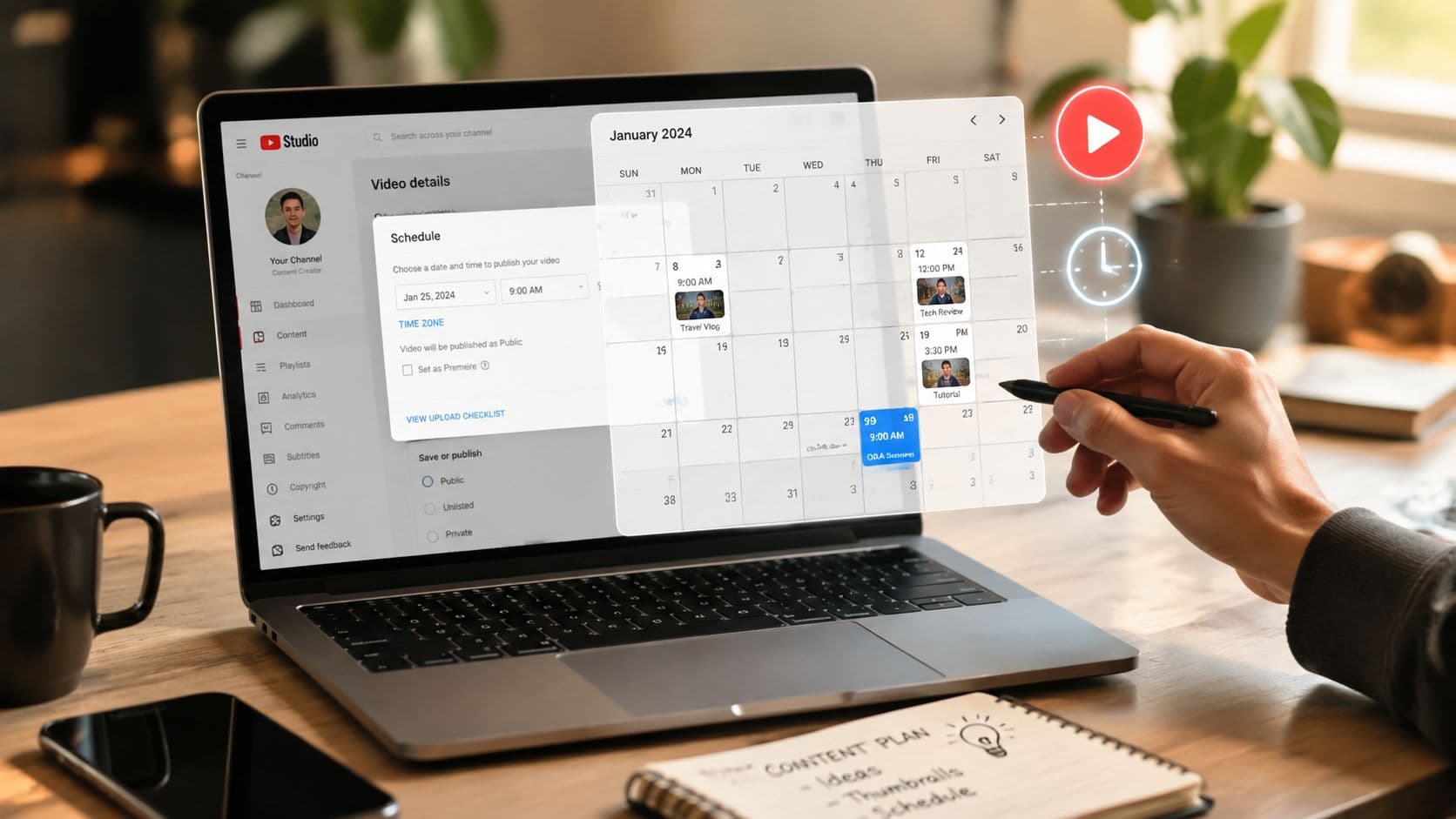
Start by uploading your finished video in YouTube Studio. In the Details area, open Visibility, then switch the setting to Scheduled instead of leaving it on Private. After that, choose the exact publish date, publish time, and time zone, then confirm the schedule before you exit.
That time zone field matters more than most creators think. If your audience is spread across regions, the wrong zone makes you publish at the right-looking time on the wrong clock. That's how a creator thinks they scheduled for 6 p.m. and ends up publishing at 6 p.m. somewhere else.
If you need a reference for the native workflow, the official guide at How to post YouTube videos later lines up with the platform's own scheduling process. Use it as a checklist, not as a substitute for understanding the interface.
The rescheduling mistake people keep making
You can't always edit a scheduled publish time in place. If you later want to change it, YouTube requires you to switch the video back to Private and adjust it in Edit draft before rescheduling, according to YouTube's scheduling instructions. That catches new creators off guard because they expect a simple drag-and-drop calendar edit.
Before you close the upload window, verify the stuff people forget:
- Thumbnail checked: make sure the thumbnail is attached and readable at mobile size.
- End screen saved: confirm the end screen elements are still there after the upload.
- Monetization and visibility confirmed: don't assume the default settings match your intent.
- Description and tags reviewed: fix the metadata before the schedule locks in.
- Upload status fully completed: don't walk away while the file is still processing.
If you're handling multiple uploads in one sitting, the goal is not perfection. The goal is to leave the queue with no surprises. A scheduled video that's clean, labeled, and time-zoned correctly is far more valuable than a live upload you had to babysit.
Third-Party Schedulers Worth Knowing
Native YouTube Studio is fine if you're posting one channel and one format. The minute you start managing Shorts, long-form uploads, or multiple brands, a scheduler that lives outside YouTube becomes a workflow upgrade. You're buying control over volume and coordination, not just convenience.
Three categories that actually matter
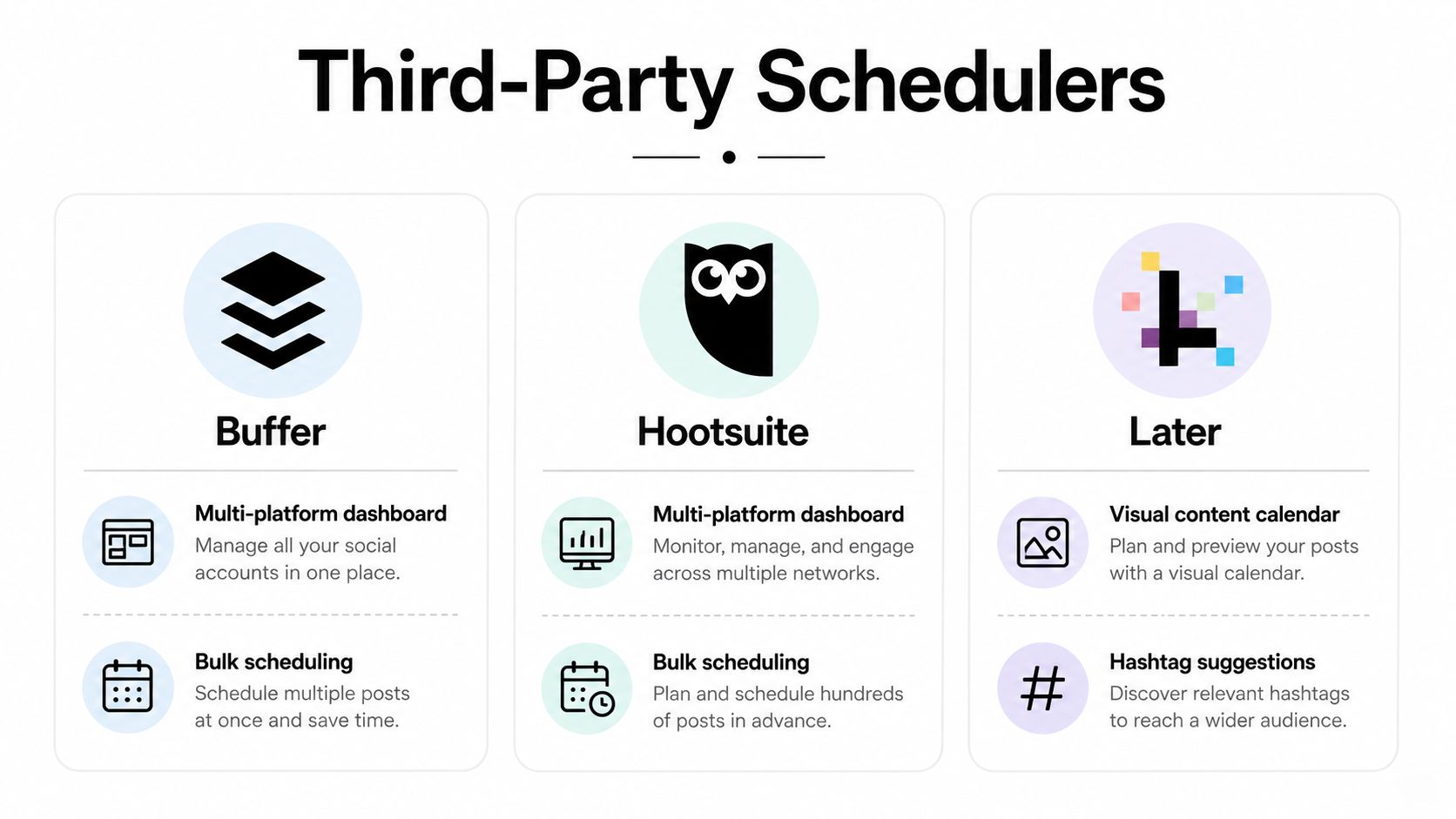
Social suites like Buffer, Hootsuite, and Later are useful when your team is publishing across multiple platforms. They centralize scheduling, but YouTube support can be uneven depending on the format, and they're usually better at orchestration than at deep creator workflows. If you already manage a content calendar across channels, that's their sweet spot.
Creator-focused tools lean harder into analytics, publishing queues, and post-level control. They're better when you care about cadence but still want room to manage comments, metrics, or channel-specific workflows. For a broader market scan, the guide to best Buffer alternatives is a good way to compare tools without getting lost in feature marketing.
AI-driven pipelines combine scripting, rendering, and scheduling. That matters for creators who want one system to generate the video and push it live without manual rework. ClipCreator.ai fits that category for short-form, faceless content because it bundles script generation, templates, voiceovers, subtitles, and scheduled publishing into one flow.
My take: if you're still exporting, downloading, uploading, and re-uploading the same content to three platforms, your process is too manual.
Who should use what
If you're a solo long-form creator, native scheduling or a simple suite is enough. If you run multiple channels or have a team touching the calendar, use a central scheduler. If your output is template-driven Shorts and you care about speed more than hands-on editing, an AI pipeline makes more sense.
The cleanest rule is this. Choose the tool that removes the most repetitive work from your specific process. Don't buy software because it sounds powerful, buy it because it reduces the number of times you have to touch the same video.
For a deeper look at software options that sit around the scheduling problem, the overview of video scheduling software is worth a read. It helps separate upload calendars from full content pipelines.

Picking the Best Posting Times With Real Data
A creator who posts at random is guessing. A creator who schedules from audience behavior is running a system. The point is not to chase a magic hour, it is to publish when your viewers are already active, then let consistency do the heavy lifting.
Use the audience chart first
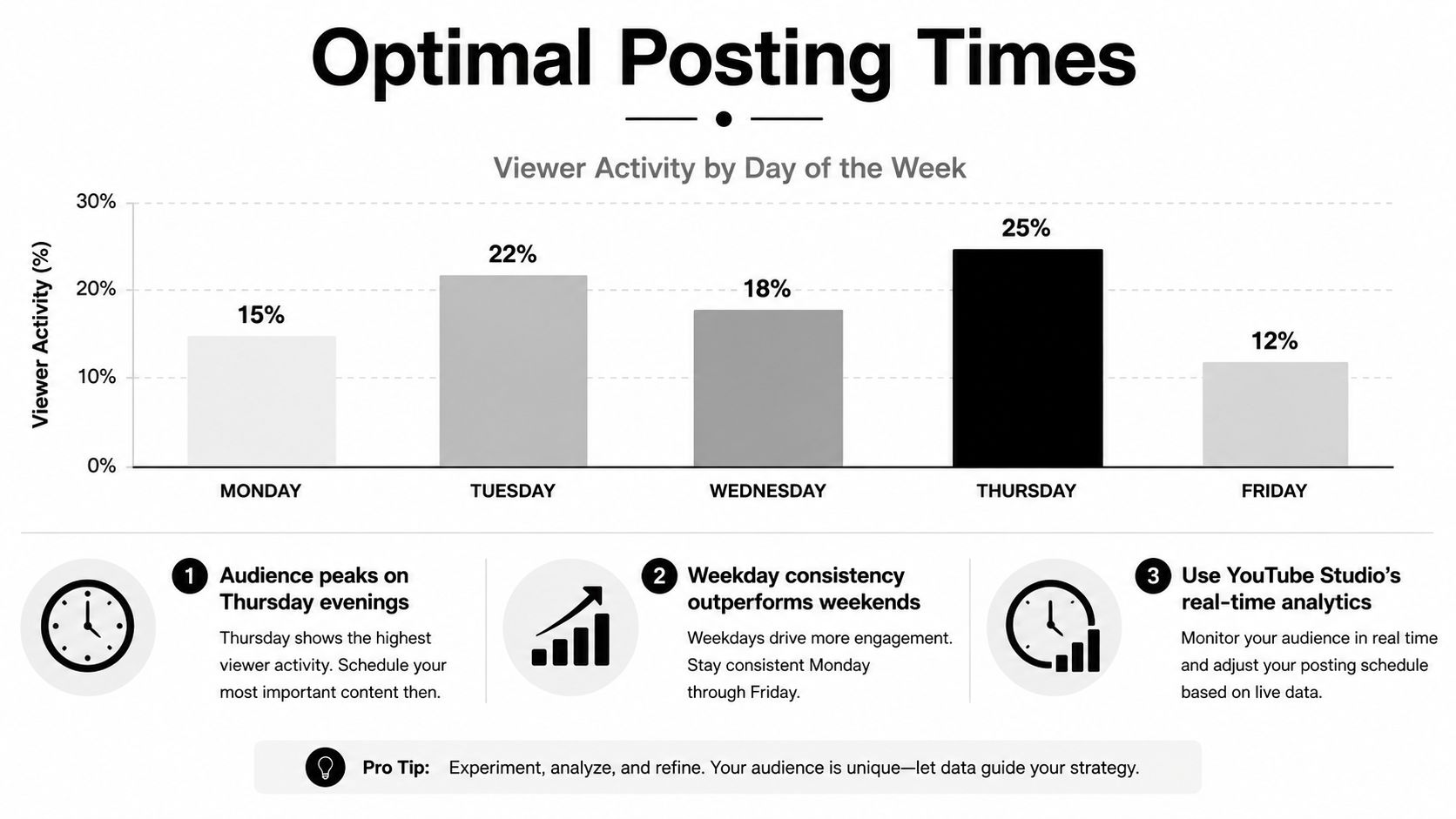
Open YouTube Studio and check the “When your viewers are on YouTube” chart. That is the only timing chart worth trusting because it reflects your own audience, not a generic average pulled from somewhere else. A practical rule is to publish 1 to 3 hours before the peak activity block, or at least 30 to 60 minutes before peak if you want the upload to be ready when viewers start showing up. That gives the video time to process and start collecting early signals before the audience arrives Hootsuite.
Day of week matters, but only after you have the viewer chart in front of you. The analysis cited by vidIQ found that Sunday and Saturday had small lifts of about +3.5% and +2.2% versus an average day, while the timing differences by upload hour mostly evened out by day 30 in the same study vidIQ analysis. Treat that as a scheduling cue, not a rule carved into stone.
One more thing creators overcomplicate: timing only matters if the channel publishes on schedule. If you miss your cadence, the “best time” is irrelevant because the audience never learns when to expect you.
Test timing like a creator-ops lead
Run a simple two-week test. Keep the topic, format, and thumbnail style as steady as you can, then change only the publish time. If you change everything at once, the result is noise.
That is the level of discipline worth using. Repetition builds cleaner data than gut feel, and consistency usually beats obsession over tiny timing windows. The broader point lines up with the scheduling advice in the best time to post YouTube guide, where timing is treated as a repeatable input instead of a superstition.
Posting frequency matters too. In the analysis cited by vidIQ, channels posting 12 or more times per month averaged 53% more views and 66% more subscribers than channels posting only 1 to 3 times per month. A separate multi-channel analysis summarized by TubeAI found that channels posting 12+ times per month grew views nearly 8x faster and gained subscribers over 3x faster than channels posting fewer than once a month vidIQ, TubeAI.
Timing still has a job, but it is not the main job. Consistent publishing is what keeps the system stable, and the scheduler is what makes that stability possible.
If you are comparing tools that help with that workflow, the overview of best Buffer alternatives is useful context. It helps separate simple queue tools from systems that support a real publishing pipeline.
Building a Set-and-Forget Weekly Pipeline
A real publishing system doesn't ask you to log in every day. It asks you to build one clean weekly batch, queue the output, and let the calendar do the delivery work. That's where scheduling stops being a feature and becomes your operating model.
For short-form creators, a pipeline can start with a template, a script, and a format that's already proven. ClipCreator.ai supports that kind of workflow for faceless Shorts, where you pick a structure like a scary story or bedtime tale, generate or paste a script, and let the platform create an HD video with AI voiceover and subtitles before you schedule it for publish.
A weekly cadence that actually holds up
Here's the cadence I'd use for a small channel that wants consistency without chaos.
Monday, batch day. Generate two or three Shorts, one longer upload, and queue the metadata while your ideas are fresh. Don't spread this across five days unless you enjoy context switching.
Tuesday through Thursday, stagger the releases. Put the Shorts on recurring slots, and leave the long-form piece for the time your audience usually leans in hardest. That keeps your channel active without making every post compete with the last one.
Friday, recycle what worked. If one topic landed, turn it into a follow-up Short or a related playlist entry. Playlists matter because they keep viewers moving into the next video instead of dropping off after one watch.
Weekend, keep the channel warm. You don't need to flood the feed. You need enough presence that your channel doesn't go quiet while people are browsing.
The cleanest setup is boring on purpose: one batch session, one queue, one approval pass, and one publishing calendar.
Where automation saves the most time
The biggest win isn't just scheduling. It's removing the repeated manual steps between script, render, and publish. ClipCreator.ai can connect scheduled publishing to YouTube and also push to other short-form platforms, which matters if you're cross-posting the same content and don't want to edit the same piece three times.
That kind of workflow lines up with practical automation guidance from n8n, which recommends fetching recent uploads, filtering out already scheduled videos, generating a publish-day rule, formatting the timestamp, and updating the scheduled publish time through the YouTube API, with the explicit advice to test one video before batch processing to reduce mis-scheduling risk n8n workflow. The lesson is obvious. Automate the repeatable parts, but prove the pipeline with one upload before you trust it with the whole week.
If you're running faceless Shorts, the pitch is simple. Use one system for creation, one for scheduling, and one for distribution. The fewer times you touch the same video, the more likely you are to keep posting when the week gets busy.
Troubleshooting and Scheduling Myths to Ignore
The biggest scheduling myth is that the scheduler itself creates reach. It doesn't. It just keeps your publishing consistent so you stop missing opportunities because you were too busy to upload on time. That difference matters, and a lot of creators blur it.
Another myth is that a fixed clock time always beats audience data. It doesn't. If your viewers are fragmented across regions or heavy on Shorts, the answer is usually “match the audience chart, then test.” The platform mechanics are more useful than the folklore.
Fast fixes for the failures people actually hit
If a scheduled video stays in draft, the usual cause is that the upload or processing step wasn't fully completed. The fix is simple, finish processing, verify Visibility is still set correctly, and confirm the publish time before exiting.
If the time looks wrong after travel, the problem is usually a time zone mismatch. Recheck the scheduled time in YouTube Studio, because the clock you're looking at may not be the clock YouTube is using.
If end screens don't save, go back into the draft before the video publishes. Scheduled uploads still need the same final review as live uploads, and that's where most rushed mistakes happen.
If a copyright claim blocks the publish, don't treat it as a scheduler problem. Fix the rights issue first, then reschedule. The queue can't rescue a file that isn't clear to publish.
The channels that grow are the ones that treat scheduling as consistency infrastructure, not as a growth hack. When the process is tight, the uploads go out on time, the team stops chasing drafts, and the creator gets to spend actual energy on the content itself.
Frequently Asked Scheduling Questions
Creators ask the same scheduling questions once they start batching uploads. Here are the ones that matter, with straight answers you can use without guessing.
Can you schedule a video into a specific playlist at publish time? Sometimes, but do not rely on it as your main workflow. The safer move is to set the playlist during upload prep and confirm the placement before the release goes live. That keeps the video from publishing as an orphaned upload.
Do recurring weekly slots work? Yes, and they work well if your publishing pattern stays steady. In YouTube Studio, you set individual publish times one by one. In AI workflow tools, recurring slots usually live inside the publishing rule, which fits repeating series far better than manual setup.
What if a scheduled video fails to go live? Open the draft, check Visibility, check processing status, and reschedule it. Do not assume the clock is wrong until you verify the file itself. Most failures come from an unfinished upload, a processing issue, or a setting that never got saved.
Does scheduling change distribution compared with uploading live at the same time? No. The gain is operational. Scheduling keeps your cadence intact when your day gets messy, and that consistency matters more than trying to micromanage every publish minute.
For creators running a weekly pipeline, scheduling also gives you cleaner handoffs. Script, edit, queue, check, publish. That rhythm matters more than obsessing over tiny timing tweaks that rarely move the needle on their own.
If you are using a system like ClipCreator.ai, the job gets simpler. You can generate scripts, create videos, schedule uploads, and auto-post across platforms from one queue, which cuts the repetitive cleanup that usually slows creators down. Use that kind of setup to make scheduling part of your operating system, not another chore you keep postponing.

Create your first video in under 2 minutes
Pick a niche, and ClipCreator.ai generates and auto-posts faceless videos to your channels every day.
Join ClipCreator.ai