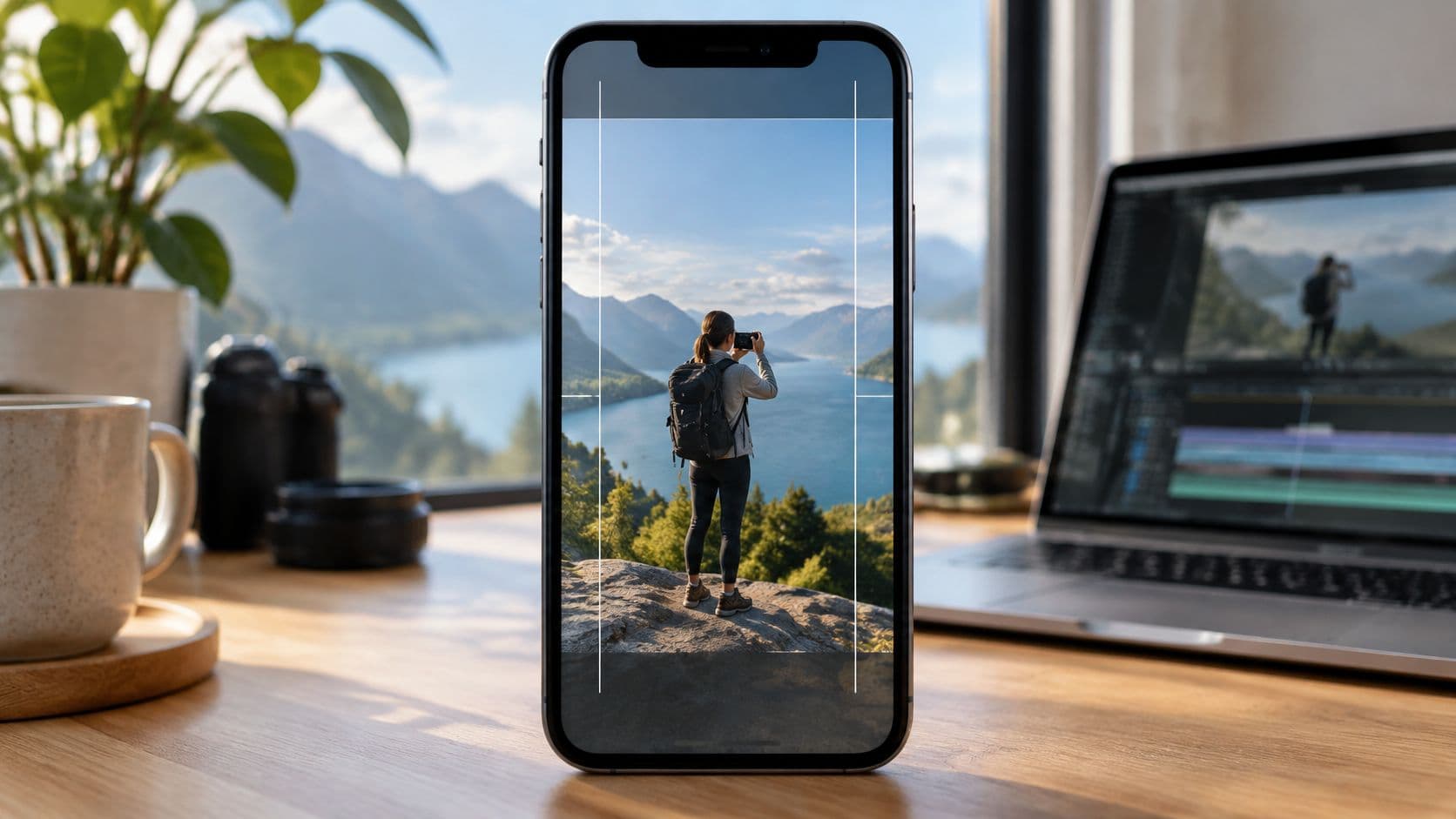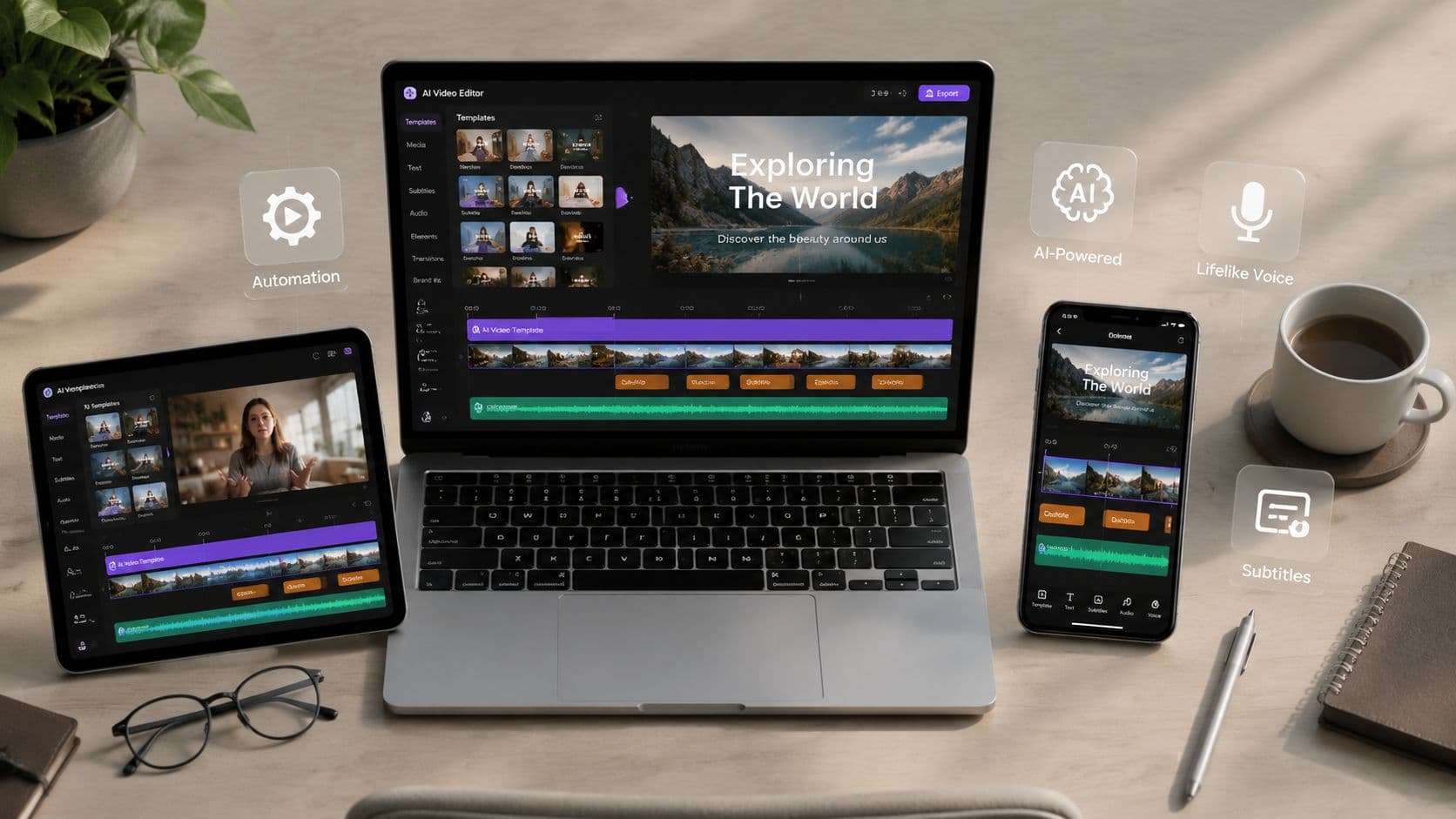
A creator or small business can have plenty of ideas for vertical video and still struggle to publish consistently. The bottleneck might be writing scripts, finding visuals, cutting a long interview into usable clips, adding readable subtitles, or uploading every video by hand. The right choice depends less on which editor has the longest feature list and more on which production problem is slowing you down.
This list organizes AI video editing tools by workflow. Some automate faceless videos from prompt to scheduled post. Others repurpose long recordings, edit dialogue through transcripts, create generative B-roll, or preserve the hands-on control professionals need. The comparison focuses on automation, templates, voiceovers, subtitles, publishing workflows, pricing information supplied for ClipCreator.ai, limitations, and realistic use cases.
You also don't have to force one platform to do everything. A creator might use Runway to generate an unusual visual, Opus Clip to identify moments from a podcast, and Premiere Pro for final sound and color. The practical question is whether a tool removes work without creating a new review burden.
1. ClipCreator.ai for automated faceless publishing
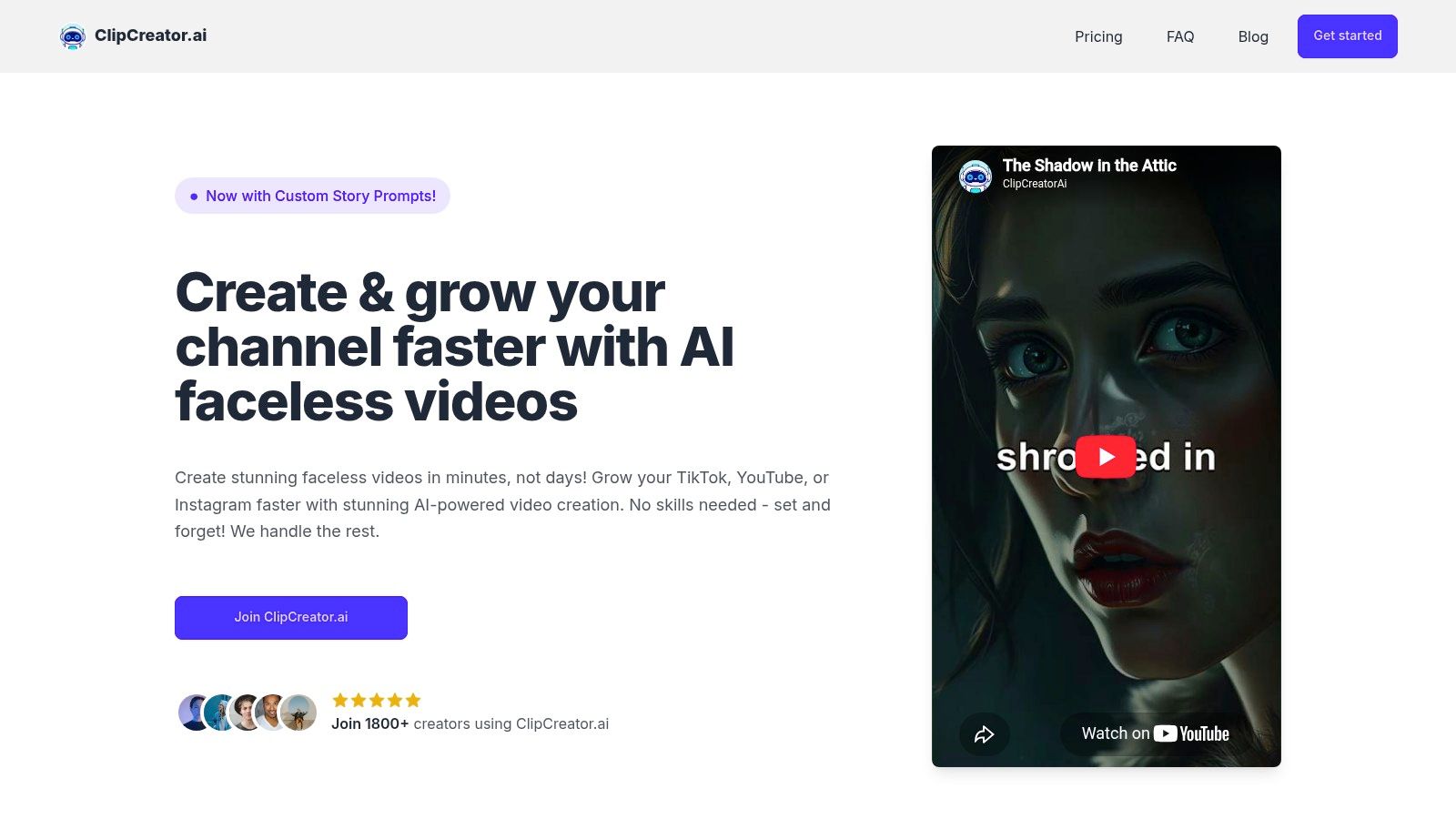
ClipCreator.ai is built for the creator who wants a repeatable short-form pipeline rather than another timeline to manage. You choose a proven format, such as a scary story or bedtime tale, or enter a custom prompt for a brand-aligned script. The platform pairs the narrative with story-matched AI images, lifelike voiceover, subtitles, and an HD vertical video of up to 90 seconds.
A publishing workflow instead of an editing session
The setup is straightforward. Pick a template or write a prompt, choose publishing days and times, connect TikTok or YouTube, and let the system generate, render, and auto-post the videos. Instagram is also part of the platform's intended short-form use case, while connected social accounts handle the publishing step.
That makes ClipCreator.ai a strong fit for faceless channels, themed storytelling, micro-lessons, small-business content, and agency production. It also retains a useful balance between speed and control. Templates help you start quickly, while custom prompts let you shape the subject, tone, and recurring series concept.
Practical rule: If your real bottleneck is publishing consistency, prioritize automation from script through posting, not just automatic captions.
The trade-off is control. Post-generation editing is limited mainly to basic title and caption adjustments, so this isn't the right choice for detailed keyframing, advanced color work, or long-form storytelling. The format is intentionally short, and produced videos are limited to 90 seconds.
Pricing and fit
ClipCreator.ai lists Starter at $19 per month** for posting three times weekly, **Daily at $39 per month for daily posting, and **Pro at $69 per month**, listed originally at $78, for posting twice daily. Payments use Stripe, cancellation is available at any time, and the company says users retain full ownership of produced videos.
The service also promotes a community of more than 1,800 creators and offers a limited first-use refund promise. A refund request must cover the first two videos, be one-time, and arrive within seven days. Test the output against your brand voice before relying on full automation, especially if your audience expects precise factual language or highly specific visual direction.
2. Descript for transcript-led dialogue editing
Descript treats a video like a document. Upload a talking-head recording, interview, webinar, or podcast, and edit the transcript to remove words and corresponding video moments. For creators producing dialogue-heavy shorts, that interaction is often faster to understand than a conventional timeline.
The workflow is especially effective when the source recording already contains the story. You can find a sentence in the transcript, cut a tangent, remove filler, and then use automatic subtitles in the in-app caption editor. Studio Sound helps clean up rough audio, while background removal and Eye Contact correction can improve a talking-head shot without requiring a green screen.
Where Descript earns its place
Descript is a practical choice for podcast clips, educational commentary, founder videos, and interviews where spoken words determine the edit. Its interface is approachable, and its templates and help documentation reduce the time needed to learn the basics.
The limitation appears when a short needs detailed visual pacing. Descript isn't a replacement for a professional non-linear editor when you need intricate color grading, complex compositing, or highly controlled motion design. Its AI features also use metered AI credits, so heavy users need to monitor consumption before building a large production routine around automated cleanup or generation.
Use Descript when the question is, “Which parts of this conversation should stay?” Use another tool when the question is, “How do I construct a highly designed visual sequence from many layers?”
3. Kapwing for collaborative browser editing
Kapwing works well for teams that need to create, review, and package social videos without installing a desktop editor. Its browser-based workspace combines familiar timeline editing with AI-assisted operations such as silence and filler removal, clean audio, automatic subtitles, translation, dubbing, lip-sync, and text-to-video or image generation through its AI assistant.
A useful team workflow
Kapwing is strongest when several people touch the same publishing process. A marketer can prepare a cut, a subject-matter expert can review captions, and a designer can apply on-brand styling from the browser. That makes it practical for short-form campaigns, localized clips, and repeatable templates.
Its dubbing and lip-sync tools are useful when one piece of content needs to reach different language audiences, but localization still needs human review. Names, technical terms, jokes, and timing can all require corrections even when the generated result sounds natural.
The main friction is cost at export. AI-enhanced exports require a paid plan, and heavier projects can feel less responsive than desktop software. Kapwing also isn't designed to replace a deep professional finishing environment. Before committing, upload a representative project with several layers, test the caption styling, and see how smoothly collaborators can leave and resolve feedback.
4. VEED for browser-based social packaging
VEED combines editing, captions, translations, AI voices, avatars, background removal, and idea-to-video features in a browser workspace. It suits a social team that needs to turn raw footage into polished vertical content without moving between several specialist applications.
The strongest use case is packaging. VEED can help add subtitles, reframe content, clean audio, remove a background, and prepare translated or dubbed versions. Its AI B-roll helpers and video-generation options can support a fast concept workflow when the creator needs more than a simple talking-head cut.
What to test before scaling
VEED offers broad coverage, but breadth doesn't mean every feature will be equally deep. Advanced color and multi-camera work remain better suited to professional desktop editors. The pricing and usage limits are tiered, and frequent AI use can push a team toward a higher plan.
For a small social department, that may be an acceptable trade. A team can keep review, caption styling, and collaboration in one place, while sending complex finishing jobs elsewhere. Test a full publishing cycle rather than a five-second demo. Check whether subtitles preserve brand terminology, whether voice tools match your preferred tone, and whether the export settings suit every destination you use.
VEED makes the most sense when browser access and packaging speed matter more than elaborate timeline control.
5. Runway for generated visual assets
Runway solves a different problem from automated captioning tools. Its focus is AI-generated motion, including text-to-video and image-to-video generation, masking, background tools, motion tracking, and asset creation. For short-form creators, that makes it valuable when an ordinary stock clip won't communicate the idea.
A practical workflow might begin with a finished narration or a rough edit. Runway can then generate atmospheric B-roll, abstract transitions, visual metaphors, or a shot that would be difficult or expensive to film. You can bring those assets into another editor for precise trimming, captions, sound mixing, and final export.
Strong generation, limited finishing
Runway's generated motion is its main reason to use the platform. It gives creators a way to explore visual concepts quickly and add footage that doesn't exist in their camera roll. Masking and motion tools also help integrate generated elements into existing scenes.
The workflow breaks down when you expect Runway to behave like a traditional non-linear editor. Precise timeline work, detailed dialogue assembly, and final social packaging are often easier elsewhere. Credit usage matters too. Different models have different burn rates, and premium generation can consume credits quickly.
Generated footage is an ingredient, not necessarily the finished short.
Review character consistency, object behavior, text rendering, and continuity before publishing. A visually impressive clip can still undermine a brand if the subject changes between shots or the motion distracts from the narration. Runway works best as the visual-generation stage in a broader workflow.
6. Adobe Premiere Pro with Firefly AI for professional finishing
Adobe Premiere Pro remains the choice for editors who need control over the entire sequence. Its AI-assisted features include text-based editing, automatic transcription and captions, Enhance Speech, and access to Firefly generative AI credits across Adobe applications. Frame.io collaboration also supports review and version workflows.
Premiere Pro is useful when a short-form video still needs professional treatment. You can build a precise timeline, refine dialogue, manage layered audio, adjust color, apply effects, and hand work to After Effects. That matters for agencies, production teams, branded campaigns, and creators whose vertical videos need to match an established visual system.
The cost of control
Premiere Pro offers capabilities browser-first tools generally don't match, but it asks more from the operator. New users face a steeper learning curve, and a subscription is required. Generative features also draw from a credit pool, so teams should review how much experimentation their workflow demands.
Its AI tools are most useful when they remove a repetitive step without taking away editorial judgment. Text-based editing can accelerate a rough cut, automatic captions create a starting point, and Enhance Speech can help dialogue become more usable. None of those features eliminates the need to review timing, word accuracy, emphasis, or the final mix.
Choose Premiere Pro when the edit itself is part of the creative product. Choose a more automated platform when your priority is producing a steady stream of simple, repeatable shorts with minimal intervention.
7. CapCut for mobile-first social edits
CapCut is designed around the way many Shorts, Reels, and TikTok creators work. Its mobile, desktop, and web versions provide templates, auto-captions, AI transcription, text-to-speech, background removal, effects, and social-oriented style presets.
The main advantage is speed from phone to post. A creator can shoot on a mobile device, apply a familiar template, generate captions, add text-to-speech or an effect, and export without learning a professional editor. The large template library also makes it easier for beginners to match current short-form conventions.
Fast does not mean infinitely flexible
CapCut is less comfortable when the project requires complex sound design, exact color control, or a highly customized multi-layer composition. Its Pro pricing can also vary by region and device, which makes the plan details worth checking before a team standardizes on it.
For a deeper comparison of editing depth and workflow fit, see this CapCut versus Premiere Pro guide.
Test the template, then test the exit. Make sure you can reproduce your preferred look without becoming dependent on one preset or effect.
CapCut is a good choice for creators who value native social speed and mobile access. It isn't the strongest option for complex finishing, but it can remove enough friction to make regular posting realistic.
8. Wondershare Filmora for approachable desktop editing
Wondershare Filmora sits between simple browser editors and professional non-linear editors. It provides a creator-friendly desktop timeline with AI-assisted noise removal, captions, effects, templates, social aspect ratios, and a large asset library.
That balance suits a creator who wants more control than a mobile template editor offers but doesn't want the full complexity of Premiere Pro. You can assemble several sources, adjust timing, apply a consistent visual style, clean up audio, and export social versions without building a professional post-production system.
Where Filmora fits
Filmora is particularly useful for branded short-form content that needs hands-on editing. A small business can build reusable title treatments and aspect-ratio presets, while an educator can combine screen recordings, camera footage, graphics, and captions in one desktop project.
The trade-offs are mostly about depth and licensing clarity. Plan options can be confusing, so read the terms carefully before buying. Advanced grading and compositing also remain more limited than in professional tools.
Filmora makes sense when ease of learning and a broad effects library matter more than maximum technical control. It gives editors room to make deliberate choices, but it won't provide the same finishing ecosystem as Premiere Pro.
9. InVideo for script-to-video concepts
InVideo approaches video creation as an agent-driven production process. It can break a script into a storyboard, coordinate shots, combine stock and generated assets, and support avatars, voice cloning, translation, and captions. That makes it a useful starting point for faceless explainers, product videos, UGC-style ads, and narrative shorts.
The back-and-forth refinement is central to the experience. Instead of manually placing every first-pass shot, you can describe what needs to change and let the system revise the concept. This is valuable when the goal is to move quickly from an idea to something reviewable.
Treat the first output as a draft
InVideo's speed comes with less direct control than a full NLE. Shot selection, pacing, visual continuity, and the relationship between narration and footage still need review. A generated storyboard can be structurally useful while using a visual that feels generic, mismatched, or unsuitable for a particular brand.
Usage is credit-based, and model and agent costs should be checked before scaling production. For a business creating many similar explainers, calculate how often you need revisions, not just how quickly the first draft appears.
This InVideo AI review can help frame the choice against more narrowly automated faceless-video workflows.
InVideo is best when concept development and rapid iteration are the priority. It becomes less attractive when the final edit needs exact manual control over every frame.
10. Opus Clip for long-to-short repurposing
Opus Clip is built for creators who already have footage. Give it a podcast, interview, webinar, or long-form video, and it can identify potential moments using speech, visuals, sound, and sentiment. It can then reframe the selected clip around the speaker, add animated captions and titles, apply brand templates, and provide publishing options.
The value isn't in generating an entire video from nothing. It's in reducing the time spent searching through an existing recording for moments that can stand alone. That makes Opus Clip a natural fit for podcasts, webinars, founder interviews, and educational channels with a steady archive of source material.
A focused repurposing tool
Its Virality Score helps sort candidate clips, but treat any score as a prioritization aid rather than a publishing decision. A clip can have a strong hook and still need context, a cleaner ending, or a more accurate caption treatment. Human review remains important when a short represents a person or brand.
Opus Clip isn't a complete traditional editor. If you need detailed sound design, layered graphics, or precise color work, finish the selected clips in another application. Higher-tier features, including the Virality Score, require paid plans.
For a broader repurposing workflow, see this guide to repurposing video content.
Top 10 AI Video Editing Tools, Feature Comparison
| Product | Core features | UX & Quality (★) | Price & Value (💰) | Target & USP (👥 / ✨) |
|---|---|---|---|---|
| ClipCreator.ai 🏆 | Auto script → AI images → lifelike voiceovers → subtitles; schedule & auto-post (TikTok/YouTube); HD ≤90s | ★★★★★ Hands‑off, consistent | 💰 Starter $19/mo; Daily $39; Pro $69; 2-video refund promise | 👥 Creators, SMBs, educators, ✨ End‑to‑end set‑and‑forget automation |
| Descript | Text-based edit (transcript), Studio Sound, auto-subtitles, Eye Contact | ★★★★☆ Fast for dialogue-heavy content | 💰 Free tier; paid plans + AI credits | 👥 Podcasters, talking-head creators, ✨ Transcript-first editing |
| Kapwing | Browser editor, Smart Cut, auto-subtitles/translation, AI dubbing | ★★★★☆ Template-friendly, collaborative | 💰 Freemium; paid for exports & teams | 👥 Social creators & teams, ✨ Multilingual dubbing & in-browser AI |
| VEED | Auto-subtitles/translation, AI voices/avatars, noise reduction | ★★★★☆ Wide tool coverage for shorts | 💰 Tiered plans; heavy AI needs higher tiers | 👥 Social teams & marketers, ✨ All-in-browser short-form toolkit |
| Runway | Gen-4.5 text/image→video, masking, motion tracking, timeline tools | ★★★★☆ Top-tier generative motion quality | 💰 Credit-based; premium model costs | 👥 Creators & devs, ✨ High-quality AI-generated motion |
| Adobe Premiere Pro | Pro NLE, text-based cuts, Enhance Speech, Firefly credits, Frame.io | ★★★★☆ Professional-grade, steeper learning | 💰 Subscription + generative credits | 👥 Professionals & studios, ✨ Full post-production ecosystem |
| CapCut | Templates, auto-captions, TTS, background removal; mobile/desktop/web parity | ★★★★☆ Fast mobile-native workflow | 💰 Mostly free; pro pricing varies by region | 👥 TikTok/Shorts creators & beginners, ✨ Massive template library |
| Wondershare Filmora | Desktop editor, AI assists, captions, large effects/asset library | ★★★☆☆ Easy to learn, creator-friendly | 💰 One-time or subscription licenses | 👥 Beginner–mid creators, ✨ Broad preset/effects coverage |
| InVideo | Agent-driven script→storyboard→video, AI avatars, voice cloning, stock access | ★★★★☆ Fast concept-to-finished video | 💰 Credit-based; paid plans for scale | 👥 Marketers & ad creators, ✨ Agent-driven script-to-video flow |
| Opus Clip | Long-to-short clipping, auto-reframe, animated captions, Virality Score | ★★★★☆ Extremely fast repurposing | 💰 Freemium; advanced features paid | 👥 Repurposers & long-form creators, ✨ Virality scoring & auto curation |
Match the tool to your publishing bottleneck
The AI video editing tools market is expanding rapidly. One forecast values it at about $1.6 billion in 2025** and projects **$9.3 billion by 2030, with an implied compound annual growth rate of roughly 42.19% in the cited market reference. That growth reflects a shift from manual editing toward automated, AI-assisted production, but it doesn't mean every tool solves the same operational problem.
Start with the bottleneck, then choose the narrowest tool that removes it.
- Choose ClipCreator.ai when you need faceless scripts, visuals, voiceovers, subtitles, scheduling, and auto-posting in one workflow. It fits creators, educators, small businesses, agencies, and storytellers who want repeatable short-form output with limited manual editing.
- Choose Opus Clip when you already record long videos and need to find usable short moments quickly.
- Choose Descript when the source is dialogue-heavy and transcript-led editing is more useful than traditional timeline work.
- Choose CapCut for fast, mobile-first social edits, templates, captions, and effects.
- Choose Kapwing or VEED when a team needs browser collaboration, caption styling, dubbing, translation, and social packaging.
- Choose InVideo for rapid script-to-video concepts, explainers, UGC-style ads, and AI-assisted storyboard refinement.
- Choose Runway when you need generated B-roll, abstract visuals, or shots that aren't available in your existing footage.
- Choose Filmora for approachable desktop editing with more hands-on control than a template-first mobile workflow.
- Choose Premiere Pro when professional timeline control, audio, color, effects, collaboration, and ecosystem integrations matter most.
Before scaling, run one representative video through the complete workflow. Don't test only the exciting generation step. Check subtitle accuracy, voice quality, visual continuity, export settings, review time, and how many manual corrections the finished short still needs.
You should also inspect usage limits before committing. Descript uses AI credits, Runway and InVideo use credit-based systems, VEED and Kapwing place important AI capabilities within tiered plans, and CapCut's plan structure can vary by region or device. The cheapest-looking workflow can become less attractive if your normal production volume requires repeated revisions or higher tiers.
A practical test has three questions. Can the tool produce the format your audience expects? Can you correct its mistakes without rebuilding the project? Can your team repeat the process without one person becoming the permanent quality-control bottleneck?
For many creators, the best stack will combine tools. Runway can create a distinctive visual, Opus Clip can identify a strong moment from a long recording, Descript can tighten spoken content, and Premiere Pro can finish a campaign-quality cut. ClipCreator.ai takes a different approach by handling the entire faceless workflow, including creation and scheduled publishing, so it makes the most sense when consistent output matters more than detailed manual editing.
ClipCreator.ai turns a prompt or proven template into a faceless short with AI-generated scripts, story-matched images, lifelike voiceovers, accurate subtitles, and scheduled publishing for TikTok, YouTube, and Instagram. If your publishing bottleneck is producing consistent videos rather than fine-tuning a complex timeline, visit ClipCreator.ai and test the set-and-forget workflow.

Create your first video in under 2 minutes
Pick a niche, and ClipCreator.ai generates and auto-posts faceless videos to your channels every day.
Join ClipCreator.ai