You've probably hit this exact moment already. A song is stuck in your head, the official video isn't useful for singing along, and the karaoke version you found either has bad timing, ugly text, or a backing track that sounds thin. So you start wondering, how do you make a karaoke video that feels good to sing to?
The good news is that the process is more practical than mysterious. A solid karaoke video comes down to a few moving parts done well: usable audio, accurate lyrics, readable design, and timing that doesn't drift. You don't need a post-production studio to make one anymore, and you don't need to commit to one rigid toolchain either.
Your Journey to Becoming a Karaoke Video Creator
A lot of karaoke projects start small. You want a custom sing-along video for a birthday party, a school event, a Twitch stream, or a TikTok post. Then halfway through, you realize this isn't just a fun side project. It's a real format with a real audience.
That's the part many beginners miss. Karaoke videos aren't just hobby uploads. A Business Insider profile cited by MyKaraoke Video says creator Chris Michael grew a karaoke YouTube channel to 10 million subscribers and later earned six figures per month through licensing and monetization. The same guide says karaoke content often performs best when videos are about 7 to 15 minutes long, which is unusually specific and useful if you're building for YouTube rather than just making a one-off sing-along clip (MyKaraoke Video's YouTube karaoke guide).
That doesn't mean your first upload needs to be a channel strategy. It means the format is worth taking seriously.
What most people are actually trying to build
Usually, it's one of these:
- A party-ready video with big lyrics and simple timing
- A social clip formatted for TikTok, Reels, or Shorts
- A YouTube karaoke upload that can keep getting views over time
- A custom track for a niche song that doesn't already have a decent karaoke version
If you're still at the audio stage, this walkthrough on How to create karaoke tracks is a useful companion because it focuses on the backing-track side of the job, which is often where people make their first big mistake.
A karaoke video succeeds or fails on usability. If singers can't follow it comfortably, the visuals don't matter.
The encouraging part is that modern tools have flattened the learning curve. Desktop editors, mobile apps, and specialized automation platforms can all produce something solid. The difference is how much manual control you want, how quickly you need the video finished, and whether you care more about precision or speed.
Preparing Your Core Audio and Lyrics
Before you touch a timeline, gather your source material properly. This is the least glamorous part of the process and the part that saves the most frustration later.
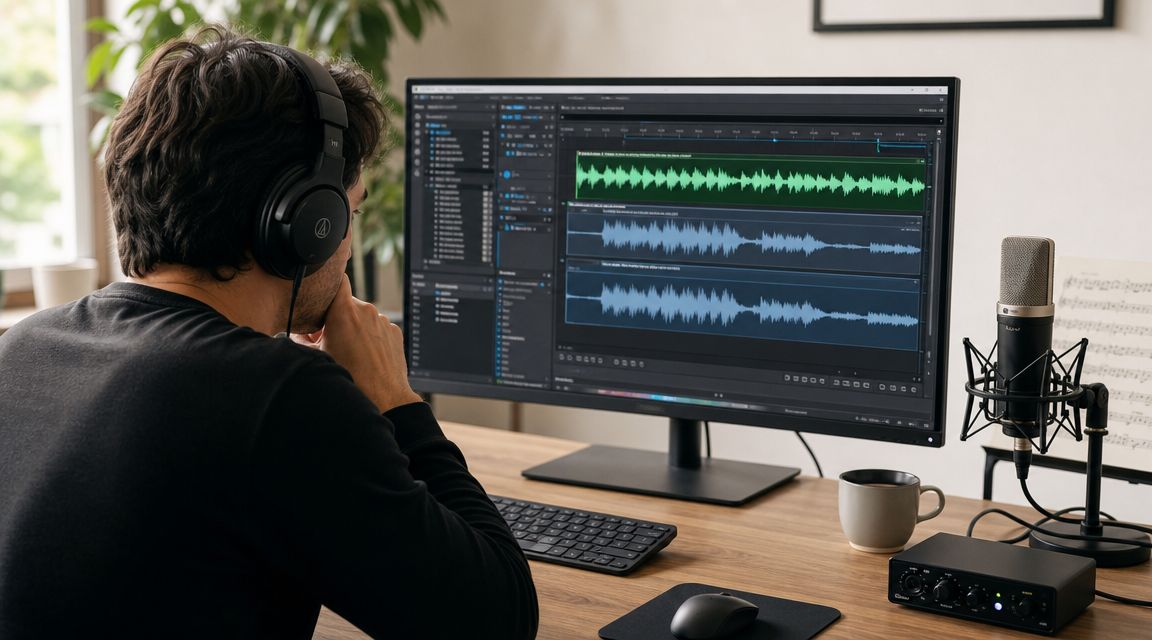
A practical karaoke workflow has become pretty standardized across mainstream tools. You import a backing track, add synchronized lyric text, preview timing, and export the final file in HD. CapCut's guide points to synchronized lyrics, text animations, and color changes as core ingredients, and Clipchamp recommends exporting in 1080p for best quality, with 4K available for paid users. That's a useful baseline because it shows karaoke production is now accessible inside mainstream editors rather than locked inside specialist software (CapCut karaoke workflow reference).
Start with the audio, not the text
Your backing track decides whether the final video feels singable.
You have a few practical routes:
- Licensed or royalty-free backing tracksSafest for commercial work. If you plan to publish widely, this is the cleanest legal path.
- Existing karaoke versionsSometimes good, sometimes rough. Listen for leftover lead vocals, weak drums, or fake-sounding instrumentation.
- AI stem separationUseful when no decent backing track exists. It can work well, but don't assume a vocal-removed file is automatically release-ready.
A lot of creators make the opposite mistake. They obsess over fonts first and only later notice the backing track still has ghost vocals or strange artifacts.
Clean up the lyric sheet before import
Don't paste raw lyrics directly from a website into your editor and hope for the best. Format them first in a plain document.
Use this prep checklist:
- Break lines by singing rhythm rather than by sentence length
- Separate verses and choruses with blank lines so navigation is easier later
- Fix punctuation and spelling before syncing
- Listen once while reading to catch lyric sites' common errors
If you're adapting the final video for short-form platforms later, this guide on adding music to YouTube Shorts is useful because platform formatting decisions can affect how much lyric text comfortably fits on screen.
Be honest about copyright
This part sits in a gray area when you're using popular songs.
If you make a karaoke video for private use, people often accept more risk. If you're publishing publicly, especially on YouTube, you should assume the song owner may claim it. That doesn't always mean the video disappears, but it does mean monetization and distribution can get complicated. If you want the least friction, use tracks you have permission to use.
Practical rule: If the song is central to a business project, treat licensing as a production requirement, not an afterthought.
Choosing Your Karaoke Creation Workflow
There isn't one best setup. There are three workable paths, and each one solves a different problem.
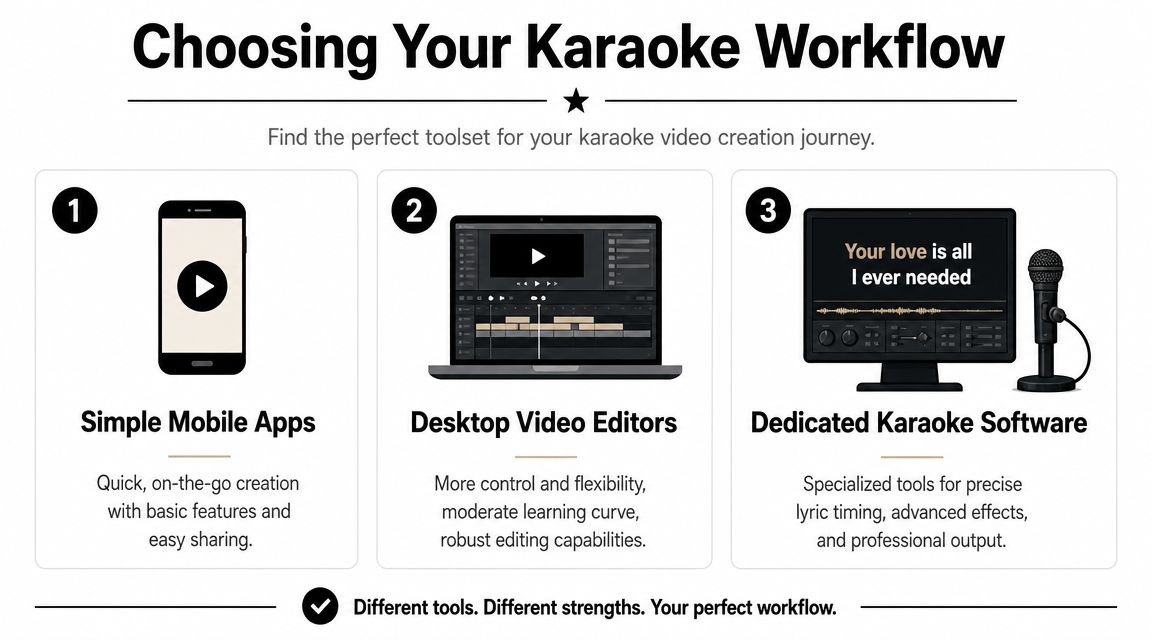
The smartest choice usually comes down to this question: do you want maximum control, minimum friction, or the fastest route to a finished file?
Desktop workflow
Desktop editing is the strongest option if you care about precision. Think Adobe Premiere Pro, DaVinci Resolve, Final Cut Pro, or even browser-to-desktop hybrids like Clipchamp when you want a lighter learning curve.
Desktop editing is best when:
- you need frame-level timing control
- you want custom lyric animations
- you're building for YouTube or TV playback
- you plan to reuse templates across many songs
It's slower at the beginning, but it gives you the most reliable control over sync, layout, and exports. If a song has awkward timing, tempo changes, or long held notes, desktop tools let you fine-tune around those issues instead of fighting presets.
The downside is obvious. Manual timing takes patience.
Mobile workflow
Mobile apps are the fast lane when you care more about shipping than polishing. CapCut, InShot, and similar apps are approachable, and they're often good enough for social clips, party videos, or quick experiments.
Mobile makes sense if you want:
- fast setup
- easy text overlays
- direct publishing to social channels
- a workflow that doesn't require sitting at a desk
The trade-off is precision. A phone screen isn't ideal for long lyric timelines, and subtle timing edits get tedious quickly. You can absolutely make a usable karaoke video on mobile, but once a song gets dense, you'll feel the limits.
Automated SaaS workflow
Automation tools are a different category. They focus on speed by handling tasks that creators used to do manually.
MyKaraoke Video says its 1-Click Karaoke Maker can take a song file and lyrics, separate music from vocals, and automatically sync the lyrics in under 2 minutes. Its demo also describes previewing with and without vocals and customizing backgrounds, text, gradients, progress bars, and countdowns (MyKaraoke Video product overview).
That's useful if your bottleneck is production time. But there's a catch.
Auto-sync gets you to a draft. It doesn't guarantee a finished karaoke video.
Songs with rubato, overlapping vocals, heavy reverb, or messy lyric punctuation still need manual review. That's where experienced creators save the result. They don't trust the first pass blindly.
A side-by-side decision view
| Workflow | Best for | Main strength | Main weakness |
|---|---|---|---|
| Desktop | YouTube videos, polished karaoke libraries | Fine control over sync and design | More setup and more learning |
| Mobile | Social clips, party use, quick drafts | Fast and approachable | Harder to edit precisely |
| Automated SaaS | Batch production, quick turnaround | Handles separation and sync quickly | Needs manual cleanup on tricky songs |
What actually works in practice
If you're making one special video for an event, desktop is often worth the effort.
If you're testing whether people even want your karaoke content, mobile is a practical way to start.
If you're producing at volume, automation saves time where it matters most. Just keep a review step in the process. A short chorus preview on mobile playback catches a lot of issues before you publish.
The Art of Syncing and Animating Lyrics
At this point, karaoke stops being a slideshow and starts feeling usable.
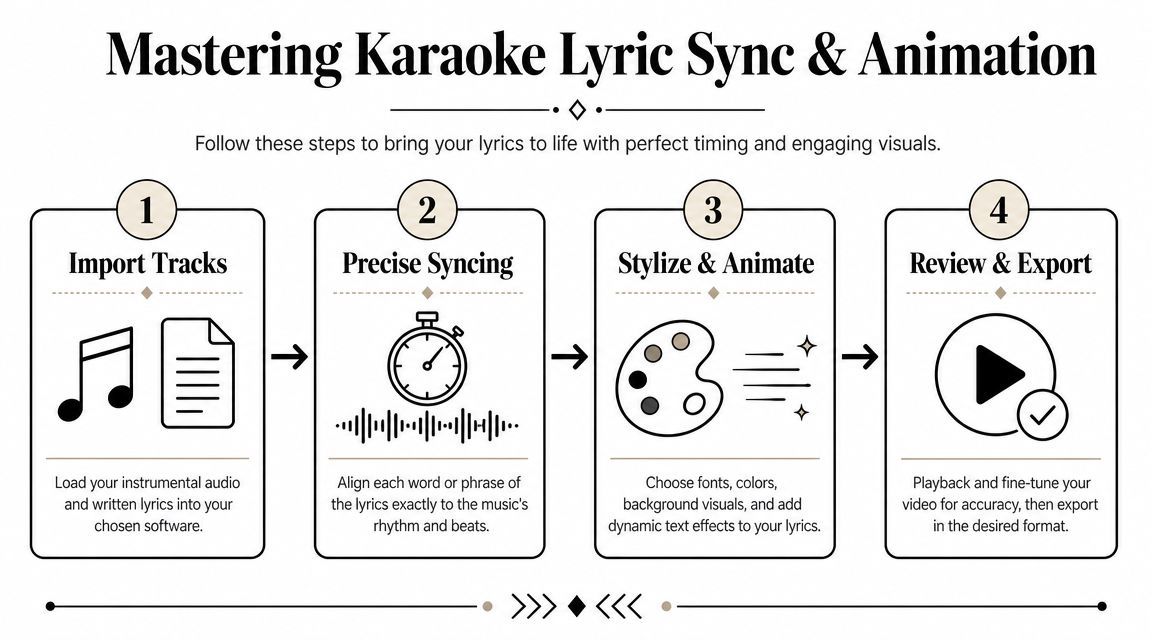
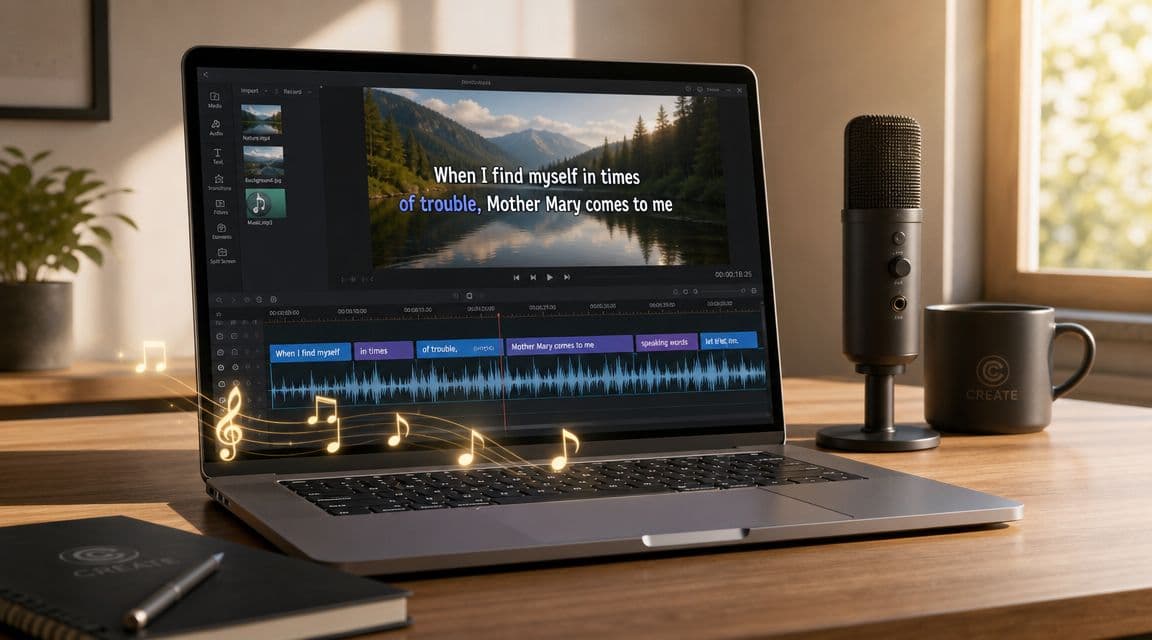
A dependable workflow usually follows three technical stages: import the backing track or video, add lyric overlays, then preview and export. Clipchamp recommends importing media from your device, OneDrive, or stock libraries, adding title and lyric text with the text tool, previewing, and exporting in 1080p by default. A more advanced workflow described by LALAL.AI adds timeline markers for lyric alignment and text styling changes like font, color, size, position, and animation. It also points to the biggest technical failure point: sync drift after audio edits. Once the text slips off the timeline, the whole video becomes frustrating to sing with (Clipchamp karaoke editing guide).
Line timing first, polish second
Start by laying in whole lyric lines, not individual word highlights.
That first pass should answer only two questions:
- When should this line appear?
- When should it disappear?
If you try to perfect every syllable immediately, you'll burn time and lose rhythm. Rough in the entire song first, then tighten the problem areas.
The classic highlight method
The most familiar karaoke effect is a neutral lyric line with a colored highlight moving across it in sync with the singing.
A practical way to build it manually is:
- Put the base lyric line on screen in white or another neutral color.
- Duplicate that line above it in a highlight color like yellow or blue.
- Use a mask, crop, or reveal animation on the top layer so the highlight travels across the words as they're sung.
That method works in desktop editors and many mobile tools. It's simple, readable, and familiar to viewers.
For software options that are built around readable animated text rather than generic title cards, this roundup of text on video software can help if you're still comparing tools.
Here's a good visual walkthrough to pair with the manual process:

Readability beats decoration
A karaoke video is a utility first. Design it that way.
Use a short checklist when styling lyrics:
- Choose a bold sans-serif font so words stay readable at a glance
- Add shadow or outline if the background changes brightness
- Keep enough margin around the text so mobile interfaces don't cover it
- Limit animation to effects that help tracking rather than distract from it
Fast transitions, glowing particle backgrounds, and bouncing text can look fun in previews. In real use, they often make singers work harder.
If the user has to think about where to look, the video is already doing its job poorly.
Watch for sync drift after any change
This catches a lot of people. You trim the intro, replace the audio, or nudge a section for visual reasons, and suddenly every lyric block after that point is late.
When that happens, do this:
- review the first verse
- check the first chorus
- scrub to a late verse or bridge
- test on a phone before export
If those checkpoints feel right, your timeline probably survived the change. If one of them is off, fix it before you render. Exporting bad sync just means doing the whole pass twice.
Adding Visuals and Exporting for Social Media
Once the lyrics are locked, the background and export choices decide whether the video feels finished or just assembled.
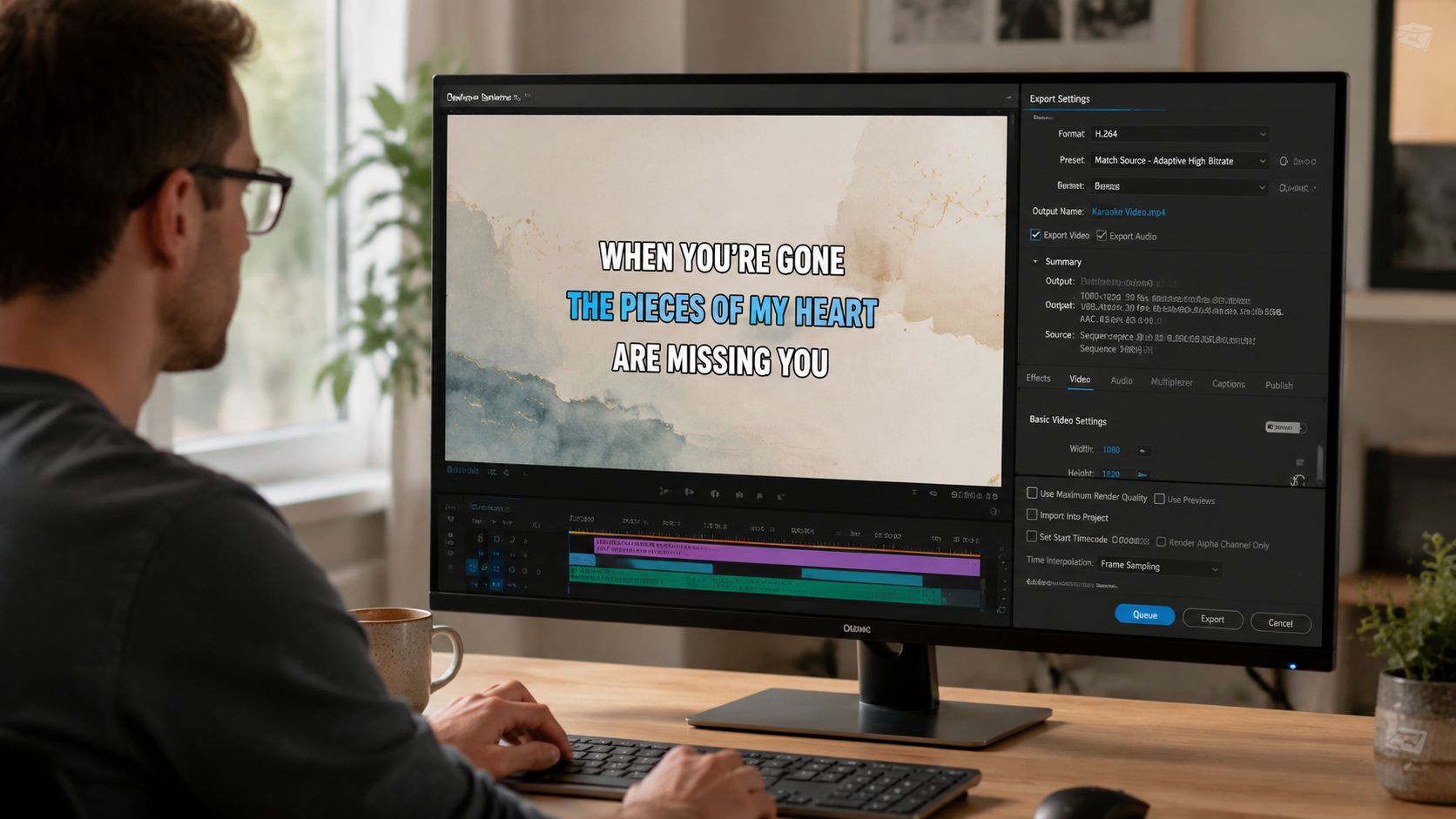
A black background still works. So does a static photo. But if you want the video to feel more current, subtle motion tends to help. The key word is subtle. The lyric track should stay dominant.
Backgrounds that help instead of hurt
Good background choices include:
- Soft looping footage like lights, skies, roads, or abstract motion
- Simple gradients that support strong text contrast
- Audio-reactive visualizers if they don't compete with the words
- Still images for slower songs where too much motion feels wrong
Bad background choices are easy to spot. Anything high-contrast, crowded, or constantly changing behind the lyric line makes people miss their cue.
Export settings that travel well
Before export, match the frame to the platform:
| Destination | Best shape |
|---|---|
| YouTube karaoke video | 16:9 horizontal |
| TikTok, Reels, Shorts | 9:16 vertical |
| Mixed use across platforms | Make separate versions |
For output quality, 1080p is usually the safest choice for broad platform support and crisp lyric text, especially when you don't want the file size penalty of 4K. That's the setting most creators can rely on without overcomplicating delivery.
A quick pre-export check helps:
- Audio balance: the backing track should feel full but not distorted
- Text safe area: no line should sit too close to edges
- Contrast test: the chorus should remain readable on the busiest background section
- Mobile test: watch one full section on your phone, not just on the editing monitor
Publishing matters too
A well-made karaoke video can still underperform if the packaging is vague. Use a clear title, song name, artist name, and “karaoke” or “lyrics” in a natural way. For social posts, add enough context that someone landing cold knows what they're getting.
If you're sharing clips through Instagram or TikTok and want viewers to reach the full version cleanly, these lnk.boo's video link in bio tips are worth a look because link routing becomes surprisingly important once you post more than one version of the same song.
And if you're still deciding how each platform handles framing, quality, and upload expectations, this breakdown of the best format for YouTube is a practical reference.
Frequently Asked Questions About Karaoke Videos
Some problems show up after the first export, not before. These are the ones creators ask about most.
Can you monetize karaoke videos on YouTube
Sometimes, but don't assume you'll keep the revenue from popular songs.
If your video uses a well-known track, the rights holder may claim it through YouTube's systems. In some cases the video stays up while monetization goes elsewhere. In others, distribution can be limited. That's why karaoke channels built around licensed catalogs are in a different position from casual uploaders using commercial music without permission.
What's the best beginner-friendly option
It depends on what you find frustrating.
If you want control and don't mind learning, a desktop editor like DaVinci Resolve is a strong starting point. If you want speed and fewer moving parts, CapCut is easier to pick up. If your main problem is time, an automated karaoke platform gets you to a draft faster than either of those.
Why do my lyrics drift out of sync later in the song
Usually because something in the timeline changed after you synced, or because the timing was only roughly aligned in the first place.
This is common after replacing the audio file, trimming the intro, or making edits in the middle of the sequence. Check your chorus first. Drift often becomes obvious there before it feels obvious elsewhere.
Don't trust the first verse alone. Late-song sync is where weak timing reveals itself.
Should you sync word by word or line by line
For many songs, a hybrid approach works best.
Use line-level timing to get the structure in place. Then tighten the words that need guidance, especially fast phrases, pickups into choruses, or long held vowels. Not every song benefits from obsessive word-by-word treatment. Some become harder to read when the animation gets too fussy.
Do you need fancy visuals for a good karaoke video
No. You need clear lyrics, stable timing, and enough contrast.
A plain background with well-styled text is better than a flashy backdrop that fights the words. Most viewers forgive simple design. They do not forgive bad sync.
What's the fastest way to improve your first karaoke video
Run a short real-world test.
Play the chorus on your phone. Stand back from the screen. Try singing to it without touching the timeline. If you miss entries, stumble over line breaks, or lose the highlight against the background, the singer will too.
If you also create short-form social videos and want a faster way to produce faceless clips with scripts, voiceovers, visuals, subtitles, scheduling, and auto-posting, ClipCreator.ai is worth a look. It's built for creators and teams who need consistent TikTok, YouTube, and Instagram output without doing every edit by hand.

Create your first video in under 2 minutes
Pick a niche, and ClipCreator.ai generates and auto-posts faceless videos to your channels every day.
Join ClipCreator.ai