The fastest way to get music on your YouTube Shorts is right inside the YouTube app. The 'Add sound' feature is your direct line to a massive library of licensed, trending tracks that can give your content a serious viral boost before you even hit publish.
Why Audio Is Your Secret Weapon for Viral Shorts
Let's be real: audio isn't just background noise. The right sound is what turns a decent Short into one that people watch over and over. It's the hook that stops the endless scroll within the first three seconds and forges an emotional connection that silent video just can't match.
Think of audio as the engine powering your content's reach. When you use a trending song, you're sending a strong signal to the YouTube algorithm. It essentially groups your video with other popular content using that same sound, pushing it out to new audiences who are already primed to enjoy it.
But it’s not just about chasing trends; it's about understanding viewer psychology. Music sets the mood, builds tension, or makes a simple clip hilarious. That emotional punch translates directly into better watch time and more engagement—exactly what YouTube's algorithm loves to see.
This decision tree breaks down whether you should chase viral trends or focus on building a unique brand sound.
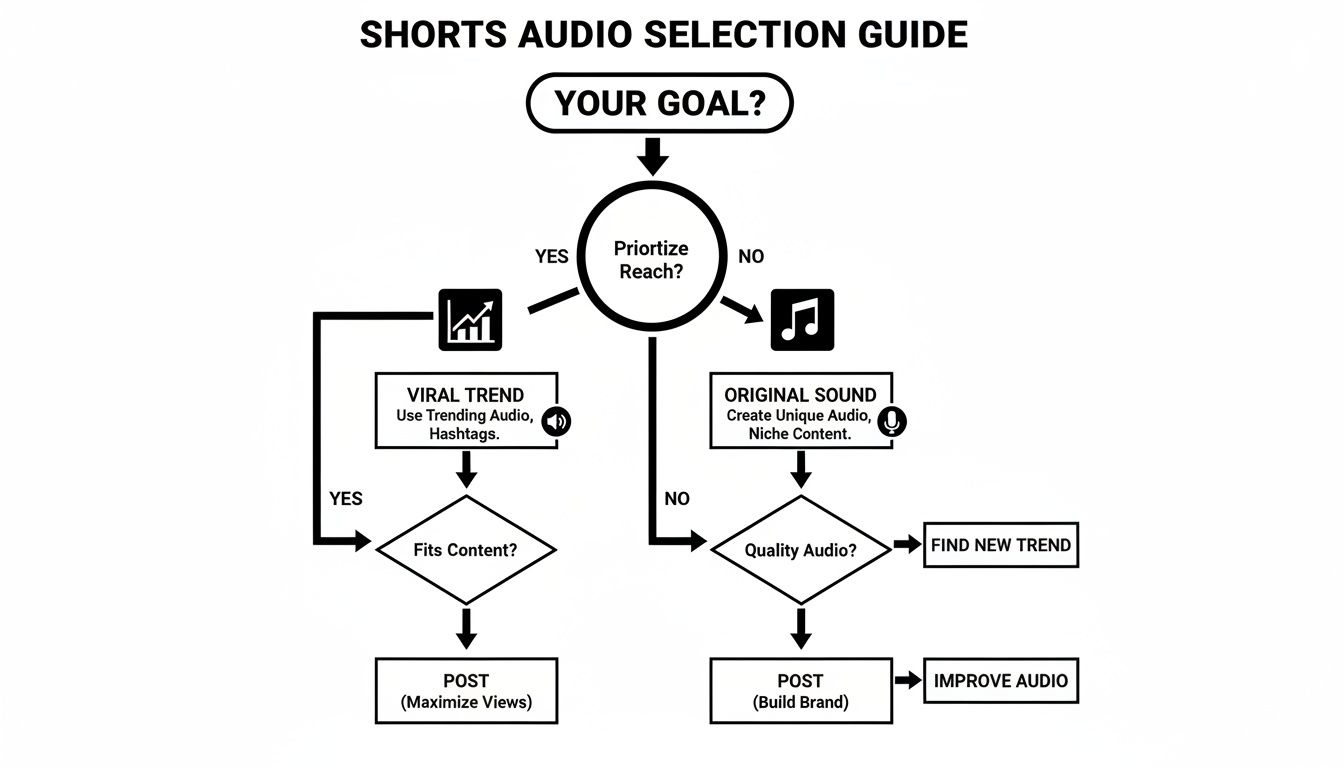
As you can see, trending audio is your go-to for maximizing immediate reach. On the other hand, original audio is perfect for building a memorable, long-term brand identity that people recognize instantly.
Your Audio Options for YouTube Shorts
Here’s a quick comparison of the main ways to add audio to your Shorts, helping you decide which approach fits your content and workflow best.
| Method | Pros | Cons | Best For |
|---|---|---|---|
| YouTube App Library | Easy access to trending, licensed music; algorithm-friendly. | Limited to 60-second clips; less creative control. | Quick, trend-focused content and maximizing reach. |
| Your Own Music (Upload) | Full creative control; reinforces brand identity; potential for monetization. | Requires owning rights; risk of copyright claims if not handled properly. | Creators with original music, brand anthems, or unique sound effects. |
| Third-Party Editor | Advanced editing features; precise volume control and audio mixing. | More time-consuming; requires external software and video export/import. | Polished, professional-grade videos with complex audio layers. |
Ultimately, the best method depends entirely on your goal. Are you jumping on a trend or building a sonic brand? Your answer will guide your choice.
The Power of Sound in Numbers
The data doesn't lie. Music and dance content makes up a massive 15% share of all YouTube Shorts, sitting right behind entertainment as a top-performing category.
This is all happening on a platform that's exploding in popularity. YouTube Shorts now rack up over 70 billion daily views. Music-driven content is a huge piece of that pie.
Pro Tip: Don't just pick a song because it's popular. Pay attention to how other creators are using it. Notice the specific cuts, transitions, and punchlines they time to the beat. Replicating those successful patterns with your own unique twist is a proven formula for getting views.
Knowing how to choose the right audio is one thing, but you also need to understand how to get it seen. For a deeper dive, there are great resources on how to promote your music on short-form platforms.
And if you're looking to make your entire creation process smoother, check out our full guide on how to https://clipcreator.ai/blog/create-youtube-shorts using a more automated workflow.
Using the YouTube Shorts Audio Library
The most straightforward way to add music to a YouTube Short is by tapping into the platform’s own massive, built-in audio library. Honestly, this is the best method for most creators, especially if you want to jump on a trend or use a popular, licensed track without any fuss. It’s all right there in the app, designed to be quick and easy.
When you start creating a Short, you’ll see an ‘Add sound’ option right at the top of the screen. Tapping this opens up a whole universe of audio. YouTube immediately shows you curated playlists and, more importantly, what's currently trending. This isn't just a random list; it’s a direct line into what the algorithm is pushing right now.
Finding the Perfect Track
Getting good at navigating the library is a real skill. Don't just grab the first song you see. Use the search bar to find something that actually fits the vibe of your video. For instance, searching "upbeat synth" will give you a totally different energy than "cinematic piano," letting you nail the mood you're going for.
Once you’ve found a sound you like, you’re not stuck with just the first 15 seconds. YouTube gives you a simple tool to find the exact part you need.
- First, tap the song to select it.
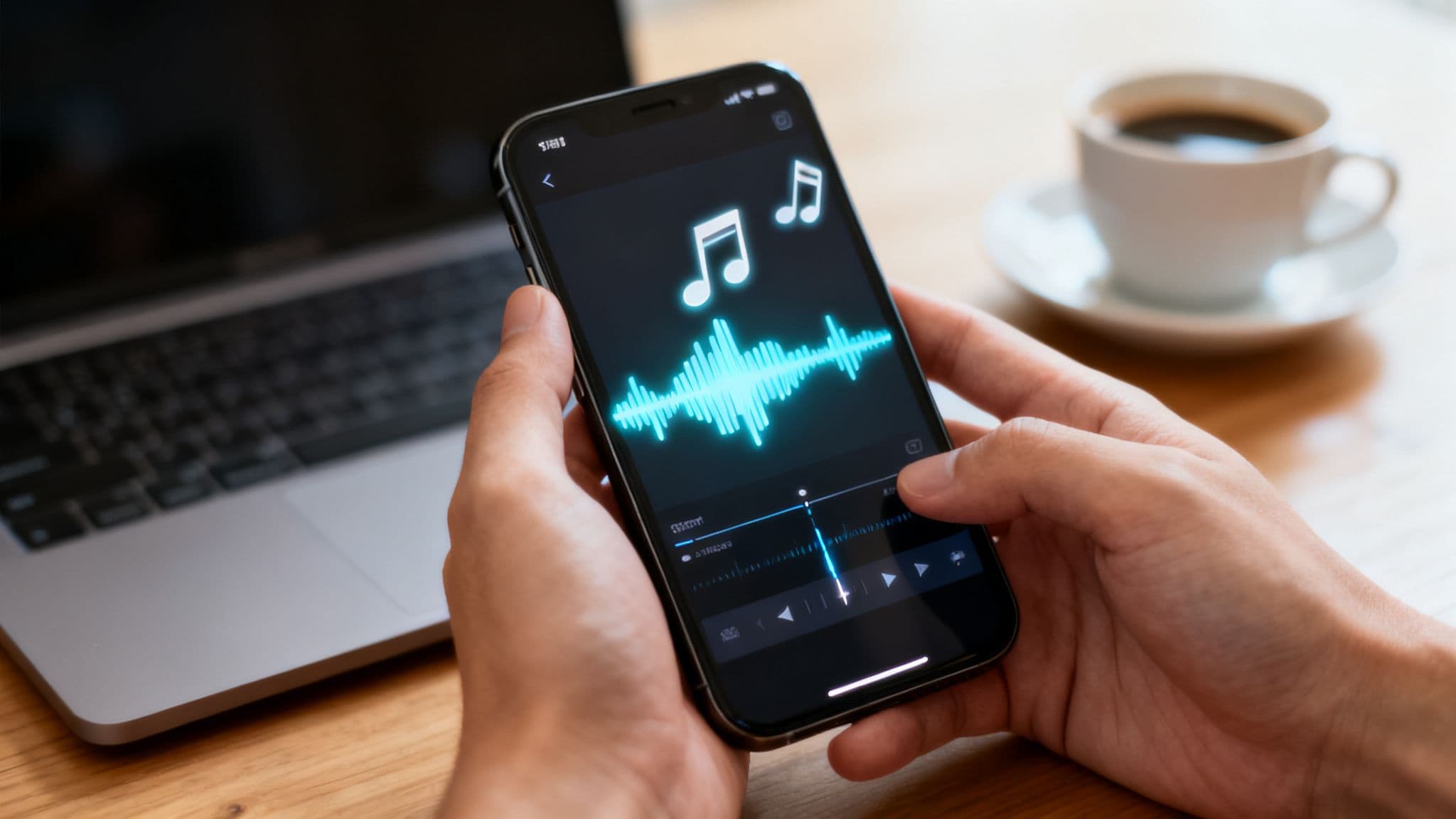
- You’ll see a waveform pop up. Just drag it left or right to find the perfect clip. This is crucial for timing a beat drop or a specific lyric to something happening in your video.
- When you’ve found the perfect 15- to 60-second snippet, just hit the checkmark, and it’s added to your project.
Remixing and Using Sounds from Other Shorts
Ever been scrolling through Shorts and heard a track that sparks an idea? The "Remix" feature is your best friend. When you find a Short with an audio you want to use, just look at the bottom right corner. You'll see the song title or "Original sound" scrolling by.
Tapping that sound brings you to its dedicated audio page. You can’t miss the big red 'Use this sound' button. Hitting that will immediately launch the Shorts camera with that audio already loaded up, so you can film your take on the trend right away. It’s the fastest way to get in on something while it's still blowing up.
Here's a pro tip: using a sound from another video—whether it's a Top 40 hit or a funny original clip—connects your Short to that trend. It’s a signal to the algorithm to show your content to people who have already watched videos with that same sound, which can give your discovery a serious boost.
Balancing Your Audio Mix
Okay, you've added your music. Now it's time to get the mix right. This is especially important if your original video has dialogue or ambient noise you want people to hear. Skipping this step is what separates amateur Shorts from polished ones.
In the Shorts editor, find the 'Volume' button. This opens up two simple sliders:
- Original sound: The audio that was actually recorded with your video.
- Added music: The track you picked from the library.
You can slide these controls to make your voiceover pop while the music sits in the background, or you can mute your original audio entirely and let the music drive the video. Mastering this simple balance is a small tweak that makes a huge impact on how professional your Short feels.
For a complete walkthrough of the next steps, our guide on how to post a Short on YouTube breaks down the entire upload process.
Using Your Own Music and Dodging Copyright Strikes
While YouTube's audio library is a goldmine for trending sounds, sometimes your video needs a specific vibe that only custom music can provide. Whether it's your own original song or a track you've licensed, using your own audio is the key to building a truly unique brand identity.
This path just requires a little more legwork to stay on the right side of music rights.
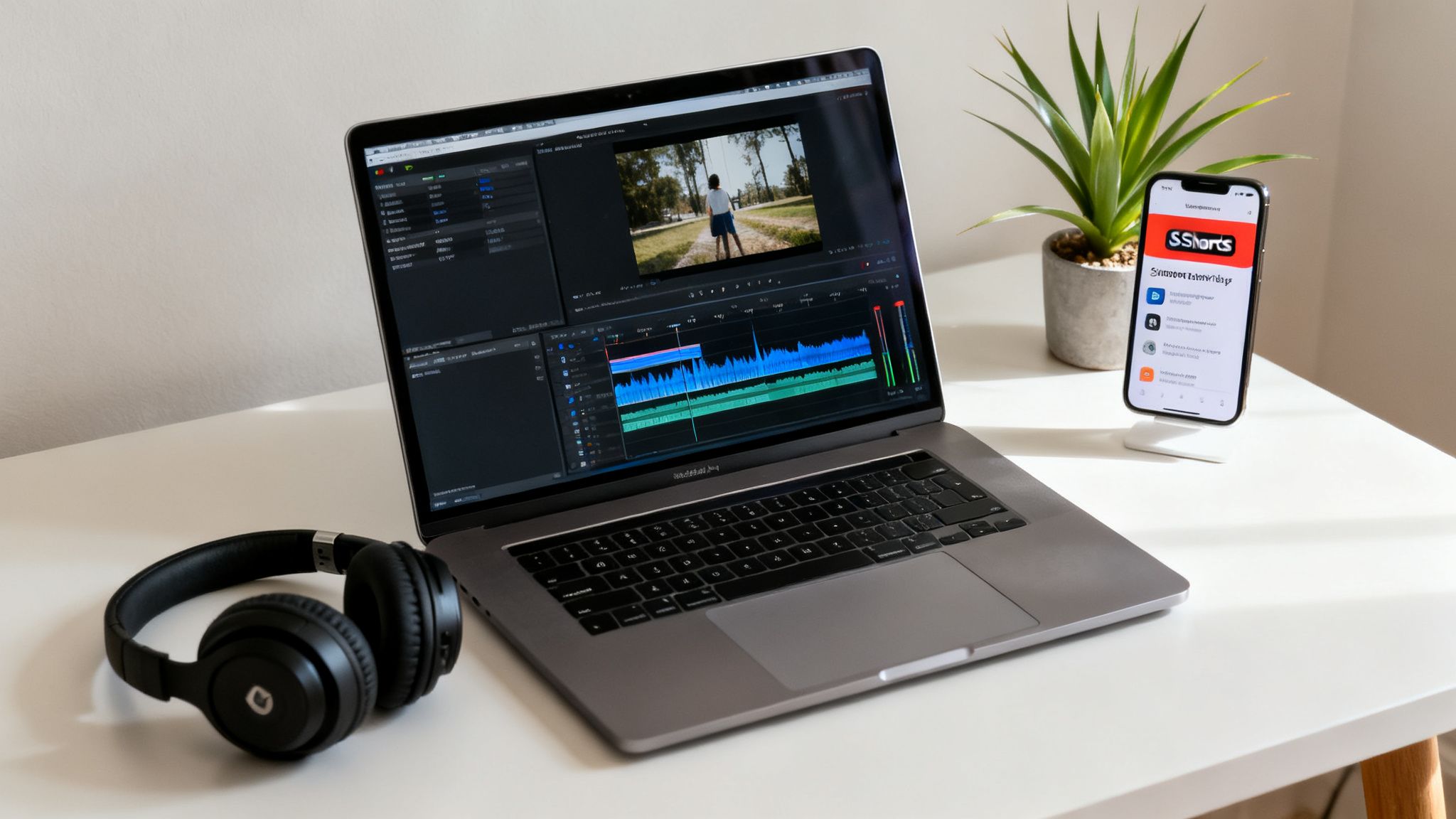
Essentially, you'll need to edit your Short in an external video editor before you even think about uploading it. This gives you way more control over the final product—you can precisely mix dialogue, layer in sound effects, and get the music just right. Once your masterpiece is complete, you just upload the final video file as long as it’s under 60 seconds and in a vertical format.
Your Music Licensing Options Explained
Stepping outside of YouTube's library means you'll run into a few different kinds of music licenses. Getting a handle on these is crucial for keeping your channel safe and sound.
- Royalty-Free Music: Don't let the name fool you; this doesn't mean it's free. It means you pay once (either a one-time fee or a subscription) to use the track without having to pay ongoing royalties to the artist for every play. Think of it as a "buy once, use forever" deal.
- Creative Commons (CC): This is a fantastic system where artists let people use their work for free, but usually with a few strings attached. You might need to credit the artist in your description (attribution) or be barred from using the song in monetized videos. Always check the specific CC license terms.
- Copyright-Free / Public Domain: This is the good stuff. These are creative works where the intellectual property protection has expired or been waved by the creator. You can typically use them however you want, but it's always smart to double-check that a track is truly in the public domain.
How to Stay Clear of Copyright Claims
A copyright claim is a real headache. It can get your Short's audio muted, redirect any ad revenue to the music owner, or even earn you a channel strike. Rack up three of those, and YouTube might just terminate your channel. It's serious business.
Here’s how to keep your channel in the clear:
- Keep Your Receipts: If you buy a license from a royalty-free music site, download and save the license certificate. This is your get-out-of-jail-free card if a claim ever pops up.
- Give Credit Where It's Due: Read the license terms carefully. Many Creative Commons licenses simply require you to pop the artist's name and a link in your video description. It’s an easy way to stay compliant.
- Stick to Legitimate Sources: Use well-known, reputable royalty-free music libraries. These platforms do the heavy lifting to ensure every track is properly cleared for you to use on platforms like YouTube.
A huge mistake I see creators make is grabbing music from a YouTube video labeled "no copyright." More often than not, these are just unauthorized re-uploads. Using them is a fast track to a copyright claim. Stick to the pros.
By getting these rules down, you can confidently use your own soundtracks to make your content shine. As your channel grows, having a library of original, brand-safe content is a huge asset when you start looking into how to monetize YouTube shorts.
Getting Your Audio Mix Just Right
So, you’ve picked the perfect track for your Short. Great! But just dropping it in isn't enough. The real magic happens in the audio mix—this is what separates amateur content from the Shorts that feel polished and professional.
Think about it: a great Short has a balanced soundscape where every element has its place. This is crucial if your video includes any kind of dialogue or voiceover. You want the music to support your story, not shout over it. If your audience has to struggle to hear what you're saying, they’re gone. Swipe. Next video.
Luckily, getting that pro-level balance is easier than you might think.
How to Balance Volume Directly in the YouTube App
The YouTube app gives you a simple, yet powerful, tool to get this right. Once you've added a song from their library, you'll see a ‘Volume’ icon on the right-hand editing toolbar. Tap it, and you'll get two sliders.
- Original Audio: This is the volume of whatever you recorded with your camera. It's your voiceover, the ambient noise, your dialogue—the main event.
- Music: This is the volume for the track you just picked.
Here’s a classic scenario: a voiceover Short. You'll want to crank your Original Audio up to somewhere between 80-100%. Then, take that Music slider and pull it way down, often to just 10-20%. This keeps your voice front and center while the music adds a nice background texture without being distracting.
Pro Tip: Never trust the default volume levels. They almost always need a tweak. Play your Short back a couple of times before hitting publish. Listen with a critical ear—if the music pulls your attention away from your voice, it’s too loud.
Using Audio to Make Your Shorts More Engaging
Beyond just setting levels, you can use sound to give your Shorts a creative edge and make them feel more dynamic.
One of my favorite tricks is to time your video cuts to the beat of the music. This creates a rhythm that's incredibly satisfying for the viewer and makes the whole thing feel more intentional. Are you making a quick recipe video? Try to have each new ingredient appear right on a snare hit. It’s a small detail that makes a huge impact.
Sound effects are another game-changer. A subtle whoosh can make a transition feel slick and seamless. A comedic boing or a record scratch can land a joke perfectly. These little audio cues guide the viewer's experience and can elevate a simple clip into something truly memorable.
Solving Common Music and Audio Problems
Even the most seasoned creators hit a wall with audio glitches. You've got the perfect clip, you find the perfect track, and then... nothing. Whether it’s a song that’s suddenly unavailable or audio that’s mysteriously out of sync, these issues can kill your creative momentum.
This is your go-to guide for troubleshooting the most common headaches you'll run into when adding music to YouTube Shorts.
Let's walk through these problems with clear, practical solutions that actually work. Think of this as your quick-reference manual for getting past audio setbacks without the stress.
Why Is My Desired Song Unavailable?
It’s a classic creator frustration: you find the perfect song for your Short, but it’s greyed out or you get that dreaded "not available in your region" message. What gives?
This all comes down to the ridiculously complex world of music licensing, which changes from country to country. A record label might have a deal with YouTube for a song's use in the U.S. but not in Canada or the U.K. It's that simple, and that frustrating.
While there’s no magic button to unlock the track, you aren't out of options:
- Look for similar vibes. Dive back into YouTube's search bar. Try searching for the same genre, mood, or even similar artists to find a track that is licensed in your country.
- Try a VPN (with caution). A VPN can sometimes spoof your location and make the track available, but this is a grey area. It might violate YouTube's terms of service, so proceed at your own risk.
- Grab a royalty-free alternative. Your best bet is often to pivot. Head to an external music library, find a similar-sounding track you can legally use, and simply add it to your video in an editor before you upload.
Fixing Audio and Video Sync Issues
Nothing screams "amateur" like audio that doesn't line up with the video. When a lip-sync is off or a sound effect is a second late, it completely breaks the viewer's immersion. This desynchronization usually happens because of a processing glitch, especially when you're working directly on a mobile device.
If you upload a Short and notice the audio is out of sync, the simplest fix is often the best: delete it and re-upload it.
But before you hit upload again, try clearing the YouTube app's cache on your phone. This one small step can resolve a ton of weird processing bugs that cause sync problems in the first place.
For those of you editing on a laptop or desktop, double-check that your project's frame rate matches the frame rate of your final exported file. A mismatch there is one of the most common culprits behind audio drift.
Here's a workaround I've used in a pinch for persistent sync issues: I'll play the final, perfectly synced video on my device and do a high-quality screen recording of it. Then, I upload that screen recording as the Short. It's not the most elegant solution, but it can be a real lifesaver when you're on a deadline and the app just won't cooperate.
Pushing through these technical hurdles is absolutely worth it. With 200 billion daily views, getting your sound right is how you stand out. In fact, trends from the first half of 2024 show that Shorts between 30-60 seconds have seen a 39% increase in uploads. This proves that audiences are hungry for compelling, well-produced content. To get a better feel for the platform, you can explore more fascinating YouTube statistics.
Got Questions About Music for Shorts? We've Got Answers
Let's be honest, figuring out the rules for music on YouTube Shorts can feel like a maze. You know the perfect song can make your content take off, but you're also worried about copyright strikes and monetization headaches.
I get it. That's why I've put together this quick rundown of the questions I hear from creators all the time. Think of it as your go-to guide for using music on Shorts like a pro.
Can I Actually Monetize a Short if I Use a Famous Song?
Yes, you can! This is a huge shift from how things used to work on YouTube. When you grab a track from the official Shorts Audio Library, you’re automatically part of a revenue-sharing model.
Basically, the ad money your Short earns gets split between you and the music rights holders. The exact percentage depends on how many licensed tracks you use. It’s YouTube’s way of letting you legally use popular music while still getting paid for your creativity.
What’s the Worst That Can Happen if I Use Copyrighted Music Without Permission?
Playing with unlicensed copyrighted audio is just not worth the risk. At best, you'll get a Content ID claim, which usually means one of a few things:
- The sound on your Short gets muted entirely.
- Your video is blocked in certain countries (or everywhere).
- The copyright owner gets all the ad revenue your video makes.
In a more serious scenario, you could get a full-blown copyright strike. Get three of those, and your channel is gone for good. It’s a risk that can undo years of hard work.
My advice? Always play it safe. Stick to the Shorts Audio Library or a trusted royalty-free music service like Epidemic Sound or Artlist. It protects your content, your channel, and your peace of mind.
How Can I Find Out What Songs Are Trending for Shorts?
The easiest way is to let the YouTube app do the work for you. Just tap the 'Add sound' button when creating a Short. The first thing you'll see are curated playlists like 'Top Sounds' and other trending sections.
Another great trick is to just spend some time scrolling the Shorts feed. If you start hearing the same song or audio clip over and over, you’ve spotted a trend in the wild. Tap the sound's name at the bottom of the video, and you’ll be taken straight to the audio page where you can use it yourself.
Why Is the Song I Want Greyed Out or Unavailable?
This is a super common and frustrating issue, and it usually boils down to licensing. Music rights are incredibly complicated and often restricted by country. A song might be available in the U.S. but not in the U.K., for example.
Sometimes, a rights holder simply decides to pull their music from the library. A track might also be limited to 15-second clips only, so it will appear greyed out if you're trying to make a 30- or 60-second Short. If you hit this wall, the best move is to find a similar-sounding track that is available.
Ready to create stunning, story-driven Shorts without the manual effort? ClipCreator.ai automates the entire process, from AI-generated scripts and voiceovers to perfectly synced visuals and subtitles. Start creating viral-ready videos in minutes at https://clipcreator.ai.

Create your first video in under 2 minutes
Pick a niche, and ClipCreator.ai generates and auto-posts faceless videos to your channels every day.
Join ClipCreator.ai