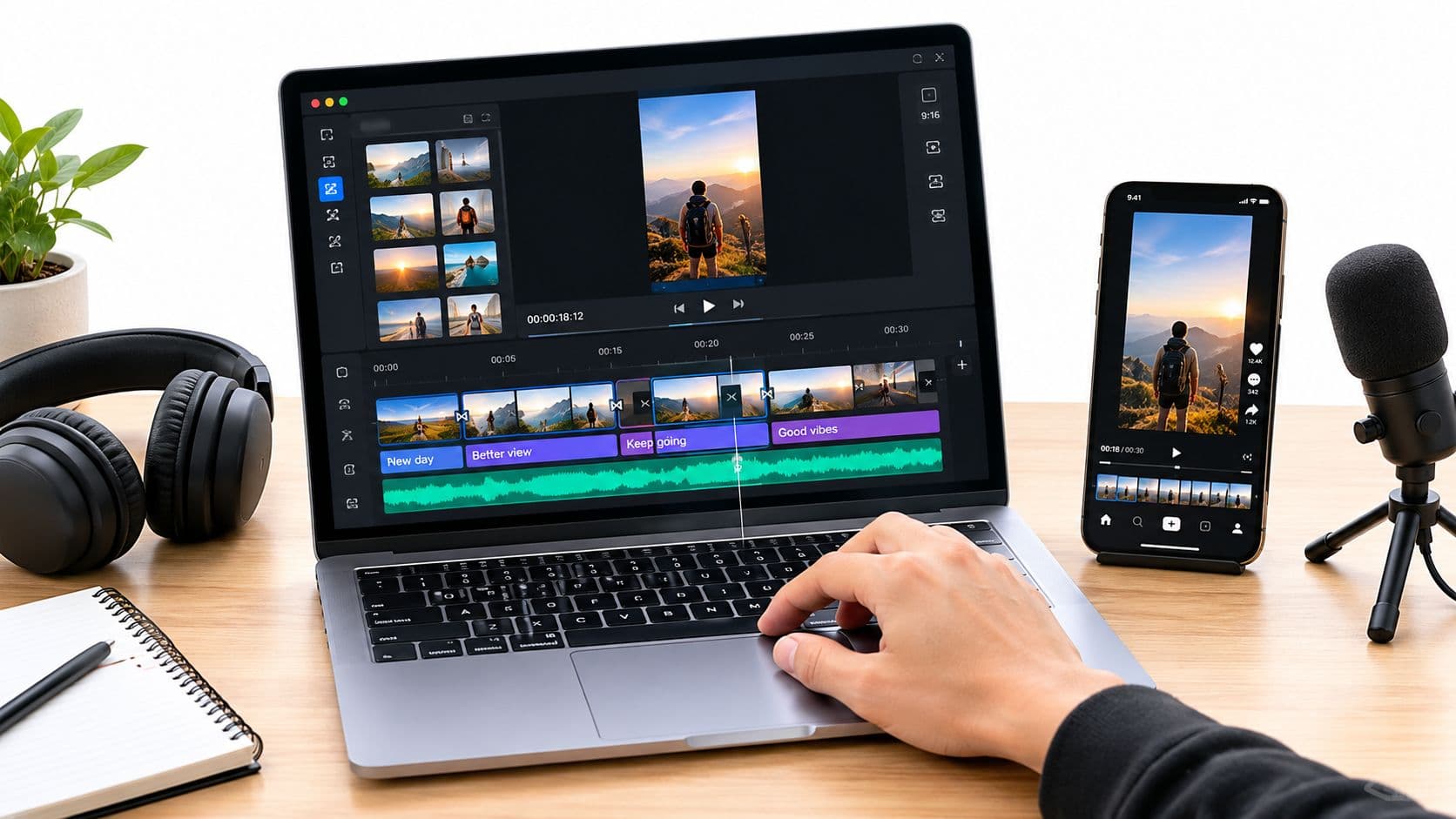
Most advice about employee training videos still assumes you need a presenter on camera, a polished studio setup, and a long runtime to prove the training is “serious.” In practice, that approach often creates slow, expensive content that employees skim once and never revisit.
Short, faceless videos usually work better for operational training. They're faster to update, easier to standardize, and better suited to how people learn at work: in the flow of the job, one task at a time. In corporate e-learning, retention can rise from 8 to 10% in traditional formats to 25 to 60% with digital learning, and 95% of employees report preferring video over text for knowledge delivery, according to Continu's corporate e-learning statistics roundup.
That doesn't mean every short video is good. Most fail for familiar reasons. They try to teach too much, they explain policy instead of showing action, or they bury the point under branding, intros, and filler. Effective employee training videos are narrower than expected. One skill. One outcome. One clear next action.
Lay the Groundwork for Effective Training
A training video shouldn't start with a script. It should start with a performance problem.
If someone says, “We need a video on the new CRM,” stop there. That isn't a learning objective. It's a content topic. The core question is what employees are currently doing wrong, slowly, or inconsistently. Until you answer that, you're producing media, not training.

Start with the skill gap
TechSmith's guidance is a reliable benchmark here: begin with a clear needs analysis, script only the actions employees must perform, then test the video with a sample group before rollout, as outlined in TechSmith's employee training video guide.
That needs analysis doesn't have to be formal. In many teams, a quick working session is enough if you ask the right questions:
- What must change on the job: Identify the behavior you need to see after the video.
- Who struggles with it: New hires, managers, field staff, support reps, or everyone.
- What “good” looks like: Define the correct action, not just general understanding.
- What gets in the way: Confusing software, skipped steps, poor handoffs, or outdated instructions.
A lot of weak training exists because teams train for awareness when the job requires execution. Employees don't need a history lesson on the expense process. They need to submit an expense correctly.
Practical rule: If you can't observe the result after the video, the objective is still too vague.
Write one measurable objective
For faceless microlearning, one video should target one outcome. That constraint makes everything easier later: scripting, visuals, narration, editing, and measurement.
Use a simple formula:
| Objective part | What to write |
|---|---|
| Audience | Who needs the skill |
| Behavior | What they must do |
| Condition | In what system or situation |
| Standard | What counts as correct |
“After watching, a new sales rep can create a lead record in the CRM using the required fields.”
That's strong enough to guide production. “Understand the CRM” is not.
If you're building training more broadly across the employee lifecycle, this guide for HR directors on staff development is useful for framing how video fits into a wider capability plan rather than sitting as a one-off asset. And if you're comparing platforms before production starts, this overview of video training software helps sort creation tools from hosting and LMS tools.
Define what the video will not cover
This step saves more time than people expect.
List the adjacent topics and exclude them. If the video teaches how to log a support ticket, don't also explain service-level policy, escalation governance, and reporting. Those may matter, but they belong in separate assets.
A short training video gets stronger every time you remove a secondary objective.
The best employee training videos feel almost small when you first approve the outline. That's usually a good sign. Small scope is what makes a faceless training library scalable.
Structure Your Video for Maximum Retention
Long-form training often confuses completeness with usefulness. It feels efficient to put everything into one master video, but that usually creates a bloated asset that nobody wants to rewatch.
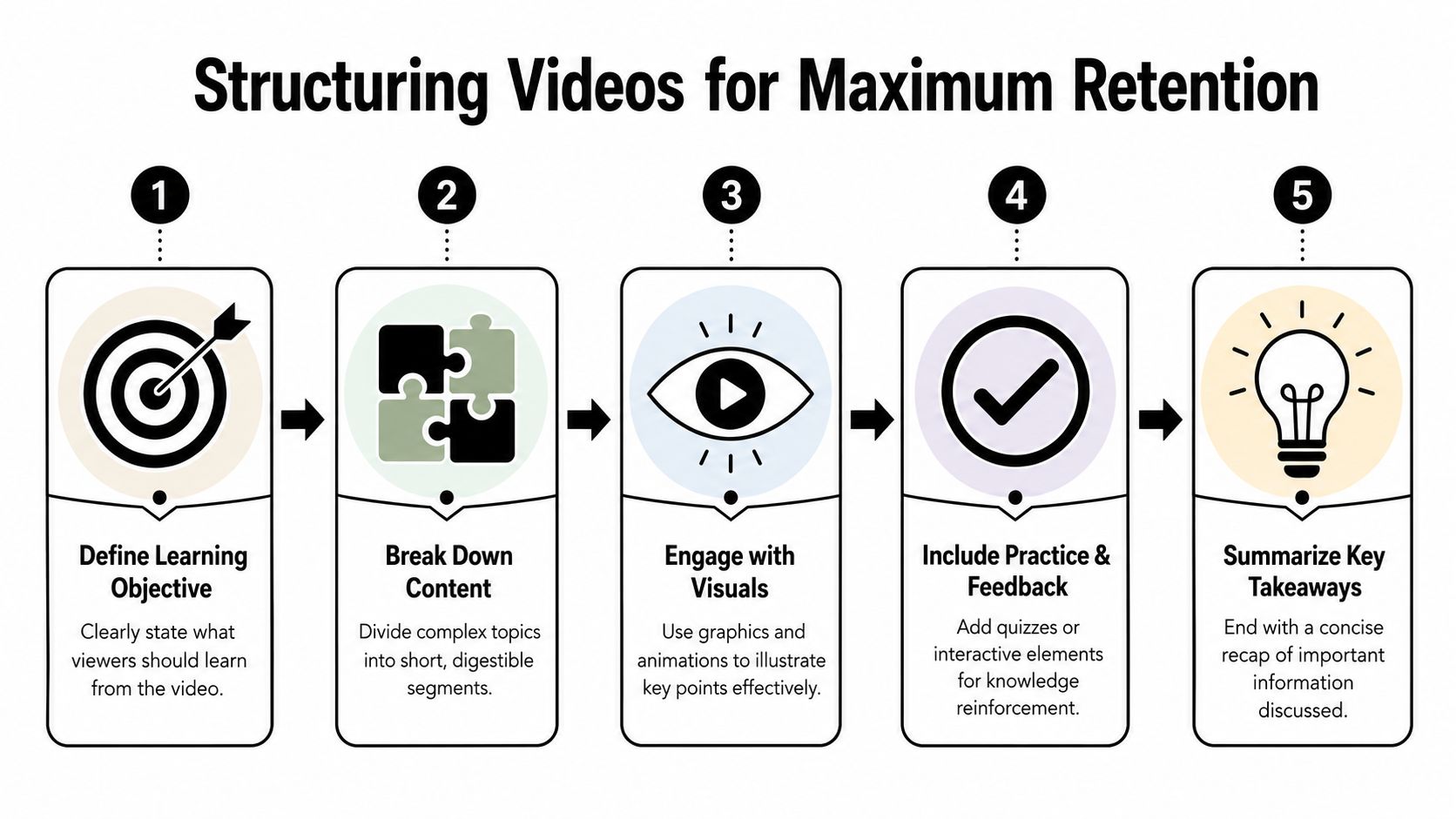
A better model is microlearning. Sundaysky recommends a structure built around one measurable learning objective, a short module of about 3 to 7 minutes, and reinforcement through visuals, captions, and a brief knowledge check or interactive element, as described in its guide to structuring training videos.
One video, one skill
That rule sounds restrictive until you apply it to a real topic.
Take onboarding. Many teams build a single onboarding video that tries to welcome the employee, explain the culture, introduce systems, outline policies, and walk through first-week tasks. It becomes a passive orientation film, not a usable resource.
Break that into a playlist instead:
- Set up your email signature
- Submit your first timesheet
- Request time off
- Find the company policy library
- Create your first customer note
- Escalate an issue to your manager
Each video solves a specific moment of need. That's what makes the library searchable and reusable.
Why short works better
Employees don't sit down in a perfect learning environment. They're between calls, in a queue, on a shop floor, or trying to finish a task before a deadline. Short videos reduce friction. They also reduce cognitive overload because the learner only has to process one procedure at a time.
That matters even more for faceless formats. Without a presenter carrying the energy, the structure has to do the work. A clean sequence helps:
- State the task
- Show the steps
- Highlight the common mistake
- Recap the correct action
- Check understanding
Here's a useful visual summary of that flow:

Build playlists, not standalone files
The hidden advantage of microlearning is maintenance. When a system screen changes, you replace one short video instead of re-editing a long training course. When a policy changes, you update the relevant module and leave the rest untouched.
Short videos don't just help the learner. They also protect the training team from constant rework.
What doesn't work is chopping a long webinar into random clips and calling it microlearning. A microlearning video has to be designed as a complete unit with a single outcome. If the clip needs surrounding context to make sense, it isn't really microlearning yet.
Write Scripts That Employees Will Actually Watch
Production quality matters less than script quality. Employees will tolerate simple visuals if the video gets to the point and shows them exactly what to do. They won't tolerate a polished video that wastes the first minute on generic context.
Faceless employee training videos need scripts built for the ear, not the page. Policy language, dense jargon, and long subordinate clauses may look fine in a document. Read aloud, they sound stiff and slow.
Use a problem, action, outcome pattern
A practical script usually follows this order:
- Problem: What task is the employee trying to complete?
- Action: What steps should they take?
- Outcome: What should happen when they do it correctly?
That pattern works because it mirrors real use. The employee usually arrives with a question, not a desire for background theory.
Bad opening:
“Welcome to this module on support ticket documentation, where we will provide an overview of internal quality expectations.”
Better opening:
“In this video, you'll learn how to document a support ticket so the next agent can pick it up without rework.”
Write to support visuals, not compete with them
In faceless videos, the screen does a lot of the teaching. If the viewer can see the dashboard, the voiceover doesn't need to narrate every visible click in exhausting detail. Use voiceover for the why, the warning, and the key decision.
A simple rule helps: if the visual already says it, shorten the narration.
The script should carry meaning, not duplicate the screen.
This is also where many teams over-explain. They add full sentences of on-screen text, long narration, and labels on every element. That creates clutter. Keep the viewer's attention on the task.
Use a two-column script before you edit
A training script gets stronger when visuals and narration are planned together. Don't write voiceover in isolation and “figure out the screen later.”
Here's a simple working template.
| Time / Scene | Visual (What the viewer sees) | Voiceover & On-Screen Text (What the viewer hears and reads) |
|---|---|---|
| Opening | Title card with task name | “In this video, you'll learn how to submit a purchase request.” |
| Step 1 | Home screen with cursor highlight | “From the dashboard, open the Requests tab.” |
| Step 2 | Form fields highlighted one by one | “Complete the required fields first. These are the fields that control approval routing.” |
| Common error | Incorrect example with warning callout | “Don't select the general category unless the request has no department owner.” |
| Recap | Short checklist slide | “Open Requests, complete required fields, confirm category, then submit.” |
If you want a starting point you can adapt for voiceover-led workflows, this video script template is a practical reference.
Keep the language plain
The shortest useful sentence usually wins. “Click Save” beats “Proceed by selecting the Save option.” “Ask your manager” beats “Escalate for managerial review,” unless your organization employs that phrase on the job.
Good scripts also sound like one person talking to another. Read them out loud before recording. If a sentence feels awkward in your mouth, it will feel awkward in the video.
Produce Faceless Videos Without a Big Budget
Faceless doesn't mean low quality. It means the camera is no longer the center of the training. For many corporate topics, that's an advantage.
When the skill lives inside a system, a screen recording is usually the clearest format. When the concept is abstract, a slide-based explainer or simple animation may work better. When you need atmosphere or a scenario without filming staff, stock footage or AI-generated visuals can fill the gap. The right choice depends on what the employee needs to see to perform the task.
Choose the format by task type
A side-by-side view makes the trade-offs clearer.
| Format | Best for | Strengths | Trade-offs |
|---|---|---|---|
| Screen recording | Software workflows, admin tasks, system navigation | Fast to produce, highly specific, easy to update | Looks plain if poorly edited, can become hard to follow on busy screens |
| Slide-based video | Process explanations, policy summaries, conceptual training | Clean structure, good for voiceover, easy brand consistency | Can feel static if every slide looks the same |
| Stock footage with overlays | Culture, service standards, soft skills, scenario framing | More polished feel without filming employees | Generic footage can feel disconnected from the real job |
| AI-generated visuals | Short explainers, abstract concepts, visual variety for faceless content | Fast asset creation, useful when no footage exists | Needs careful review for accuracy and consistency |
For software training, I'd default to screen capture first. Employees usually want to see the exact menu, field, and click path. Fancy visual treatment often gets in the way.
For policy or behavior topics, a mixed format works well. Use a simple animated sequence to establish the scenario, then switch to examples, checklists, or annotated screens.
Audio matters more than motion graphics
If you have to choose where to spend effort, improve the audio.
You have three common options:
- Record your own voice if the content needs subject-matter familiarity and your delivery is steady.
- Hire a voice artist when consistency, tone, or multilingual recording matters.
- Use AI text-to-speech when speed and scale matter more than a highly personal delivery.
Each has trade-offs. Internal voices can feel authentic but often need retakes. Professional human voiceover sounds smoother but adds coordination time. AI voices are efficient, especially for large libraries that need frequent updates, but they still need script tuning to sound natural.
Keep the edit functional
A training video doesn't need cinematic pacing. It needs visual clarity.
Use callouts, zooms, cursor highlights, and short text overlays only where they help the learner follow the action. Remove dead time. Trim repeated clicks. Pause briefly on critical fields. If the process is complex, divide it into separate modules instead of forcing one long edit.
For tools, common choices include Camtasia for screen recording and annotation, PowerPoint or Google Slides for slide-based sequences, Descript for voice and transcript-led editing, and ClipCreator.ai for generating short faceless videos from prompts with AI-written scripts, visuals, voiceovers, and subtitles when the format fits short-form instructional content. None of these tools fixes a weak learning objective, but all can speed up production once the design is sound.
Deploy and Measure Your Training's True Impact
Short training videos fail in a predictable way. Teams spend hours making them, then bury them in an LMS folder, publish them with weak labels, and call the job done.
For faceless microlearning, deployment is part of the design. A 90-second video only works when an employee can find it at the exact moment of need, watch it without friction, and apply it on the next task.
Put videos where employees already look
Host the video where the work happens. That might be your LMS for assigned learning, your knowledge base for support content, or an internal portal for repeat processes. The right choice depends on the job.
For microlearning, I usually avoid forcing every clip into a formal course. If the goal is quick task support, a searchable page or embedded help article often beats a course shell that takes six clicks to open.
What matters is retrieval:
- Use task-based titles such as “Approve a purchase request” instead of “Procurement module 2.”
- Add short descriptions so search returns the right result.
- Group related videos into role-based playlists or process collections.
- Link from the workflow inside a checklist, SOP, help article, or system guide.
If you're packaging videos into formal learning modules, it helps to understand what a SCORM file is and when your LMS actually needs one versus a simpler hosted video.
Captions need editing, not just generation
Captions matter for accessibility, but that is not the only reason to care. Employees watch training on mute, in noisy offices, between meetings, and on small screens. In short faceless videos, captions also carry more of the teaching load because there is no on-camera presenter helping with emphasis.
Auto-captions are a starting point. They are not the final file.
Review product names, internal terms, acronyms, and field labels. Fix punctuation where it changes meaning. Make sure the caption timing matches the screen action, especially in click-by-click process videos.
If the learner has to guess whether the narrator said “invoice,” “invoices,” or “in-voice,” the caption file is undermining the lesson.
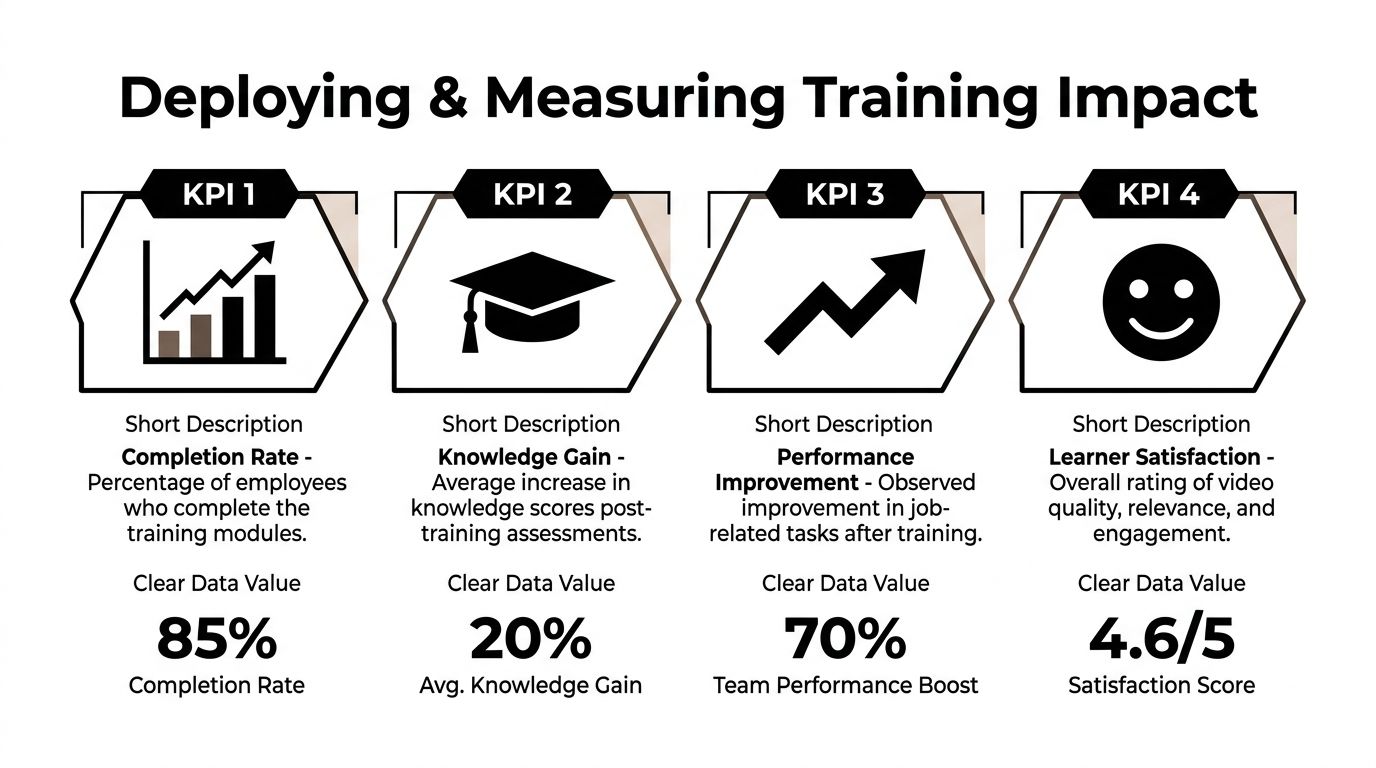
Measure behavior, not just views
A play count shows distribution. It does not show capability.
Use a measurement stack that matches the type of video you published:
| Measure | What it tells you | What it does not tell you |
|---|---|---|
| Completions | Whether employees finish the video | Whether they understood it |
| Knowledge checks | Whether they can recall or recognize the right action | Whether they perform it correctly at work |
| Manager observation | Whether behavior changed on the job | Whether the video alone caused the change |
| Error trends | Whether the targeted mistake is happening less often | Why the mistake changed without further investigation |
For short faceless microlearning, the strongest signal is usually a work metric tied to one clear action. Fewer ticket routing errors. Faster CRM updates. Higher checklist compliance. Better first-pass accuracy on a repeat task.
That is also where trade-offs show up. A two-minute video is efficient to produce and easy to update, but it usually supports one behavior at a time. Measure it that way. If you expect one clip to fix a broad performance problem, the issue is often the process, the system, or the manager follow-through, not the video itself.
Best Practices for Your Growing Video Library
A growing video library does not get better because it gets bigger. It gets better when employees can find the right two-minute clip, trust that it is current, and use it at the moment of need.
Training budgets remain substantial, as noted earlier in the article. That raises the bar for how training teams manage content. A pile of one-off recordings is hard to search, hard to update, and expensive to maintain. Short, faceless microlearning solves part of that problem because each video is faster to produce and replace. It also creates a new one. Volume. Without clear standards, a library of 40 short videos becomes a cluttered folder faster than a library of 10 long modules.
Standardize the parts employees should not have to relearn
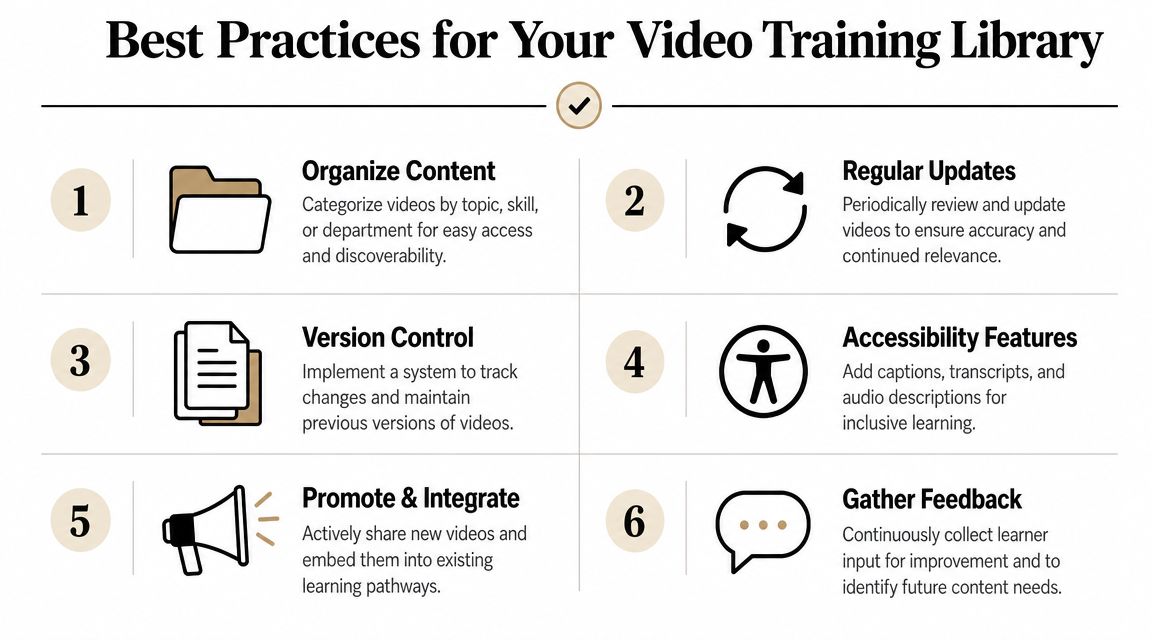
Every faceless training video should feel familiar within the first few seconds. Employees should know where the title appears, how captions look, what a highlight box means, and how the clip will end.
Set a few rules and keep them stable:
- Name videos by task: Lead with the action. “Submit a contractor invoice” is easier to scan than “Finance invoice process overview.”
- Use one opening format: State the task, who it is for, and what success looks like.
- Keep visual cues consistent: Use the same callout colors, zoom style, captions, and text placement.
- Match voiceover pace across a series: A calm, clear read works better than changing tone from video to video.
That consistency helps employees orient faster. It also cuts production time because editors, script writers, and reviewers are not reinventing the format for every clip.
Organize by task, trigger, and context
Teams often sort content by department because that matches the org chart. Employees usually search in the middle of work, and they search by problem.
A useful faceless microlearning library is easier to browse if it is grouped by:
- Role: what a new hire, manager, or specialist needs to do
- Workflow: what happens before, during, and after a recurring process
- System action: the exact task inside a tool
- Moment of need: onboarding, first-time setup, refresher, or error recovery
One rule has held up well in practice. If an employee can only find a video by knowing which team produced it, the library is organized for the training team, not for the learner.
Build for updates from the start
Short faceless videos are easier to maintain than presenter-led recordings, but only if the source files stay clean and the ownership is clear.
Use a maintenance routine for the basics:
- Assign an owner to every video or playlist.
- Tie reviews to change events such as software releases, policy updates, and form changes.
- Keep scripts, narration files, and editable visuals so a 20-second update stays a 20-minute job, not a full rebuild.
- Archive old versions fast so employees do not learn from the wrong screen or rule.
This matters more with microlearning because libraries grow in small increments. Ten clips on one workflow can serve employees well. They can also create confusion if two are outdated and three overlap.
Control sprawl before it starts
A large library needs intake rules. Otherwise every manager asks for a new video on a slightly different version of the same task.
Set a threshold for new requests. Create a new video when the task, audience, or system path is meaningfully different. Update an existing video when the core action is the same. That trade-off keeps the library lean without forcing one generic clip to serve five different use cases poorly.
Employee feedback should feed that process. Topic requests, search failures, recurring support questions, and repeat mistakes usually point to the next video worth making.
A strong library earns trust because it stays usable. Employees know the clips are short, current, and specific enough to help right away.
If you want to create short, faceless training content without building every asset manually, ClipCreator.ai is one option to consider. It automates script generation, visuals, voiceovers, subtitles, and publishing for short-form video workflows, which can be useful when you're producing repeatable microlearning content at volume.

Create your first video in under 2 minutes
Pick a niche, and ClipCreator.ai generates and auto-posts faceless videos to your channels every day.
Join ClipCreator.ai