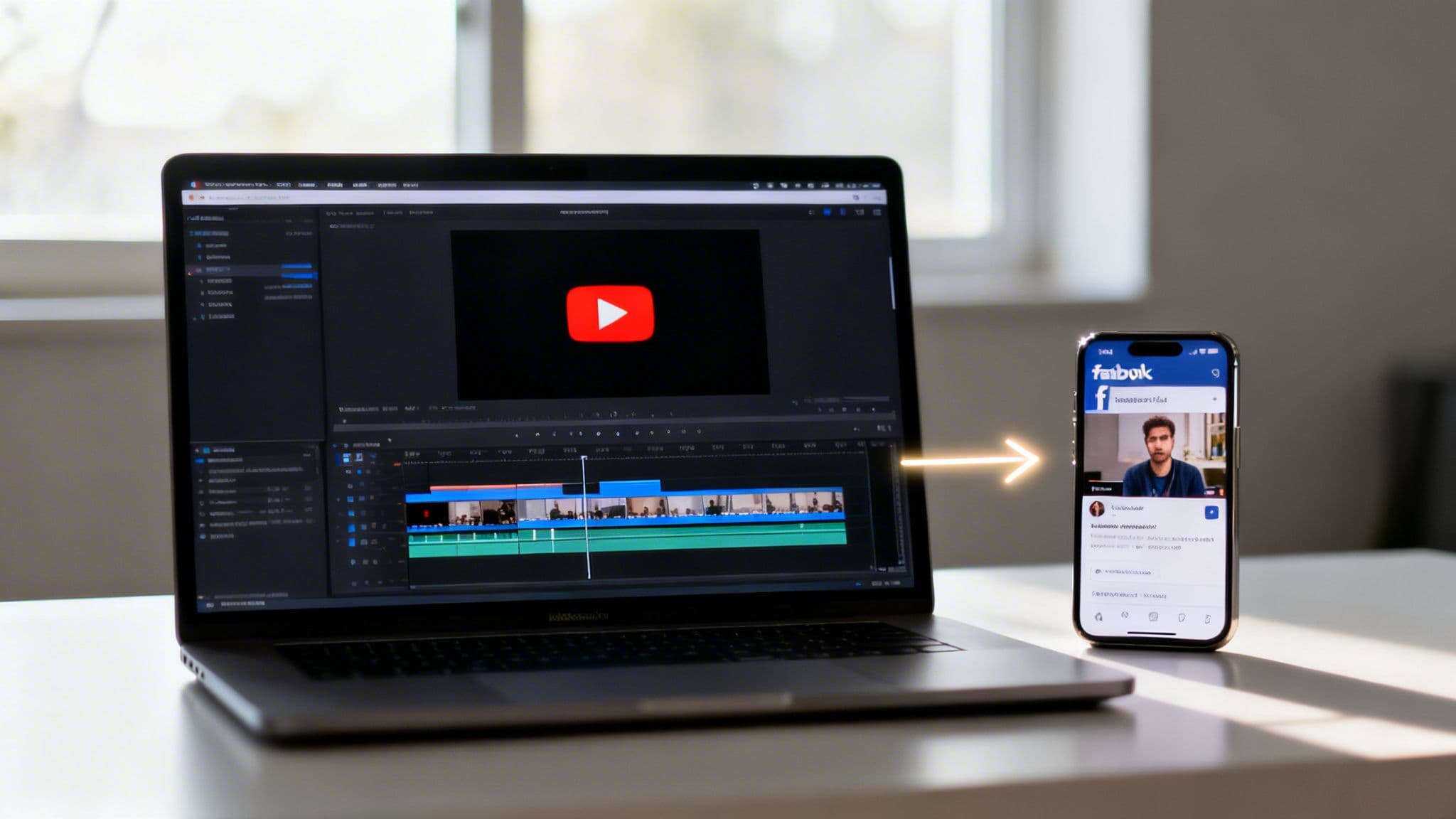
Thinking about how to get your YouTube videos onto Facebook? I've seen a lot of creators make one crucial mistake: they just share the YouTube link. The most effective approach, by a long shot, is to download your original video file and upload it directly to Facebook.
This "native upload" method is the key to unlocking real reach and engagement on the platform. Let's break down why this is so important.
Why You Should Always Upload Natively to Facebook
Pasting a YouTube link on your Facebook page feels fast and easy, I get it. But it's probably the single biggest misstep you can make in your video strategy. Facebook and YouTube are two totally different worlds, and treating them the same means you're leaving a ton of potential views and interactions on the table.
Understanding this difference is the first real step toward building a cross-platform presence that actually works.
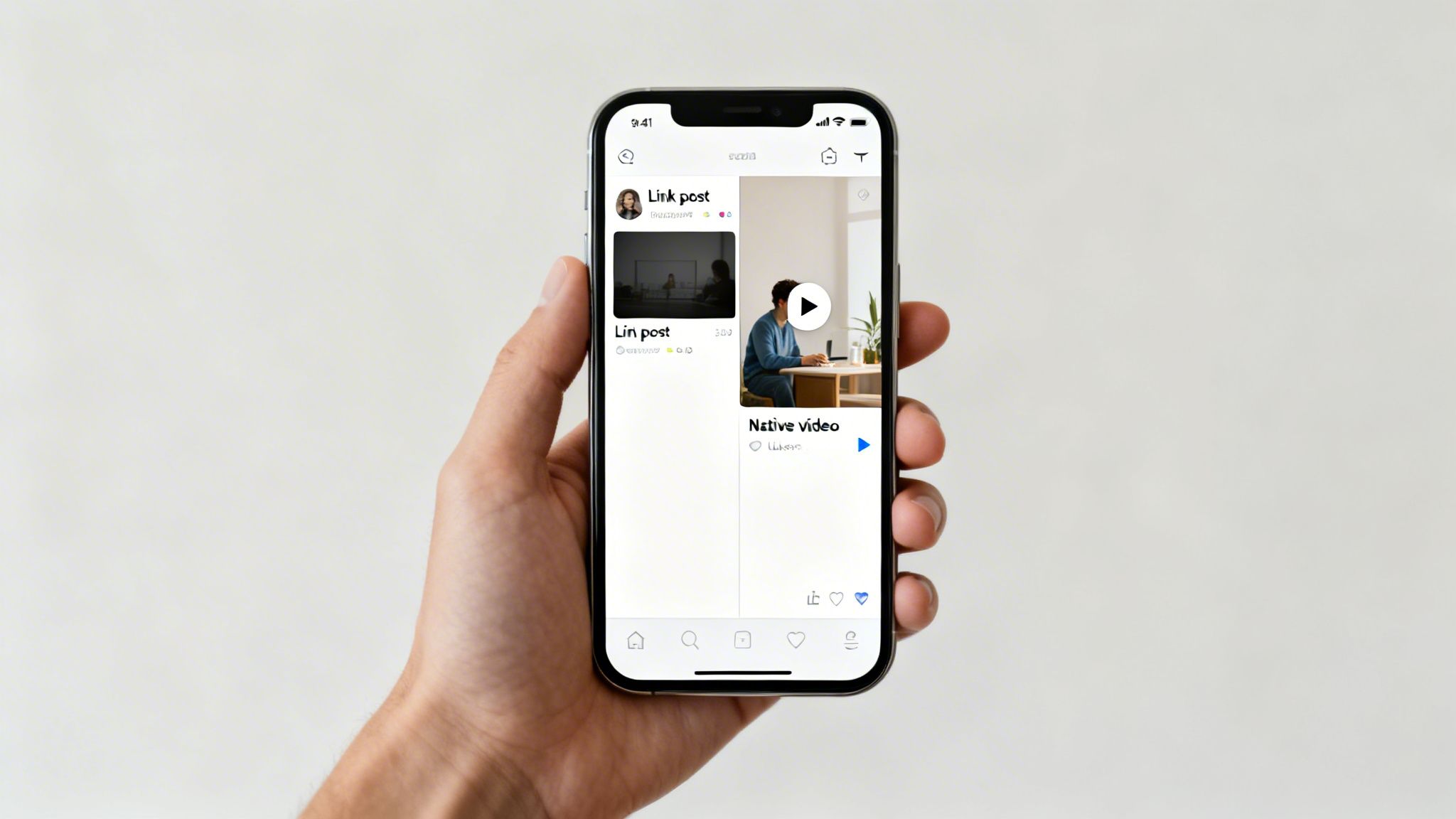
Different Platforms, Different Mindsets
Think about how you use each site. YouTube is a "lean-in" experience. People go there with a mission: to search for something specific, learn a new skill, or watch a longer video from a creator they follow. They're ready to invest their time.
Facebook is the complete opposite. It's a "lean-back" discovery feed. People are scrolling passively, catching up with friends, and your video is just an interruption in their feed. It has to grab their attention instantly and deliver value in seconds, often with the sound off. A tiny, boring YouTube link preview just can't compete in that fast-paced environment.
A shared YouTube link is a request for a user to leave Facebook's ecosystem. A native video upload is an invitation to engage directly within it. The algorithm will always favor the latter.
The Data Doesn't Lie
The numbers paint a clear picture. On one hand, you have YouTube with its 2.7 billion monthly active users. On the other, you have over 500 million people watching videos on Facebook every single day. That's a massive audience overlap just waiting for your content.
Here's the kicker: native Facebook videos reach 10 times more people than just sharing a YouTube link. It’s not even close. By uploading directly, you get to use all of Facebook's powerful video tools—like silent auto-play and those big, eye-catching previews—that are designed to stop the scroll and rack up views.
To give you a better sense of how to tailor your approach for each platform, here’s a quick comparison.
YouTube vs Facebook Video at a Glance
| Platform Characteristic | YouTube | |
|---|---|---|
| User Intent | "Lean-in" - Search & Discovery | "Lean-back" - Passive Scrolling |
| Content Goal | Be the best answer to a search | Interrupt the scroll & get attention |
| Optimal Format | Widescreen (16:9) | Square (1:1) or Vertical (4:5, 9:16) |
| Ideal Length | Longer is often better (8+ min) | Shorter is better (1-3 min) |
| Audio Strategy | Sound-on is expected | Must work with sound-off (captions!) |
| Discovery | Search, Suggested Videos, SEO | Feed, Shares, Ads |
As you can see, a one-size-fits-all approach just doesn't cut it. Each platform has its own rules of engagement.
Setting Yourself Up for Success
A smart youtube to fb video workflow is more than just re-uploading. It’s about optimizing. When you treat each platform as its own unique channel, you turn a single video into a versatile asset that performs well everywhere.
The rest of this guide will walk you through the practical steps to reformat, caption, and schedule your videos so they feel perfectly at home on Facebook. Mastering a smarter video distribution strategy like this is how you unlock the full power of your content.
Getting Your Video Ready for Facebook
Before you even think about editing, you need to get your hands on the best possible version of your video. The quality of your source file makes all the difference in the final product, so don't skip this part. It’s the foundation of a solid youtube to fb video strategy.
The absolute best-case scenario? Using your own content. It’s a no-brainer—you avoid all copyright headaches and know you have the highest quality file ready to go.
Grabbing Your Own Video from YouTube
Even if you have the original file stashed away on a hard drive somewhere, I often find it's just faster to download it straight from YouTube Studio. This way, you’re grabbing the exact version that's already been processed by YouTube, which can sometimes be a good starting point.
Here's how to do it:
- Head over to YouTube Studio.
- Click on "Content" in the left-hand menu.
- Find the video you want, hover over it, and click the three-dot "Options" menu.
- Hit Download.
This will typically give you a high-quality MP4 file, usually in 1080p or 720p. Starting with a high-resolution file like this gives you the wiggle room you need for editing and reformatting later without everything turning into a pixelated mess.
What About Using Someone Else's Content?
So, what if you want to feature a clip from another creator's video? This is where you need to tread carefully. Rushing in can lead to copyright strikes, your video getting pulled down, or worse, legal issues. It all comes down to understanding the difference between Fair Use and Creative Commons.
Fair Use is a tricky one. It’s a legal principle that sometimes lets you use copyrighted material without permission for things like commentary or criticism. But here's the catch: Fair Use is a defense, not a pre-approved permission slip. It's incredibly subjective and relying on it is a gamble. The original creator can still hit you with a takedown notice, and you'll have to argue your case.
Creative Commons (CC) is a much safer bet. A CC license means the creator has already given people permission to use their work, but you have to follow their rules. Think of it as a "some rights reserved" situation.
Always, always check the specific license terms. Some CC licenses just ask for a simple credit, while others might ban any commercial use. If you ignore these conditions, you're breaking the license agreement. When you're repurposing content for Facebook, you've got to play by the rules. This includes understanding content rights and, especially for audio, properly using royalty-free music for social media to keep your account in good standing.
The Right Way to Ask for Permission
When you're not sure, the simplest and most professional thing to do is just ask. It’s a sign of respect, and it’s a great way to build good relationships with other creators in your space.
You don’t need to send a stuffy, formal letter. A quick, polite email or DM is usually all it takes.
Here’s a simple template you can tweak:
- Subject: Quick question about your video!
- Body: Hey [Creator's Name], my name is [Your Name] from the [Your Page Name] Facebook Page. I absolutely loved your video, "[Video Title]." I'm putting together a new video about [Your Topic] and was hoping I could feature a short clip from it. I'd be sure to give you full credit and a link back to your channel in the post. Let me know if that's something you'd be open to. Thanks for creating such awesome stuff!
Getting your video file sorted out—whether it’s yours or you’ve gotten permission for someone else’s—is the first critical step. Once you have a high-quality, ethically sourced video, you’re ready for the fun part: making it shine on Facebook.
Reformatting Your Video to Win on Facebook
Let’s be honest: dropping a widescreen YouTube video straight onto a Facebook feed is like showing up to a beach party in a tuxedo. It just doesn't fit, and everyone can tell. To make your video feel like it belongs on Facebook, you need to give it a complete makeover, starting with its shape and length.
This isn't just about tweaking a few settings. It’s a strategic move. The whole point is to make your content look so native that it feels like it was created specifically for the person scrolling their feed at that very moment.
Why Aspect Ratio Is a Game-Changer
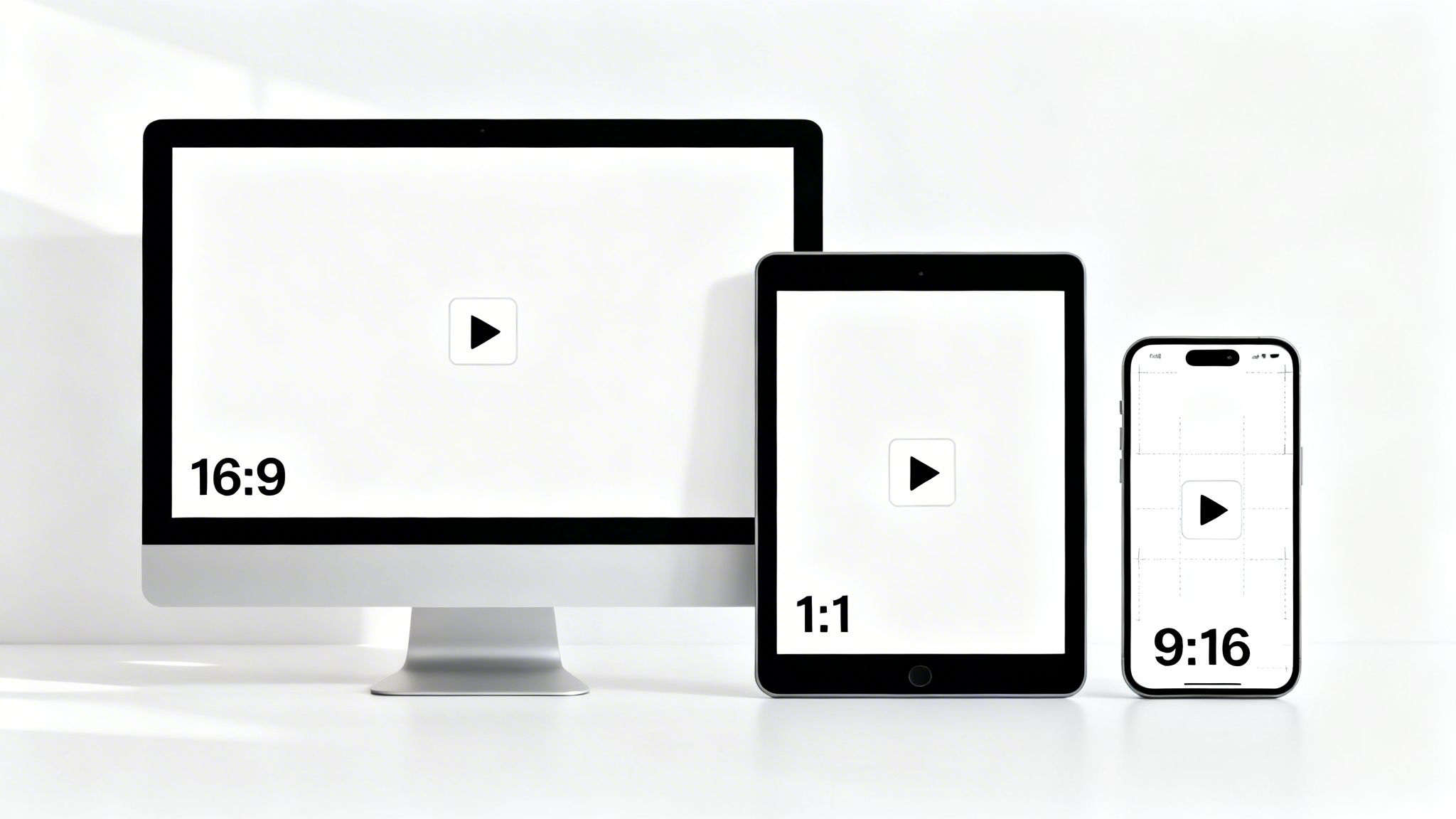
Most videos on YouTube are shot in a 16:9 widescreen format. This looks fantastic on a big monitor or a TV. But on a phone held vertically? That same video becomes a tiny, forgettable rectangle sandwiched between massive black bars. It screams "I'm a YouTube video!" and gets ignored.
This is where you need to adapt. By changing the aspect ratio, you claim more of the screen on a mobile device, making your video far more immersive and much harder to scroll past.
Here are the formats that actually work on Facebook:
- Square (1:1): This should be your default for the main Facebook feed. It takes up way more vertical space than a 16:9 video, immediately making your content feel more substantial and eye-catching.
- Vertical (4:5 or 9:16): These are non-negotiable for Facebook Stories and Reels. A vertical video fills the entire screen, creating that all-in, immersive experience that keeps people watching. A 9:16 video, in particular, feels perfectly at home in the Reels feed.
Key Takeaway: Switching from a 16:9 horizontal video to a 1:1 square format can increase the screen space your video occupies on a mobile feed by over 70%. That’s a huge visibility win before anyone even hits play.
If you’re not sure how to get started with resizing, our guide on how to change video dimensions breaks down the technical steps for various editing tools.
Trim for Tiny Attention Spans
Next up is length. A 15-minute deep-dive might be a hit on YouTube, where people go to learn and watch longer content. On Facebook, that same video is a guaranteed flop. People on Facebook are in a totally different mindset—they're looking for quick, entertaining, or useful bites of information.
Your job is to become a gold miner. Go through your original YouTube video and find that "golden nugget"—the single most impactful segment. It could be a shocking statistic, a key takeaway, a funny outtake, or a powerful quote. That’s what you’ll build your Facebook clip around.
Let's say you have a 20-minute product review on YouTube. You could pull out:
- A 60-second clip showing off the single coolest feature for a Facebook Reel.
- A 2-minute summary of the main pros and cons for a standard feed video.
- A 15-second "quick tip" for a Facebook Story.
From my experience, the sweet spot for a standard Facebook feed video is between 1 and 3 minutes. For Reels, you absolutely have to aim for under 60 seconds. This boosts your completion rate, which is a massive signal to the algorithm to show your video to more people.
Getting the Technicals Right: Codecs and File Formats
Finally, a quick word on the nerdy stuff. Most modern video editors get this right by default, but knowing the best settings will ensure your video looks as good as possible on Facebook.
For the best results, stick to these specs:
- File Format: MP4. It's the universal standard and gives you a fantastic balance between quality and file size.
- Video Codec: H.264 (also called AVC). This keeps your video looking sharp without creating a massive file that takes an eternity to upload and buffer.
- Audio Codec: AAC. This is the go-to for delivering crisp, clear sound.
Reformatting isn’t just about exporting a file with different dimensions. It's a thoughtful process of taking a video built for one platform and perfectly tailoring it for another. It’s this extra bit of work that separates the content that vanishes in the feed from the content that stops the scroll and gets results.
Getting Your Post Ready for the Facebook Feed
Alright, so you’ve got a perfectly formatted video file. That’s a huge first step, but we’re not done yet. Now comes the fun part: packaging that video so it not only grabs attention but also tells the Facebook algorithm, "Hey, this is good stuff, show it to more people."
When you bring a video over from YouTube, you’re not just changing platforms; you’re entering a completely different environment. Think of it less as a simple upload and more as a complete relaunch.
This means we need to rethink everything from the ground up—the thumbnail that stops the scroll, the description that makes people curious, and the captions that are absolutely essential for a silent-scrolling world.
Design a Thumbnail That Demands Attention
On YouTube, thumbnails often act like mini-movie posters, packed with detail to stand out on a search results page. Facebook is a different beast entirely. Your video is just one blip in a fast-moving, endless feed. Your thumbnail's only job is to be a pattern interrupt—to make someone stop scrolling, even for a millisecond.
Think bright, bold, and incredibly simple.
High-contrast colors are your friend. Clear, easy-to-read text is a must. And if you can, use a person's face showing a strong, clear emotion. It’s an instant human connection that’s hard to ignore. The biggest mistake I see is cluttering the thumbnail. A single, curiosity-driving image or phrase is always more powerful than trying to explain the whole video.
For example, if your video is a tutorial, don't just use a boring screenshot of the software. Instead, show a dramatic "before and after" shot or a person looking totally shocked. The goal is to make someone pause their thumb and think, "Wait, what's going on here?"
Write Descriptions That Spark Curiosity
This is another area where YouTube and Facebook strategies diverge completely. YouTube descriptions are built for search engines, stuffed with keywords to help people find your content days, weeks, or even months later.
On Facebook, the description is a direct sales pitch for the viewer's attention right now.
You have to lead with a powerful hook. Start with a provocative question, a bold statement, or a surprising stat. Seriously, the first sentence or two is all most people will ever see before that "See More" link appears, so you have to make it count.
A great Facebook video description doesn't just tell you what's in the video; it creates an information gap. It teases the value or the outcome, making you feel like you have to watch to find out more.
After you've hooked them, briefly touch on the problem your video solves or the entertainment it offers. Then, and this is crucial, end with a crystal-clear call-to-action (CTA). Don't just assume people will engage. Tell them exactly what you want them to do.
- Weak CTA: "Check out the video." (Passive and boring)
- Strong CTA: "Watch this 60-second clip to see the #1 mistake everyone makes, then tell us your experience in the comments!" (Specific, creates urgency, and asks for engagement)
This kind of directness is a huge signal to the Facebook algorithm that your content is worth showing to more people.
Add Subtitles—Because Almost No One Is Listening
Let me be blunt: this is not optional. It’s the golden rule of Facebook video. The data is just staggering: an estimated 85% of Facebook videos are watched with the sound off. If your message depends on audio, you’re invisible to the vast majority of your potential audience.
Adding captions instantly makes your video make sense to someone scrolling in a quiet office, on a noisy train, or in bed late at night. It turns a muted, confusing clip into something they can consume immediately.
Consider this: social videos rack up 1200% more shares than text and images combined. When you bring your YouTube content to Facebook and optimize it the right way—especially with subtitles—that potential for virality just explodes. And since 73% of consumers say a brand's social media presence influences their buying decisions, you can't afford to get this wrong. For a deeper dive, you can explore more video marketing stats that paint a clear picture.
So, how do you get those crucial captions onto your video?
- Manual Upload: You can upload a SubRip Subtitle file (.srt) directly within Facebook's video editor. This gives you maximum control over the text and timing, but it's incredibly time-consuming.
- Automated Tools: Honestly, this is the way to go for most people. Services like ClipCreator.ai can automatically generate accurate subtitles in minutes, saving you a ton of tedious work. This is the kind of automation that makes a youtube to fb video strategy scalable.
- Burned-In Captions: You can also "burn" the captions directly into the video file during the editing process. This guarantees they appear everywhere, but you lose the flexibility for users to toggle them on or off.
By putting in the effort to nail these three things—the thumbnail, the description, and the captions—you're not just re-uploading a file. You're giving your video the best possible chance to thrive in the Facebook ecosystem.
Automating Your YouTube to Facebook Workflow
Let’s be honest. Manually downloading, reformatting, and uploading every single video is a fast track to burnout. It works, but it's not a long-term strategy. If you want to keep a steady stream of content flowing on both YouTube and Facebook without living in your video editor, you need to start thinking about automation.
This isn't just about clawing back a few hours. It’s about building a sustainable content engine that works for you. Smart automation takes over the grunt work, freeing you up to focus on what actually matters: creating the great original videos that fuel this whole machine.
Beyond Basic Scheduling
When most people hear "automation," they immediately think of basic schedulers. And sure, tools like Meta Business Suite are handy for planning your posts in advance. You can batch upload your finished videos, knock out all the descriptions at once, and set them to publish over the next few weeks.
That’s a great starting point, but it's just one piece of the puzzle. You're still stuck doing all the tedious reformatting and captioning yourself. Real, impactful workflow automation digs much deeper, tackling multiple steps of the repurposing process so you don't have to.
To get your Facebook video posts right, you have to nail several things, from the thumbnail to the captions.
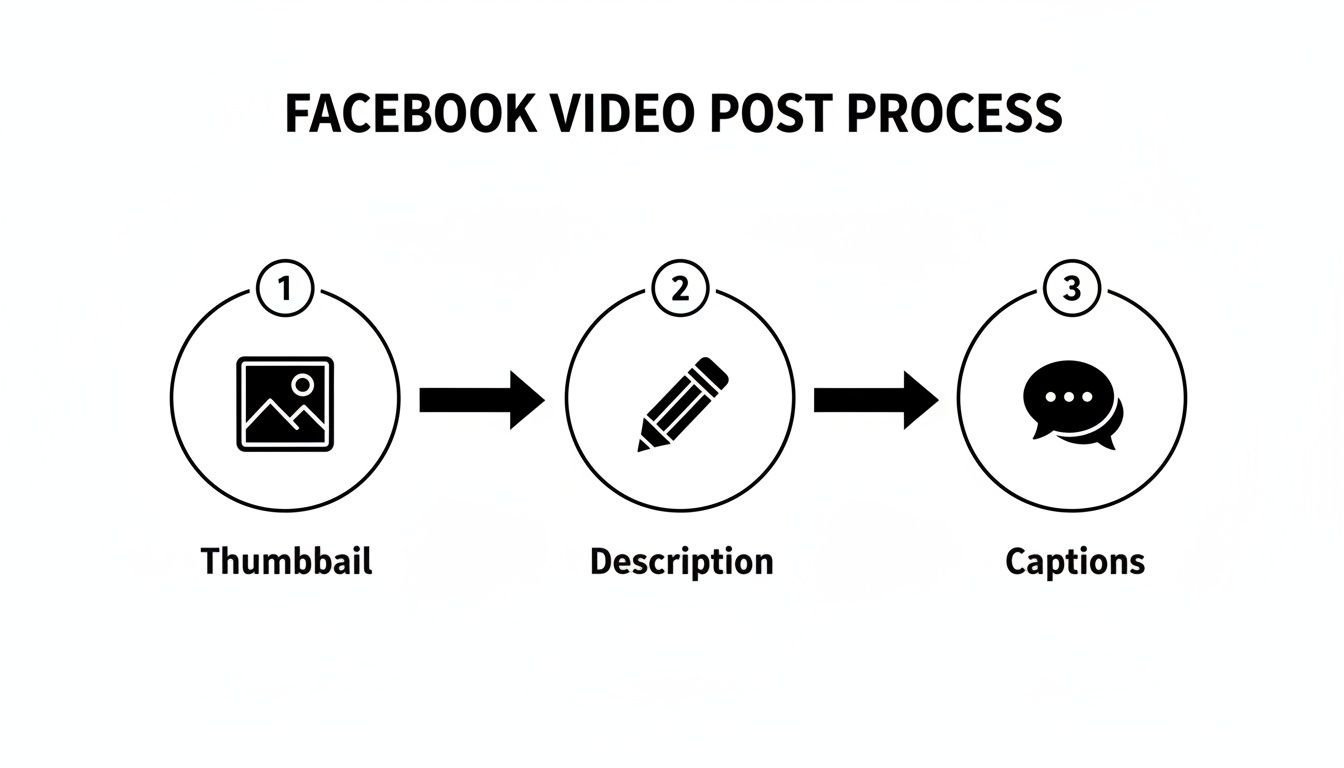
This diagram breaks it down pretty well—a winning post blends visual appeal with sharp copy and accessibility. The good news is, much of this can be automated.
The Power of AI in Repurposing
This is where AI-powered platforms completely change the game for your youtube to fb video strategy. Tools like ClipCreator.ai aren't just schedulers; they’re more like a content production team in a box. They hook directly into your YouTube channel and use AI to intelligently find the most shareable moments from your long-form videos.
Picture this workflow:
- You upload your new 20-minute video to YouTube.
- The AI platform instantly gets to work, analyzing it for the best hooks, key takeaways, and memorable quotes.
- It then spits out multiple short clips, already formatted perfectly for Facebook Reels (9:16) and feed posts (1:1).
- It even drafts captions and descriptions tailored to each clip, hashtags and all.
- Everything lands in a content calendar, ready for you to quickly review, tweak, and schedule.
What used to be a multi-hour slog of manual editing and writing now becomes a few minutes of final approval. You’ve just turned a single YouTube video into a full week of high-quality Facebook content. If you want to go even deeper, learning how to automate social media posts can unlock some seriously advanced workflows.
Real-World Scenario: A busy entrepreneur creates one in-depth YouTube tutorial a week. Instead of blocking out an entire afternoon to chop it up, she uses an AI tool. The platform automatically pulls five "quick tip" videos from her main tutorial, complete with captions and post text. She schedules these to go live every day on Facebook, keeping her audience engaged without the daily grind.
Choosing the Right Automation Tool
Not all automation tools are built the same. The best one for you really depends on your specific needs and how much you want to offload. For some serious automation, it’s worth seeing how Content Repurposing AI can turn your entire back catalog of videos into a nearly endless supply of fresh assets for Facebook.
Here’s a quick rundown to help you figure out which level of automation fits your style.
| Tool Type | Primary Function | Best For |
|---|---|---|
| Manual Schedulers (e.g., Meta Business Suite) | Posting at a future date. | Creators who don't mind editing but want to plan their content calendar in advance. |
| Simple Repurposing Tools (e.g., CapCut, Veed) | Reformatting and captioning. | Folks who want to speed up the editing process but still keep full creative control. |
| AI Content Platforms (e.g., ClipCreator.ai) | End-to-end clip generation, writing, and scheduling. | Busy creators aiming to scale their output and grow their presence with minimal effort. |
By leaning into automation, you shift from being a creator who's constantly playing catch-up to a content strategist who's always ahead of the curve. That's the secret to making your youtube to fb video workflow not just manageable, but truly powerful.
Got Questions About Repurposing Videos?
Even with a perfect game plan, a few questions always seem to pop up once you get started. Nailing your youtube to fb video workflow usually means getting a few common concerns out of the way first. Let's dig into the questions I hear most often from creators so you can get back to posting with confidence.
"Will Re-Uploading My Videos Hurt My YouTube Channel?"
This is, without a doubt, the number one fear I see, and it's a totally valid concern. The short answer? No, it absolutely will not. Natively uploading your content to Facebook does not penalize your YouTube channel in any way.
You have to remember that the algorithms for each platform are completely separate ecosystems. YouTube’s algorithm is obsessed with how people interact with your content on YouTube. Facebook's algorithm is only looking at what happens on Facebook. They simply don't communicate with each other about where else your video might exist.
Key Insight: Repurposing is not the same as "duplicate content" in the old-school SEO sense. Each social platform is its own unique distribution channel with a distinct audience. By uploading natively, you're giving Facebook exactly what it wants: a unique post tailored for its users.
In reality, a strong presence on Facebook can actually give your YouTube channel a boost. When you reach a whole new audience on Facebook, you're introducing more people to your brand. Many of them will eventually make their way back to your YouTube channel to become long-term subscribers.
"How Do I Properly Credit the Original Creator?"
This is huge. Getting this right is non-negotiable for staying in the community's good graces and, more importantly, avoiding copyright issues. If you've gotten permission to use someone else's video clip, giving proper credit isn't just polite—it's almost always a mandatory part of the deal.
The key is to make the credit obvious, not buried.
Here’s how to handle it effectively:
- Tag them right away: The very first thing in your post description should be an "@" tag of the creator's official Facebook Page. This notifies them and gives your audience a one-click path to discover their work.
- Give a verbal shout-out: If it works with the video's flow, a simple "All credit for this awesome clip goes to [Creator's Name]" can go a long way.
- Link back to the source: Add a clear line in the description like, "Check out the full video from [Creator's Name] on YouTube:" and drop the direct link.
Being transparent is always the best move. It shows you respect other creators' work and helps build that all-important trust with your own audience.
"How Often Should I Be Posting These Repurposed Videos?"
Finding the right posting cadence is a classic balancing act. You need to stay on your audience's radar without spamming their feeds. While there's no magic number that works for everyone, a few solid principles can guide you.
The goal is always consistency over volume. One fantastic, well-optimized clip posted daily will crush five sloppy videos dumped all at once.
- For Facebook Reels & Stories: These formats are built for speed and high volume. Don't be shy about posting daily, or even several times a day. The algorithm often rewards this frequency.
- For Facebook Feed Videos: When you're posting more substantial clips (think 1-3 minutes), a good starting point is 3-5 times per week. This keeps your Page feeling fresh and active without being overwhelming.
Start with a schedule you know you can stick to. From there, pay close attention to your analytics. If your engagement is through the roof and people are loving the content, you can start to slowly ramp up your posting frequency.
"Is It Ever Okay to Just Share the YouTube Link?"
After everything we've talked about, this might seem like a trick question. We've established that native uploads are king, but are there any exceptions to the rule? A hesitant "yes," but only in a couple of very specific scenarios.
Sharing a direct YouTube link might be the right call if:
- You're promoting a YouTube Premiere or a Live Stream. Here, the entire goal is to drive traffic off of Facebook and onto YouTube for a specific, time-sensitive event. The link is the most direct call to action.
- You're sharing in a small, private group. If you're dropping a video into a tight-knit community or mastermind group where you know people will click through, it's a quick and easy way to share info.
For your main, public-facing Facebook Page, a native upload is the right choice 99% of the time. The massive drop in reach and engagement you'll see from posting a YouTube link just isn't worth the few seconds you save. A successful youtube to fb video strategy is built on treating each platform as a unique opportunity.
Ready to stop the manual grind and automate your video repurposing? ClipCreator.ai uses AI to find the best moments from your long-form content, reformat them into viral-ready short clips, and even drafts the posts for you. Turn one YouTube video into a week's worth of high-quality Facebook content in minutes. Discover how it works and start building your content engine today.

Create your first video in under 2 minutes
Pick a niche, and ClipCreator.ai generates and auto-posts faceless videos to your channels every day.
Join ClipCreator.ai