You’ve probably got a finished deck sitting on your desktop right now. The slides are clean, the argument is solid, and nobody outside the meeting where you presented it will ever see the full value in it unless you turn it into something easier to consume.
That’s where ppt to video stops being a formatting task and starts becoming a distribution strategy. A slide deck is usually built for a live room. Video is built for replay, sharing, search, training, onboarding, social clips, and async communication.
A common mistake is treating export as the finish line. It isn’t. Export is only the first useful step.
Why Your Slides Deserve a Second Life as Video
A static presentation asks people to do too much work on their own. They have to infer pacing, interpret emphasis, and guess what you would’ve said out loud. Video fixes that by adding timing, voice, movement, and structure.
That matters because viewers retain 95% of a video's message compared to just 10% from reading text, according to Synthesia’s powerpoint-to-video overview. If you’ve ever watched someone skim a deck and miss the main point, that gap makes immediate sense.
There’s a second reason this matters. Behavior has shifted toward video consumption across the web. That’s why a lot of marketers now treat decks as raw material, not final content. If you want a broader perspective on why that change matters for business communication, Mr. Green Marketing on video marketing gives a useful high-level framing.
What a slide deck does badly
A normal deck struggles when it leaves the original context. Common failure points show up fast:
- No presenter present: The slides made sense when you were talking. Alone, they feel incomplete.
- Too much text: Dense slides become even harder to absorb when someone is viewing them on a laptop or phone.
- No control over pacing: A reader can skip the important part or stall on an unimportant one.
- Weak reuse potential: A deck isn’t ready for YouTube, LinkedIn, internal training libraries, or social platforms without more work.
Practical rule: If your presentation depends on your voice in the room, it isn’t finished content yet.
A good video version doesn’t just preserve the slides. It rebuilds the experience. It tells the audience where to look, how long to stay there, and why the point matters.
That’s why the best ppt to video workflow starts with a simple question. Are you trying to archive a presentation, or are you trying to make people watch it? Those are different jobs, and they produce different videos.
Mastering the Native PowerPoint to Video Export
You finish a deck, hit Export, upload the MP4, and the result feels flat. The slides are readable on your laptop, but pacing drags, animations feel awkward, and the video has no chance on mobile. That usually is not a PowerPoint problem. It is a workflow problem.
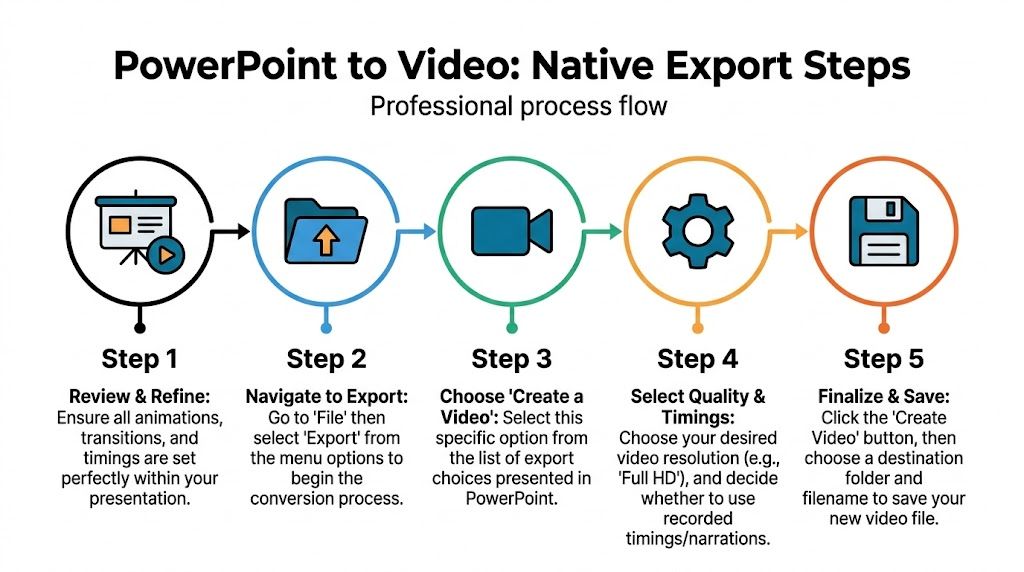
PowerPoint’s native export is good at producing a clean base file. I use it for webinars, internal training, sales walkthroughs, and any presentation that still works in a 16:9 frame. It saves time, preserves slide fidelity, and avoids the softness and sync problems that come with screen recording.
The limitation is just as important. Native export gives you a finished presentation video, not a repurposing workflow. If your actual goal is to turn one deck into a YouTube version, a vertical cut for TikTok, and several short clips, you need to export with that next step in mind.
The export settings that actually matter
Start by reviewing the deck in Slide Show mode. Full screen exposes the problems that editing view hides. Tiny labels, distracting entrances, and overbuilt transitions all get worse once they become fixed video.
For a strong baseline, use these settings:
| Setting | What to choose |
|---|---|
| File type | MP4 |
| Codec target | H.264 |
| Resolution | 1920x1080 |
| Frame rate | 25–30 fps |
| Bitrate target | 8–12 Mbps |
Those settings are practical because they hold up on YouTube, LMS platforms, and most internal video tools without creating oversized files. For social repurposing, 1080p also gives you enough room to crop and reframe later.
One more rule matters more than any export menu option. If a slide takes too long to read, the export will faithfully preserve that problem. Trim the copy before you render the file.
A native workflow that produces cleaner video
Use PowerPoint’s built-in sequence, but be deliberate about each step:
- Rehearse the deck at full sizeRun the entire presentation in Slide Show mode. Check whether each slide is understandable at viewing speed, not just whether it looks polished while you are editing.
- Set timings slide by slideTimings control watchability more than transitions do. Short explainer slides can move quickly. Dense charts or process slides need more breathing room. If you are guessing, the final video usually feels rushed or sluggish.
- Export from PowerPoint, not from a screen recorderNative export keeps text sharper and motion cleaner. Screen capture is useful for software demos, not for slide-based videos unless you need live cursor movement.
- Choose Full HD by default1920x1080 is the safe choice for horizontal delivery and for downstream editing. Lower resolutions limit what you can do later if you decide to cut the deck into shorts.
- Watch the exported file all the way through onceLook for stutters, font substitution, clipped objects, or timing mistakes. Catching that before upload saves a second round of edits.
That final review matters. Small timing errors that seem minor inside PowerPoint become obvious once the file is on YouTube or passed around internally.
Where native export fits, and where it runs out of road
Native export works well for:
- internal walkthroughs
- lecture summaries
- simple product explainers
- voice-led slide presentations
It starts to break down when you need:
- vertical framing for Shorts, Reels, or TikTok
- animated subtitles
- punch-in edits and clip extraction
- one deck turned into multiple social assets
That trade-off is why I rarely treat the exported MP4 as the final deliverable. I treat it as the master file. From there, you can add narration with PowerPoint or a separate editor, follow a guide for content creators, then layer in readable captions with a workflow like this step-by-step guide to adding subtitles to a video.
If you only need one polished horizontal video, PowerPoint is enough. If you want to turn a deck into a repeatable short-form content pipeline, export cleanly first, then build the automation and editing workflow on top of that base.
Adding Your Voice with Narration and Subtitles
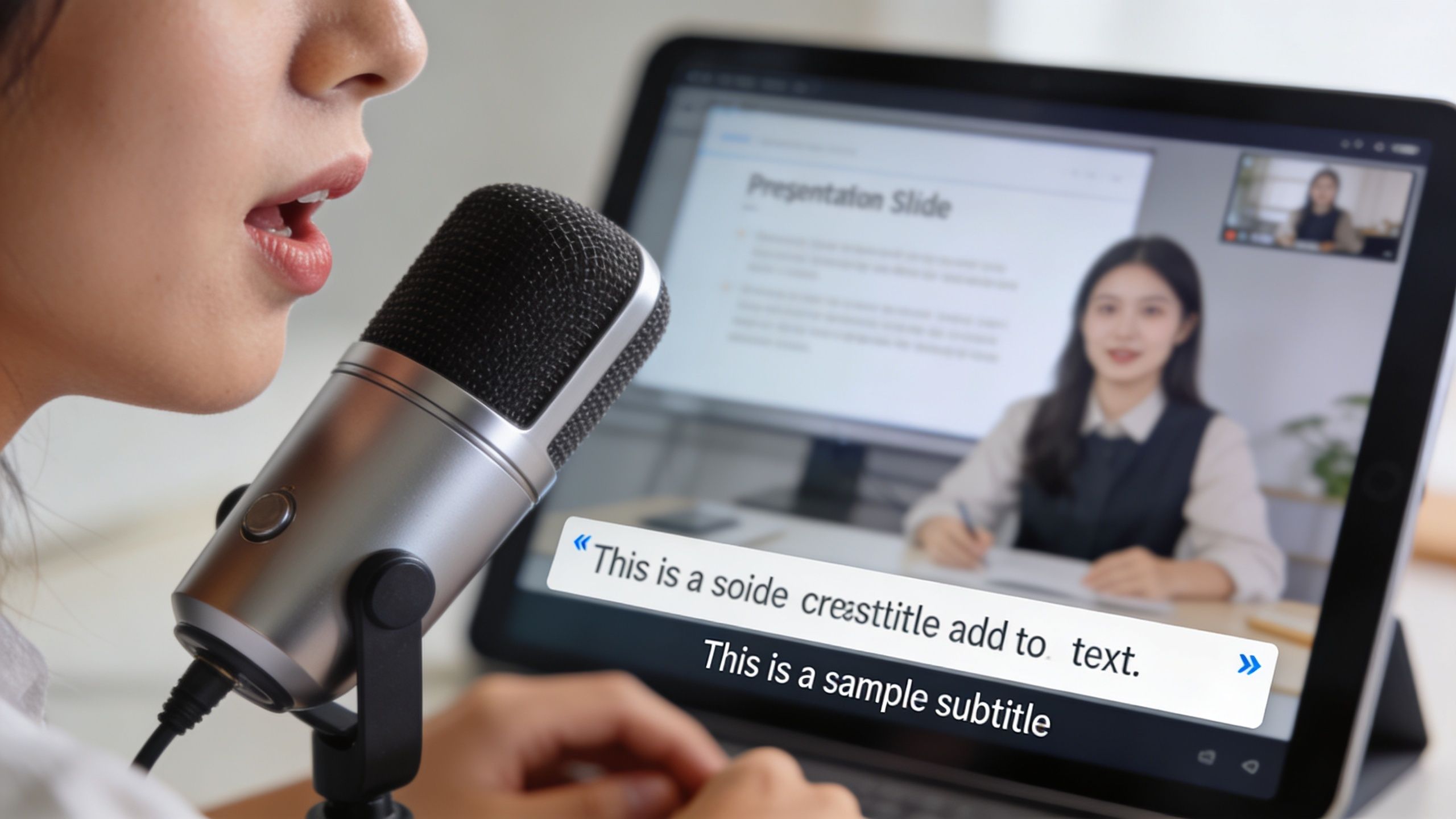
Silent slide videos feel unfinished unless the visuals are doing all the teaching. In most cases, narration is what turns a deck into an actual viewing experience. It adds pacing, emphasis, and credibility. It also fixes the common problem of slides that only made sense when you were presenting live.
Record narration inside PowerPoint
PowerPoint’s Record Slide Show feature is good enough for many creators if the room is quiet and the script is tight. Record slide by slide instead of trying to nail the whole deck in one pass. That makes retakes manageable and keeps your timing cleaner.
A practical setup looks like this:
- Use a USB mic or decent headset: Built-in laptop audio usually sounds thin and picks up room noise.
- Keep your script conversational: Slides already carry structure. Your voice should add clarity, not repeat every bullet.
- Pause before advancing: Give yourself a little edit buffer so slide changes don’t sound rushed.
- Watch the waveform mentally: If you’re speaking over dense charts, slow down. If the slide is simple, move faster.
If you want a separate walkthrough on improving voiceover quality and delivery, this guide for content creators from revid.ai is a useful reference.
Subtitles aren’t optional anymore
A lot of video gets watched with the sound off, especially in feeds, offices, and transit. Captions also help when your narration is clear but the listener is distracted, non-native in the language, or skimming.
There are two ways to think about subtitles:
| Approach | Best use |
|---|---|
| Burned-in captions | Social clips, Shorts, TikTok, Instagram |
| Subtitle files | YouTube uploads, training libraries, accessible playback |
For slide-based video, burned-in captions are often the safer option when you want the words to travel with the video file. If you need a practical walkthrough, this step-by-step article on how to add subtitles to a video covers the process clearly.
Captions do more than improve accessibility. They hold attention when the viewer’s environment is competing with your audio.
What to say and what to leave on the slide
The biggest narration mistake is duplication. If the slide says everything and the voice says everything again, the video drags. Use the slide for anchors. Use narration for meaning.
A better split looks like this:
- On slide: headline, chart, key phrase, process step
- In voice: interpretation, transition, context, takeaway
That division keeps the video moving and makes the final export feel designed, not merely recorded.
Reformatting Your PPT for Vertical Video Success
You export a clean 16:9 deck, post it as a Reel or TikTok, and the result looks broken on arrival. The headline sits under the app UI. The chart is too small to read. The slide still behaves like a presentation, not a piece of short-form video.
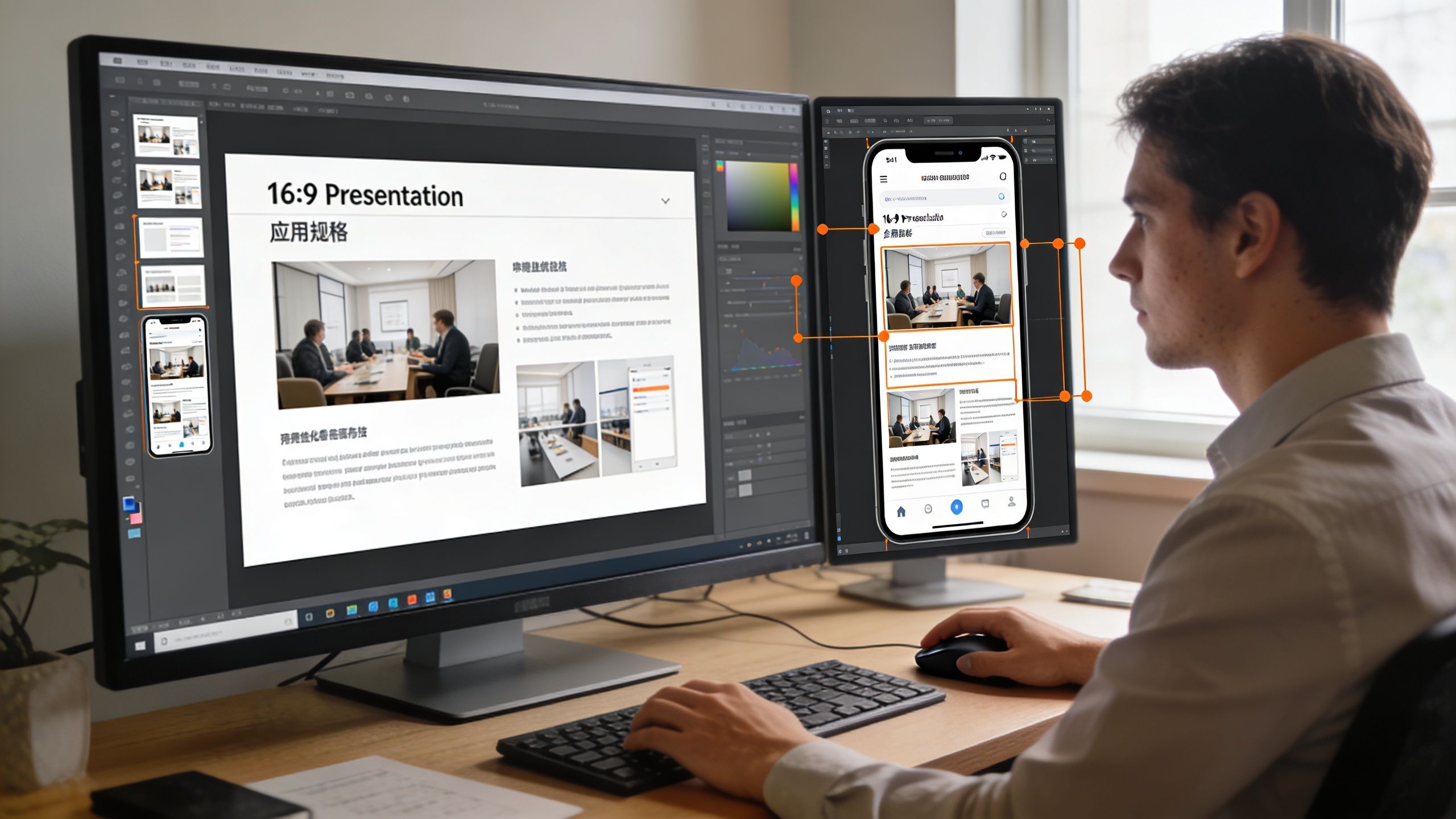
The fix is not a last-minute crop. Rebuild the content for 9:16 before you export.
That sounds slower, and it is. It also saves time later because you stop fighting cut-off text, awkward framing, and edits that never feel native to mobile. Horizontal slides are built to spread information across the screen. Vertical video has a tighter job. Put one idea in focus fast, then move.
Treat each slide like source material
A good vertical cut rarely maps one slide to one scene. One dense slide usually becomes three or four short beats:
- a hook with the main claim
- a proof beat with one visual or stat
- a takeaway beat
- a final prompt, CTA, or transition if the clip needs one
That is the essential bridge between basic PPT export and modern repurposing. The deck is the raw material. The vertical video is the edit.
If you plan to publish on Shorts, Reels, or TikTok regularly, build that split into your workflow from the start. It is much easier to automate clipping, captioning, and resizing later when each scene already carries a single message.
What actually needs to change in a 9:16 rebuild
Resizing is the small part. Reframing is the true work.
| Slide element | What usually fails in 16:9-to-9:16 conversion | Better vertical treatment |
|---|---|---|
| Headlines | Long titles wrap badly or get covered by UI | Cut to a short hook, 4 to 8 words if possible |
| Charts | Full dashboards shrink into noise | Show one chart point, one comparison, or one annotation at a time |
| Bullet lists | Stacked text turns into a reading test | Turn each bullet into its own scene or on-screen phrase |
| Images | Side-by-side layouts lose their focal point | Use one subject, crop tighter, or run the image full-frame |
| Diagrams | Complex flows become unreadable on phones | Reveal steps in sequence instead of showing everything at once |
A practical reference for platform sizing is this guide to vertical video dimensions for social platforms.
Design for thumb-stop speed
Phone viewers decide quickly. The frame has to explain itself before the swipe.
That changes a few design choices right away. Text needs to be larger than what felt acceptable in a conference-room deck. Margins need to be wider because app controls, captions, and profile elements eat into the usable frame. Animation also needs restraint. Fancy slide builds often look slow or awkward once the content is cut into short clips.
A short demonstration helps make that obvious:

I use a simple rule when rebuilding presentation content for vertical. If the viewer cannot get the point in a second or two, the scene is carrying too much.
A practical mobile-first checklist
Before exporting, check these points:
- Keep one idea per scene. If the slide explains multiple points, split it.
- Use fewer words. Social video rewards fast comprehension, not full-slide reading.
- Make text obviously large on a phone. Preview at actual mobile size, not just on your desktop monitor.
- Protect the safe areas. Keep titles and key visuals away from the top, bottom, and extreme edges.
- Prefer cuts over decorative transitions. Clear pacing beats PowerPoint-style motion.
- Build with reuse in mind. A well-structured vertical version is easier to clip, subtitle, and batch into multiple short videos later.
Reformatting for vertical is a separate production step. Treat it that way, and your PowerPoint stops looking like a screen recording of slides. It starts working like content made for the feed.
Troubleshooting Common PPT to Video Problems
Most ppt to video problems aren’t mysterious. They come from a few predictable failure points: weak source slides, bad export choices, or trying to force one file into too many jobs.

Blurry or pixelated video
If your export looks soft, start with the obvious question. Did you build the deck with small images, tiny text, or screenshot-heavy slides? Export settings can’t rescue weak source material.
Use this checklist:
- Check slide assets first: Logos, screenshots, and pasted charts often cause the damage.
- Export at Full HD: Lower resolution is often the culprit.
- Stick to MP4: It’s the safest format for compatibility and delivery.
- Avoid recording the screen: Native export is usually cleaner.
File size is too large
A huge file usually means you packed in too much media or exported with settings that don’t match the use case. If the video is for email sendout or internal sharing, trim the excess before you compress the life out of it.
Try this instead:
- Shorten dead time: Long intros, pauses, and idle slides make files heavier and videos slower.
- Simplify media-heavy slides: Large background videos can balloon export size.
- Match output to purpose: A training archive and a social clip don’t need the same treatment.
Audio and visuals feel out of sync
Rushed builds become evident through timing problems. These issues often arise from inconsistent slide durations, stacked animations, or narration recorded against a deck that kept changing.
A stable fix looks like this:
- Lock the slide order before recording narration.
- Remove unnecessary animation layers.
- Re-record only the problem slides instead of the full deck.
- Test the exported file outside PowerPoint before publishing.
If sync is off, don’t start by replacing software. Start by simplifying the slide timeline.
Cropped elements after uploading
Sometimes the export looks fine, then a platform trims it in preview or playback. That usually means the layout sat too close to the frame edge.
Use safer composition:
- keep key text away from edges
- don’t anchor captions at the very bottom
- avoid placing logos or labels in corners
- preview on phone before posting
The fix is rarely technical. It’s almost always layout discipline.
The Smart Cut from Presentation to Short Form Clips
Here’s the primary bottleneck. Turning a deck into one complete video is manageable. Turning that same deck into a stream of short, platform-native clips is where organizations often stall.
The workflow gets ugly fast. You export the full presentation, pull it into an editor, hunt for usable sections, cut them down, rebuild framing for vertical, rewrite headlines, add new captions, check pacing, then repeat. That process burns time even when you know what you’re doing.
Where most ppt to video tools stop
There’s a gap in the market here. As noted in this YouTube discussion of the ppt-to-video repurposing problem, existing PPT-to-video tools focus on converting full presentations, but they fail to address the need to repurpose content into 15-90 second clips for TikTok or YouTube Shorts.
That’s a different use case from standard presentation export. Full-presentation tools are built to preserve structure. Short-form content workflows need to break structure apart.
The manual path versus the automated path
A simple comparison makes the trade-off clear:
| Workflow | What it asks you to do |
|---|---|
| Manual repurposing | Export, edit, segment, reframe, caption, publish |
| Automation-first repurposing | Start from key ideas, scripts, or prompts and generate short-form outputs directly |
The manual route gives you more control over every cut. It also gives you more repetitive work, more chances to stall, and more room for inconsistency across platforms.
An automation-first workflow is better when the deck is really a content source, not a final artifact. That’s where tools built for short-form production become more useful than classic slideshow exporters. For example, ClipCreator.ai can generate short faceless videos from prompts or uploaded content, pairing script-driven scenes with voiceover, visuals, and subtitles instead of asking you to hand-cut every clip. If you’re still editing each short from scratch, a guide on shorts video editing helps show where the time usually disappears.
How to think about repurposing the right way
Don’t ask, “How do I upload my whole deck to TikTok?”
Ask:
- which slide contains the sharpest claim
- which chart can become one visual proof point
- which explanation can become one sixty-second lesson
- which section can stand alone without the rest of the deck
That shift changes everything. You stop preserving the presentation and start extracting content from it.
If you need topics to feed that short-form pipeline after you break the deck apart, this roundup of content ideas to go viral is useful as a brainstorming prompt, especially when you’re adapting educational or brand material into repeatable social formats.
A good deck might contain one strong long-form video. It might also contain ten strong short videos hiding inside it. The teams getting the most out of ppt to video are the ones building for both from the start.
If your presentations keep dying after the meeting, ClipCreator.ai is worth a look for turning core ideas into short, faceless videos built for TikTok, YouTube, and Instagram without manually cutting every clip yourself.

Create your first video in under 2 minutes
Pick a niche, and ClipCreator.ai generates and auto-posts faceless videos to your channels every day.
Join ClipCreator.ai