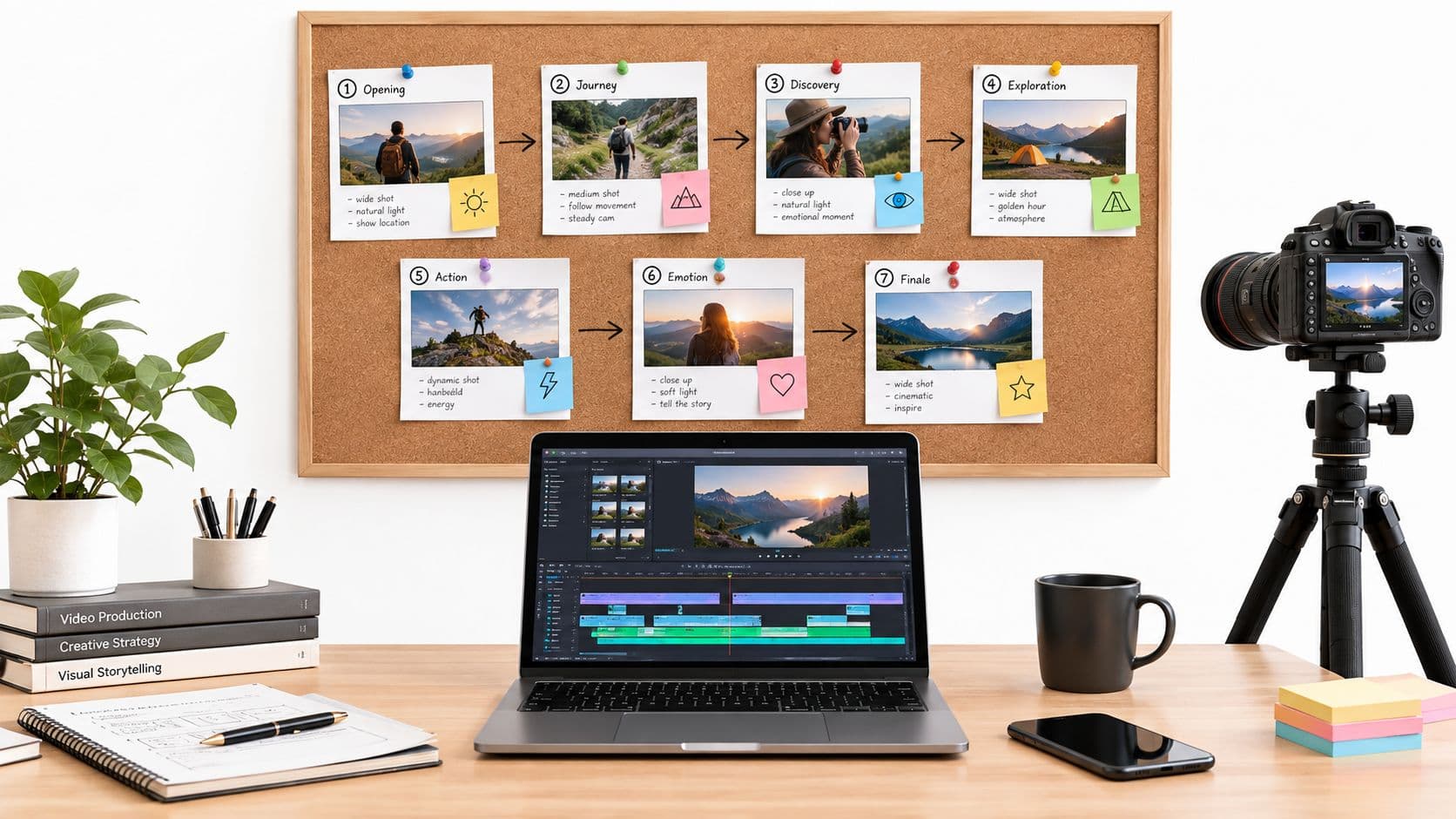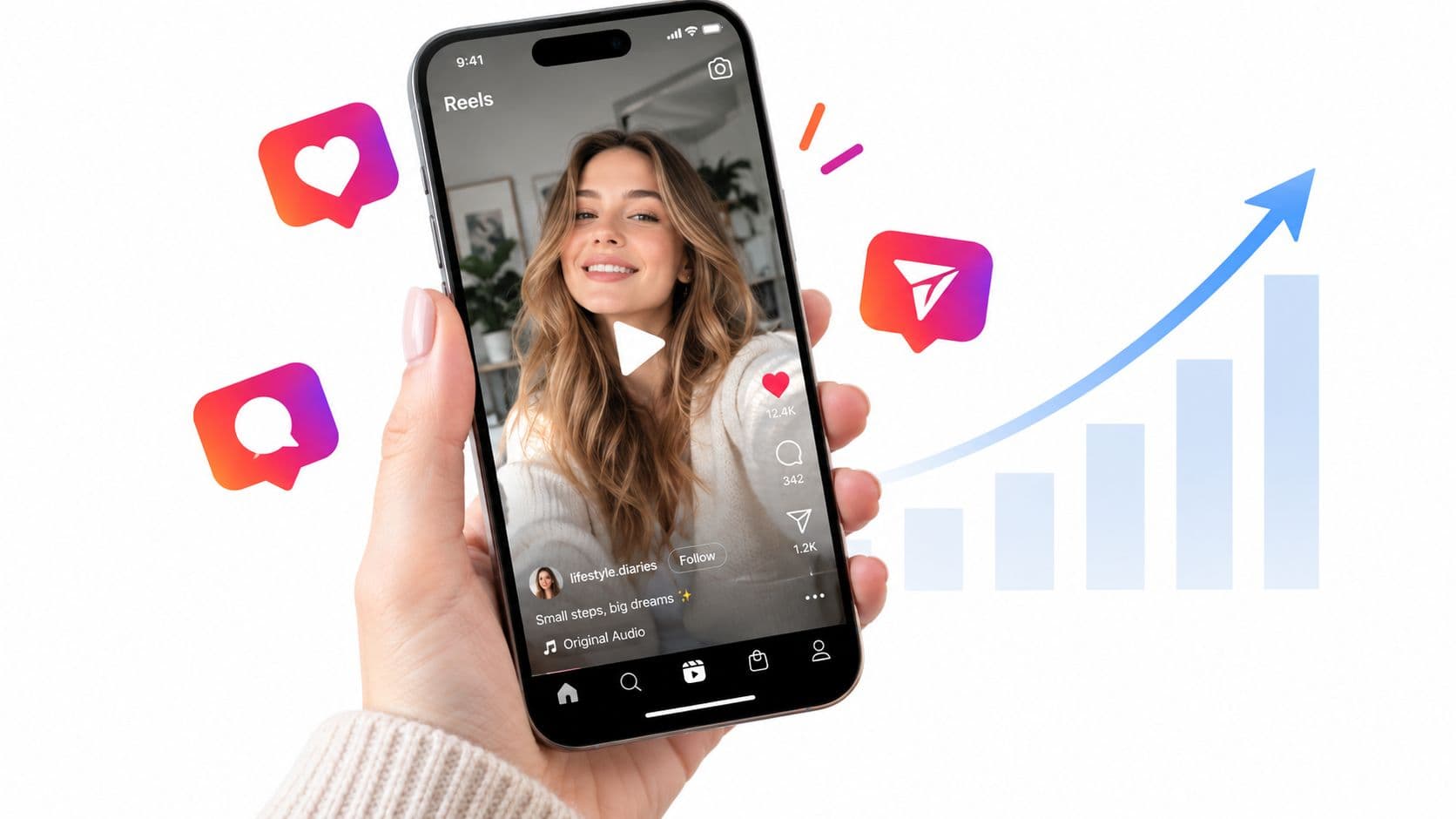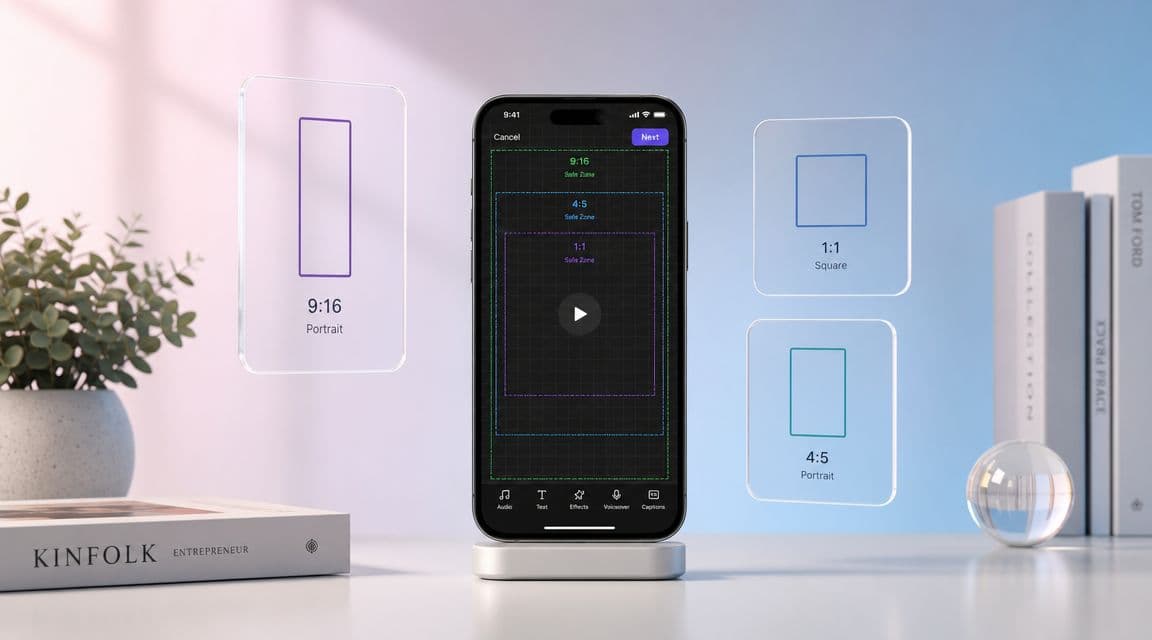
The standard Instagram Reels dimension is 1080 × 1920 pixels with a 9:16 aspect ratio. That's the starting point, not the finish line, because a perfectly formatted Reel also has to survive Instagram's feed crop, grid preview, UI overlays, and export compression.
A lot of creators get the first part right and still publish a bad-looking Reel. The video fills the screen in the editor, then the subtitle line sits under the caption area, the cover looks off on the profile grid, and the call to action gets buried behind interface buttons. That's usually not an editing problem. It's a layout problem.
If you want your Instagram Reels dimensions set up properly, think in layers. First, build the file at the native vertical size. Then design it so the same asset still works when Instagram shows it in different places across the app. That's what separates a Reel that merely uploads from one that looks intentional.
Why Your Instagram Reels Dimensions Matter
A Reel can look perfect on your timeline and still fail once it's live.
The most common version of this: you export a clean vertical video, post it, then discover the top text feels cramped, the bottom captions are partially covered, and the cover crop on your profile makes the thumbnail look messy. Nothing is technically broken. Instagram is just displaying the same asset in more than one layout.
That's why Instagram Reels dimensions aren't just a spec-sheet detail. They control whether people can see your message, your product, your face, and your on-screen text the way you intended.
Practical rule: Format for the viewer, not just the upload box.
Good creators don't only ask, “What size should my Reel be?” They ask, “Where will this same video be cropped, overlaid, and previewed?”
That shift matters. If your content relies on subtitles, product labels, talking-head framing, or lower-third text, careless placement will cost you clarity. If you keep the composition centered and plan for multiple Instagram surfaces, your Reels will look cleaner with no last-minute fixes.
Instagram Reels Dimensions Quick Reference Guide
If you just need the settings, use this as your working spec.
| Specification | Recommended Setting |
|---|---|
| Main Reel canvas | 1080 × 1920 pixels |
| Aspect ratio | 9:16 |
| Feed appearance | Often shown as 4:5 crop |
| Cover size | Commonly prepared at 1080 × 1920 |
| Safe zone | Keep critical content inside the centered area, with one guide specifying 1080 × 1420 px |
| File container | MP4 or MOV |
| Frame rate | At least 30 FPS |
| Upload aspect ratio range | 1.91:1 to 9:16 |
| Typical current cap in platform guidance | Up to 3 minutes |
| Max file size | 4 GB |
The key mistake is treating every row in that table as equal. They're not. The canvas size tells you how to build the file. The crop behavior tells you how to compose it. The safe zone tells you where your message should live.
If you also publish to other short-form platforms, this guide on vertical video dimensions across platforms is useful for comparing how one vertical asset translates outside Instagram.
The Full-Screen Experience Mastering the 9:16 Aspect Ratio
Instagram's default Reel format is 1080 × 1920 pixels at a 9:16 aspect ratio, which matches full-screen mobile viewing and is the standard recommendation across publishing guides. The same reference also notes that Reels may appear as 4:5 in the feed, while covers are commonly prepared at 1080 × 1920 and then managed for cropped previews in other placements, as explained in Instapage's Reel dimensions guide.
Why 9:16 is the master format
This is the canvas Instagram is built around for Reels. When you edit at 1080 × 1920, the video fills the phone screen naturally in the main Reel viewer. No side bars. No awkward dead space. No forced reframing at upload.
That matters more than people think. If you start from a horizontal file and try to “make it work” later, you're already compromising. Either your subject becomes tiny inside a vertical frame, or you crop so aggressively that the image feels cramped.
What works and what doesn't
What works:
- Native vertical footage: Shot or edited specifically for 9:16
- Centered subject placement: Gives you room for feed and preview crops
- 1080p vertical export: Keeps text, subtitles, and fine edges cleaner
What usually doesn't:
- Repurposed widescreen clips: They look like placeholders on mobile
- Edge-to-edge text: It may fit the canvas but still fail in the app
- Loose framing assumptions: Full-screen is only one placement
A Reel should be edited like a master vertical asset, not like a horizontal video squeezed into a phone screen.
Treat 1080 × 1920 as your source file, then design everything inside it with the assumption that Instagram will reinterpret that same asset elsewhere.
Navigating Instagrams UI The Critical Safe Zones
The safe zone is where professional-looking Reels are won or lost.
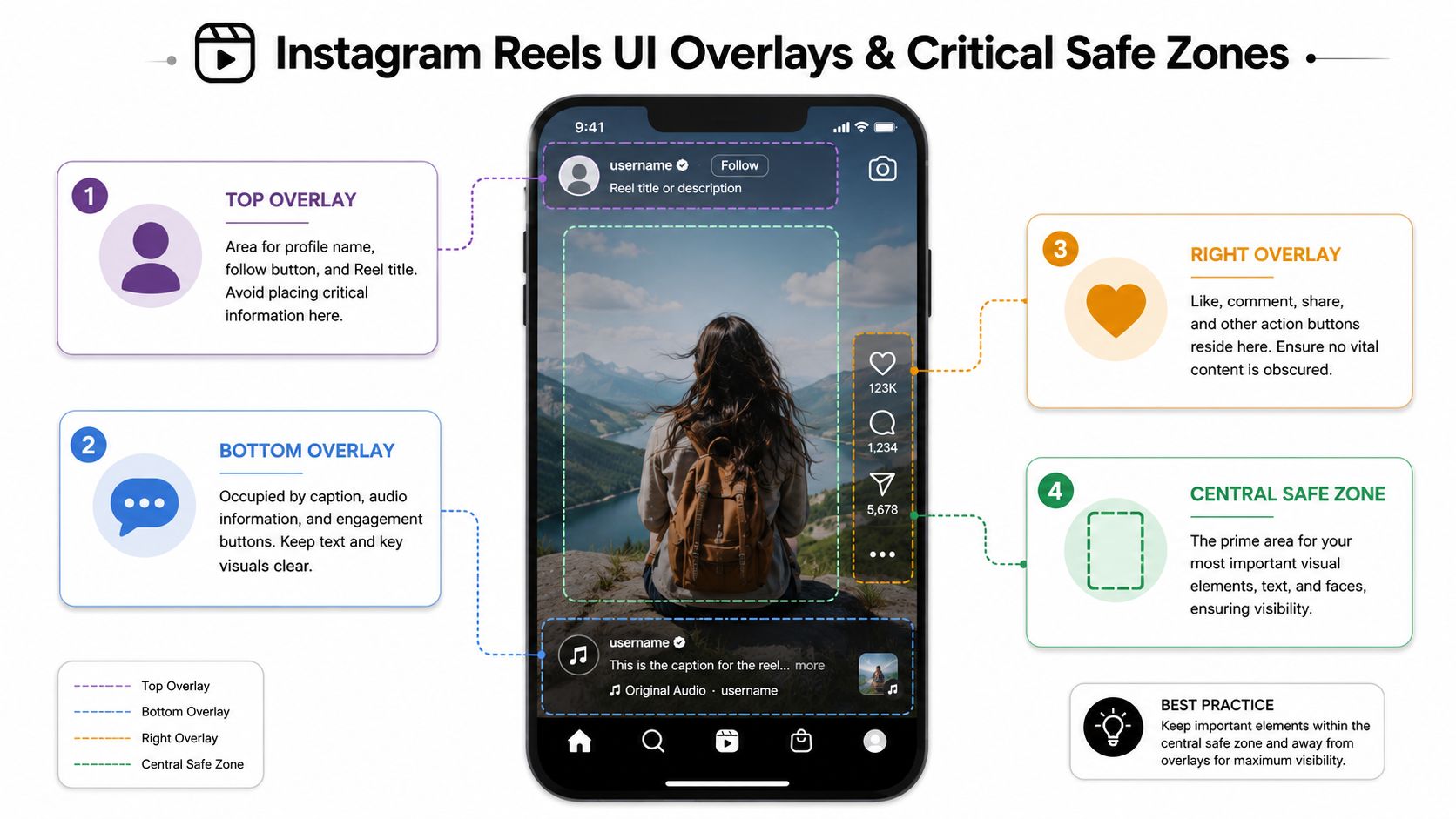
A Reel may be 1080 × 1920, but viewers don't see a clean empty frame. Instagram layers interface elements on top of it. Buttons sit along the side. Profile and title elements occupy the upper area. Caption and audio information sit lower. One current sizing reference specifies a 1080 × 1420 px safe zone for critical content in the center, as noted in InVideo's Instagram Reel size guide.
What belongs inside the safe zone
Keep these elements centered:
- Subtitles: Especially the last line on screen
- Faces: Eyes and mouth shouldn't sit near overlay-heavy edges
- Logos: Don't tuck branding into corners
- Calls to action: “Comment below” is useless if the app covers it
A common mistake among creators is using the whole frame because the editor allows it. Instagram doesn't display the whole frame cleanly in every mode, so that extra space near the edges is not reliable design space.
The practical layout rule
Build your Reel on the full 1080 × 1920 canvas, but pretend the safe working area is smaller and centered.
If you use captions often, this matters even more. Subtitle placement that looks fine inside Premiere Pro, CapCut, or Final Cut can still collide with Instagram's lower UI. A subtitle workflow should account for platform-safe placement from the start. If you need a practical walkthrough, this guide on how to add subtitles to a video is useful for setting them where they stay readable.
A quick visual helps more than any description:

A simple test before posting
Before you publish, check three things:
- Top area: Is any headline or hook too high?
- Bottom area: Will subtitles or CTA text compete with the caption area?
- Right side: Are buttons likely to cover a key object or text block?
Keep your message in the center. The edges are where Instagram puts its own priorities.
That single habit prevents a lot of avoidable formatting problems.
How Your Reel Appears in the Feed and on Your Grid
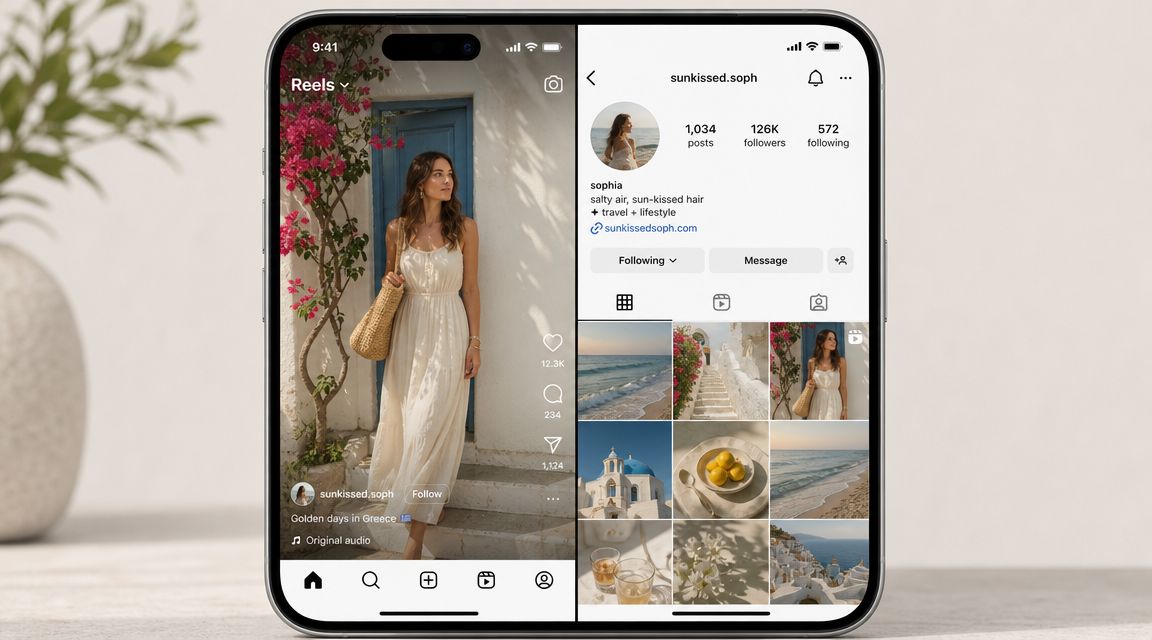
The full-screen Reel viewer is only one version of your content. Instagram also presents that same Reel in places where the framing changes, and that's where centered composition stops being a suggestion and becomes a requirement.
Feed view versus profile view
In the feed, a Reel may be shown as a 4:5 crop rather than full 9:16. That means the top and bottom portions have less room than they do in the dedicated viewer. If your opening text sits too high or your subtitles hang too low, the feed version will feel cramped fast.
On your profile, the cover has another job. It needs to look good as a thumbnail, not just as a full vertical image. A cover prepared at the same vertical size can still look wrong if the focal point isn't centered enough for Instagram's preview behavior.
What this means in practice
Use the center of the frame for your actual communication. Not just the center for faces, but the center for hierarchy:
- Put the main subject in the visual middle
- Keep headline text away from top edges
- Avoid putting product labels or logos in corners
- Choose a cover frame that still makes sense when cropped
A Reel with good centered structure usually looks fine everywhere. A Reel built around edge details usually breaks somewhere.
If a viewer only sees the feed crop or your grid thumbnail, they still need to understand what the Reel is about.
That's the mindset to keep. You're not designing one screen. You're designing one asset that Instagram reshapes across several screens.
Optimal Export Settings for Flawless Quality
Dimensions set the frame. Export settings decide how clean that frame stays after upload.
The practical production spec for Instagram Reels is 1080 × 1920 at 9:16, with recommended upload containers of MP4 or MOV. Current guidance commonly caps Reels at up to 3 minutes with a 4 GB max file size, and exporting at native vertical 1080p helps reduce resampling artifacts, as summarized in this Reel size and export guide from Dlvr.it.
Export choices that usually hold up well
Start with the basics Instagram handles cleanly:
- Container: MP4 or MOV
- Resolution: Native 1080 × 1920
- Frame rate: At least 30 FPS
- File size awareness: Stay within the platform limit
Instagram Help also says Reels should use at least 30 FPS, which matters if you're exporting from an editor that defaults lower or inherits odd source settings. Clean motion and legible text survive compression better when the source file is already aligned with the platform's expected format.
Workflow trade-offs that matter
A few practical points:
- Don't upscale weak footage just because you want a larger file. If the source is poor, a bigger export won't save it.
- Don't stack too many re-exports. Every extra pass through another app can soften text and graphics.
- Don't finish with tiny caption text. Compression hits small text first.
If you're testing editors or automated creation tools before exporting Reels, it helps to compare free AI video tools for 2026 and see which ones give you direct control over vertical output and subtitle positioning.
For creators who need to repurpose clips from non-vertical or square formats, this guide on how to change aspect ratio of video is a practical starting point.
Common Reels Formatting Mistakes to Avoid
Most bad-looking Reels don't fail because the idea was weak. They fail because the layout ignored how Instagram displays the file.
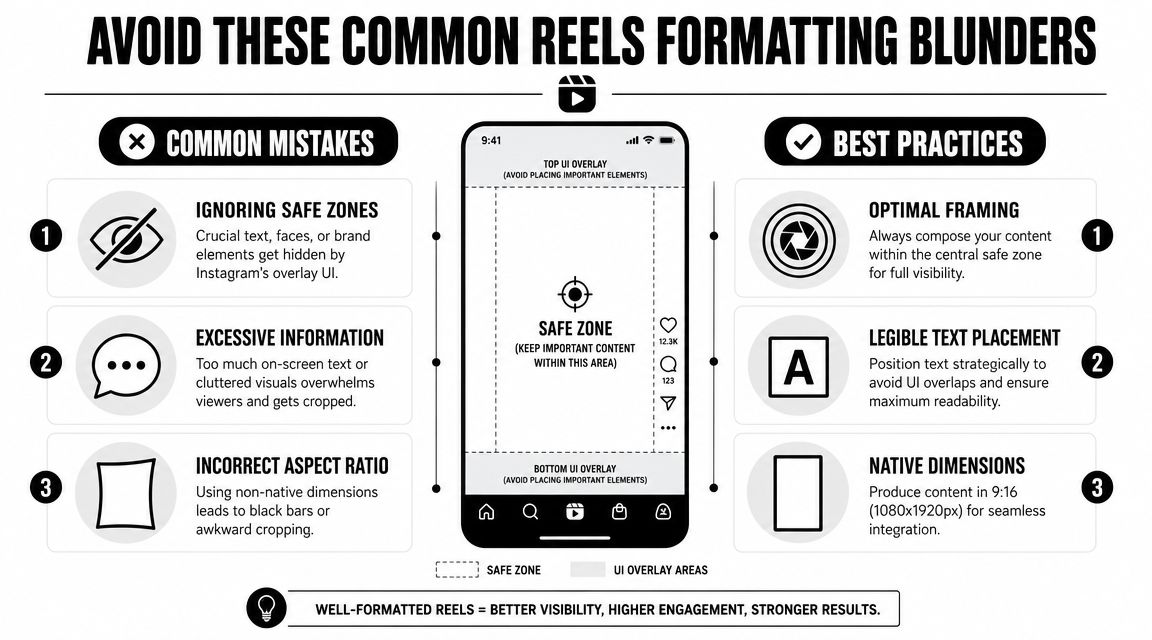
Mistake one: designing to the edges
This shows up as cropped hooks, blocked subtitles, and logos hidden under interface elements. The fix is simple. Compose around the center, not the border.
Mistake two: forcing horizontal content into a vertical slot
A horizontally oriented clip inside a Reel usually looks like borrowed footage, not native content. Even when the message is good, the presentation feels weaker because the screen isn't being used well.
Mistake three: treating the lower right as empty space
It isn't. That area is busy. If you place text, arrows, stickers, or a product detail there, viewers may never see it clearly.
Mistake four: picking a cover without checking the preview
A cover can look strong as a vertical frame and still look awkward once Instagram trims it for profile presentation. This is why random frame grabs often underperform compared with intentionally chosen covers.
Here's the practical fix list:
- Use one master vertical composition: Don't assemble the Reel as a patchwork of mismatched crops
- Protect your key text: Give subtitles and hooks breathing room
- Preview before posting: Check feed view, cover view, and overall balance
- Simplify the screen: Too much on-screen information creates clutter fast
Bad formatting makes good content look careless.
The best Reels usually feel easy to watch because the creator removed friction before the upload happened.
Frequently Asked Questions about Reels Dimensions
A Reel can look right in the editor and still break once it hits your feed, profile grid, or full-screen playback. That is why dimension questions keep coming up. The file is only part of the job. The real work is making sure the same video survives Instagram's different viewing contexts without losing the hook, subtitles, or cover framing.
What video length can an Instagram Reel be?
Instagram supports different Reel lengths depending on how you upload. In Instagram's own upload guidance, the platform notes that Reels can be uploaded in aspect ratios from 1.91:1 to 9:16 and should use at least 30 FPS, as outlined in Instagram's Reel upload guidance.
The practical takeaway is simpler than the spec sheet. Build for vertical viewing first, then confirm your pacing still works if the Reel is watched in-feed instead of full screen. A technically accepted file can still feel poorly formatted if the composition was built for another shape.
Can you upload a Reel that isn't 9:16?
Yes. Instagram accepts more than one aspect ratio.
But Instagram is still a vertical-first interface for Reels. Wider video gives you less visual impact on screen, and Instagram may add padding or crop the frame in ways that weaken the result. For creators who want the Reel to feel native across playback surfaces, 9:16 remains the safest production format.
How do you make one video work across Instagram and other short-form platforms?
Use one centered vertical master and make layout decisions early. Put hooks, subtitles, product labels, and calls to action where they can survive full-screen playback, feed preview, and grid cropping.
Automation helps when you publish at volume. Tools that output vertical video with consistent subtitle placement and repeatable layouts reduce manual rework across platforms. ClipCreator.ai is one example. It creates and publishes faceless short videos for TikTok, YouTube, and Instagram, with built-in voiceover, visuals, and subtitle workflows.
What's the safest rule if you don't want to re-edit later?
Build once for the tightest viewing conditions.
That means one vertical master file, centered composition, and enough padding around every important visual element that Instagram's interface or preview crops do not break the message. If the opening line, subtitle block, and cover still make sense across full-screen view, feed view, and grid view, the formatting is doing its job.
If you want a faster way to make Instagram-ready vertical videos without manually rebuilding subtitles, voiceovers, visuals, and posting workflows every time, ClipCreator.ai is built for that use case. It generates short faceless videos, formats them for vertical platforms, and supports scheduled publishing across channels so your Reels workflow stays consistent.

Create your first video in under 2 minutes
Pick a niche, and ClipCreator.ai generates and auto-posts faceless videos to your channels every day.
Join ClipCreator.ai