You open your Chromebook to cut a video before class, between client calls, or on the couch, and the question gets practical fast. Which editor will run well here, save reliably, and let you finish the job without wrestling ChromeOS?
That is why "best Chromebook video editor" is mostly a workflow question, not a feature race. On this hardware, the first split is simple. Web editors usually fit low-storage devices better and are easier to use on managed or school-issued Chromebooks. Android apps can offer tighter timeline control and better offline editing, but only if your Chromebook handles Android apps well enough to keep playback usable.
I have found that picking the right category matters more than picking the most famous name. A lightweight browser editor can feel faster than a more powerful Android app that stutters once you stack captions, music, and B-roll. On the other hand, if you do longer edits and your Chromebook has enough RAM and decent storage, an Android editor can feel much closer to a traditional laptop workflow.
So this guide is built around how people edit on Chromebooks. Some creators need the fastest route to vertical clips and auto captions. Some need shared projects in the browser. Others need a real timeline, better layer control, and the option to work offline. If CapCut is on your shortlist but you want more options for different workflows, this comparison of the best CapCut alternatives for creators is also useful.
The tools below cover both camps. Web-first editors for convenience and compatibility. Android-first editors for control. The trade-off is not which app has the longest feature page. It is which one matches your Chromebook, your editing style, and the kind of videos you need to publish regularly.
1. CapCut
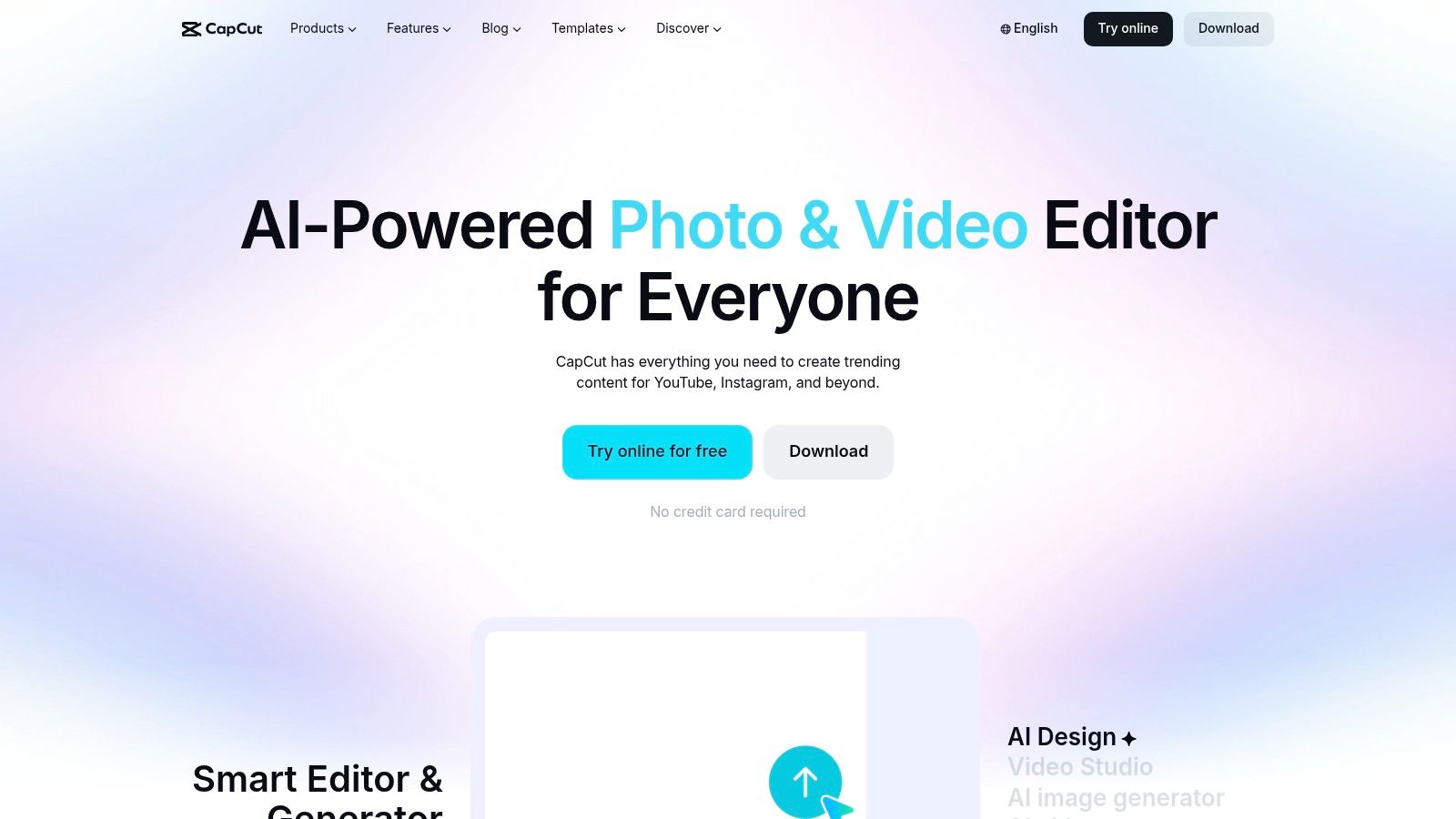
CapCut is the fastest recommendation I give to short-form creators who care more about publishing momentum than editing purity. If your job is turning scripts, clips, screenshots, and voiceovers into TikToks, Shorts, and Reels, CapCut gets out of the way quickly.
On Chromebook, the web version usually makes more sense than forcing the Android app unless your device handles Android containers well. The browser workflow is simpler, cloud projects are easier to manage, and resizing for vertical formats feels natural. That matters when you’re pushing lots of short faceless content.
Where CapCut fits best
CapCut is strongest when the edit is driven by captions, pacing, hooks, and social-native effects. It’s built for quick turnaround, and you can feel that in the interface. You drop in media, trim aggressively, add auto subtitles, swap aspect ratios, and export.
Its best use cases on Chromebook are pretty specific:
- Fast vertical publishing: Great for TikTok-style edits, meme pacing, and quick hook-first storytelling.
- Caption-heavy videos: Auto subtitles and text styling are easy to apply without digging through a deep menu system.
- Template-led production: Useful when you want repeatable formats more than handcrafted edits.
The trade-off is control. Once you move beyond social pacing and into precise audio shaping, layered compositing, or nuanced color work, CapCut starts feeling narrow.
CapCut is excellent when speed is the goal. It’s less satisfying when you want to slow down and refine every cut.
If you’re comparing it against tools with more control or less template dependence, this breakdown of the best CapCut alternative is a useful next step.
What works on Chromebook
CapCut runs well enough for most short-form jobs, but it’s still easy to overload a weak Chromebook with too many effects, animated captions, and stacked layers. Keep projects modular. Build one short at a time instead of one giant timeline full of alternates.
Use CapCut if you want the shortest distance between idea and publish. Don’t use it if your definition of the best chromebook video editor is “the closest thing to a desktop NLE.”
For the platform itself, go to CapCut.
2. Microsoft Clipchamp
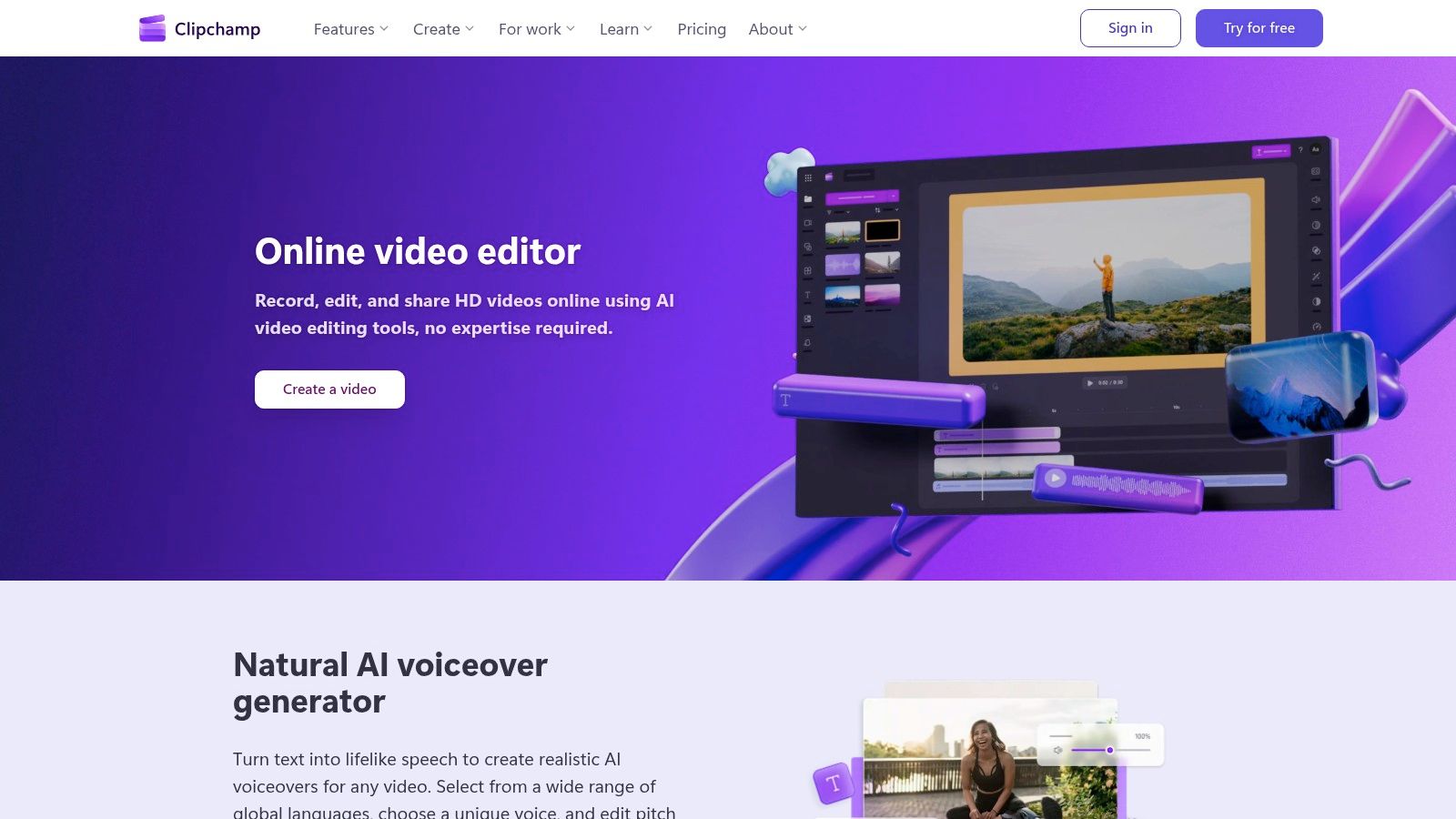
You open a Chromebook to cut a tutorial, record a quick webcam intro, trim dead space, add captions, and export before the battery drops. That is the kind of job Clipchamp handles well.
Clipchamp fits the web-editor side of this guide better than the Android-app side. On ChromeOS, that distinction matters. A browser editor avoids another install, keeps local storage pressure lower, and usually feels more predictable on entry-level hardware than an app stretched across a laptop screen.
Best for recording-first workflows
I recommend Clipchamp most often to people making tutorials, internal training videos, product walkthroughs, lesson recaps, and simple talking-head content. If your workflow starts with screen capture or webcam recording, Clipchamp keeps the process tight. Record, drop clips into the timeline, clean up the pacing, add text, and export.
Its practical strengths are clear:
- Built-in screen and camera recording: Useful for teachers, support teams, and solo creators making how-to content.
- Beginner-friendly timeline: Easy to understand without feeling toy-like.
- Free plan that stays usable: You can make polished basic videos without hitting an immediate paywall.
Clipchamp also works well for creators building a repeatable video editing workflow for Chromebook-friendly production. The simpler the format, the better it feels.
Where it fits, and where it doesn’t
Clipchamp is better at getting straightforward videos finished than giving you deep control. That trade-off is deliberate. The interface stays clean because it does not chase the kind of precision you would expect from a heavier editor.
For Chromebook users, that is often a fair exchange.
On weaker machines, I would pick Clipchamp over many Android editors for browser-based work like explainers and presentations. On a stronger Chromebook, or for projects with lots of layered B-roll, detailed audio work, or more exact timing, it starts to feel limiting faster than tools built for more hands-on editing.
Practical rule: Choose Clipchamp if your project is built around recording, trimming, and publishing. Choose a different editor if the job depends on detailed audio shaping, dense layering, or more precise visual control.
It is one of the better answers to "best chromebook video editor" for people who want a web tool that respects Chromebook limits instead of fighting them.
You can use it at Microsoft Clipchamp.
3. Canva Video Editor
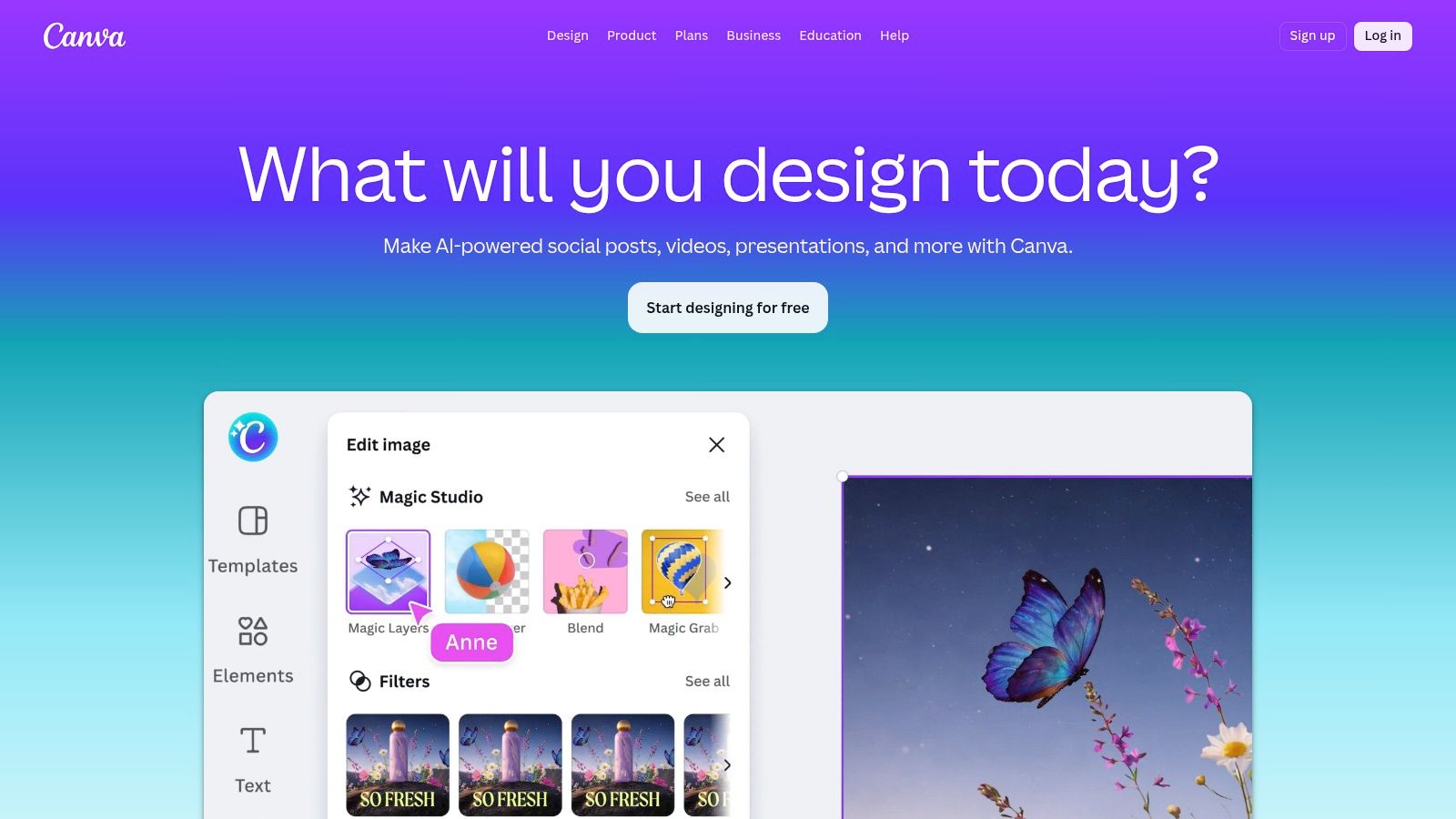
You open your Chromebook to make a quick promo, and the primary task is not cutting footage. Instead, the main task is keeping the video on-brand, resizing it for three platforms, and reusing the same structure next week without rebuilding everything from scratch. That is the kind of work Canva handles well.
Canva is a web editor first, and that matters on ChromeOS. It feels best for creators whose workflow starts with layouts, text, logos, and reusable scenes, not for editors who need frame-level trimming or dense multi-track sequences. If your videos live inside a broader content system, Canva often saves more time than a deeper editor.
Best for browser-based brand workflows
Canva fits teams and solo creators who publish repeatable content. Course clips, local business promos, quote videos, product explainers, and simple social ads are all good examples. The strength is consistency.
Instead of rebuilding the same pieces in every project, you can keep the structure stable:
- Brand kit workflows: Fonts, colors, and logos stay consistent across videos.
- Template reuse: Useful for recurring formats like tips, lessons, announcements, and testimonials.
- Fast resizing: Practical when one edit needs square, vertical, and horizontal versions.
- Built-in motion and overlays: Good enough for many creators who mainly need polished video editing effects for social content, not advanced compositing.
This also makes Canva one of the more natural web options for Chromebook users who want a repeatable video editing workflow. The less time you spend managing files, fonts, and layout variations, the better it fits the platform.
Trade-offs to expect on a Chromebook
Canva is strongest as a browser tool for design-led video work. It is weaker as a hands-on editor. I would use it for branded shorts, talking-head promos with text support, and faceless content built from scenes. I would not choose it for precise beat editing, layered B-roll stacks, detailed audio cleanup, or anything that depends on tight timeline control.
That trade-off is easy to understand once you use it for real projects. Canva gives you speed by narrowing the editing experience. On lower-powered Chromebooks, that is often a fair deal. Keep projects lighter by limiting long raw clips, trimming source footage before upload when possible, and treating Canva as the finishing and packaging step rather than the place for heavy edit decisions.
Choose Canva if your workflow is browser-based, template-driven, and brand-sensitive. Use Canva Video Editor.
4. Adobe Express
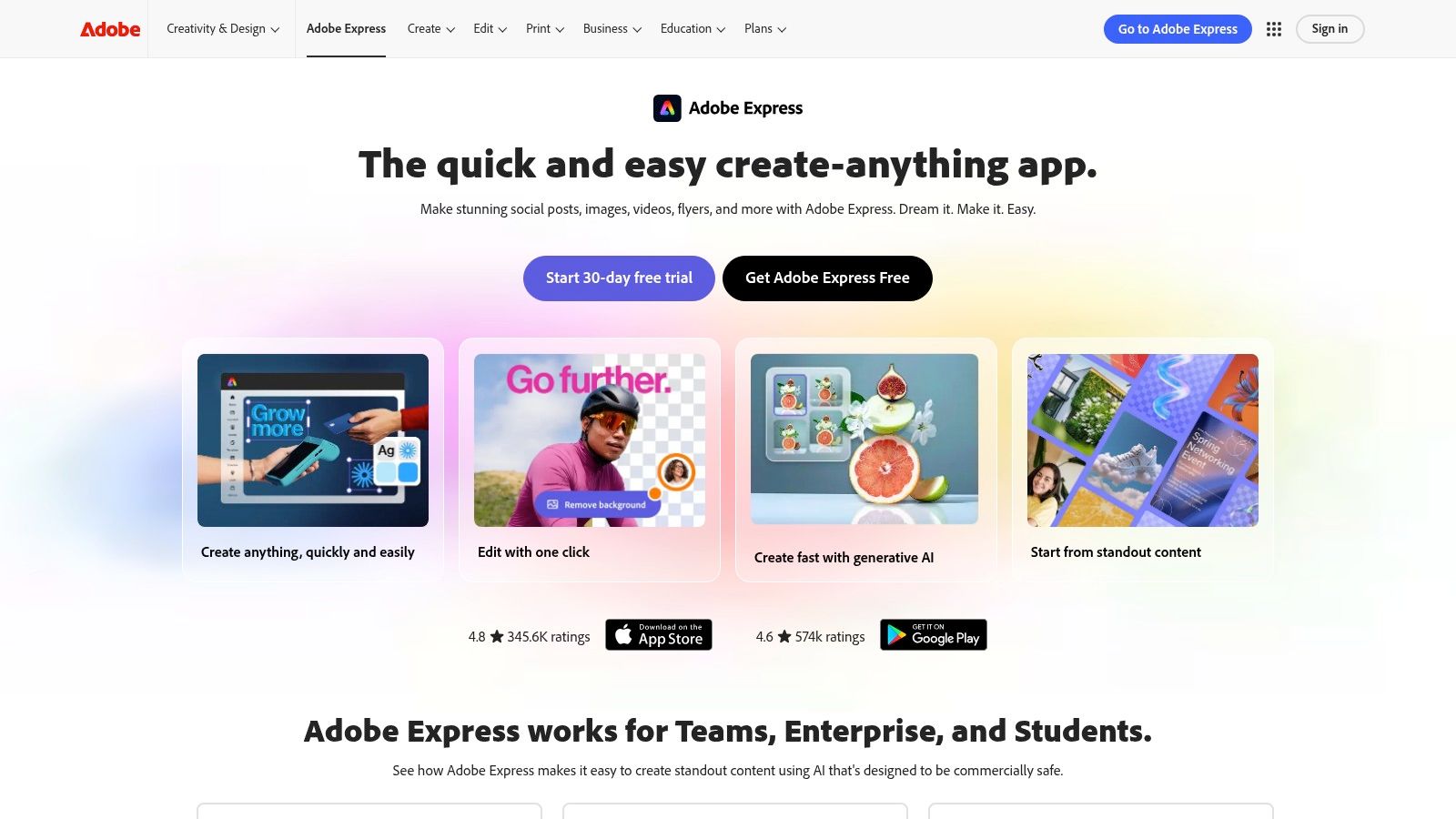
Adobe Express makes sense for Chromebook users who like Adobe’s visual ecosystem but don’t need Premiere. That distinction matters. If you go in expecting a browser version of a full editing suite, you’ll be disappointed. If you want polished social video assembly with strong templates and easy asset access, it’s a solid fit.
Its biggest advantage is visual consistency. Fonts, stock assets, layouts, and branded design pieces feel organized instead of bolted together.
Strong when assets matter more than timeline depth
Adobe Express is better for content packages than for deep edits. By content packages, I mean the kind of work where the video sits alongside story posts, promo graphics, thumbnails, and social variations. You can keep everything in one visual language.
That makes it good for:
- Short promotional cuts: Product spots, event promos, service teasers.
- Brand-safe social content: Especially if your team already works in Adobe tools elsewhere.
- Template-guided edits: When you want speed with a more polished design feel than many lightweight editors deliver.
It’s also useful for creators who rely heavily on visual treatments. If text animation, overlays, and stylized framing do a lot of the storytelling, Adobe Express can carry that well. This guide to video editing effects is a helpful companion if you’re trying to build stronger visual pacing with lightweight tools.
What doesn’t translate well
Adobe Express still isn’t where I’d send someone who wants detailed timing control, audio shaping, or the layered edit feel of a traditional timeline editor. It’s an assembly tool first.
That’s not a flaw. It’s just the line. On Chromebook, that line can be helpful because it keeps the workflow focused and light. If your videos are under the short-form range and mostly driven by narration, text, stock visuals, and quick transitions, Adobe Express is enough more often than people expect.
For the tool itself, use Adobe Express.
5. Kapwing
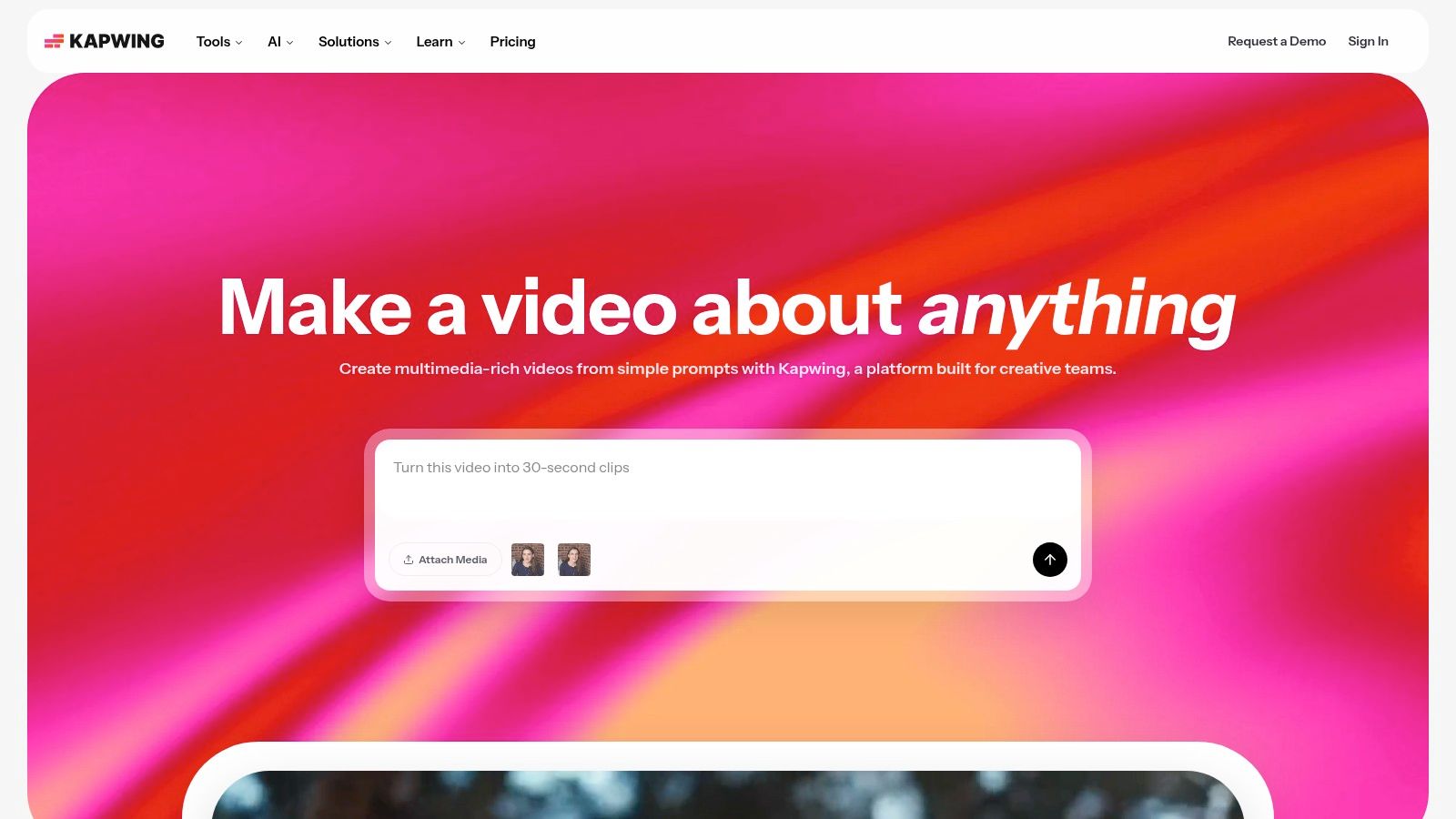
A common Chromebook editing scenario goes like this: one person writes the hook, another trims the clip, someone else fixes captions, and the final version needs three aspect ratios before lunch. Kapwing fits that workflow better than tools built around a single editor on a single device.
That matters on ChromeOS because Kapwing is fully web-first. You are not asking a Chromebook to behave like a high-powered local editing machine. You are using the browser for what it handles well: shared access, fast revisions, comments, captions, and export handoffs.
Best for collaborative, browser-based short-form work
Kapwing earns its place if your editing process includes review cycles, approval rounds, or repeated content repurposing. I’ve found it especially practical for teams turning one recording into Shorts, Reels, square promos, and captioned cutdowns without constantly exporting project files back and forth.
Its strongest use cases are pretty specific:
- Shared editing: Multiple people can handle scripts, subtitles, trims, and feedback in one place.
- Caption-heavy content: Auto-subtitles and text-based workflows save time on social clips.
- Fast format changes: Resizing for different platforms is quicker than rebuilding the edit manually.
- Repurposing pipelines: Good for podcasts, webinars, interviews, and creator content that gets split into smaller assets.
Kapwing is less about intricate timeline control and more about keeping production moving.
The real trade-off on a Chromebook
The same cloud-first setup that makes Kapwing easy to use with a team also creates limits. On longer projects, busy timelines can feel slower than an Android app or native editor running locally. Chromebook users will notice that most with layered edits, heavier source files, and lots of preview scrubbing.
A few habits help. Keep browser tabs under control, upload compressed source footage when full-resolution files are overkill, and do captioning and repurposing in Kapwing after the core edit is already close to final. That workflow usually feels better than trying to build a complex edit from scratch inside the browser.
For solo creators, Kapwing makes the most sense when speed beats precision. For teams, agencies, and social editors working inside a shared web workflow, that trade-off is often worth it.
Use Kapwing if your version of the best chromebook video editor is the one that keeps short-form collaboration fast and manageable.
6. WeVideo
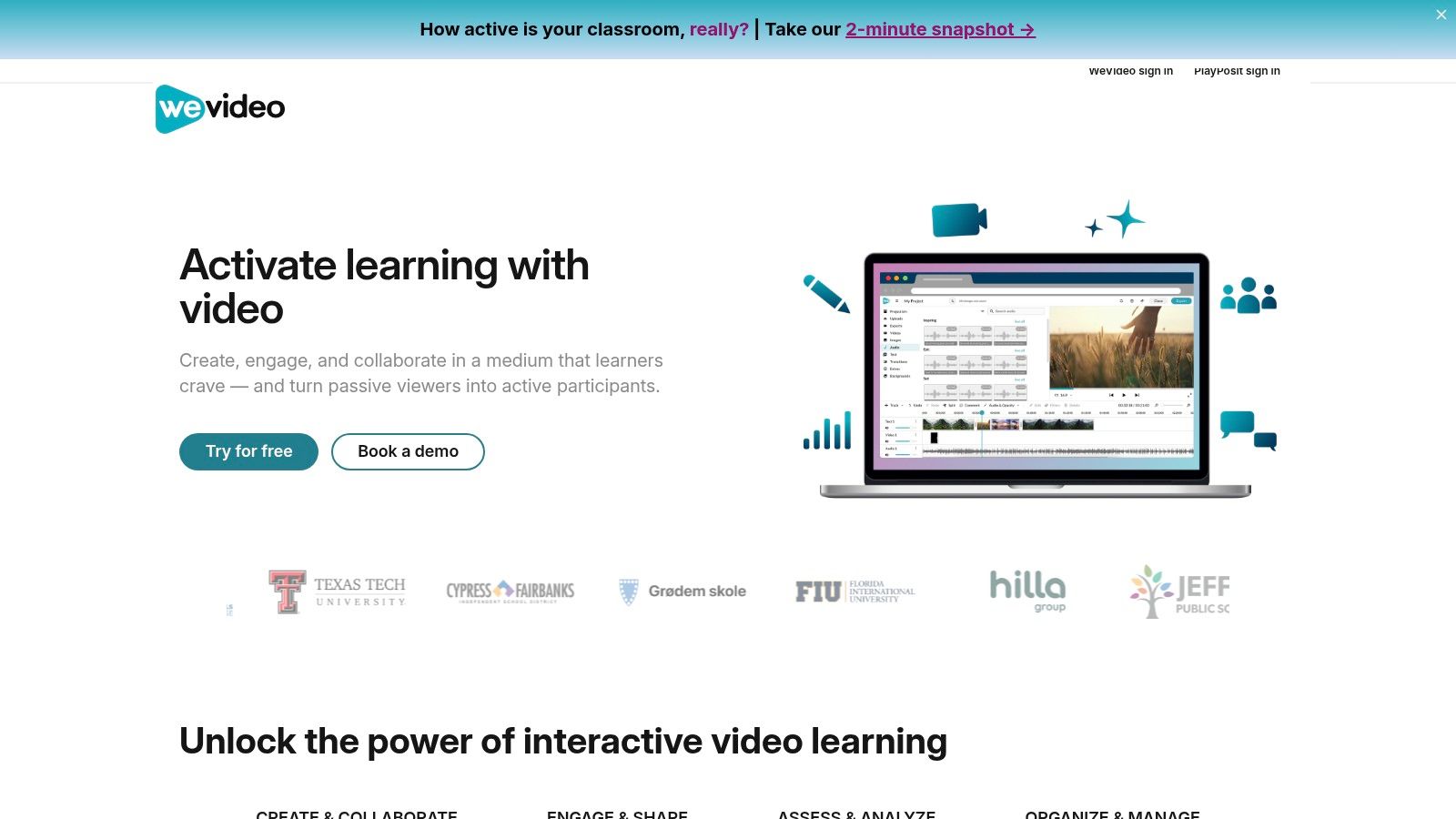
A common Chromebook editing job looks like this: trim a lesson, add a webcam intro, drop in captions, export, and send it out before the next meeting. WeVideo fits that kind of work well. It is a web editor built for people who need to finish videos reliably from the browser, not squeeze every last bit of control out of the timeline.
That matters on ChromeOS because workflow choice changes the experience. In this guide, some tools make more sense as Android apps if you want stronger local performance and tighter timeline control. WeVideo sits on the other side of that split. It is one of the better web-first options for users who value access from any Chromebook, simple collaboration, and a lower learning curve.
Best for browser-first users who prioritize consistency
WeVideo makes the most sense for teachers, school teams, internal comms staff, and solo creators producing explainers, updates, training videos, and lightweight marketing pieces. The interface is easier to learn than a pro-style editor, and the built-in screen recording, webcam capture, green screen tools, and motion titles cover the jobs many Chromebook users typically do every week.
Its strengths are practical:
- Accessible timeline: Easier to learn if you are new to editing or training other people.
- Web workflow: Useful on Chromebooks where storage is limited or app support is inconsistent.
- Shared environments: A good fit for schools and teams that need people working in the same browser-based setup.
I would put WeVideo in the "steady output" category, not the "creative experimentation" category. If your editing process starts with footage in Google Drive, continues in a browser, and ends with a clean export, it holds up well.
The trade-off on Chromebook hardware
The same web-based setup that makes WeVideo easy to deploy across a classroom or team also puts a ceiling on complexity. Longer projects, heavier source files, and lots of layered edits can feel slower than editing in a stronger Android app on the same Chromebook. Preview responsiveness usually tells you where that limit is.
A few habits help a lot. Keep your source clips organized before upload, use compressed footage when full-resolution files are unnecessary, close extra tabs, and break long videos into shorter projects if the timeline starts dragging. On modest Chromebook hardware, those changes can make WeVideo feel much better.
WeVideo is not the editor I would choose for detailed pacing work, aggressive motion design, or intricate multi-layer edits. It is the one I would choose when a browser-based workflow, easy onboarding, and dependable output matter more than advanced control.
Go to WeVideo if you want a web editor that plays to Chromebook strengths instead of fighting them.
7. LumaFusion
You open an Android editor on a Chromebook, drop in a few clips, add music, and quickly hit the ceiling. The timeline feels cramped, the controls are simplified, and precise trimming takes longer than it should. LumaFusion is the app people move to when they want a Chromebook editing setup that behaves more like a real NLE.
That distinction matters in this guide because LumaFusion represents the Android app side of the Chromebook workflow. Browser editors are usually easier to start with and easier to run on low-spec hardware. LumaFusion asks more from the device and from the editor, but it gives much finer control in return.
It suits creators who build videos shot by shot, not template by template. Interviews, YouTube edits, documentary-style cuts, client work, and multi-layer projects all make more sense here than they do in lightweight web tools.
Where LumaFusion stands out
LumaFusion is strongest for users who already know they want timeline control and are willing to work in an app-based workflow.
- True multi-track editing: Better for stacking B-roll, music, voiceover, titles, and sound effects without the project feeling boxed in.
- More precise timing tools: Useful for pacing dialogue, tightening pauses, and cutting to music with intent.
- Stronger finishing control: Keyframes, audio balancing, and clip-level adjustments give you room to refine instead of settling for presets.
- Better fit for offline editing: Helpful if you do not want your whole process tied to a browser tab.
The pricing model also stands out. According to Wideo’s Chromebook app guide, LumaFusion is sold as a one-time core purchase, which will appeal to editors who would rather buy software once than keep paying for a browser subscription.
The Chromebook trade-off
LumaFusion is not the editor I recommend blindly. It works well on stronger Chromebooks with enough RAM, decent storage headroom, and a processor that can keep previews responsive. On weaker machines, the same advanced timeline that makes it appealing can feel heavy fast.
A few habits help a lot. Keep project media on fast local storage when possible, close background Android apps, use proxy or lower-resolution source footage for rough cuts, and save demanding color or layered finishing work for the end. If playback starts stuttering, that is usually your cue to simplify the timeline before adding more effects.
There is also a learning curve. LumaFusion rewards editors who understand tracks, clip order, audio structure, and basic project organization. Beginners can absolutely learn it, but they should expect a slower first week than they would get with Canva, Clipchamp, or other browser-first tools.
I would place LumaFusion in the "best for serious app-based editing on Chromebook" category. If your Chromebook is capable enough and you want control that goes well beyond template-driven editing, it is one of the strongest options on this list.
Visit LumaFusion.
8. KineMaster
KineMaster sits in a useful middle ground. It’s more expressive than basic browser editors, easier to approach than a pro-style timeline app, and still very tuned to short-form creator habits. If you like building stylized edits with text, overlays, effects, and quick visual movement, KineMaster still holds up well on Chromebook.
I usually think of it as a creator-first mobile editor, not a workstation editor. That distinction helps. When people expect too much desktop behavior from it, they get frustrated. When they use it like a polished mobile editing suite with good layering and strong effects support, it clicks.
Where KineMaster feels strong
KineMaster works best for creators who want to add energy quickly. Short promos, anime-style edits, trend-focused social clips, title-heavy videos, and quick faceless storytelling all fit naturally.
It’s a good fit when you want:
- Multi-layer visual edits: Titles, overlays, stickers, cutaways, and animated elements.
- Fast effects-driven production: Stylized social content without a big setup burden.
- A familiar Android workflow: Good for users already comfortable with mobile editing logic.
Where it shows its limits
Precision audio work and detailed finishing aren’t its strongest side. You can absolutely complete polished videos in KineMaster, but the deeper you go into sound shaping and nuanced timeline control, the more you’ll feel the boundaries.
That’s also where Chromebook hardware matters. Android apps can feel great on one ChromeOS machine and awkward on another. If your device is lower-end, keep projects shorter, use fewer simultaneous layers, and export in stages when needed.
Searches and creator comments often show that many people still see KineMaster as “good enough” for basic edits on Chromebook, which matches the broader gap discussed in this YouTube discussion about Chromebook editing limitations. “Good enough” sounds dismissive, but for lots of social content, that’s exactly the point.
Try it at KineMaster.
9. PowerDirector
A common Chromebook editing problem looks like this: a web editor feels too limited once you start stacking titles, effects, and keyframes, but a higher-end app asks for more control, patience, and hardware than you want to give. PowerDirector sits in the middle. For many Chromebook users, especially those editing through Android apps instead of the browser, that middle ground is the whole appeal.
It gives you more headroom than lightweight web-based tools, but it usually feels less demanding than LumaFusion. That makes it a practical pick for creators who are outgrowing simple timeline edits and want more control over motion, text, transitions, and social-first formatting.
Who PowerDirector fits best
PowerDirector makes the most sense for Chromebook users who want an Android workflow with room to grow. It suits short-form creators, YouTubers cutting talking-head videos, and anyone making promo clips or tutorials who needs more than basic trim-and-export editing.
What stands out in actual use:
- Feature depth without a pro-level learning curve: You get keyframing, effects, templates, speed tools, and a timeline that stays approachable.
- A better fit for layered projects than many browser editors: It handles more ambitious edits without forcing you into a desktop-style interface.
- Good middle-ground choice by user type: More capable than beginner web tools, less intimidating than the most advanced app in this list.
That workflow distinction matters on a Chromebook. If you prefer editing in a browser tab, PowerDirector is not the obvious answer. If your machine runs Android apps well and you want more creative control inside one app, it becomes much more compelling.
Where Chromebook performance matters
PowerDirector can run well on ChromeOS, but it is still an Android app. That means results depend heavily on your Chromebook’s processor, RAM, thermal limits, and how well Android apps are optimized on that specific device.
On stronger Chromebooks, it can serve as your main editor. On entry-level models, I’d keep projects tighter. Use fewer overlapping effects, avoid piling on high-resolution source clips, and finish in 1080p unless you know your device can handle more. If playback starts stuttering, edit with shorter sequences and export in parts rather than forcing one heavy timeline to do everything at once.
That is the trade-off. PowerDirector offers a lot for creators who want an app-based workflow, but it asks more from the hardware than simpler web editors do.
For the official platform, visit PowerDirector by CyberLink.
10. VN Video Editor (VlogNow)
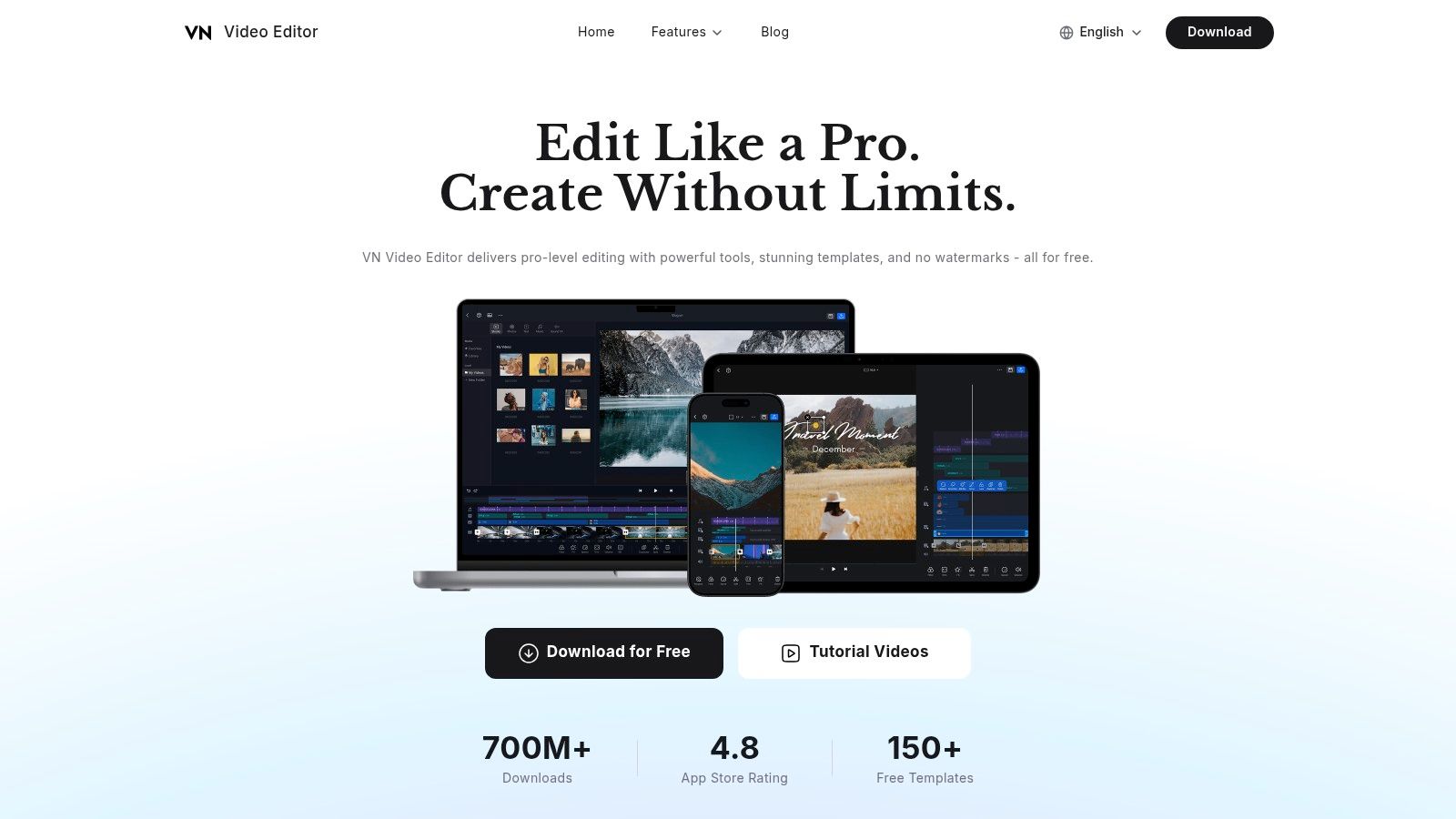
VN is the recommendation for people who want a free editor that still feels capable. Not “free, but frustrating.” Actually usable. If you’ve got a Chromebook that can run Android apps well enough and you don’t want to commit to a subscription before you know your workflow, VN is worth serious consideration.
It’s lighter in feel than some rivals and less cluttered than many feature-packed mobile editors. That makes it a solid bridge tool between bare-bones editing and more ambitious timeline work.
Why VN is popular with budget-conscious creators
VN covers the basics that matter for modern short-form work. Multi-track timeline, speed curves, keyframes, text, music, filters, and common aspect ratio presets. For many creators, that’s enough to make polished faceless clips, commentary edits, mini explainers, or simple story videos.
Its appeal is straightforward:
- Low cost of entry: Easy to test and start using right away.
- Good speed for simple projects: Doesn’t overload the user with too much UI noise.
- Useful intermediate toolset: More capable than the most basic free options.
What you give up
VN doesn’t offer the same ecosystem depth you get from CapCut, Canva, or some paid editors with bigger stock, templates, and asset libraries. It also won’t satisfy creators who want more advanced audio shaping or high-end effects control.
Still, that’s missing the point of VN. It’s for creators who want to edit now, learn good habits, and produce clean videos without immediate recurring costs. On Chromebook, that’s a real niche.
If your definition of best chromebook video editor includes “free enough to start, good enough to keep using,” VN deserves a spot on the list.
Use VN Video Editor.
Top 10 Chromebook Video Editors: Feature & Pricing Comparison
| Product | Core features ✨ | UX & Quality ★ | Price & Value 💰 | Target Audience 👥 | Unique Selling Point 🏆 |
|---|---|---|---|---|---|
| CapCut | Auto-subtitles, TTS, templates, instant resize, cloud projects ✨ | ★★★★☆, very fast, mobile-first | Free + in-app/pro tiers; regional entitlements vary 💰 | Creators & teams chasing viral verticals 👥 | Fastest path from idea to trending short verticals 🏆 |
| Microsoft Clipchamp | Screen/webcam recorder, AI voiceover, 1080p exports ✨ | ★★★★, simple, stable in Chrome | Free 1080p; premium via Microsoft 365 💰 | Casual creators & Microsoft 365 users 👥 | Watermark-free 1080p + 365 integration 🏆 |
| Canva Video Editor | Drag‑drop timeline, Brand Kit, one‑click resize, templates ✨ | ★★★★, polished for branded content | Free + Pro for teams/brand features 💰 | Teams & brand-focused creators 👥 | Brand governance + massive template library 🏆 |
| Adobe Express | Timeline templates, Adobe Stock, Firefly AI assets ✨ | ★★★★, consistent Adobe UX | Free tier; paid for stock & generative credits 💰 | Designers & Adobe ecosystem users 👥 | Adobe Stock + Firefly for quick premium assets 🏆 |
| Kapwing | Auto-subtitles, translations, TTS, Smart Cut ✨ | ★★★★, excellent for caption workflows | Free w/ limits; AI features may use credits 💰 | Repurposers & multi-language creators 👥 | Fast captioning & translation pipelines 🏆 |
| WeVideo | Web timeline, screen recording, chroma key, 4K on plans ✨ | ★★★, approachable for beginners | Tiered pricing; 4K on higher tiers 💰 | Education, small teams, beginners 👥 | Education plans & clear team pricing 🌟🏆 |
| LumaFusion | Multi-track NLE, keyframing, LUTs, stabilization ✨ | ★★★★★, pro-grade on ChromeOS | One-time purchase (Android), strong value 💰 | Pro creators needing granular control 👥 | Closest pro NLE experience on ChromeOS 🏆 |
| KineMaster | Multi-layer timeline, keyframes, large asset store ✨ | ★★★★, fast for polished shorts | Free w/ watermark; affordable premium 💰 | Stylized short-form creators 👥 | Extensive, affordable asset marketplace 🏆 |
| PowerDirector | Multi-track, AI effects, speed ramping, 4K ✨ | ★★★★, feature-rich mobile NLE | Subscription for premium features 💰 | Creators wanting advanced mobile effects 👥 | Regular updates + strong AI effects 🏆 |
| VN Video Editor | Multi-track, speed curves, keyframes, no watermark ✨ | ★★★★, lightweight & fast | Free, watermark-free exports 💰 | Budget-conscious creators & beginners 👥 | Truly free, no-watermark exports for quick edits 🏆 |
Final Thoughts
The best chromebook video editor isn’t one single app for everyone. It’s the editor that matches your hardware and the kind of videos you make.
If you’re on a lower-end Chromebook, browser editors are usually the safer bet. They avoid installation overhead, keep storage pressure down, and often feel more stable for basic social editing. That’s why Clipchamp, Canva, Kapwing, Adobe Express, and WeVideo make so much sense for students, solo creators, educators, and small businesses that need consistent output without fighting their machine.
If your Chromebook handles Android apps well, you’ve got more options. PowerDirector gives you broad capability without a brutal learning curve. KineMaster works well for effect-heavy social content. VN is a good budget starting point. LumaFusion is the one to look at if you want actual editing depth and a more serious timeline workflow.
There’s also a practical split by user type.
Pick by workflow first
For most creators, this is the fastest way to narrow the list:
- Use CapCut if your whole world is fast vertical content and social-native pacing.
- Use Clipchamp if you want a browser editor that stays simple and exports cleanly.
- Use Canva if branded repeatability matters more than technical precision.
- Use Adobe Express if your video work lives alongside design-heavy social assets.
- Use Kapwing if collaboration and subtitle-driven workflows are central.
- Use WeVideo if you want a steady browser timeline that’s easy to learn.
- Use LumaFusion if you want the strongest pro-style editing experience on ChromeOS.
- Use KineMaster if you build stylized edits with lots of visual energy.
- Use PowerDirector if you want a feature-rich Android editor with broad appeal.
- Use VN if you want a free, capable editor without too much baggage.
A few Chromebook-specific performance tips matter more than people think
Most frustration doesn’t come from choosing a bad editor. It comes from using the right editor the wrong way on Chromebook hardware.
Keep projects short. Export often. Don’t pile heavy effects, animated captions, and multiple overlays into one rough cut if your Chromebook already struggles with browser tabs. If an Android app feels inconsistent, test the browser alternative before assuming the editor is bad. On ChromeOS, the category often matters as much as the product.
Better Chromebook editing usually comes from simpler project structure, not from hunting for one perfect app.
Storage habits matter too. Chromebooks often have limited local storage, so cloud-first workflows can save you from constant cleanup. But local apps still win when you need responsiveness and tighter control. The smartest setup for many creators isn’t one tool. It’s two. One fast browser editor for assembly and repurposing, and one stronger Android editor for final refinement when the project needs more care.
That’s especially true for faceless short-form content. A creator might draft scripts and visuals in an automation tool, rough out versions in Canva or CapCut, then finish timing and overlays in PowerDirector or LumaFusion. The best workflow is usually hybrid, not ideological.
If you’re still unsure where to start, use this simple rule. Start with the lightest editor that can handle your real workload. Not your imagined future workload. If you outgrow it, move up. That path is cheaper, faster, and a lot less frustrating than forcing a complex setup too early.
Here's how to choose the best Chromebook video editor. Pick web first if your Chromebook is modest. Pick Android first if your Chromebook is stronger and you need more control. Pick based on workflow, not hype.
If you want to go beyond manual editing and produce faceless Shorts, TikToks, and micro-lesson videos faster, ClipCreator.ai is built for that workflow. It helps you generate scripts, visuals, voiceovers, subtitles, and publish-ready HD videos up to 90 seconds long, which makes it a strong companion to the Chromebook editors above when you want to scale output without spending hours inside a timeline every day.

Create your first video in under 2 minutes
Pick a niche, and ClipCreator.ai generates and auto-posts faceless videos to your channels every day.
Join ClipCreator.ai