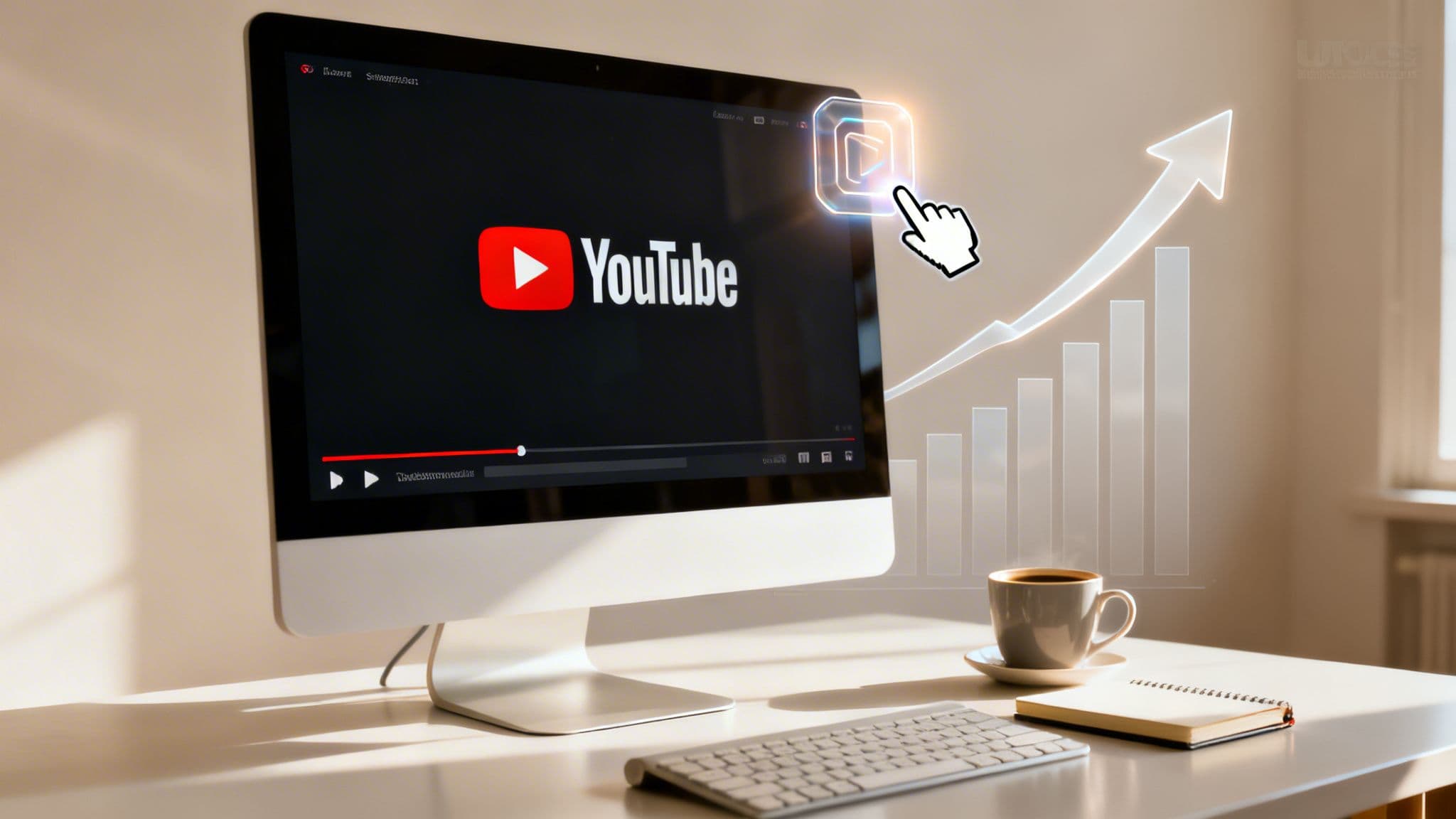
A video watermark on YouTube is one of those small features that packs a massive punch. It’s that little, clickable icon that sits quietly in the corner of your videos, but it’s so much more than a logo. It's an always-on subscribe button, a surprisingly effective tool for turning casual viewers into loyal subscribers without ever getting in their way. I've seen channels get a serious subscriber boost just by turning this one feature on.
Why a Watermark Is Your Secret Growth Tool
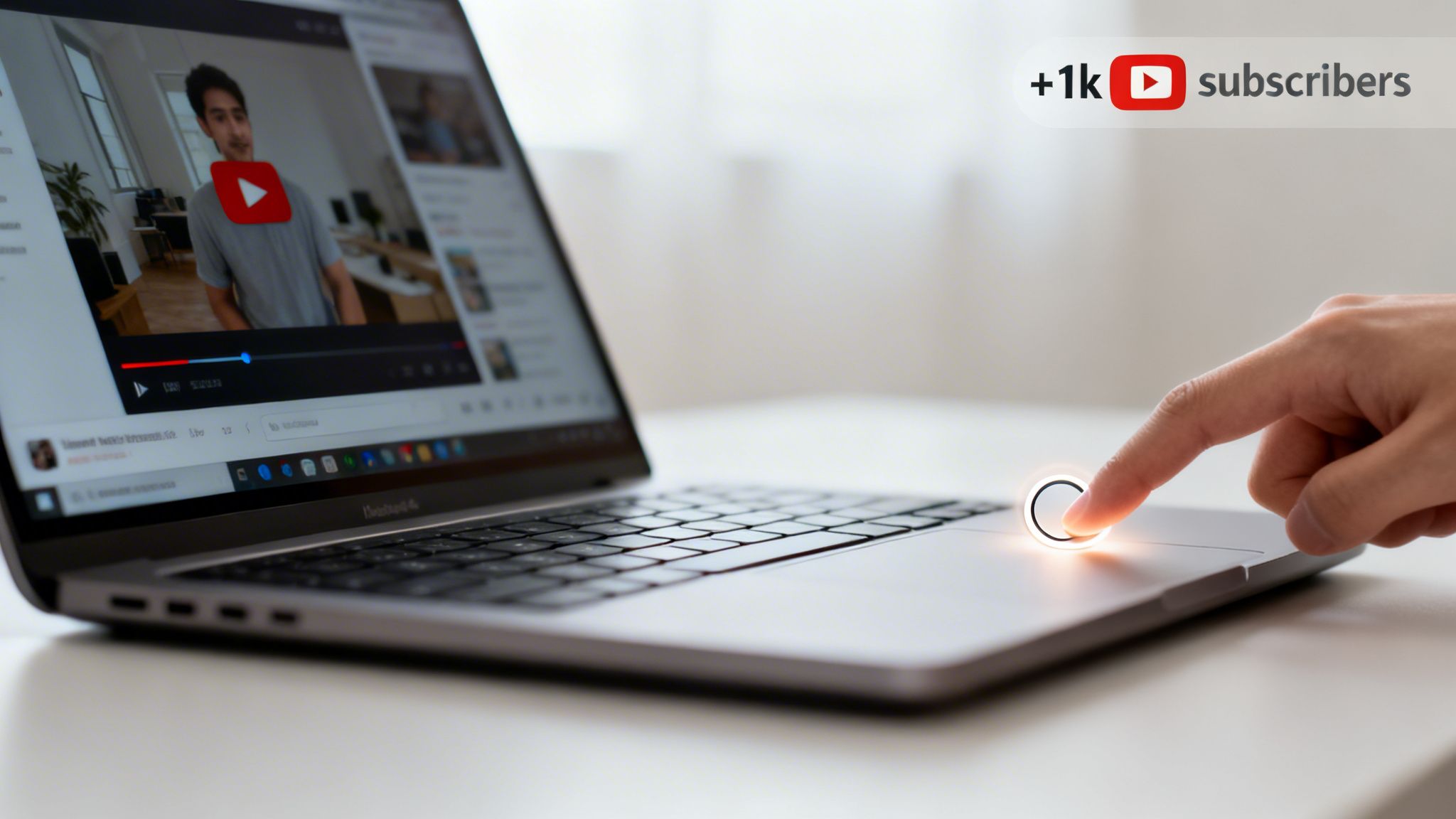
That tiny icon is easily one of YouTube’s most underrated growth hacks. Think of it as your channel's most reliable employee, constantly and quietly inviting people to join your community. It’s a call to action that doesn’t shout, but it’s always there, ready for someone to click the second they decide your content is for them.
What makes it so effective is the seamless experience on desktop. When a viewer’s cursor drifts over the watermark, it immediately expands into a full "Subscribe" button. They don't have to stop the video, scroll down, or hunt for the button below. That simple, frictionless action makes a world of difference and can dramatically lift your conversion rate.
The Underrated Impact on Subscriber Growth
It’s easy to dismiss this feature as a minor detail, but that's a mistake. Time and again, channels see a real, measurable jump in subscriber growth right after adding a branding watermark. This tool has been a quiet game-changer since YouTube introduced it back in the early 2010s, specifically to help creators grow their audience without being disruptive. You can find countless creators sharing their analytics, showing a clear spike in subs that they directly attribute to this persistent, subtle nudge. You can learn more about the history of this feature and hear these success stories directly from creators on YouTube.
A watermark isn't just about branding; it's a direct line to channel growth. By making the subscription process seamless and ever-present, you are actively converting passive viewers into active community members.
Essential for Modern Content Creation
Building a recognizable brand is everything, especially when the content field is more crowded than ever. A watermark helps you do that. This is particularly vital for channels that rely on faceless content, maybe using AI tools like ClipCreator.ai, where a consistent brand mark becomes the main visual signature tying your work together.
Ultimately, your watermark does two critical jobs for you:
- Brand Reinforcement: It keeps your logo or brand icon in front of your audience, building familiarity and trust over time.
- Subscriber Conversion: It gives viewers an "always-on" opportunity to subscribe, which means you're growing your channel with zero extra effort on each video you upload.
Once you really get the "why" behind the video watermark, you’ll be much more invested in perfecting the "how." It's a simple setting that delivers an outsized impact, turning passive views into a thriving community.
Designing a Watermark That Gets Clicks
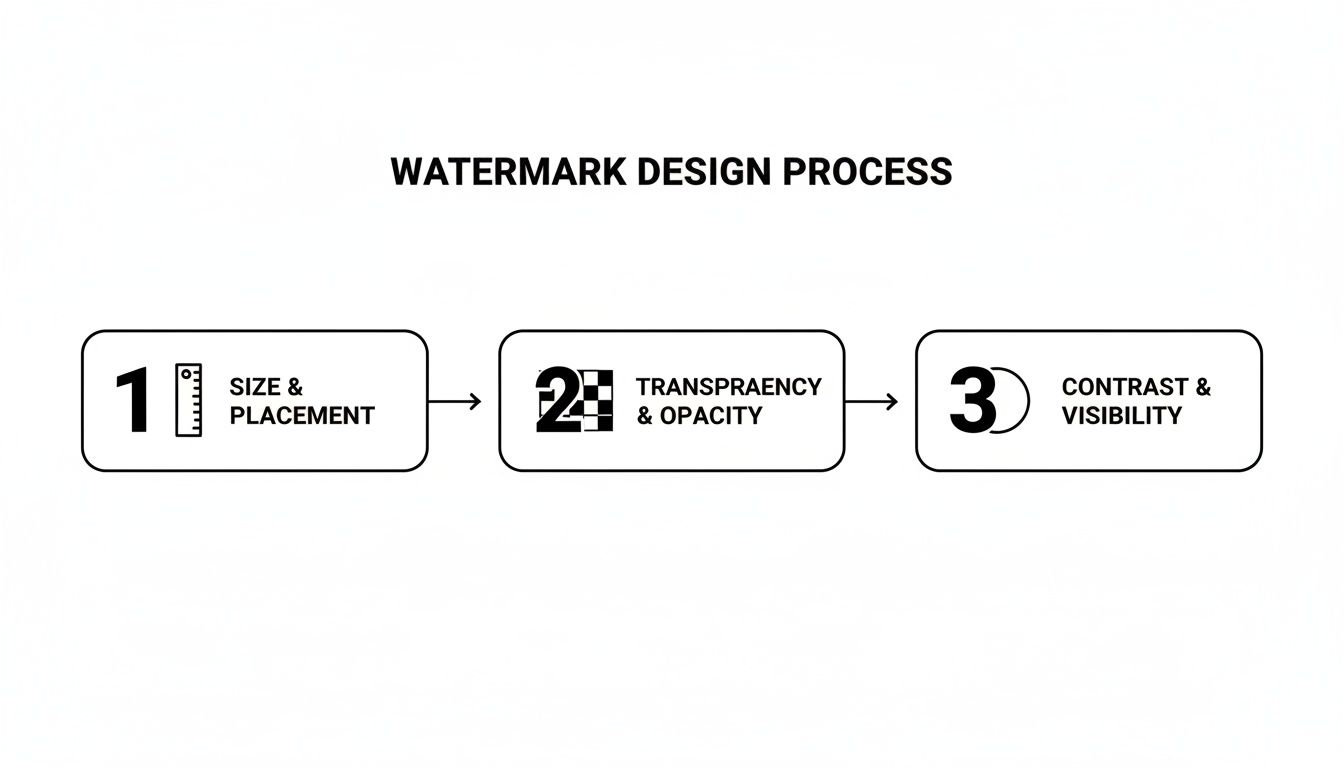
Think of your YouTube watermark as more than just a little logo in the corner—it’s a powerful, clickable tool that can directly grow your subscriber base. But to get those clicks, it needs to be designed with purpose. Let’s get into what really works, based on what I’ve seen across thousands of channels.
First things first, you have to play by YouTube's rules. They have some specific technical requirements. Your image needs to be a square, and the recommended upload size is 150x150 pixels. It will look much smaller on the actual video, of course, but uploading at this resolution keeps it looking sharp and professional, not pixelated.
Creating an Icon That Works
The single most common mistake I see creators make is ignoring transparency. Your watermark absolutely must have a transparent background, which means you need to save it as a PNG file. If you use a JPG, it will show up with an ugly white or black box around it, which instantly cheapens the look of your entire video.
I once saw a channel upload its full-color company logo, complete with a tagline and intricate details. When YouTube shrunk it down, it became a meaningless, blurry smudge in the corner. That completely defeats the purpose.
Your watermark shouldn’t be a tiny replica of your full channel banner. Instead, think of it like a smartphone app icon—a simple, high-contrast symbol that’s instantly recognizable.
For example, if your channel is "Dave's Daily Tech Reviews," don't try to cram that text into a tiny square. A much better approach would be a stylized "D," a simple icon of a circuit board, or another clean graphic that represents your brand. This is what makes your watermark recognizable at a glance.
Universal Branding for Diverse Content
This idea of a simple, universal icon is crucial, especially if you create a wide range of content. Maybe you use a tool like ClipCreator.ai to produce everything from gaming clips to true crime stories. Your watermark needs to be a consistent brand element that feels right on every single video, tying your diverse content library together.
To make things easier, here's a quick rundown of the specs and my personal recommendations.
YouTube Watermark Specification Quick Guide
This table breaks down exactly what YouTube requires versus what I’ve found works best in practice for creating a professional and effective watermark.
| Attribute | YouTube Requirement | Best Practice Recommendation |
|---|---|---|
| File Format | PNG, GIF, BMP, or JPG | PNG only. This is non-negotiable for transparency. |
| File Size | Under 1 MB | Keep it lean. A good watermark is usually under 50 KB. |
| Dimensions | Square Image (150x150px) | Design on a 150x150px canvas to ensure quality. |
| Design | Any image | A simple, one-color, and high-contrast icon. |
Ultimately, a bold, clean design that stands out against different video backgrounds will always outperform a busy, colorful logo. And don't forget to consider how your design choices impact the overall viewing experience—you can find more tips on that in our guide to YouTube Shorts video size. Don't be afraid to test a few different simple icons to see what looks best and gets the most engagement.
Alright, you've designed the perfect watermark file. Let's get it uploaded to your channel so it can start working for you. Adding your branding watermark is handled right inside the YouTube Studio, and it's a "set it and forget it" feature that adds a subscribe button to every single one of your videos.
First, head over to your channel’s YouTube Studio. On the left-hand menu, find and click on the Customization tab. This is your command center for personalizing your channel's look and feel.
Once you’re in the Customization section, you’ll see three tabs at the top: Layout, Branding, and Basic Info. We're interested in the Branding tab. This is where you manage all the core visuals for your channel, including your profile picture and banner image.
Uploading Your Watermark
In the Branding tab, just scroll down a bit until you spot the "Video watermark" section. You'll see an "UPLOAD" button waiting for you. Go ahead and click that, then select the 150x150 pixel image file you created.
After you select your file, YouTube shows you a quick preview of how it will look in the corner of a video. It's a great final check to make sure everything appears crisp and clear before you commit.
Now for the most important part: deciding when your watermark appears. This is a strategic choice, and YouTube gives you three options.
- End of video: This shows the watermark for only the last 15 seconds.
- Custom start time: You can set a specific time for the watermark to pop in.
- Entire video: Your watermark is visible from the moment the video starts until it ends.
So, which one should you pick? For almost every creator I've worked with, the answer is a no-brainer.
My advice: Always choose "Entire video." This turns your watermark from a last-ditch effort into an always-on subscription button. It gives you the maximum opportunity to convert a viewer into a subscriber the very second they decide they like your content.
While a custom start time might seem useful for keeping an intro sequence clean, the "Entire video" setting provides far more value. Think about it—whether someone is hooked 30 seconds in or ten minutes deep, the path to subscribing is right there on the screen. It removes all friction.
After you've picked your display time, the final step is to hit the blue "PUBLISH" button in the top-right corner of the page. That's it! Your new watermark is now live and will automatically show up on all your existing videos and any new ones you publish.
For creators who frequently upload YouTube Shorts, this one-time setup is an incredibly powerful and efficient way to grow your subscriber base with absolutely no extra effort on each upload.
Measuring Your Watermark's Performance
So you've added a watermark to your videos. Job done, right? Not exactly. Simply having a watermark isn't the end goal; the real growth comes from understanding how it's actually performing. Think of it less as a passive brand stamp and more as an active call-to-action that you can refine over time.
The only way to know if your watermark is pulling its weight is to dive into the data. Your YouTube Analytics dashboard holds all the clues you need.
Your first stop should be the Subscription source report. This is where YouTube breaks down exactly where your new subscribers are coming from. You’re looking for a specific line item: "YouTube watch page."
This metric bundles together clicks from the main subscribe button under your video and clicks on your branding watermark. If you see a meaningful jump in subscribers from this source right after adding or changing your watermark, you've got a clear sign that your efforts are paying off.
A/B Testing Your Watermark Design
You shouldn't have to guess which watermark design connects best with your viewers. This is where a classic marketing move comes in handy: a simple A/B test. It sounds technical, but it’s really just trying one thing, then trying another, and seeing which one worked better.
Here’s a straightforward way to test it yourself:
- For one month: Use your standard channel logo as the watermark.
- For the next month: Swap it out for a custom image that looks more like a "Subscribe" button.
Once the two months are up, head back to your Subscription source report. Compare the numbers from the "YouTube watch page" for each period. Did the direct call-to-action button bring in more subscribers? Or did your clean logo perform better? This simple experiment gives you concrete data to shape your strategy.
Your watermark isn't a passive branding element; it's an active, measurable tool. By testing different designs, you turn guesswork into a data-driven strategy for channel growth.
Key Metrics to Monitor
Beyond just the subscription source, other numbers can tell you a lot about how your watermark is doing. For many creators, especially those making short-form content, the watermark directly influences click-through rates (CTR) on end screens and the subscribe button itself.
Based on historical channel data, a good benchmark to aim for is a 4.8% CTR on videos that hold 47% of their audience by the 250-second mark. This means that for every 100 people who see the watermark, nearly 5 are clicking it. We’ve seen well-optimized watermarks boost the average watch time per video by a solid 15-25%, which also tends to lift likes, comments, and shares. You can discover more insights on creator analytics to get a better handle on these metrics.
This is especially critical if you use AI tools like ClipCreator.ai that automatically generate short-form content. A consistent and effective watermark ensures your brand identity stays strong across every single video you create.
By regularly checking in on your analytics and being willing to experiment, you can dial in your approach. To take your analysis even further, check out our guide on how to track your content performance. It will help you connect the dots and build a complete picture of what's driving your channel's success.
Troubleshooting Common Watermark Issues
So you've followed all the steps, uploaded your shiny new watermark, and... it looks terrible. Or maybe it's not even showing up. Don't worry, this happens to everyone. You’ve probably run into one of a few very common hiccups, and thankfully, they’re all easy to fix.
Let's walk through the most frequent problems I see creators face and get your watermark looking sharp and professional.
The Dreaded Black or White Box
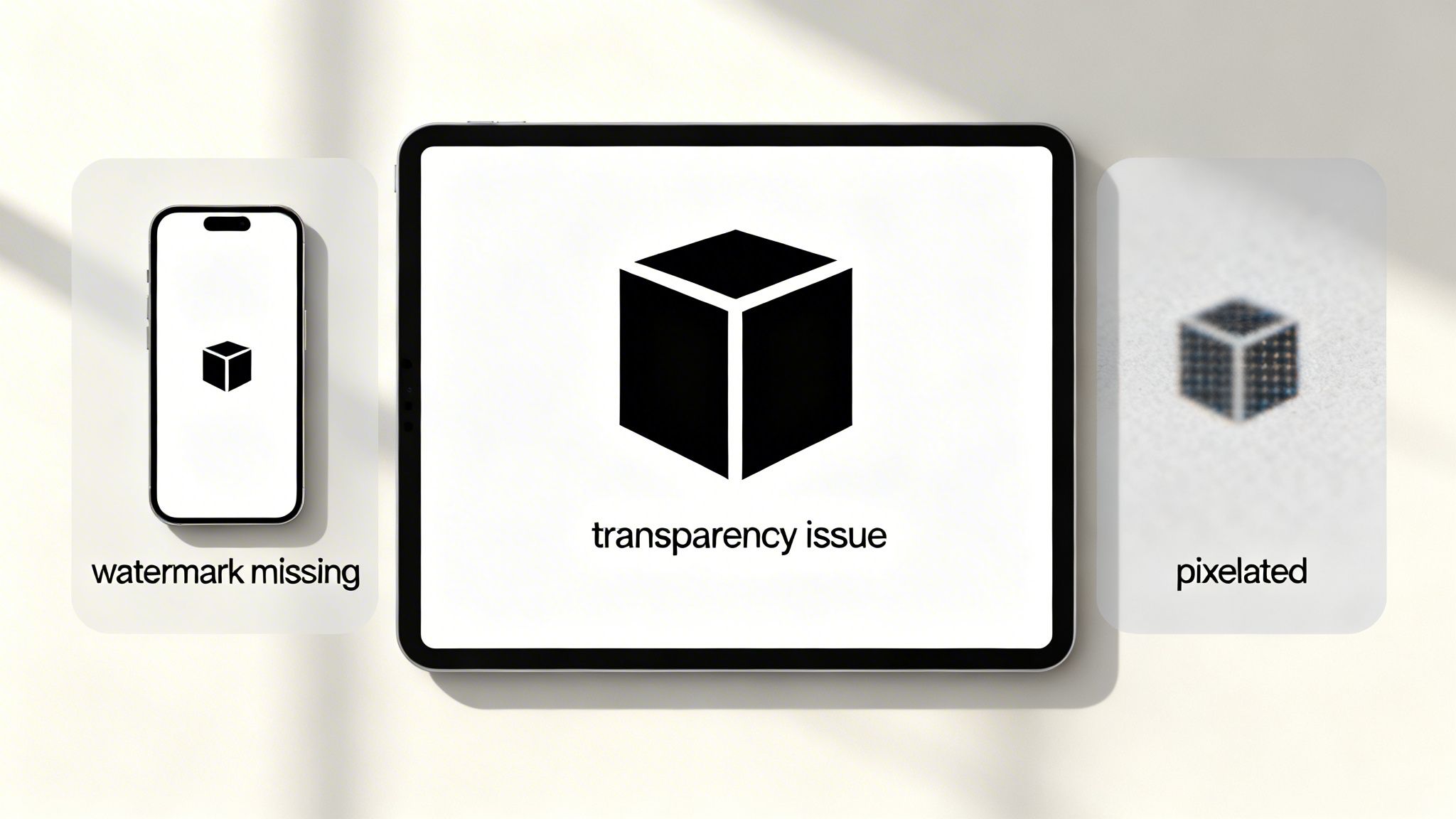
This is a classic transparency issue. If your logo is trapped inside a solid-colored box instead of floating cleanly over your video, you've most likely uploaded a JPG.
While JPGs are great for photos, they don't support transparent backgrounds. What you need is a PNG file. When exporting your logo from a design tool like Canva or Photoshop, always look for the "transparent background" option before you save. That little checkbox is the key to making just your logo appear, not the canvas it was built on.
Your Watermark Is Blurry or Pixelated
A blurry watermark can instantly cheapen the look of your entire video. This usually boils down to one of two things: either your image file was too small to begin with, or the design itself is too complex.
For the best results, always create your design on a 150x150 pixel canvas. If you upload a smaller image, YouTube has to stretch it, which causes that ugly pixelation. On the flip side, a super detailed logo with fine lines or small text will just turn into an unreadable smudge when it's shrunk down to fit in the corner of a video.
A great video watermark on YouTube should be like a tiny, clear icon, not a shrunken version of your channel banner. If you can't tell what it is at a glance, it's too complicated. Simplify your design for maximum clarity.
Why Isn't My Watermark Showing on Mobile?
This is probably the most common question I get, and the answer surprises a lot of people: it's not a bug, it’s intentional. The clickable video watermark YouTube offers is a desktop-only feature. It simply won't appear when your videos are viewed on the YouTube mobile app, the mobile website, or most smart TV and gaming console apps.
Since a huge chunk of your audience watches on mobile, you can't rely on the watermark alone to drive subscriptions. It’s a great tool, but it needs to be part of a bigger strategy that includes verbal calls to action and well-designed end screens.
It’s a tough world out there for creators. Many analytics platforms show that the watermark is a vital tool for brand recall, helping channels avoid the grim statistic where 68% of videos get zero views and push their median views up from just 35 into the thousands. For anyone using services like ClipCreator.ai to automate content, that visual brand marker is absolutely essential, even when it's not clickable. If you want to go deeper on how these metrics work, you can explore some fascinating data-driven creator insights on YTLarge.com.
Frequently Asked Questions About Watermarks
Once you've got your watermark set up, you might still have a few lingering questions. It’s a great feature, but some of its quirks can be confusing. Let's tackle some of the most common ones I hear from other creators.
Can I Use a Different Watermark for Each Video?
That's a common question, but unfortunately, the answer is no. YouTube's branding watermark is a channel-wide setting, which you'll find in the Customization area of your Studio. This is intentional, as it helps you maintain a consistent brand across your entire library of videos.
If you absolutely need a specific graphic for one video—maybe for a brand deal or a special episode in a series—you'll have to add it directly to your video file in your editing software. Just be aware that a "burned-in" graphic like that isn't a clickable subscribe button. It's purely a visual element.
Why Isn't My YouTube Watermark Visible on Mobile?
This is probably the single most confusing part about the watermark feature. The simple truth is, it's designed that way. The clickable branding watermark only ever shows up for viewers on a desktop computer.
You will not see the watermark on:
- The official YouTube mobile app
- The mobile version of the YouTube website
- Most smart TV and game console apps
This is a huge deal, especially since so much of your audience is likely watching on their phones. It means you can't rely on the watermark alone to drive subscriptions. Make sure you're still using verbal calls to action and well-designed end screens to get those mobile viewers to subscribe.
The branding watermark is a desktop-only tool. Since a huge portion of viewership is mobile, you must build other calls to action into your videos to maximize subscriber growth.
Should I Use My Logo or a Subscribe Button?
This really comes down to what you're trying to achieve. Using your logo is fantastic for building brand recognition over the long term. Viewers start to associate that image with your content, which is incredibly valuable.
On the other hand, a custom image that looks like a "Subscribe" button is a very direct call to action and often gets a higher click-through rate. It's just plain obvious what you want the viewer to do.
My advice? Test it for yourself. Run your logo for a month, then swap it for a subscribe button image for the next month. Check your YouTube Analytics under the "YouTube watch page" subscription source. The numbers won't lie—they'll show you exactly what your audience responds to best.
What Happens If I Remove Someone Else's Watermark?
Let’s be crystal clear here: removing a watermark from a video you don't own is a huge mistake and a serious problem. It’s a direct violation of copyright law and shows a fundamental lack of respect for the original creator's work.
Attempting to do this can bring on some severe consequences. We're talking copyright strikes on your channel, potential legal trouble with the owner, and even the complete termination of your YouTube account. It’s just not worth the risk. Always create your own content or make sure you have explicit permission to use someone else's.
Ready to create engaging, faceless videos without spending hours editing? ClipCreator.ai automates the entire process, from scriptwriting to publishing, so you can focus on growing your channel. Start creating with ClipCreator.ai today and see how easy it is to produce consistent, high-quality content.

Create your first video in under 2 minutes
Pick a niche, and ClipCreator.ai generates and auto-posts faceless videos to your channels every day.
Join ClipCreator.ai