So, you've put all this effort into creating fantastic long-form videos for YouTube. What if you could get more mileage out of them? Posting snippets of your YouTube content on Instagram is a brilliant way to do just that. It's not about just dumping the same video everywhere; it's a smart strategy for reformatting your best stuff for a whole new audience, whether as Reels, Stories, or in-feed posts.
Think of it as working smarter, not harder, to get more value from the content you've already poured your heart into.
Why Bother Repurposing YouTube Videos for Instagram?
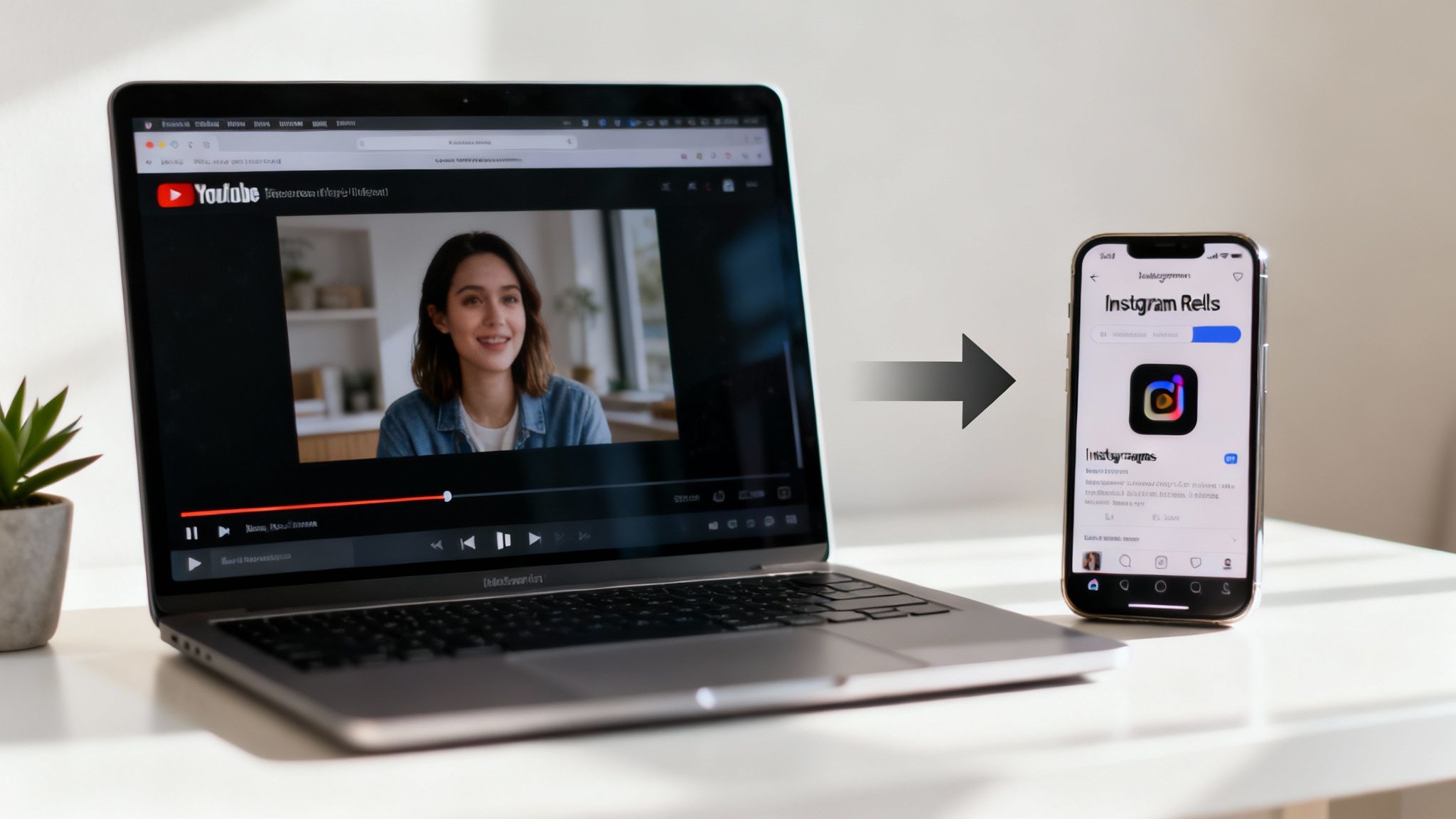
Sharing your YouTube videos on Instagram isn't just a time-saver; it’s a killer move to boost your reach. You're basically meeting your audience where they already hang out, which reinforces your brand and keeps you top-of-mind.
There's a massive overlap between these two platforms. Believe it or not, recent data shows that 76.9% of Instagram users are also active on YouTube. That’s a huge built-in audience just waiting to see your content in a fresh format. The community you worked so hard to build on YouTube is probably scrolling Instagram right now, giving you a perfect second chance to grab their attention.
Different Platform, Different Vibe
It’s crucial to remember that people use YouTube and Instagram very differently.
YouTube is where people go with a purpose. They search for "how to fix a leaky faucet" or "10-minute ab workout." They're usually ready to settle in and watch something longer and more detailed.
Instagram is all about discovery. It's a fast-paced, mobile-first world where users scroll quickly through a sea of visual content. Your video has just a few seconds to make someone stop and watch. This difference is your biggest opportunity.
Think about it: you can take a 10-minute deep-dive from YouTube and turn it into a punchy, 60-second Instagram Reel. That Reel becomes the ultimate teaser, hooking viewers and sending them back to your YouTube channel for the full scoop. It creates a seamless loop that feeds both of your audiences.
What’s the Game Plan?
Taking a video from YouTube to Instagram might sound like a technical headache, but it really boils down to a few core tasks. You're basically translating your content for a new language and a new audience.
Here's the basic workflow:
- Get Your Video: First, you need to legally get a high-quality file of your own video.
- Reformat it: This means changing the shape from a wide, horizontal (16:9) video to a vertical (9:16) one that fits a phone screen perfectly.
- Optimize for Instagram: This is where the magic happens. You’ll add eye-catching subtitles, trim it down for shorter attention spans, and maybe add some trending audio.
Getting these steps right is the core of smart https://clipcreator.ai/blog/content-repurposing-strategies that can seriously blow up your reach without creating a single new piece of content from scratch.
First Things First: Let's Talk Copyright and Permissions
Before we dive into the "how-to," we need to get the legal stuff out of the way. It’s the least exciting part, I know, but getting this wrong can land your Instagram account in hot water, so it's absolutely crucial we cover it upfront.
The simplest scenario? It’s your own YouTube video. If you shot it, edited it, and uploaded it to your channel, you own the rights. You can download, chop it up, and reuse it on Instagram to your heart's content. This is the ideal situation and what most creators are looking to do.
The Myth of "Giving Credit"
Now, what if you want to use a video—or even just a little clip—that someone else made? This is where things get tricky. There's a common belief floating around that as long as you tag the original creator in your caption, you're good to go.
This is a dangerous myth. Simply giving a shout-out doesn't magically grant you legal permission to use their work.
Every original video uploaded to YouTube is automatically protected by copyright law. That means the creator holds the exclusive rights to it. Using their content without getting their direct permission first is, legally speaking, copyright infringement.
Instagram has a sophisticated automated system that’s constantly scanning for this. If it flags your post, you could face some real consequences:
- Video Vanishes: Your post can be removed instantly, without any warning.
- Sound Silenced: If the violation is copyrighted music, Instagram might just mute the audio on your video.
- Account Strikes: Get flagged too many times, and you risk getting your account temporarily frozen or even permanently shut down.
Let’s be clear: "giving credit" is a professional courtesy, a good thing to do. It is not a legal substitute for permission.
How to Do It the Right Way: Fair Use vs. Getting Permission
You've probably heard the term "Fair Use." It’s a legal concept that allows for the limited use of copyrighted material without permission for things like criticism, commentary, or parody. But here's the catch: Fair Use is a complex legal defense, not a permission slip. It’s incredibly nuanced and subjective, and relying on it for repurposing a clip for an Instagram Reel is a huge gamble. Most of the time, it just doesn’t apply.
So, what's the safe and professional way to handle this?
Your best move is to get explicit, written permission. Reach out to the creator directly, either through email or a DM. Be specific: tell them exactly which video you want to use, how you intend to use it (like a 30-second clip for a Reel), and how you’ll credit them. If they say yes, keep a record of that conversation. A simple screenshot can save you a massive headache later.
A much easier route is to look for content with a Creative Commons (CC) license. This is a type of license where creators have already granted permission for others to use their work, as long as certain conditions are met. You can actually filter your YouTube search to show only videos with a CC license. Just be sure to read the specific terms—some require attribution, while others prohibit commercial use.
Getting Your Videos Ready for Instagram
Alright, with the legal stuff out of the way, we can get to the fun part: actually getting your video from YouTube onto Instagram. This breaks down into two main stages. First, you need to grab a high-quality copy of your own video. Second, you have to completely reshape it to fit Instagram's very different, vertical-first world.
Download and Reformat Your Masterpiece
The best way to get your video is straight from the source. Head over to your YouTube Studio, find the video you want to use, click the little three-dot menu, and hit "Download." This gives you the original, high-resolution file you uploaded—the perfect starting block for any re-edits.
Now for the real work. You simply can't upload a standard, horizontal YouTube video to Instagram and hope for the best. It just doesn't work. Your video will show up as a tiny rectangle squished between huge black bars, instantly screaming "I don't belong here" to anyone scrolling by.
This is the critical first step in the process, and it all hinges on who owns the video.
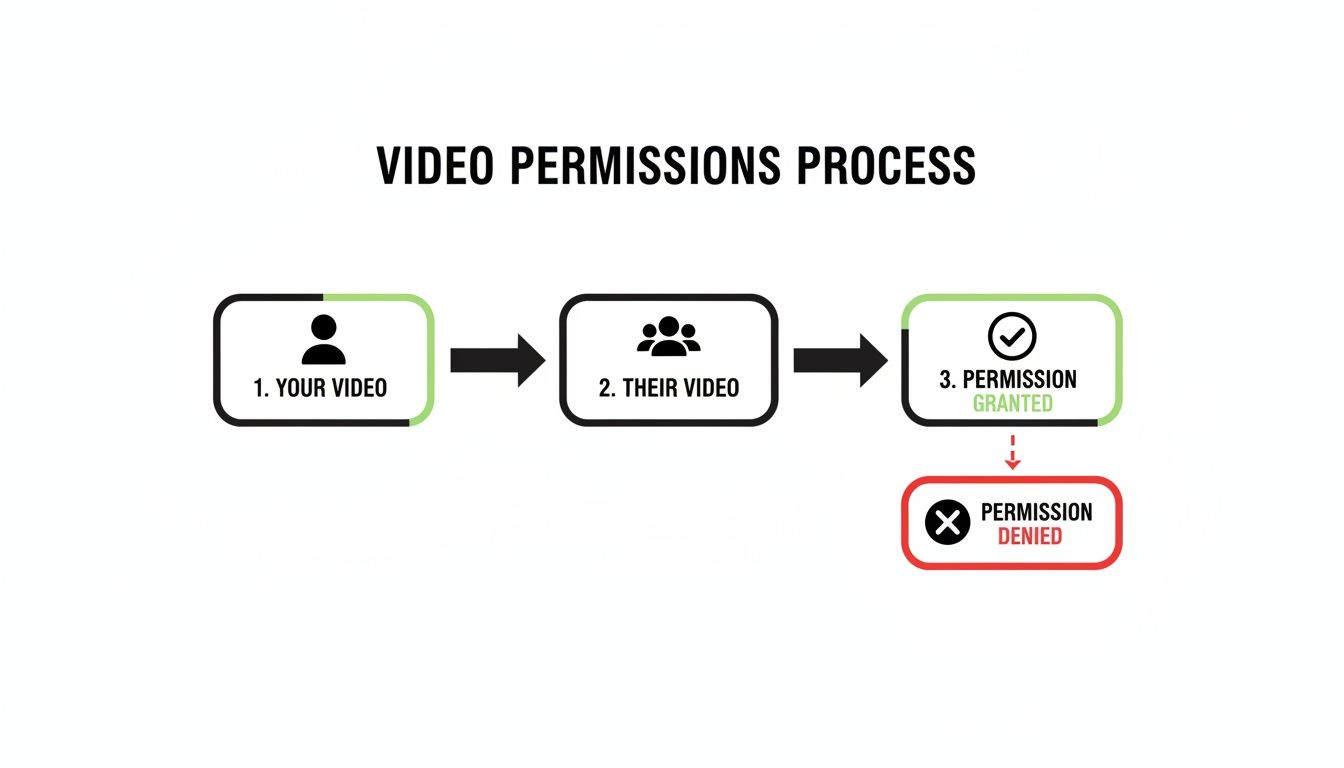
The path is clear: if it’s your video, you’re good to go. If it belongs to someone else, you absolutely must get their permission before you do anything else.
Picking the Right Tools for the Job
To turn your widescreen video into a vertical-friendly clip, you'll need the right software. The tool you choose really depends on your budget, how comfortable you are with editing software, and frankly, how much time you want to spend on this.
Here are a few common approaches I see creators take:
- Professional Video Editors: Tools like Adobe Premiere Pro or Final Cut Pro give you total control. You can manually set up a vertical project, reframe your shots to keep the action centered, add custom graphics, and export everything with perfect settings. It's a steep learning curve, for sure, but the results are top-notch.
- Simple Online Converters: Dozens of websites let you upload a video and pick a new format from a dropdown menu. They're quick and easy, but they often lack advanced features. Watch out for watermarks or file size limits, as those are common trade-offs for the convenience.
- AI-Powered Repurposing Tools: Platforms like ClipCreator.ai were built for exactly this task. They can take a long video, automatically reformat it for vertical viewing, add captions, and even pull out multiple short, shareable clips. This is easily the fastest route if efficiency is your main goal.
If you only need to grab a specific segment and a full download isn't practical, you might want to look into various screen recording solutions.
Nail the Aspect Ratio for Each Instagram Placement
The whole point of reformatting is to change the aspect ratio—the relationship between the video's width and its height. Your typical YouTube video has a 16:9 widescreen ratio. To make an impact on Instagram, you need to convert it to a format that fills a phone screen.
Your goal is to take up as much screen real estate as possible. Vertical video isn't just a trend; it's a non-negotiable for getting noticed on Instagram.
To help you get it right every time, I've put together a quick cheat sheet. This table breaks down the specific dimensions you need for each type of Instagram video.
Instagram Video Format Cheat Sheet
| Instagram Placement | Aspect Ratio | Recommended Resolution | Maximum Length |
|---|---|---|---|
| Reels | 9:16 | 1080 x 1920 pixels | 90 seconds |
| Feed Post (Video) | 4:5 | 1080 x 1350 pixels | 60 minutes |
| Stories | 9:16 | 1080 x 1920 pixels | 60 seconds¹ |
¹ Stories longer than 60 seconds will be automatically segmented into multiple Story clips.
Bookmark this or save a screenshot! Knowing these specs by heart will save you a ton of headaches and ensure your content always looks professional and native to the platform.
Getting cozy with the technical details is what separates amateur content from polished, scroll-stopping videos. If you want to really get into the weeds, we have a complete guide that explores https://clipcreator.ai/blog/video-aspect-ratio and why it's so critical for social media.
Fine-Tuning Your Clips for Maximum Impact
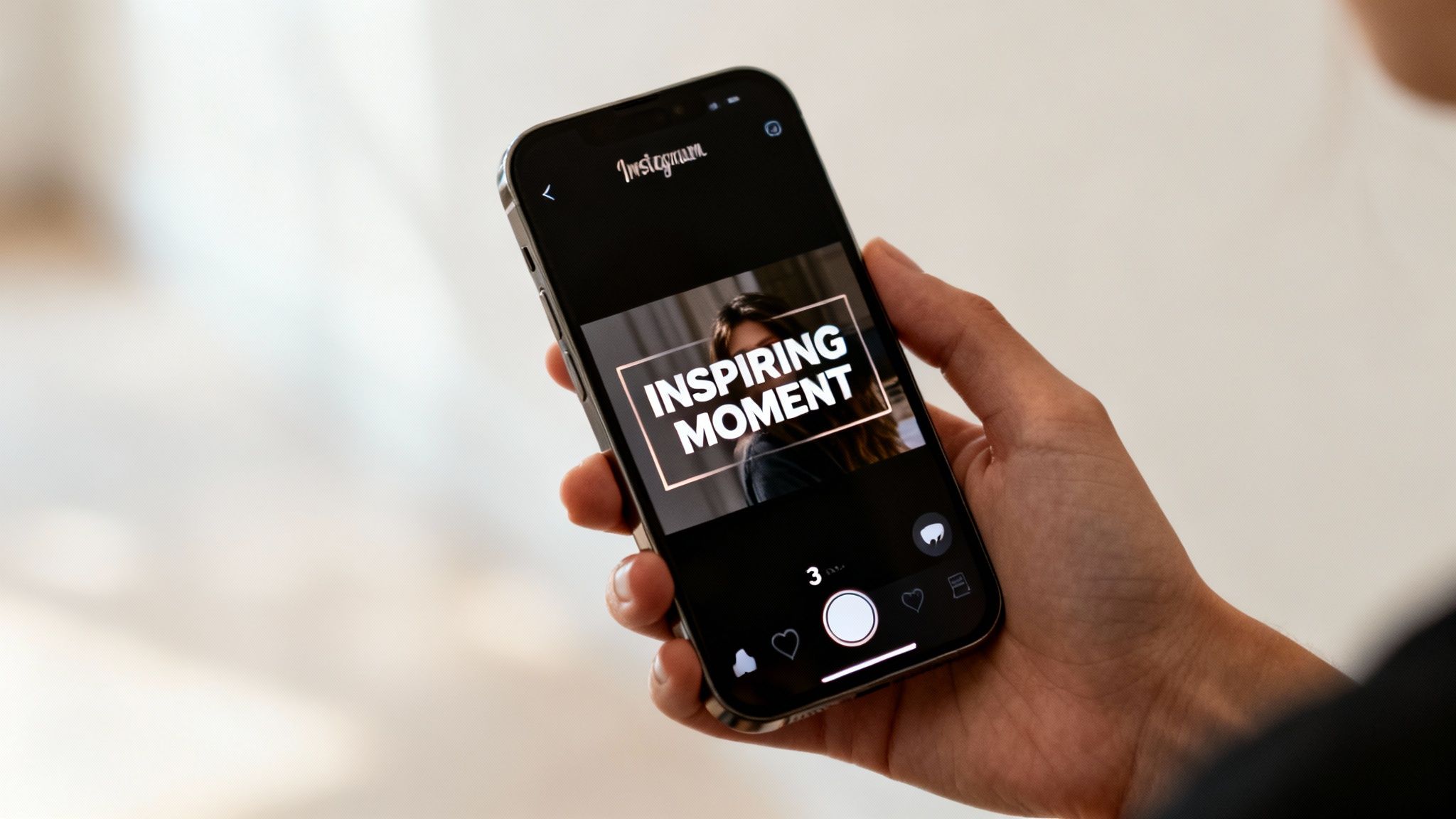
Getting your YouTube video into the right format is just the first step. The real magic happens when you start thinking like an Instagram creator, not just someone dropping a link. If you want to stop the scroll, your clip can't just be a shrunken-down version of your YouTube content; it has to feel like it belongs there.
This requires a shift in mindset and some unapologetic editing. The relaxed, conversational pace that works for a 10-minute YouTube deep dive will put Instagram users to sleep. Their attention is fleeting, measured in mere seconds. Your job is to find the single most compelling, "aha!" moment from your video and build your entire clip around it.
Hook Them in the First Three Seconds
You’ve got about three seconds. That’s it. That's your window to give someone a reason to pause their endless scrolling and listen to what you have to say. If you don't grab them immediately with a provocative question, a surprising statement, or a visually arresting shot, they're already gone.
Think of your clip as a movie trailer for your full video. You're not telling the whole story; you're just showing off the best parts. A fantastic way to do this is to pull the most powerful quote or key insight from your long-form content and lead with it.
Pro Tip: Flip your storytelling on its head. On YouTube, you build to a conclusion. On Instagram, you lead with it. Give away the "secret" right at the start to make viewers curious enough to stick around for the context.
Subtitles Are No Longer Optional
Here's a hard truth: a huge chunk of your Instagram audience is watching with the sound off. They might be at work, on a quiet train, or just prefer a silent browsing experience. Without text on screen, your brilliant message is just… silence. This is why burned-in subtitles are absolutely non-negotiable.
Unlike the optional closed captions you can toggle on YouTube, burned-in (or "open") captions are physically part of the video file. They’re always visible, making your content instantly accessible and ensuring your point gets across, whether the sound is on or off. Most modern video editors can even auto-generate these for you, which is a massive time-saver.
Tailor Your Content to Its Home
Not all Instagram video placements are the same. Where you post your clip completely changes audience expectations and how you should frame your message.
- Reels for Discovery: This is your top-of-funnel workhorse. Reels are engineered to be seen by people who don't follow you yet. The goal here is short, punchy, high-impact content that can go viral.
- Feed for Your Community: Video posts on your main grid are primarily for your existing followers. This is the perfect spot for slightly longer, more value-packed clips that nurture the audience you've already built.
- Stories for Connection: Think of Stories as the casual, behind-the-scenes content. Use them to show your process, share quick off-the-cuff thoughts, or run interactive polls related to your latest YouTube video.
Knowing the difference is what makes your repurposing strategy effective. The data doesn't lie: influencer-created Instagram Reels boast a 1.8% engagement rate, crushing the 0.42% seen on standard video posts. With over half of user time on the platform now spent watching Reels, it's obvious where the attention is. You can dig into more of these fascinating social media benchmarks on Socialinsider.io. To really master the art of short-form video, be sure to check out our guide on Instagram Reels best practices.
Alright, you've got your video clipped, resized, and looking sharp. Now comes the fun part: actually getting it onto Instagram and in front of people. This is where a little bit of strategy goes a long way.
How you frame your video—from the caption to the cover image—can make the difference between a post that thrives and one that gets lost in the feed.

Let’s be honest, typing out long, thoughtful captions and a bunch of hashtags on a tiny phone keyboard is a pain. This is one reason why many creators prefer to learn how to post to Instagram from your PC. It just makes the whole process smoother.
Writing Captions and Hashtags That Actually Work
Your caption isn't just a description; it’s your hook. Think of it as the opening line of a conversation. I've found that asking a direct question related to the video is one of the easiest ways to get people talking in the comments, which is pure gold for engagement.
Hashtags are how new people find you. They’re a discovery tool. But throwing in something generic like #video is a waste of space. You need a smart mix to tell Instagram exactly who should see your post.
Here’s a good formula to follow:
- Broad Industry Tags: Think high-level, like
#DigitalMarketingor#ContentCreation. - Niche-Specific Tags: Get more focused with things like
#YouTubeStrategyor#VideoRepurposingTips. - Community-Focused Tags: Find your people with tags like
#ContentCreatorsOfInstagram.
Don't sleep on your cover image. It’s the thumbnail for your post and the first thing anyone sees. A great cover with bold, easy-to-read text can dramatically increase the chances of someone stopping their scroll to watch.
It also helps to know who you're talking to. Instagram's audience skews young. In fact, 31.8% of users are aged 18-24, and over 60% are under 35. This is a demographic that grew up with short-form video, so they're primed for this kind of content.
Schedule Your Posts for the Right Moment
Finally, let's talk about timing. Posting your video when most of your followers are actually online can give it the initial boost it needs to get noticed by the algorithm.
Don't just guess when that is. Dive into your Instagram Insights (under "Total Followers") and look for the specific days and hours your audience is most active. It’s right there waiting for you.
Once you know your prime time, use a scheduling tool to lock it in. Meta's own Business Suite is free and gets the job done for both Instagram and Facebook. If you're managing multiple accounts or want more detailed analytics, a third-party tool might be a better fit. This takes the pressure off, ensuring your content goes out consistently, even when you’re busy.
Got Questions About Repurposing YouTube Videos?
You've got the steps, but a few questions might still be swirling around. That's completely normal. Let's walk through some of the most common snags people hit when moving content from YouTube to Instagram so you can post with confidence.
Think of this as the final check-in to clear up any lingering confusion.
So, Can I Just Post Any YouTube Video I Find?
Let's be crystal clear on this: absolutely not. You can only post videos that you own and created or for which you have explicit, written permission from the original creator.
Grabbing someone else's content without their say-so isn't just bad form; it's a direct violation of copyright law. Doing this puts your Instagram account on the fast track to getting content taken down, hit with restrictions, or even permanently banned. Always, always play it safe and legal.
What's the Best Format for an Instagram Video?
There’s no single "best" format—it all boils down to where on Instagram you're posting. Each spot on the app is built for a different kind of viewing experience, and forcing the wrong shape into a space just looks sloppy.
- Reels and Stories: You need to go with a vertical 9:16 aspect ratio. It's the standard for that immersive, full-screen feel everyone expects. Anything else will look weird and get skipped.
- The Main Feed: I've found a 4:5 vertical ratio works wonders here. It takes up a ton of screen real estate while someone is scrolling, making your video much harder to miss compared to a tiny widescreen box.
Whatever you do, steer clear of the original 16:9 horizontal format from YouTube. On a mobile feed, it just shrinks down and looks amateur.
How Long Can My Video Actually Be?
This is a big one. Instagram's time limits are all over the place depending on where you post, and this will completely guide your editing choices.
You might have a brilliant 15-minute YouTube deep dive, but your real task is to find the most powerful 60-second nugget inside it. On Instagram, quick and impactful wins the day.
Here are the hard limits you need to keep in mind:
- Instagram Reels: You get up to 90 seconds. This is the sweet spot for hooking new viewers with shareable, high-energy clips.
- Feed Videos: You can technically go up to 60 minutes. Just because you can, doesn't mean you should. Shorter clips almost always perform better.
- Instagram Stories: The cap is 60 seconds, which Instagram will automatically chop into 15-second segments for you.
Are Subtitles Really That Big of a Deal?
Yes. They are non-negotiable. An incredible number of people scroll through their feeds with the sound off, especially if they're in public or at work. If you don't have captions, your entire message vanishes into thin air.
Burned-in subtitles make your content watchable for everyone and guarantee your points get across, even on mute. I've seen it time and again: videos with captions get better watch time and more engagement. Luckily, most modern editing tools can auto-generate them pretty accurately, saving you a massive headache. It's a small bit of effort for a huge return.
Stop spending all your time editing and start actually growing. ClipCreator.ai automates the whole process of turning your long-form content into knockout short videos for every social platform. See how simple it is to get professional results at https://clipcreator.ai.

Create your first video in under 2 minutes
Pick a niche, and ClipCreator.ai generates and auto-posts faceless videos to your channels every day.
Join ClipCreator.ai