So, you need to add captions to your videos. You've got a few ways to tackle this, and it really comes down to what you're trying to achieve. You can use an automated AI tool to get it done fast, create a manual .srt file for pinpoint accuracy, or just use the built-in captioning features on platforms like YouTube and TikTok.
Each path offers a different mix of speed, control, and convenience. Let’s figure out which one makes the most sense for you.
Why Video Captions Are A Non-Negotiable For Creators Today
Let's get one thing straight: captions aren't just an afterthought anymore. They're an essential part of any solid video strategy. In a world where most people scroll through their feeds with the sound off, captions are what connect your message to your audience.
Think about how people watch videos on Instagram or TikTok. They're on the bus, in a waiting room, or sneaking a peek at their desk. Silent viewing is the norm. Without captions, your carefully crafted video is just a silent movie.
But it’s about more than just sound-off viewing. Captions are critical for a few other big reasons:
- Making Content Accessible: This is the big one. Captions open up your content to viewers who are deaf or hard of hearing, instantly broadening your potential audience.
- Boosting Understanding: Ever tried to explain a complex idea or use industry-specific jargon? Captions help everyone follow along, ensuring your message actually lands.
- Driving Up Engagement: Videos with captions tend to have higher watch times. When people can easily understand what's happening, they stick around longer. For more on this, check out our tips on how to increase social media engagement.
The Hidden SEO and Growth Superpower
Beyond the viewer experience, captions are a massive asset for SEO. Search engines like Google can’t watch your video, but they can definitely read text. When you upload a caption file, you're handing them a full transcript of your content on a silver platter.
This is why captions are a key part of effective YouTube SEO optimization tips. The text makes your video discoverable for all the keywords you mention, helping you rank higher in search results and pull in more organic traffic for months, or even years, to come.
The market reflects this reality. The global captioning and subtitling industry was valued at USD 351.16 million and is expected to grow at a 7.91% CAGR through 2033. This growth is fueled by creators who know that accessible, binge-worthy content is the key to winning on platforms like TikTok and YouTube.
The Bottom Line: Think of captions as a multi-tool. They nail accessibility, boost engagement, and supercharge your video's SEO by making every spoken word searchable.
To help you decide on a workflow, here’s a quick look at the main ways you can get your videos captioned.
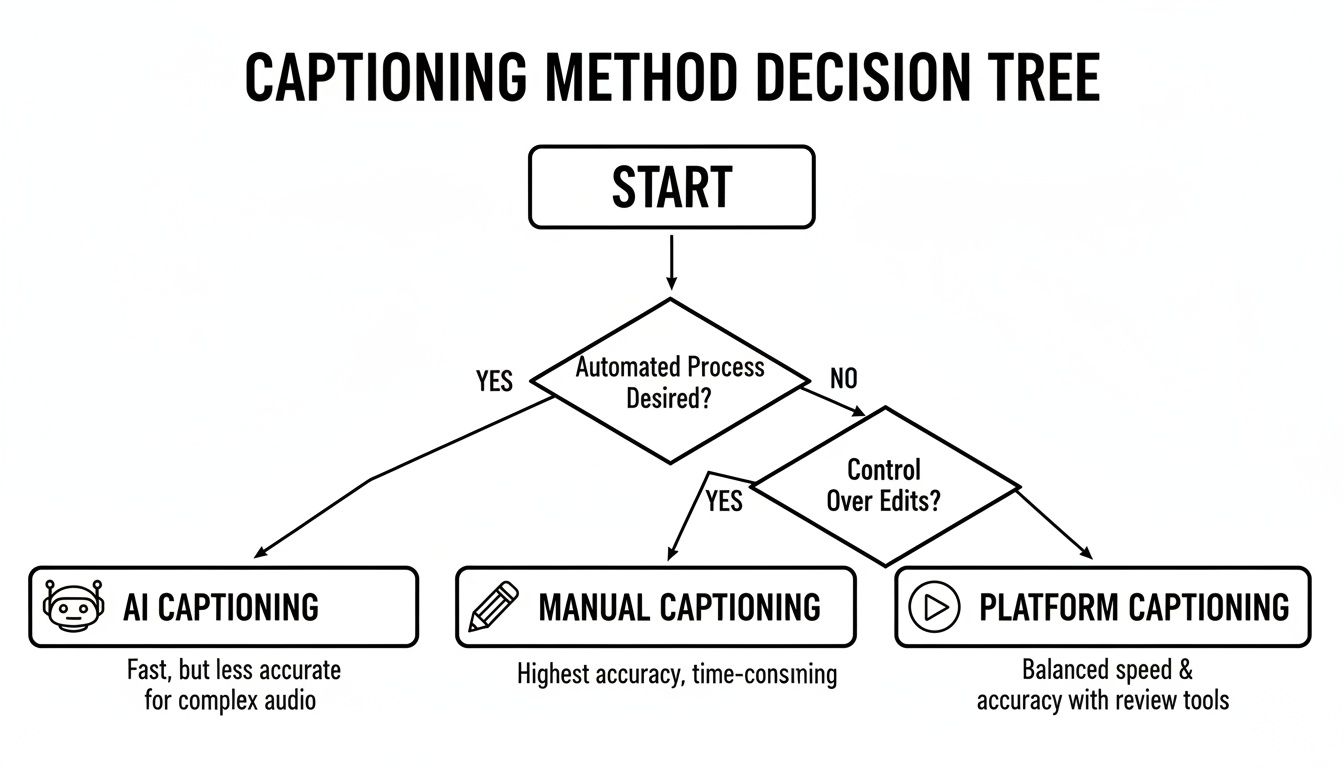
As you can see, the best method for you really depends on whether you prioritize speed (AI), total control (Manual), or pure convenience (Platform tools).
Captioning Methods at a Glance
This table breaks down the key differences between the main captioning methods to help you choose the right fit for your project.
| Method | Best For | Speed | Typical Accuracy |
|---|---|---|---|
| AI Automation | Speed and efficiency, especially for bulk content | Very Fast | 90-95% |
| Manual Creation | Maximum accuracy and creative control | Slow | 99%+ |
| Platform Tools | Convenience and platform-specific features | Fast | 85-95% |
Ultimately, whether you let an AI do the heavy lifting or meticulously time each line yourself, the goal is the same: create a better, more accessible experience for your viewers.
Using AI Caption Generators for Speed and Scale
If you're putting out content on a regular basis, manually typing out captions for every single video just isn't realistic. It's a massive time sink. This is exactly where AI-powered caption generators have become absolute lifesavers for creators. These tools use Automatic Speech Recognition (ASR) technology to listen to your audio and spit out a full transcript in a matter of minutes.
This shift from manual to automatic is a huge deal for workflow efficiency. Think about it: instead of sitting there, headphones on, typing out every single word and fiddling with timecodes, you just upload your video. The AI handles the grunt work, freeing you up to focus on the creative stuff—planning your next video, engaging with your comments, and actually growing your brand.
The market for this tech is exploding for a reason. It's expected to jump from USD 1.03 billion in 2023 to a whopping USD 7.42 billion by 2032. That kind of growth tells you just how critical automation has become for anyone serious about scaling their video content. For a deeper dive, Sonix.ai has some great data on subtitle generation trends.
Choosing the Right AI Captioning Tool
Not all AI captioning tools are built the same. It's easy to just look at the price, but you really need to consider the features that will make your life easier and keep your videos looking professional.
Here’s what I always look for:
- Accuracy Rate: No AI is flawless, but the good ones consistently hit 90-95% accuracy with clear audio. The higher the accuracy, the less time you'll spend making tedious corrections.
- Language Support: If you have an international audience (or want one), check that the tool can handle the languages you need. Some even offer translation services, which is a massive bonus.
- Customization Options: This is a big one for branding. You need to be able to easily tweak the text, adjust timing, and change the font, color, and style of your captions to match your look.
- Platform Integrations: Some tools can hook directly into your social media accounts, which can really smooth out your publishing process.
Pro Tip: Always take advantage of the free trial. Upload a typical video of yours—one with your usual background noise, any specific jargon you use, or your unique accent. See how the tool handles it. This simple test can save you from a world of editing pain down the road.
The Typical AI Captioning Workflow
Getting started with an AI tool is usually pretty simple. The first thing you'll do is upload your video file directly to their platform. From there, the magic happens.
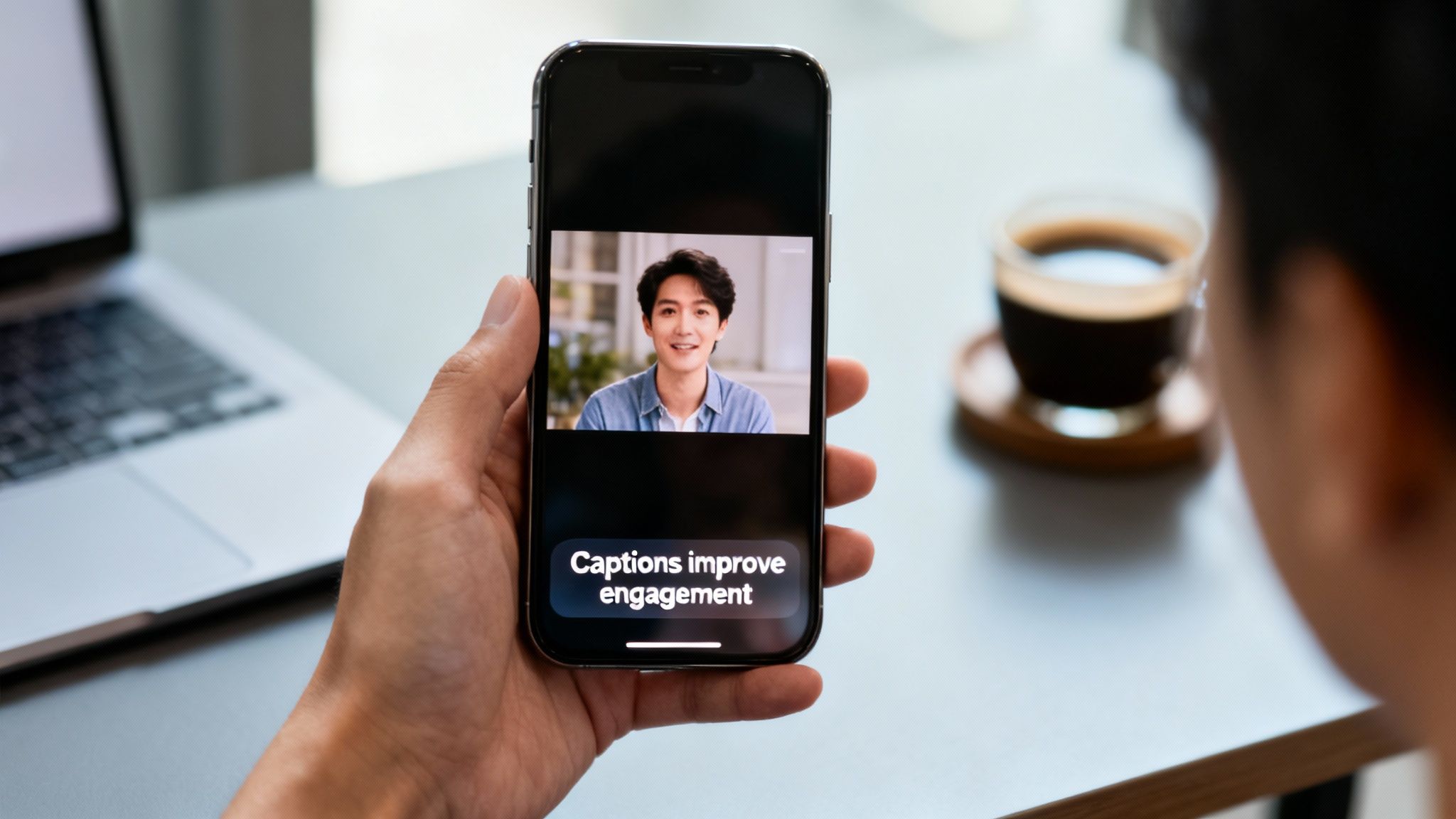
As you can see, the goal is to have clean, easy-to-read captions that make the content accessible and engaging, even when someone is scrolling with their sound off.
Once uploaded, the AI gets to work, processing the audio and generating a complete, time-stamped transcript. The last step is on you: a quick review. You'll just need to scan the text to catch any small mistakes, like a misspelled name or a missing comma.
When you're happy with the result, you can either export a separate SRT file or "burn" the captions directly onto your video. If you want to see this in action, check out our guide on the best auto captions app for a more detailed breakdown.
Take Full Control by Manually Creating SRT Files
AI captioning is a fantastic time-saver, but sometimes you need absolute precision. For that high-stakes piece of content—a detailed tutorial, a short film, or a big brand announcement—nothing beats manually creating a SubRip Subtitle file, better known as an SRT file. This hands-on method gives you complete control, ensuring every word, timestamp, and bit of nuance is exactly right.
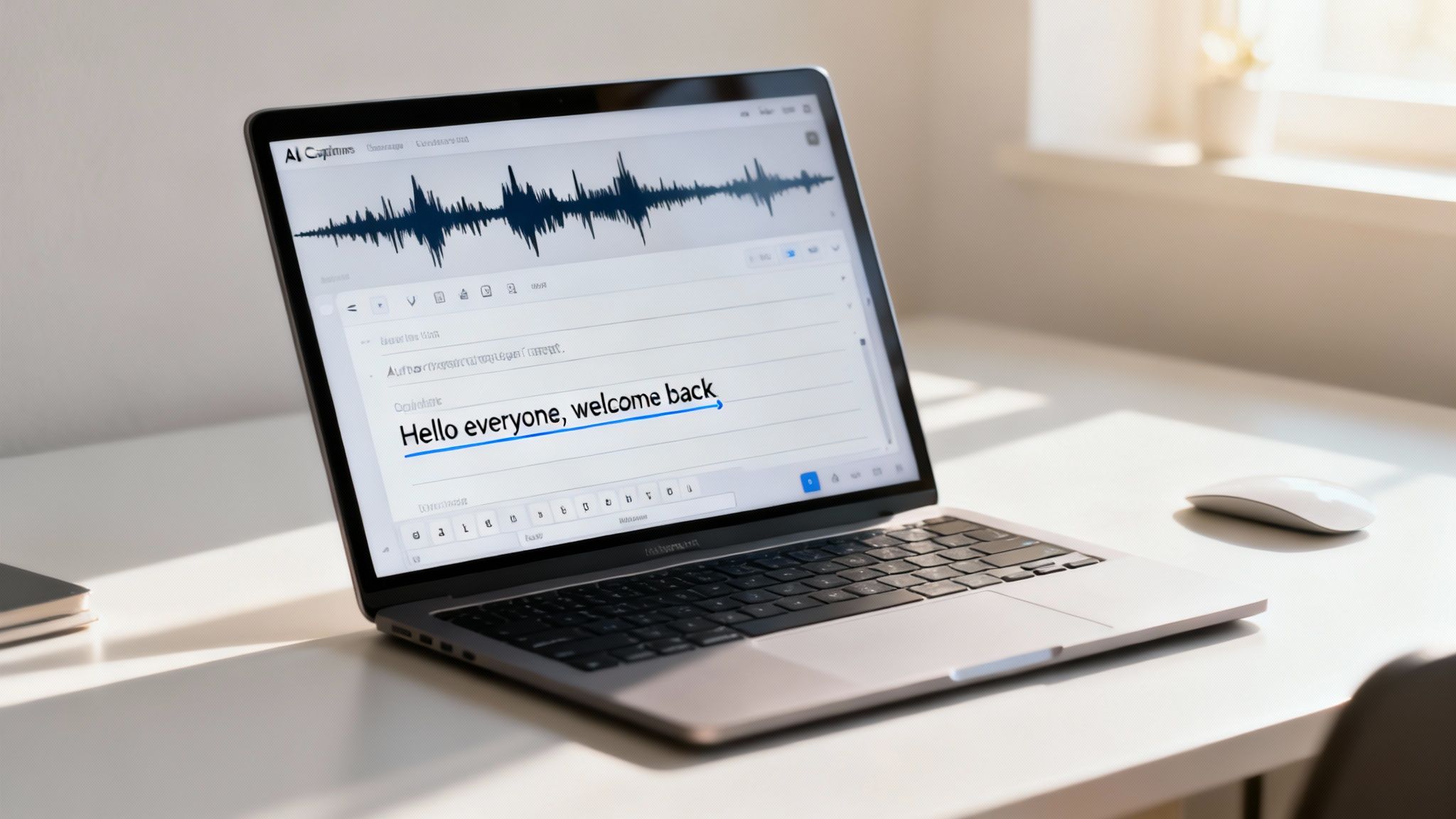
Think about it: automated tools can easily misinterpret names, stumble over technical jargon, or miss the subtle pauses in speech. When you build the SRT file yourself, you eliminate those errors entirely. The result is a professional-grade caption track that reflects the quality of your video and your brand's commitment to detail.
What an SRT File Actually Looks Like
The idea of creating a subtitle file might sound technical, but the structure is surprisingly simple. You don't need any special software to get started; a basic text editor like Notepad on Windows or TextEdit on a Mac is all it takes.
An SRT file is just a plain text document that follows a specific format. Each caption is a small block of information with three key parts:
- A number to keep the captions in sequential order (1, 2, 3, and so on).
- The timecode, which tells the video player exactly when to show and hide the text. The format is always
hours:minutes:seconds,milliseconds --> hours:minutes:seconds,milliseconds. - The caption text itself—the words your audience will read on screen.
That's it. You just repeat this three-part structure for every line of dialogue or text you want to display throughout your video.
A Quick Example
Let's break down what this looks like in a real file. Imagine your video has two short lines of dialogue right at the beginning. The SRT file would look something like this:
1
00:00:02,400 --> 00:00:05,100
Welcome to our weekly tutorial on creating faceless videos.
2
00:00:05,500 --> 00:00:08,750
Today, we're diving into the art of storytelling.
In this example, the first caption pops up at the 2.4-second mark and disappears at 5.1 seconds. After a brief pause, the second caption appears. This granular control is what allows you to sync your captions perfectly with the speaker's natural pacing.
Key Takeaway: The precision of manual SRT creation is its biggest advantage. By setting the exact start and end times, you make sure your captions never lag behind or jump ahead of the audio, which creates a much smoother and more professional experience for the viewer.
Tools and Tips for Manual Captioning
While a simple text editor gets the job done, a few free tools can make your life much easier. I often recommend Aegisub or Subtitle Edit to people starting out. These programs show you the video and its audio waveform side-by-side, so you can visually pinpoint the exact moment a caption should start and end.
Whichever tool you use, here are a few best practices I've picked up over the years:
- Break Up Long Lines: Stick to a maximum of two lines per caption. Anymore than that and you risk cluttering the screen and making it hard for viewers to keep up.
- Describe Important Sounds: Use brackets to note key audio cues that add context, like
[upbeat music]or[door closes]. This is crucial for accessibility. - Identify Different Speakers: If your video has multiple speakers, you can prevent confusion by adding their name, like
John: Great point.
Yes, this method takes more time. But the payoff is a polished, perfectly timed caption track that makes your video more professional, accessible, and engaging.
Adding Captions Directly on YouTube, TikTok, and Instagram

While dedicated AI tools and manual SRT files give you a ton of control, sometimes the quickest path is the best one. All the major social platforms have their own built-in captioning tools, and they're designed to get the job done right inside the app you're already using.
This is a huge time-saver. You don't have to juggle files, export anything, or re-upload your video. For creators on a tight schedule, it’s a game-changer. There's a reason these features are so popular. The demand is massive, especially in North America, which makes up 35.5% of a global captioning market estimated at a staggering USD 6.25 billion. A lot of that growth comes from creators on TikTok and YouTube who rely on automated subtitles to keep their audience hooked.
Captioning Your Videos in YouTube Studio
YouTube has a pretty powerful system for handling captions baked right into YouTube Studio. As soon as you upload a video, it gets to work automatically generating a full set of captions with its speech recognition tech. Think of this as your rough draft.
To polish them up, head over to the "Subtitles" tab for your video. You’ll see the auto-generated track waiting for you. The best move is to duplicate it and start editing from there. YouTube’s editor is straightforward—you can fix typos, tweak the timing of each line, and even add speaker labels if multiple people are talking.
While the auto-captions are often surprisingly good, they almost always stumble on things like brand names, acronyms, or any kind of background noise. A quick manual review is non-negotiable if you want a professional look.
Expert Tip: Once you’re done editing, always save your work as a brand-new caption track. This keeps the original auto-generated file as a backup and makes sure your polished, accurate version is what viewers see by default.
Adding Captions for TikTok and Instagram Reels
On platforms like TikTok and Instagram, captions are more than just text—they’re a core part of the video's style. Both apps have simple, effective tools to add captions while you're still in the editing flow.
- TikTok Auto-Captions: After you've got your clip ready, just tap the "Captions" button on the editing screen. TikTok will listen and transcribe the audio automatically. From there, you can tap the text to fix any errors and play with different fonts, colors, and styles to make it pop.
- Instagram Reels Captions Sticker: When editing a Reel, tap the sticker icon at the top and find the "Captions" sticker. Instagram does its thing, transcribing the audio and displaying it on screen. You can then tap the words to change the style and drag them into position.
For both platforms, placement is absolutely critical. Remember that the user interface—the username, description, like and comment buttons—takes up a lot of room at the bottom and sides of the screen. You have to keep your captions in the "safe zone" right in the middle to make sure they're not cut off on different phones.
Getting the technical steps right is just one piece of the puzzle. Understanding how to use high-impact social media marketing strategies helps ensure your perfectly captioned videos actually get seen. Thoughtful captioning is a small detail that makes a massive difference, making your content easy to consume whether the sound is on or off.
Crafting Captions That Actually Enhance Your Video
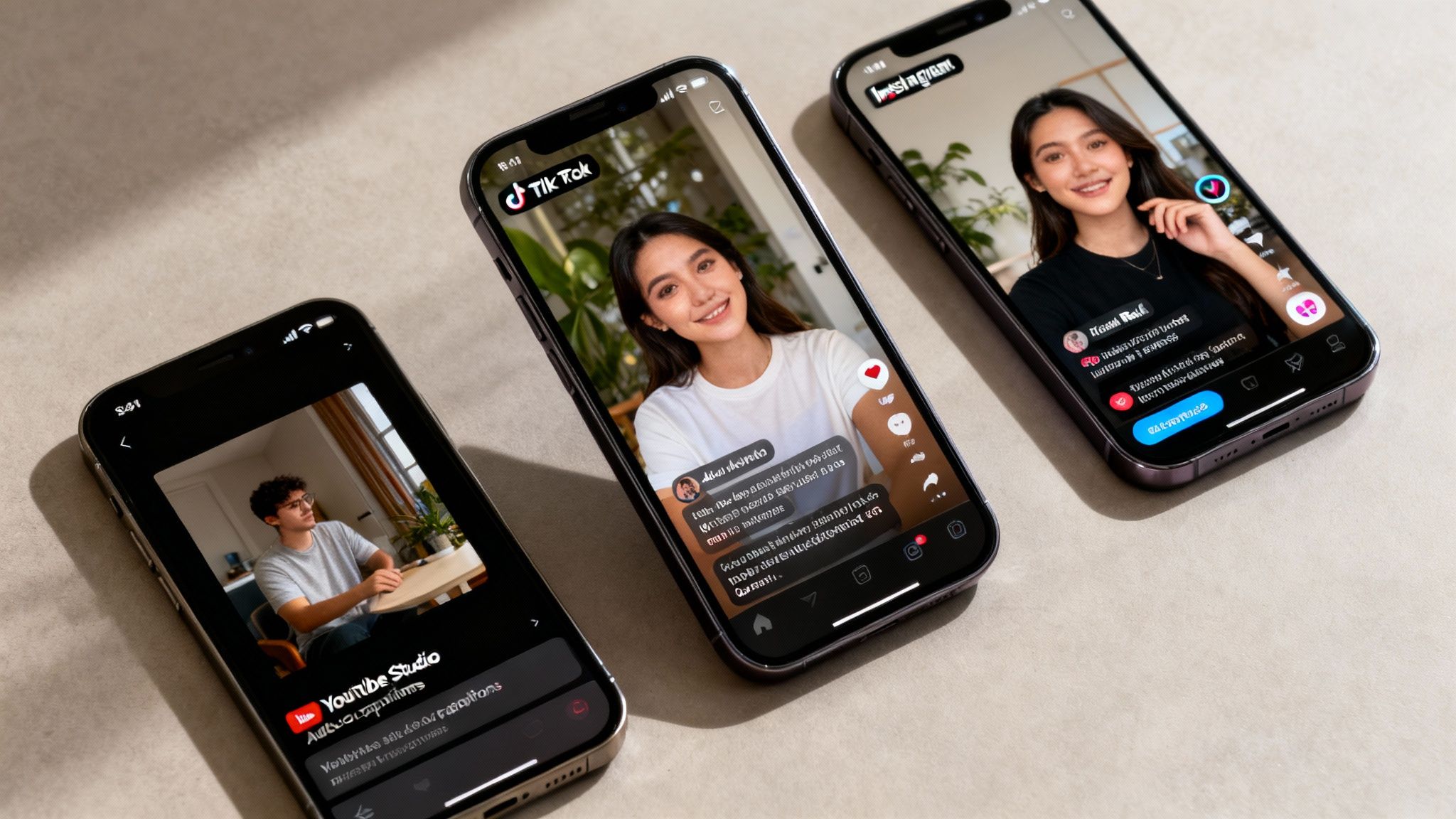
Just slapping some auto-generated text on your video isn't going to cut it. Truly great captions are designed with purpose. They don't just repeat what's being said; they add clarity, reinforce your brand, and make your content way more engaging, especially in the blink-and-you'll-miss-it world of short-form video.
The idea is to make your text feel like a natural, helpful part of the visual story.
That starts with readability. Your font, size, and color choices aren't just for looks—they directly affect how easily people can follow along. A clean, sans-serif font is usually your best friend here, as it stays crisp and clear even on tiny phone screens.
And timing? It's everything. Captions that show up too early or hang around too long are distracting and look sloppy. Your text needs to sync perfectly with the audio, appearing and disappearing right along with the speaker's voice.
Mastering Short-Form Video Captions
On platforms like TikTok and Instagram, captions have evolved. They're not just a tool for accessibility anymore; they're a core part of the creative style. This means your approach for a Reel or TikTok needs to be a bit different.
Here are a few pointers I've picked up:
- Keep It Punchy: Don't display a whole sentence at once. Showing just a few words at a time creates a dynamic, fast-paced feel that keeps viewers locked in.
- Emphasize Key Words: Use a pop of color, a background highlight, or even a well-placed emoji to make the most important words stand out. This is a classic trick to guide the viewer's focus.
- Strategic Placement: Pay close attention to the app's interface. Always keep your text near the center and away from the edges, where it can get blocked by usernames, buttons, and the description.
This approach turns your captions from a simple transcript into an animated, essential part of the story. Get it right, and you’ll see your viewer retention climb. If you want to dive deeper into this, check out our guide on finding the best font for subtitles that nails the balance between style and readability.
Open Vs. Closed Captions: What's The Difference?
One of the first technical decisions you’ll face is whether to use open or closed captions. They might look the same to the viewer at first glance, but how they function is completely different, and picking the right one depends entirely on your video's purpose and where you plan to post it.
The table below breaks down the key differences to help you decide which format is best for your project.
Open Captions vs Closed Captions
| Feature | Open Captions (Burned-In) | Closed Captions (.SRT File) |
|---|---|---|
| Viewer Control | Cannot be turned off | Can be turned on or off by the viewer |
| How It's Added | Permanently part of the video file | A separate .SRT file uploaded with the video |
| Customization | Style (font, color, size) is fixed by the creator | Viewer can often customize style in their platform settings |
| Best For | Social media (TikTok, Reels), creative videos, ads | YouTube, educational content, corporate videos, films |
| SEO Impact | No direct SEO benefit | Search engines can crawl the text, boosting discoverability |
| Accessibility | Always visible, ensuring access for everyone | Relies on the user to enable them |
So, what does this mean for you?
Open captions are "burned into" the video. Think of them as a permanent part of the image, just like any other visual effect. The viewer can't turn them off. This is the go-to style for social media clips where the text is a key part of the creative vibe.
Closed captions, on the other hand, are delivered as a separate sidecar file (usually a .SRT file). This gives the viewer total control to toggle them on or off. It's the standard for platforms like YouTube and Vimeo, where user experience and accessibility are top priorities.
Key Insight: Use open captions when the text is an integral part of your video's creative style (like on social media). Choose closed captions when you want to give viewers control and maximize accessibility (like for educational or corporate content).
Common Questions About Video Captions (Answered)
Even after you've got the basics down, a few tricky questions always seem to pop up once you start captioning your own videos. Let's dig into some of the most common ones I hear, so you can tackle your next project with total confidence.
Lots of people use "subtitles" and "closed captions" like they're the same thing, but they actually have different jobs. Subtitles are for viewers who can hear the audio but need a translation. Think of watching a foreign film.
Closed captions (CC), however, are built for viewers who can't hear the audio. They don't just show the dialogue; they also include key sounds that add context, like [upbeat music] or [door slams]. It's a small distinction, but a crucial one for accessibility.
How Can I Fix Captions That Are Out of Sync?
Nothing ruins a video faster than captions that are out of sync. It’s a super common problem, especially when you're relying on auto-generated captions to do the heavy lifting. The fix is almost always a manual one, either by editing the timecodes in your SRT file or using the built-in caption editor on platforms like YouTube Studio.
If you notice a consistent delay throughout the entire video, here are a couple of things to check:
- Frame Rate Mismatch: This is the usual suspect. Make sure the frame rate of your video file matches the project settings in your video editor. If they don't line up, your captions can slowly drift out of sync.
- Bulk Shifting: Don't waste time adjusting every single line. Most good caption editors let you select all the captions at once and shift them forward or backward by a set amount of time.
Getting the timing right is a small tweak that makes a huge difference in how professional your video feels.
What Are the SEO Benefits of Captioning?
Adding captions is one of the biggest (and easiest) SEO wins you can get for your video content. Search engines like Google are incredible at reading text, but they can't actually watch your video to understand what it's about.
When you upload a caption file, you’re basically handing Google a perfect, word-for-word transcript.
Every single keyword you say out loud is suddenly text that search engines can crawl and index. This massively expands the number of search queries your video can rank for, turning your spoken words into powerful, searchable metadata.
How Should I Handle Videos With Multiple Languages?
If you have speakers using different languages in your video, you've got a couple of solid options. The most common approach is to create a single caption file that transcribes everything as it's spoken. You can add a simple note to indicate the language shift, like [speaking Spanish].
For a more user-friendly experience, especially with a global audience, you could provide separate caption tracks for each language. This lets viewers pick the language they need, making your content way more accessible and enjoyable for everyone.
Ready to create engaging, captioned videos without all the manual work? ClipCreator.ai automates the entire process, from script to final video, complete with accurate subtitles. Stop spending hours editing and start publishing consistently. Create your first viral-style videos today at https://clipcreator.ai.

Create your first video in under 2 minutes
Pick a niche, and ClipCreator.ai generates and auto-posts faceless videos to your channels every day.
Join ClipCreator.ai