You've probably seen this happen. You add text to a clip, drag it roughly into place, hit play, and it instantly looks fake. The words slide when the camera moves. A sticker that should feel attached to a product floats like it's on glass. Even a simple arrow pointing at something important can break the illusion.
That's the moment camera motion tracking becomes useful.
For short, faceless social videos, motion tracking isn't just a VFX trick for giant movie studios. It's a practical way to make labels, captions, callouts, screen replacements, and simple graphics feel like they belong inside your footage. If you make recipe clips, product demos, desk setups, craft videos, story visuals, or educational reels, this is one of the cleanest ways to make edits feel more polished without making them feel over-edited.
What Is Camera Motion Tracking Anyway
Camera motion tracking is the process of teaching software to follow how a camera moves through a shot so another element can move with it. That element might be text, a graphic, a blur, a highlight box, or a 3D object.
A simple way to think about it is this: the software acts like a careful assistant watching your footage frame by frame, trying to answer one question. Where did the camera go, and how did things in the image shift because of that movement?
Once it understands that movement, you can attach something new to the shot.
A creator example that makes it click
Say you filmed a slow pan across a coffee table for a faceless lifestyle video. You want the word “Morning setup” to hover near the mug as the camera moves. Without tracking, you'd manually keyframe the text and hope it stays believable. With tracking, the software analyzes the shot and helps the text stick to the scene.
That's why tracking feels magical when it works. The graphic stops behaving like an overlay and starts behaving like part of the footage.
Motion tracking is less about making things move, and more about making added elements move for the right reason.
The idea is older than most people think
The basic principle behind this goes back surprisingly far. In 1878, Eadweard Muybridge's The Horse in Motion used a sequence of still photographs to analyze movement, and by 1882, Étienne-Jules Marey's photographic gun could capture 12 photographs per second, establishing the idea of breaking motion into separate images for analysis, as described by the Science and Media Museum's history of motion capture.
That old idea still powers modern tracking. Your editing app isn't seeing “motion” as one smooth thing. It's comparing image after image and looking for patterns it can follow.
What creators usually confuse
People often mix up camera movement and object movement. They're related, but they're not the same problem.
- Camera movement: The whole view changes because the phone or camera moves.
- Object movement: A person, hand, product, or car moves inside the frame.
- Tracking: The software tries to understand one or both of those changes well enough to anchor something new.
If you remember one thing, remember this: camera motion tracking is how editors make added elements stay believable inside moving footage.
Understanding 2D Versus 3D Motion Tracking
Most confusion around camera motion tracking comes from this split. Some tools track a surface. Others reconstruct a sense of space.
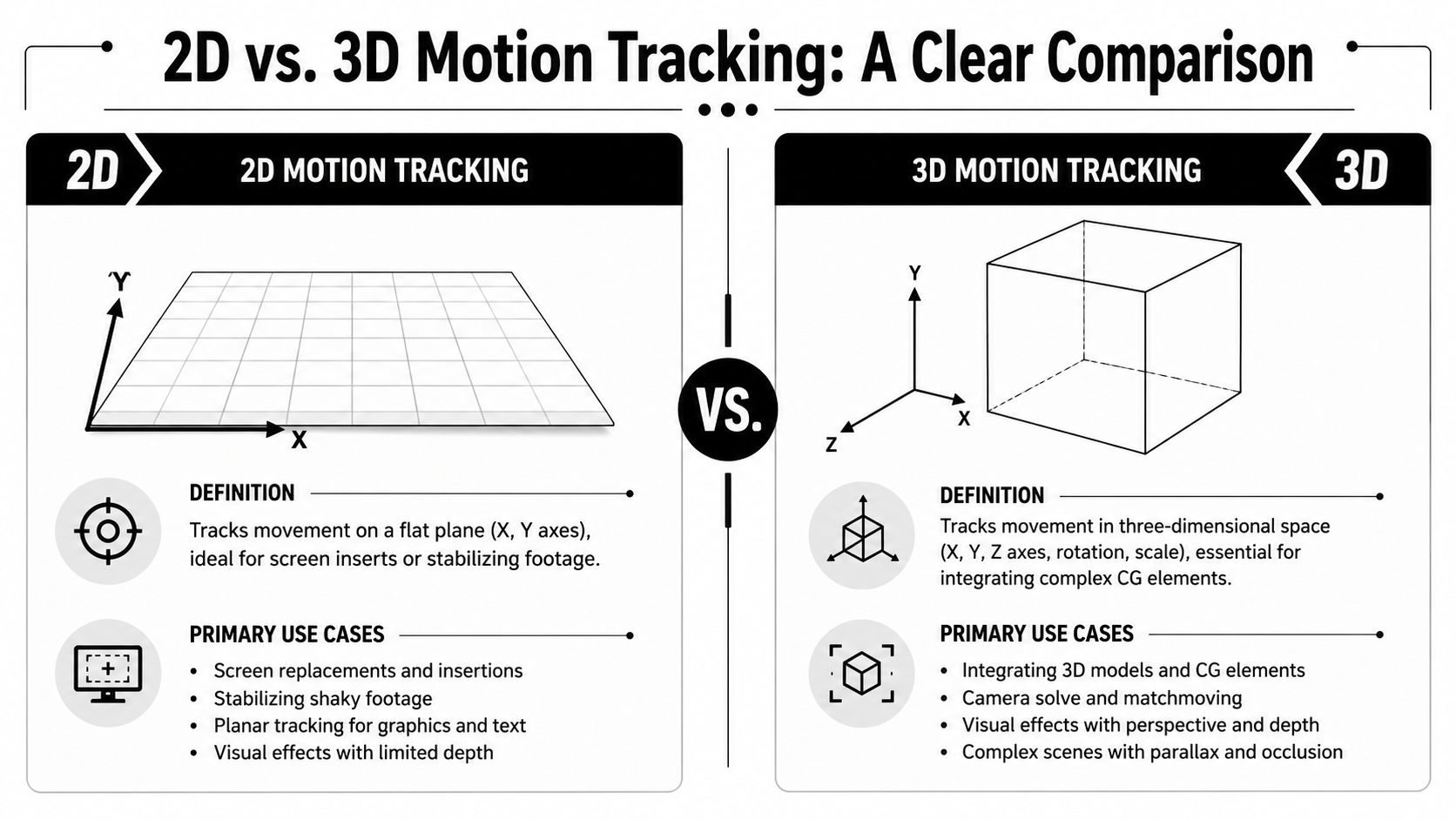
2D tracking is like sticking a label onto a moving postcard
2D tracking works on a flat image plane. The software watches points or patterns in the frame and tracks how they shift left, right, up, down, rotate, or scale.
If you've ever added a label to a laptop screen, tracked a blur over a face, or made a caption follow a notebook on a desk, you were probably in 2D territory.
This is the version most short-form creators will use most often because it's fast and practical.
Common 2D uses include:
- Text callouts: A title follows a book cover, keyboard, or plate.
- Screen replacement: A flat phone or monitor display gets swapped.
- Quick stabilization: You reduce distracting shake by tracking a part of the shot.
- Blur or mask tracking: A shape follows an object through the frame.
3D tracking is like rebuilding the room
3D tracking goes further. Instead of only tracking a flat patch, it estimates how the camera moved through three-dimensional space. That lets you place a digital object into the scene so it reacts more naturally to perspective.
Think of 2D as putting a sticker on the image. Think of 3D as placing an object inside a small virtual copy of the shot.
The key difference: 2D tracking helps things stick to the footage. 3D tracking helps things exist inside the footage.
That matters if you want a virtual object to feel planted on the floor, behind a table edge, or deeper in the room rather than pasted on top.
Why 3D tracking matters in pro work
In professional virtual production, 3D camera tracking systems continuously measure a camera's position, orientation, and movement in 3D space and feed that data into a virtual scene in real time, which keeps CGI backgrounds aligned with the live-action camera during the shot, according to Arwall's explanation of camera tracking systems.
You probably don't need that setup for a faceless YouTube Short. But it helps to know the spectrum. The same core idea that keeps giant LED-wall productions aligned is also what helps your simple overlay stop sliding around.
Which one should a creator use
Here's the practical shortcut:
| Goal | Better fit |
|---|---|
| Attach text to an object | 2D |
| Track a blur or highlight | 2D |
| Replace a flat screen | 2D |
| Add a 3D object into a moving scene | 3D |
| Make graphics feel embedded in space | 3D |
If your content is mostly social video, start with 2D and only move into 3D when the shot demands it.
If you already like turning still visuals into more dynamic content, this is closely related to the same creative mindset behind making flat media feel alive, as shown in this guide on how to make photos move.
The General Workflow for Motion Tracking
A lot of creators think tracking happens in one click. Sometimes it does. Good results usually come from understanding the flow behind that click.
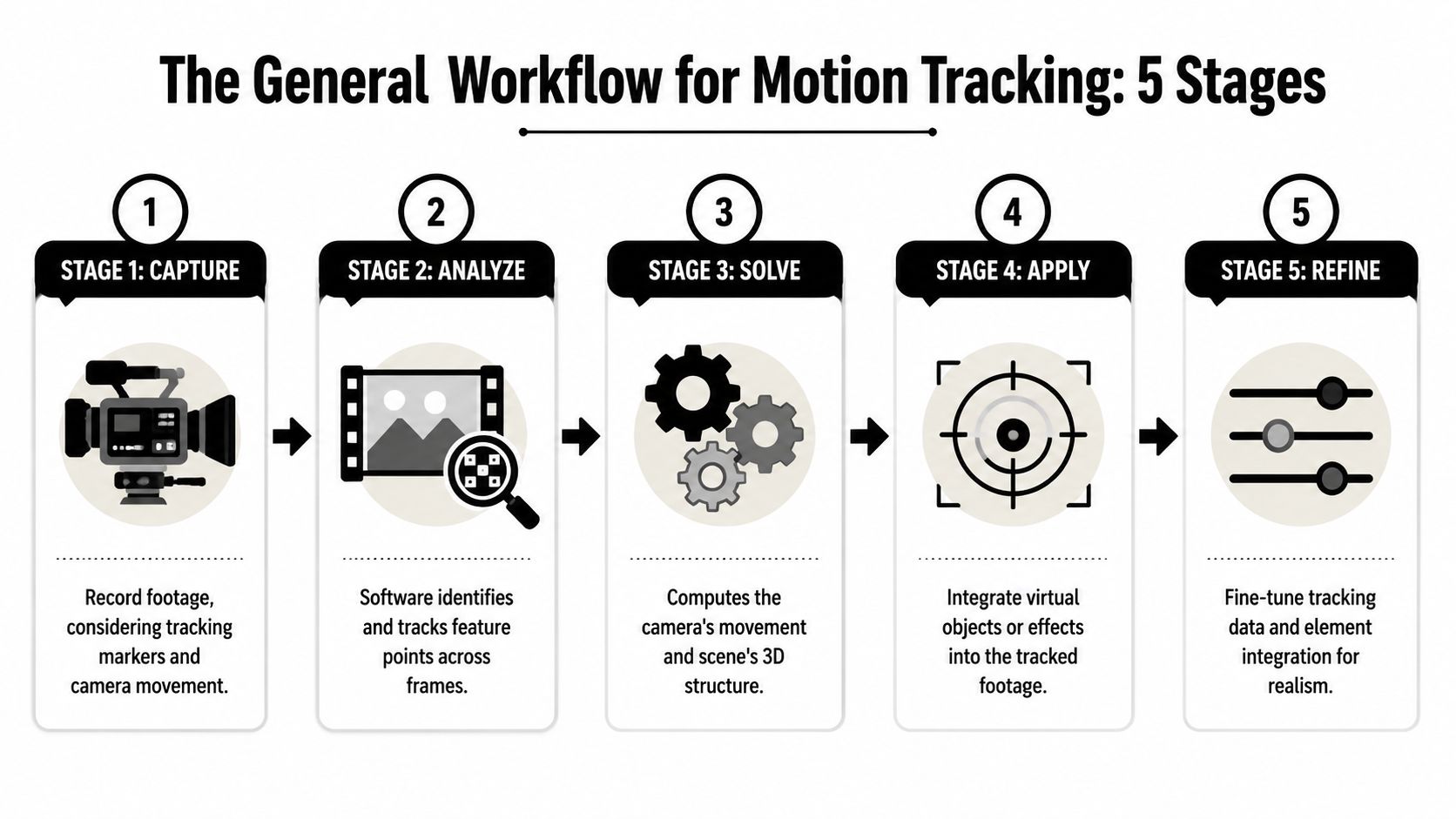
Capture
Tracking starts before you open any software. You need footage with details the software can recognize. Edges, texture, contrast, and controlled movement all help.
A blank white wall gives a tracker very little to hold onto. A tabletop with wood grain, a book cover, or a phone with visible edges is much easier.
Analyze
The app scans the footage and looks for features it can follow from frame to frame. Those might be corners, patterns, or areas with clear contrast.
You don't need to know the math. You only need to know that the software is searching for visual clues that stay identifiable long enough to follow.
Solve
The “solve” is the moment the software decides what the camera or tracked surface likely did. It turns the observed movement into usable motion data.
If tracking feels mysterious, this is the hidden middle. The software isn't guessing randomly. It's trying to build the most believable explanation for the movement it observed.
Practical rule: If the solve looks wrong, the problem usually started in the footage or in the chosen tracking area, not in the final graphic.
Apply
Now you attach something to that motion. This might be text, a logo, a shape layer, a screenshot, or a simple 3D element.
This is the fun part, but it only works if the earlier steps were clean.
Refine
Refining is where a basic track becomes a believable one. You may need to adjust position, smooth jitter, tweak scale, or add a little motion blur so the new element matches the original clip.
A clean workflow often looks like this:
- Shoot for trackability: Avoid muddy blur and featureless surfaces.
- Choose good points: Pick areas with texture and contrast.
- Let the software analyze: Give it time to build the motion path.
- Attach the element: Text, sticker, blur, or replacement goes on.
- Polish the result: Fix drift, timing, and visual mismatch.
For creators, that last stage matters most. A track can be technically correct and still feel wrong if the added element is too sharp, too stiff, or too perfectly locked compared with the natural movement of the shot.
Common Tools for Camera Motion Tracking
You don't need a giant VFX suite to start using camera motion tracking. The tools span desktop, free software, and mobile apps.
Desktop tools creators grow into
Adobe After Effects is still one of the most common places people first meet tracking in a serious way. Its built-in tracking tools and 3D Camera Tracker make it a natural step up when you want more control over text, screen inserts, masks, and simple compositing.
DaVinci Resolve also gives creators room to grow, especially if they're already editing there. It sits in that useful middle ground where you can cut the video and handle more advanced finishing in the same environment.
Free tools that are more capable than people expect
Blender is the standout here. Many creators think of it as “that 3D app,” but it also includes motion tracking features that can handle real compositing work if you're willing to learn a different interface.
The tradeoff is time. Free doesn't always mean easier. But if budget is your main obstacle, Blender proves cost isn't the barrier people assume it is.
A good tracking tool doesn't need to be the most advanced one. It needs to match the complexity of the shot you're actually making.
Mobile apps and lightweight editors
For fast social content, creators often use tools like CapCut or other mobile-friendly editors with built-in tracking features. These won't replace a dedicated VFX workflow, but they can be enough for tracked captions, stickers, and simple object-following effects.
That's the useful shift. You can now do basic tracking where you already edit.
If you're deciding whether to stay in a simpler mobile-first workflow or move into a heavier desktop setup, this comparison of CapCut vs Premiere Pro helps frame the tradeoff.
A simple way to choose
Use this filter:
- Pick mobile tools when speed matters more than precision.
- Pick desktop editors when you need cleaner control over text, masks, and composites.
- Pick Blender or a dedicated VFX workflow when you're placing elements into space or building more stylized scenes.
Most faceless social creators don't need the deepest tool. They need the fastest tool that still makes the effect look intentional.
Tracking Tips for Short Faceless Videos
Faceless content has one big advantage for tracking. You often control the subject, the framing, and the pace. That means you can shoot in a way that makes camera motion tracking much easier.
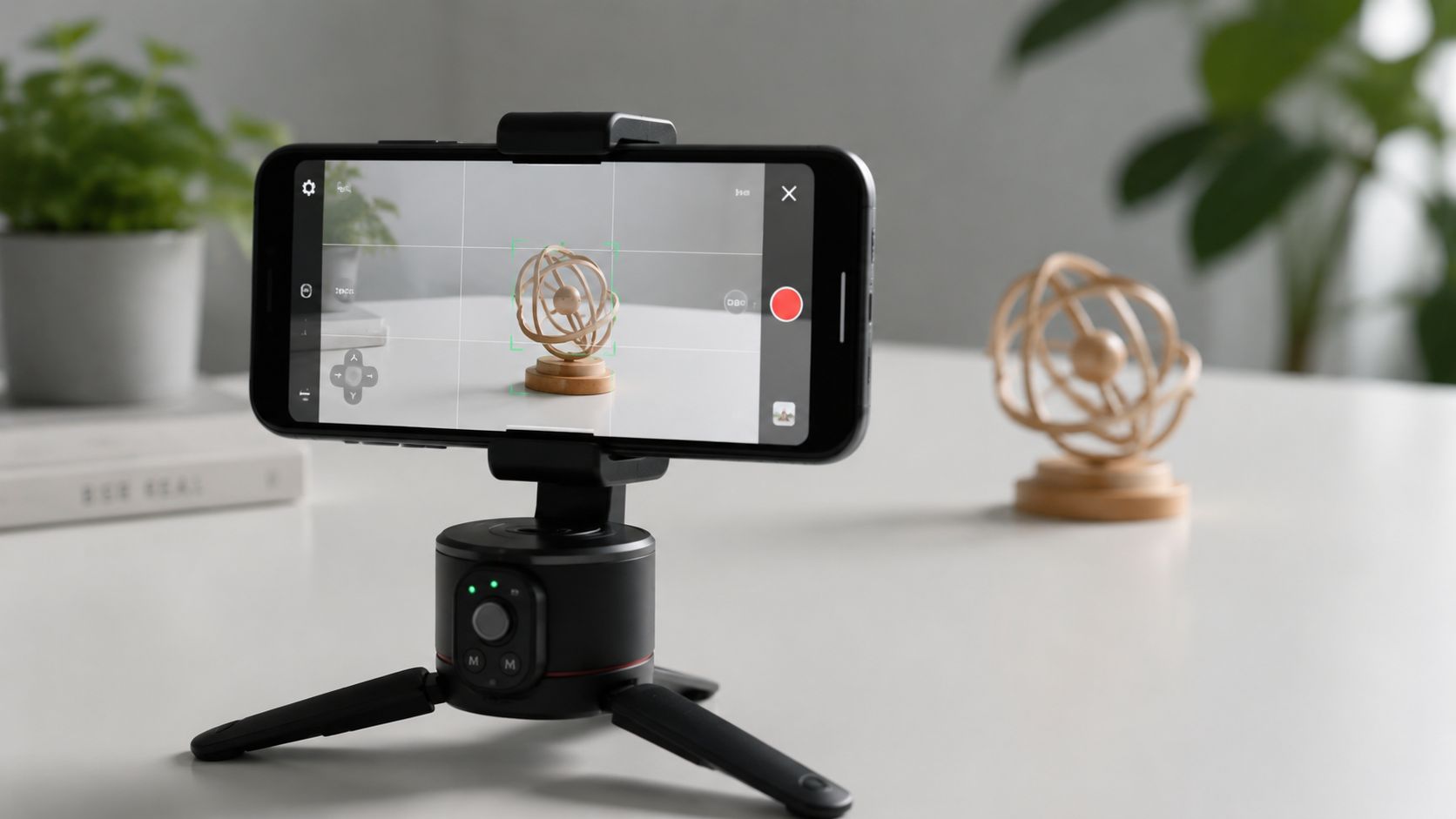
Start with shots that give the software something to grab
A top-down desk shot works well because objects usually have clean edges and visible texture. A product demo on a table works well for the same reason. A quick handheld clip in dim lighting with lots of blur is harder.
Since September 2014, when the iPhone 6 introduced 1080p HD at 60 fps and 240-fps slow motion to a mass-market phone, higher-frame-rate capture became much more accessible, and that spread to dozens of camera types and systems, with feature-rich DSLR options also available for less than $3,000, as noted by The Broadcast Bridge's look at slow-motion video technology. For creators, the practical takeaway is simple: higher frame rates can give tracking tools denser visual information to work with.
So if a shot is fast, detailed, or likely to need tracking later, record with that in mind.
Three social video examples that work well
Product clips
You film a serum bottle rotating on a table. Add a tracked label that follows the bottle or hovers beside it with “New drop” or “Best for dry skin.” This looks much better when the text moves with the shot rather than sitting static in screen space.
Educational desk videos
You pan over a notebook, map, or printed quote. Tracking lets you pin terms, arrows, or definitions to exact spots. For faceless teaching content, this can make your explanation feel more visual without needing a talking head.
Recipe and DIY videos
A tracked ingredient tag over a bowl or a measurement callout near a jar can guide the eye without cluttering the whole frame. The viewer understands what matters instantly.
Shoot like an editor, not just a filmer
A few habits make a big difference:
- Leave visual texture: Plain glossy surfaces are harder than labels, grain, seams, or corners.
- Control blur: Fast whip movement can make details smear together.
- Keep lighting steady: Big exposure shifts can confuse a track.
- Let objects stay visible: If the thing you want to track keeps leaving frame, expect trouble.
- Move with intention: Slow pans and arcs are easier to track than shaky corrections.
If you want ideas for combining tracking with overlays, transitions, and text treatment, this roundup of video editing effects is a useful companion.
A short example helps here:

The mindset that keeps your videos clean
For short-form faceless content, tracking works best when it supports clarity. Don't track everything just because you can.
Use it when it answers one of these questions:
- What should the viewer notice first
- Where should the eye stay
- What information belongs to a real object in the scene
- What can move with the shot instead of fighting it
That approach usually beats flashy overuse. A single tracked title on the right object often looks more professional than five animated elements competing for attention.
When Motion Tracking Fails and Why
Tracking failure usually feels random the first time you hit it. It isn't random. The software loses confidence because the visual evidence gets messy.
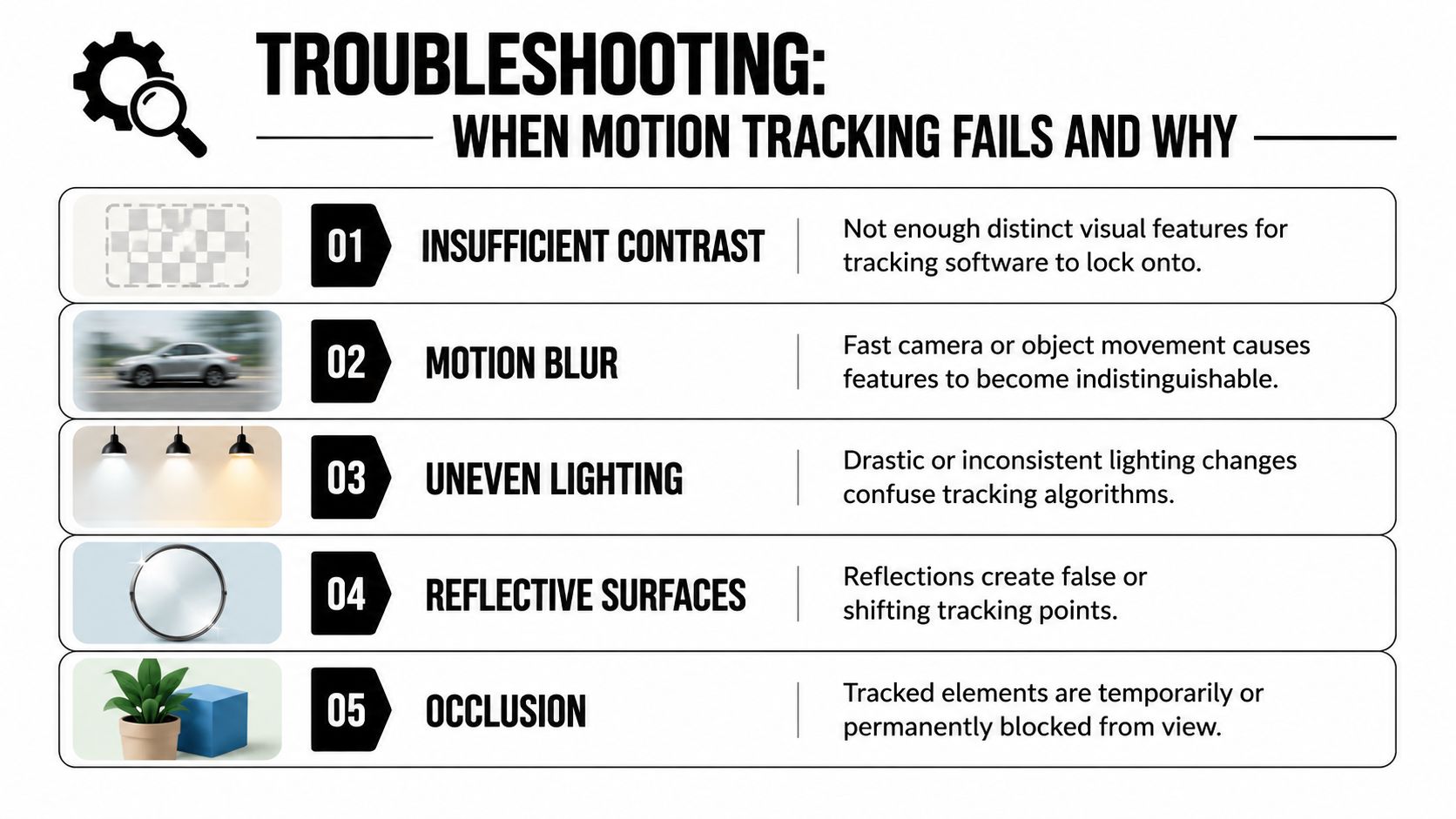
The usual causes
- Low contrast: If a surface has no clear corners, patterns, or edges, the tracker can't lock on well.
- Motion blur: Fast movement smears details that should stay distinct between frames.
- Uneven lighting: Sudden brightness changes can make the same point look like a different point.
- Reflections: Glossy surfaces create shifting highlights that look trackable but aren't stable.
- Occlusion: A hand, object, or passing element blocks the thing you were tracking.
Camera angle matters more than creators expect
One subtle problem sits underneath all of this. Sometimes the footage is fine, but the viewing angle limits what motion can be detected clearly.
A controlled study found that camera angle affects tracking accuracy, and a fixed side-on view is poor at detecting motion toward or away from the camera because that angle gives limited depth information, as explained in this study on how shooting direction affects movement detection.
That has a simple creative implication. The “best” angle isn't just the prettiest one. It's the angle that reveals the kind of motion you need the viewer, or the software, to read.
A quick troubleshooting checklist
| Problem you see | Likely reason |
|---|---|
| Text drifts off the object | Weak tracking area or occlusion |
| Track jitters every few frames | Blur, reflections, or poor contrast |
| The element feels glued on wrong | Wrong perspective or wrong track type |
| Tracking works, then suddenly breaks | Object leaves frame or gets blocked |
If tracking keeps failing, don't start by changing effects. Check the shot itself. Most fixes happen before the graphic is added.
That's the big key insight for creators. Good camera motion tracking starts with how you shoot, not just what software you own.
If you're making faceless short-form videos and want the production process to feel lighter, ClipCreator.ai helps you generate, assemble, and publish consistent social content without building every video from scratch. It's built for creators who want a faster path from idea to finished post.

Create your first video in under 2 minutes
Pick a niche, and ClipCreator.ai generates and auto-posts faceless videos to your channels every day.
Join ClipCreator.ai