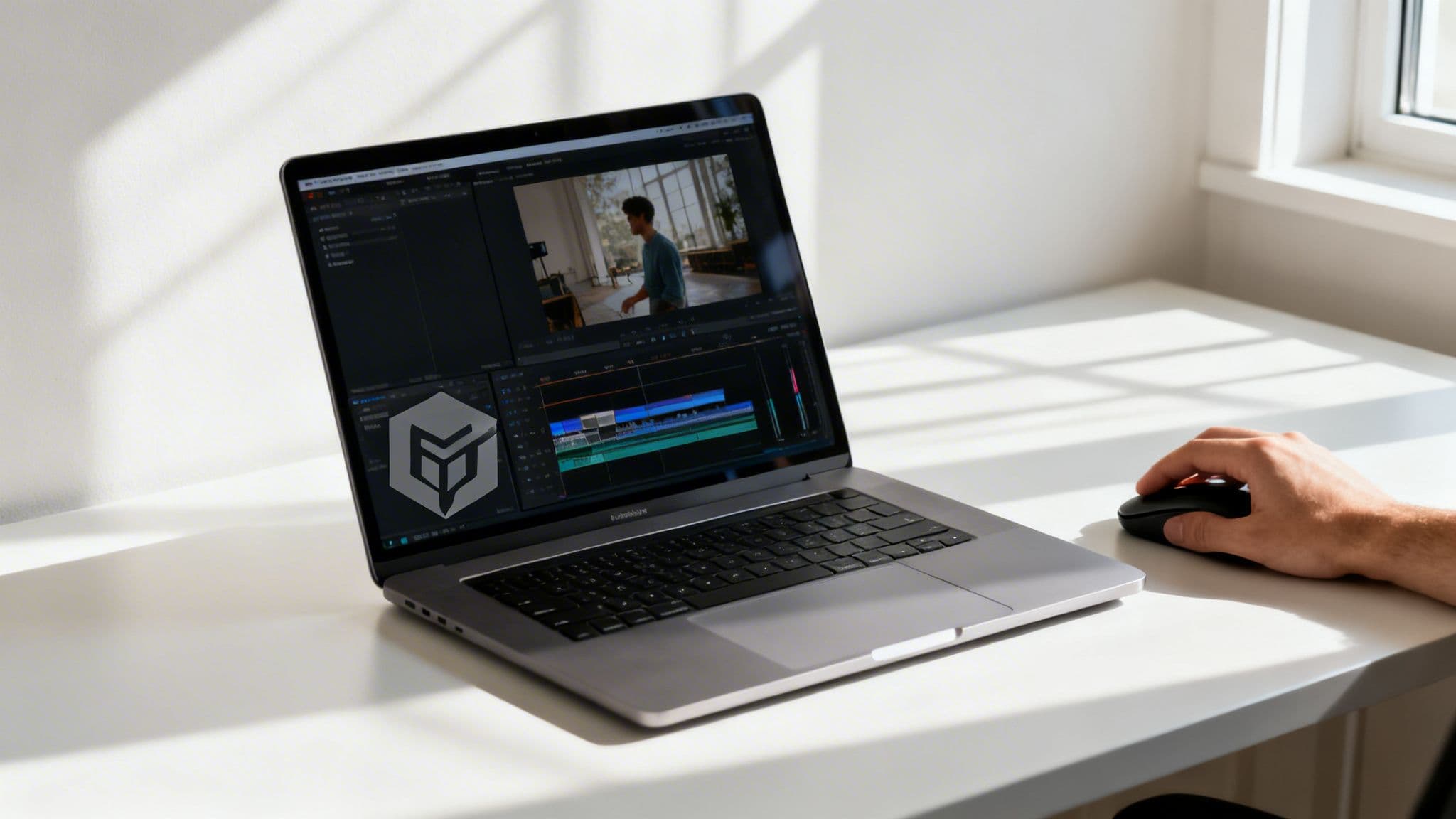
Adding a watermark to your video is as simple as adding a text or logo layer over your footage. You can get it done with powerful desktop video editors, quick online tools, or even mobile apps right from your phone. It’s the final, crucial step to protect and brand your work before it goes live.
Why Watermarking Your Videos Is a Smart Move

So, you’ve put in the hours shooting and editing a great video. Before you hit publish, let’s talk about one small step that makes a huge difference. In a world where a TikTok or YouTube Short can explode overnight, your content is your most valuable asset. Thinking of a watermark as just a defensive move is selling it short—it’s actually a core part of your growth strategy.
Protect Your Creative Work
The most obvious reason to add a watermark is for protection. It's no secret that content theft is out of control on social media. Countless accounts simply download popular videos and re-upload them as their own, stealing credit and hijacking the original creator’s audience growth.
A visible watermark is your digital signature. It makes it instantly clear who made the video and makes it much harder for someone else to pass it off as their own. Sure, a determined thief might try to crop it out, but most will just give up and find an easier, unprotected target.
Turn Every Share Into a Branding Opportunity
This is where a watermark goes from defense to offense. It's a killer branding tool. Every single time your video is shared, liked, or embedded on a website, your logo or username goes right along with it. It’s like stapling a business card to everything you create.
This constant exposure works wonders for you:
- Builds Recognition: Viewers start connecting your watermark with your unique style of content.
- Drives Traffic: Someone who discovers your video on a repost page can easily look you up.
- Establishes Authority: It just looks professional. It shows you’re serious about your work.
Think of it this way: a watermark turns passive views on other pages into active promotion for your brand. It's an effortless way to claim your digital territory and ensure you get the credit you deserve.
The market statistics back this up. The digital watermarking industry was valued at a massive USD 1.45 billion in 2024 and is expected to skyrocket to USD 3.80 billion by 2033. This explosion is driven by creators and media companies scrambling for better copyright security. It’s not just a nice-to-have anymore; it’s essential. For more on this, you can learn how to build brand awareness in our dedicated guide.
Designing a Watermark That Gets Noticed (for the Right Reasons)

There’s a fine line between a watermark that protects your work and one that just screams "amateur." A well-designed watermark should feel like part of the video, subtly reminding viewers of your brand without yanking their attention away from the content itself.
The first question you have to answer is: logo or text? Honestly, there’s no right or wrong choice here—it really boils down to your brand’s personality and how established you are.
- Logo Watermark: If you’ve already got a great, recognizable logo, use it. It’s a fantastic way to reinforce your brand’s visual identity and give your videos a professional sheen. The trick is to use a simplified version; a complex logo with tons of detail will just turn into an unreadable smudge when scaled down.
- Text Watermark: Just starting out or don't have a logo yet? No problem. A clean text watermark works wonders. Simply use your brand name, website URL, or social media handle (like @YourBrand). It’s direct, clear, and gets the job done perfectly.
Finding the Right Balance with Transparency
The real art of a good watermark is in the opacity. You’re aiming for that perfect middle ground where it’s visible enough to be legible but transparent enough to not be a distraction.
Through a lot of trial and error, I've found the sweet spot for opacity is generally between 20% and 50%. A good starting point is 30%, and then you can tweak it from there. The final number really depends on the watermark's color and the kind of footage you shoot. A dark gray logo might only need 20% opacity over bright, outdoor scenes, while a white one might need to be closer to 50% to show up consistently.
Think of it this way: your watermark shouldn't shout "This video is mine!" It should whisper it. A subtle, semi-transparent mark signals confidence and feels integrated, not just slapped on as an afterthought.
Color and Font Choices Matter
When it comes to the details of your design, simplicity is your best friend. Choose clean, simple fonts that are easy to read even when they're small. Fancy script or overly decorative fonts tend to become a blurry mess, which completely defeats the purpose.
For color, you almost can't go wrong with monochrome—think pure white, off-white, black, or a medium gray. These neutral tones work against nearly any background. A little pro tip: a white watermark with a very subtle drop shadow can help it pop just enough without being obnoxious.
And one last technical detail: always, always save your watermark as a PNG file with a transparent background. This is non-negotiable. It ensures you don't get that ugly, blocky white or black box around your logo when you place it over your video. For an even more professional touch, you can even animate your logo to add a bit of dynamic flair.
Choosing the Right Watermarking Tool for Your Workflow
Finding the best way to add a watermark isn't about some secret, one-size-fits-all tool. The right choice for you comes down to your specific process, your budget, and how comfortable you are with editing software. It’s all about what fits into your daily routine without slowing you down.
So, what are your options? They really fall into three main camps. What works for a professional filmmaker is complete overkill for someone posting daily TikToks, and a creator who lives on their phone needs a solution that’s just as mobile.
Comparing Video Watermarking Methods
Before we dive deep, let's get a high-level look at the trade-offs. This table breaks down the three main methods, helping you see at a glance which one might be the best fit for your projects.
| Method | Best For | Pros | Cons |
|---|---|---|---|
| Desktop Video Editors | Professional videographers, YouTubers, anyone needing maximum control. | Unmatched precision, full customization, integrates into existing workflow. | Steep learning curve, high cost, overkill for simple tasks. |
| Online Tools | Social media managers, small businesses, quick one-off projects. | No installation needed, very fast for simple tasks, easy to use. | Can have quality/length limits, free versions add their own watermark, requires internet. |
| Mobile Apps | On-the-go creators, TikTok/Reels producers, fast-turnaround content. | Extremely convenient, edits directly on your phone, great for social media. | Less precise control, can be clumsy for complex edits, file management issues. |
Each path has its place. Your job is to pick the one that removes friction from your creative process, rather than adding it.
Professional Video Editors
For creators who live and breathe high-quality video, nothing comes close to a dedicated desktop editor. I'm talking about the powerhouses: Adobe Premiere Pro, Final Cut Pro, or DaVinci Resolve. These give you complete, granular control over your watermark—its exact pixel position, opacity, blend modes, and even subtle animations.
If you're already editing your main video in one of these programs, this is a no-brainer. Adding the watermark track becomes just another small step in your existing process. The main hurdles, of course, are the tough learning curve and the price tag. If you aren't already a video editor, these tools can feel like trying to fly a 747 when you just need to cross the street.
- Best for: Professional videographers, YouTubers with polished, long-form content, and anyone who refuses to compromise on quality and control.
- Don't use if: You just need something fast and simple and have zero video editing experience.
Fast and Simple Online Tools
What if you just need to brand a video right now without downloading or learning new software? This is where online watermarking tools shine. You just go to the website, upload your video, add your logo or text, and download the finished product. It’s about as straightforward as it gets.
These are a lifesaver for social media managers, small business owners, or anyone who just wants to get a simple job done. But there's a catch. Free versions almost always have limitations—they might add their own logo to your video, cap your video length, or compress the final quality. You're also totally dependent on your internet speed for uploads and downloads, which is a pain with large 4K files.
Online tools are the definition of convenience over control. They are fantastic for one-off tasks or if you create simple videos and just need a quick branding layer before posting.
Editing on the Go with Mobile Apps
For the massive community of creators who shoot, edit, and post entirely from their phones, mobile apps are the only way to go. Apps like CapCut, InShot, or VN Video Editor have made this incredibly simple.
In most of these apps, adding a watermark is as easy as adding a "sticker" or an image overlay from your phone's photo library. This is the perfect workflow for TikTok, Instagram Reels, and YouTube Shorts where speed is the name of the game. The downside? You lose the pinpoint precision of a desktop editor, and managing lots of files on a phone can get a little messy.
If you're looking to make your entire creation process smoother, check out our guide on building an efficient video editing workflow. Ultimately, choosing the right method is about striking the perfect balance between power, speed, and convenience for the way you create.
How to Add a Watermark Using a Video Editor

When you need total creative freedom and pixel-perfect control over your watermark, nothing beats a desktop video editor. If you're serious about your video's final look, this is the way to go. Let's get hands-on and walk through a process that works across the board, whether you're using Adobe Premiere Pro, Final Cut Pro, or DaVinci Resolve.
First things first, you need to bring your assets into the project. That means importing your main video clip and, just as crucial, your watermark file. I can't stress this enough: always use a PNG file with a transparent background. This is non-negotiable if you want to avoid that ugly, blocky box around your logo.
With your files in the media bin, drag your video onto the main track (usually V1). Then, place the watermark on a separate track directly above it (V2). This simple act of layering is what makes the watermark appear over your video.
Positioning and Scaling Your Watermark
Now for the fine-tuning. Click on the watermark clip in your timeline to select it, and you'll open up a world of adjustments. The two most important settings are Position and Scale. You can either grab the watermark in the preview window and drag it around, or for more precise control, tweak the X/Y coordinates and scale percentage in the effects panel.
I usually tuck my watermarks into the bottom-right corner. It’s a standard practice that keeps it from interfering with the main subject. As for size, be subtle. A good starting point is to make it no wider than 5-10% of the screen. You want it to be seen, not screamed.
This workflow is the most detailed of several options you have for watermarking your content.
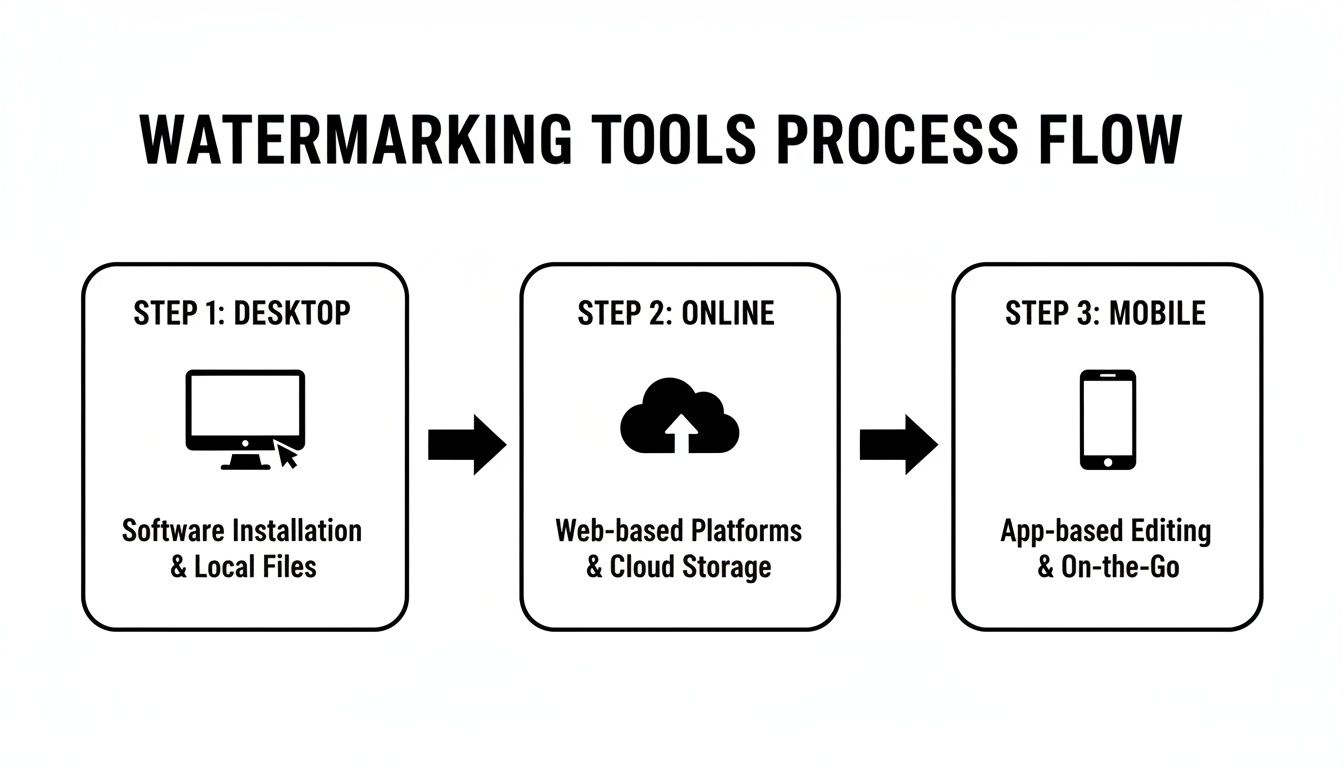
As you can see, the desktop path gives you the most control, which is why it's the standard for professional, polished videos.
Adjusting Opacity and Duration
Here's the trick that separates a professional-looking watermark from an amateurish one. With your watermark clip still selected, find the Opacity setting. Don't leave it at 100%. Lowering the opacity helps it blend into the video instead of sitting on top of it like a sticker. I’ve found that a value between 30-50% is the sweet spot.
Next, you have to make the watermark last for the entire video. By default, it might only appear for a few seconds. To fix this, just click the edge of the watermark clip on your timeline and drag it out so its length matches the video clip underneath it. Simple as that.
A well-placed, semi-transparent watermark that lasts the duration of the video feels integrated. It protects your work without disrupting the viewing experience, which is the ultimate goal.
In an age of AI-generated content, this kind of branding is more important than ever. The AI watermarking market, valued at USD 520.50 million in 2025, is projected to surge to USD 3,196.74 million by 2033. This boom is directly linked to the explosion of AI video generation, where creators are already making faceless TikTok stories and Instagram Reels. For them, a watermark is essential for proving authenticity. You can dig deeper into this trend in the full AI watermarking market report.
Don't let all this hard work go to waste with a poor export. Choose an export preset that matches your destination, like "YouTube 1080p" or "High-Quality 1080p HD." Just as important, make sure you're using a high bitrate to keep everything looking crisp. This final step locks in all your work, ensuring your branded video looks sharp and professional wherever it’s posted.
Automating Watermarks to Save Time and Scale Content

If you're posting videos every day, you know the grind. Adding your watermark to every single clip feels like a small task, but it adds up fast. That repetitive work becomes a real bottleneck, pulling you away from brainstorming ideas and actually growing your channel.
Thankfully, you don’t have to do it manually. By automating the process, you can apply your watermark to dozens or even hundreds of videos at once, letting you scale your production without being chained to your editor.
Using Batch Processing in Your Editor
Most of us already have the tools we need right in our video editing software. This is all about using batch processing to your advantage. For example, in Adobe Premiere Pro, you can use Media Encoder to create an export preset that includes your watermark—logo, transparency, position, and all.
Once you’ve got that preset saved, you just queue up all your videos, apply it, and hit export. It’s the perfect middle ground, giving you the full quality control of a professional editor but with the efficiency of automation.
- Set It Once: Design your watermark placement and look just one time.
- Apply to Many: Drag that preset onto a whole batch of videos.
- Walk Away: Let the computer handle the repetitive work while you do something more important.
The real power of automation is simple: you make a good decision once, and then you let the technology execute it for you over and over. This is how you reclaim your time from the tedious parts of content creation.
For teams churning out high volumes of content, like with an AI fashion video generator, this kind of automated watermarking isn't just a nice-to-have; it's essential for protecting every asset you create.
The "Set It and Forget It" Method: Integrated Platforms
For a truly hands-off approach, integrated creation platforms are the way to go. Tools like ClipCreator.ai build the watermarking step right into the video creation workflow.
You upload your logo and set your preferences once when you set up your account. From that point on, every single video the platform produces for you—from the script and visuals to the final render—will automatically have your brand on it. You never have to think, "Did I remember to add the watermark?" because it’s already done.
This is a huge win for anyone creating faceless content for YouTube Shorts or TikTok, as it guarantees 100% of your videos are branded and protected from the moment they’re created. If you want to see how this fits into a larger strategy, you can learn more about how to automate content creation for massive growth and consistency.
This isn't just a niche trend; it's becoming standard practice. The AI watermarking market is set to explode from USD 613.8 million in 2025 to an estimated USD 2,959.8 million by 2032. With video content projected to grab a 39.8% market share in 2025, driven by the sheer scale of social media, automated branding is the only way to keep up. You can explore the AI watermarking market trends to see what’s driving this massive shift.
Common Questions About Video Watermarking
When you're new to watermarking videos, a few common questions always seem to surface. It's completely normal to wonder if you're doing it right or if it will even make a difference. Let's tackle some of the questions I hear all the time so you can get back to creating with confidence.
Can Someone Just Remove My Watermark?
The short answer? Yes. A determined person with the right software can often crop, blur, or clone-stamp a watermark out of existence, especially if it’s just sitting in a simple, empty corner.
But here’s the thing: your watermark isn't meant to be an unbreakable digital lock. Its real job is to be a powerful deterrent.
In my experience, most content theft is opportunistic. People are looking for the path of least resistance. The extra work required to remove a well-placed watermark is usually enough to make them move on to an easier, unprotected target. It effectively weeds out the casual, low-effort content scrapers, which account for most of the theft you'll see on social media.
Does Adding a Watermark Lower Video Quality?
Not if you do it correctly. The watermark itself is just a small image or text layer placed on top of your video. By itself, it has zero impact on the quality of your actual footage.
Any drop in quality almost always comes from using the wrong export settings after the watermark is in place. To avoid this, make sure your final render uses a high bitrate and the right resolution for its destination, like 1080p for Instagram Reels or YouTube Shorts. The act of adding the watermark is harmless; a bad export is the real culprit.
Think of it like putting a small, transparent sticker on a high-resolution photograph. The sticker doesn't make the photo blurry—only re-scanning the photo at a low resolution would. The same principle applies to your video export settings.
Where Should I Put My Watermark?
The goal is to find that sweet spot between being visible and being obnoxious. The four corners of the frame are popular for a reason—they typically stay out of the way of the main action.
Here’s a pro tip: place your watermark near an edge, but not right on it. Pushing it slightly in from the corner makes it much harder to crop out without ruining the video's composition. Unless you're specifically creating a "preview" file meant for review, stay away from the center of the screen.
Should I Use a Logo or Just Text?
This really comes down to your brand's identity and what stage you're at.
- Logo: If you have a strong, recognizable logo, absolutely use it. It's a fantastic tool for building brand recall.
- Text: If you're just starting out or don't have a logo yet, your username or website URL works perfectly well.
Honestly, consistency is more important than the format. Whether it's a slick logo or simple text like "@YourChannel," using the same watermark every time helps people instantly recognize your work while they're scrolling. Don't overthink it—just pick one, make sure it’s clean and legible, and stick with it.
Ready to create stunning, branded videos without the manual effort? ClipCreator.ai automates the entire process, from script to final video, with your watermark automatically included. Start creating with ClipCreator.ai today and reclaim your time.

Create your first video in under 2 minutes
Pick a niche, and ClipCreator.ai generates and auto-posts faceless videos to your channels every day.
Join ClipCreator.ai